How to fix
“Microsoft Store is blocked” error
on Windows
Resolve the "Microsoft Store is blocked" error in Windows 10 and 11 easily. Get expert-tested solutions for a seamless experience today!

What causes How to fix “Microsoft Store is blocked” error in Windows?
- Access is blocked by group policies set by administrators
- Registry edits disabling the Store
- Third-party tools inadvertently restricting access
- System configuration for single-app (kiosk) operation
- Corporate or school account restrictions
- Windows S Mode configured to ban the Store
Repairs Windows system files, removes malware, and restores a clean OS state — without reinstalling.
I am trying to figure out why my Microsoft Store is blocked. This is a laptop I got from work but I am allowed to use it for personal use as well. How can I unblock it? I can't download any new apps because of this.
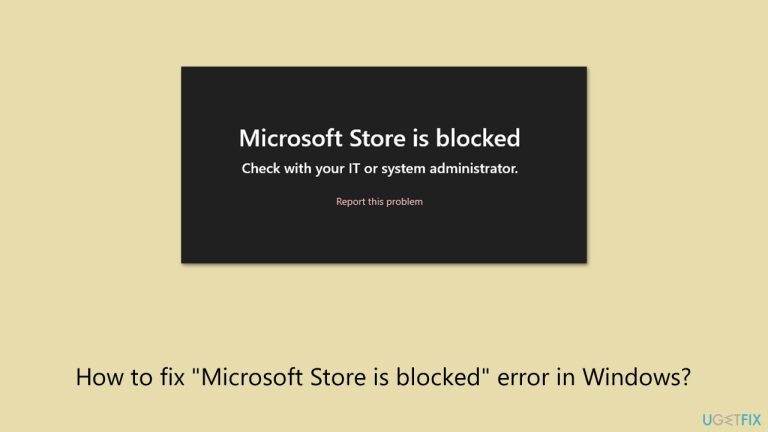
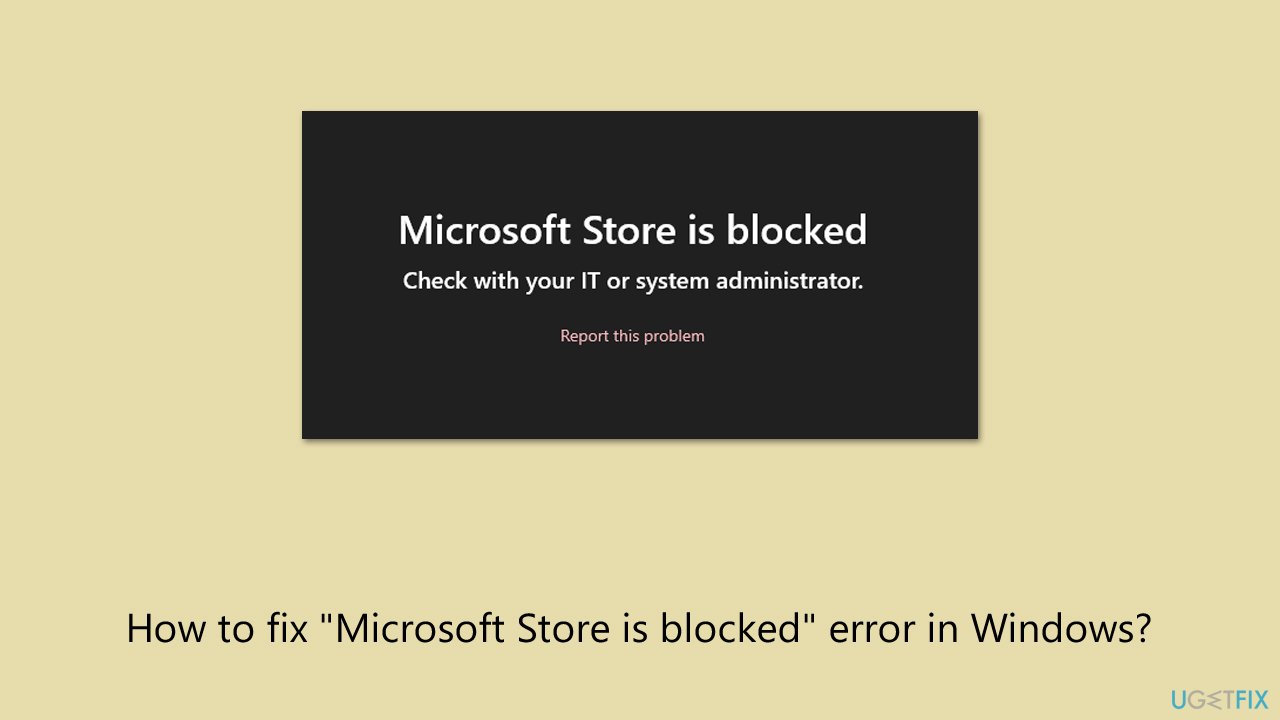
Microsoft Store is blocked error occurs when Windows prevents access to the Microsoft Store app, displaying the message "Microsoft Store is blocked. Check with your IT or system administrator."
This situation typically happens on organization-managed devices, where administrators disable the Store through group policies or mobile device management. The error is also observed on home PCs if the same restrictions are applied, either by design through registry edits or inadvertently through third-party tools.
When this happens, you can no longer browse, download, or install apps from the Store, eliminating productivity and access to the software needed. Common culprits include system configuration locking the computer down for single-app (kiosk) operation, corporate or school account restrictions, or even Windows S Mode operation, which is meant to allow only Store apps but sometimes configured to ban the Store as well.
Potential solutions to resolve the Microsoft Store is blocked error include:
- Reviewing and modifying Group Policy settings related to Store access.
- Checking and correcting relevant registry keys that disable the Store.
- Exiting Assigned Access or kiosk mode configurations.
- Switching out of Windows S Mode or adjusting its settings.
- Ensuring user accounts have appropriate permissions and aren’t governed by restrictive management policies.
- Re-registering or repairing the Microsoft Store app to clear misconfigurations.
- Running the Windows Store Apps troubleshooter to detect and fix common Store issues.
For an automated approach that can identify and resolve underlying system or policy conflicts causing this error, consider using the [d1] repair and maintenance app, which can help you with various PC problems, including those linked to Microsoft Store.
Fix 1. Modify group policy settings
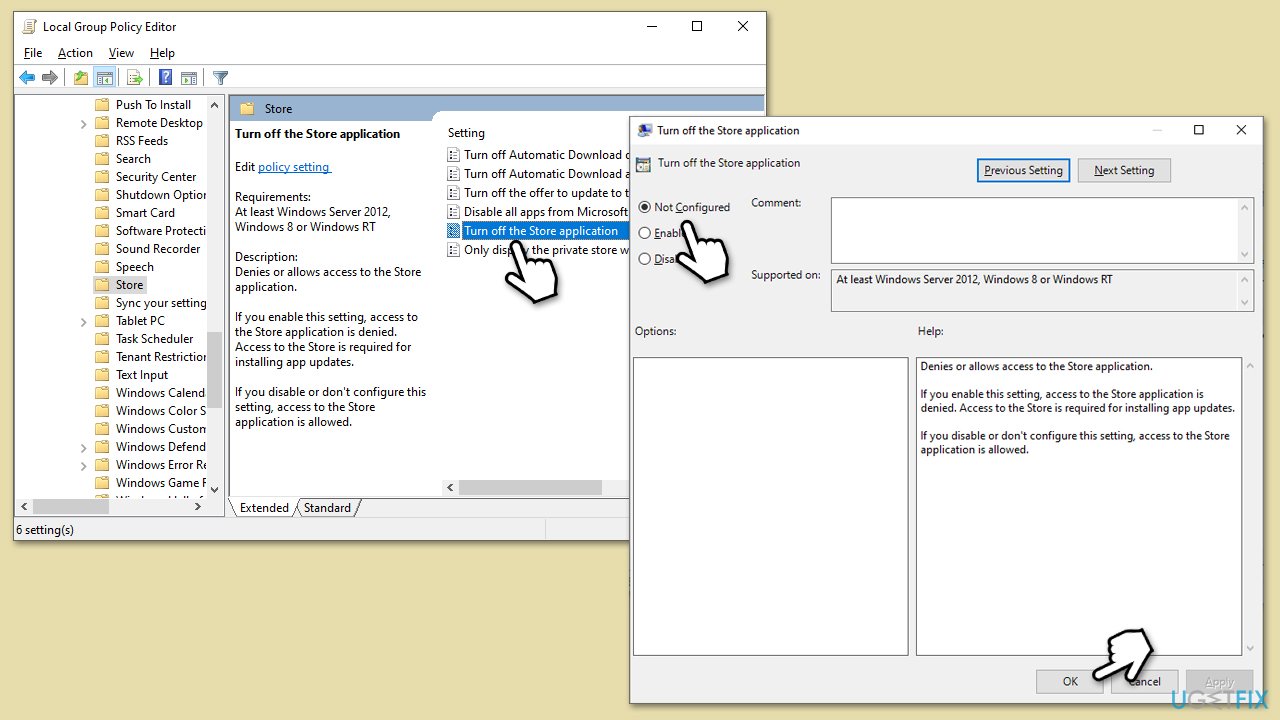
Changing the policy that disables the Store can immediately restore access if your Windows edition includes the Local Group Policy Editor.
- Type Group Policy in Windows search and hit Enter.
- Navigate to the following location:
Computer Configuration > Administrative Templates > Windows Components > Store - Double-click Turn off the Store application and set it to Disabled or Not Configured.
- Click Apply and OK, then close the editor and launch the Store.
Fix 2. Correct registry keys
If group policy isn’t available, adjusting the registry can remove the block on the Store.
- Type regedit in Windows search and press Enter.
- User Account Control windows should show up - click Yes when prompted.
- Go to the following location (copy into the address bar at the top): HKEY_LOCAL_MACHINE\SOFTWARE\Policies\Microsoft\WindowsStore
- If a DWORD named RemoveWindowsStore exists, double-click it and set its value to 0.
- Repeat in HKEY_CURRENT_USER\SOFTWARE\Policies\Microsoft\WindowsStore.
- Close Registry Editor and open the Microsoft Store.
Fix 3. Exit kiosk or assigned access mode
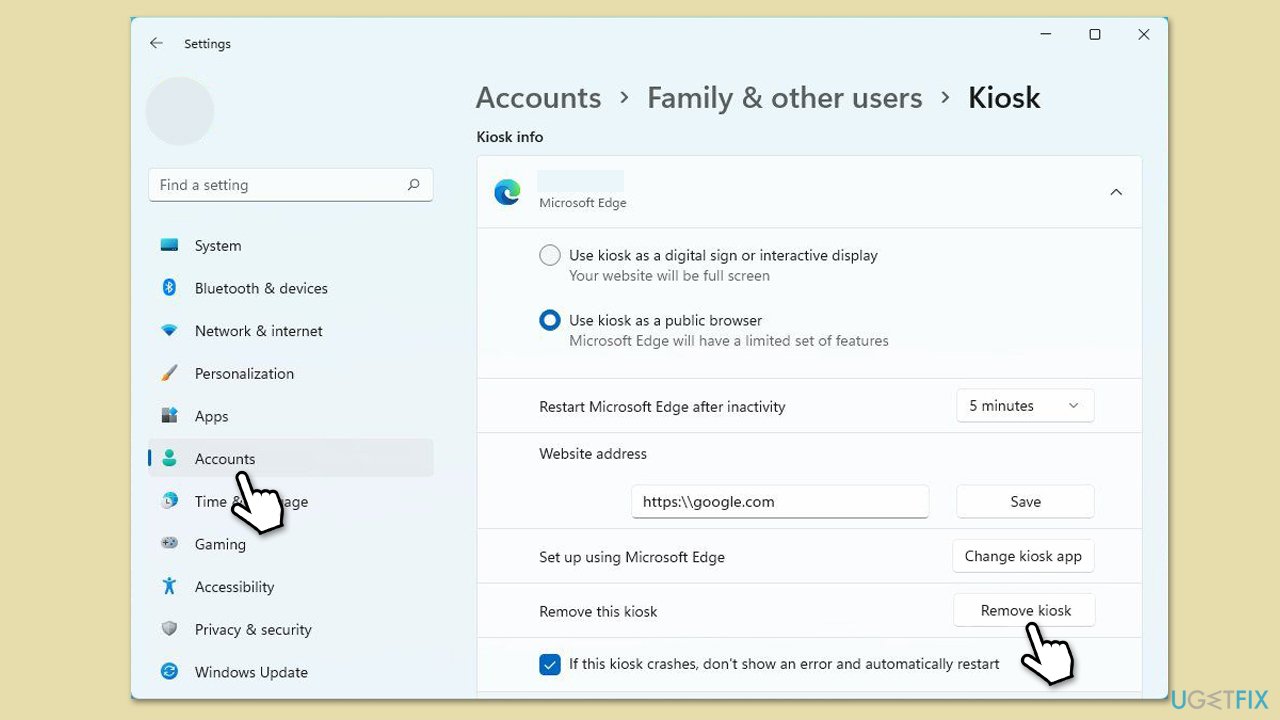
Devices in kiosk mode intentionally block the Store; exiting this mode will restore normal functionality.
- Right-click on Start and select Settings.
- Go to Accounts > Other users.
- Select the kiosk account and click Remove.
- Follow the prompts to exit Assigned Access and sign back in normally.
- Check if the Store is unblocked.
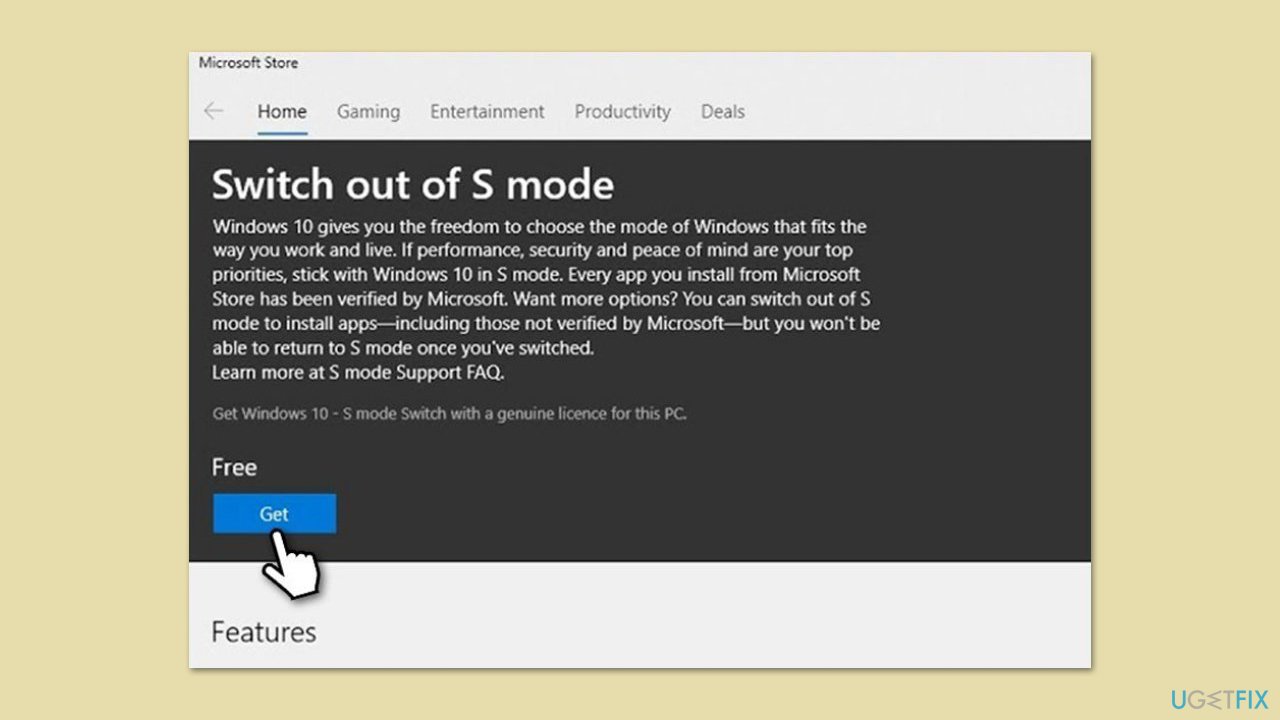
Fix 4. Switch out of Windows S Mode
Windows S Mode can block app installations, including the Store itself if misconfigured.
- Right-click on Start and pick Settings.
- Navigate to the Update & Security section.
- Click on Activation on the left-hand menu.
- Look for the Switch to Windows 10/11 Home or Switch to Windows 10/11 Pro section.
- Select the Go to the Store link and click Get.
- Follow the on-screen instructions to complete the switch out of S mode.
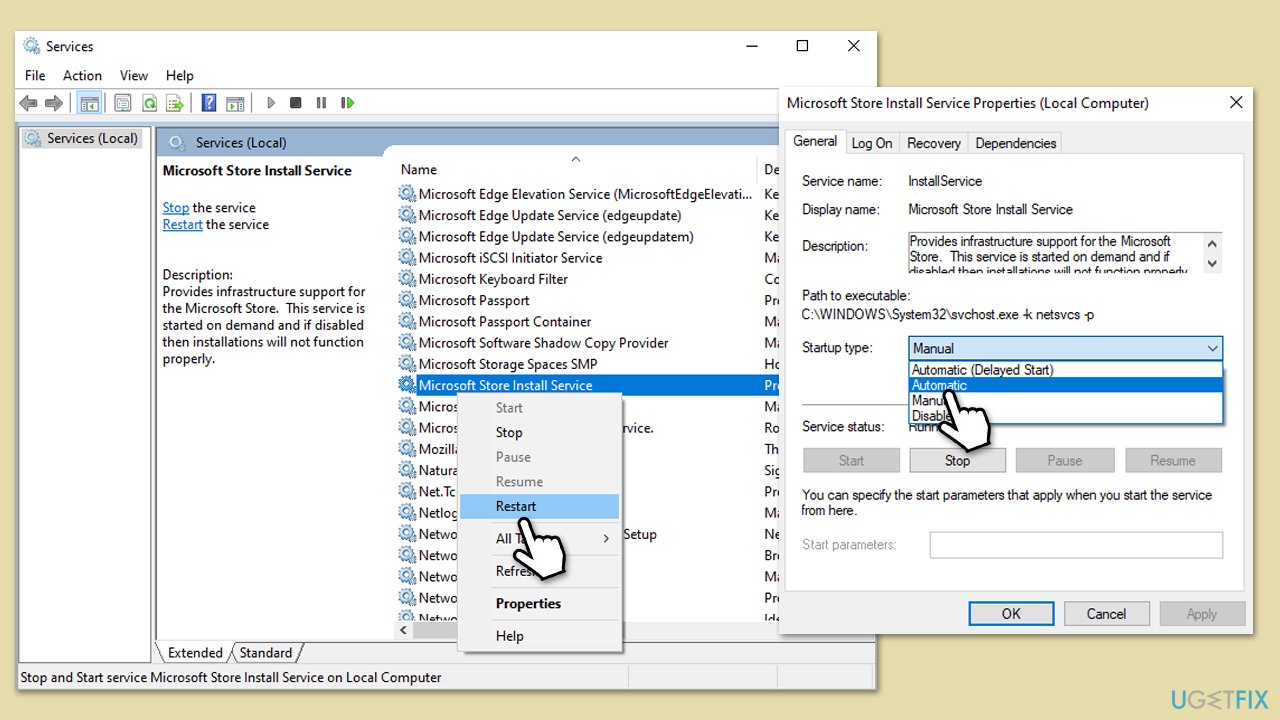
Fix 5. Enable Microsoft Store Install Service
If the service that handles Store operations is disabled, the app cannot run.
- Type Services in Windows search and press Enter.
- In the Services window, scroll down to locate Microsoft Store Install Service.
- If the service is already running, right-click it and select Restart.
- If it is not running, double-click it to open Properties.
- Under Startup type, click on the drop-down menu and pick Automatic.
- Click Start, Apply, and OK.
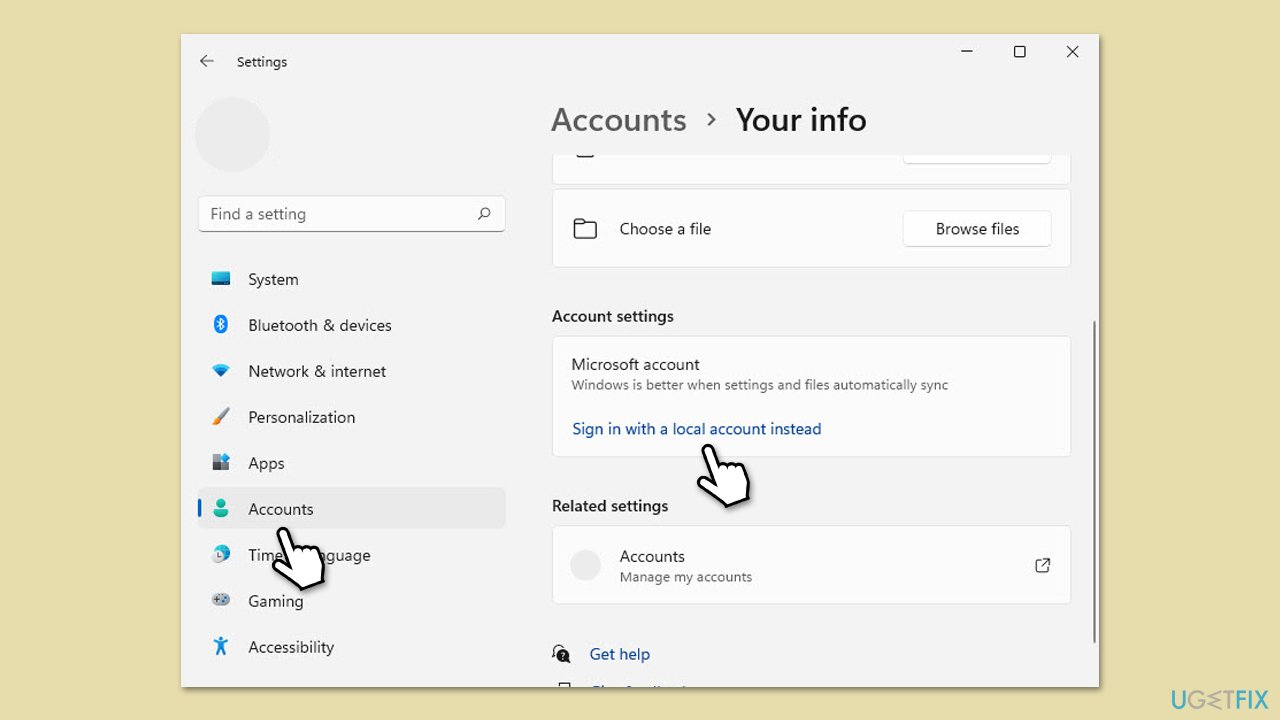
Fix 6. Sign in with local user account
Standard accounts may inherit restrictions; granting administrative rights can eliminate the block.
- Right-click on Start and select Settings.
- Go to Accounts > Your info.
- If your account is Standard, click Sign in with a local account instead and follow prompts to create an administrator account.
- Sign in to the new administrator account and open the Store.
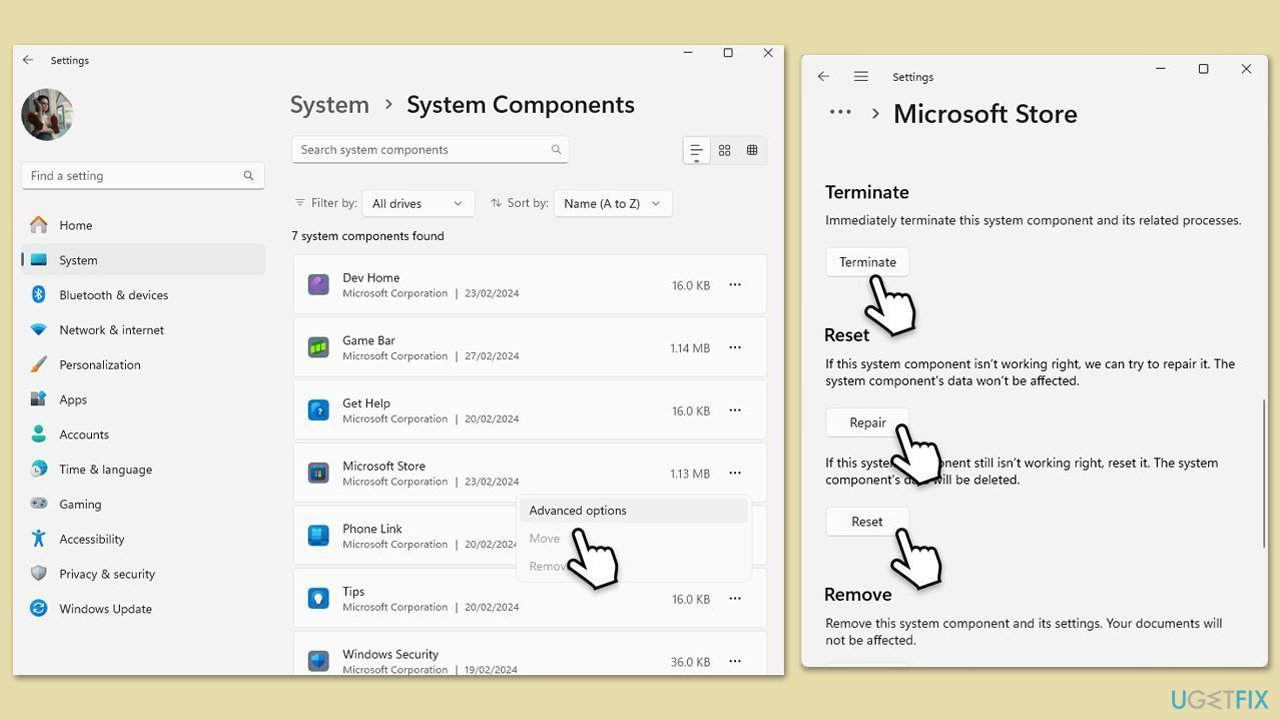
Fix 7. Reset or repair Microsoft Store app
Resetting restores default settings and clears any misconfigurations causing the block.
- Right-click on Start and select Apps & Features/Installed apps.
- Scroll down to find Microsoft Store and click Advanced options or go to Settings > System > System Components > Advanced options.
- Scroll down again and click Terminate and Repair.
- If that does not work, try using Reset.
Fix 8. Re-register the Microsoft Store app
Re-registering reinstalls the Store’s core components without affecting your data.
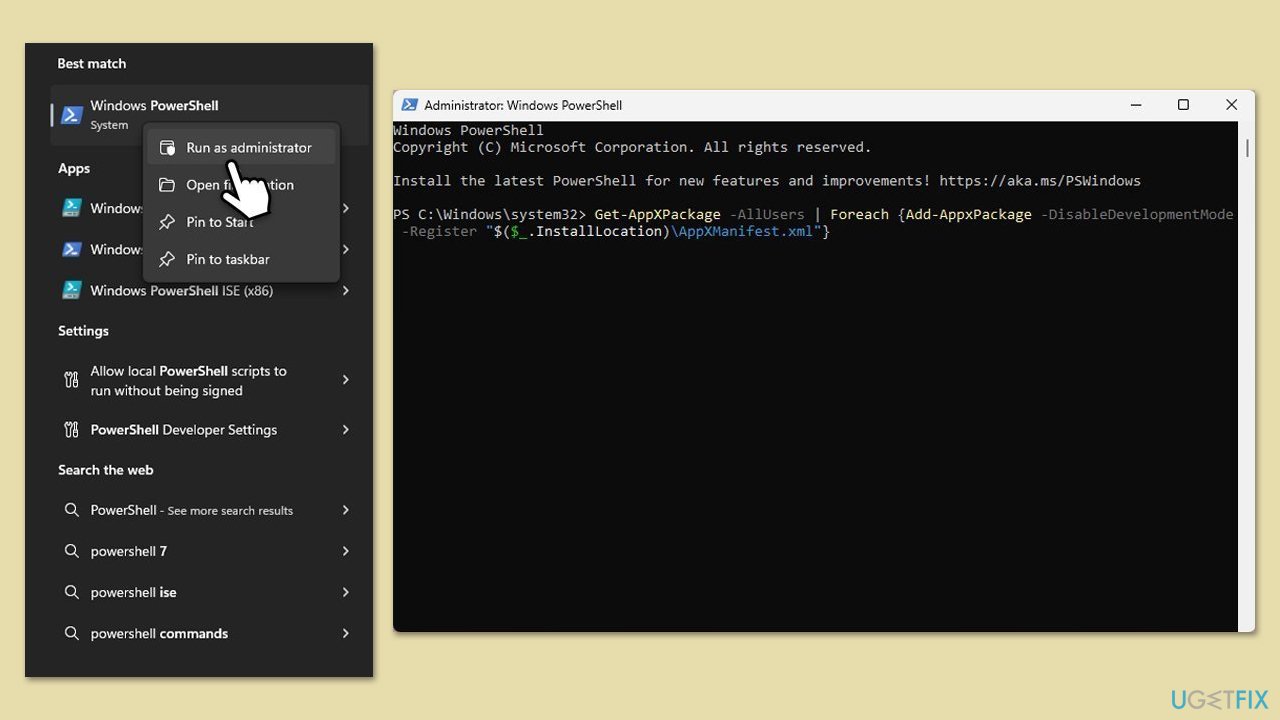
- Type PowerShell in Windows search.
- Right-click on the result and select Run as administrator.
- When UAC shows up, click Yes.
- Use the following command and press Enter:
Get-AppXPackage *WindowsStore* -AllUsers | Foreach {Add-AppxPackage -DisableDevelopmentMode -Register "$($_.InstallLocation)\AppXManifest.xml"} - When done, restart your computer.
Bottom line
To fix the 'Microsoft Store is blocked' error, you can modify group policy settings, check and correct registry keys, exit kiosk mode, switch out of Windows S Mode, ensure appropriate user permissions, or re-register the Microsoft Store app. If none of these solutions work, consider using a repair and maintenance app to identify and resolve underlying issues.
Frequently asked questions
This error typically occurs due to incorrect system settings, blocked permissions, or corrupted files affecting the Microsoft Store functionality.
You can reset the Microsoft Store by going to Settings > Apps > Apps & features, finding Microsoft Store, and selecting 'Advanced options' to click on 'Reset'.
Yes, group policy settings can prevent access to the Microsoft Store; you can check these settings by running 'gpedit.msc' and navigating to Computer Configuration > Administrative Templates > Windows Components > Store.




Report an issue
What's wrong with this guide? We review every report and update or remove content.
Report received — thank you. We'll review and fix it.
You need a free account to submit a report.
Be the first to comment