How to fix
Microsoft Store stuck on loading screen
on Windows
Resolve the Microsoft Store loading issue on Windows 10 and 11 quickly. Follow our expert-tested solutions for a seamless experience, fixed in minutes.


What causes How to fix Microsoft Store stuck on loading screen?
- Internet connection issues
- Corrupted Store cache
- Outdated Windows operating system
- Store app not loading properly
- System errors or corrupted files
Repairs Windows system files, removes malware, and restores a clean OS state — without reinstalling.
Hello. When I try to open the Microsoft Store on my Windows PC it just gets stuck on the loading screen forever. How do I fix this?
The Microsoft Store is a digital distribution platform created by Microsoft that allows users to browse, download, and install different applications, games, and other software for their Windows devices. It acts as a central hub for accessing and purchasing a wide variety of digital content, including both free and paid offerings. The Microsoft Store provides a simple and easy way to find and install software directly on Windows devices.
However, users may occasionally encounter an issue in which the Microsoft Store becomes stuck on the loading screen. This problem occurs when the Store application fails to load and display its content properly. Instead, users are greeted with an endless loading screen, which prevents them from accessing the Store's features and content.
This issue has the potential to have a significant impact on users by limiting their ability to download or update applications, games, and other software from the Microsoft Store. It can be aggravating and inconvenient, especially for those who rely on the Store to access and manage their digital content. Users may experience delays in receiving critical updates or miss out on new releases, negatively impacting their productivity, gaming experience, or access to desired software.
Typically, troubleshooting steps such as checking the internet connection, clearing the Store cache, or resetting the Store app are required to resolve the Microsoft Store stuck on loading screen issue. Users should also make sure their Windows operating system is up to date.
In this guide, you will find 6 steps that should help you fix Microsoft Store stuck on loading screen. You can also try running a maintenance tool like [d1] that can fix most system errors, BSODs,[ref en-1] corrupted files, and registry[ref en-2] issues. Otherwise, follow the step-by-step instructions below.
Solution 1. Restart PC and Router
- Restart your computer.
- Restart your modem/router.
- Check if the issue is resolved.
- If the problem persists, try connecting to another internet connection.
- Test your internet connection using the alternate connection.
Solution 2. Fix Corrupted System Files
Use Command Prompt commands to repair system file corruption:
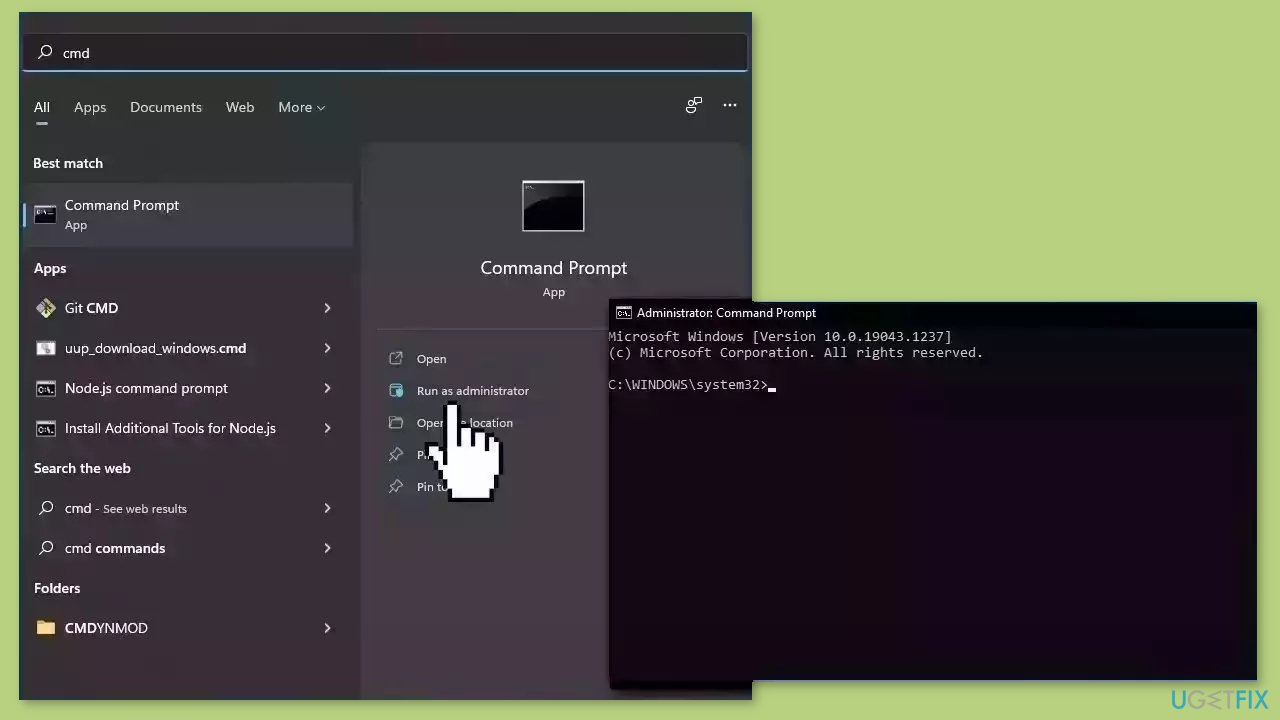
- Open Command Prompt as administrator
- Use the following command and press Enter:
sfc /scannow
- Reboot your system
- If SFC returned an error, then use the following command lines, pressing Enter after each:
DISM /Online /Cleanup-Image /CheckHealth
DISM /Online /Cleanup-Image /ScanHealth
DISM /Online /Cleanup-Image /RestoreHealth
Solution 3. Check Windows Update Service
- Open the Windows Services Manager.
- Look for the Update Orchestrator Service.
- Right-click on the Update Orchestrator Service.
- Select Properties from the right-click menu.
- In the Properties window, go to the General tab.
- Set the Startup type to Automatic.
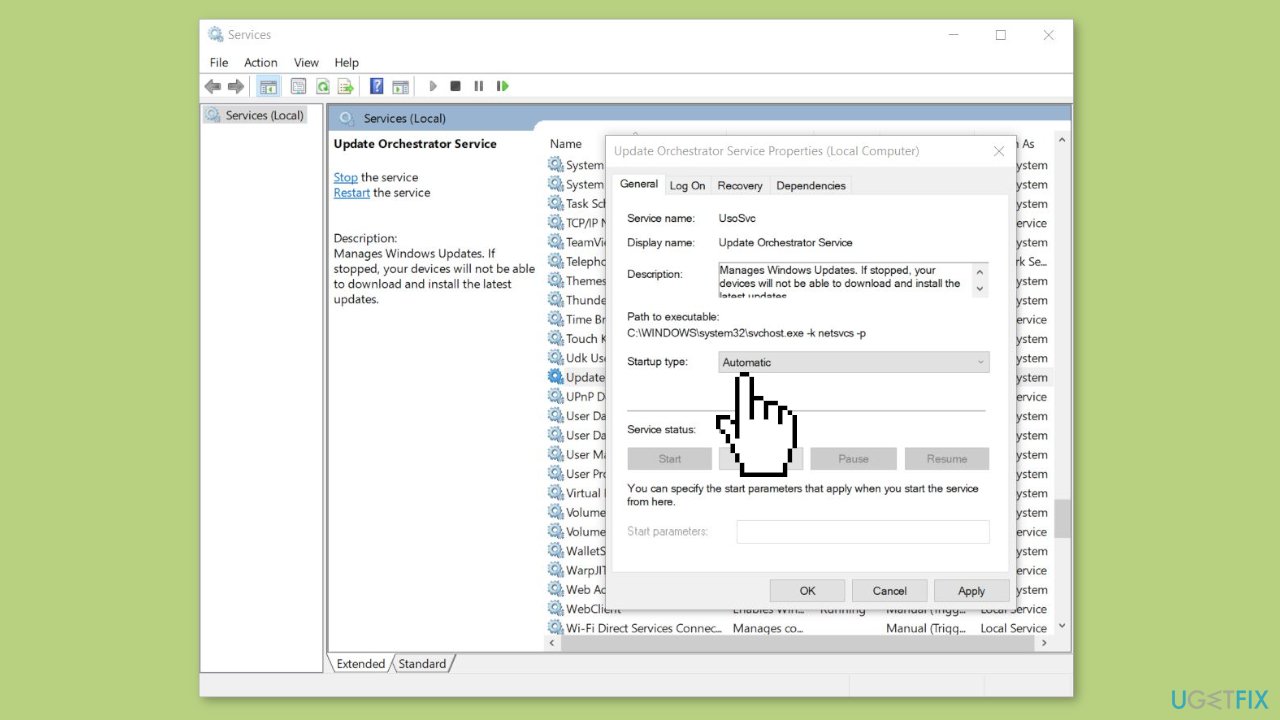
- Check the Service status and click Start if it's not already running.
- Click OK to save the changes.
Solution 4. Repair or Reset the Microsoft Store
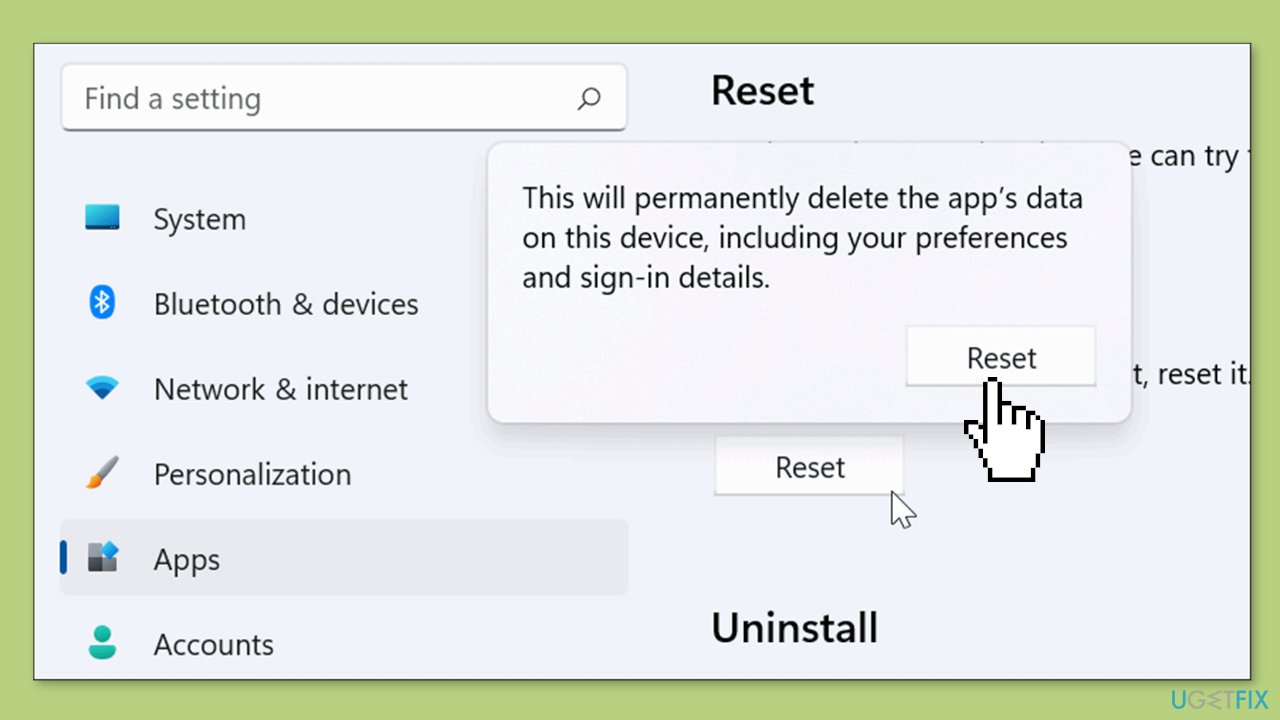
- Right-click on Start and pick Apps & Features.
- Scroll down to locate Microsoft Store and click Advanced options.
- Click Terminate and Repair.
- If that does not help, try the Reset option instead.
Solution 5. Re-register the Microsoft Store
- Press the Windows key + X on your keyboard.
- From the menu that appears, choose PowerShell (Admin) to open PowerShell with administrative privileges.
- In the PowerShell window, enter the following command:
Get-AppXPackage WindowsStore -AllUsers | Foreach {Add-AppxPackage -DisableDevelopmentMode -Register "$($_.InstallLocation)\AppXManifest.xml"}
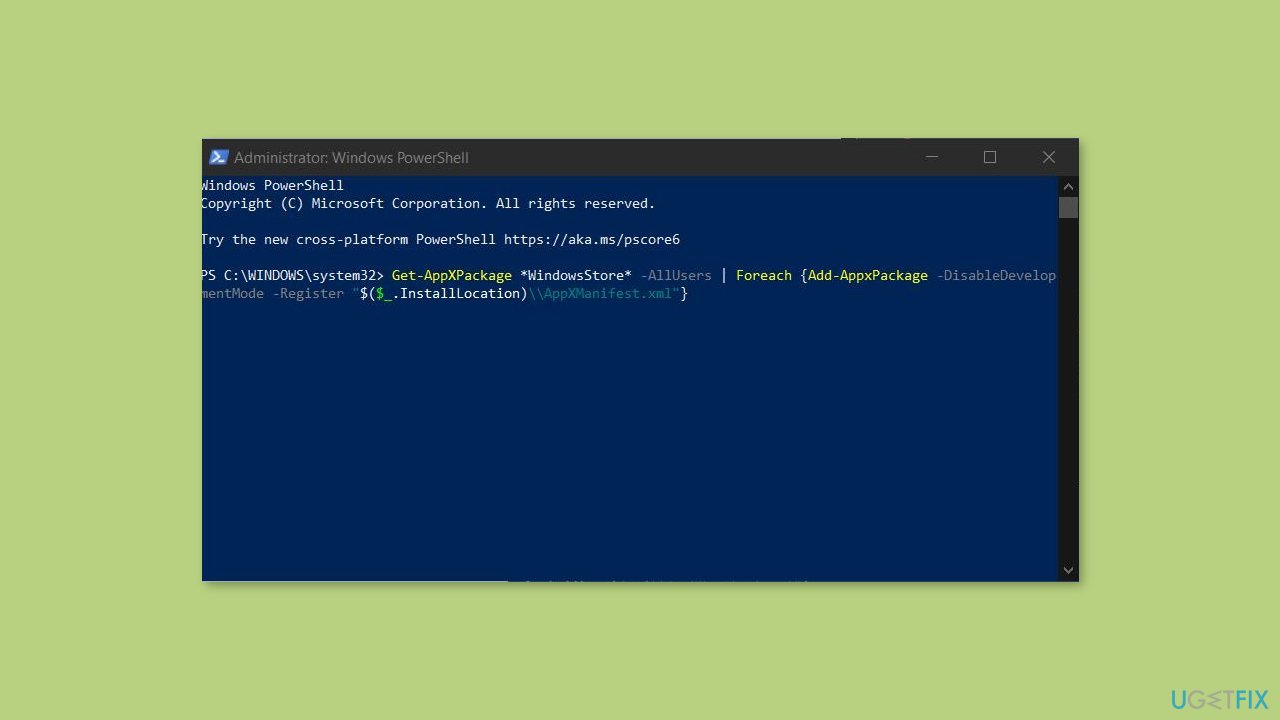
- Wait for the command to execute and complete the necessary operations.
- Close the PowerShell window.
- Restart your PC to ensure the changes take effect.
Solution 6. Change DNS Settings
- Launch the Run dialog box by pressing the Windows key + R.
- Type in ncpa.cpl and press Enter.
- In the Network Connections window, right-click on the active internet connection.
- Select Properties from the right-click menu.
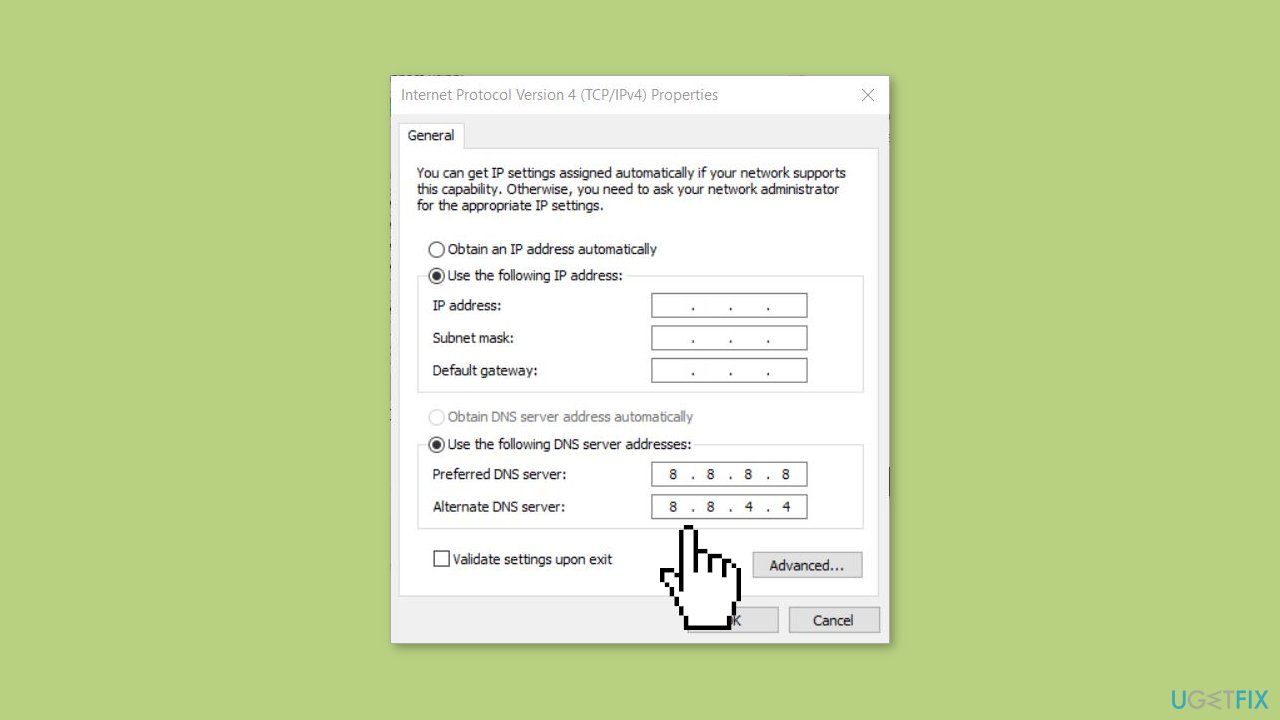
- In the Properties window, select Internet Protocol Version 4 (TCP/IPv4).
- Click on the Properties button.
- In the Internet Protocol Version 4 (TCP/IPv4) Properties window, select the option Use the following DNS server addresses.
- Set the Preferred DNS server to 8.8.8.8.
- Set the Alternate DNS server to 8.8.4.4.
- Click OK to save the changes.
Bottom line
To fix the Microsoft Store stuck on loading screen issue, you can try restarting your PC and router, clearing the Store cache, or resetting the Store app. Additionally, ensure your Windows operating system is up to date. If none of these solutions work, consider running a maintenance tool to address potential system errors.




Report an issue
What's wrong with this guide? We review every report and update or remove content.
Report received — thank you. We'll review and fix it.
You need a free account to submit a report.
Be the first to comment