How to fix
Microsoft Teams add-in missing in Outlook
on Windows
Resolve the missing Microsoft Teams add-in in Outlook on Windows 10 or 11 quickly and effectively. Expert-tested solutions included!

What causes How to fix Microsoft Teams add-in missing in Outlook?
- Bug obstructing interplay between Outlook and Teams
- Problems with nested groups
- Issues with OAuth Exchange Authentication
- Underlying complications from unknown factors
Repairs Windows system files, removes malware, and restores a clean OS state — without reinstalling.
So, the Microsoft Teams add-in is suddenly missing in Outlook. I was wondering if there are some ways to return it, as it seriously hinders my productivity at work.
Microsoft Outlook and Microsoft Teams are essential tools for effective communication and collaboration in the professional setting. The former serves as a personal information manager, providing email, calendar, task management, and more.
On the other hand, Microsoft Teams is a platform designed for persistent chat, video meetings, and file storage, facilitating teamwork and interaction. The Microsoft Teams add-in for Outlook is a bridge between these two services, allowing users to schedule Teams meetings directly from Outlook. It integrates seamlessly, contributing to a streamlined workflow.
However, a prevalent issue experienced by some users is the absence of the Microsoft Teams add-in in Outlook. This problem typically emerges as a result of a bug, obstructing the smooth interplay between Outlook and Teams and hindering productivity. Microsoft has already recognized and patched this issue, emphasizing the importance of regular updates to Windows and Outlook to maintain functionality and ensure that all components interact as intended.
Nonetheless, in certain instances, the issue persists even after regular updates, which may be indicative of underlying complications. These could be linked to problems with nested groups, issues with OAuth Exchange Authentication, or other unknown factors, all potentially leading to the disappearance of the Microsoft Teams add-in from Outlook.
While updates remain critical in resolving this issue, several other solutions can be employed. Clearing the cache, repairing the Office suite, and re-registering Teams DLL files are among the techniques users can explore to reinstate the Teams add-in. Detailed instructions to implement these solutions are provided below this article which will guide you step by step toward resolution.
Lastly, users are encouraged to consider utilizing the [d1] PC repair tool. While this software may not directly fix the missing Teams add-in issue, it is a robust solution capable of mending corrupted system files, resolving registry problems, cleaning junk, and more. It can potentially rectify underlying issues that might be contributing to the add-in's disappearance, leading to an overall healthier system.
Fix 1. Update Outlook
Regularly updating Outlook ensures that you have the latest features and bug fixes, including those related to the Microsoft Teams add-in. It can reinstate the add-in if the issue was due to a glitch in Outlook's software.
- Open Outlook.
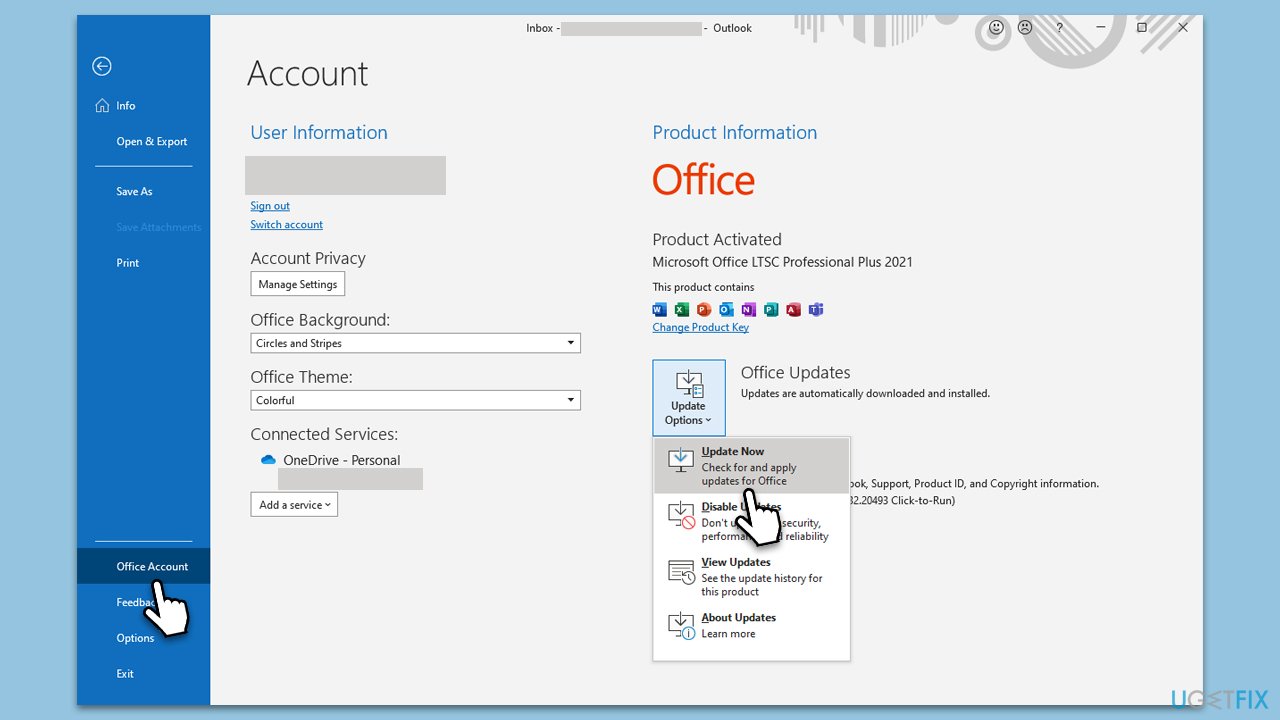
- Go to File and then pick Office account on the left.
- On the right side, select Update options.
- Select Update now from the dropdown menu.
- Wait till all the updates are installed and reboot your device.
Fix 2. Update Windows
Updating Windows can resolve the issue if it's caused by an incompatibility between Outlook, Teams, and your operating system.
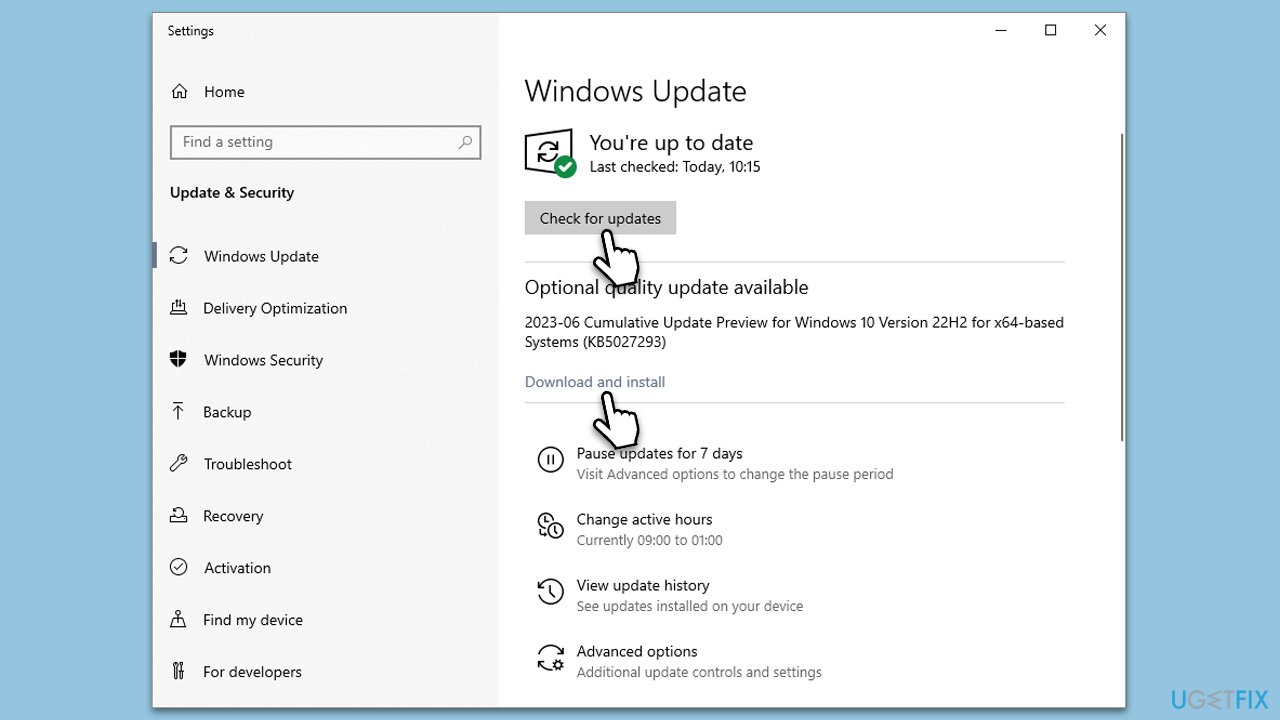
- Type Updates in Windows search and press Enter.
- In the new window, click Check for updates and wait till Windows installs the downloaded files.
- If optional updates are available, make sure to install them too.
- When all is done, reboot your system to implement the changes.
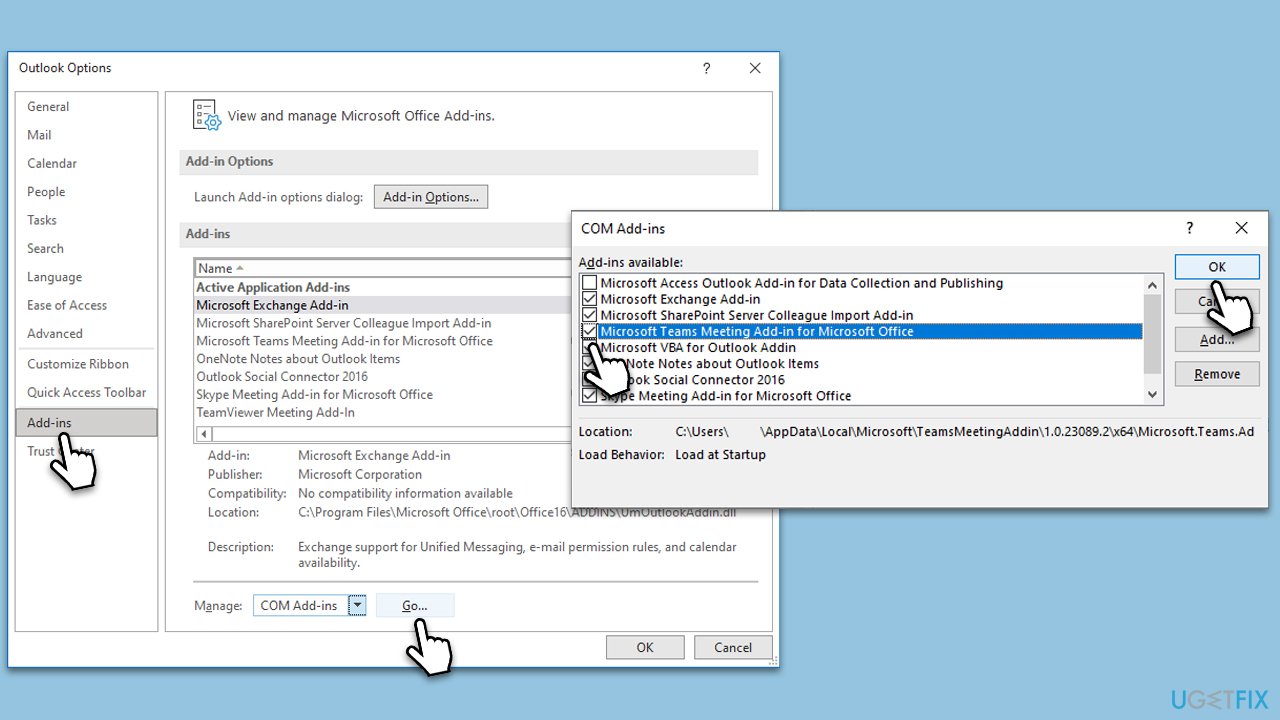
Fix 3. Make sure the add-in is enabled in Outlook
At times, the Microsoft Teams add-in might be disabled in Outlook. Enabling it can resolve the issue.
- Go to File in Outlook.
- Click on Options and then Add-ins.
- In the Manage drop-down at the bottom, select COM Add-ins and click Go.
- Check the box next to Microsoft Teams Meeting Add-in for Microsoft Office.
Fix 4. Re-register Teams DLL files
If the issue is due to corrupt DLL files, re-registering them can help.
- Press Win + E to open File Explorer and make sure hidden items are visible.
- Navigate to the following location (note: your Teams version might differ):
C:\Users\[USERNAME]\AppData\Local\Microsoft\TeamsMeetingAddin\1.0.23089.2\x64 - Locate the Microsoft.Teams.AddinLoader.dll file from the list.
- Put your cursor on the address bar and copy the full address.
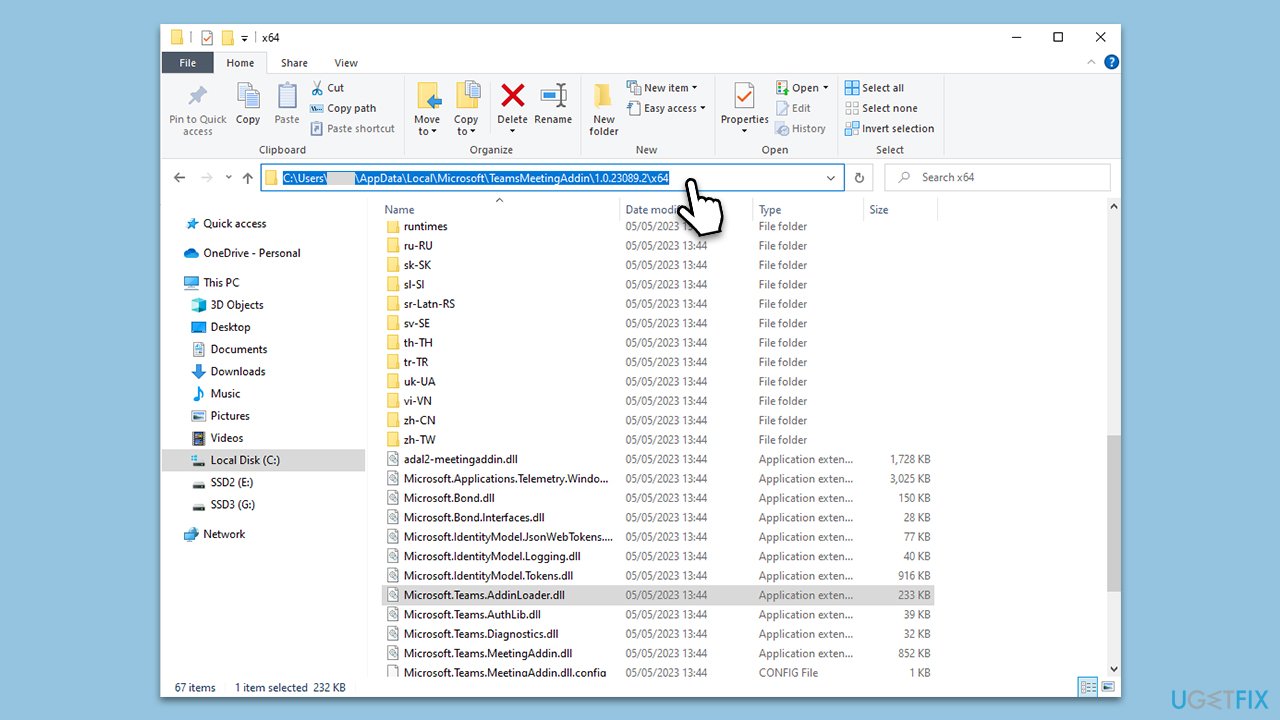
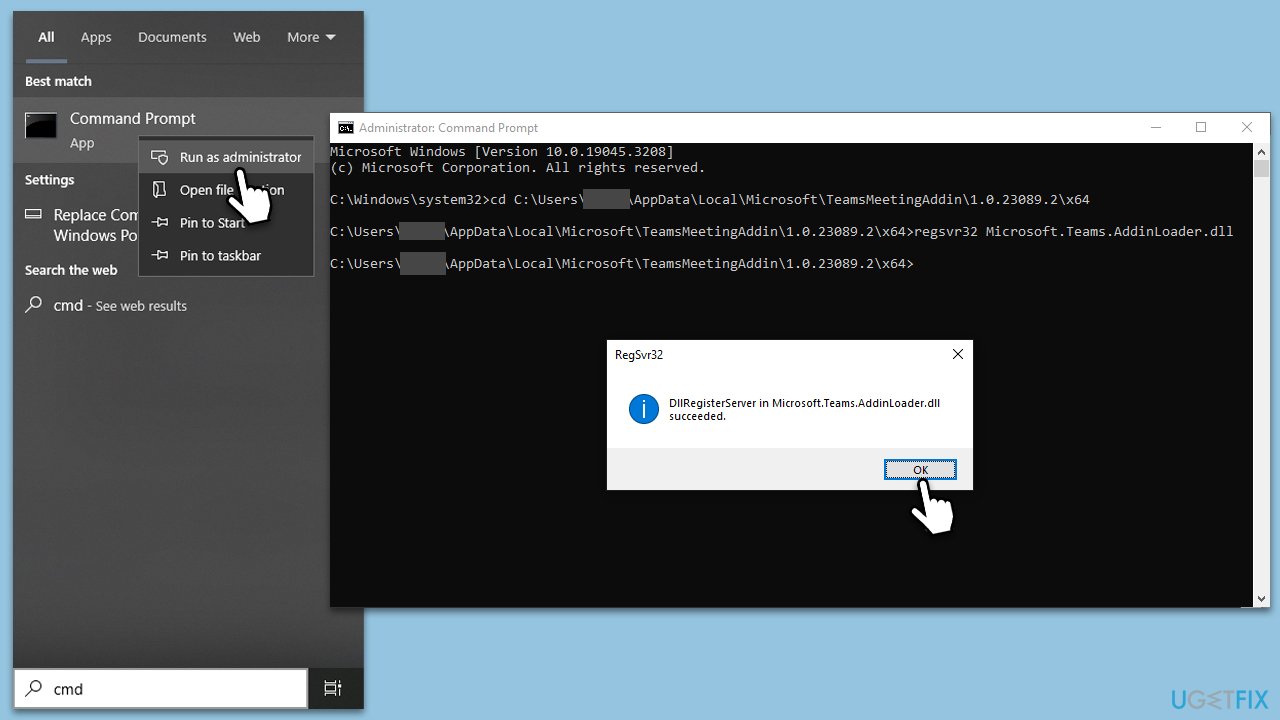
Once you have found the correct path to the file, follow these next steps to reregister DLLs:
- Type cmd in Windows search, right-click on Command Prompt, and select Run as administrator.
- If the User Account Control window shows up, click Yes.
- In the new window, copy and paste the following (based on what you have copied in the previous steps):
cd C:\Users\[USERNAME]\AppData\Local\Microsoft\TeamsMeetingAddin\1.0.23089.2\x64 - Press Enter.
- Next, copy and paste the following, and press Enter again:
regsvr32 Microsoft.Teams.AddinLoader.dll - When the pop-up shows up, click OK and then restart your system.
Fix 5. Edit LoadBehavior value in the Registry
If the LoadBehavior value in the Registry is set incorrectly, it could cause the add-in to not load. Editing it can rectify the problem.
- In Windows search, type regedit, and press Enter.
- Navigate to the following location
HKEY_CURRENT_USER\Software\Microsoft\Office\Outlook\Addins\TeamsAddin.FastConnect - In the right pane, right-click on LoadBehavior and select Modify.
- Set the Value data to 3 and click OK.

Fix 6. Empty Teams cache files
Clearing the cache can resolve the issue if it is due to temporary files or data corruption.
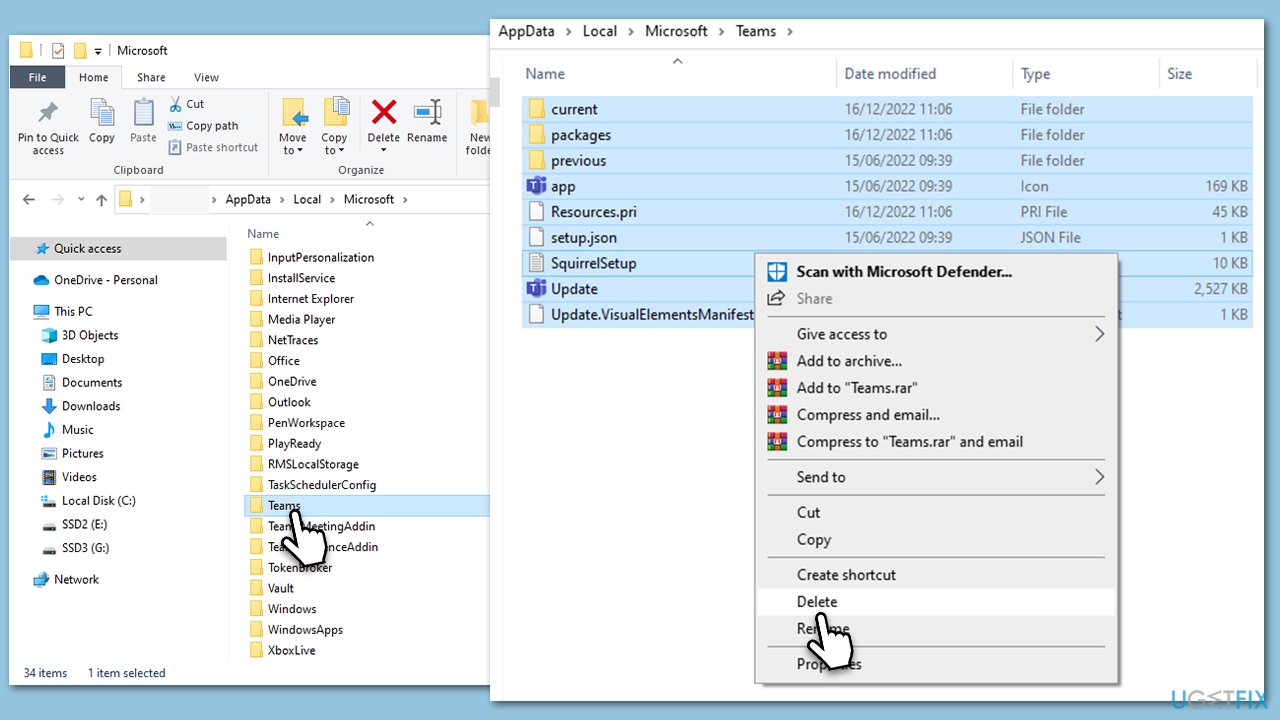
- Ensure Teams is not running (close from the system tray or Task Manager).
- Press Win + R on your keyboard to open the Run dialog.
- Type AppData and press Enter or click OK.
- Go to the following location:
C:\Users\User\AppData\Local\Microsoft - Delete all the files and folders located in the Teams folder.
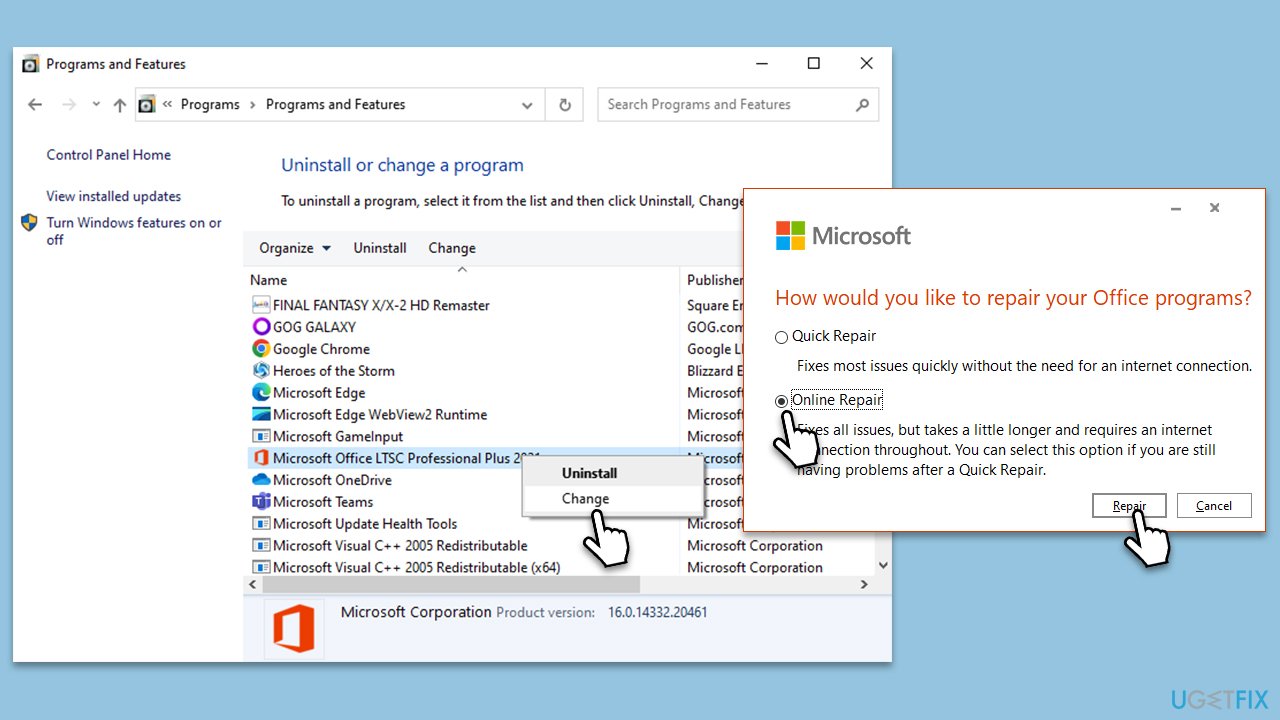
Fix 7. Repair MS Office
If the issue is due to a problem within MS Office itself, repairing the suite can solve the problem.
- Type Control Panel in Windows search and press Enter.
- Select Programs > Programs and Features.
- Select Microsoft Office and click on Change.
- Choose the option for Online Repair and click Repair.
- Follow the prompts to finish the process.
Bottom line
To resolve the missing Microsoft Teams add-in in Outlook, users can try clearing the cache, repairing the Office suite, and re-registering Teams DLL files. If these solutions do not work, consider utilizing a PC repair tool to address potential underlying issues.
Frequently asked questions
The Microsoft Teams add-in may be missing due to outdated versions of Outlook or Teams, or incorrect settings in the Outlook options. Ensure both applications are updated to the latest versions to resolve this issue.
To enable the Microsoft Teams add-in in Outlook on Windows 11, go to File > Options > Add-ins, and check if the add-in is listed under Disabled Items. If it is, select it and click 'Enable'.
If the add-in still doesn’t appear, try repairing your Office installation or reinstalling Microsoft Teams to ensure all components are properly integrated with Outlook.




Report an issue
What's wrong with this guide? We review every report and update or remove content.
Report received — thank you. We'll review and fix it.
You need a free account to submit a report.
Be the first to comment