How to fix
Microsoft Teams CAA30193 error
on Windows
Resolve the CAA30193 error in Microsoft Teams on Windows 10 or 11 quickly and efficiently. Expert-tested solutions ensure zero traces left!


What causes How to fix Microsoft Teams CAA30193 error in Windows?
- Issues with the machine's HTTP stack
- Network problems
- Browser-related issues
- Corrupted Teams app cache
- System errors or corrupted files
Repairs Windows system files, removes malware, and restores a clean OS state — without reinstalling.
Hello. When I try to log into Microsoft Teams in Windows, I get the CAA30193. Is there a way to fix this?
Whether a user is using the desktop program or a web browser to access Teams, they frequently run across the Microsoft Teams CAA30193 error on Windows when trying to log in to a Teams account. This error particularly indicates that the client's attempt to use the browser to get to a certain website was unsuccessful due to an issue with the machine's HTTP stack.
Users' workflow can be severely disrupted by the CAA30193 error, which can be inconvenient and frustrating. Since Teams is a popular platform for communication and teamwork, any service delays might make it more difficult to collaborate in real-time, restrict communication within teams, and have a detrimental effect on overall productivity. The Teams platform may stop working smoothly if users are unable to take part in meetings, view shared documents, or do other essential collaborative tasks.
The CAA30193 error's unexpected emergence is especially troublesome since it throws users' workdays into disarray. These disruptions may cause timetable delays for projects, impede efficient communication, or even result in missed opportunities for prompt decision-making. The discomfort this mistake has created emphasizes how crucial it is to quickly detect and fix Teams application problems to preserve a seamless and continuous workflow.
While there are several possible causes for the CAA30193 error, there are also workable fixes to fix the problem and get Microsoft Teams back to working normally. Usually, these solutions entail troubleshooting procedures meant to fix problems with the network or the browser.
In this guide, you will find 6 steps that should help you fix Microsoft Teams CAA30193 error in Windows. You can also try running a maintenance tool like [d1] that can fix most system errors, BSODs,[ref en-1] corrupted files, registry[ref en-2] issues, or clear cookies and cache[ref en-3] automatically. Otherwise, follow the step-by-step instructions provided below.

Solution 1. Clear Teams App Cache
- Click the Windows key + R to open the Run dialog box.
- Type the following command and press Enter:
%appdata%\Microsoft\teams
- Open the following folders:
application cache\cache
blob_storage
Cache
databases
GPUcache
IndexedDB
Local Storage
tmp
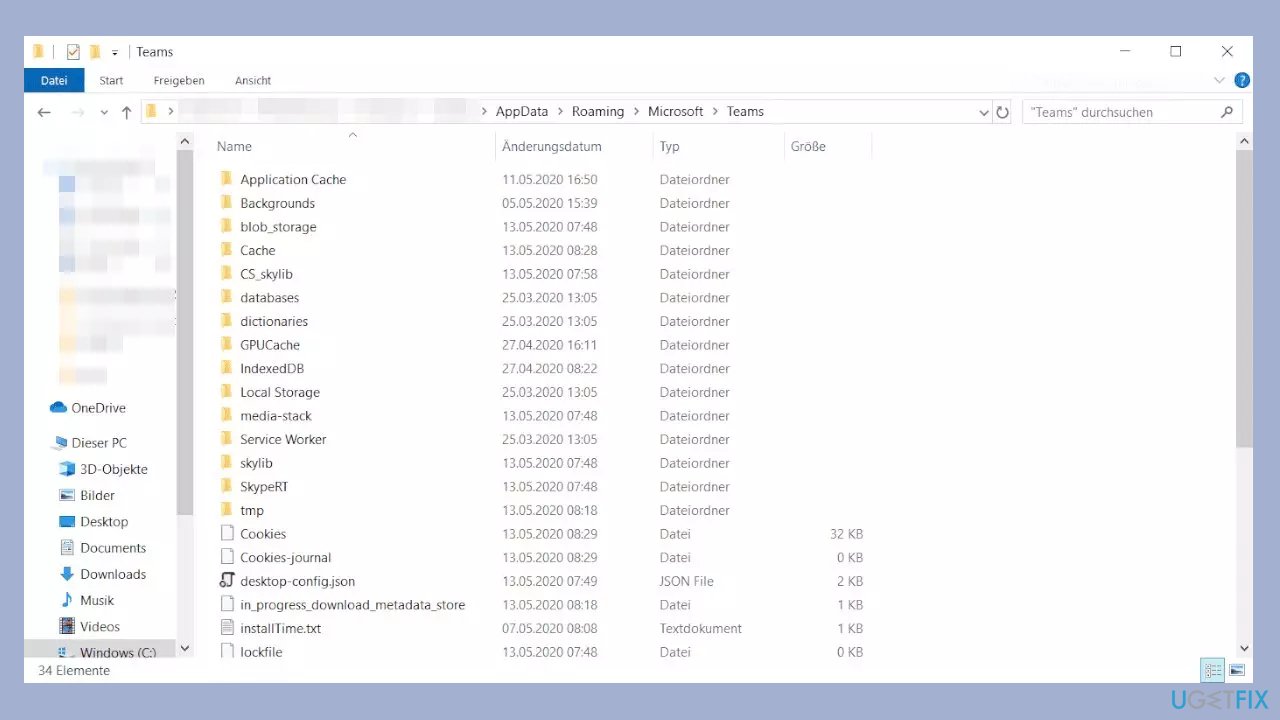
- Clear all of the content in each of these folders.
- Finally, restart the system and launch Microsoft Teams.
Solution 2. Delete Credentials
- Open the Windows search bar.
- Type credential manager in the search bar.
- Select the result listed under Best Match.
- In the Control Panel window that opens, locate and choose either Web Credentials or Windows Credentials.
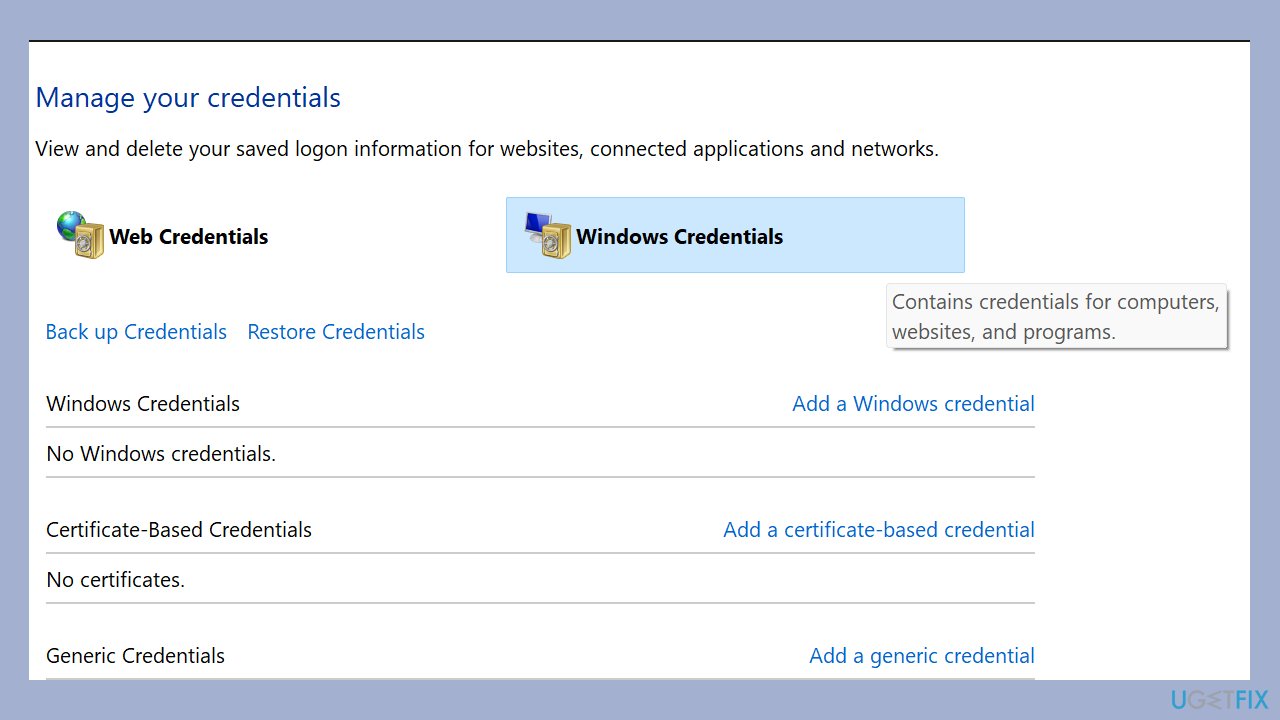
- Expand the credentials you wish to modify.
- Click on the Remove option to delete the selected credentials.
Solution 3. Modify Internet Properties
- Press the Windows key + R to open the Run dialog box.
- Type inetcpl.cpl and press Enter.
- In the Internet Properties window, go to the Advanced tab.
- Uncheck the options for Use SSL 3.0, Use TLS 1.0, and Use TLS 1.1.
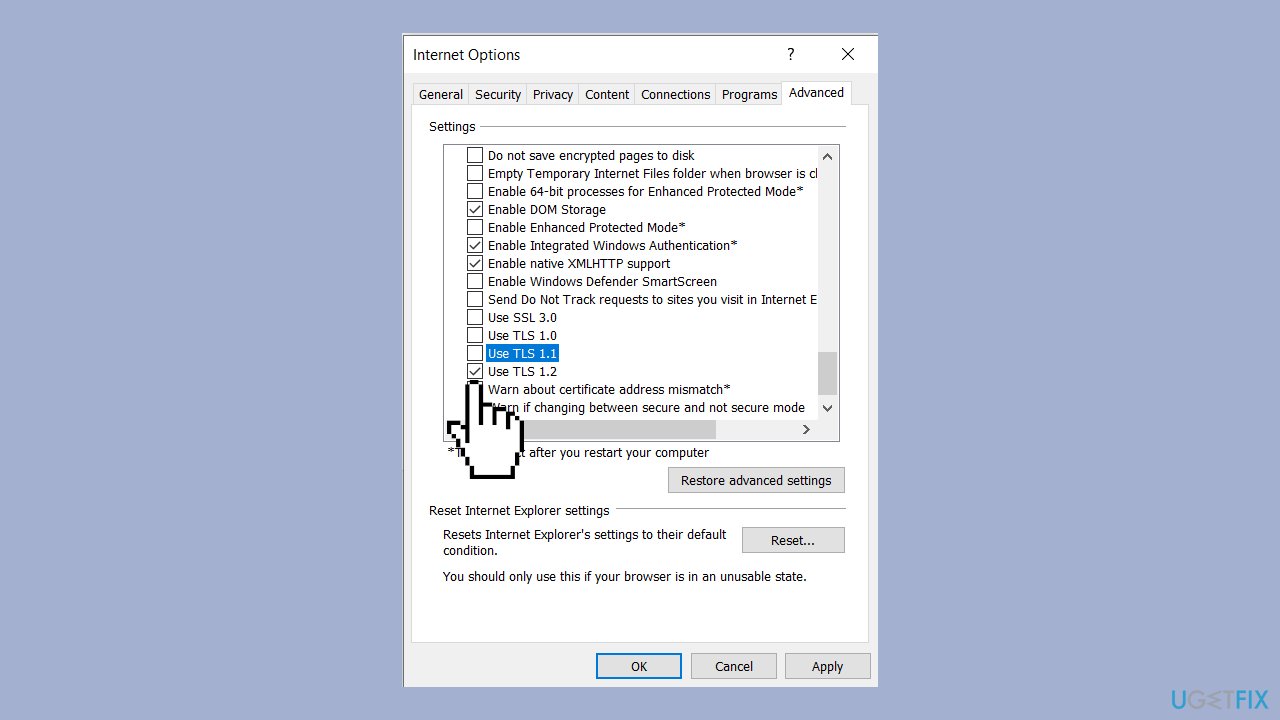
- Ensure that the options for Use TLS 1.2 and Use TLS 1.3 are checked.
- Click on Apply and then OK to save the changes.
Solution 4. Check Date and Time Settings
- Press the Windows key + I to access Settings.
- Go to Time & language.
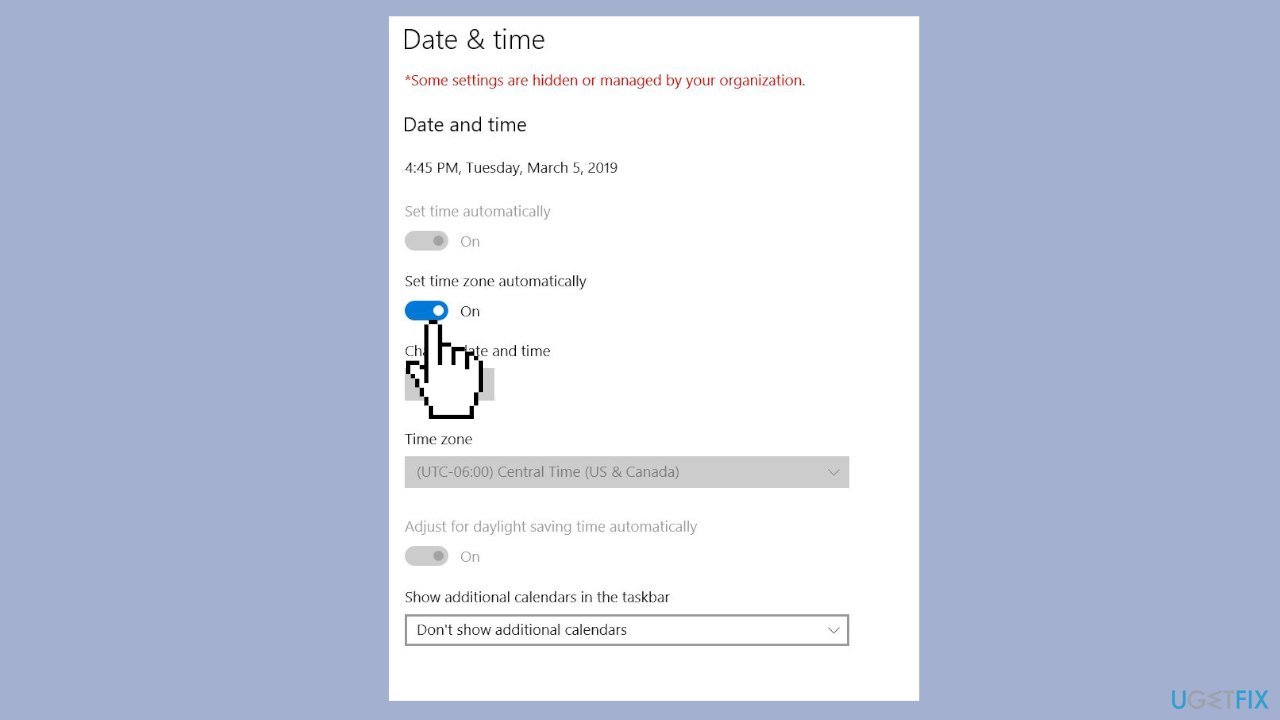
- Select Date & time from the options.
- Enable the options for Set time automatically and Set time zone automatically.
Solution 5. Run the Network and Internet Troubleshooter
- Open the Start menu and click on Settings.
- Navigate to System.
- Choose Troubleshoot on the right side.
- Click on Other troubleshooters.
- Locate the Network Adapter option.
- Click the Run button next to the Network Adapter option.
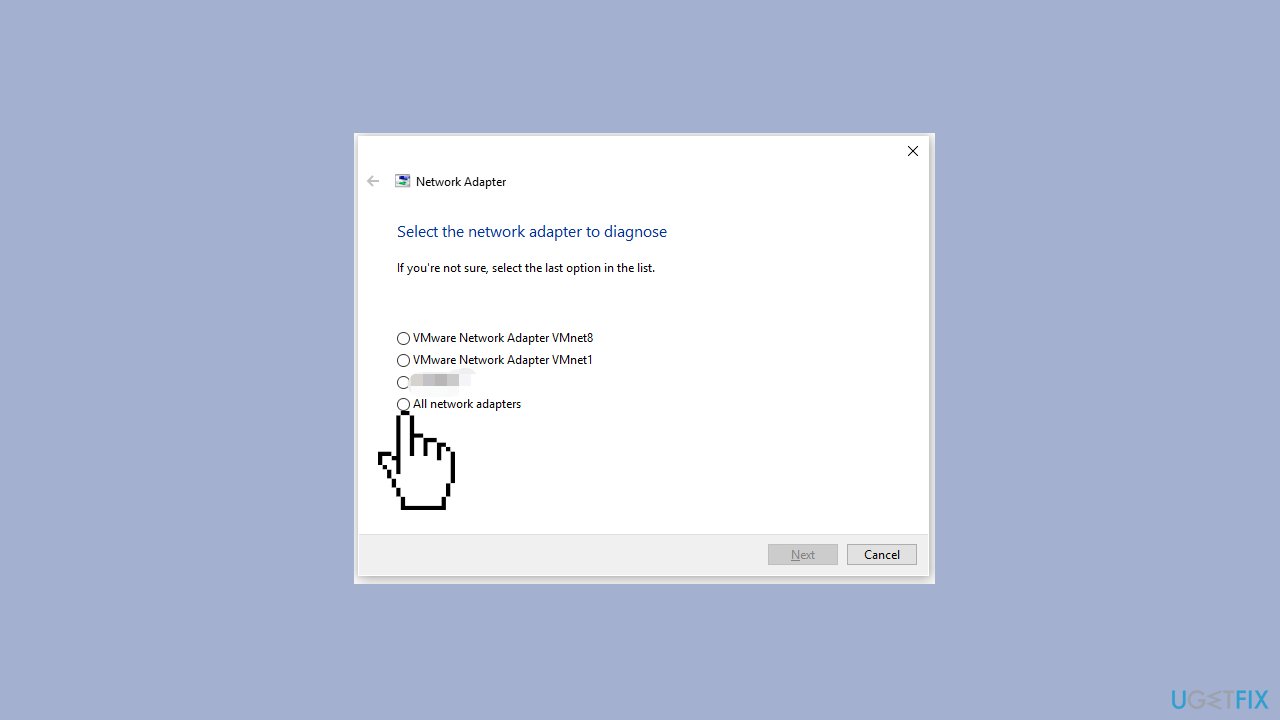
- The network adapter troubleshooter will run immediately, identifying and addressing potential issues with various network adapters.
- You can choose a specific network adapter for diagnosis or select All network adapters if you're unsure.
Solution 6. Reinstall Teams
- Open the Start menu.
- Search for Control Panel and click on it.
- Select Programs and Features.
- Find the app you want to uninstall in the list of installed programs.
- Click on the app to select it.
- Click on the Uninstall button located at the top of the list of programs.
- Follow the prompts in the uninstall wizard to complete the process.
- Wait for the app to finish uninstalling and then close the Control Panel.
- Press the Windows key + R to open the Run dialog box.
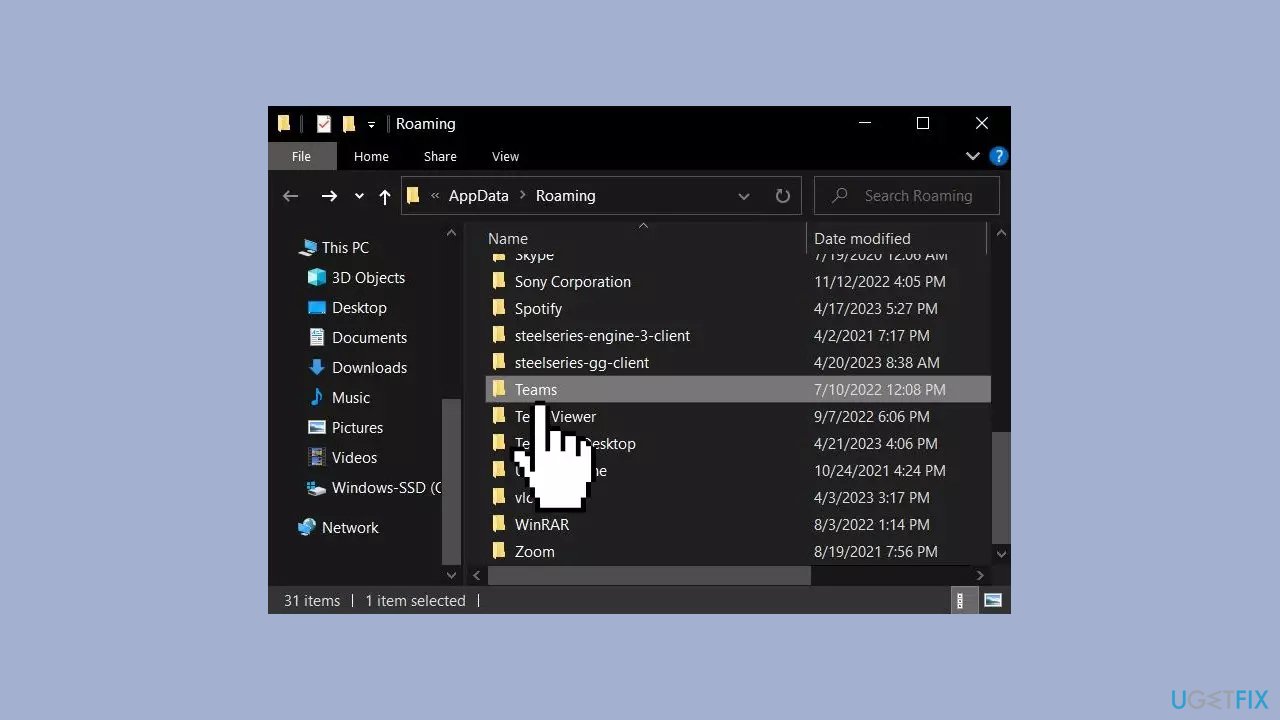
- Type %appdata% and press Enter.
- Search for the Teams folders and right-click on them.
- Select the Uninstall option.
- Reboot your PC.
- Install a fresh copy of the app.
Bottom line
To fix the Microsoft Teams CAA30193 error in Windows, you can clear the Teams app cache, troubleshoot network issues, or run a maintenance tool to address system errors. If these solutions do not resolve the problem, consider following additional step-by-step instructions provided in the guide.
Frequently asked questions
The CAA30193 error typically indicates an authentication issue, often related to account permissions or network connectivity problems.
To fix the CAA30193 error, try clearing the Teams cache and then relaunching the app; you can also check your network connection and ensure your Microsoft account permissions are correctly configured.
Yes, ensure that your Windows firewall or antivirus settings are not blocking Microsoft Teams, as this can lead to the CAA30193 error.




Report an issue
What's wrong with this guide? We review every report and update or remove content.
Report received — thank you. We'll review and fix it.
You need a free account to submit a report.
Be the first to comment