How to fix
Microsoft Teams error 4c7
on Windows
Resolve Microsoft Teams error 4c7 on Windows 10 and 11 quickly with expert-tested solutions. Troubleshoot effectively and get back to work in minutes.

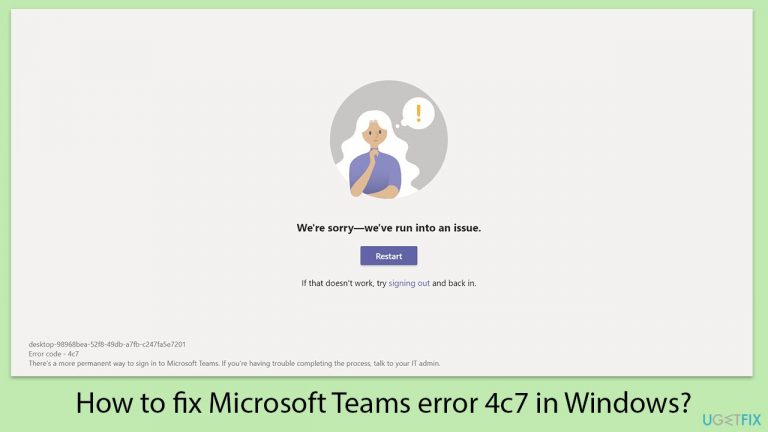
What causes How to fix Microsoft Teams error 4c7 in Windows?
- Account settings restricting sign-in methods
- Organizational policy disabling single sign-on
- Incorrect login credentials
- Corrupted files within the Teams application
- Misconfigurations in the application
Repairs Windows system files, removes malware, and restores a clean OS state — without reinstalling.
I'm experiencing an issue where Microsoft Teams won't log in properly after I enter my username and password. Whenever I attempt to access my account, I encounter error 4c7 and I don't know how to fix it.
Microsoft Teams is an essential tool for collaborative work, integrating chat, meetings, notes, and attachments for organizational use. As a hub for teamwork, it allows users to easily switch between conversation threads, channels, and video calls, enhancing productivity across workspaces. Despite its utility, users can sometimes encounter issues, particularly during the login process.
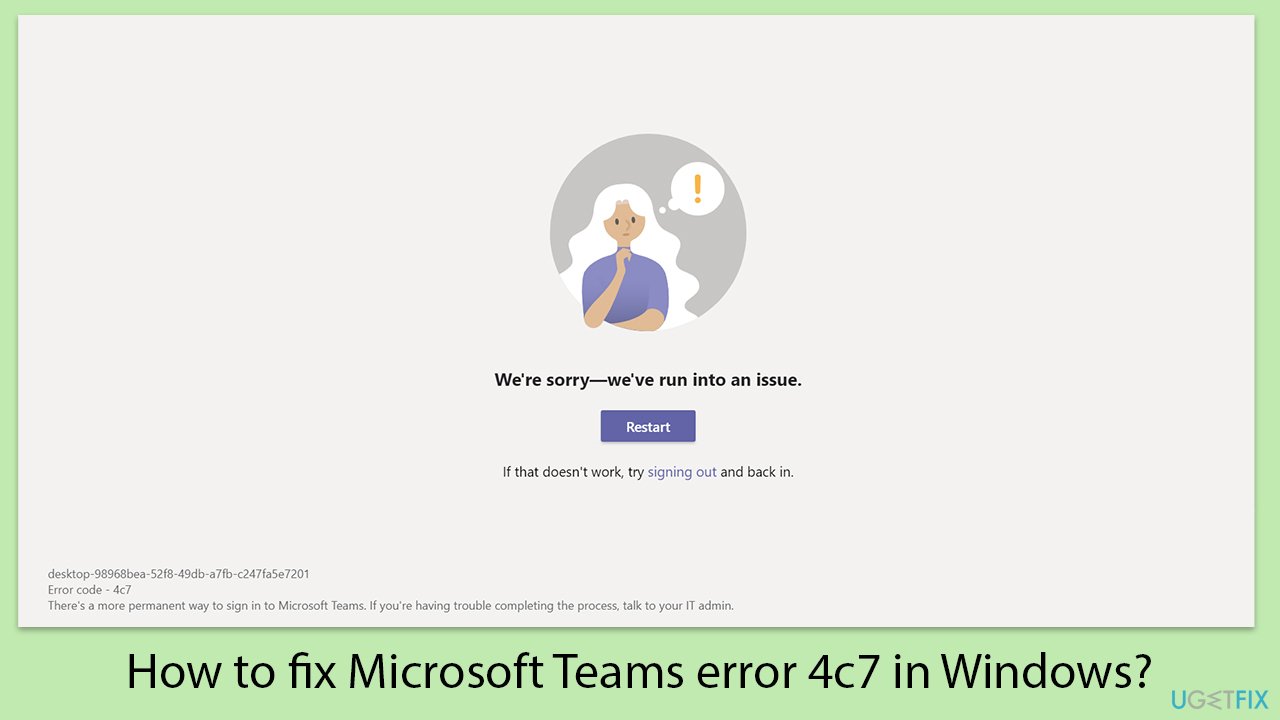
One such login issue is error code 4c7, which manifests after users enter their login credentials and attempt to log in. Instead of gaining access to their Teams account, they are presented with this error code, disrupting their ability to participate in ongoing projects and communications.
Error 4c7 in Microsoft Teams typically indicates a problem with the authentication process. This error can be triggered by various underlying issues. It may relate to the account settings that restrict certain sign-in methods, particularly if there's an organizational policy that disables single sign-on capabilities. Incorrect login credentials are another straightforward cause, though the error can also stem from deeper issues within the Teams application itself, such as corrupted files or misconfigurations.
To address error 4c7, you would need to verify your account settings and ensure that all login information is correct and up-to-date. Checking the application's configuration and ensuring it aligns with organizational policies regarding authentication methods might also be necessary. Sometimes, a simple reinstallation of the Teams app could rectify the issue if it's related to corrupt installation files.
For a more comprehensive approach to resolving these and other potential issues related to system errors and stability, consider utilizing repair software [d1]. Such tools are designed to improve system stability, repair corrupted files, remove various types of system junk, fix registry errors, and provide many other maintenance solutions, facilitating smoother and more reliable software performance.
Fix 1. Check internet connection
A stable internet connection is crucial for Microsoft Teams to function correctly. If the connection is unreliable, it can interfere with the login process and result in a 4c7 error.
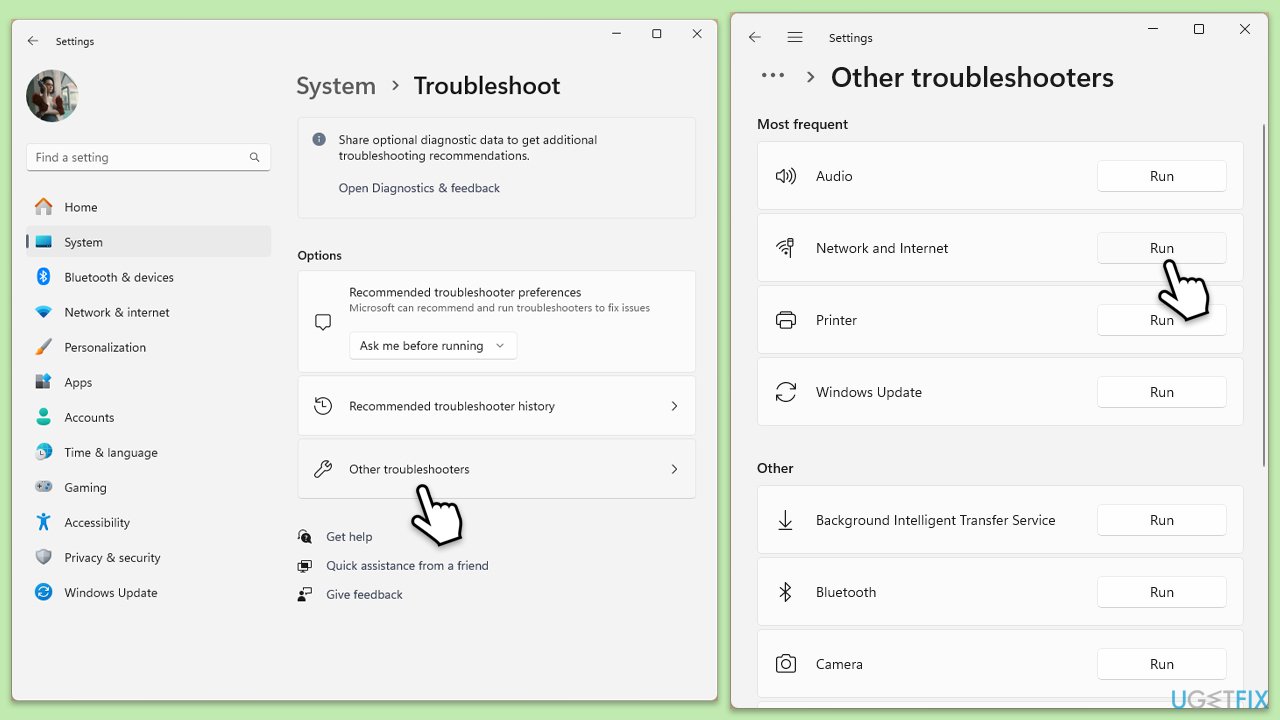
Windows 11
- Type Troubleshoot in Windows search and hit Enter.
- Select Other troubleshooters.
- Locate Network & Internet troubleshooter from the list and click Run.
- Wait till the process is finished and apply the recommended fixes.
- Restart your computer.
Windows 10
- Right-click on Start and pick Settings.
- Go to the Network & Internet section.
- On the right side, find the Advanced network settings section.
- Click Network troubleshooter and wait.
- The fixes will be automatically applied.
Fix 2. Verify credentials
Incorrect credentials are a common cause of login issues in Microsoft Teams.
- Double-check the username and password you are entering.
- Ensure that there are no typos or accidental spaces in your login details.
- If uncertain about your password, try resetting it through your organization's IT department or through the password recovery option.
Fix 3. Update Microsoft Teams
Running an outdated version of Microsoft Teams can lead to compatibility issues and errors.
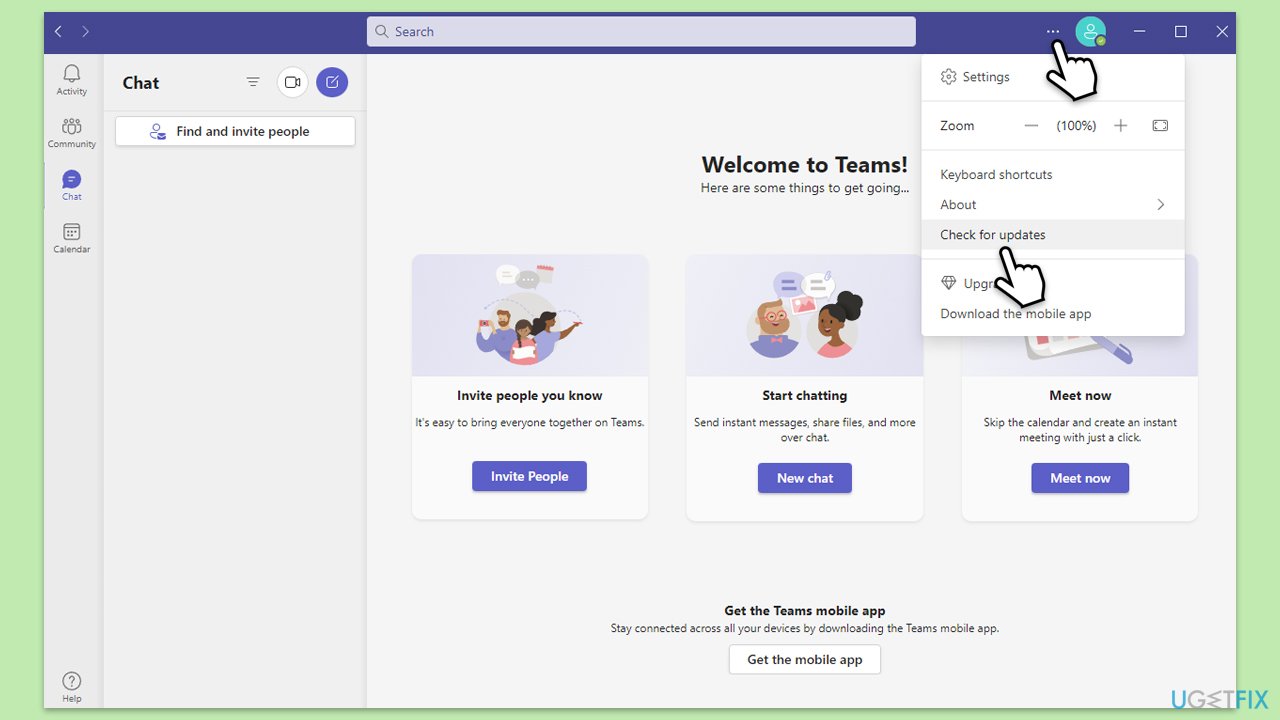
- Open Microsoft Teams.
- Click on the Settings and more button at the top-right corner.
- Select Check for updates.
- Teams will automatically download and install any available updates.
- Restart Teams after the update is completed.
Fix 4. Clear Teams cache
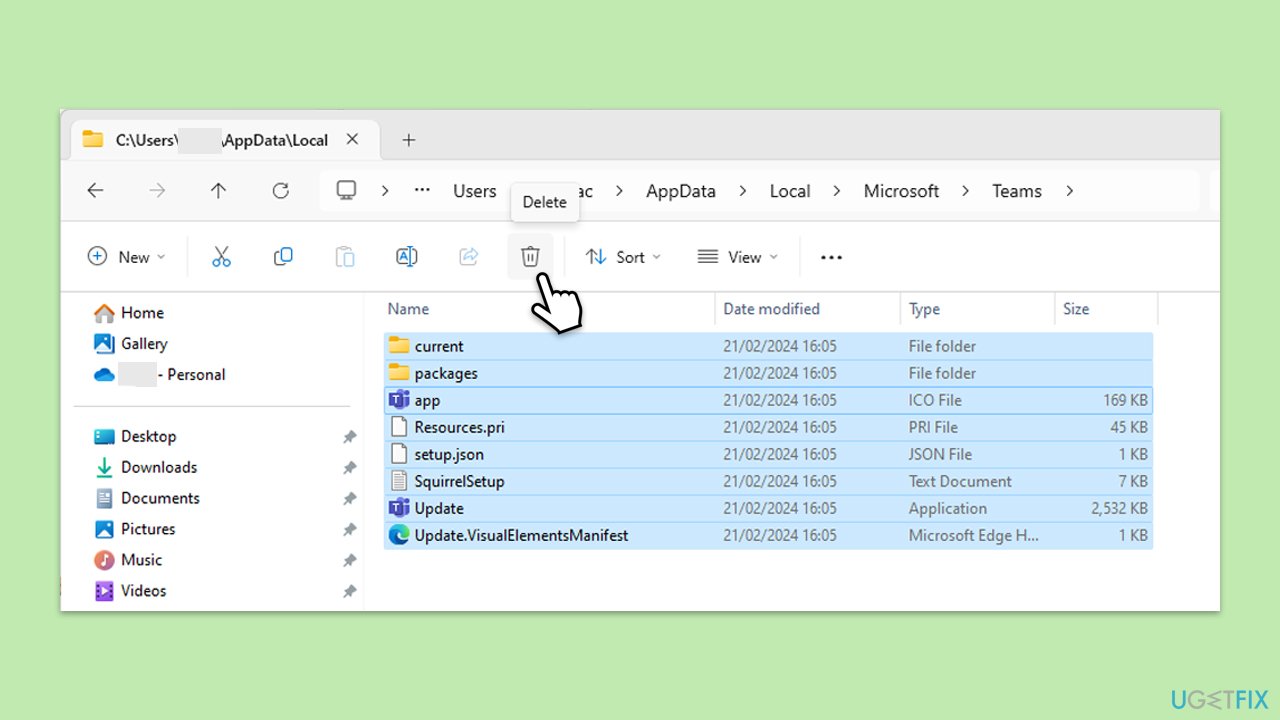
Clearing the cache can resolve issues caused by corrupted data affecting the Teams application.
- Make sure Teams is not running (close from the system tray or Task Manager).
- Press Win + R on your keyboard to open the Run dialog.
- Type AppData and press Enter or click OK.
- Go to the following location:
C:\Users\User\AppData\Local\Microsoft - Delete all the files and folders located in the Teams folder.
- Start the app again.
Fix 5. Disable conflicting software
Certain software, especially security applications, can interfere with Microsoft Teams login process.
- Temporarily disable any antivirus or firewall software.
- Try logging into Microsoft Teams with these applications turned off.
- If successful, configure the security software to allow Microsoft Teams, then re-enable the security measures.
Fix 6. Reinstall Microsoft Teams
A fresh installation can fix issues caused by a corrupt installation file or misconfigurations.
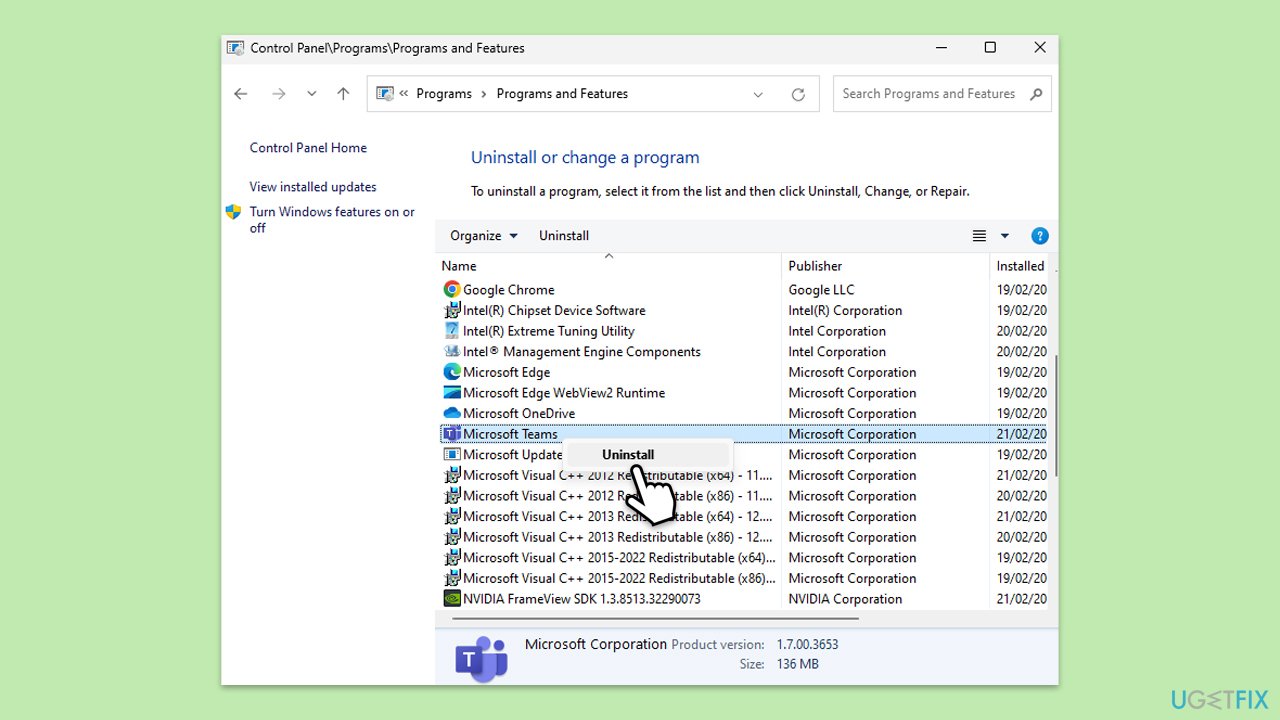
- Type Control Panel in Windows search and press Enter.
- Go to Programs > Uninstall a program.
- Find Microsoft Teams, right-click, and select Uninstall.
- Follow the prompts to remove the app.
- Once done, press Win + E to open File Explorer.
- In the View tab at the top of the window, enable Hidden Files.
- Go to C:\Program Files\WindowsApps location.
- Scroll down to find the Microsoft Teams folder and delete it (alternatively, you can rename it).
- Now type %AppData% in Windows search and press Enter.
- Delete the Teams folder here.
- Finally, restart your system and reinstall the app.
Fix 7. Check the organization’s sign-in policies
Sometimes, organizational policies might restrict certain sign-in methods, causing error 4c7.
- Contact your organization’s system administrator.
- Verify if there are any specific sign-in methods required or if single sign-on is disabled.
- Follow any provided instructions or adjustments to comply with organizational policies.
If you are an IT admin, follow these steps:
- Locate the computer or device that contains the local Active Directory.
- Launch the ADFS Microsoft Management Console.
- Click on Authentication Policies found on the left side of the interface.
- From the right side, select Actions.
- Proceed to Edit Global Primary Authentication.
- Access the Intranet tab.
- Go to Forms Authentication.
- Confirm your choice by clicking OK, which will save the modifications.
- Once Forms Authentication is active, try logging into Microsoft Teams.
Fix 8. Use web version
If the desktop application continues to fail, using the web version of Microsoft Teams can be an alternative.
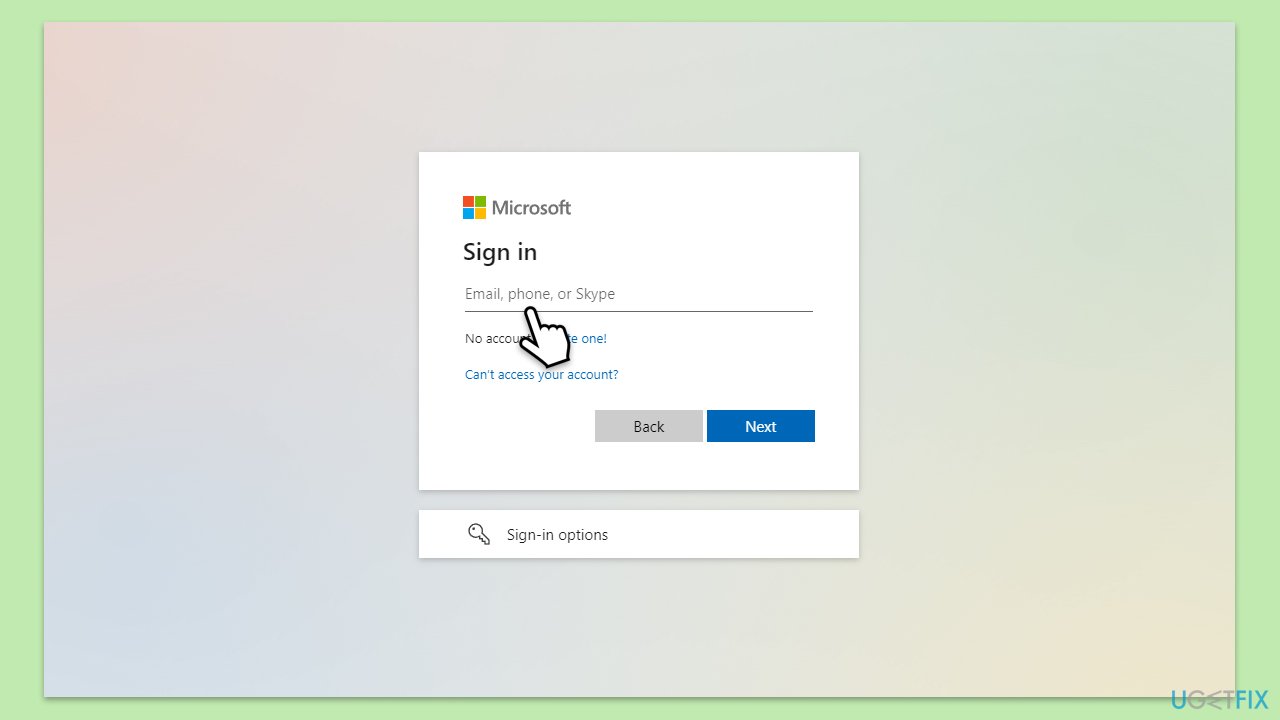
- Open a web browser.
- Go to the Microsoft Teams website.
- Log in using your credentials.
- Check if the web version allows you to access Teams without the error.
Bottom line
To fix error 4c7 in Microsoft Teams, verify your account settings and ensure your login information is correct. Additionally, check the application's configuration against organizational policies and consider reinstalling the Teams app if issues persist. If none of these solutions work, utilizing repair software may help address underlying system issues.
Frequently asked questions
Error 4c7 typically indicates a connectivity issue or a problem with the Teams application itself, preventing it from syncing properly with Microsoft servers.
To fix error 4c7, try clearing the Teams cache by navigating to %appdata%\Microsoft\Teams and deleting the contents of the Cache folder, then restart Teams.
Yes, ensuring that your Windows 10 or Windows 11 is up to date can help resolve compatibility issues that may lead to error 4c7; go to Settings > Update & Security to check for updates.




Report an issue
What's wrong with this guide? We review every report and update or remove content.
Report received — thank you. We'll review and fix it.
You need a free account to submit a report.
Be the first to comment