
How to fix Microsoft Teams error 5nlhg on Android phones and tablets?

Prefer to fix it yourself? The manual steps follow.
- 8methods
- 2 to 30 minutes
- Easy
Applies to Microsoft Teams, Outlook, OneDrive, the Microsoft 365 (Office) app and Power Apps on Android phones and tablets, with work or school accounts, on phones with Microsoft Authenticator, Intune Company Portal or Link to Windows installed
8 methods in this guide
- What the tag means
- On a Windows PC?
- Decode the Code line
- How Android signs you in
- Causes, ranked
- Xiaomi and Honor phones
- Own or company phone
- The fixes
- 1. Broker app first
- 2. Battery limits off
- 3. Xiaomi HyperOS 2
- 4. Clear app storage
- 5. Remove the work account
- 6. Reinstall all, restart
- 7. Update apps and Android
- 8. Test device, then IT
- Still there: next steps
- Prevent it
- FAQ
I tried to log in to Teams on a different PC and, for some reason, I keep getting "Something went wrong [5nlhg]" error. Could you help me here?
Tag 5nlhg marks a Microsoft sign-in that failed on an Android phone or tablet, not on a Windows PC: Teams, Outlook or OneDrive shows Something went wrong. [5nlhg], often before any password page. It points at the broker app that signs in for all Microsoft apps. Open Microsoft Authenticator or Company Portal first, sign in there and keep it running, then sign in to Teams.
5nlhg means the Microsoft app on your Android device could not hand the sign-in to its broker: Microsoft Authenticator, Intune Company Portal or Link to Windows. Open Authenticator (or Company Portal), check that your work account is signed in there, leave it open in the background and then sign in to Teams or Outlook (Fix 1). If the tag comes back later, let the broker run without battery limits (Fix 2).
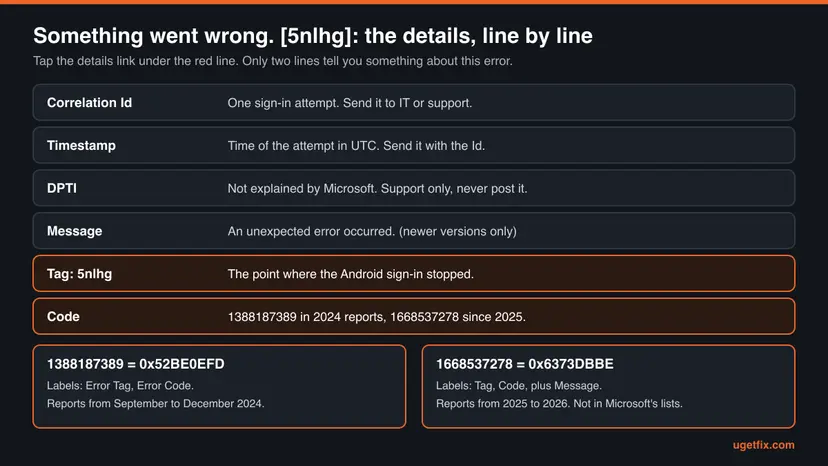
| Error | Something went wrong. [5nlhg] in a Microsoft sign-in window. The details list Correlation Id, Timestamp, DPTI, Tag: 5nlhg and a Code, in newer reports also "Message: An unexpected error occurred." |
|---|---|
| Where it appears | In Teams, Outlook, OneDrive, the Microsoft 365 app or Power Apps on an Android phone or tablet, after you type a work or school address and often before the password page. |
| Main cause | The sign-in cannot reach the broker app (Microsoft Authenticator, Intune Company Portal or Link to Windows), because the broker is not running, holds no signed-in account, or the phone's system blocks it. |
| Fastest fix | Open Microsoft Authenticator or Company Portal, sign in to your work account there, keep the app open in the background and sign in to Teams again (Fix 1). |
| The Code line | 1388187389 (0x52BE0EFD) in reports from 2024, 1668537278 (0x6373DBBE) in reports from 2025 and 2026. Microsoft documents neither. |
| Also written as | 5nlhg error, error 5nlhg, [5nlhg], Tag: 5nlhg, Error Tag: 5nlhg, "errore 5nlhg", "erreur 5nlhg", "Se ha producido un error. [5nlhg]". |
| Phones in the reports | Xiaomi and Redmi after the HyperOS 2 update, Xiaomi Pad, Honor (Magic V3, 90, 200, 400) and other Android phones with Microsoft Authenticator installed. |
| Microsoft's status | Undocumented. On 14 October 2026 Microsoft Learn and Microsoft Support had no page for 5nlhg. Moderators on Microsoft Q&A call it generic and not widely documented. |
| Time to fix | 2 minutes for Fix 1, up to 30 minutes if you reach the reinstall in Fix 6. Nothing to buy or download apart from Microsoft's own apps. |
Facts checked on 14 October 2026. Steps written for Microsoft Teams, Outlook, OneDrive and the Microsoft 365 app for Android, read against Microsoft's MSAL for Android and Intune documentation, Google's Android Help and the 5nlhg reports on Microsoft Q&A. We did not reproduce the error on a device, and menu names differ between phone makers.
What Something went wrong [5nlhg] means, and where you see it
You open Teams, Outlook or OneDrive on your phone, choose a work or school account and type the address. Instead of the password page a Microsoft window says Error and, in red, Something went wrong. [5nlhg], with a Close button. A Xiaomi user wrote that the message came before the password window. An Honor user wrote that it came without any request for a password.
The window belongs to the Microsoft sign-in component that all Microsoft 365 apps share, so the same tag appears in Teams, Outlook, OneDrive, the Microsoft 365 app and even Power Apps. The tag in brackets marks the place where that component gave up. Microsoft publishes no list of these tags.
| App | What the reports describe | Where it still works |
|---|---|---|
| Teams for Android | Sign-in on a new phone or tablet fails with the tag. A student could sign in on Windows and in the browser, but not in the phone app. | teams.microsoft.com, the Windows app |
| Outlook for Android | The tag when adding a Microsoft 365 account after a reinstall, or when opening the app. One user saw it when adding an IMAP account. | Outlook on the web |
| OneDrive, Microsoft 365 app | The same window before the password page on Xiaomi phones after HyperOS 2. | onedrive.com |
| Power Apps | A corporate account on a Xiaomi phone with Android 15 gets error [5nlhg]. | The browser |
Seeing 5nlhg on a Windows PC? Check which device shows it
This page's address says Windows, and the reader's question above says PC. Every 5nlhg report we could read on 14 October 2026, on Microsoft Q&A, the Power Platform Community and Chinese and Bangladeshi user forums, came from an Android phone or tablet. We found no report of 5nlhg in the Windows desktop app.
- If the window is on your phone, even right after you set up a new PC, the fixes below are for you. Signing in to Teams on a PC does not sign in the phone apps.
- If the window is really on a Windows PC, look at the Code line. Windows sign-in errors in Teams and Office carry other tags and codes, and their fixes clear the account data that Windows keeps.
- For the Windows side of the same window, our guide to Teams error tag 7ita9 on Windows decodes the Code line and walks through the stored account fixes.
The earlier version of this guide gave Windows steps: Credential Manager, the classic Teams cache folders, Control Panel and joining Azure AD. None of them touches the Android broker where 5nlhg happens, so they are gone.
Code 1388187389 and Code 1668537278 under tag 5nlhg
The Code line comes in two versions. Reports from September to December 2024 label the lines Error Tag and Error Code and show 1388187389. Reports from 2025 and 2026 label them Tag and Code, add Message: An unexpected error occurred. and show 1668537278.
| Code in the window | Hexadecimal | Seen in |
|---|---|---|
| 1388187389 | 0x52BE0EFD | Teams and Outlook for Android, 2024 |
| 1668537278 | 0x6373DBBE | Teams, Outlook and OneDrive for Android, 2025 to 2026, including Xiaomi and Honor phones |
Neither number fits the Windows sign-in families: they do not start with 0xCAA like the Teams codes, nor with 0x8 like Windows errors. That matches the platform. We could not find a Microsoft document that explains either value, so treat the Code line as an identifier for support, not as a cause.
Copy the Correlation Id and the Timestamp for your IT department or Microsoft support. A Microsoft moderator wrote that support uses them to trace the attempt. Keep the DPTI value out of public posts: moderators on Microsoft Q&A remove it as personal information.
Why 5nlhg is about the broker app: how Android signs you in
On Android, Microsoft's apps use the Microsoft Authentication Library (MSAL). Microsoft's documentation says the authentication broker is a component inside three apps: Microsoft Authenticator, Intune Company Portal and Link to Windows. When a broker is installed, MSAL hands every interactive sign-in to it instead of handling it itself.
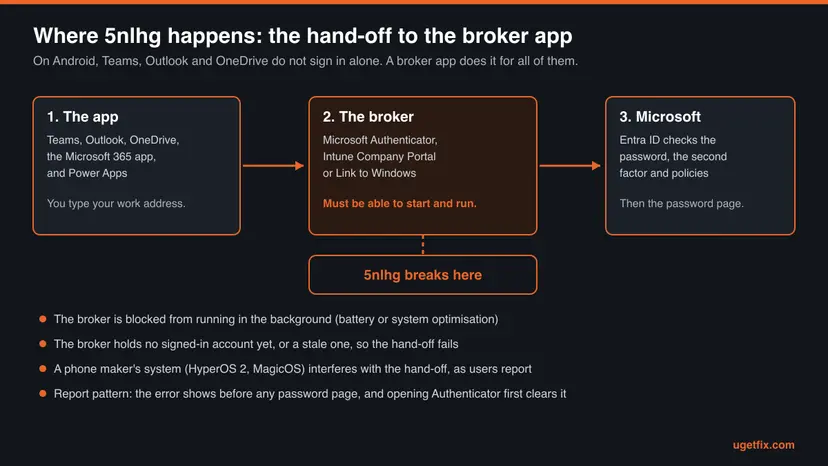
- The broker must be able to run. Microsoft tells app developers that when the app cannot bind to the broker (error BROKER_BIND_FAILURE), the user should turn off power optimization for Microsoft Authenticator and Intune Company Portal.
- A new broker starts empty. Microsoft says sign-in state that the app had before is not available to a newly installed broker, so you sign in again or pick an account the device knows.
- Which broker wins. Microsoft's MSAL for Android page says MSAL identifies the active broker on its own. An older MSAL troubleshooting page says MSAL uses the first broker installed. Either way, the broker you never signed in to can be the one in charge.
- Removing a broker removes the account. Uninstalling the active broker removes the account and its tokens from the device, and you may have to sign in again.
Put next to the reports, this explains the pattern. The accepted answer in the largest 5nlhg thread, found helpful by more than 70 people, says to keep Authenticator running in the background. Its author tested that the problem appeared only with Authenticator installed. Users fixed it by signing in to Authenticator or the Microsoft 365 app first.
What causes error 5nlhg, ranked by how often it is reported
Microsoft has not named a cause. The order below is our reading of the 5nlhg reports and of Microsoft's broker documentation. It is not a statistic.
| How often | Cause | Typical sign | Fix |
|---|---|---|---|
| Most often | The broker app is installed but not running or not signed in | Authenticator was installed recently, perhaps for the second factor. Opening it first and then the app works. | Fix 1 |
| Often | Android's battery or system optimisation stops the broker in the background | It worked after a sign-in, then the tag returned after hours or a restart. One user found the phone had set Smart Battery Usage for Authenticator. | Fix 2 |
| Often | The HyperOS 2 update on Xiaomi phones | The tag in every Microsoft app right after the update. Chinese users traced it to Authenticator being installed. | Fix 3, Fix 1 |
| Less often | Stale app data or a leftover work account on the phone | A reinstall alone did not help. An old account still sits under Android's accounts. | Fix 4, Fix 5 |
| Less often | A tangle of several Microsoft apps and brokers | Every Microsoft app fails. Removing all of them and restarting the phone before reinstalling worked for one student. | Fix 6 |
| Rarely | The device model or an organisation's rules | Honor phones lose the sign-in again after a while, or only the company phone fails. | Fix 8 |
Moderators answered several threads with a Microsoft article about Conditional Access for Teams Android devices. That article covers Teams phones, displays, panels and Teams Rooms, not personal phones. We found no report where a policy was shown to cause 5nlhg.
5nlhg on Xiaomi, Redmi and Honor phones
Two phone families stand out in the reports, and they behave differently. That matters, because the Xiaomi case usually ends with a working sign-in and the Honor case often does not.
| Phone | What users report | What helped |
|---|---|---|
| Xiaomi, Redmi, Xiaomi Pad after HyperOS 2 | Outlook, OneDrive and Teams show 5nlhg after the update. The answer that most users found helpful says the problem only occurs with Microsoft Authenticator installed. | Keep Authenticator open in the background (Fix 1). Users also report a developer option and a cloned app (Fix 3). |
| Honor (Magic V3, 90, 200, 400) with MagicOS | Outlook, Teams and Edge sign in, work for a while, then fail with Sign-in failed or with 5nlhg and Code 1668537278. Turning off battery optimisation did not stop it for several users. | Clearing Outlook's data, opening Authenticator and Company Portal, then signing in again. It lasts only until the next sign-out (Fix 8). |
For the Honor case a Microsoft employee wrote that there have been known issues with HONOR devices during Intune sign-ins. The same answer asked users to check whether their model is on Google's Android Enterprise Recommended list and to test the same account on another phone.
Your own phone or a company phone: who should run which fix
Most fixes here are safe on any phone. Two of them remove things the organisation may have set up: the work account in Android's settings (Fix 5) and the Company Portal app (Fix 6). Find out first what kind of phone you have.
| What you see on the phone | What it means | Your route |
|---|---|---|
| No Company Portal app, no work profile, only Authenticator | Your own phone with a work account in Microsoft's apps. | All fixes. |
| Company Portal installed and signed in, but no separate work apps | The device or its apps are registered with your organisation. | Fix 1 to Fix 4 and Fix 7. Ask IT before Fix 5 and Fix 6. |
| Company Portal set up an Android work profile when you enrolled | An Android work profile managed by the organisation. | Fix 1, Fix 2 and Fix 7 only, then IT. |
| The phone was handed to you by the employer | A company-owned, fully managed phone. | Fix 1 and Fix 2, then IT. |
- Copy the details of the 5nlhg window with the time.
- Tell IT whether the same account works in a browser and on a computer.
- Name the phone model and the Android or HyperOS or MagicOS version.
- Uninstall Company Portal or remove the work profile yourself.
- Remove Authenticator before you know you have another way to approve sign-ins.
- Install Microsoft apps from outside the Play Store.
How to fix error 5nlhg in Teams, Outlook and OneDrive on Android
Do the browser test first: sign in at teams.microsoft.com or outlook.office.com on the phone's browser. If that works, the account is fine and the fixes below apply. Try to sign in to the app after each fix. Success looks the same every time: the password page or the account picker appears instead of the red line.
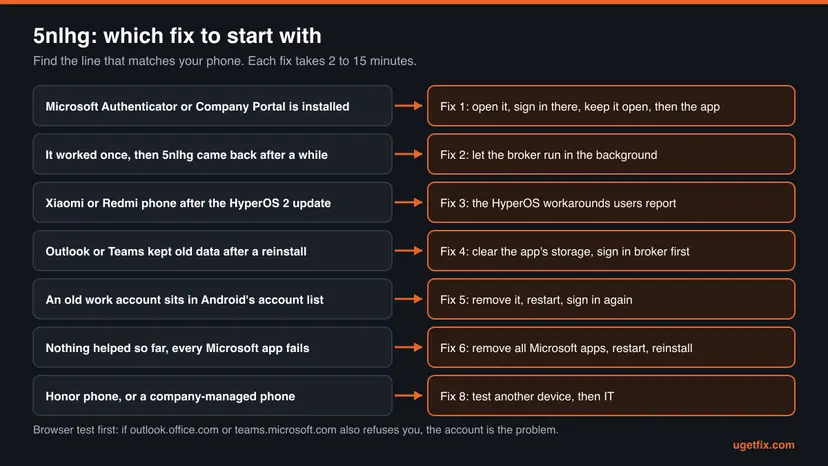
| Your case | Start with | Then |
|---|---|---|
| The browser also refuses the account | The section after the fixes | Password reset or IT |
| Microsoft Authenticator or Company Portal is on the phone | Fix 1 | Fix 2 |
| It worked once, then 5nlhg returned after hours or a restart | Fix 2 | Fix 1 |
| Xiaomi or Redmi phone after the HyperOS 2 update | Fix 1 | Fix 3 |
| Outlook or Teams was reinstalled and still fails | Fix 4 | Fix 5 |
| Every Microsoft app on the phone fails | Fix 6 | Fix 7 |
| Honor phone, or a phone managed by your employer or school | Fix 1 | Fix 8, then IT |
Fix 1. Open the broker app first, sign in there and keep it running
2 to 5 minutesNo riskEveryone with Microsoft Authenticator, Intune Company Portal or the Microsoft 365 app on the phone. Start here.
Microsoft's apps hand the sign-in to the broker inside Authenticator or Company Portal. If that app is closed or has no signed-in account, the hand-off fails. Keeping Authenticator open is the accepted answer in the main 5nlhg thread.
- Close Teams, Outlook and OneDrive: swipe them away from the recent apps screen.
- Open Microsoft Authenticator. If your work or school account is listed, tap it and check that it is the right address. If Authenticator asks you to sign in again, do it.
- If the account is not in Authenticator, tap the + icon, then Work or school account and Sign in, and enter your work address and password.
- If Company Portal is installed, open it as well and sign in if it asks.
- Press the Home button. Do not swipe Authenticator or Company Portal away, so they stay in the background.
- Open Teams (or Outlook) and sign in with the same work address. Choose the account when the app offers it.
Users without a broker fixed it another way: they opened the Microsoft 365 app, entered the password there once, and then Teams signed in by itself. One tablet user signed in in this order: Authenticator, then the Microsoft 365 app, then Teams, Outlook and OneDrive.
A May 2026 report adds a variant for Outlook: the user signed in to the account inside Authenticator even though it was already listed, then added the mailbox in Outlook with the QR code option. Everything synchronised again.
It worked if: Instead of the red line, Teams shows your account or the password page, and after the second factor it opens your chats.
If not: If it works now but the tag returns after a while or after a restart, the phone stops the broker in the background: go to Fix 2.
Fix 2. Let Authenticator and Company Portal run without battery limits
5 minutesLow riskFix 1 worked once and 5nlhg came back later, or the phone limits new apps by default.
Microsoft tells developers to have users turn off power optimization for Authenticator and Company Portal when the broker cannot be reached. Microsoft's Intune help adds that battery optimization can stop Company Portal from running in the background.
- Open the phone's Settings app and tap Apps > See all apps.
- Tap Authenticator, then App battery usage.
- Tap Allow background usage and choose Unrestricted, the opposite of the default Optimized.
- Go back and do the same for Company Portal, and for Link to Windows if it is installed.
- In Company Portal you can also use its own switch: open the menu, tap Settings, scroll to Battery Optimization, tap TURN OFF and then Allow.
- Restart the phone, open Authenticator once, then sign in to Teams or Outlook.
The labels above are Google's, from Android 14 and later on Pixel phones. Samsung, Xiaomi, Honor and others name the same setting differently, for example battery saver per app, background activity or app launch. Look for the setting that lets the app run in the background. Google notes that unrestricted apps can use more battery.
It worked if: The sign-in keeps working after the screen has been off for hours and after a restart.
If not: On a Xiaomi phone with HyperOS 2, try the workarounds in Fix 3. Elsewhere, clear the app's stored data with Fix 4.
Fix 3. On Xiaomi with HyperOS 2: the two workarounds users report
10 minutesLow riskXiaomi, Redmi or Xiaomi Pad devices where 5nlhg started after the HyperOS 2 update and Fix 1 did not help.
The most helpful 5nlhg answer, written for HyperOS 2, lists two more options besides keeping Authenticator open. Neither comes from Xiaomi or Microsoft, so treat them as user workarounds that you undo afterwards.
- Make sure Developer options are on. On Xiaomi phones this menu sits under Settings > Additional settings > Developer options, according to the report.
- In Developer options, find the storage option that the report calls Enable system optimization and turn it off.
- Open Authenticator, then sign in to Outlook, Teams or OneDrive.
- After the sign-in works, go back to Developer options and turn the option on again, as the report advises.
- If you prefer not to touch Developer options, use Xiaomi's Dual apps feature to create a second copy of Outlook or Teams and sign in through that copy.
Change only the one option named above and switch it back afterwards. A dual app is a second copy with its own data, so mail or chats you set up there do not appear in the original app.
It worked if: The sign-in window asks for your password, and the account works in the app after the option is back on.
If not: We could not confirm these menu names from Xiaomi. If you cannot find them, clear the app data in Fix 4.
Fix 4. Clear the app's stored data and sign in again, broker first
5 minutesLow riskThe app was reinstalled or its cache cleared and 5nlhg remains, or Outlook stopped syncing before the tag appeared.
Microsoft's Outlook help offers Reset Account for wrong or incomplete data on the phone, and moderators asked 5nlhg users to clear the app's cache and data. Data that is cleared while the broker is closed often brings the tag back.
- If Outlook still opens, tap Settings, select the email account and tap Reset Account. Wait a few minutes and check whether mail syncs.
- If it does not, open the phone's Settings > Apps > See all apps and tap the failing app (Teams, Outlook or OneDrive).
- Tap Force stop and OK.
- Tap Storage & cache > Clear storage (on some phones Clear data) and OK.
- Open Authenticator and Company Portal as in Fix 1 and leave them in the background.
- Open the app you cleared and add the work account again.
It removes the app's local data on this phone: the signed-in account, its settings and offline copies. Mail, chats and files in a work account live on Microsoft's servers and come back after the sign-in.
It worked if: The app starts like a fresh install, the account picker shows your work account, and the sign-in goes through.
If not: If 5nlhg appears again at once, remove the work account from Android's settings with Fix 5.
Fix 5. Remove the work account from Android, restart and sign in again
10 minutesRead the warningYour own phone, when an old or wrong work account sits in Android's account list, or Fix 4 did not help.
Microsoft says a successful broker sign-in creates an Android account of type Work account. A Microsoft moderator told a 5nlhg user to remove it, reboot and sign in only after a reinstall, without letting Android add the account by itself.
Removing the work account signs every Microsoft work app on the phone out at once, and on a company phone it can remove the organisation's setup. Check that your password works in a browser first, and on a managed phone ask IT before you do this.
- Open the phone's Settings app and tap Passwords & accounts. Depending on the phone it is called Users & accounts, Passwords, passkeys & accounts or Manage accounts.
- Under Accounts, look for an entry of the type Work account with your work address.
- Tap it, tap Remove account, and confirm with Remove account again.
- Restart the phone.
- Open Authenticator and sign in to the work account there first (Fix 1).
- Open Teams or Outlook and sign in with the same address.
It worked if: Android shows a new Work account entry after the sign-in, and the apps open without the tag.
If not: If the account cannot be removed or 5nlhg comes back, start clean with the full reinstall in Fix 6.
Fix 6. Remove all Microsoft apps, restart the phone, then reinstall broker first
20 to 30 minutesRead the warningEvery Microsoft app fails, Fix 1 to Fix 5 did not help, and the phone is your own.
Uninstalling the active broker removes the account and its tokens from the device, so a full removal clears the broker state completely. A student fixed 5nlhg this way and noticed that it only worked with the restart in between.
If Authenticator is how you approve sign-ins, removing it can lock you out of your work account. Open Security info at mysignins.microsoft.com/security-info in a browser and make sure another method is listed, such as a phone number. If not, ask IT first.
- Uninstall Teams, Outlook, OneDrive and the Microsoft 365 app from the Play Store or from Settings > Apps.
- Uninstall Microsoft Authenticator, and Company Portal only on your own phone.
- Restart the phone. The user who solved it this way wrote that removing the apps without a restart did not work.
- Install Microsoft Authenticator from the Play Store and add your work account with + > Work or school account > Sign in.
- Install Company Portal again only if your organisation requires it, and sign in.
- Install Teams, Outlook and OneDrive and sign in, one app at a time.
It worked if: The first app asks for your account, uses the broker without error, and the others pick up the same account.
If not: If 5nlhg is still there with fresh apps, check versions and Android support in Fix 7.
Fix 7. Update the Microsoft apps and check that Android is still supported
10 minutesNo riskThe apps or the phone have not been updated in a while, or the tag started after a system update.
Microsoft supports Teams only on the last four major Android versions, and moderators asked every 5nlhg user for the app version first. A staff member also suggested updating Microsoft Authenticator, because the broker sits inside it.
- Open the Google Play Store, tap the profile icon at the top right and tap Manage apps & device.
- Under Updates available tap See details, then Update next to Microsoft Authenticator, Company Portal, Link to Windows, Teams, Outlook, OneDrive and the Microsoft 365 app, or Update all.
- Open the phone's Settings app and type
Android versionin its search box to see which version the phone runs. - Search Settings for
updateand install any pending system update. The menu name differs by phone maker. - Restart the phone, open Authenticator, then sign in to the app.
If your Android version is older than the last four major versions, Microsoft no longer supports Teams on it, and sign-in problems will not be fixed for that version. Use Teams on the web on that device instead.
It worked if: All Microsoft apps are on their current versions, and the next sign-in passes the broker without the tag.
If not: If 5nlhg stays on an up-to-date phone, test the device itself with Fix 8.
Fix 8. Test another device or a new Android user, then go to IT
15 minutesLow riskHonor phones, phones managed by an organisation, or any phone where Fix 1 to Fix 7 did not last.
A Microsoft employee answering the Honor thread named known issues with HONOR devices during Intune sign-ins and asked users to test on another device. If the same account works there, the cause is the phone, not the account.
- Sign in to Teams or Outlook with the same account on another phone or tablet, ideally a different brand.
- Check your model on Google's Android Enterprise Recommended device list.
- On an Honor phone, use the short-term workaround users report: clear Outlook's data, wait, open Authenticator and Company Portal, then add the account in Outlook again.
- One Honor user reported that a new Android user profile worked. Add one under Settings > System > Multiple users > Add user, switch to it, install the apps there and test.
- Send IT the details from the 5nlhg window, the phone model, the system version and the results of these tests.
It worked if: You know whether the account works on other hardware, which tells IT or Microsoft support where to look.
If not: If 5nlhg appears on every device, the account or the organisation's settings are the cause: read the next section.
If 5nlhg is still there: what to check and what to send
When the browser also refuses the account, nothing on the phone can help. When the browser works and every fix failed, collect the evidence once and hand it over, instead of reinstalling again and again.
| What you see | Likely reason | Who can fix it |
|---|---|---|
| The browser refuses the password too | Wrong, expired or recently changed password | You with a password reset, or IT |
| The browser says the account is blocked or disabled | The organisation blocked sign-in, often after you left a school or job | IT only |
| Outlook adds the account but sets it up as IMAP | A Microsoft 365 mailbox should use the Microsoft 365 or Exchange option | You: remove it and add it again with the right type |
| Only one phone model fails, other devices work | A device or system compatibility problem | IT and Microsoft support |
- From the error window: Correlation Id, Timestamp, Tag and Code, plus the app, the phone model and the system version.
- Authenticator logs: in Authenticator open the menu at the top right, tap Send Feedback > Having Trouble?, pick the closest option and send. Give IT the Incident ID that appears.
- Company Portal logs: open the menu at the top left, tap Help > Email Support > Upload Logs Only and note the Incident ID.
- For administrators: look up the attempt in the Microsoft Entra sign-in logs at the Timestamp. It shows whether the service refused the account or never received the request.
How to keep 5nlhg from coming back
Once the broker holds your account and is allowed to run, the tag does not return by itself on most phones. Honor phones are the exception in the reports, so expect repeat sign-ins there until a fix arrives.
- Keep Authenticator and Company Portal signed in. Do not remove the work account from them while you still use Teams or Outlook on the phone.
- Keep their background usage unrestricted after a system update. Updates on some phones reset per-app battery settings.
- On a new phone, install and sign in to Authenticator first, then the Microsoft 365 apps.
- Install Microsoft apps only from the Play Store and update them together, so the apps and the broker stay on matching versions.
- Keep another sign-in method on your Security info page, so a broker problem never locks you out of the account.
Frequently asked questions
What does error 5nlhg mean?
It means a Microsoft app on an Android phone or tablet could not complete the sign-in for a work or school account. The tag marks the step where the shared sign-in component stopped, and Microsoft publishes no definition for it. The reports point at the hand-off to the broker app, Microsoft Authenticator, Intune Company Portal or Link to Windows, because the error usually appears before any password page. Opening Authenticator first and keeping it in the background clears it for most people.
What does the 5nlhg error mean in Outlook?
The same as in Teams. Outlook for Android uses the same Microsoft sign-in component, so when it cannot hand the sign-in to the broker app you see Something went wrong [5nlhg]. Users report it after reinstalling Outlook, when adding a Microsoft 365 account and when opening the app after an update. Open Authenticator first and sign in there, then add the account in Outlook. If Outlook still shows old data, use Reset Account in its settings or clear its storage.
Why does Teams work on my PC and in the browser but not on my Android phone?
Because each device signs in separately, and on Android the Microsoft apps rely on a broker app that a PC does not use. If the browser on the phone signs in, your account, password and licence are fine. The fault sits in the phone's sign-in chain, most often a broker that is closed, not signed in or stopped by battery optimisation. Start with Fix 1 and Fix 2 on this page.
Why does 5nlhg appear on my Xiaomi phone after the HyperOS 2 update?
Xiaomi users began reporting it right after updating to HyperOS 2, in Outlook, OneDrive and Teams. The answer most users found helpful says the problem appears only when Microsoft Authenticator is installed, and that keeping Authenticator open in the background lets the sign-in through. The same answer lists a developer option and a cloned app as other workarounds. Neither Xiaomi nor Microsoft has published an explanation, so we could not confirm the cause.
Does 5nlhg happen on Honor phones too?
Yes. Owners of the Honor Magic V3, 90, 200 and 400 report that Outlook and Teams sign in, work for a while and then fail, sometimes with 5nlhg and Code 1668537278. Battery settings did not fix it for several of them. A Microsoft employee mentioned known issues with HONOR devices during Intune sign-ins and suggested testing another device. The workaround users report is to clear Outlook's data, open Authenticator and Company Portal, then add the account again.
Will reinstalling Teams or Outlook fix 5nlhg?
Reinstalling one app alone often does not help, because the account lives in the broker app, not in Teams or Outlook. Several users reinstalled and still saw the tag. What worked for one student was removing all Microsoft apps, restarting the phone and then reinstalling. Microsoft confirms that uninstalling the active broker removes the account and tokens from the device. Check your other sign-in methods before you remove Authenticator, as Fix 6 explains.
Is my account blocked when I see 5nlhg?
Usually not. Test it in the phone's browser at teams.microsoft.com or outlook.office.com. If that works, the account is active and the phone's sign-in chain is the problem. If the browser refuses you too, the cause may be a wrong or expired password, a blocked account or a sign-in rule of your organisation, and only your IT department can change those. Students and employees who left often lose access this way.
Is 5nlhg the same as error 7ita9?
No. Both appear in the same Microsoft sign-in window. The 7ita9 tag comes from Windows desktop apps with Code 3399811147, a Teams sign-in code tied to the account data that Windows stores. The 5nlhg tag comes from Android apps with Code 1388187389 or 1668537278 and points at the Android broker app. The fixes do not overlap: Windows fixes clear Credential Manager and identity folders, Android fixes deal with Authenticator, Company Portal and battery settings.
Is "errore 5nlhg" or "Se ha producido un error. [5nlhg]" the same error?
Yes. The Italian, Spanish, French and other versions translate only the sentence and keep the tag in brackets, so errore 5nlhg, erreur 5nlhg and error 5nlhg are one problem. The detail lines usually stay in English, including Tag: 5nlhg and the Code. The fixes are the same in every language. Only the menu names in Android's settings and in Authenticator appear in your language, and they also differ between phone makers.
Sources
- Microsoft Learn: Enable cross-app SSO on Android using MSAL (broker apps, power optimization, Work account) (learn.microsoft.com)
- Microsoft Learn: Troubleshooting brokered applications (Android broker precedence and logs) (learn.microsoft.com)
- Microsoft Learn: Turn off battery optimization in Company Portal app for Android (learn.microsoft.com)
Did this fix work?
One click, no account. It tells the next reader which guides are worth their time.
Questions and experiences: fix Microsoft Teams error 5nlhg on Android phones and tablets
Still broken, or found a fix we did not cover? Ask here: members and our editors answer. Reading is open; writing needs a free account.
…