How to fix
Microsoft Teams error 80070164
on Windows
Resolve Microsoft Teams error 80070164 on Windows 10 and 11 with our expert-tested solutions. Fix it quickly and hassle-free, so you can get back to work!


What causes How to fix Microsoft Teams error 80070164 in Windows?
- Corrupted credentials
- Badly-set network settings
- Conflicts with VPN programs
- Conflicts with firewall programs
- Older version of the app
- Temporary outage of the Teams service
Repairs Windows system files, removes malware, and restores a clean OS state — without reinstalling.
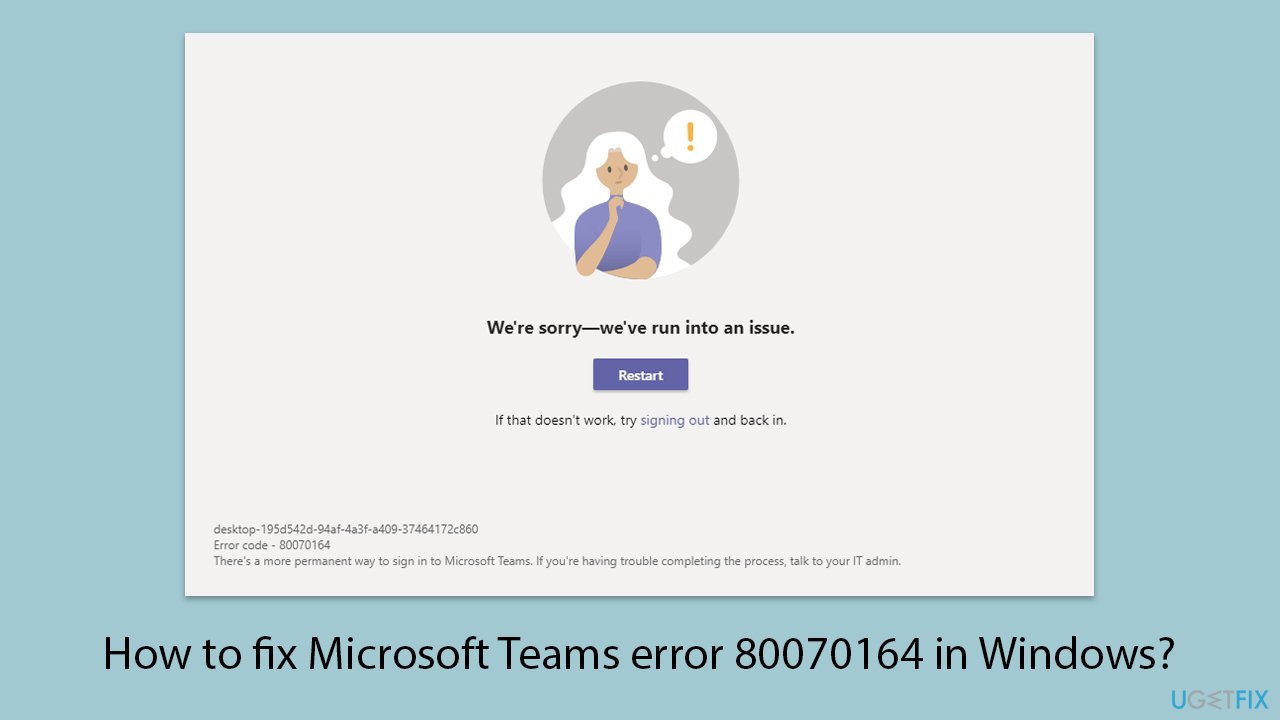
I have been using Microsoft Teams for my work for several days. Suddenly, I can't connect anymore as I get error code 80070164. I need this thing to work because I'm missing important meetings.
Error Code 80070164 in Microsoft Teams usually occurs when users are trying to sign in using the desktop application and signifies problems with the application sign-in process. Indeed, many users have complained about error code, especially after changes to network settings or problems connecting Teams applications to Microsoft servers.
This error might be caused by corrupted credentials, badly-set network settings, or conflicts with VPN and firewall programs. In other cases, this issue could be due to an older version of the app or a temporary outage of the Teams service. A very common error faced by most users while trying to log in to the Team's application is freezing it on boot or looping back to the login screen.
The potential solutions for error code 80070164 will involve the clearing of corrupted credentials, updating the Teams app, and checking on network configurations like disabling VPN or adjusting firewall settings. Sometimes, signing out and back into the Microsoft account associated with Teams can resolve this issue. The most obstinate ones may be fixed by reinstalling the app or performing a system update.
If you are looking for more comfort in troubleshooting, and thus fixing the issues that are the source of the error, make sure that a reliable [d1] repair tool can help you isolate the system-level problems and ensure that Microsoft Teams will work properly again.
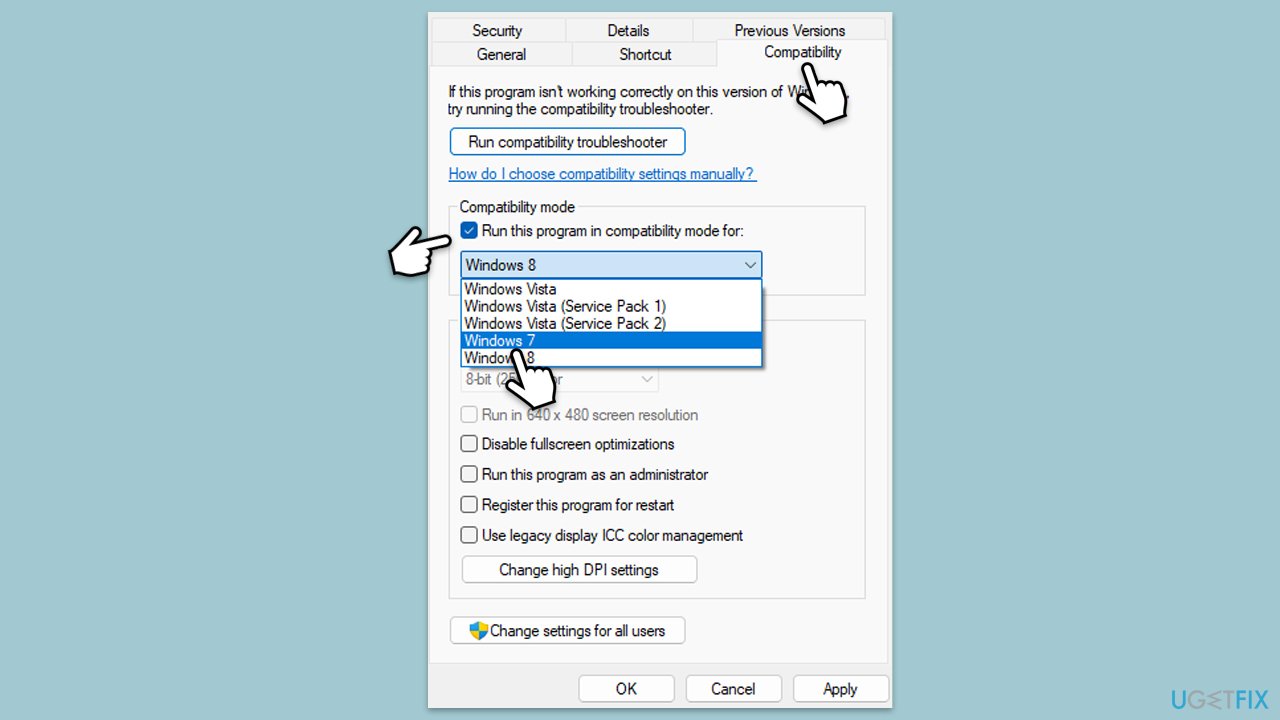
Fix 1. Run Teams in compatibility mode
- Right-click the Teams shortcut or executable file.
- Select Properties.
- Go to the Compatibility tab.
- Check the box for Run this program in compatibility mode for.
- Choose another Windows version from the dropdown menu.
- Mark the Run this program as an administrator checkbox.
- Click Apply, then OK.
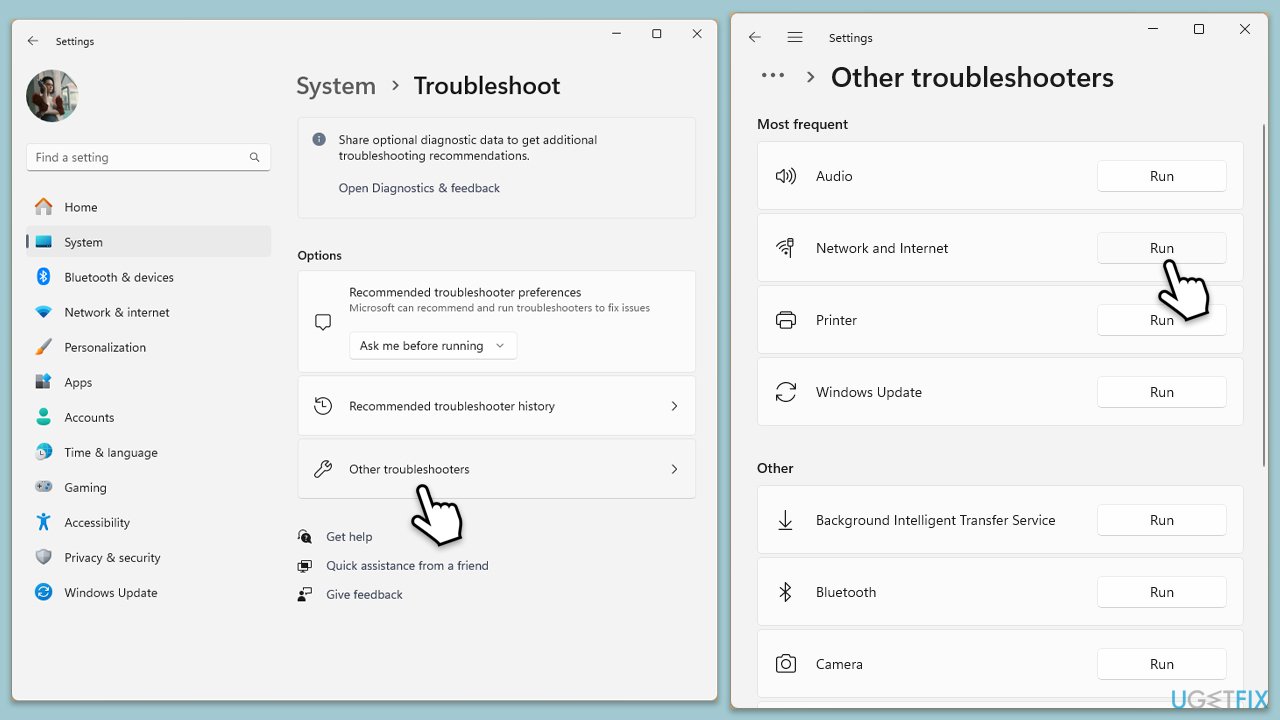
Fix 2. Run troubleshooters
Windows 11
- Type Troubleshoot in Windows search and press Enter.
- Select Other troubleshooters.
- Find Network & Internet troubleshooter from the list and select Run.
- Wait till the process is finished and apply the offered fixes.
- Repeat this process with Windows Store apps troubleshooter.
- Restart your computer.
Windows 10
- Right-click on Start and pick Settings.
- Go to Network & Internet section.
- On the right side, find the Advanced network settings section.
- Click Network troubleshooter, specify the problem, and wait till the scan is finished.
- When done, apply all the recommendations.
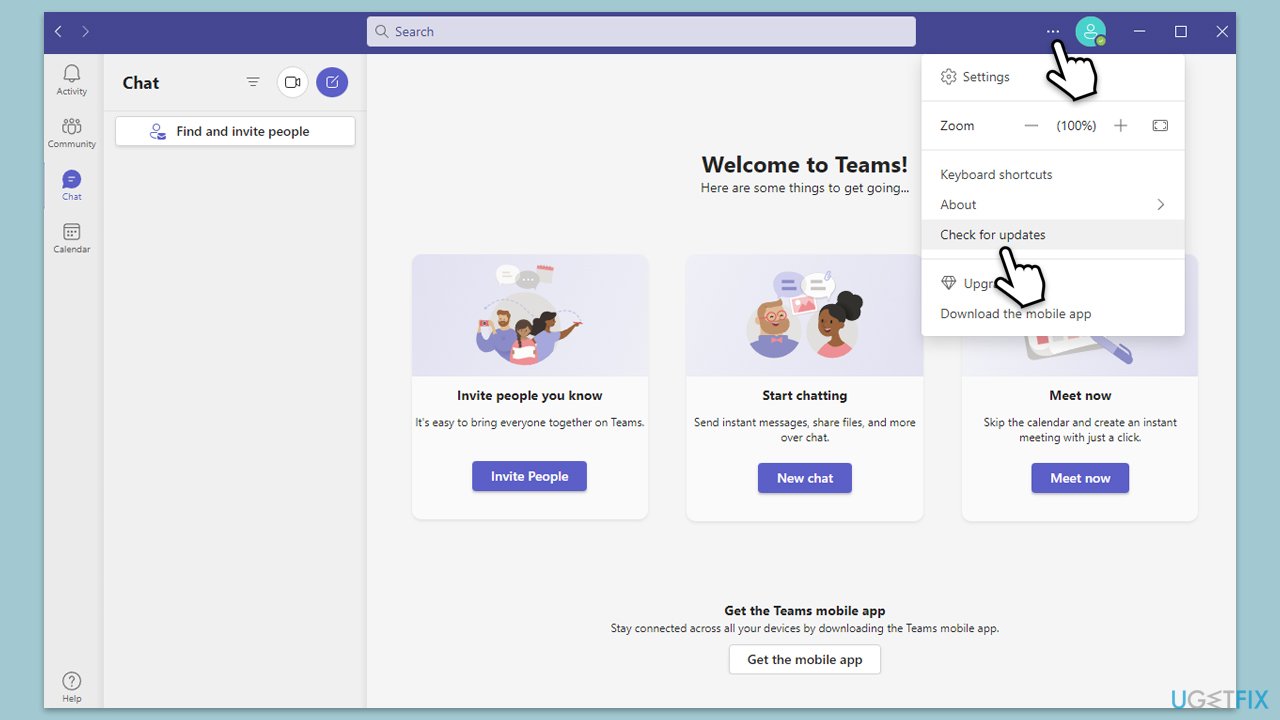
Fix 3. Update Teams
- Open Microsoft Teams.
- Click on the Settings and more button at the top-right corner.
- Select Check for updates.
- Teams will automatically download and install any available updates.
- Restart Teams after the update is completed.
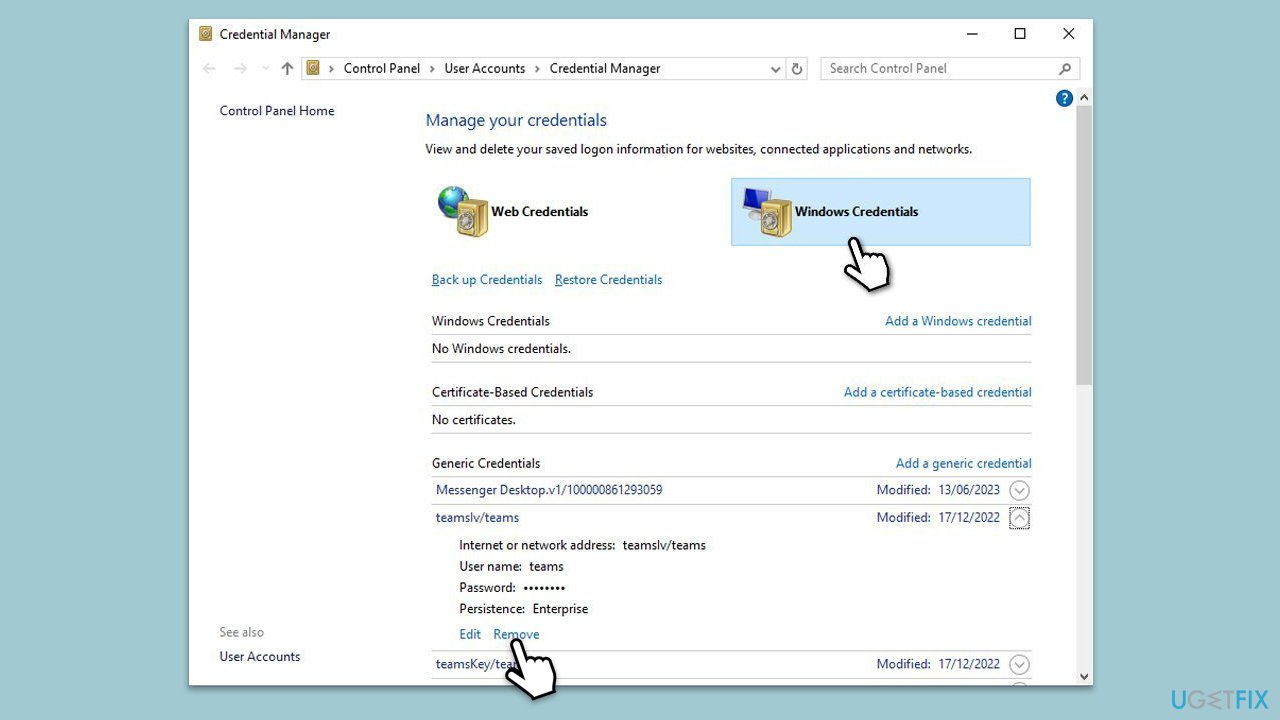
Fix 4. Clear Teams credentials
- Lof off from Microsoft Teams.
- Type Credential Manager in Windows search and press Enter.
- Select Windows Credentials.
- Locate and remove any stored credentials related to Microsoft Teams.
- Restart Teams and re-enter your login details.
Fix 5. Clear cache files
- Close down Microsoft Teams.
- Press Win + E to open File Explorer.
- Ensure Hidden files are visible.
- In the address bar, type in %appdata%\Microsoft\teams and press Enter.
- Delete the contents of the following folders:
%appdata%\Microsoft\teams\application cache\cache
%appdata%\Microsoft\teams\blob_storage
%appdata%\Microsoft\teams\Cache
%appdata%\Microsoft\teams\databases
%appdata%\Microsoft\teams\GPUcache
%appdata%\Microsoft\teams\IndexedDB
%appdata%\Microsoft\teams\Local Storage %appdata%\Microsoft\teams\tmp - Make sure you empty the Recycle Bin (or use Shift + Del combination to delete these files).
- Restart your computer.
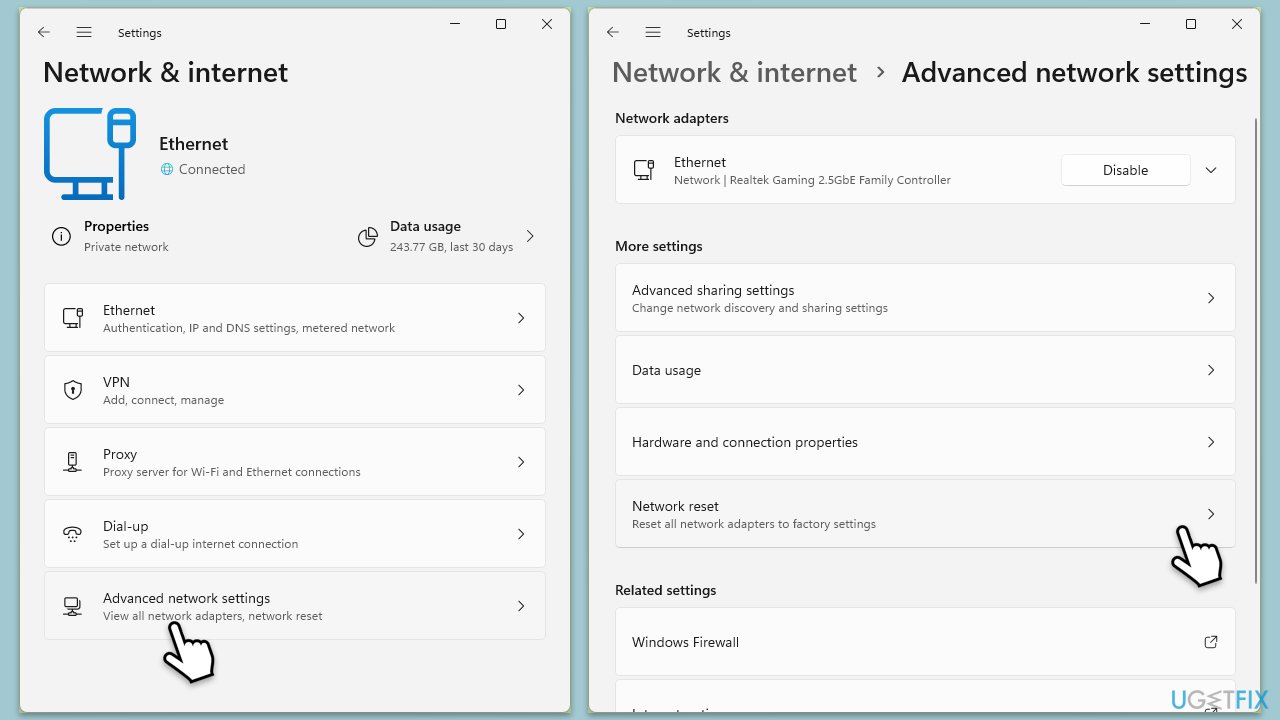
Fix 6. Reset your network
- Right-click on Start and pick Settings.
- Go to Network & Internet.
- Under Advanced network settings, click Network reset.
- Click Reset Now.
- Confirm the action and then restart your system.
Bottom line
To fix error code 80070164, you can try clearing corrupted credentials, updating the Teams app, and checking network configurations such as disabling VPN or adjusting firewall settings. Additionally, signing out and back into your Microsoft account or reinstalling the app may resolve the issue. If none of these solutions work, consider using a reliable repair tool to identify system-level problems.
Frequently asked questions
This error typically occurs due to issues with the Teams installation or corrupted files. It can also be triggered by outdated Windows updates or conflicts with other applications.
You can resolve this error by clearing the Teams cache, reinstalling the application, or ensuring that your Windows 10 or Windows 11 system is fully updated.
Yes, resetting the Microsoft Teams app can help fix error 80070164 by restoring the app to its default settings, which may resolve underlying issues.




Report an issue
What's wrong with this guide? We review every report and update or remove content.
Report received — thank you. We'll review and fix it.
You need a free account to submit a report.
Be the first to comment