How to fix
Microsoft Teams error 80080300
on Windows
Resolve Microsoft Teams error 80080300 effortlessly with our expert tips. Get your Windows 10 or 11 running smoothly again, fixed in minutes.

What causes How to fix Microsoft Teams error 80080300?
- Bad update
- Corrupted cache
- Corrupted UWP installation for MS Teams
- Corrupt MS Teams credentials in Credential Manager
Repairs Windows system files, removes malware, and restores a clean OS state — without reinstalling.
Hello. When I try to sign in to Microsoft Teams using the Windows app I receive the 80080300 error. What should I do?
Code 80080300 is an error message displayed to users when they attempt to log into Microsoft Teams using their email. The majority of people who experience this issue report that logging into their account from a browser, like Chrome, works without any issues - the problem only occurs when trying to use the dedicated Windows app for Teams.
The Microsoft Teams error is probably caused by a bad update or corrupted cache. On Windows 11, you might also see this because of corrupted UWP installation for MS Teams. If there's also a shared network connection, look into Credential Manager for corrupt MS Teams credentials.
In this guide, you will find 6 steps that should help you fix Microsoft Teams error 80080300. However, the manual troubleshooting process can be lengthy. You can use a maintenance tool like [d1]. It can fix most system errors, BSODs,[ref en-1] corrupted files, and registry[ref en-2] issues. It can also clear cookies and cache[ref en-3] which are often the culprits behind many malfunctions. Otherwise, follow the step-by-step instructions.
Solution 1. Install Updates
Microsoft reportedly fixed the issue with a couple of hotfixes deployed on every currently supported Windows version (Windows 10 and 11). Try to check for Windows updates to see if it helps.
- Press the Windows key + R to open the Run box
- Type ms-settings:windowsupdate in the text box and press Enter
- Click the Check for Updates button
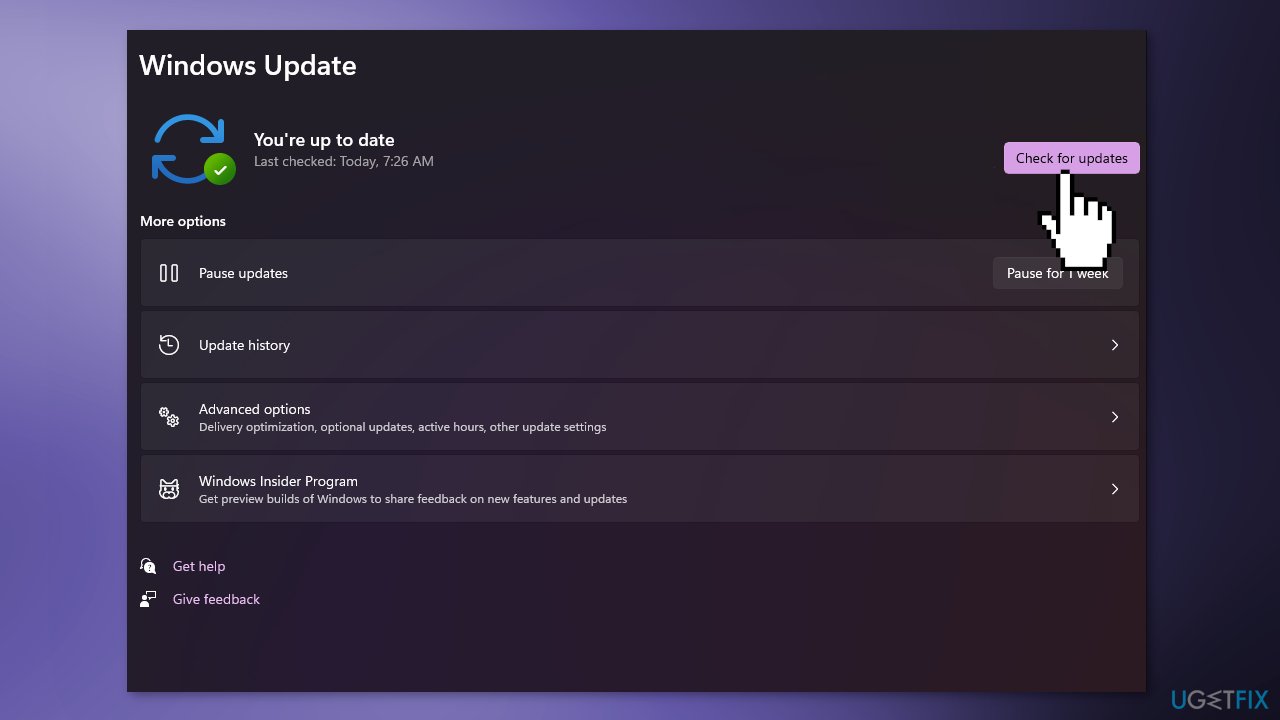
- If a new update is available, click the Download & Install all button.
- Restart your computer after the process is finished and check to see if the problem is fixed
Solution 2. Uninstall the latest Windows Updates
Mostly, people started reporting the Microsoft Teams error 80080300 after KB4560960 and KB4534132 updates. If you have these installed, try to uninstall them to see if it fixes the issue.
- Turn off your computer and hold down the power button while your PC is booting up to interrupt the process
- Start your PC once again and repeat the step above two more types until you successfully enter the Recovery menu
- When you get to the Advanced Options screen, choose Troubleshoot
- Click on the Troubleshoot tab and go to the Troubleshoot menu
- Choose Uninstall Updates
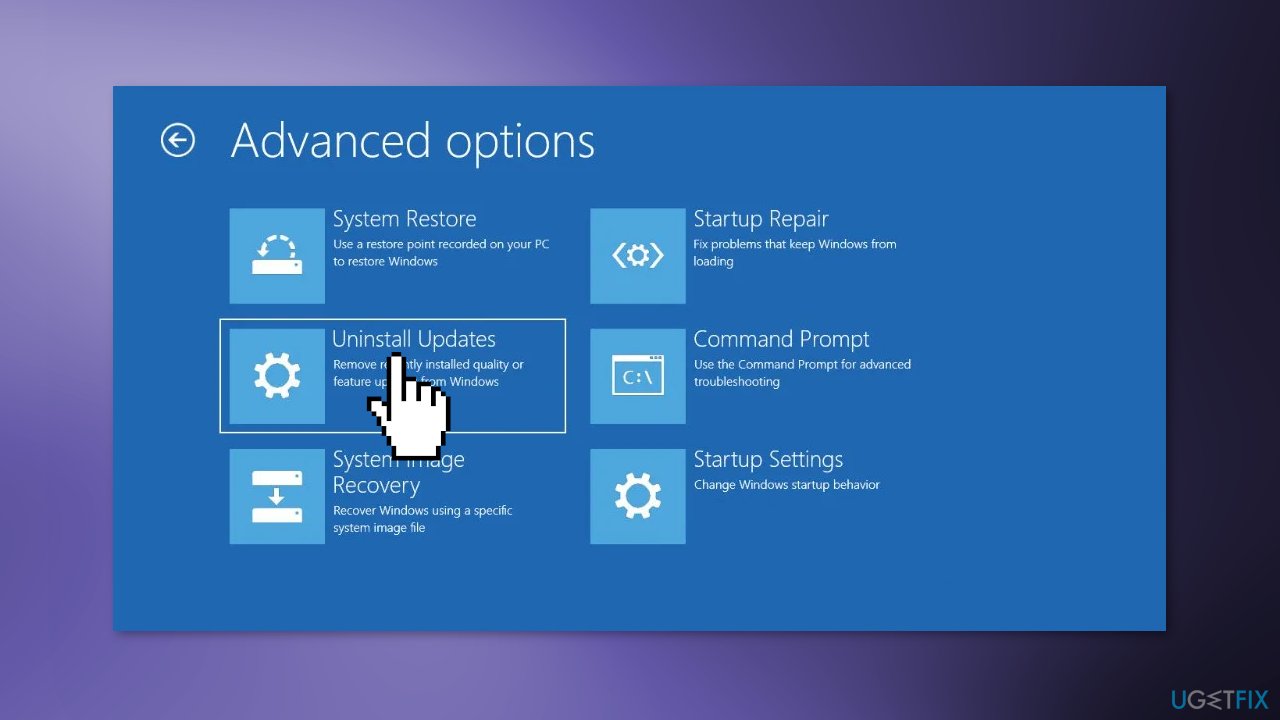
- On the Uninstall Updates screen, choose the most recent update, click on Uninstall, and click on confirm
- Once your PC boots back up, open Microsoft Teams to see if the error disappeared
Solution 3. Run Teams in Compatibility Mode
- Sign out of Microsoft Teams, close the app, and make sure it is not running in the background
- Right-click on the Microsoft Teams shortcut and select Properties from the context menu
- Go to the Compatibility tab
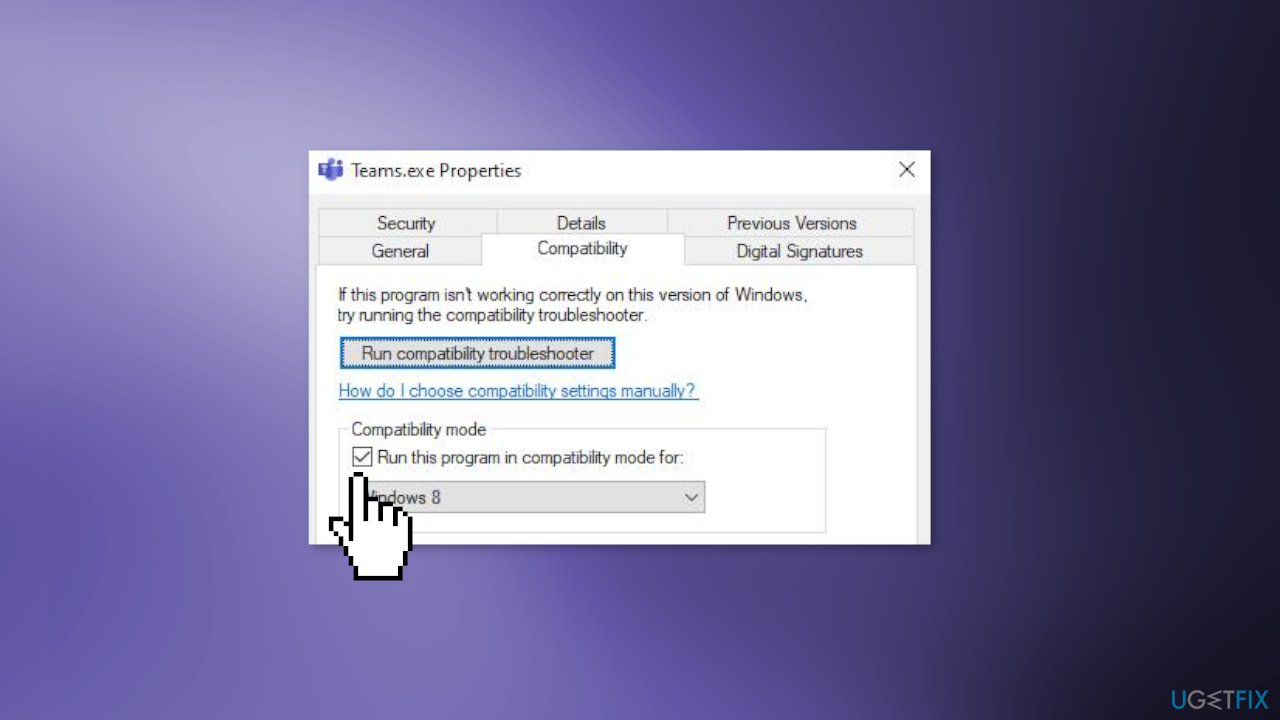
- Check the box associated with Compatibility Mode and set it to Windows 8
- Save the changes and reboot your PC
Solution 4. Delete Microsoft Teams Cache
- Press the Windows key + I to open the Settings app
- Click on Apps and click on Installed apps
- Use the search function on top to search for Microsoft Teams
- Click on the action button (three-dot icon), then click on Advanced Options
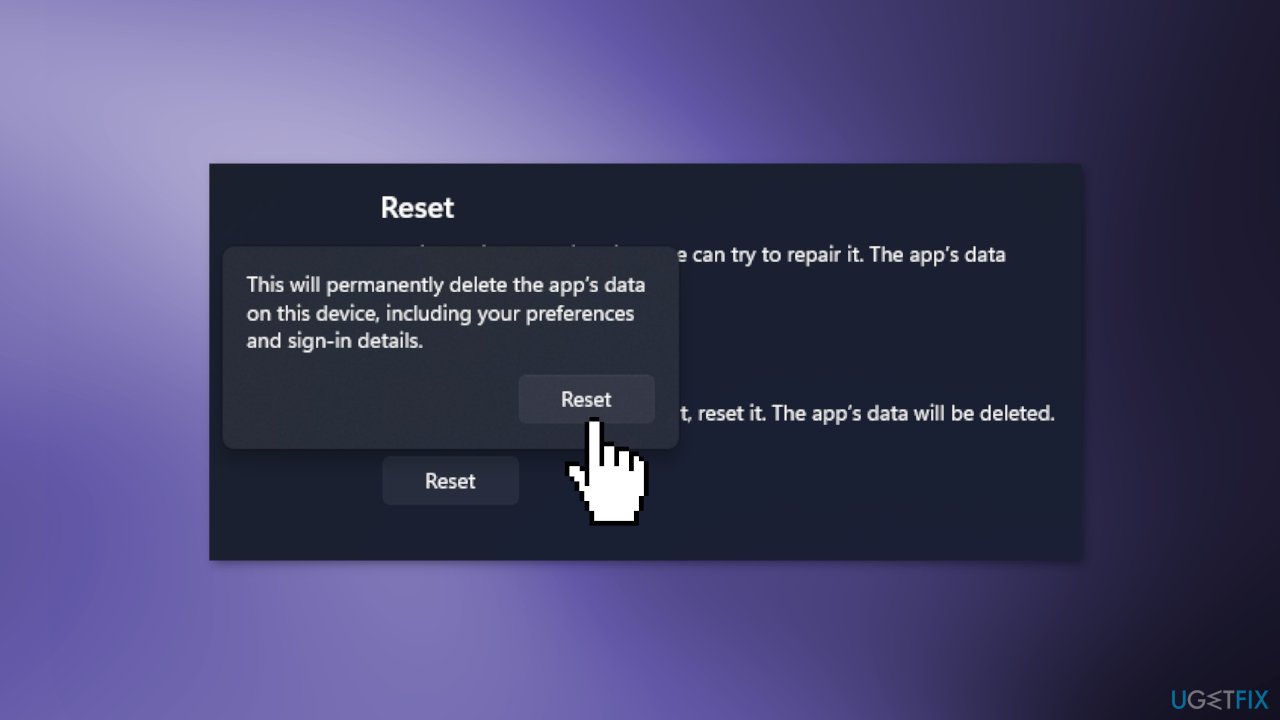
- Scroll down and click on the Reset button
- Confirm the reset procedure, then wait until the process is finished
- Restart your computer
Solution 5. Reinstall Microsoft Teams
- Make sure Microsoft Teams is closed and not running in the background
- Type Teams in the Windows Search Menu
- Right-click on Microsoft Teams and click on Uninstall
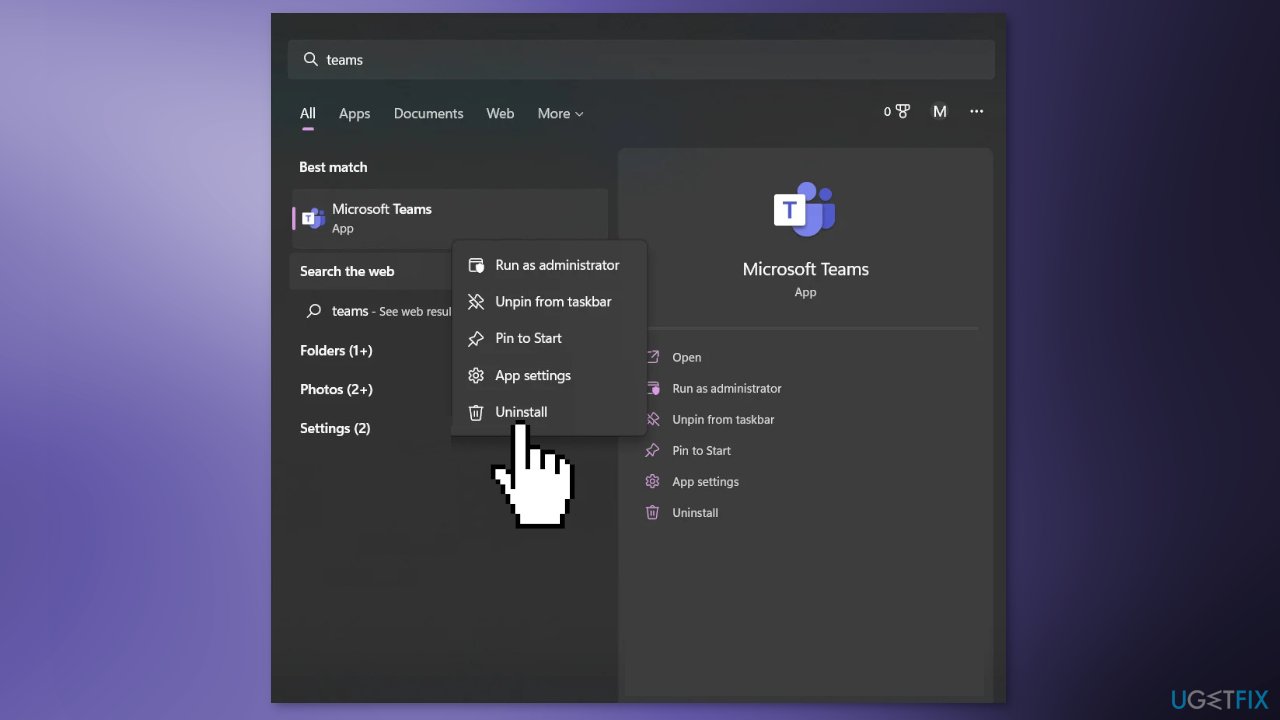
- Wait until the uninstallation is complete
- Now, open your browser and navigate to the official download page of Microsoft Teams
- Click on Download for Desktop
- Right-click on the downloaded executable and choose Run as administrator
- Microsoft Teams will automatically open once the UWP installation is complete
Solution 6. Remove MS Teams Credentials
- Press the Windows key + R to open up a Run dialog box
- Type control.exe keymgr.dll, then press Ctrl + Shift + Enter to open it with admin access
- Click on Windows Credentials
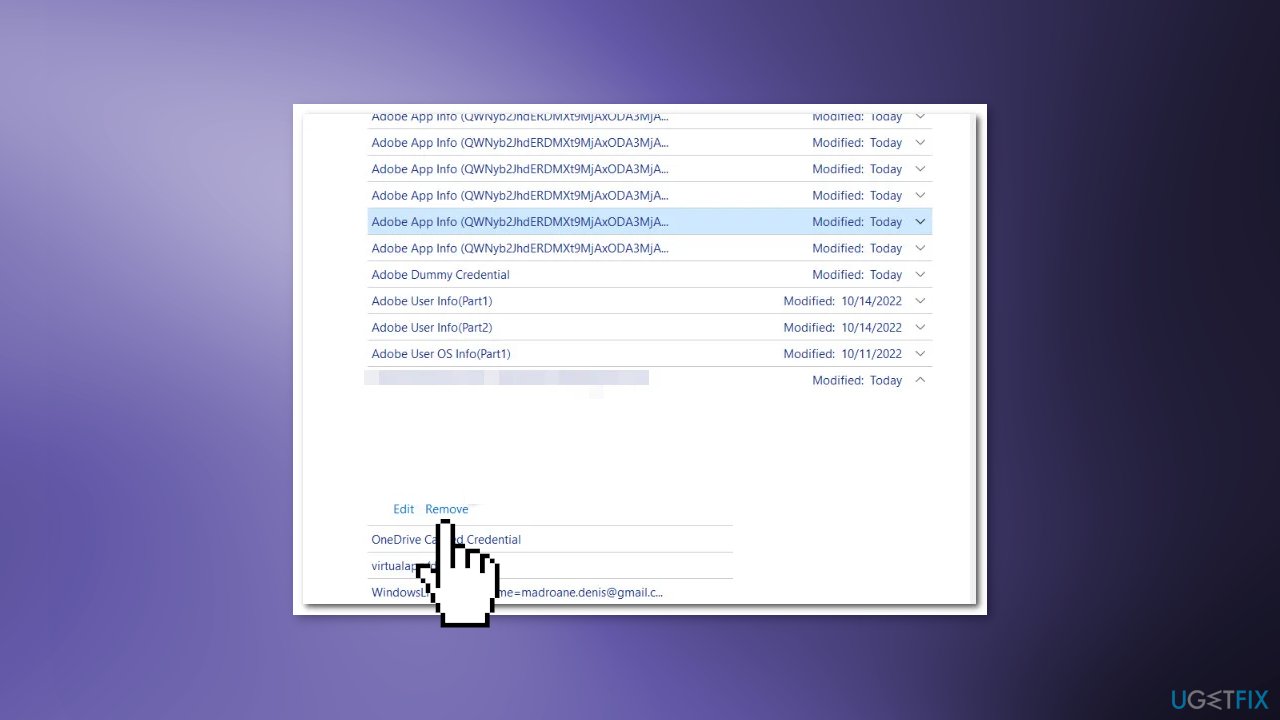
- Remove every saved Microsoft Teams and Microsoft Office account by selecting each listing and clicking Remove
- Close the Credentials manager and reboot your PC
- Open Microsoft Teams and see if the issue is resolved
Bottom line
To fix Microsoft Teams error 80080300, you can try installing Windows updates, uninstalling specific problematic updates, or using a maintenance tool to clear cache and cookies. If these solutions do not resolve the issue, consider following additional troubleshooting steps outlined in the guide.
Frequently asked questions
This error typically occurs due to issues with the Teams installation or corrupted cache files on Windows 10. It may also arise from network connectivity problems.
To clear the cache, close Microsoft Teams, then navigate to %appdata%\Microsoft\Teams in File Explorer and delete the contents of the folder. Restart Teams to see if the issue is resolved.
Yes, uninstalling and then reinstalling Microsoft Teams can effectively resolve error 80080300, especially if the installation files are corrupted on Windows 10 or Windows 11.




Report an issue
What's wrong with this guide? We review every report and update or remove content.
Report received — thank you. We'll review and fix it.
You need a free account to submit a report.
Be the first to comment