How to fix
Microsoft Teams error c02901df
on Windows
Resolve the Microsoft Teams error c02901df on Windows 10 and 11 effortlessly. Follow our expert-tested solutions for quick fixes! Fixed in minutes!

What causes How to fix Microsoft Teams error c02901df in Windows?
- Microsoft Teams program bug
- Issues with the app's cache
- Out-of-date version of Microsoft Teams
- Corrupted files on the system or Teams installation
Repairs Windows system files, removes malware, and restores a clean OS state — without reinstalling.
For some reason, Microsoft Teams keeps crashing on my machine with the error c02901df. I have endured this for almost a week now and the issue is not going away. Anything I can do to fix this?
Microsoft Teams has become a vital tool for communication and teamwork in the increasingly distant and digital workplace of today. To promote effective teamwork, it effortlessly combines file storage, video conferences, chat, and application integration. But even with its wide range of uses, there could be certain problems that prevent it from working well.
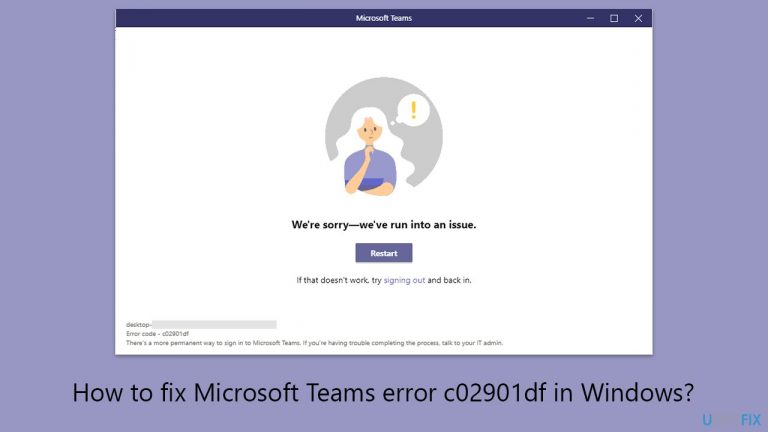
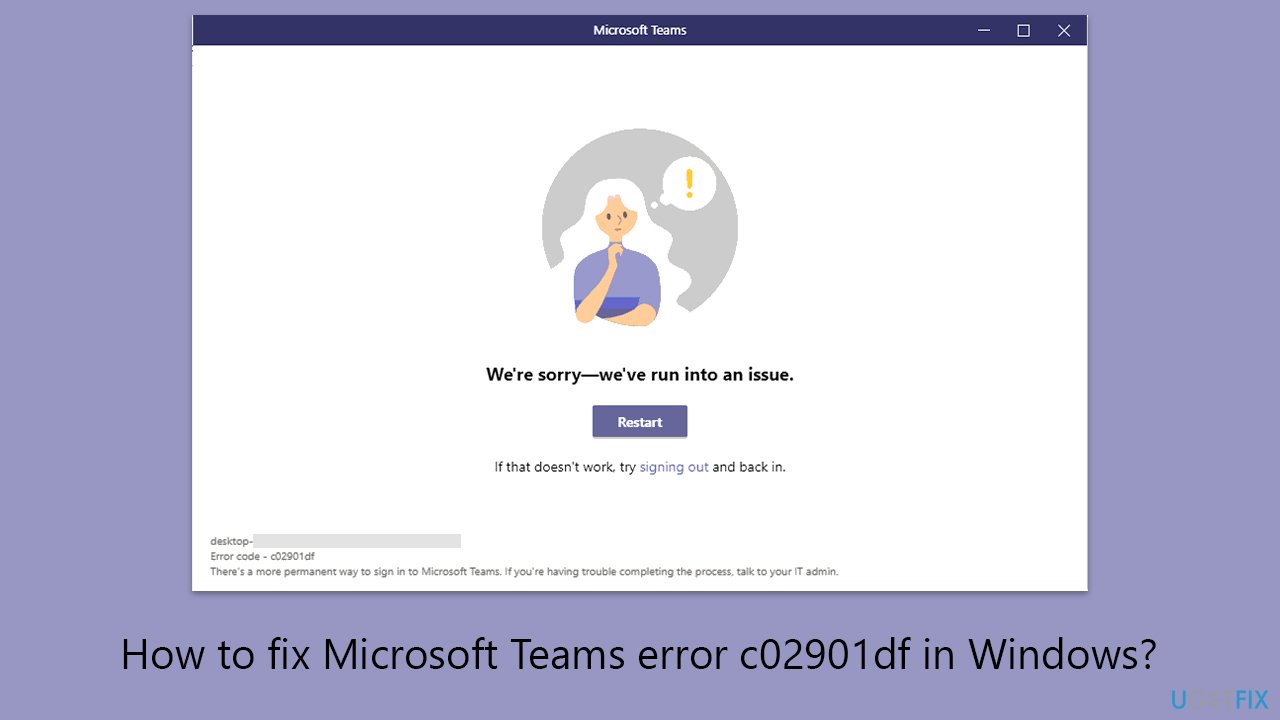
One such issue that can result in an unexpected Microsoft Teams crash is the error c02901df. You may receive an error message along with the message "Sorry, we've run into an issue." This message not only pauses your work but also alerts you to a more serious problem that needs to be fixed with the application or system.
The c02901df error might have several causes, which makes diagnosing it a challenging task. A Microsoft Teams program bug that could result in instability and crashes is one possible source. Additionally, issues can occasionally arise from the app's cache, which keeps temporary data to enhance efficiency. An out-of-date version of the Teams program is another frequent cause of this issue.
Because Microsoft updates its software frequently to address bugs and enhance features, using an out-of-date version can lead to compatibility problems and errors like c02901df. Moreover, this problem may also be caused by corrupted files on your system or the Teams installation, which could stop the program from operating properly.
Below we provide a comprehensive guide for you to fix the c02901df error in Teams. Each potential fix aims to resolve the underlying issue, whether it be through clearing the app's cache, updating the application to the latest version, or employing more technical solutions to repair corrupted files. Alternatively, you can rely on automated repair software such as [d1] to do much of the work for you.
Fix 1. Clear Microsoft Teams cache
Clearing the cache can resolve issues by removing temporary files that may have become corrupted. These files can cause the application to crash or malfunction. Clearing the cache does not affect your personal data or settings in Microsoft Teams but can refresh the application's state, potentially resolving error c02901df.
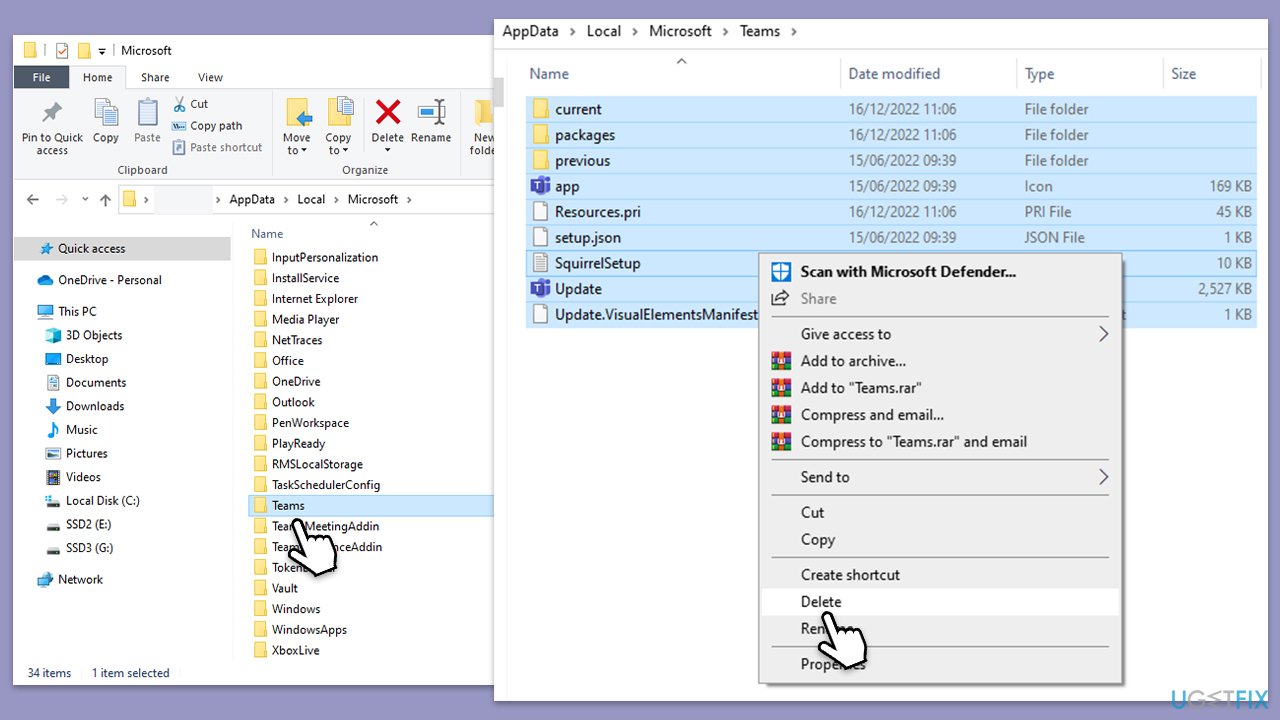
- Make sure Teams is not running (close from the system tray or Task Manager).
- Press Win + R on your keyboard to open the Run dialog.
- Type AppData and press Enter or click OK.
- Go to the following location:
C:\Users\User\AppData\Local\Microsoft - Delete all the files and folders located in the Teams folder.
- Start the app again.
Fix 2. Run Windows Store apps troubleshooter
The Windows Store apps troubleshooter can automatically detect and fix some common problems with apps downloaded from the Windows Store, including Microsoft Teams. It works by checking for issues such as improper app installation or configuration settings that might cause the app to malfunction.
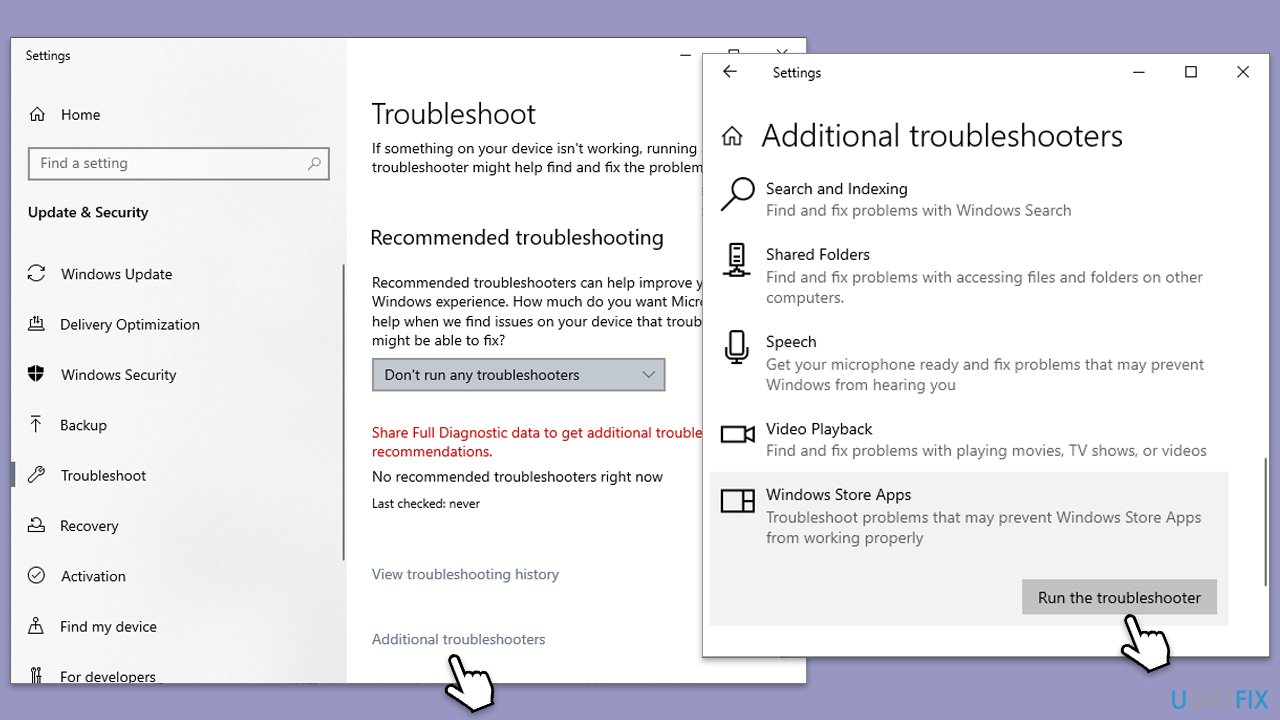
- Type troubleshoot in Windows search and press Enter.
- Access Additional troubleshooters/Other troubleshooters.
- Scroll down to find Windows Store Apps section and click it.
- Select Run the troubleshooter/Run.
- Wait till the scan is complete and apply the suggested fixes.
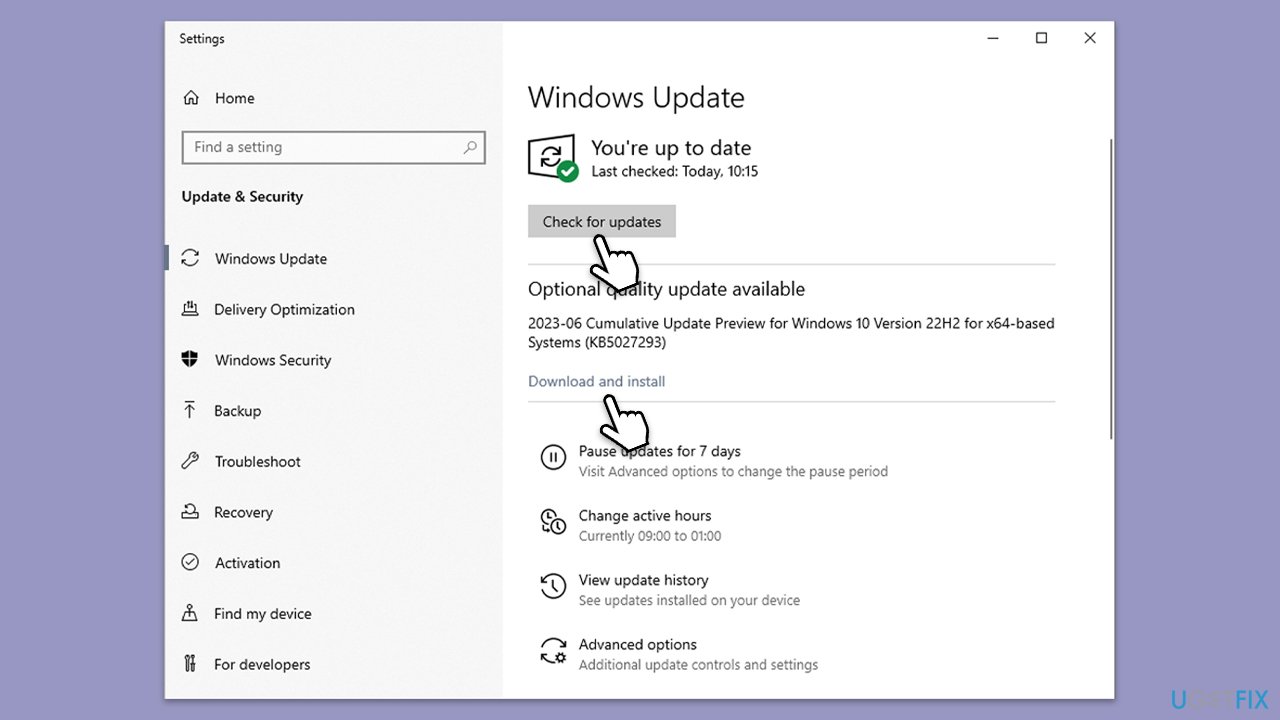
Fix 3. Install all Windows updates
Keeping your system up to date ensures that you have the latest security patches, bug fixes, and system improvements. It can also resolve compatibility issues between Windows and Microsoft Teams that might be causing the error.
- Type Updates in Windows search and hit Enter.
- Here, click Check for updates and wait till all the files are downloaded and installed.
- If optional updates are available, install them too.
- When all is done, reboot your system to apply all updates.
Fix 4. Repair or reset Teams
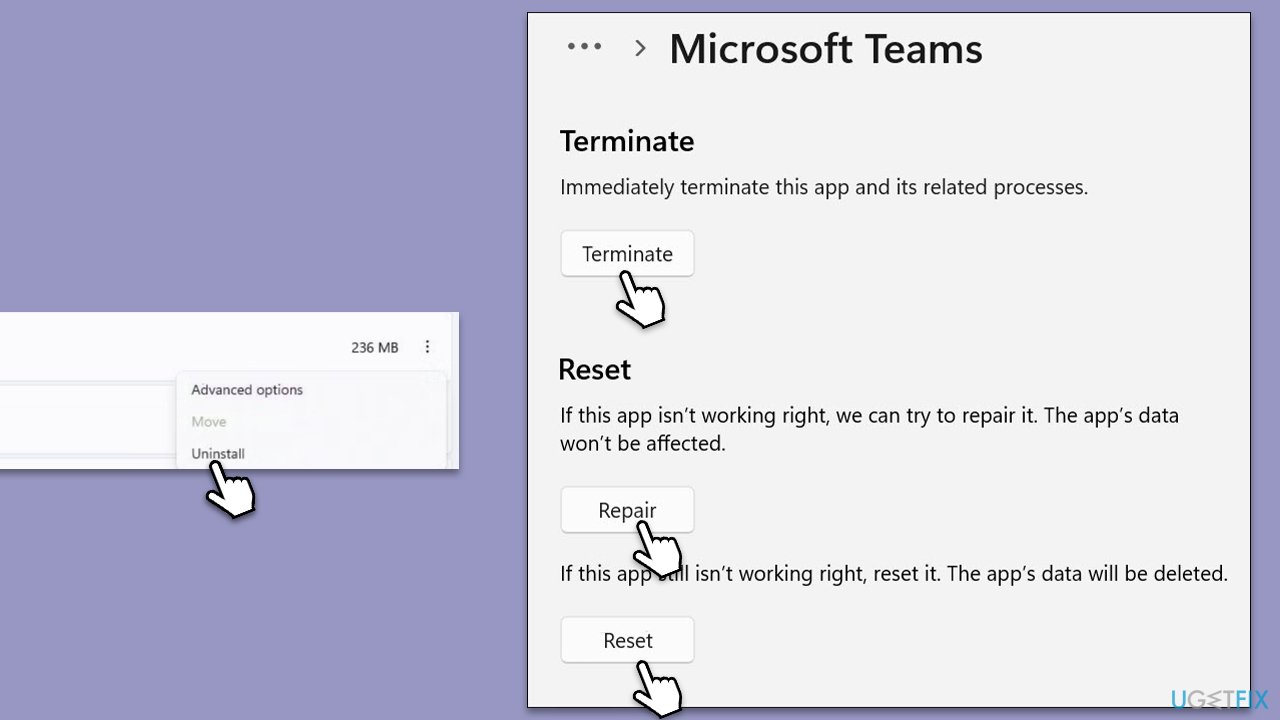
Windows 10 and later versions offer options to repair or reset applications, which can fix issues without affecting your data. Repairing the app attempts to fix any issues without changing app data, while resetting it reverts the app to its default state, potentially resolving deeper issues.
- Right-click on Start and pick Apps and Features.
- Scroll down to locate Microsoft Teams.
- Click Advanced options, scroll down, and select Terminate.
- Click Repair.
- If that does not help, click Reset instead.
Fix 5. Reregister all Windows apps in PowerShell
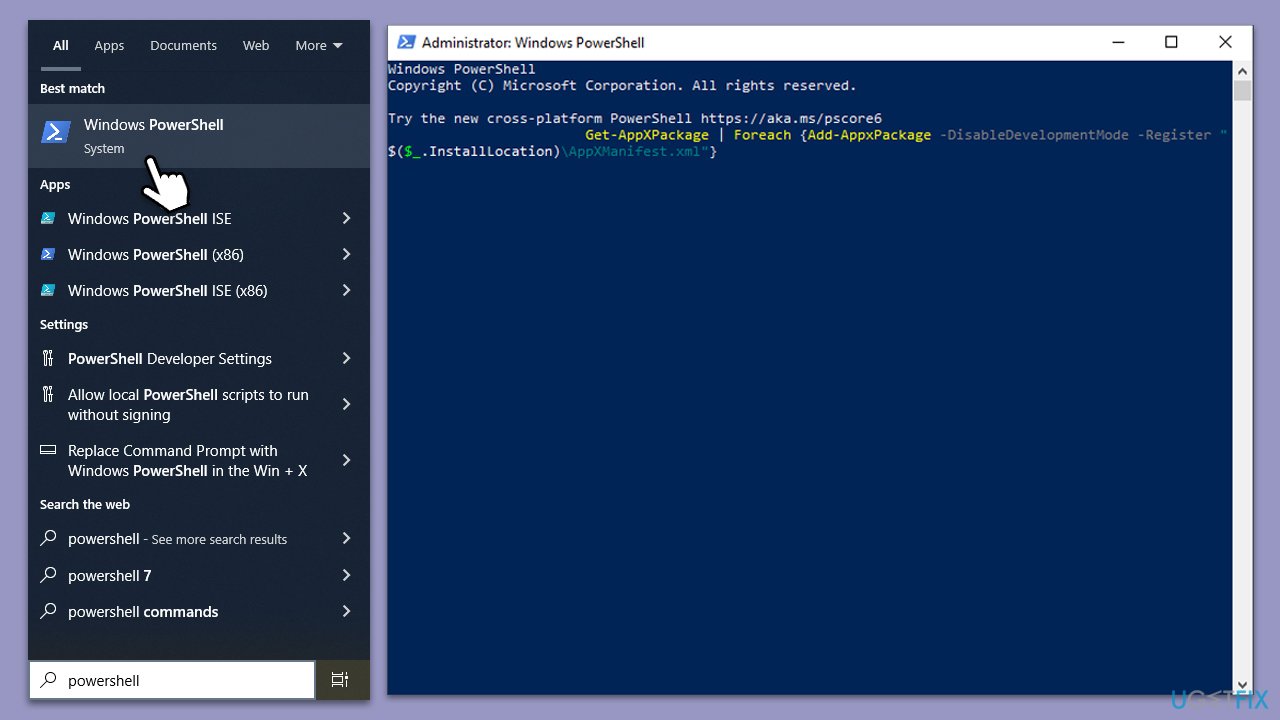
Reregistering Windows apps through PowerShell can resolve issues by refreshing app registrations and fixing corruption that might be causing errors. This process affects all installed Windows Store apps but does not delete your personal data or settings.
- Type PowerShell in Windows search.
- Right-click on the result and select Run as administrator.
- When UAC shows up, click Yes.
- Copy and paste the following command, pressing Enter after each:
Get-AppXPackage | Foreach {Add-AppxPackage -DisableDevelopmentMode -Register "$($_.InstallLocation)\AppXManifest.xml"} - Close down PowerShell and restart your system.
Fix 6. Repair corrupted system files
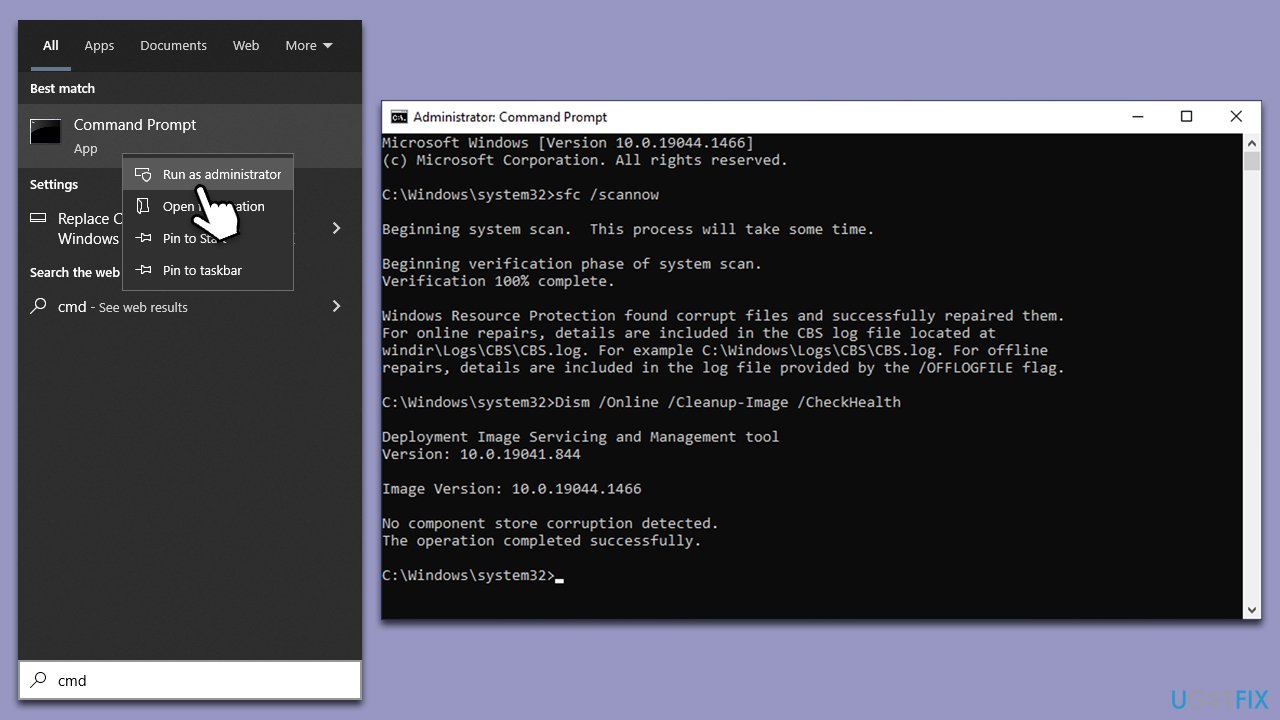
If the problem is caused by system file corruption, SFC and DISM scans could help you.
- Type cmd in Windows search.
- Right-click on Command Prompt and pick Run as administrator.
- When UAC asks you whether you want to make changes, agree by pressing Yes.
- Next, copy and paste the following commands, pressing Enter each time:
sfc /scannow
DISM /Online /Cleanup-Image /CheckHealth
DISM /Online /Cleanup-Image /ScanHealth
DISM /Online /Cleanup-Image /RestoreHealth
(Note: if you get an error executing the last command, add /Source:C:\RepairSource\Windows /LimitAccess to it and try again.) - Restart your computer.
Fix 7. Reinstall Teams
If all else fails, reinstalling Microsoft Teams can ensure you have a clean, error-free installation of the application. This process removes the current installation and replaces it with a fresh copy, potentially resolving persistent issues.
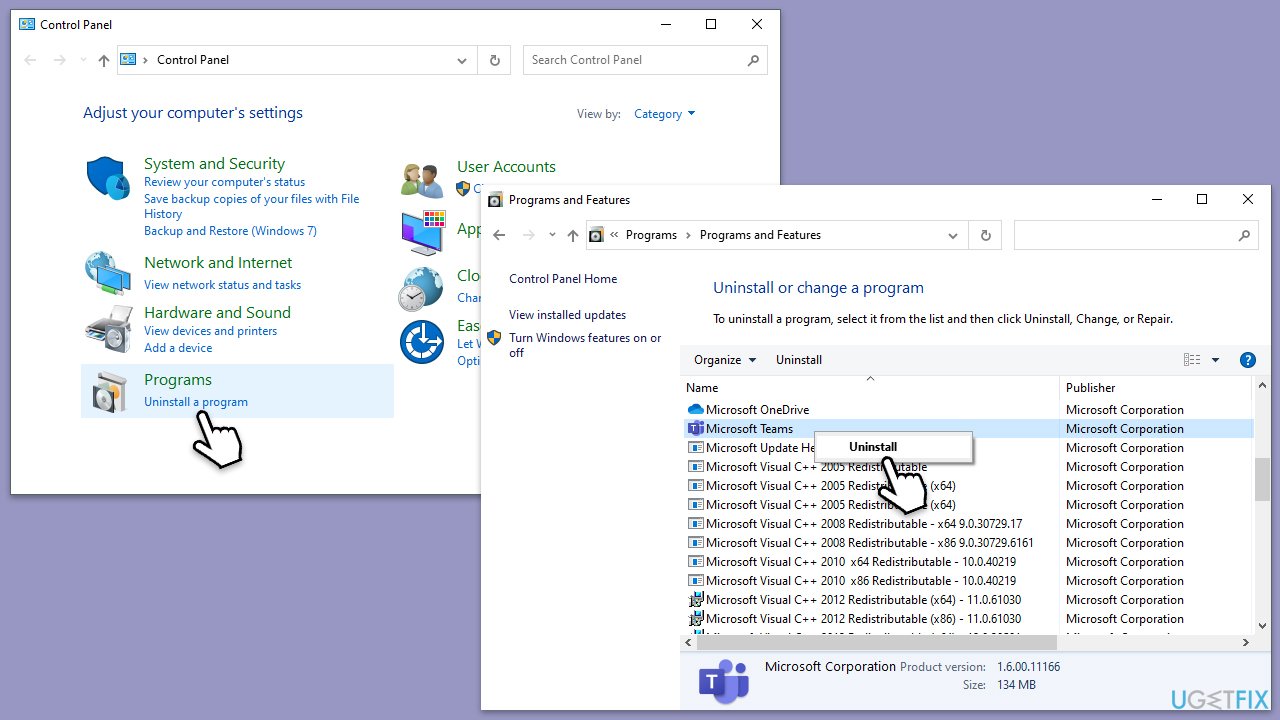
- Type Control Panel in Windows search and press Enter.
- Go to Programs > Uninstall a program.
- Find Microsoft Teams, right-click, and select Uninstall.
- Follow on-screen instructions to remove the app.
- Once done, press Win + E to open File Explorer.
- Ensure you have Hidden Files enabled in the View section at the top.
- Go to C:\Program Files\WindowsApps location.
- Scroll down to find the Microsoft Teams folder and delete it (alternatively, you can rename it).
- Now type %AppData% in Windows search and press Enter.
- Delete the Teams folder here.
- Finally, restart your system and reinstall the app.
Bottom line
To fix the c02901df error in Microsoft Teams, you can clear the app's cache, update the application to the latest version, or use automated repair software. If these solutions do not resolve the issue, consider employing more technical methods to repair corrupted files.
Frequently asked questions
The error c02901df typically indicates a problem with Microsoft Teams' installation or configuration, often caused by corrupt files or settings in Windows 10 or Windows 11.
You can try clearing the Teams cache, uninstalling and reinstalling the app, or repairing Microsoft Teams via the Apps & features settings in Windows 10 or Windows 11.
Ensuring that Windows is fully updated and checking for any network issues or firewall settings that might block Teams can help prevent the c02901df error.




Report an issue
What's wrong with this guide? We review every report and update or remove content.
Report received — thank you. We'll review and fix it.
You need a free account to submit a report.
Be the first to comment