How to fix
Microsoft Teams error CAA20002
on Windows
Resolve the Microsoft Teams error CAA20002 on Windows 10 and 11 effortlessly. Get back to collaborating with expert-tested solutions. Fixed in minutes!


What causes How to fix Microsoft Teams error CAA20002 in Windows?
- Connectivity issues
- Inaccurate sign-in information
- Need for password updates
- Network configuration issues
- Problems with Windows updates
Repairs Windows system files, removes malware, and restores a clean OS state — without reinstalling.
Recently, the Microsoft Teams login has stopped working - it comes with an error code CAA20002. I think it started happening after the most recent Windows update, although I am not quite sure it's correct. Please advise.
Microsoft Teams, a powerful communication tool built by Microsoft, is intended to enable easy collaboration and communication within enterprises. This platform has a variety of capabilities such as chat, video meetings, file storage, and application integration, making it an essential tool for modern workplaces. Its compatibility with multiple operating systems, including Windows, adds to its versatility and extensive usage.
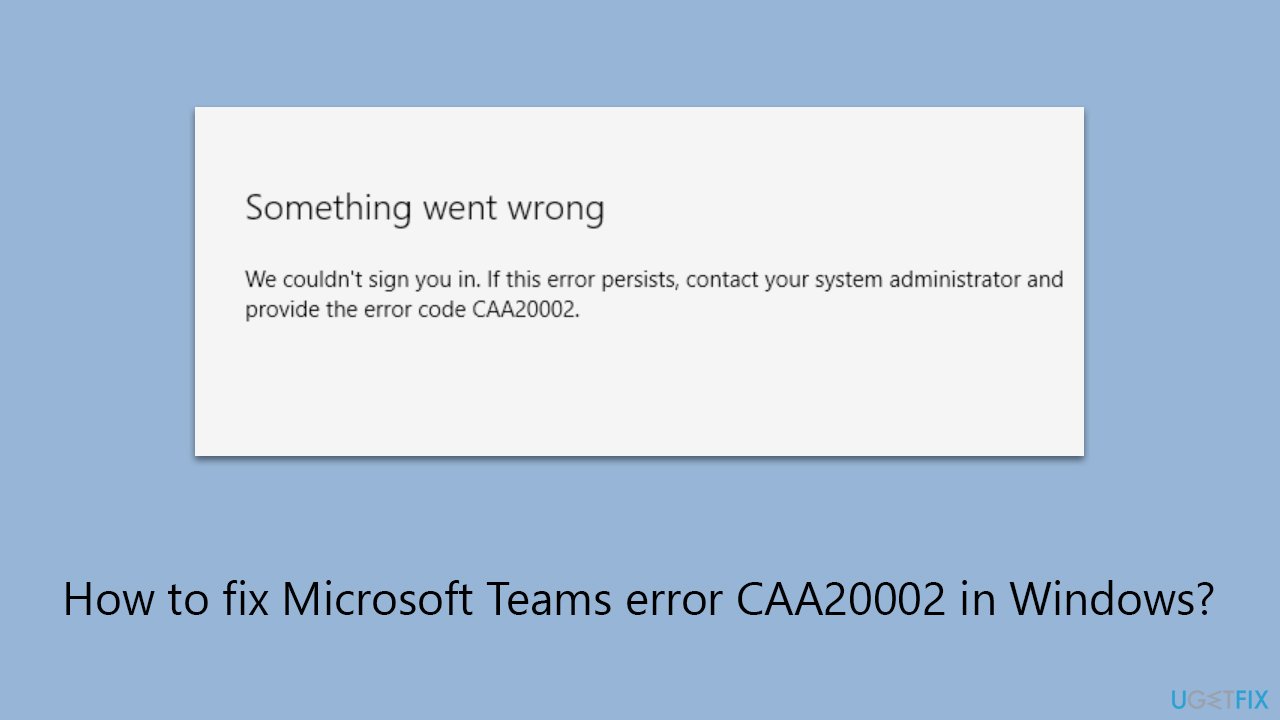
However, some Windows users may receive the CAA20002 error when attempting to log in to Microsoft Teams. This error is often caused by issues with the user's account or the authentication process. The main causes can vary from simple connectivity issues to more serious issues with the Microsoft Teams service or the Windows operating system.
In some circumstances, the Teams error CAA20002 may be caused by inaccurate sign-in information or the need for password updates, whilst in others, it may be due to network configuration issues that impede successful authentication.
To fix the CAA20002 error, you should check your network connectivity and ensure that your login information is correct and up to date. It may also be worthwhile to explore any potential problems with Windows updates and investigate the settings and specifications of your Windows operating system may reveal any underlying issues.
For individuals looking for a more basic way to resolve any underlying Windows issues that may be creating this error, a PC repair program, such as [d1], is recommended. This utility can automatically discover and resolve a variety of Windows-related issues, potentially reducing the need for more extensive troubleshooting.
Fix 1. Run Windows Store apps and network troubleshooters
These built-in tools in Windows automatically diagnose and fix problems that may prevent Microsoft Teams from functioning properly or connecting to the internet.
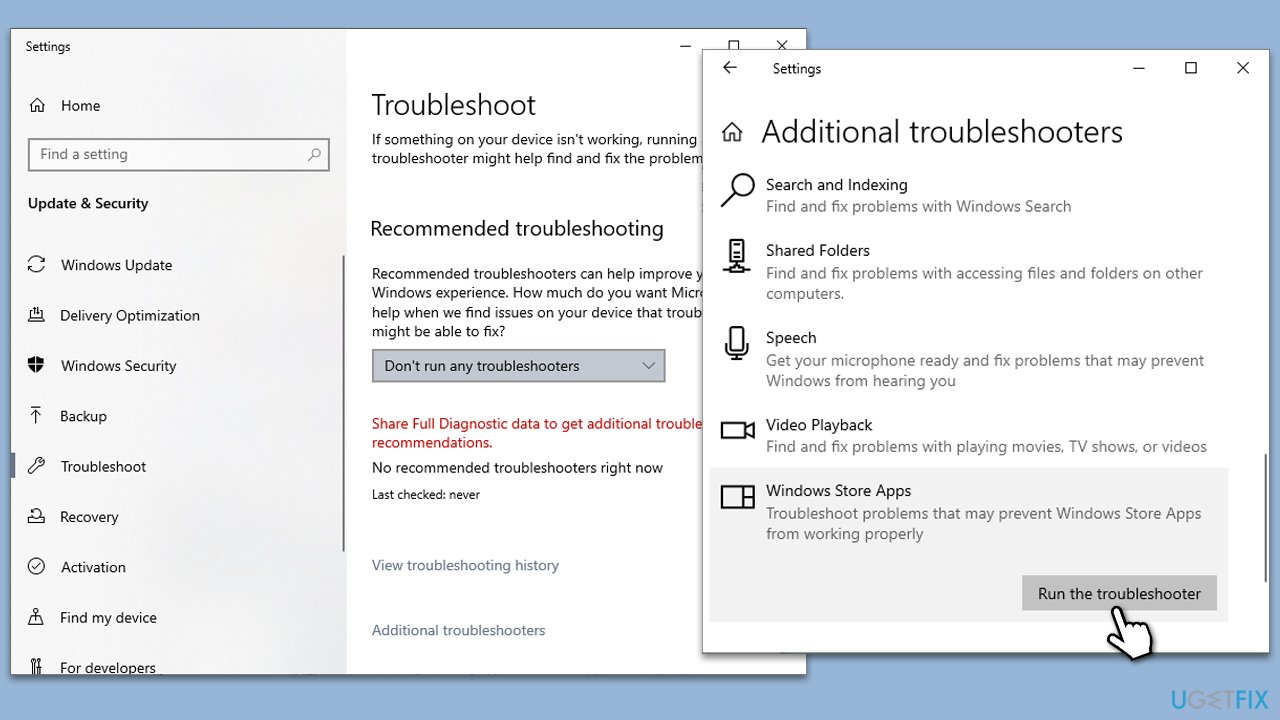
- Type in Troubleshoot in Windows search and hit Enter.
- Pick Additional Troubleshooters/Other troubleshooters option.
- Scroll down to find Windows Store Apps section.
- Click Run the troubleshooter/Run and wait for the troubleshooter to finish scanning the system.
- Follow the on-screen instructions to fix any issues that the troubleshooter has found.
Run network troubleshooter:
- Right-click on the Start button and select Settings.
- Go to the Network & Internet section.
- Here, locate the Advanced network settings section.
- Click the Network troubleshooter to run it.
- Wait for the results to show up and apply the recommended fixes.
Fix 2. Update Windows
Updating Windows can resolve conflicts between Microsoft Teams and your operating system that might be causing the CAA20002 error.
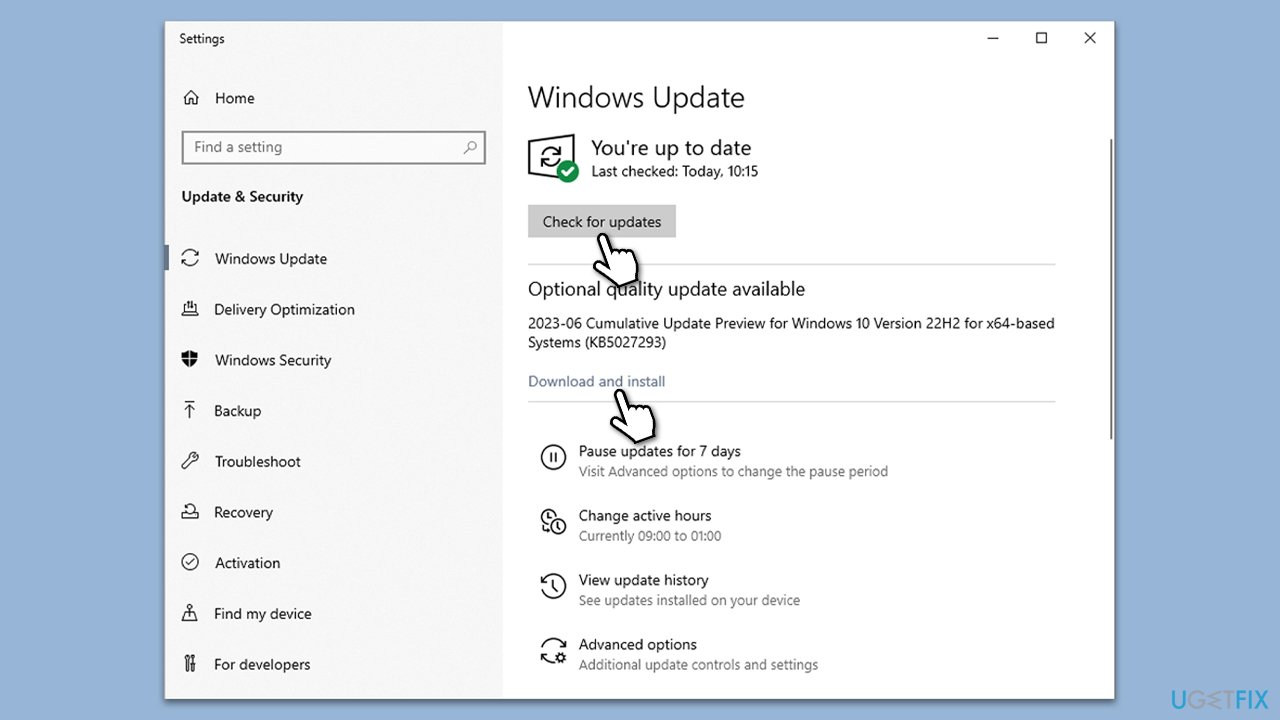
- Type Updates in Windows search and press Enter.
- In this window, click Check for updates.
- If optional updates are available, install them too.
- When everything is installed, restart your system.
Fix 3. Uninstall the latest Windows update
If the error was caused by a recently installed Windows update, you can uninstall it and wait for Microsoft to remediate the bugs before installing it again.
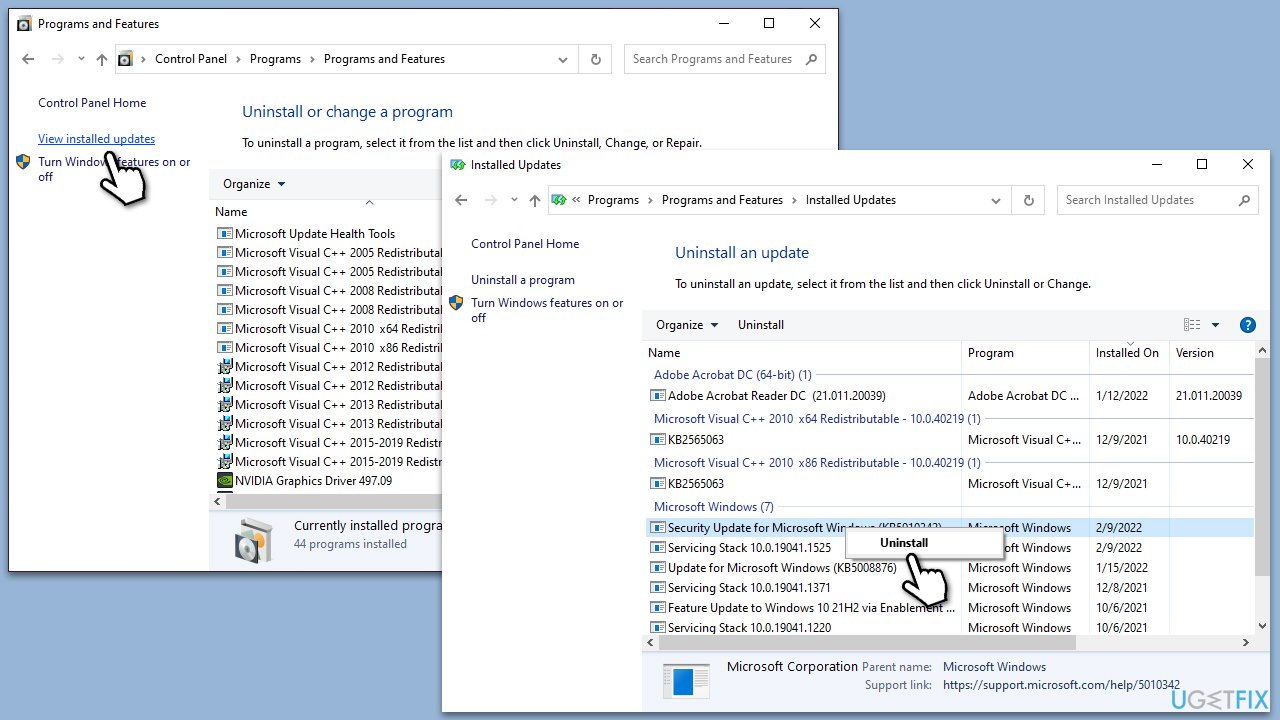
- Type Control Panel in Windows search and press Enter.
- Select Programs > Uninstall a program.
- Click on View installed updates on the left side of the window.
- Sort all the updates by date.
- Right-click on the most recent update and select Uninstall.
- Proceed with on-screen instructions.
- Then, type Updates in Windows search and press Enter.
- Click Pause the updates for 7 days (or you can pick a different time period).
Fix 4. Reconnect your work or school account via Windows settings
Reconnecting your work or school account can refresh your credentials and resolve issues related to account authentication, which might be causing the CAA20002 error.
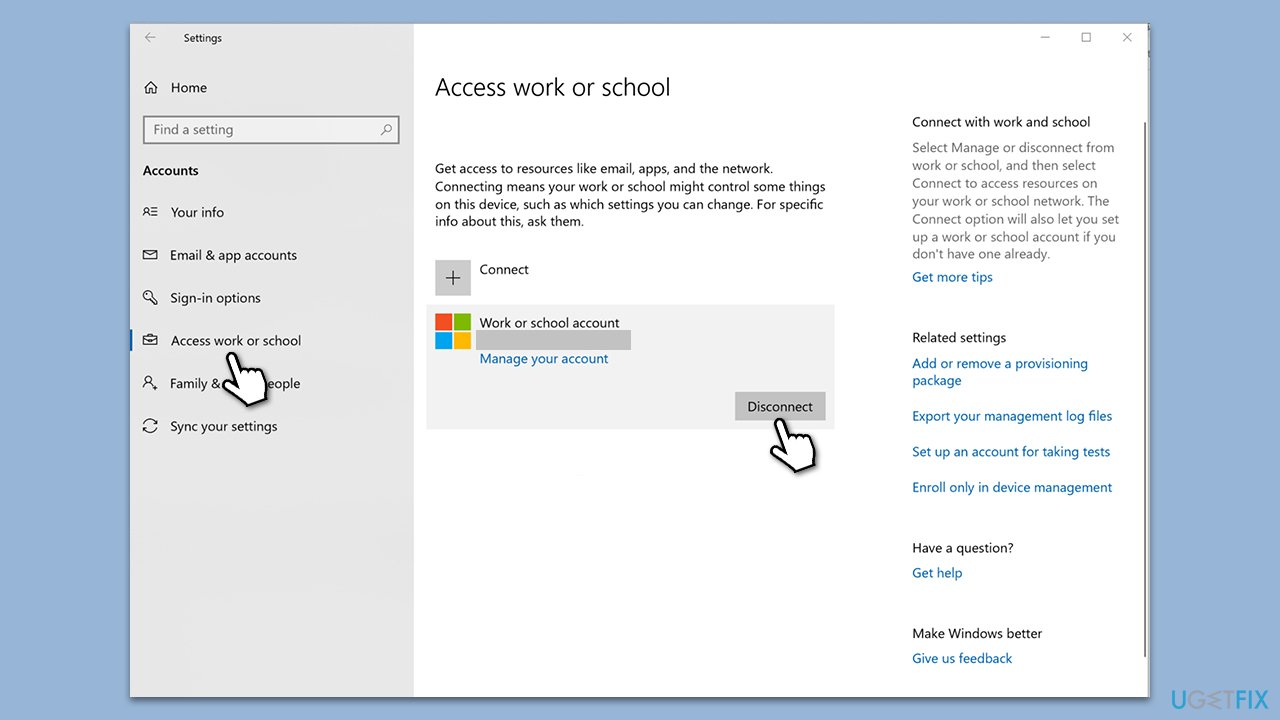
- Go to Windows Settings (Win + I).
- Click on Accounts.
- Select Access work or school.
- Click on your connected account and select Disconnect.
- Restart your PC.
- After restarting, go back to Access work or school and select Connect to re-add your account.
- Follow the prompts to complete the reconnection.
Fix 5. Clean Teams cache files
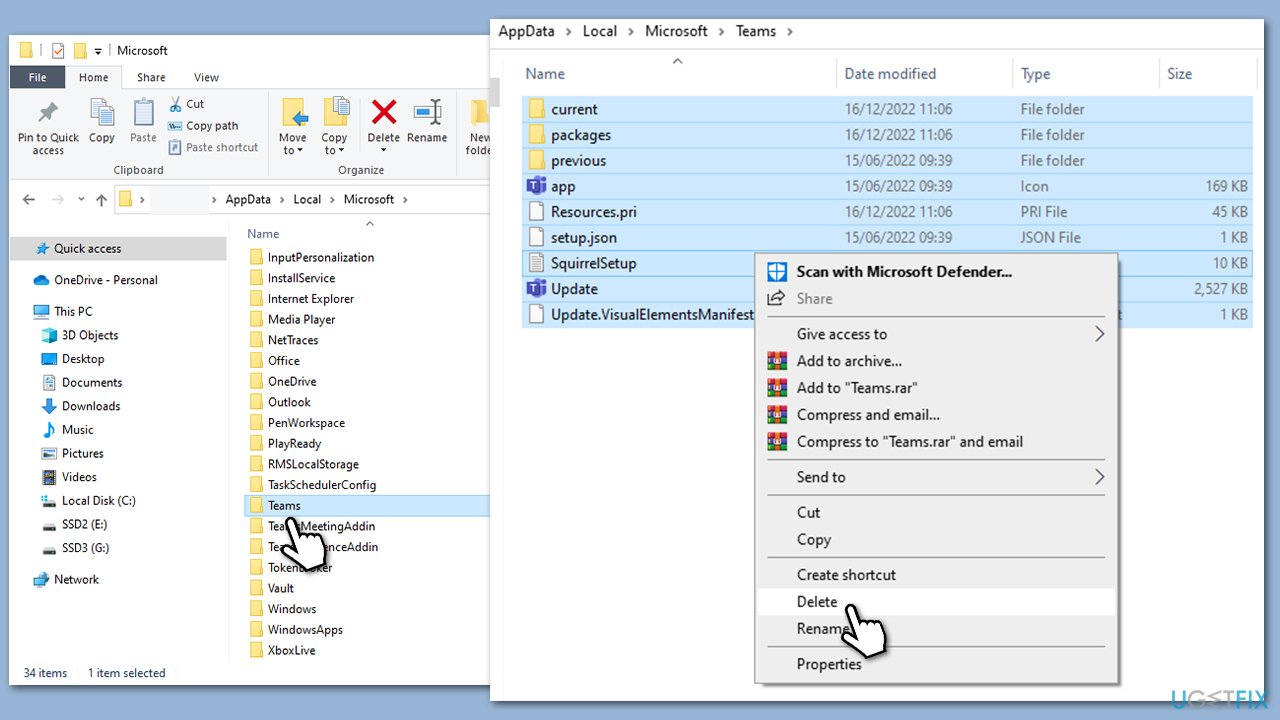
- Ensure Teams is not running (close from the system tray or Task Manager).
- Press Win + R on your keyboard to open the Run dialog.
- Type AppData and press Enter or click OK.
- Go to the following location:
C:\Users\User\AppData\Local\Microsoft - Delete all the files and folders located in the Teams folder.
Fix 6. Repair or reset the app
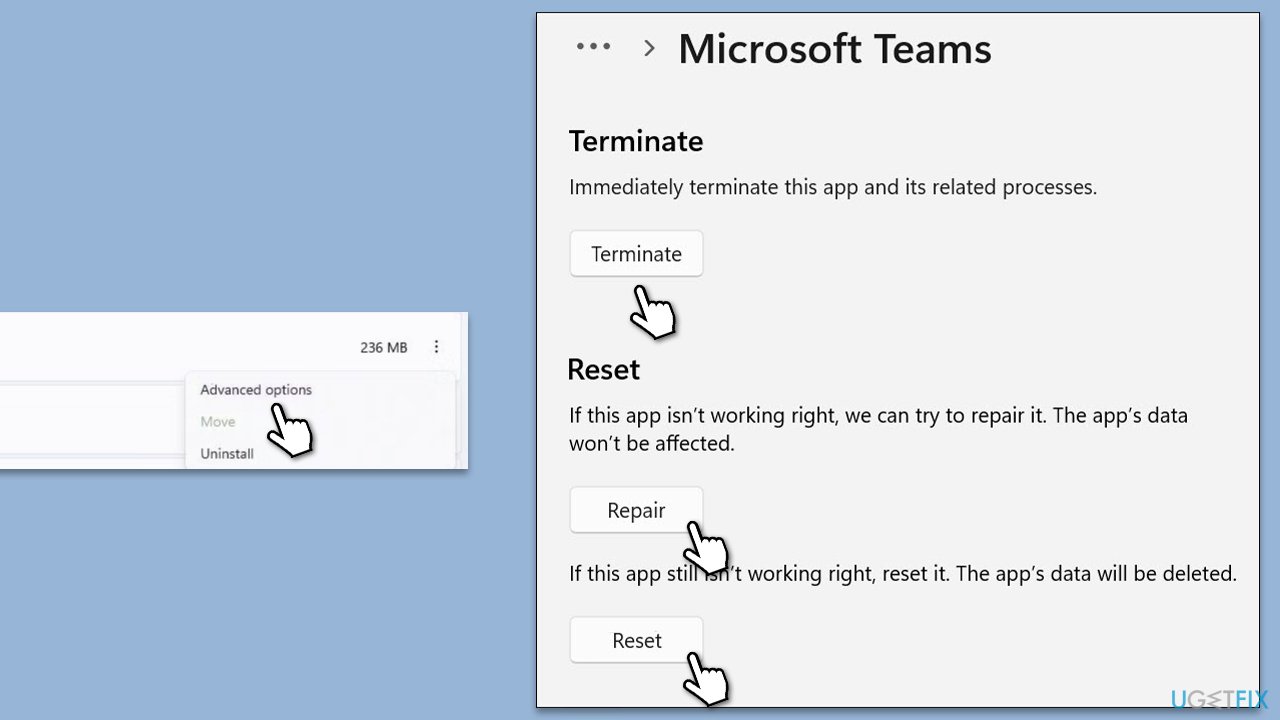
Repairing or resetting Microsoft Teams can fix issues related to the app's installation without affecting your chats, files, or settings. Repairing fixes the app without altering its data, while resetting clears the data and sets the app back to its default state.
- Click on Start and pick Settings.
- Go to the Apps section.
- Locate Microsoft Teams from the list.
- Click on the three vertical dots and pick Advanced options.
- Click Terminate to ensure that the app is not running.
- Under the Reset section, click Repair and see if that solved your issue.
- If not, then try the Reset option.
Fix 7. Reinstall Teams
Reinstalling Microsoft Teams can resolve issues caused by a corrupt installation or conflicts with other software. This process involves uninstalling the current version of Teams and then downloading and installing a fresh version.
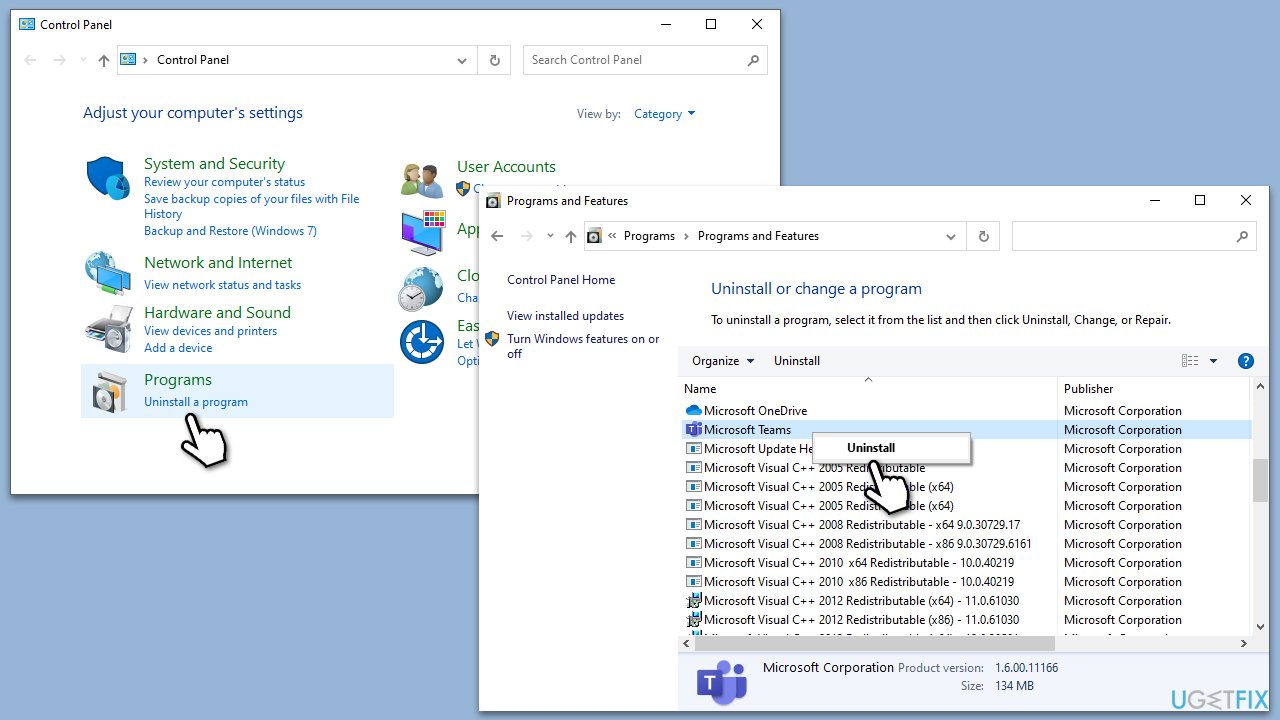
- Type Control Panel in Windows search and press Enter.
- Go to Programs > Uninstall a program.
- Find Microsoft Teams, right-click, and select Uninstall.
- Follow the prompts to remove the app.
- Once done, press Win + E to open File Explorer.
- In the View tab at the top of the window, enable Hidden Files.
- Go to C:\Program Files\WindowsApps location.
- Scroll down to find the Microsoft Teams folder and delete it (alternatively, you can rename it).
- Now type %AppData% in Windows search and press Enter.
- Delete the Teams folder.
- Finally, restart your device and reinstall the app.
Bottom line
To fix the CAA20002 error, you should check your network connectivity and ensure your login information is correct and up to date. Running the built-in Windows Store apps and network troubleshooters may also help diagnose and resolve the issue. If none of these solutions work, consider using a PC repair program to address underlying Windows issues.
Frequently asked questions
The CAA20002 error typically occurs due to issues with network connectivity, incorrect account settings, or problems with the Microsoft Teams application itself.
To fix the CAA20002 error, try clearing the Teams cache by navigating to the app data folder, or reinstall Microsoft Teams to ensure you have the latest version.
Yes, disabling VPN can help resolve the CAA20002 error as it may interfere with the connection to Microsoft Teams, especially if the VPN is blocking certain ports.




Report an issue
What's wrong with this guide? We review every report and update or remove content.
Report received — thank you. We'll review and fix it.
You need a free account to submit a report.
Be the first to comment