How to fix
Microsoft Teams error CAA20004
on Windows
Resolve the Microsoft Teams error CAA20004 quickly on Windows 10 and 11. Follow our expert-tested guide and get back to work in minutes!


What causes How to fix Microsoft Teams error CAA20004 in Windows?
- Error in Microsoft account login credentials
- Glitch in Azure Active Directory (AAD)
- Unstable internet connection
- Outdated cached information
- Firewall rules
Repairs Windows system files, removes malware, and restores a clean OS state — without reinstalling.
Hi, I'm receiving this CAA20004 error on Microsoft Teams whenever I try to log in on my Windows laptop. It's so annoying - do you know what it is or how to eliminate it as soon as possible?
If you use Microsoft Teams on Windows, you might occasionally hit a snag like the Microsoft Teams error CAA20004. This error can disrupt your login or access to features, making it tough to join meetings or collaborate. It’s usually tied to authentication issues - think of it as Teams struggling to get the "okay" from Windows.
The cause of the CAA20004 error could vary - it can be an error in your Microsoft account login credentials, a glitch in Azure Active Directory (AAD), or even an unstable internet connection. Outdated cached information or firewall rules could be another reason for it. People commonly encounter the error after they update or change passwords, and the experience ranges from a short failed login to outright locking you out.
The impact depends on your situation. For some, it’s a minor hiccup that resolves with a retry, but for others, it’s a persistent roadblock, stalling work or communication. It’s especially tricky if you’re in a managed environment where IT settings might be part of the puzzle, or if server-side issues at Microsoft’s end are adding to the chaos.
To fix the Microsoft Teams error CAA20004, you can try clearing the app cache, checking your internet, or re-entering your credentials. If it's a work environment, an IT admin will have to check AAD or policies. For a more generic solution, the [d1] repair tool can resolve underlying Windows issues, bringing you back to Teams seamlessly.

Fix 1. Clear Teams cache
Old or corrupted cache files can trip up Teams and block your login, so wiping them out gives it a clean slate.
- Press Win + E to open File Explorer.
- Ensure Hidden files are visible.
- In the address bar, type in %appdata%\Microsoft\teams and press Enter.
- Delete the contents of the following folders:
%appdata%\Microsoft\teams\application cache\cache
%appdata%\Microsoft\teams\blob_storage
%appdata%\Microsoft\teams\Cache
%appdata%\Microsoft\teams\databases
%appdata%\Microsoft\teams\GPUcache
%appdata%\Microsoft\teams\IndexedDB
%appdata%\Microsoft\teams\Local Storage %appdata%\Microsoft\teams\tmp - Make sure you empty the Recycle Bin (or use Shift + Del combination to delete these files).
- Restart your computer.

Fix 2. Check internet connection
An unstable network or security settings might prevent Teams from connecting to Microsoft’s servers properly.
Windows 11
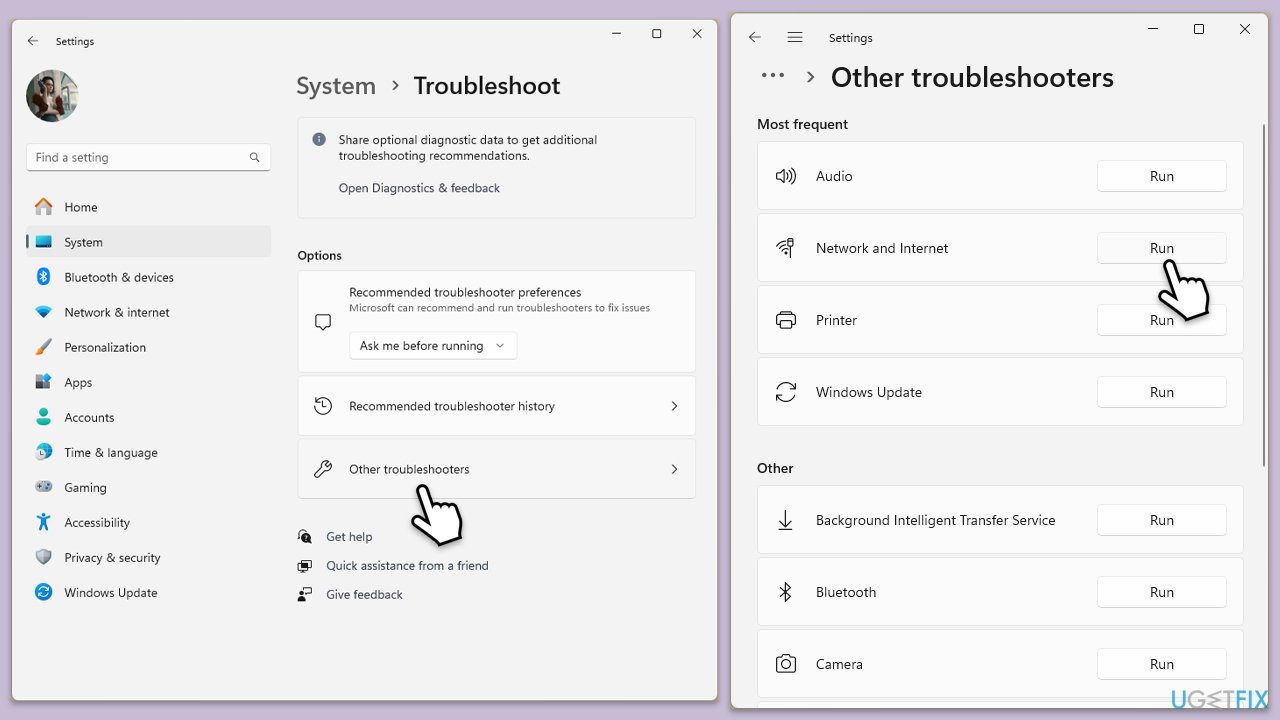
- Type Troubleshoot in Windows search and hit Enter.
- Select Other troubleshooters.
- Locate Network & Internet troubleshooter from the list and click Run.
- Wait till the process is finished and apply the recommended fixes.
- Reboot your computer.
Windows 10
- Right-click on Start and pick Settings.
- Go to the Network & Internet section.
- On the right side, find the Advanced network settings section.
- Click Network troubleshooter and wait.
- The fixes will be automatically applied.
Fix 3. Clear credentials
When your Microsoft account details don’t sync, Teams can struggle to verify you, and a reset often resolves it.
- Log off from Microsoft Teams.
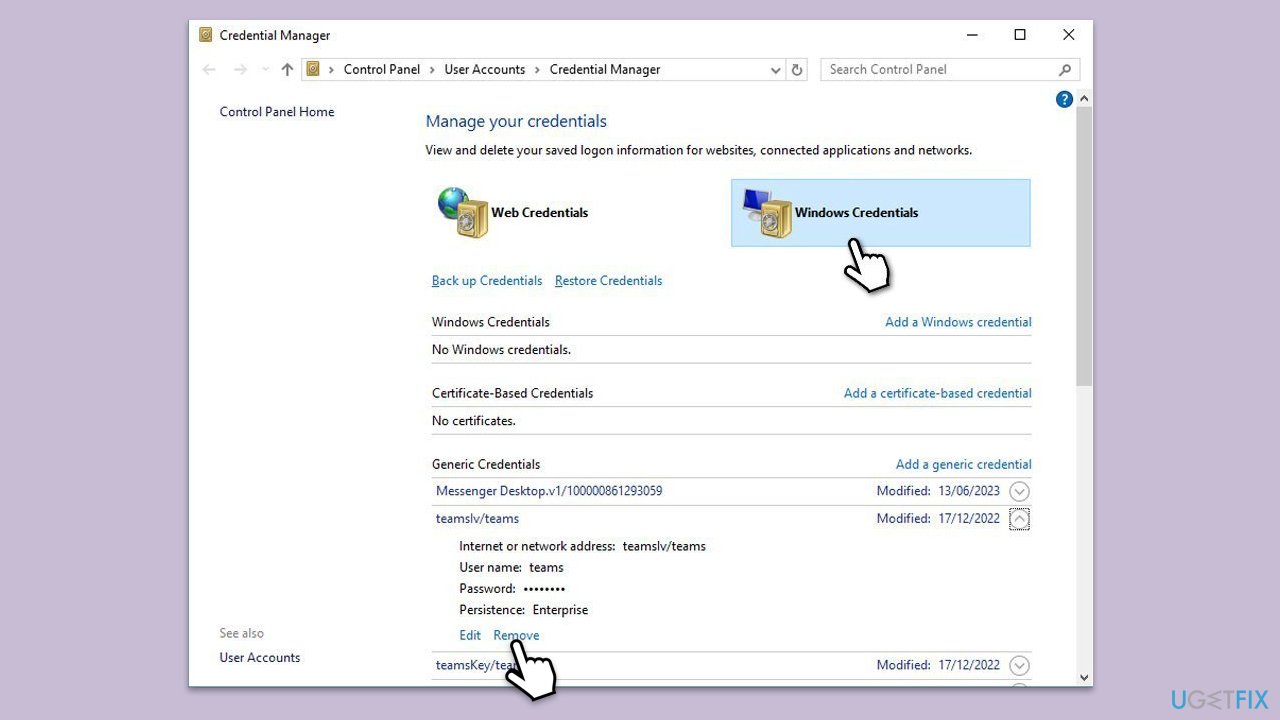
- Type Credential Manager in Windows search and press Enter.
- Select Windows Credentials.
- Locate and remove any stored credentials related to Microsoft Teams.
- Restart Teams and re-enter your login details.
Fix 4. Update Windows
Outdated system files can conflict with Teams, so keeping Windows current helps everything run smoothly.
- Type Updates in Windows search and press Enter.
- Here, click Check for updates or Install updates, depending on which one is available.
- Wait till Windows downloads and installs all the necessary files.
- If optional updates are available, install them too.
- Restart your computer and try logging in again.

Fix 5. Adjust Firewall and antivirus settings
The CAA20004 error could potentially be caused by third-party anti-virus, and sometimes by the built-in Firewall.
- Temporary disable security protection of your third-party antivirus software.
- Open the Control Panel and navigate to System and Security > Windows Defender Firewall.
- Select Allow an app or feature through Windows Defender Firewall.
- Click Change settings and enter your administrator password if prompted.
- Find Microsoft Teams in the list and check both the Private and Public boxes.
- Click OK to save your changes.

Fix 6. Reinstall Teams
If the app itself is corrupted, uninstalling and reinstalling it can replace any faulty files.
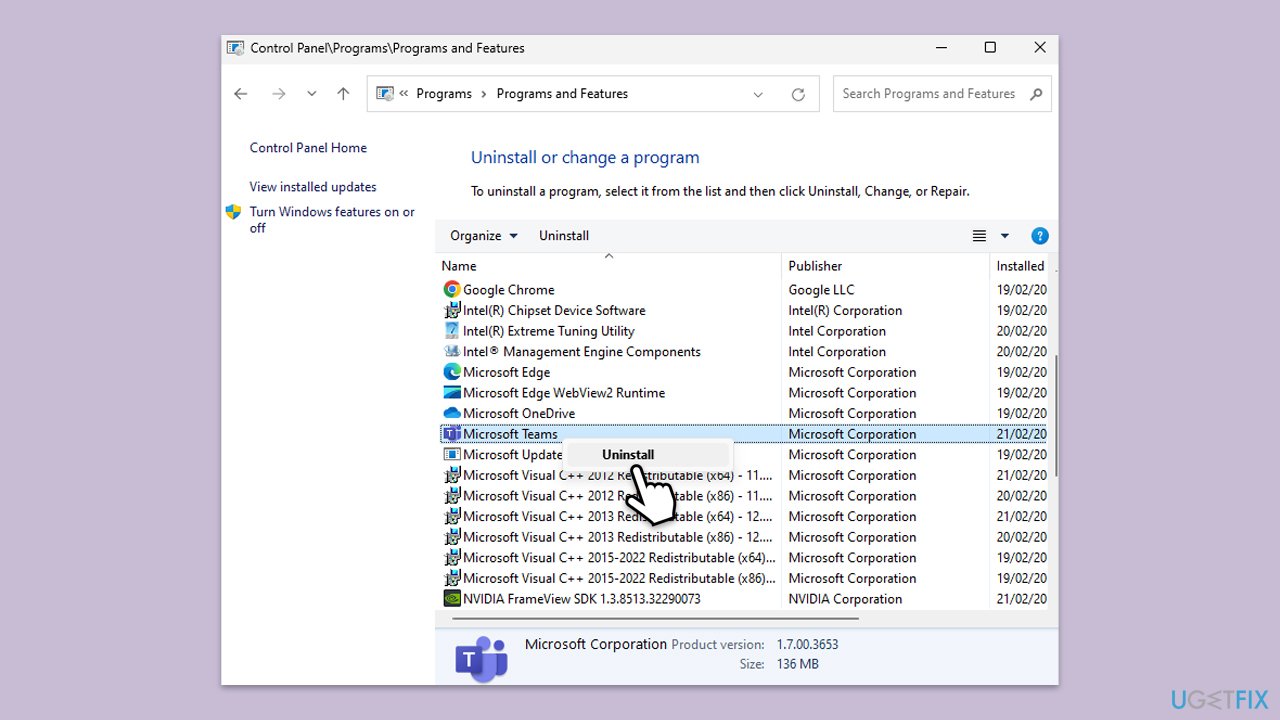
- Type Control Panel in Windows search and press Enter.
- Go to Programs > Uninstall a program.
- Find Microsoft Teams, right-click, and select Uninstall.
- Follow the prompts to remove the app.
- Once done, press Win + E to open File Explorer.
- In the View tab at the top of the window, enable Hidden Files.
- Go to C:\Program Files\WindowsApps location.
- Scroll down to find the Microsoft Teams folder and delete it (alternatively, you can rename it).
- Now type %AppData% in Windows search and press Enter.
- Delete the Teams folder here.
- Finally, restart your system and reinstall the app.
Fix 7. Check Microsoft service status
Sometimes the issue isn’t on your end - Microsoft’s servers might be down or having trouble.
- Visit the Microsoft Service Status page.
- Look for any ongoing issues or outages related to Teams or Microsoft services.
- Wait for the server issues to go away.
Fix 8. Use Microsoft Support and Recovery Assistant
The Microsoft Support and Recovery Assistant is a useful tool for troubleshooting issues with Microsoft applications such as Teams.
- Open your browser and download Microsoft Support and Recovery Assistant from the official Microsoft support page.
- Install the software as per instructions and then launch it.
- Select Teams from the list and click Next.
- Pick I can't sign-in to Teams when asked to select the problem you are facing, then click Next.
- Follow the prompts to finalize the process.

Bottom line
To fix the Microsoft Teams error CAA20004, you can try clearing the app cache, checking your internet connection, or re-entering your credentials. If you're in a work environment, an IT admin may need to check AAD or policies. If none of these solutions work, consider using the repair tool for underlying Windows issues.
Frequently asked questions
The CAA20004 error in Microsoft Teams typically occurs due to issues with network connectivity or corrupted application files. It may also result from outdated Teams or Windows versions.
To fix the CAA20004 error on Windows 11, try clearing the Teams cache by closing the app, navigating to the Teams cache folder, and deleting its contents. Additionally, ensure that your Windows 11 and Teams app are updated to the latest versions.
Reinstalling Microsoft Teams can be a viable solution for the CAA20004 error on Windows 10 if other troubleshooting methods fail. Make sure to completely uninstall the application before installing the latest version.




Report an issue
What's wrong with this guide? We review every report and update or remove content.
Report received — thank you. We'll review and fix it.
You need a free account to submit a report.
Be the first to comment