How to fix
Microsoft Teams error caa5004b
on Windows
Resolve the Microsoft Teams error caa5004b on Windows 10 and 11 effortlessly. Expert-tested solutions help you get back to work quickly, with screenshots.

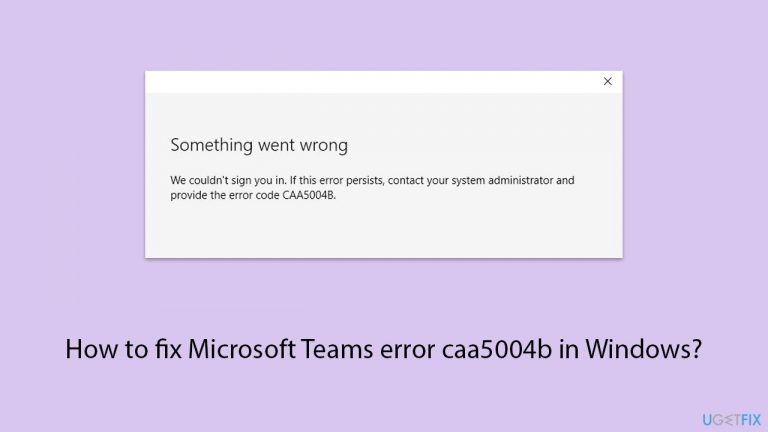
What causes How to fix Microsoft Teams error caa5004b in Windows?
- Poor network connectivity
- Incorrect or outdated login information
- Corrupted data in the application
- Software conflicts
- Restrictive security settings
Repairs Windows system files, removes malware, and restores a clean OS state — without reinstalling.
Hello, I can't log into Teams today because of the error code caa5004b. I am using Windows. Is there anything I can do?
Microsoft Teams is a popular platform for collaboration that combines file storage, meetings, workplace chat, and application integration. It is intended to support groups in maintaining organization and having talks in one location. Despite its robust features, some users may encounter the caa5004b error when using Microsoft Teams on Windows.
There are various causes for the caa5004b error. A typical reason for Microsoft Teams' inability to successfully communicate with its servers is poor network connectivity. Another reason you might not be able to access your Teams account is incorrect or outdated login information.
The caa5004b error could also be caused by issues with the application itself, such as corrupted data or software conflicts. Security settings on your device or in your network may also occasionally cause this, particularly if they obstruct authentication procedures or limit access to essential services.
There are various steps that may be taken to fix the caa5004b issue. First things first, you may generally resolve the issue by confirming that your internet connection is reliable and stable. Additionally, verifying that your login credentials are accurate by checking them twice might help avoid credential-related problems.
If corrupted files are the cause of the issue, reinstalling Microsoft Teams or clearing the cache may be beneficial. Additionally, make sure your device's network specifications and security settings aren't overly restrictive. Maintaining compatibility and reducing the chance of encountering such problems can also be achieved by updating both your Windows operating system and the Microsoft Teams application.
Lastly, using a [d1] PC repair tool can be a useful option, as it can automatically fix any underlying Windows issues, potentially preventing the caa5004b error in Microsoft Teams.

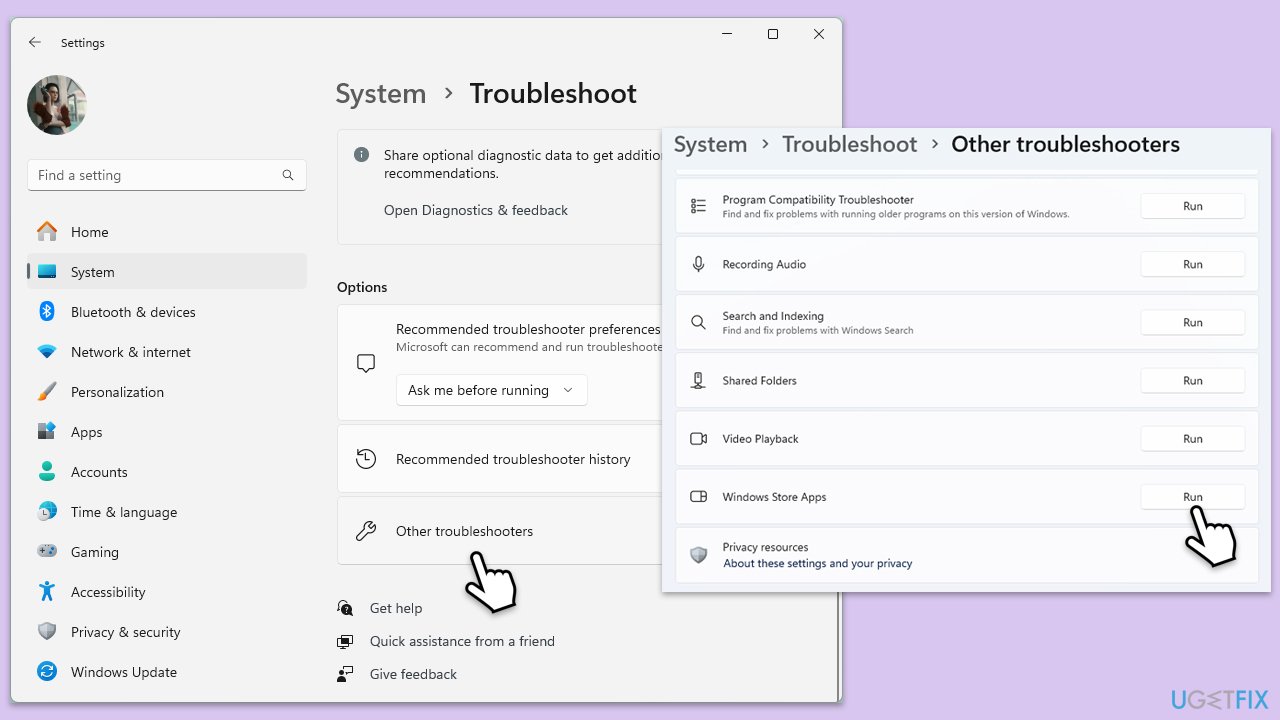
Fix 1. Run Network and Store app troubleshooters
Running the Network and Store app troubleshooters can help identify and fix any issues related to your internet connection or the Microsoft Store, which can be necessary for Teams to function properly.
- Type troubleshoot in Windows search and press Enter.
- Access Additional troubleshooters/Other troubleshooters.
- Scroll down to find the Windows Store Apps section and click it.
- Select Run the troubleshooter/Run.
- Repeat the process with the Network troubleshooter.
- Wait till the scan is complete and apply the suggested fixes.
Fix 2. Clear Teams cache files
Clearing the cache files can resolve issues caused by corrupted or outdated data stored in the cache, ensuring that Teams runs smoothly.
- Close Microsoft Teams completely.
- Type %appdata%\Microsoft\Teams in the Windows search box and press Enter.
- Delete all files and folders in the directory.
- Restart Microsoft Teams.

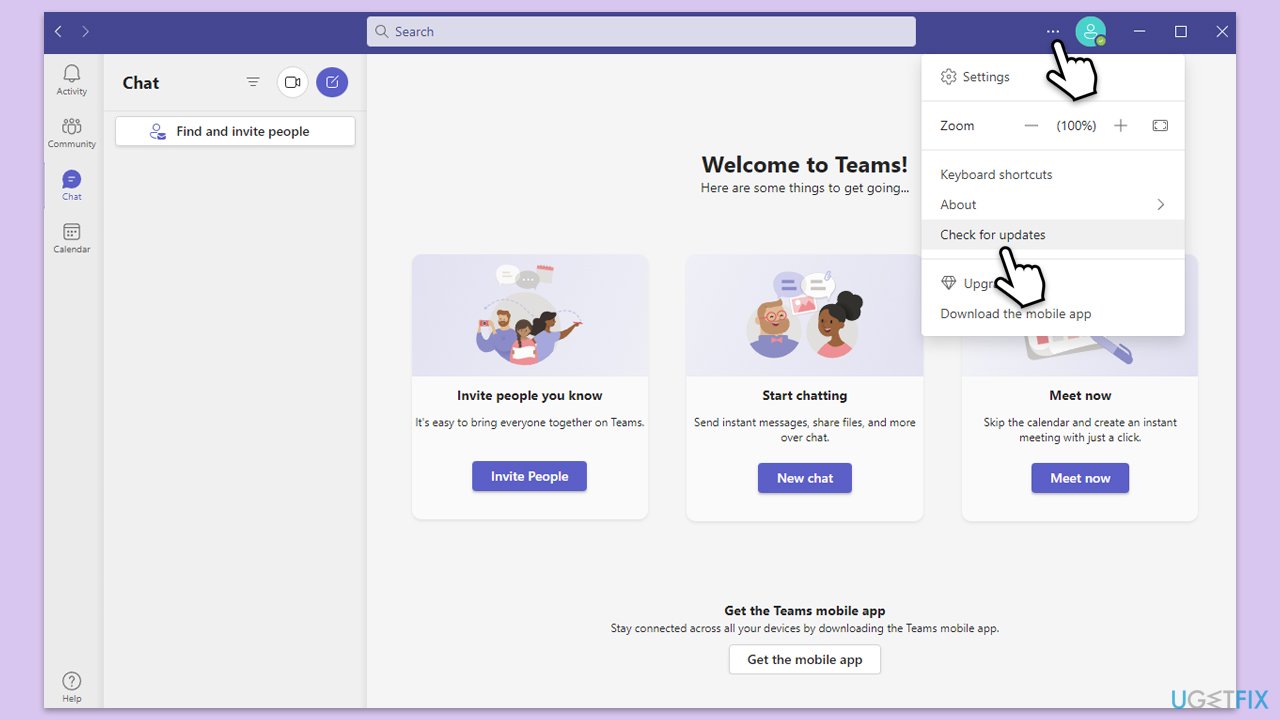
Fix 3. Update Teams
Keeping Microsoft Teams up-to-date can fix bugs and compatibility issues that may cause errors like caa5004b.
- Open Microsoft Teams.
- Click on the Settings and more button at the top-right corner.
- Select Check for updates.
- Teams will automatically download and install any available updates.
- Restart Teams after the update is completed.
Fix 4. Repair or reset Teams
You can try repairing or resetting the app via Settings.
- Click on Start and pick Settings.
- Go to the Apps section.
- Locate Microsoft Teams from the list.
- Click on the three vertical dots and pick Advanced options.
- Click Terminate to ensure that the app is not running.
- Under the Reset section, click Repair and see if that solved your issue.
- If not, then try the Reset option.

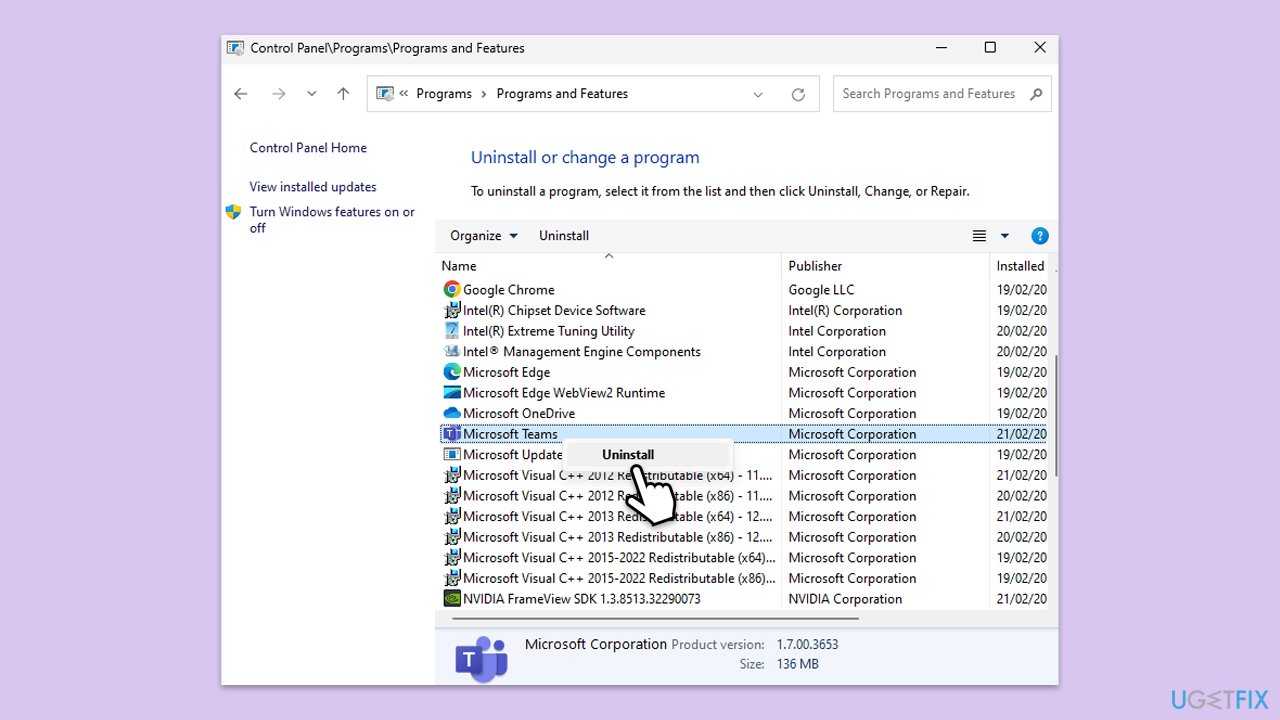
Fix 5. Reinstall Microsoft Teams
Reinstalling the application can fix corrupted files and other software-related issues.
- Type Control Panel in Windows search and press Enter.
- Go to Programs > Uninstall a program.
- Find Microsoft Teams, right-click, and select Uninstall.
- Follow the prompts to remove the app.
- Once done, press Win + E to open File Explorer.
- In the View tab at the top of the window, enable Hidden Files.
- Go to C:\Program Files\WindowsApps location.
- Scroll down to find the Microsoft Teams folder and delete it (alternatively, you can rename it).
- Now type %AppData% in Windows search and press Enter.
- Delete the Teams folder.
- Finally, restart your device and reinstall the app.
Fix 6. Update Windows operating system
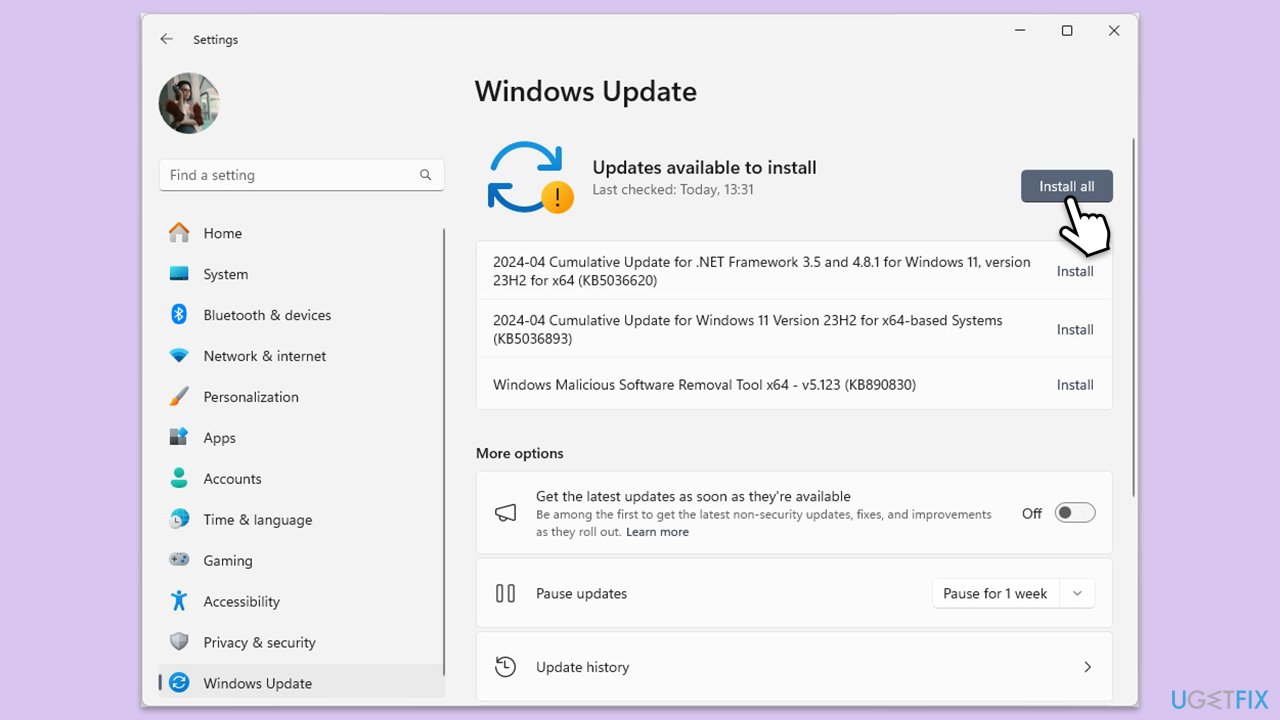
Updating your Windows operating system can ensure compatibility with the latest version of Microsoft Teams and fix any underlying system issues.
- Type Updates in Windows search and hit Enter.
- If updates are available, click Install updates.
- Otherwise, click Check for updates.
- If optional updates are available, install them as well.
- When all the update processes are complete, restart your computer.
Fix 7. Adjust security settings
Overly restrictive security settings can block necessary functions in Teams.
- Open the Control Panel and navigate to System and Security > Windows Defender Firewall.
- Select Allow an app or feature through Windows Defender Firewall.
- Click Change settings and enter your administrator password if prompted.
- Find Microsoft Teams in the list and check both the Private and Public boxes.
- Click OK to save your changes.

Bottom line
To fix the caa5004b error in Microsoft Teams, ensure your internet connection is stable, verify your login credentials, and consider reinstalling the application or clearing its cache. Additionally, check your device's security settings and update both Windows and Microsoft Teams. If these steps do not resolve the issue, using a PC repair tool may help.
Frequently asked questions
The Microsoft Teams error caa5004b typically indicates issues with network connectivity or authentication problems within the app. This can prevent users from signing in or accessing Teams features.
To fix the caa5004b error on Windows 11, try clearing the Teams cache by navigating to %appdata%\Microsoft\Teams and deleting the contents of the Cache folder. Additionally, ensure that your system date and time settings are correct.
Yes, uninstalling and then reinstalling Microsoft Teams can help resolve the caa5004b error on Windows 10, as it refreshes the installation and can fix underlying issues. Make sure to download the latest version from the official Microsoft website.




Report an issue
What's wrong with this guide? We review every report and update or remove content.
Report received — thank you. We'll review and fix it.
You need a free account to submit a report.
Be the first to comment