How to fix
Microsoft Teams error code 80284001
on Windows
Resolve Microsoft Teams error code 80284001 on Windows 10 or 11 quickly and efficiently with our expert-tested solutions for seamless communication.

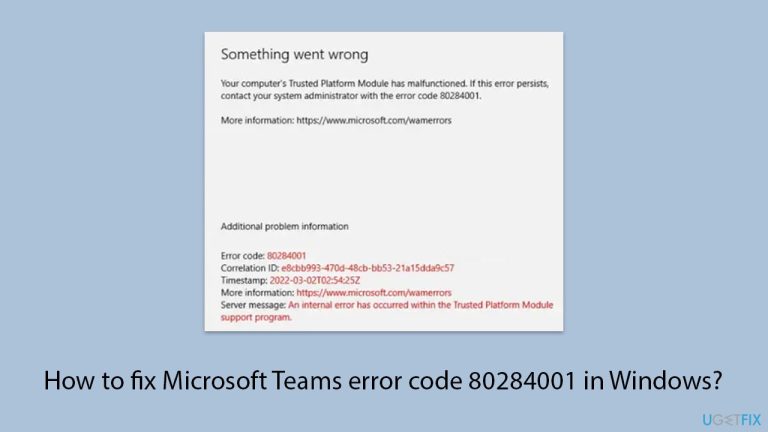
What causes How to fix Microsoft Teams error code 80284001 in Windows?
- Old system
- Compatibility issues between Teams and system files
- Network connectivity issues
- Corrupted cache build-up
- Interference from other applications
Repairs Windows system files, removes malware, and restores a clean OS state — without reinstalling.
I am unable to log in through a Teams desktop app. When I try to do so, the message says that something went wrong and presents an error code at the bottom-left corner - 80284001. Please help me.
Microsoft Teams is one of the social platforms that users are engaged with for communications, be it work, school, or personal. Just like any application that has its flaws, it has developed errors that interrupt its function from time to time.
One specific error such as the 80284001 error code is especially disruptive; should you try joining an important meeting or rely on it for critical communications during working hours or class sessions. When this occurs, it means Teams will not function as expected. It causes delays and frustrations that can impact productivity or collaboration.
Error code 80284001 appears in most cases due to some sort of software configuration or issues at the level of system settings that do not align with the requirements that are being sought by Microsoft Teams.
This sometimes happens either because of an old system or compatibility issues between the Teams application and some of your system files on Windows. The error could also be due to issues in network connectivity, which is among the minimum prerequisites that Teams require for proper working; keeping in mind that Teams functions on the basis of stable and secure connectivity. Others include a build-up of corrupted cache and interference from other applications interfering with normal functions of Teams.
Fortunately, a number of methods exist in which the error code 80284001 may be resolved for one to get Teams up and running at full capacity. Updating the Teams application, fixing network connectivity issues, and cleaning cache files are some of the most common methods used, which also tend to carry out fixes to make sure this does not happen again.
Sometimes, deeper and system-level repairs need to be performed when problems relate to conflicts within one's windows. Alternatively, you can use the [d1] PC repair tool, which easily finds and fixes system errors and will automatically resolve any underlying Windows problems that may cause this.
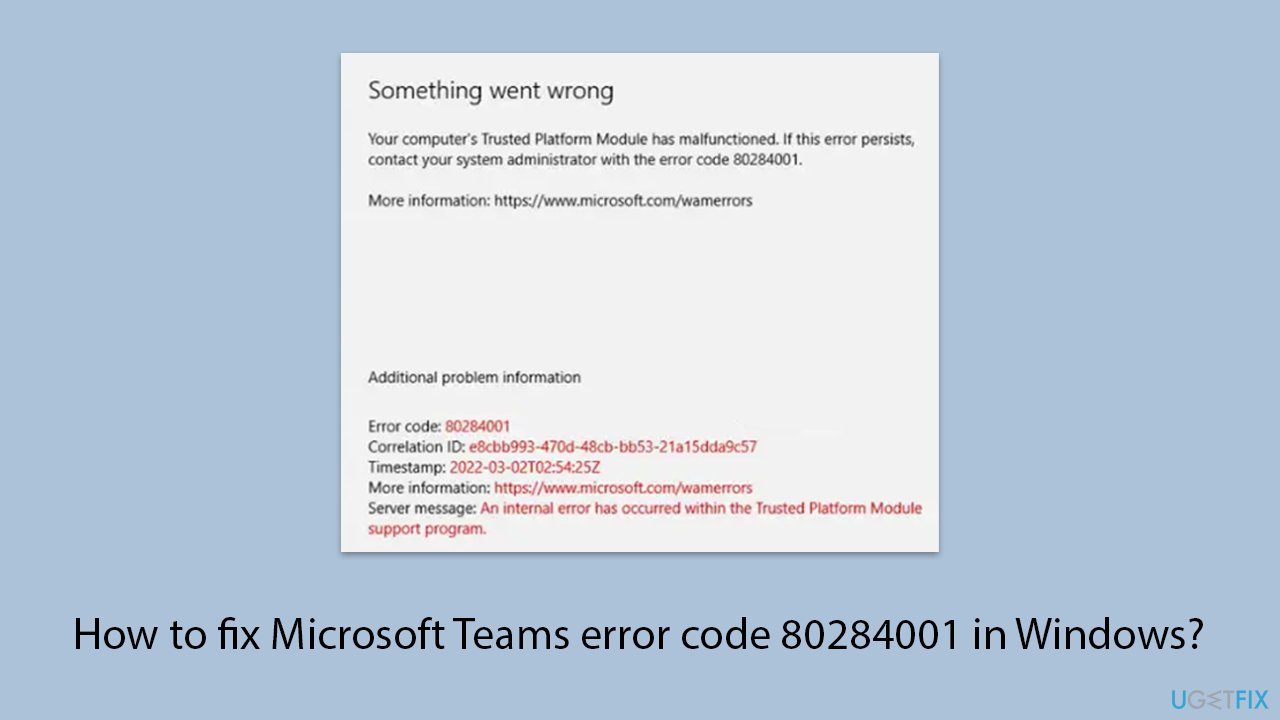
Fix 1. Update Microsoft Teams
Keeping the Teams application up to date can resolve issues caused by outdated software components that may trigger error code 80284001.
- Open Microsoft Teams.
- Click on the Settings and more button at the top-right corner.
- Select Check for updates.
- Teams will automatically download and install any available updates.
- Restart Teams after the update is completed.
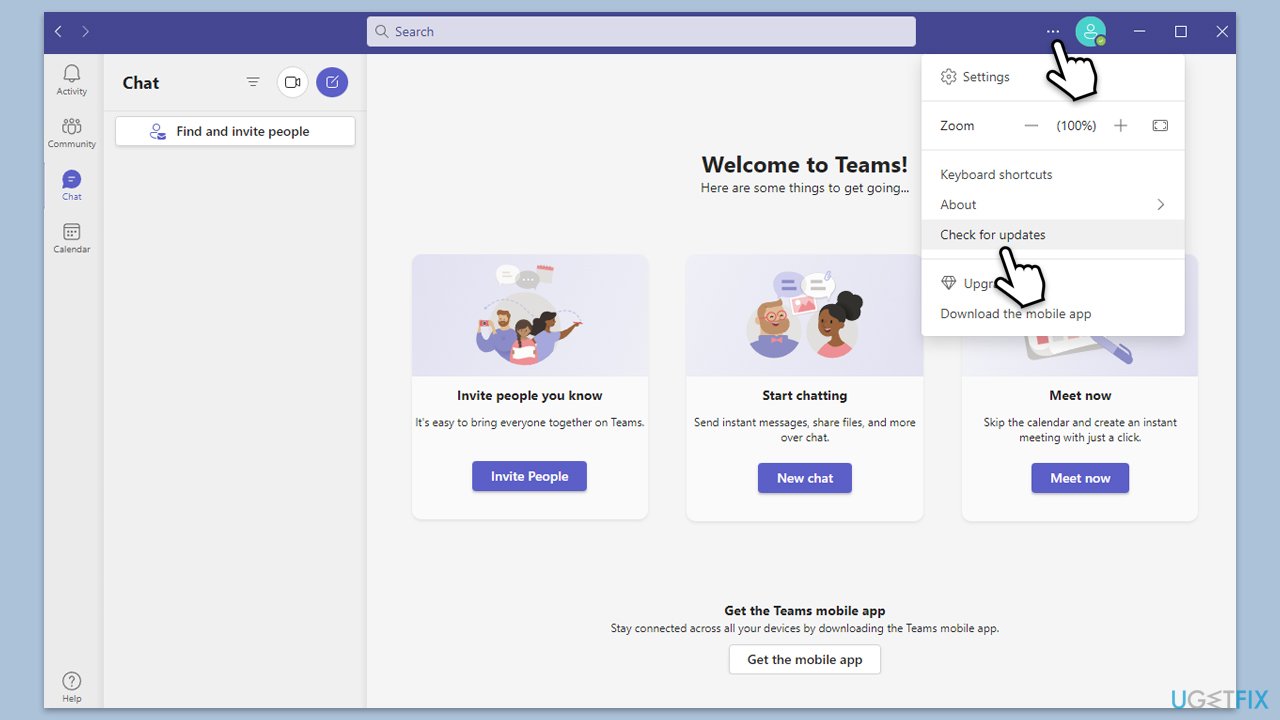
Fix 2. Clear Teams cache
Accumulated cache files can become corrupted and interfere with the application's performance, leading to errors.
- Close down Microsoft Teams.
- Press Win + E to open File Explorer.
- Ensure Hidden files are visible.
- In the address bar, type in %appdata%\Microsoft\teams and press Enter.
- Delete the contents of the following folders:
%appdata%\Microsoft\teams\application cache\cache
%appdata%\Microsoft\teams\blob_storage
%appdata%\Microsoft\teams\Cache
%appdata%\Microsoft\teams\databases
%appdata%\Microsoft\teams\GPUcache
%appdata%\Microsoft\teams\IndexedDB
%appdata%\Microsoft\teams\Local Storage %appdata%\Microsoft\teams\tmp - Make sure you empty the Recycle Bin (or use Shift + Del combination to delete these files).
- Restart your computer.
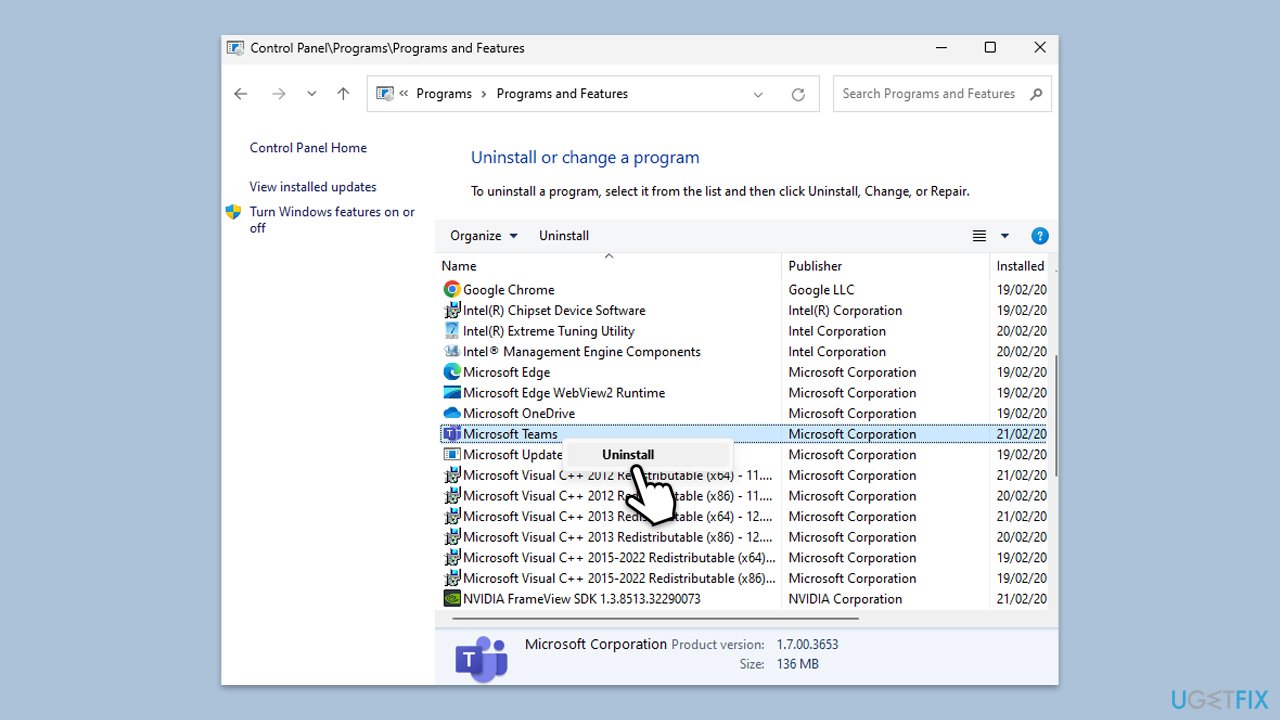
Fix 3. Reinstall Microsoft Teams
Reinstalling the application can replace corrupted or missing files that might be causing the error.
- Type Control Panel in Windows search and press Enter.
- Go to Programs > Uninstall a program.
- Find Microsoft Teams, right-click, and select Uninstall.
- Follow the prompts to remove the app.
- Once done, press Win + E to open File Explorer.
- In the View tab at the top of the window, enable Hidden Files.
- Go to C:\Program Files\WindowsApps location.
- Scroll down to find the Microsoft Teams folder and delete it (alternatively, you can rename it).
- Now type %AppData% in Windows search and press Enter.
- Delete the Teams folder here.
- Finally, restart your system and reinstall the app.
Fix 4. Check internet connection
Network issues can prevent Teams from connecting to its servers properly, resulting in error messages.
Windows 11:
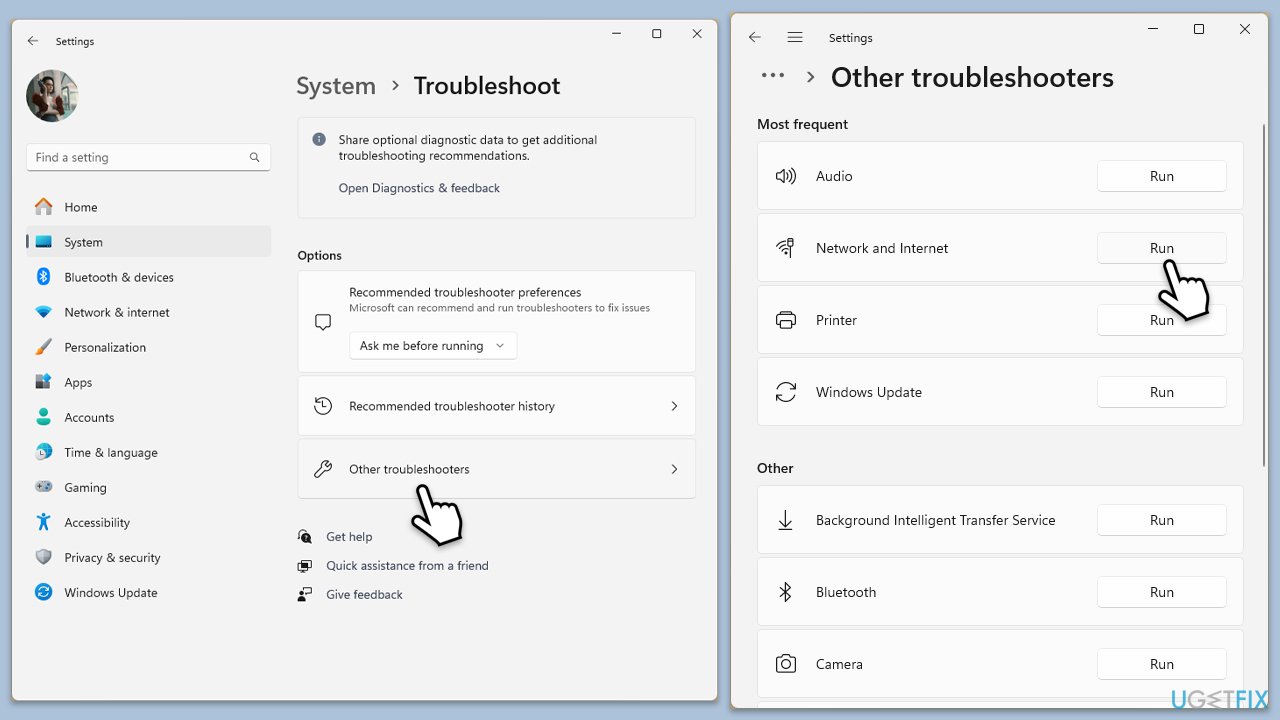
- Type Troubleshoot in Windows search and hit Enter.
- Select Other troubleshooters.
- Locate Network & Internet troubleshooter from the list and click Run.
- Wait till the process is finished and apply the recommended fixes.
- Restart your computer.
Network troubleshooter in Windows 10:
- Right-click on Start and pick Settings.
- Go to the Network & Internet section.
- On the right side, find the Advanced network settings section.
- Click Network troubleshooter and wait.
- The fixes will be automatically applied.
Fix 5. Update Windows
An outdated operating system can cause compatibility issues with applications like Teams.
- Type Updates in Windows search and hit Enter.
- If updates are available, click Install updates.
- Otherwise, click Check for updates.
- If optional updates are available, install them as well.
- When all the update processes are complete, restart your computer.
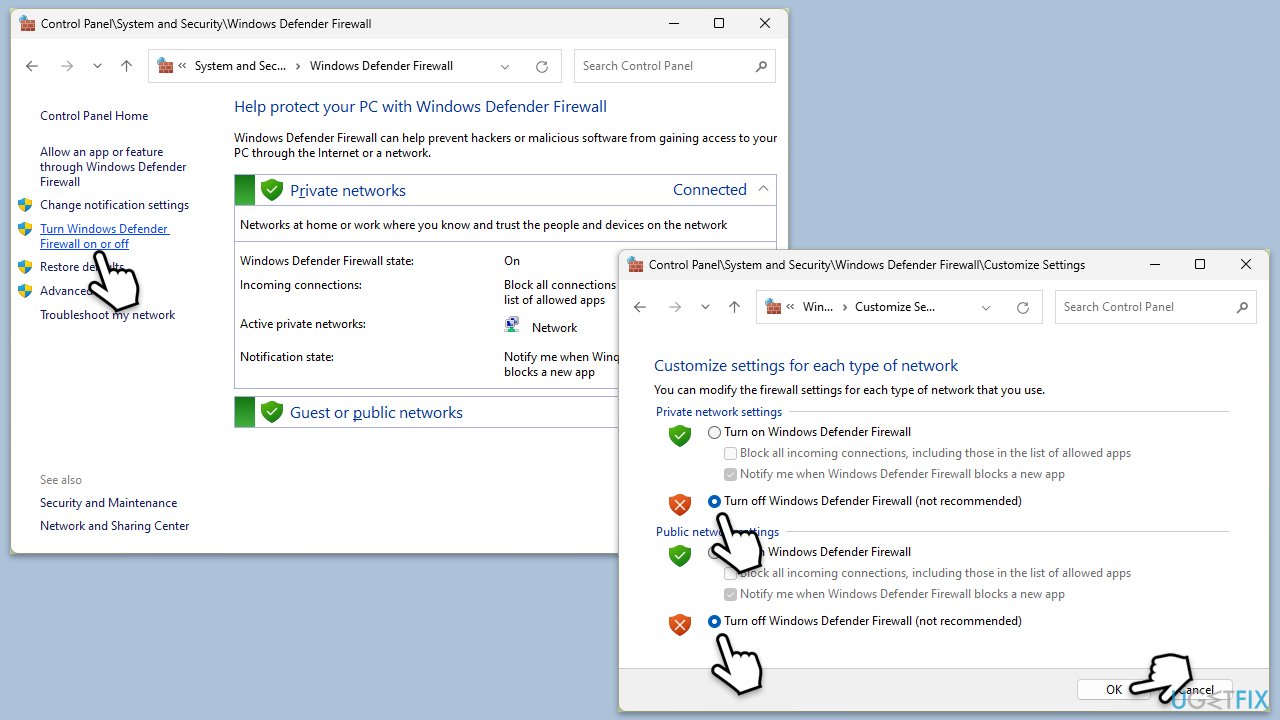
Fix 6. Disable antivirus or firewall temporarily
Security software might block Teams from functioning correctly.
- Temporarily disable your third-party security software.
- Open the Control Panel and navigate to System and Security > Windows Defender Firewall.
- Select Allow an app or feature through Windows Defender Firewall.
- Click Change settings and enter your administrator password if prompted.
- Find Microsoft Teams in the list and check both the Private and Public boxes.
- Click OK to save your changes.
Fix 7. Run Teams as administrator
Running the application with administrative privileges can resolve permission-related issues.
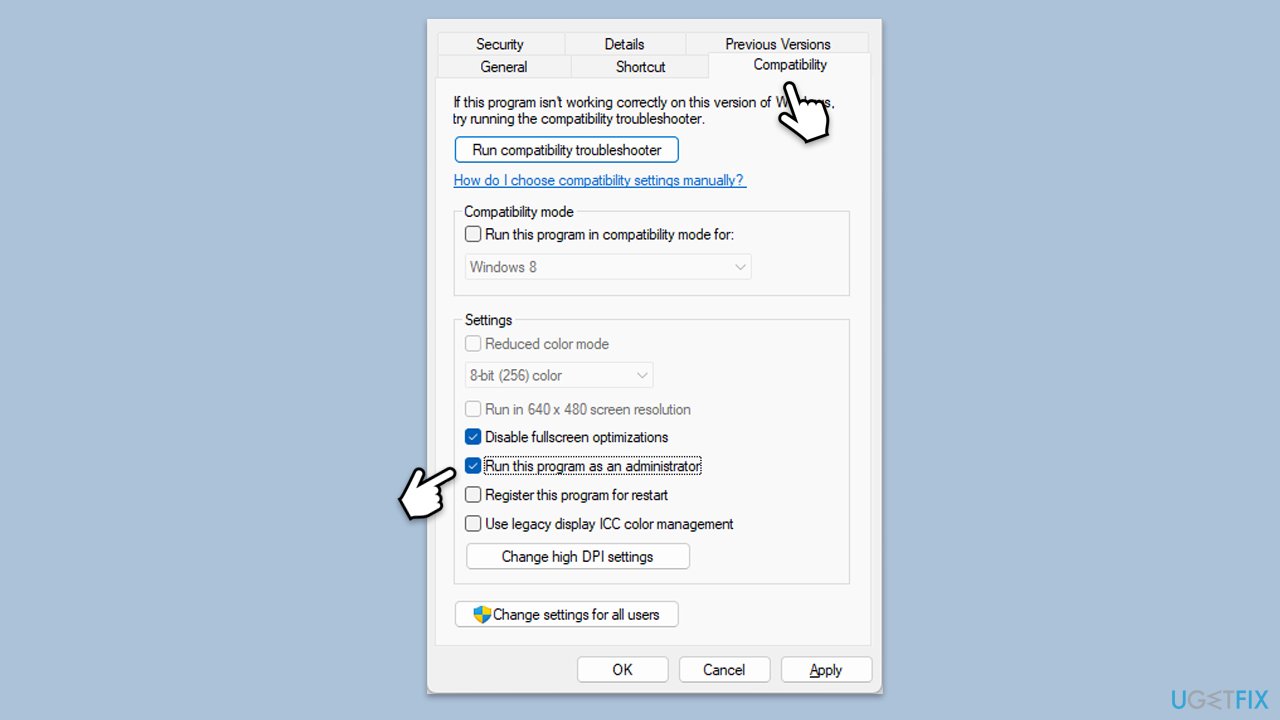
- Right-click the Teams shortcut or executable file.
- Select Properties.
- Go to the Compatibility tab.
- Mark the checkbox Run this program as administrator.
- Click Apply, then OK.
Bottom line
To resolve error code 80284001, you can update the Teams application, fix network connectivity issues, and clean cache files. If these methods do not work, consider performing deeper system-level repairs or using a PC repair tool to automatically resolve underlying Windows problems.
Frequently asked questions
This error typically occurs due to issues with the Microsoft Update service or problems with the Teams application installation itself.
You can fix this error by resetting the Teams application, clearing the cache, or ensuring that your Windows 10 or Windows 11 system is fully updated.
Yes, installing the latest updates for Windows 10 or Windows 11 can help resolve the underlying issues causing error 80284001 in Microsoft Teams.




Report an issue
What's wrong with this guide? We review every report and update or remove content.
Report received — thank you. We'll review and fix it.
You need a free account to submit a report.
Be the first to comment