How to fix
Microsoft Teams error code 9009001E
on Windows
Resolve Microsoft Teams error code 9009001E on Windows 10 and 11 effortlessly with expert-tested solutions. Get back to seamless collaboration in minutes!

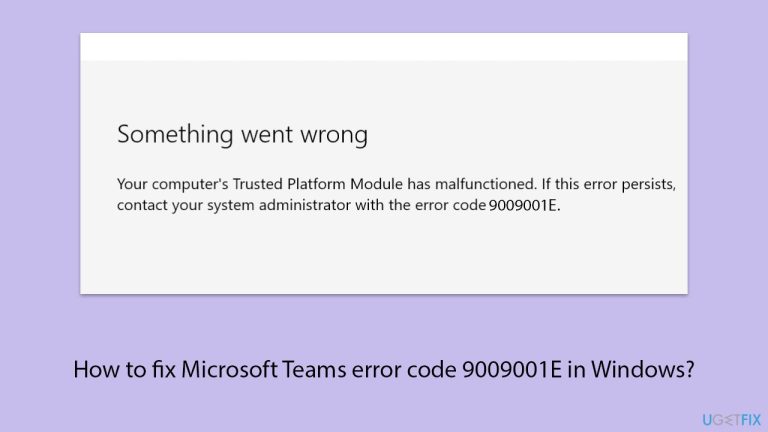
What causes How to fix Microsoft Teams error code 9009001E in Windows?
- Corrupted system files
- Issues with the Teams application
- Problems with your internet connection
- Incorrect account settings
- Conflicts with other software
Repairs Windows system files, removes malware, and restores a clean OS state — without reinstalling.
Hello. I was unable to log in to Teams this morning and it caused me a lot of stress since I need it for my class. It's been several hours already and, after being tired of waiting and the problem still not being resolved, I ask you to help me with this. If it matters, the platform I'm using is Windows.
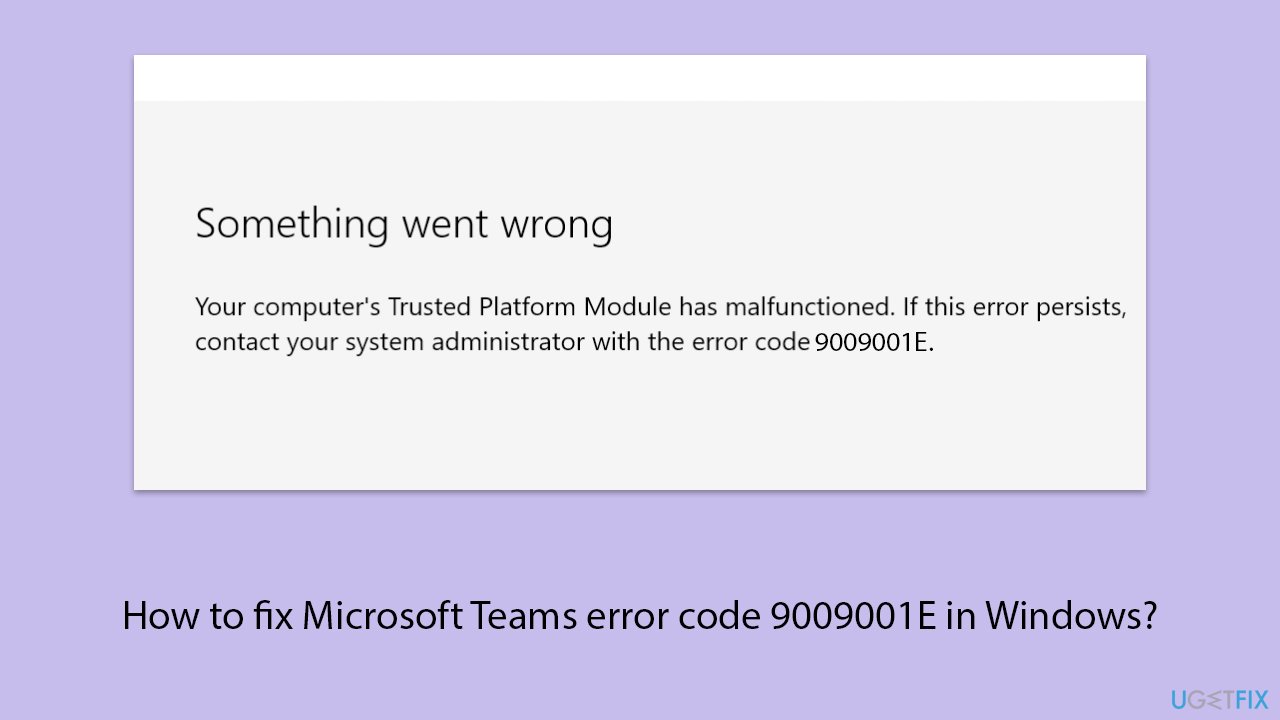
In both professional and educational contexts, Microsoft Teams is a popular communication tool. Still, it occasionally has problems just like any other program. One of the more common problems users may face is error code 9009001e in Windows, usually when trying to log in to Teams.
What is error code 9009001e?
Error code 9009001e in Microsoft Teams typically appears when the application encounters problems connecting to the service or syncing with your account. This error can be frustrating as it may prevent you from accessing Teams, joining meetings, or communicating with your colleagues or classmates.
When do users encounter error code 9009001e?
When attempting to connect to Microsoft Teams servers, users may receive a 9009001e error code, particularly if they have recently updated or modified their account settings. Additionally, it may show up when attempting to use specific Teams functions like syncing files, joining meetings, or sending messages. It could appear out of the blue even if the application was operating normally before.
Causes of error code 9009001e
If you wonder what could be the root cause of the connection, the answer may vary, depending on your computer configuration, software installed, changes made to Windows, and more. While in some cases servers might simply be down (waiting would be the answer here), this is not usually true for most.
Things like corrupted system files, issues with the Teams application itself, problems with your internet connection, incorrect account settings, or conflicts with other software could be the cause, in which case you can take matters into your own hands and perform the troubleshooting steps we provide below.
If your system is experiencing other issues, such as corrupted system files, these could also lead to malfunctions in Windows apps. We suggest using the [d1] PC repair utility to check if this is the case.
Fix 1. Install all Windows updates
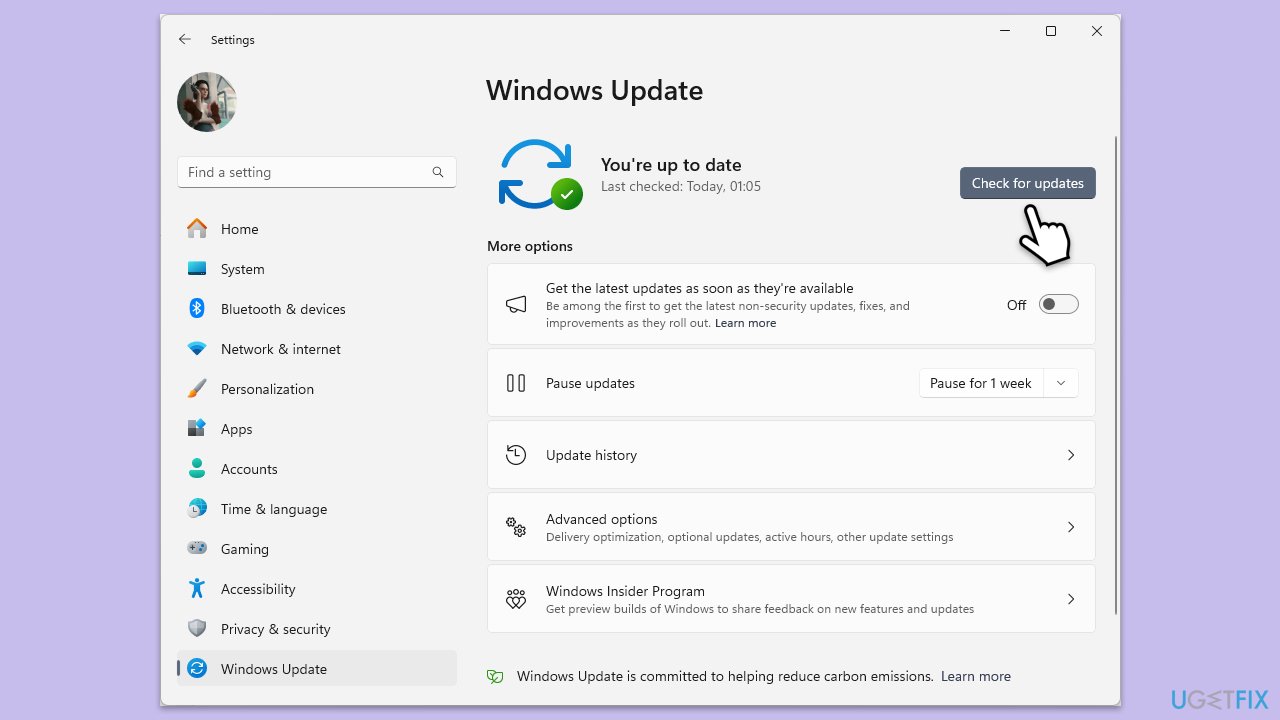
As a first step, make sure that your operating system is up to date.
- Type Updates in the Windows search bar and hit Enter.
- If updates are pending, click Download and install. Otherwise, click Check for updates.
- Make sure you choose to install optional updates as well.
- Restart your system to implement the changes.
Fix 2. Clear Teams cache files
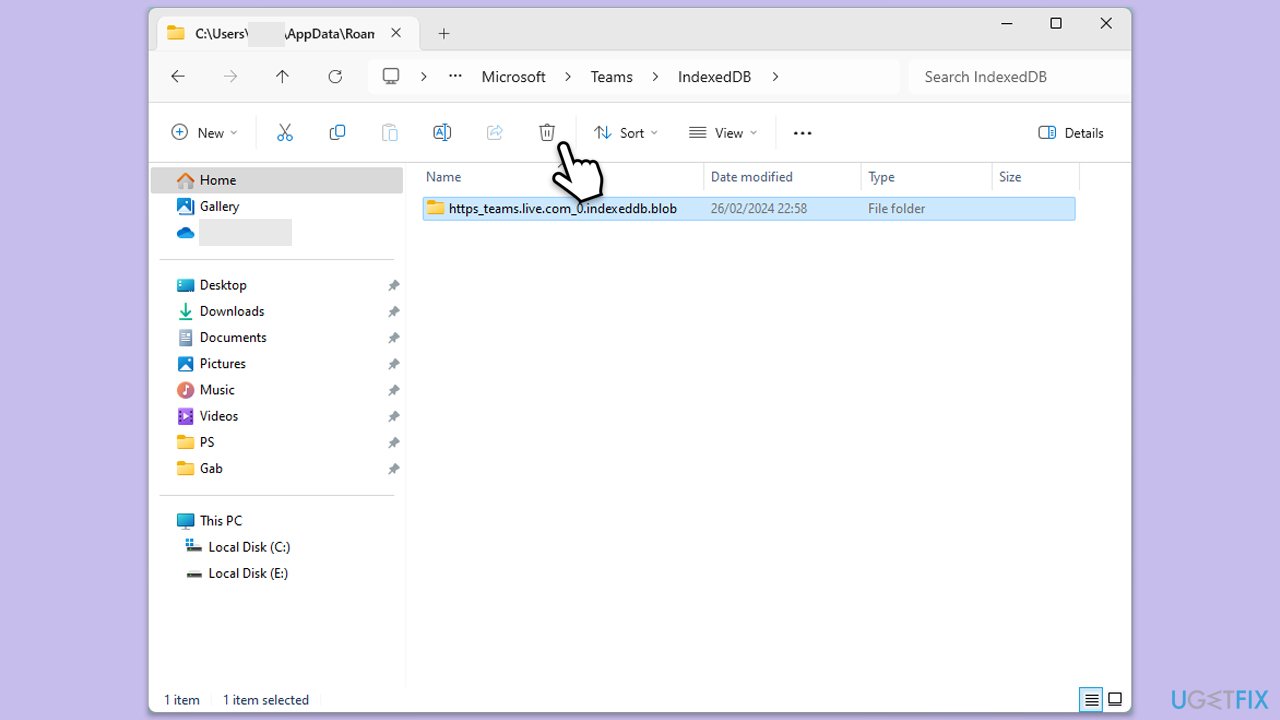
Cache data files might get bugged, preventing the normal operation of the app. You can delete these files as follows:
- Close down Microsoft Teams.
- Press Win + E to open File Explorer.
- Ensure Hidden files are visible.
- In the address bar, type in %appdata%\Microsoft\teams and press Enter.
- Delete the contents of the following folders:
%appdata%\Microsoft\teams\application cache\cache
%appdata%\Microsoft\teams\blob_storage
%appdata%\Microsoft\teams\Cache
%appdata%\Microsoft\teams\databases
%appdata%\Microsoft\teams\GPUcache
%appdata%\Microsoft\teams\IndexedDB
%appdata%\Microsoft\teams\Local Storage %appdata%\Microsoft\teams\tmp - Make sure you empty the Recycle Bin (or use Shift + Del combination to delete these files).
- Restart your system.
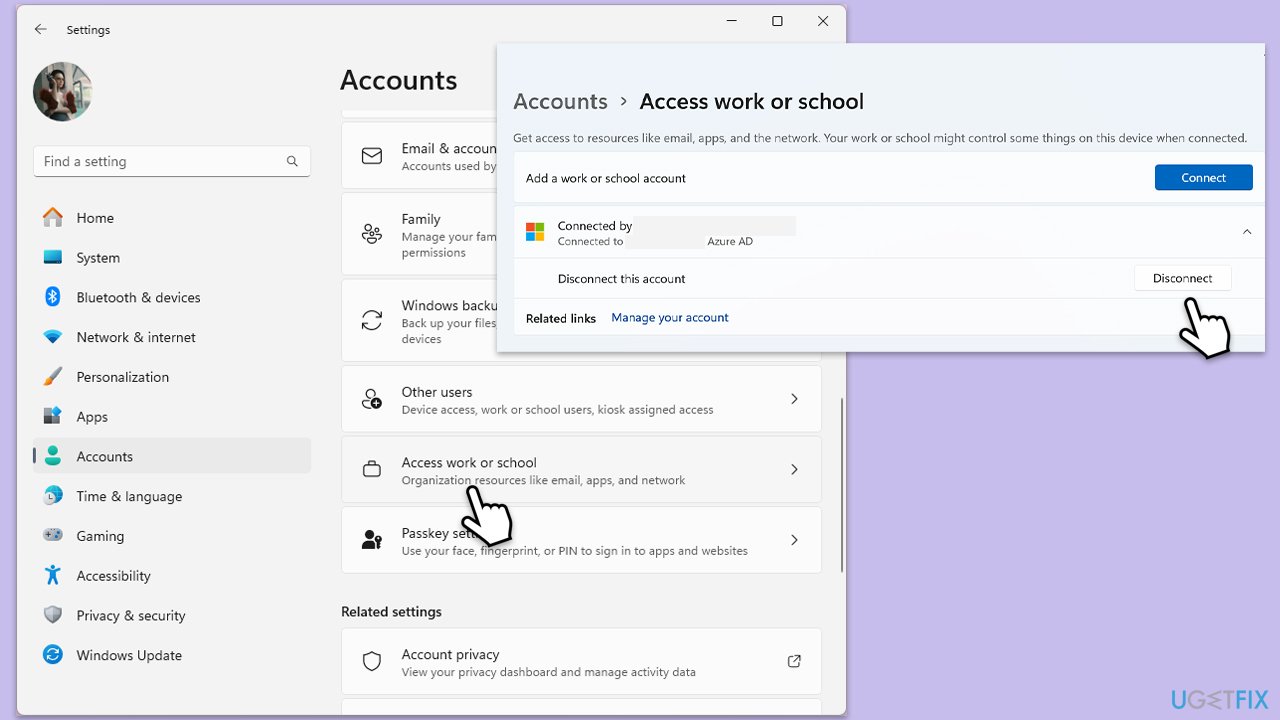
Fix 3. Reconnect your work or school account
- Go to Windows Settings (Win + I).
- Click on Accounts.
- Select Access work or school.
- Click on your connected account and select Disconnect.
- Restart your PC.
- After restarting, go back to Access work or school and select Connect to re-add your account.
- Follow the prompts to complete the process.
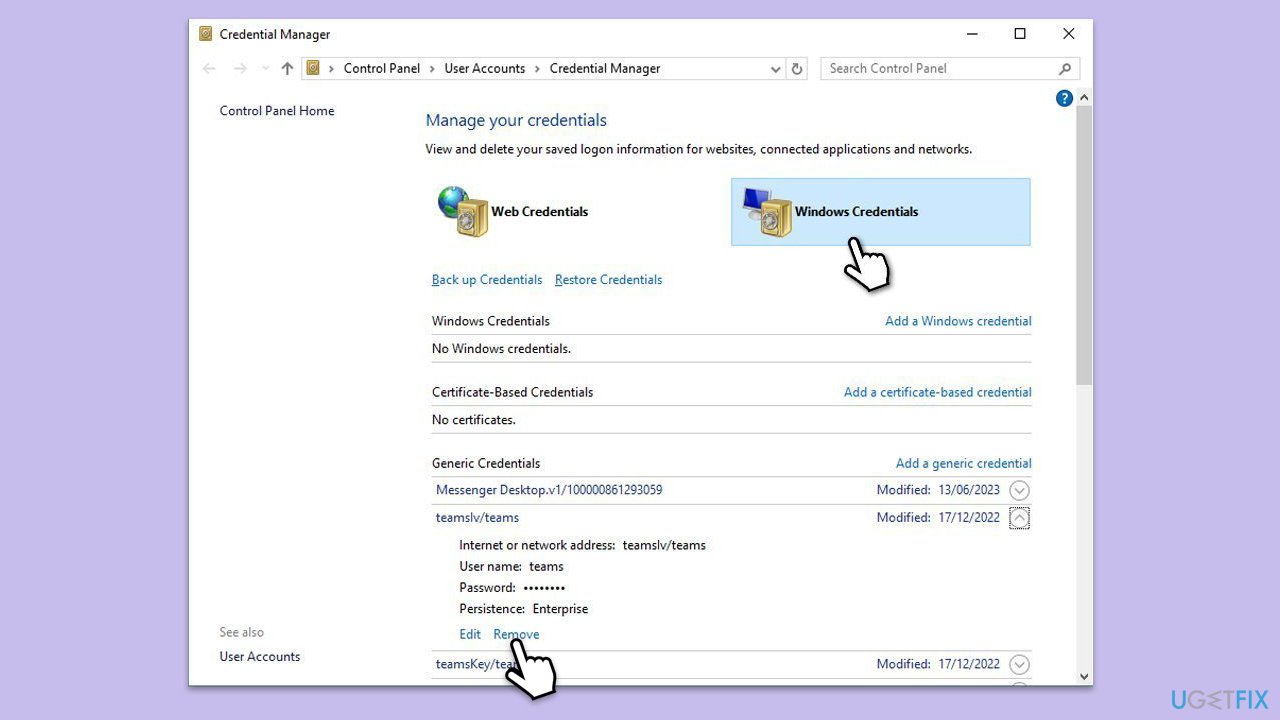
Fix 4. Clear Teams credentials
- Type Credential Manager in Windows search and press Enter.
- Select Windows Credentials.
- Locate and remove any stored credentials related to Microsoft Teams.
- Restart Teams and re-enter your login details.
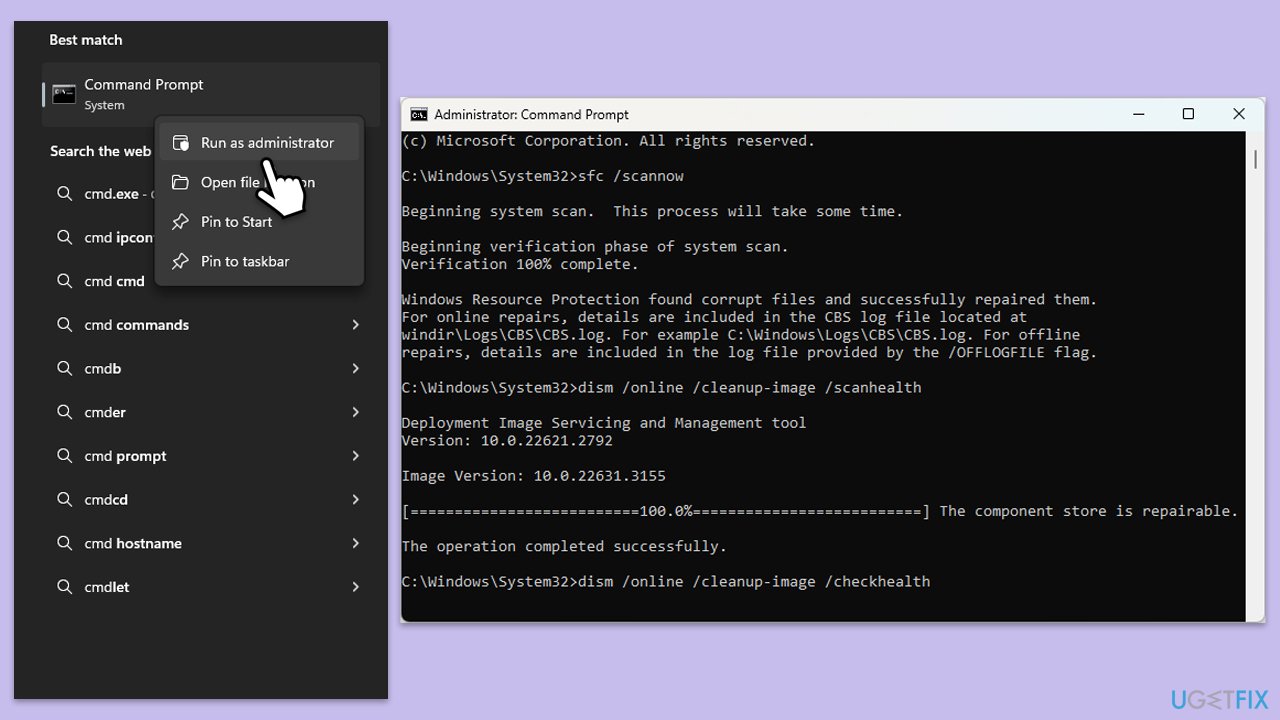
Fix 5. Repair corrupted files
Sometimes, corrupted files might be the main cause of issues related to software on Windows. Follow these steps to repair them:
- Type cmd in Windows search.
- Right-click on Command Prompt and pick Run as administrator.
- User Account Control window will show up - click Yes when prompted.
- Type this command and press Enter:
sfc /scannow - Wait for the scan to finish.
- As soon as the scan finishes, Windows will report whether integrity violations were found and if they could be fixed. Regardless of the outcome, use these commands next, pressing Enter after each:
Dism /Online /Cleanup-Image /CheckHealth
Dism /Online /Cleanup-Image /ScanHealth
Dism /Online /Cleanup-Image /RestoreHealth
(Note: if you get an error executing this last command, add /Source:C:\RepairSource\Windows /LimitAccess to it and try again). - Close down the Command Prompt and restart your computer.
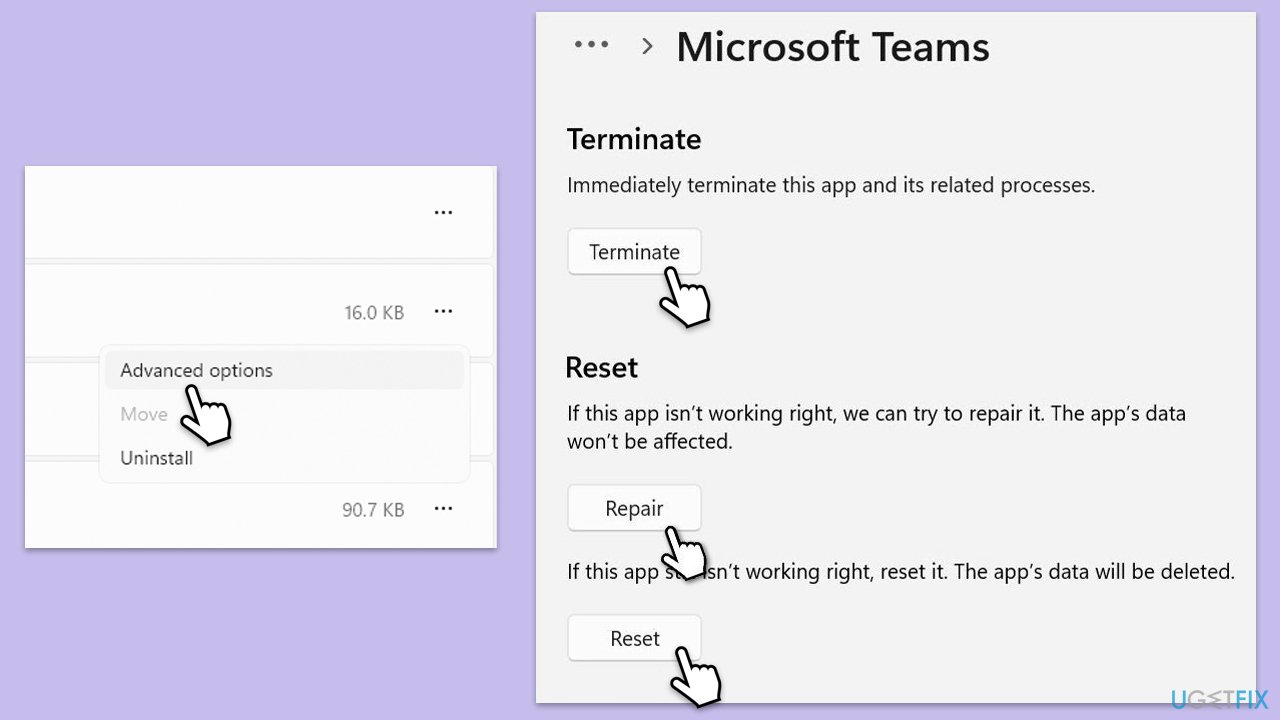
Fix 6. Repair or reset the app
- Click on Start and pick Settings.
- Go to the Apps section.
- Locate Microsoft Teams from the list.
- Click on the three vertical dots and pick Advanced options.
- Click Terminate to ensure that the app is not running.
- Under the Reset section, click Repair and see if that solved your issue.
- If not, then try the Reset option.
Fix 7. Reinstall Teams
If none of the methods above help, try reinstalling the app:
- Type Control Panel in Windows search and press Enter.
- Go to Programs > Uninstall a program.
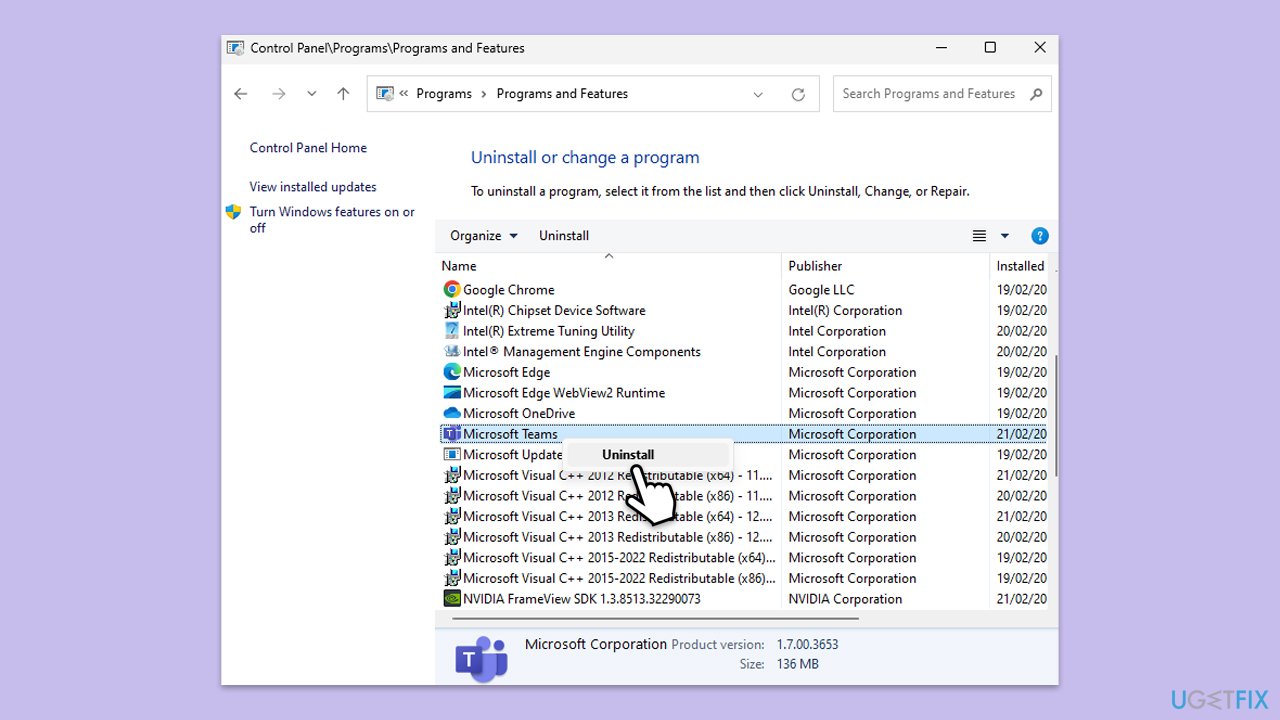
- Find Microsoft Teams, right-click, and select Uninstall.
- Follow the prompts to remove the app.
- Once done, press Win + E to open File Explorer.
- In the View tab at the top of the window, enable Hidden Files.
- Go to C:\Program Files\WindowsApps location.
- Scroll down to find the Microsoft Teams folder and delete it (alternatively, you can rename it).
- Now type %AppData% in Windows search and press Enter.
- Delete the Teams folder here.
- Finally, restart your system and reinstall the app.
Bottom line
To fix error code 9009001e, you can try troubleshooting steps such as checking your internet connection, verifying your account settings, and repairing or reinstalling the Teams application. If these fixes do not resolve the issue, consider waiting for server problems to be addressed or seeking further technical support.
Frequently asked questions
The error code 9009001E typically occurs due to issues with Microsoft Teams' authentication or problems with the cached credentials on your system.
To clear the cache, close Microsoft Teams, then navigate to %appdata%\Microsoft\Teams and delete the contents of the folder; restart the app to see if the error is resolved.
Ensure that your Windows is up to date and check your internet connection, as unstable connectivity can also trigger this error in Microsoft Teams.




Report an issue
What's wrong with this guide? We review every report and update or remove content.
Report received — thank you. We'll review and fix it.
You need a free account to submit a report.
Be the first to comment