How to fix
Microsoft Teams error “JavaScript error occurred in the main process”
on Windows
Resolve the Microsoft Teams "JavaScript error" on Windows 10 or 11 quickly and effectively. Expert-tested solutions ensure fixes in minutes.

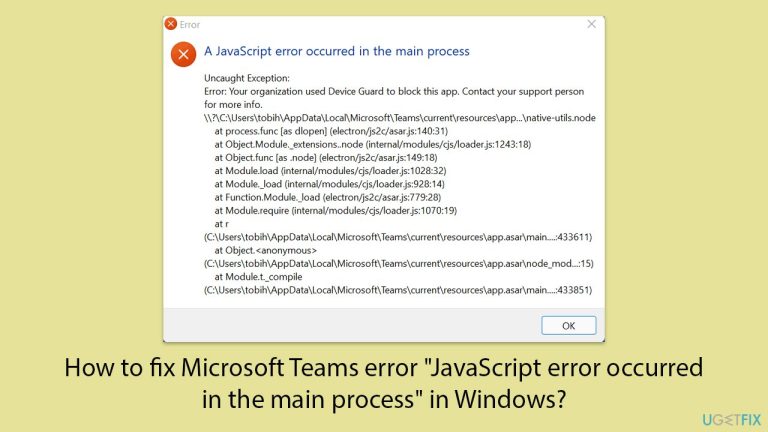
What causes How to fix Microsoft Teams error “JavaScript error occurred in the main process” in Windows?
- Corrupted or incomplete application files
- Improper updates or failed installation
- Conflicts with other software
- Permissions or access rights issues
- Cache files causing execution problems
Repairs Windows system files, removes malware, and restores a clean OS state — without reinstalling.
Whenever I try to open up Teams, I receive an error "JavaScript error occurred in the main process" with a bunch of other text under it. How do I fix it?
One of the problems Windows users face when trying to open Microsoft Teams is the "JavaScript error occurred in the main process." This error often prevents the Teams app from opening, which disrupts communication, especially for those users relying on the app for work or school reasons.
Most of the people who have faced this error and reported it online said it's particularly annoying because, by itself, the nature of the error message is somewhat technical in that many users have no idea what the root cause might be or how to remedy such an error.
The "JavaScript error occurred in the main process" error is usually related to issues within the application’s internal processes, often tied to JavaScript execution in Teams. A common cause is corrupted or incomplete application files, which may result from improper updates or a failed installation.
Another possible reason could be conflicts with other software installed on the system, such as antivirus programs or other applications that interfere with Teams' ability to launch properly. Additionally, certain permissions or access rights within Windows can prevent the JavaScript elements in Teams from executing, leading to this error.
"JavaScript error occurred in the main process" error can be fixed by a few methods, which include repairing or reinstalling Teams, checking for conflicts with antivirus software, or ensuring that Windows, along with Teams, is updated. Otherwise, the resolution can also be achieved when permission issues are cleared or cache files are cleared.
You can use the [d1] repair tool, which may provide automated ways of finding and resolving system-related issues if you want to take a more holistic approach toward solving any underpinning Windows issues contributing to this error.
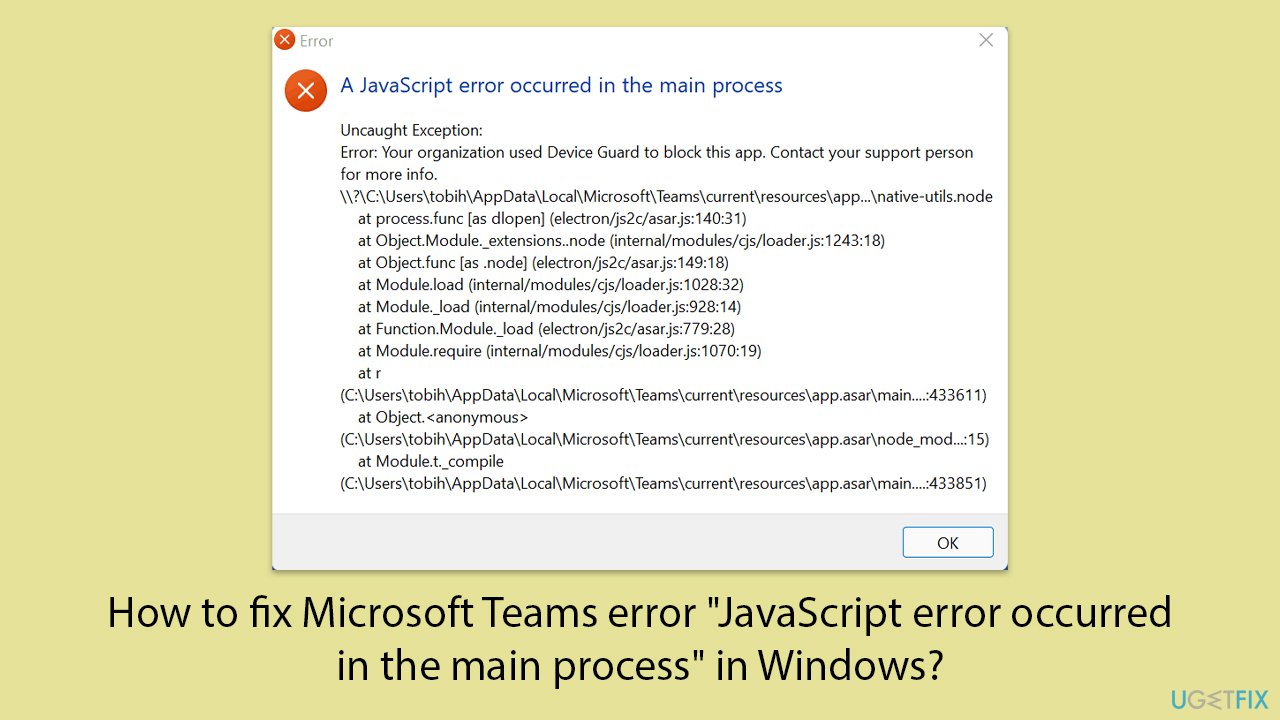
Fix 1. Restart Microsoft Teams
A simple restart may resolve temporary issues causing the error.
- Close Microsoft Teams.
- Right-click on the taskbar and select Task Manager.
- Ensure there are no Teams-related processes running. End them if found.
- Reopen Microsoft Teams.
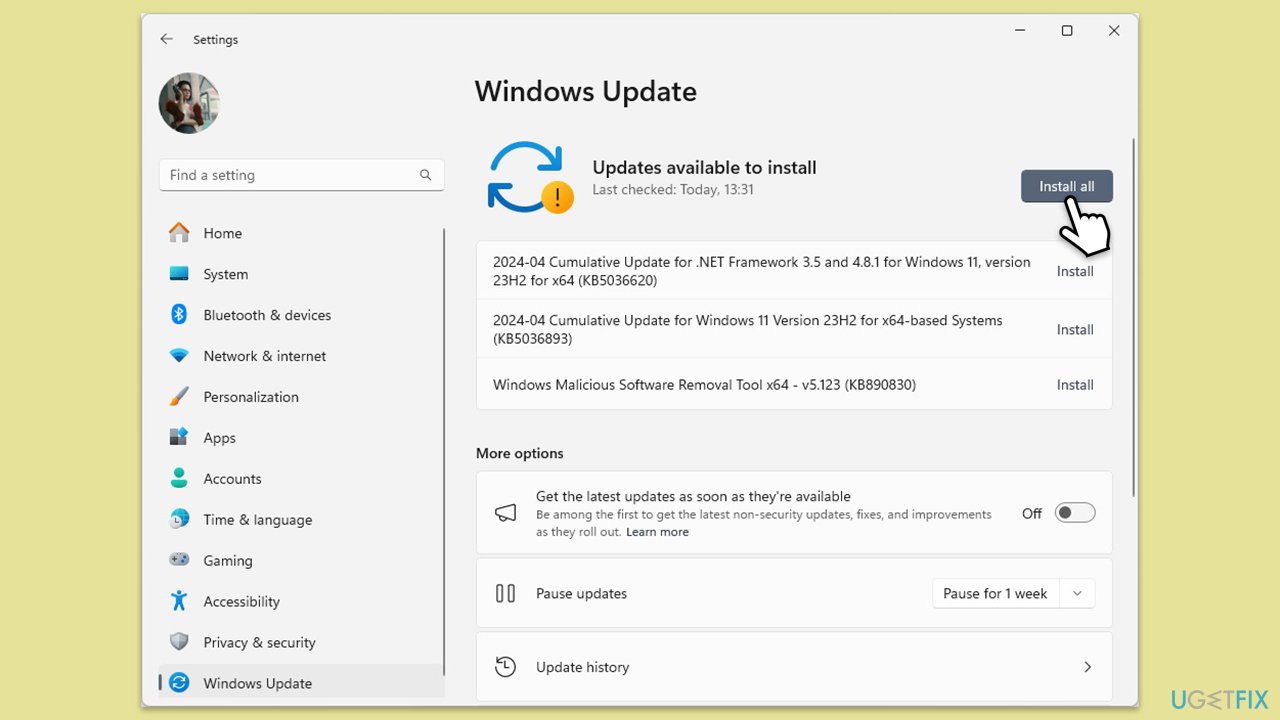
Fix 2. Check for Windows updates
Outdated Windows versions may cause conflicts with Microsoft Teams, leading to JavaScript errors.
- Type Updates in the Windows search box and press Enter.
- Click Check for Updates or Install all.
- Ensure optional and pending updates are installed as well.
- Wait till the process is finished.
- Restart your device.
Fix 3. Disable antivirus temporarily
Security software might block or interfere with Teams' processes, resulting in the error.
- Open your antivirus program.
- Locate the real-time protection settings.
- Temporarily disable it.
- Launch Microsoft Teams to see if the issue persists.
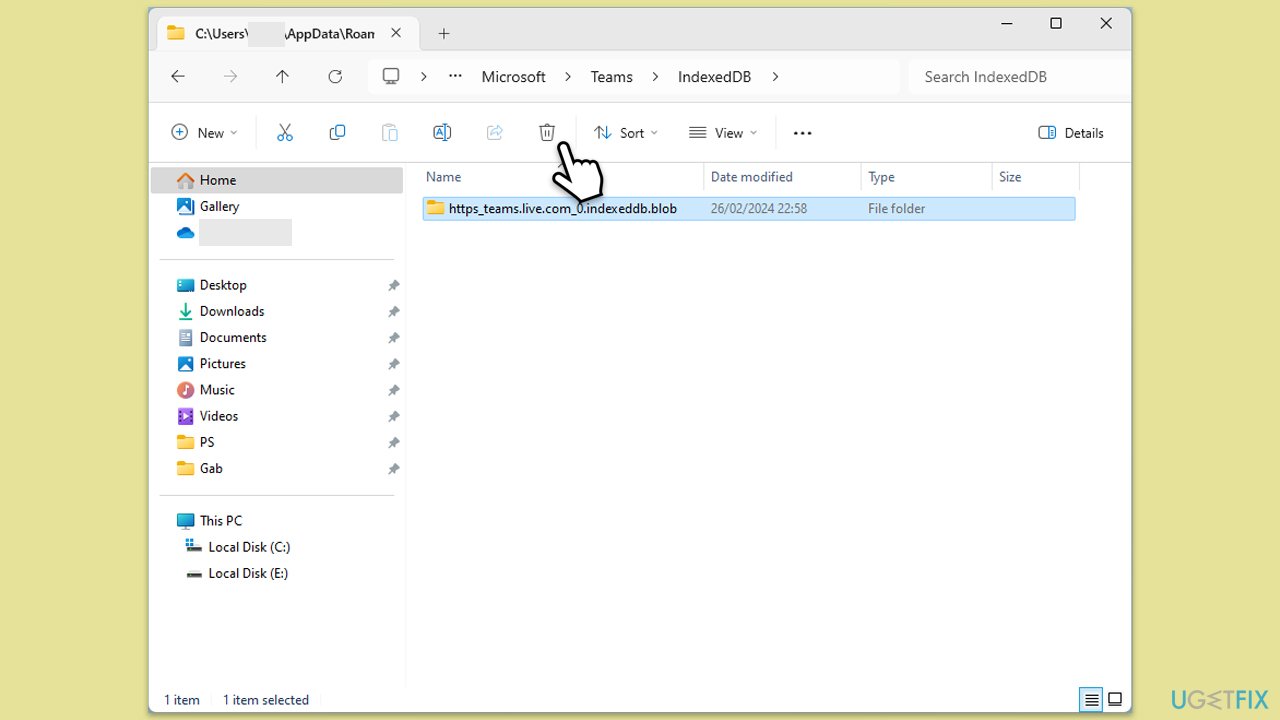
Fix 4. Clear Teams cache
Clearing cache can help resolve issues with corrupted data preventing Teams from launching.
- Press Win + E to open File Explorer.
- Ensure Hidden files are visible.
- In the address bar, type in %appdata%\Microsoft\teams and press Enter.
- Delete the contents of the following folders:
%appdata%\Microsoft\teams\application cache\cache
%appdata%\Microsoft\teams\blob_storage
%appdata%\Microsoft\teams\Cache
%appdata%\Microsoft\teams\databases
%appdata%\Microsoft\teams\GPUcache
%appdata%\Microsoft\teams\IndexedDB
%appdata%\Microsoft\teams\Local Storage %appdata%\Microsoft\teams\tmp - Make sure you empty the Recycle Bin (or use Shift + Del combination to delete these files).
- Restart your system.
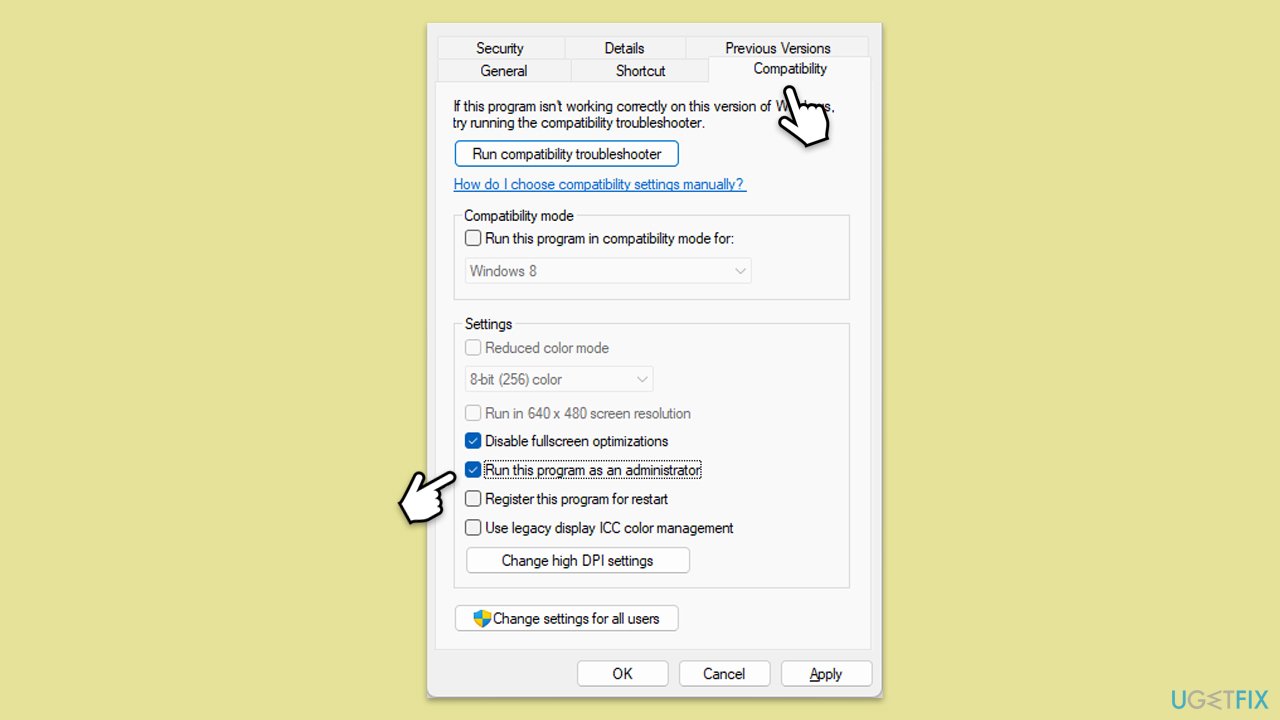
Fix 5. Run Teams as administrator
Running the application with elevated privileges can bypass permission-related issues.
- Right-click the Teams shortcut or executable file.
- Select Properties.
- Go to the Compatibility tab.
- Check the box for Run this program in compatibility mode for.
- Click Apply, then OK.
Fix 6. Repair or reset Microsoft Teams
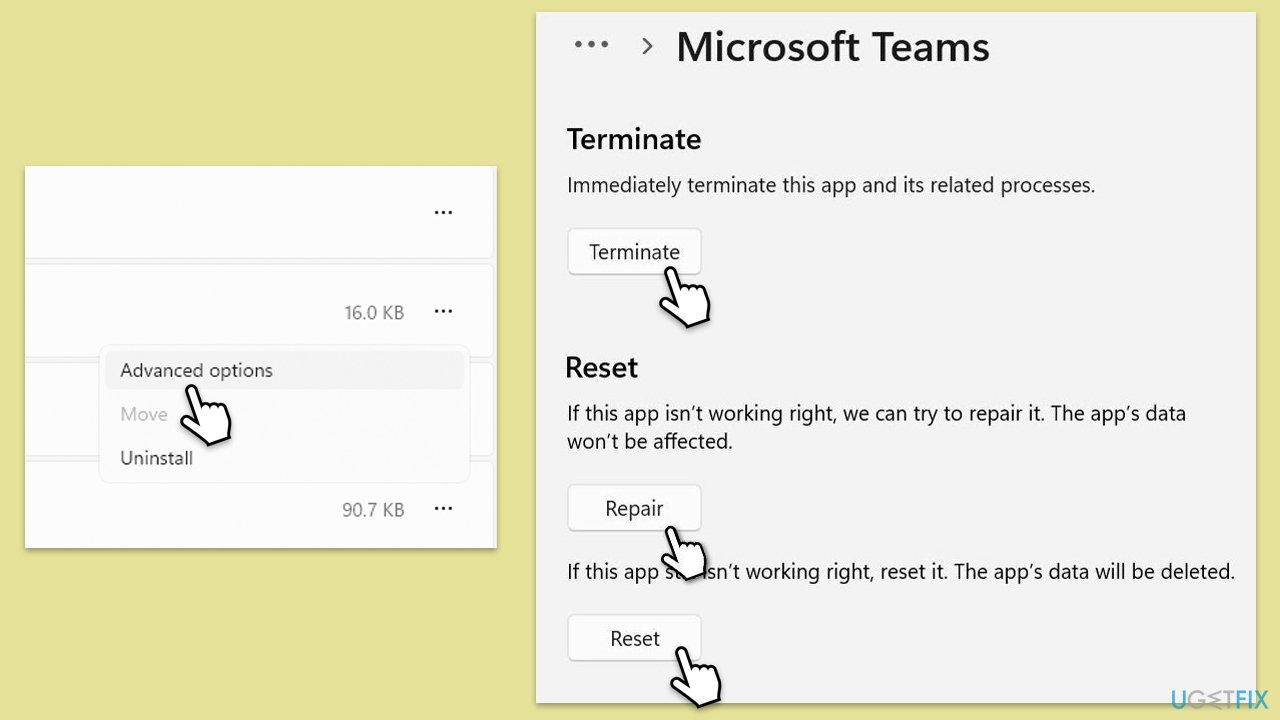
Using the built-in repair or reset option can fix corrupted files that lead to errors.
- Click on Start and pick Settings.
- Go to the Apps section.
- Locate Microsoft Teams from the list.
- Click on the three vertical dots and pick Advanced options.
- Click Terminate to ensure that the app is not running.
- Under the Reset section, click Repair and see if that solved your issue.
- If not, then try the Reset option.
Fix 7. Reconnect your work or school accounts
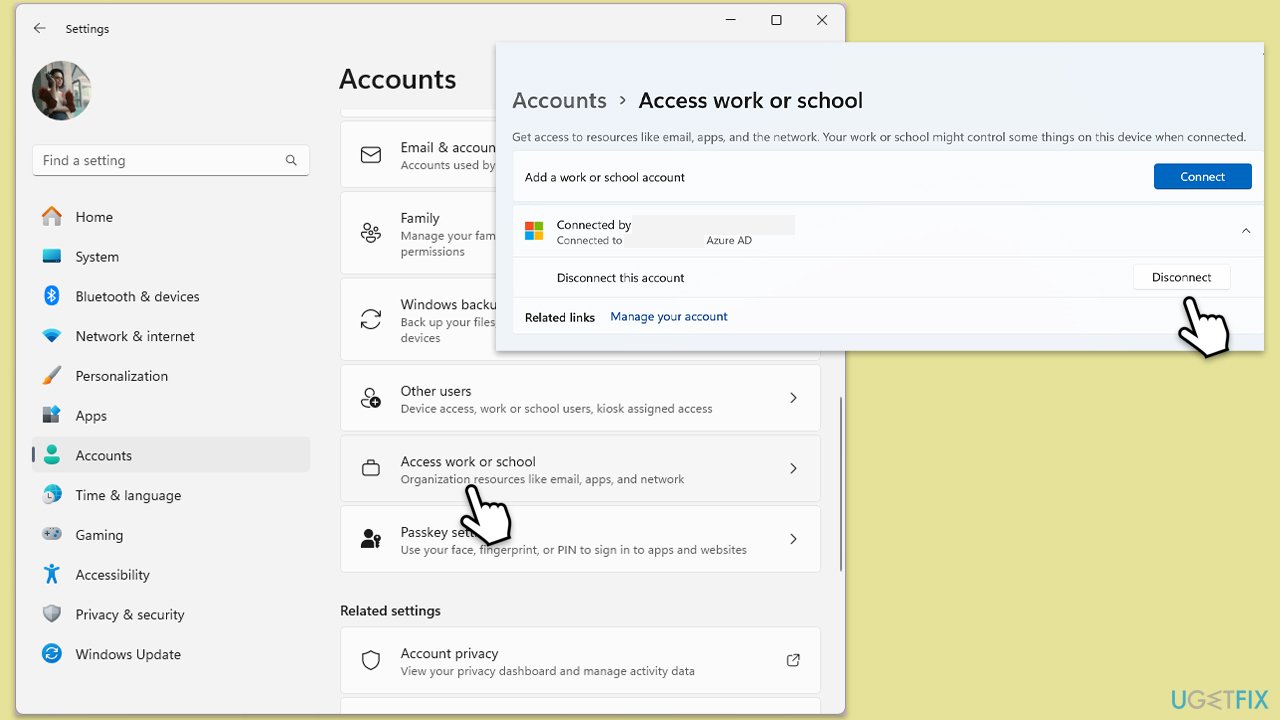
- Right-click on Start and pick Settings.
- Click on Accounts.
- Select Access work or school.
- Click on your account and then Disconnect.
- Navigate to C:\users\USERNAME\AppData\Local\Packages (replace USERNAME with your actual username).
- Delete the contents of the folder.
- Restart your computer.
- Return to Access work or school and connect the relevant account.
Fix 8. Reinstall Microsoft Teams
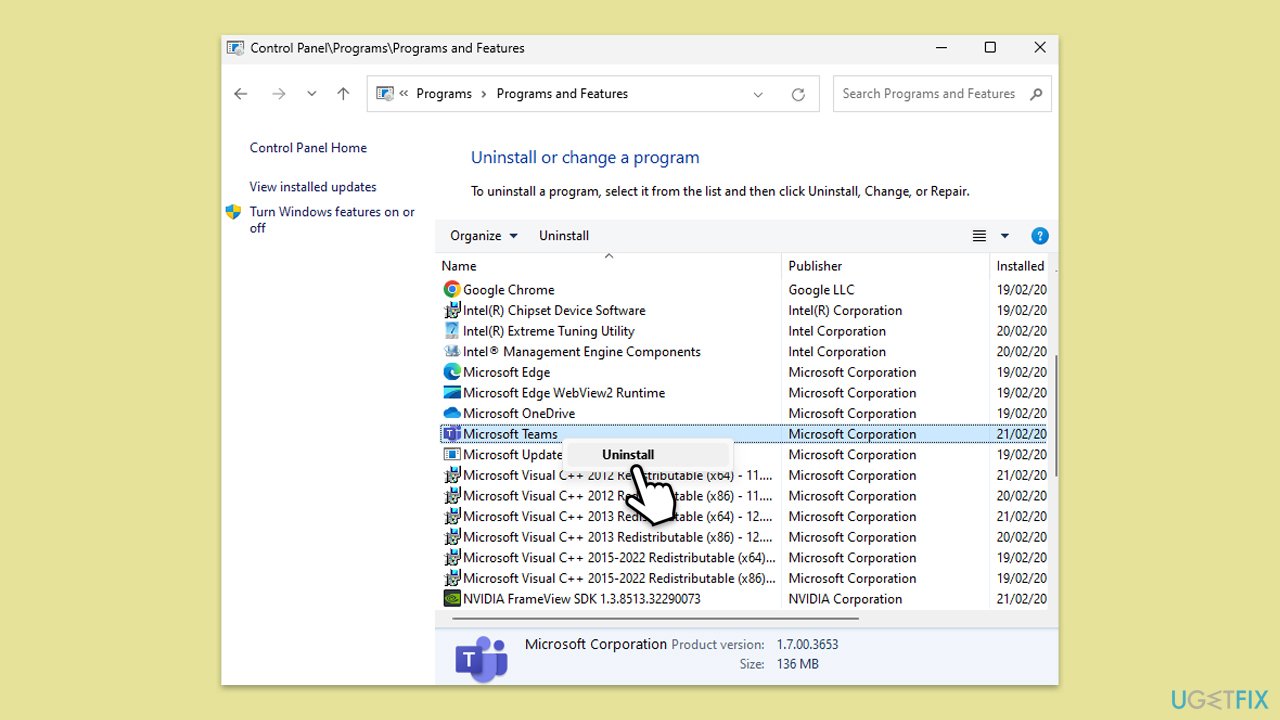
Reinstalling the app can help resolve deeper issues with corrupted installation files.
- Type Control Panel in Windows search and press Enter.
- Go to Programs > Uninstall a program.
- Find Microsoft Teams, right-click, and select Uninstall.
- Follow the prompts to remove the app.
- Once done, press Win + E to open File Explorer.
- In the View tab at the top of the window, enable Hidden Files.
- Go to C:\Program Files\WindowsApps location.
- Scroll down to find the Microsoft Teams folder and delete it (alternatively, you can rename it).
- Now type %AppData% in Windows search and press Enter.
- Delete the Teams folder here.
- Finally, restart your computer and reinstall the app.
Bottom line
The error "JavaScript error occurred in the main process" can often be resolved by restarting Microsoft Teams, repairing or reinstalling the application, checking for conflicts with antivirus software, and ensuring both Windows and Teams are updated. If these methods do not resolve the issue, consider clearing cache files or using a repair tool for a more comprehensive approach.
Frequently asked questions
This error typically occurs due to corrupted installation files, conflicts with other applications, or outdated system components.
You can repair Microsoft Teams by going to Settings > Apps > Apps & features, selecting Microsoft Teams, and clicking on the 'Repair' option.
Yes, uninstalling and then reinstalling Microsoft Teams can resolve the error by ensuring that you have the latest version and clean installation files.




Report an issue
What's wrong with this guide? We review every report and update or remove content.
Report received — thank you. We'll review and fix it.
You need a free account to submit a report.
Be the first to comment