How to fix
Microsoft Teams scroll bar is missing
on Windows
Resolve the missing scroll bar issue in Microsoft Teams on Windows 10 and 11 effortlessly. Expert-tested solutions inside, fixed in minutes!


What causes How to fix Microsoft Teams scroll bar is missing in Windows?
- Cache files becoming corrupted or overloaded
- General defects in application software
- System file corruption on Windows
- Temporary glitches in the application or system resources
Repairs Windows system files, removes malware, and restores a clean OS state — without reinstalling.
Hello. I'm encountering an issue with Microsoft Teams Planner where the bottom scroll bar has disappeared, preventing me from scrolling horizontally to view other task buckets. Restarting my computer didn't resolve the problem. Can anyone offer a solution?
Microsoft Teams, an extensively used collaboration application, provides a frictionless way for professionals to interact, exchange files, and schedule meetings. This platform connects with Microsoft's Office Suite, creating a centralized location for workplace chats, video conferencing, and project management.
Despite its widespread popularity and sturdy design, Microsoft Teams is not immune to technological issues, one of which is that the scroll bar within the application goes missing on Windows operating systems. This issue can drastically hamper the user experience because navigating between discussions and shared documents becomes difficult.
The missing scroll bar issue in Microsoft Teams could be caused by a variety of scenarios. Cache files, which are designed to improve program performance by storing temporary data, can occasionally create graphical or functional issues if they become corrupted or overloaded.
In addition to cache issues, general defects in application software or system file corruption on the Windows operating system can cause interface components such as the scroll bar to disappear. To resolve these issues, typically erase the application's cache, ensure that both Microsoft Teams and the Windows operating system are up to current, or run a system file check to detect and fix any corrupted files.
For people who are not comfortable manually diagnosing these issues, or who prefer a more straightforward method, using a PC repair program [d1] can be an effective answer. Such a tool is intended to automatically detect and resolve underlying Windows issues that may be hurting program performance, such as the disappearance of the scroll bar in Microsoft Teams.
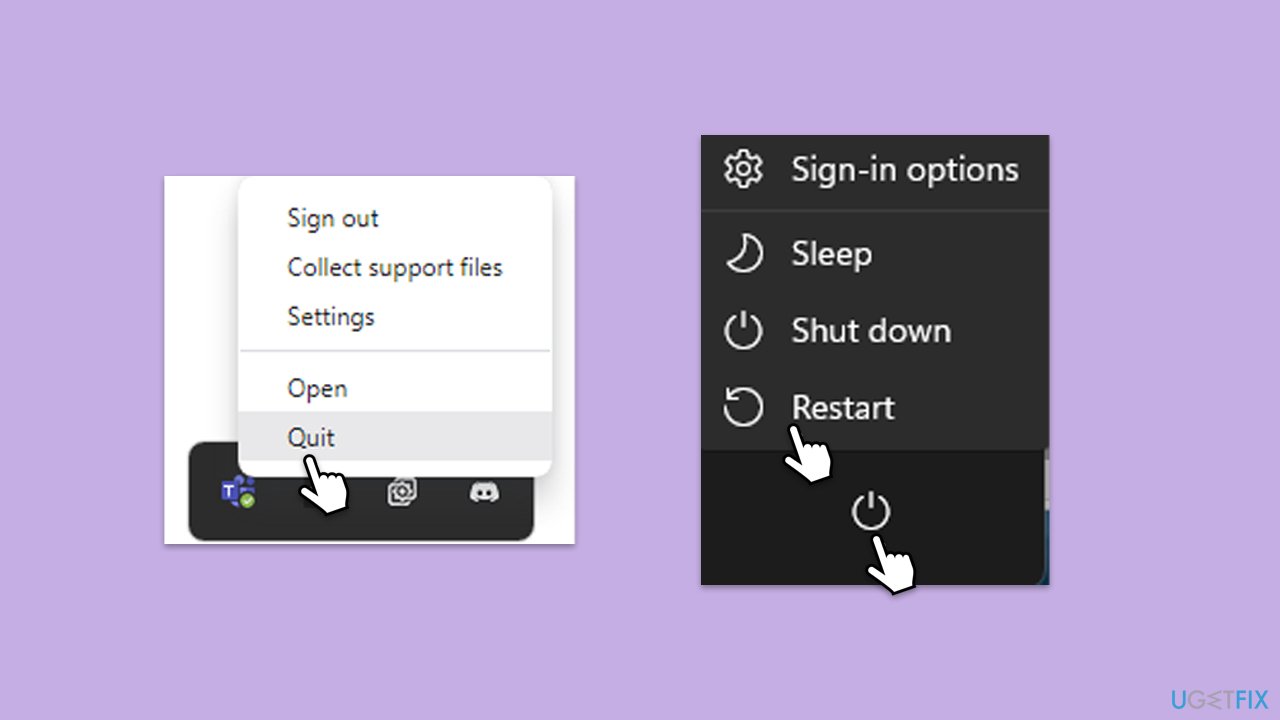
Fix 1. Restart Teams or your PC
Restarting Microsoft Teams or your computer can resolve temporary glitches, including the missing scroll bar issue, by refreshing the application's environment and system resources. This method often fixes minor software conflicts that could be causing the problem.
- Close Microsoft Teams by right-clicking the Teams icon in the system tray and selecting Quit.
- Wait a few seconds, then reopen Teams from the Start menu or desktop shortcut.
- If the issue persists, restart your PC by clicking the Start menu, selecting the Power option, and choosing Restart.
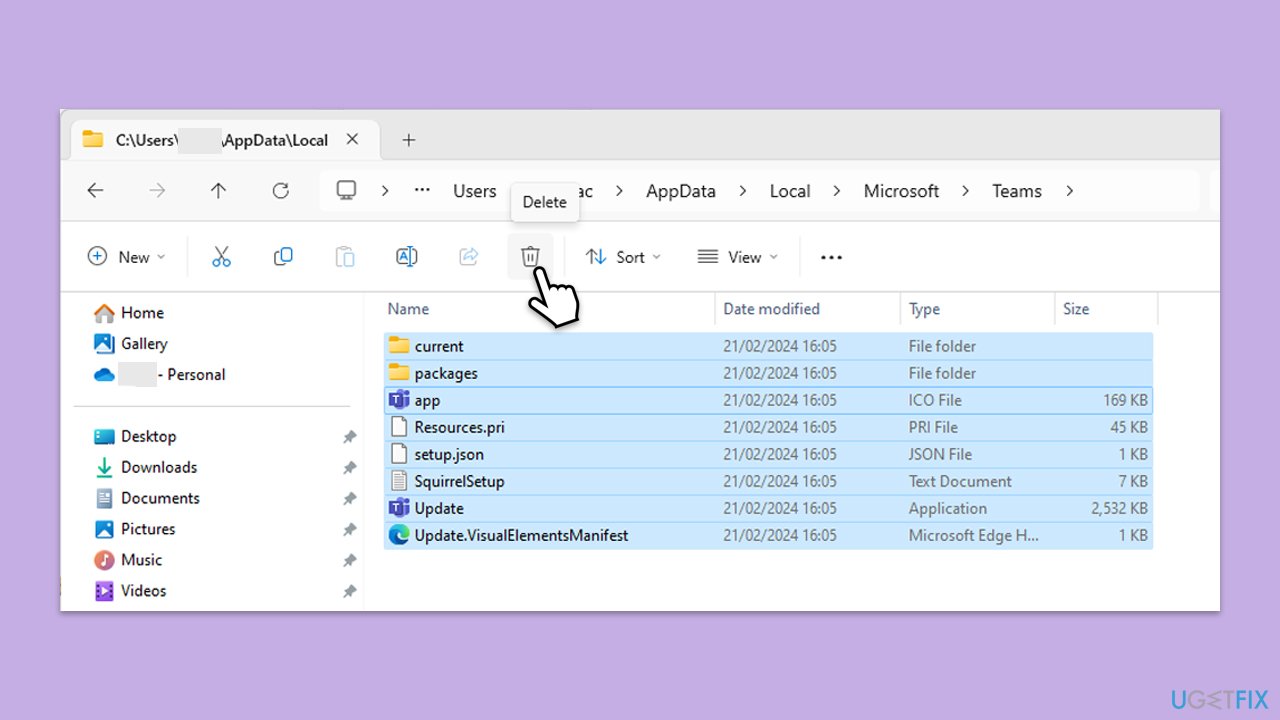
Fix 2. Clear Teams cache files
This method removes temporary files that may be corrupt or cause the application to malfunction.
- Make sure Teams is not running (close from the system tray or Task Manager).
- Press Win + R on your keyboard to open the Run dialog.
- Type AppData and press Enter or click OK.
- Go to the following location:
C:\Users\User\AppData\Local\Microsoft - Delete all the files and folders located in the Teams folder.
- Start the app again.
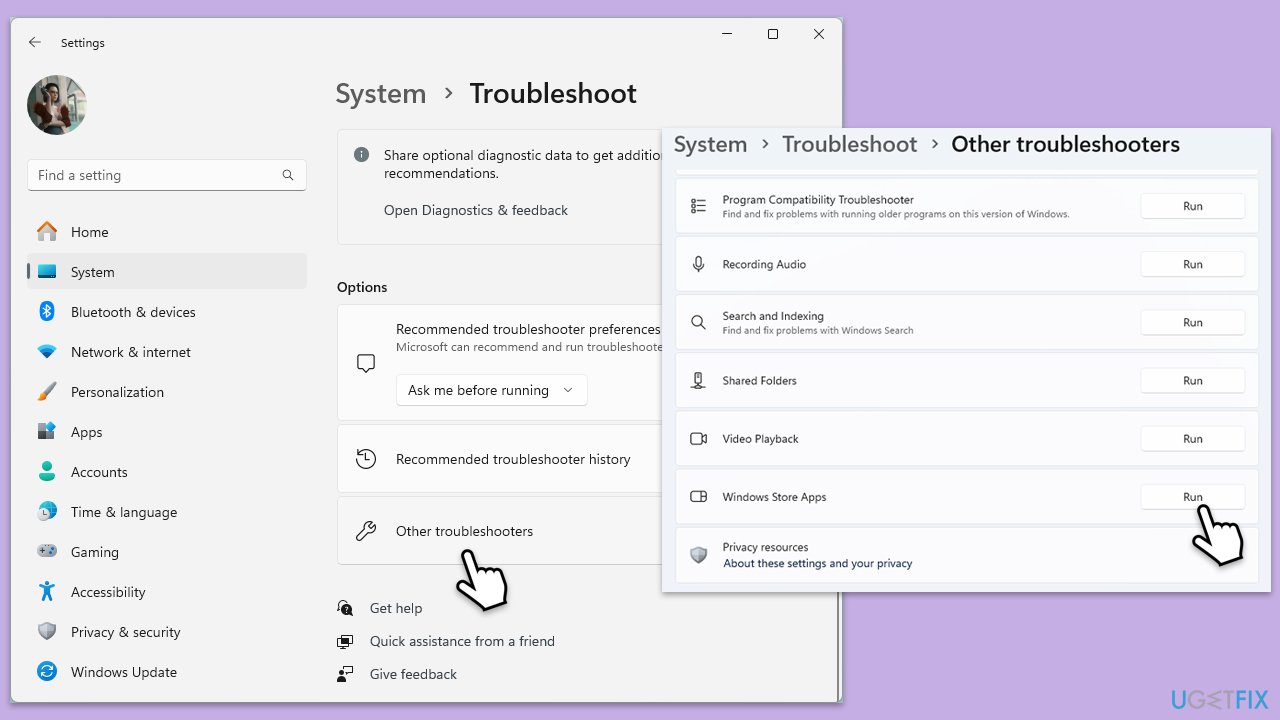
Fix 3. Run Windows Store Apps troubleshooter
The Windows Store Apps troubleshooter can automatically detect and fix problems with apps installed from the Microsoft Store, including Microsoft Teams.
- Type Troubleshoot in Windows search and press Enter.
- Select Additional troubleshooters/Other troubleshooters.
- Find Windows Store Apps from the list and select Run the troubleshooter/Run.
- Wait till the process is finished and apply the offered fixes.
Fix 4. Repair or reset Teams
Repairing or resetting Teams via Windows settings can fix issues without affecting your data while resetting will restore the app to its default state but may remove your data within the app.
- Click on Start and pick Settings.
- Go to the Apps section.
- Locate Microsoft Teams from the list.
- Click on the three vertical dots and pick Advanced options.
- Click Terminate to ensure that the app is not running.
- Under the Reset section, click Repair and see if that solved your issue.
- If not, then try the Reset option.
Fix 5. Use the web version of the app
If the scroll bar is missing in the desktop app, using Teams through a web browser can be a temporary workaround while you troubleshoot the desktop application.
- Open your preferred web browser.
- Visit the Microsoft Teams website and sign in with your account.
- Use Teams directly from your browser until the desktop issue is resolved.
Fix 6. Reinstall Teams
Reinstalling Teams ensures any corrupt files causing the scroll bar to disappear are removed.
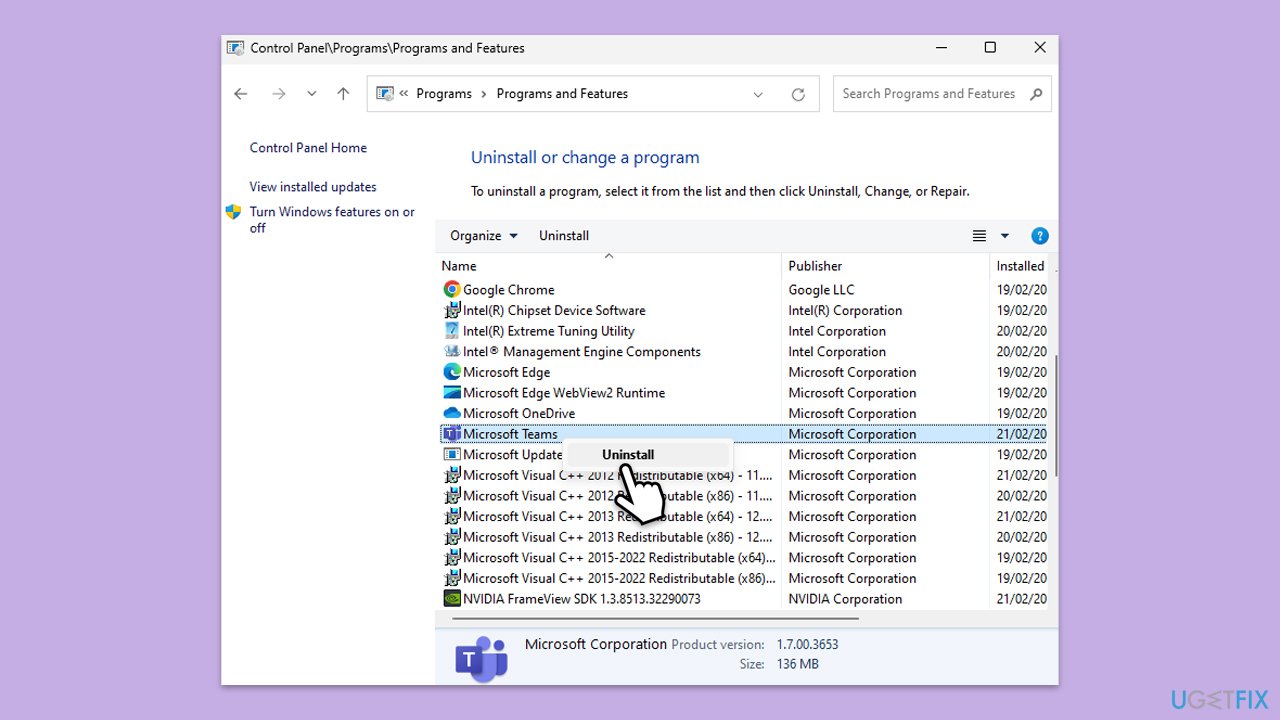
- Type Control Panel in Windows search and press Enter.
- Go to Programs > Uninstall a program.
- Find Microsoft Teams, right-click, and select Uninstall.
- Follow the prompts to remove the app.
- Once done, press Win + E to open File Explorer.
- In the View tab at the top of the window, enable Hidden Files.
- Go to C:\Program Files\WindowsApps location.
- Scroll down to find the Microsoft Teams folder and delete it (alternatively, you can rename it).
- Now type %AppData% in Windows search and press Enter.
- Delete the Teams folder.
- Finally, restart your device and reinstall the app.
Bottom line
To fix the missing scroll bar in Microsoft Teams, you can restart Teams or your PC, clear the application cache, ensure both Microsoft Teams and Windows are up to date, or run a system file check. If these solutions do not resolve the issue, consider using a PC repair program for automatic detection and resolution of underlying problems.
Frequently asked questions
The missing scroll bar in Microsoft Teams on Windows 10 may be due to an outdated app version or display settings. Updating the app or adjusting the display scaling in your system settings can often resolve this issue.
To restore the scroll bar in Microsoft Teams on Windows 11, try resetting the app by going to Settings > Apps > Apps & features, selecting Microsoft Teams, and then clicking on 'Repair'. If the issue persists, consider reinstalling the app.
Yes, if your display scaling is set too high, it can cause the scroll bar to disappear in Microsoft Teams on Windows. Check your display settings under Settings > System > Display, and try adjusting the scaling to 100% or 125%.




Report an issue
What's wrong with this guide? We review every report and update or remove content.
Report received — thank you. We'll review and fix it.
You need a free account to submit a report.
Be the first to comment