How to fix
Microsoft To Do app not syncing
on Windows
Resolve Microsoft To Do syncing issues on Windows 10 or 11 with expert tips and solutions. Get back to productivity quickly—fixed in minutes!

What causes How to fix Microsoft To Do app not syncing in Windows?
- Inability to sync tasks between devices
- Lack of real-time updates
- Issues with background app permissions
- Problems within app settings
- Potential app updates needed
Repairs Windows system files, removes malware, and restores a clean OS state — without reinstalling.
Hello. For some reason, the Microsoft To Do app has stopped syncing. I can't find a way to fix this. Any suggestions would be appreciated.
Users may find it frustrating when the Microsoft To Do app for Windows stops synchronizing because it interferes with the tool's primary purpose of assisting users in successfully managing projects and to-dos. This synchronization issue can disrupt a user's workflow and cause a number of annoyances.
First and foremost, a lack of real-time updates might be caused by the inability to sync tasks between devices. This entails that adjustments made on one device would not be reflected on others, which could cause confusion and increase the likelihood of missing crucial deadlines or assignments. People that use Microsoft To Do as a centralized solution for task management across several platforms may find this issue to be especially troublesome.
The syncing problem might also make it difficult for users or teams to work together. Working on shared projects with other users gets difficult when tasks and lists don't sync properly. As a result, information is not always current and readily available to all stakeholders, which can have an influence on productivity and teamwork.
Additionally, customers' overall satisfaction with the Microsoft To Do app may suffer as a result of their frustration and the time they invested in troubleshooting the synchronization issue. Users might lose significant time diagnosing and fixing the problem, which would draw their focus away from their intended duties and plans.
Potential fixes for this issue include checking for app updates, making sure background app permissions are set up properly, and making adjustments or resets inside the app settings. It's crucial to remember that these fixes could differ based on the precise reason for the syncing problem and the user's system configuration.
In this guide, you will find 5 steps that should help you fix Microsoft To Do app not syncing in Windows. You can also run a maintenance tool like [d1] that can fix most system errors, BSODs, corrupted files, and registry issues. Otherwise, follow the step-by-step instructions provided below.

Method 1. Check the Microsoft Server Status
It's possible that there's no issue with the app itself, but Microsoft might be performing maintenance or troubleshooting on their servers. This could be the reason why Microsoft To Do isn't syncing. To verify the status of the servers, you can visit the Microsoft Service Status webpage. If there is a problem with Microsoft To Do, you'll need to wait until they resolve it.

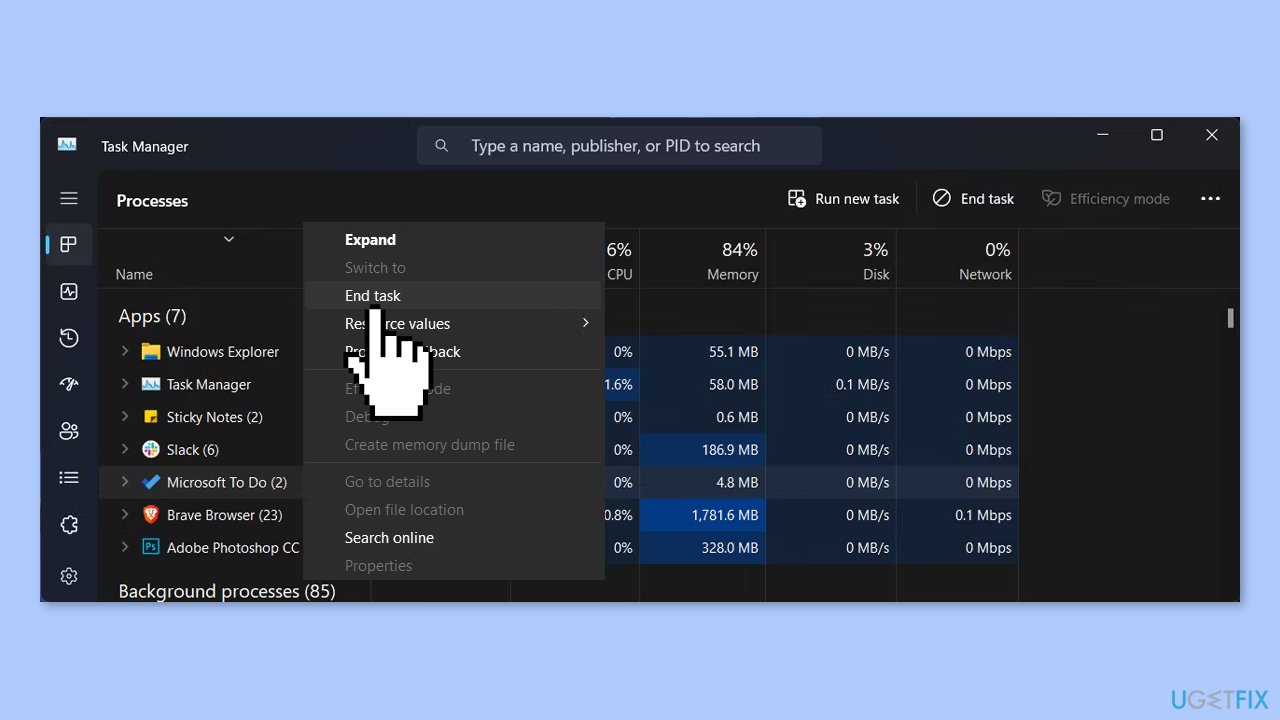
Method 2. Restart the App
- Close Microsoft To Do.
- Press Ctrl + Shift + Esc to bring up the Task Manager.
- In the Task Manager, right-click the app.
- Select End task.
Method 3. Update Microsoft To Do
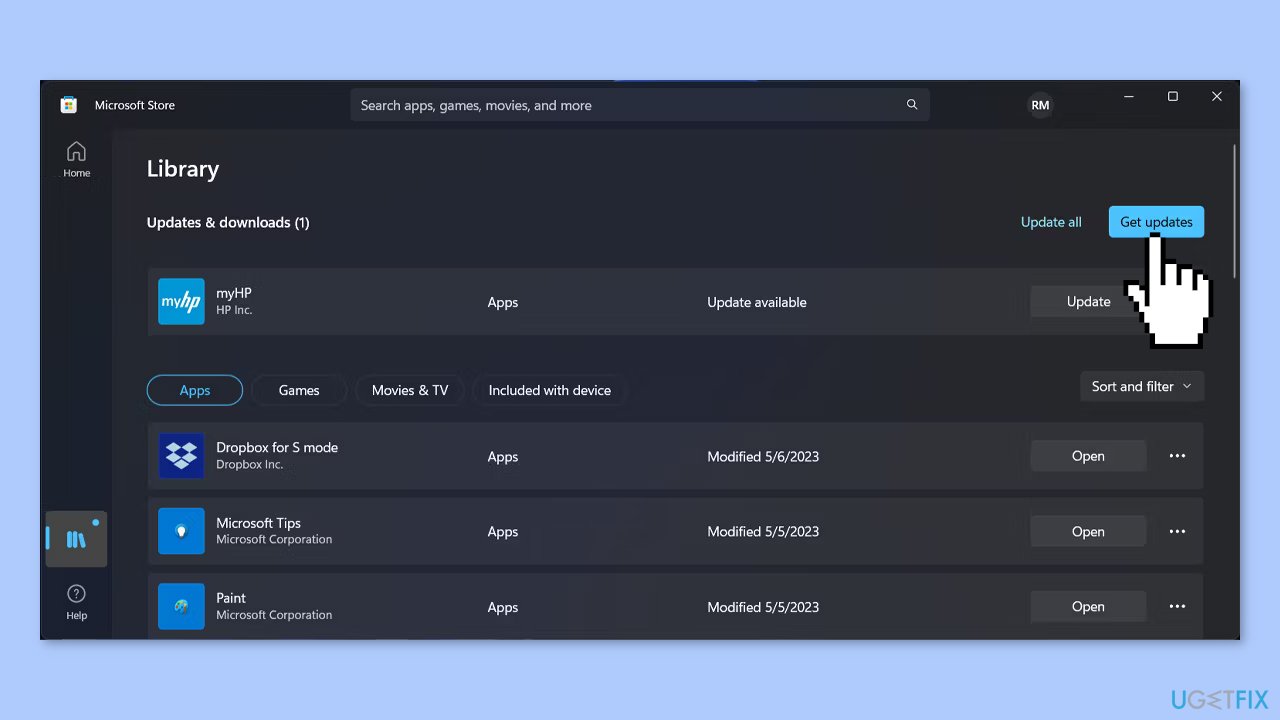
- Open the Microsoft Store.
- Check if there's an update available for Microsoft To Do.
- You can also click the Get updates button to download and install all pending updates for your apps.
Method 4. Let it Run in the Background
- Press the Windows key + I to go to Windows Settings.
- Head to Apps > Installed apps.
- Find Microsoft To Do and click the three-dot icon next to it.
- Select Advanced options.
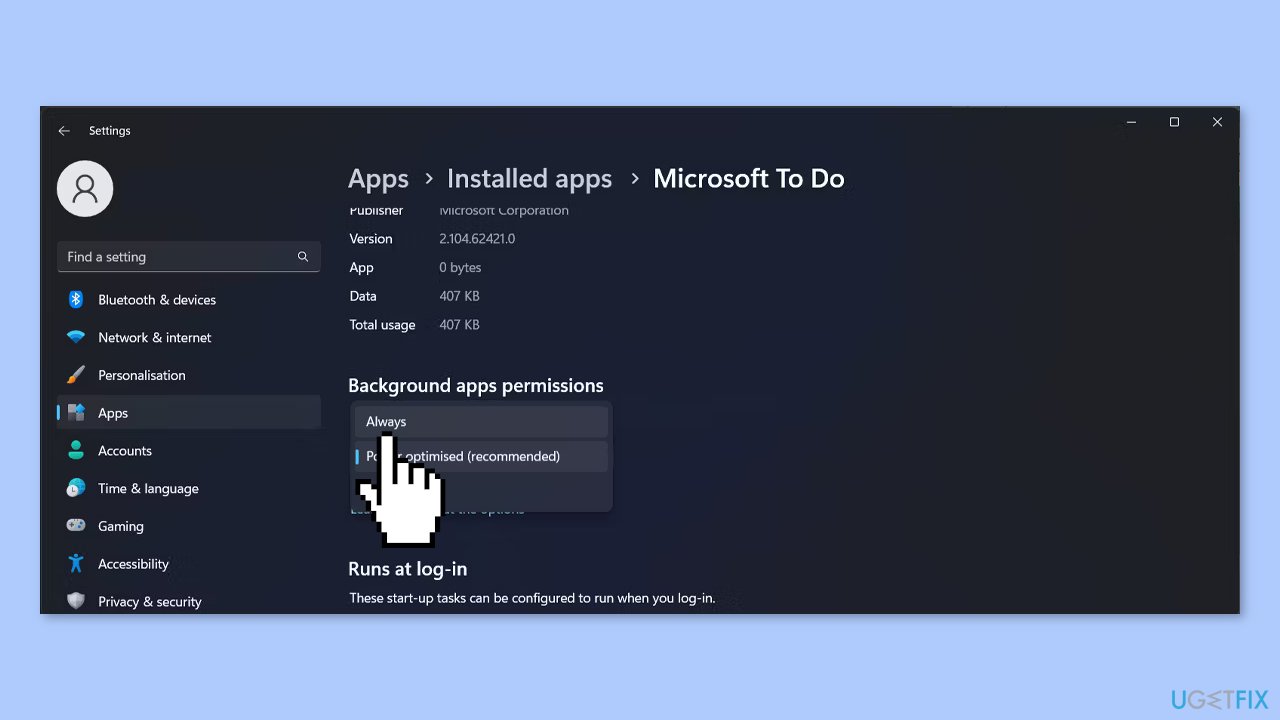
- Extend the Let this app run in background menu.
- Choose Always.
Method 5. Repair or Reset Microsoft To Do
- In the Start menu search bar, search for Microsoft To Do and click on App settings.
- Then, scroll down and click the Repair button.
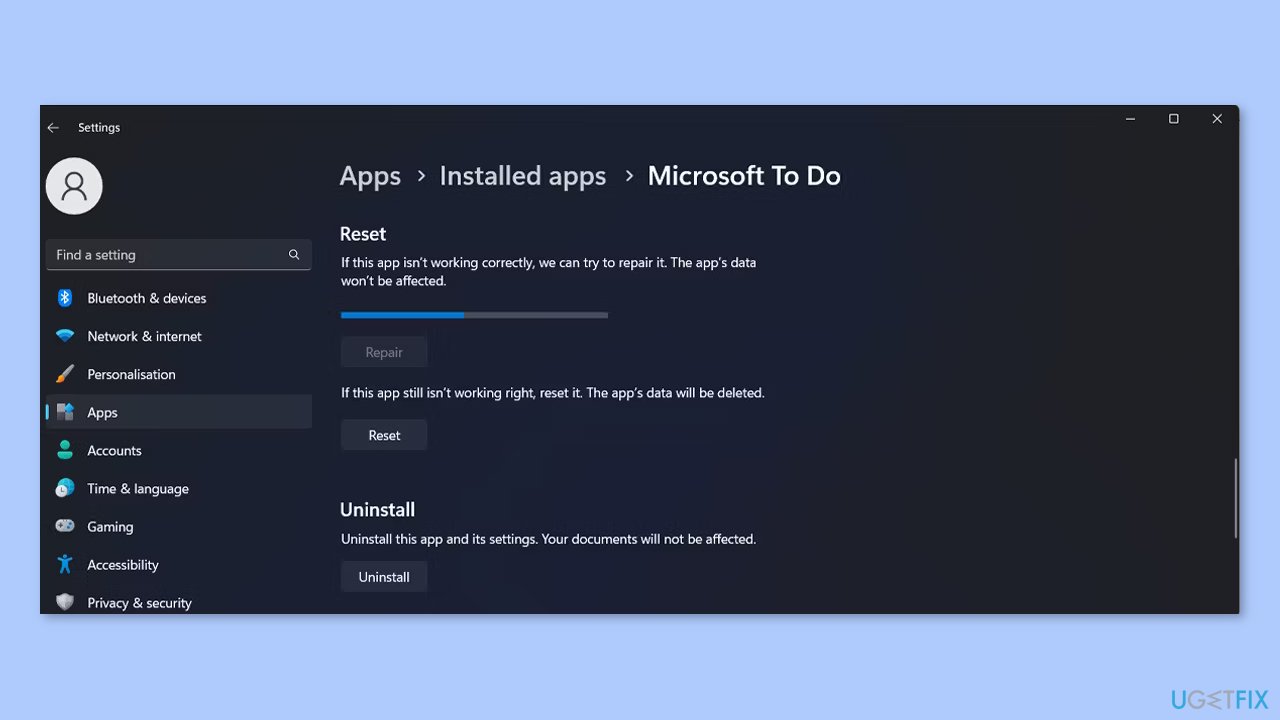
- Wait until the process is done and launch Microsoft To Do.
- If you're still facing the sync issue, go through the instructions above and, in the app settings menu, click Reset.
- Microsoft To Do will revert to its default settings and delete all the app data.
Bottom line
To fix the Microsoft To Do app not syncing in Windows, users can check for app updates, ensure background app permissions are correctly set, and adjust or reset settings within the app. If these steps do not resolve the issue, consider running a maintenance tool to address system errors.
Frequently asked questions
First, ensure that you are signed in with the correct Microsoft account in the app. Then, check your internet connection and try restarting the app to see if it resolves the syncing issue.
You can try resetting the app by going to Settings > Apps > Apps & features, selecting Microsoft To Do, and clicking on 'Reset.' This often resolves syncing problems.
Make sure that background app permissions are enabled for Microsoft To Do in Windows 10 or Windows 11 settings, as this can impact syncing capabilities.




Report an issue
What's wrong with this guide? We review every report and update or remove content.
Report received — thank you. We'll review and fix it.
You need a free account to submit a report.
Be the first to comment