How to fix
Microsoft Visual C++ Runtime Library Error
on Windows
Resolve the Microsoft Visual C++ Runtime Library error on Windows 10 quickly and easily, with expert-tested solutions and zero traces left.

What causes How to Fix Microsoft Visual C++ Runtime Library Error on Windows 10?
- Malware infection
- Outdated display driver
- Corrupted Visual C++ Runtime files
- Issues after Windows 10 Creators Update
Repairs Windows system files, removes malware, and restores a clean OS state — without reinstalling.
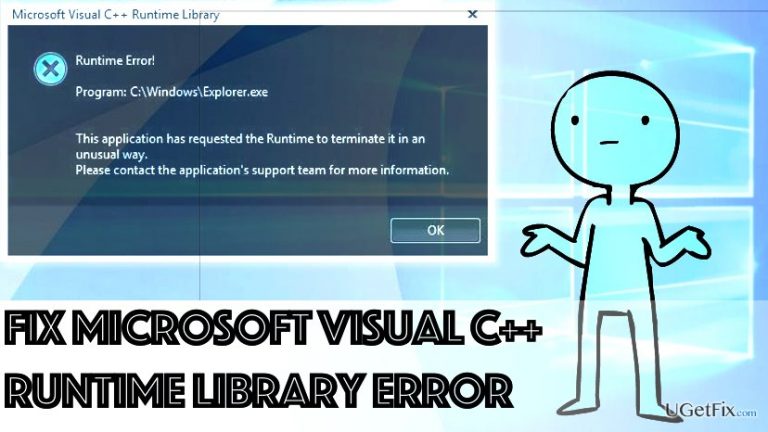
Hello, I am having some problems when trying to open Internet Explorer. Once I double-click on the IE shortcut, a “Microsoft Visual C++ Runtime Library” pop-up shows up, which says: Runtime Error! Program: C:\WINDOWS\explore.exe. I don’t know how to solve this issue, clicking OK doesn’t help. Please reply!
Microsoft Visual C++ Runtime Library Error typically occurs when trying to launch Internet Explorer. However, this error message can also appear on the screen when attempting to open different computer programs as well. Usually, people claim that this particular error message started to bother them after installing Windows 10 Creators Update. This error message can occur due to several problems, and we will provide several methods that can help to solve the issue. If one method doesn’t resolve the issue for you, try the next one - one of the provided ones should work. IMPORTANT. The indicated error can be caused by malware, too - so if none of provided methods help you to solve the issue, run a full computer scan using [d1], which can remove malware and optimize the PC afterward.
How to Fix Microsoft Visual C++ Runtime Library Error on Windows 10?
Method 1. Updating display driver
- To open Device Manager, press down Windows key and X at the same time. In the menu that appears on your screen, find and click Device Manager.
- Once the Device Manager opens, find a category called Display Adapters. Click the little arrow next to it to expand the category. Right-click on the name of graphics card that you’re using and select Update Driver Software…
- You will be asked how do you want to search for driver software. Select the Search automatically for updated driver software option.
- In case the message box tells you that the best drivers are already installed, click on Search for updated drivers on Windows Update option and then select Check For Updates. If the search tool finds some new drivers, install them.
Method 2. Repairing Visual C++ Runtime
- Click on Start Menu, then type into the search box: Control Panel, and select the matching search result to open the panel.
- Here, go to Programs > Programs and Features. Here, uninstall all Microsoft Visual C++ Runtime versions except 2010 and 2012 ones.
- Find the Microsoft Visual C++ Runtime 2012 version, select it and click Change or Uninstall/Repair. Select the Repair option then, and wait until the program gets repaired. You will be asked to restart your computer, allow it to happen.
- After the reboot, the issue should be solved.
Method 3. Reinstalling Visual C++ Runtime
- Click on Start Menu, search for Control Panel and open it. Here, go to Programs > Programs and Features.
- Locate and uninstall all Microsoft Visual C++ programs (one at a time): select one, click Uninstall, follow steps provided by the uninstaller. Repeat until all Visual C++ versions are gone.
- Download the removed packages from official Microsoft’s page here.
Method 4. Run Diagnostics Tool
- Open Windows Task Manager by pressing down Ctrl+Alt+Del. Then open Process tab.
- Find Windows Explorer (explorer.exe), right-click on it and select End Task.
- Open Run Window (Windows Key + R) and type MdSched, press Enter.
- Choose Restart now and check for problems option.
- Follow instructions provided by the wizard to check and fix all memory-related problems.
Method 5. Uninstall problematic programs
- Repeat the first step provided in Method 3.
- In the Programs and Features panel, find and uninstall these programs - Visual Studio, Bing Desktop, and AutoCAD.
- Restart your PC and see if the Microsoft Visual C++ Runtime Library Error occurs again.
Method 6. Reinstalling Display Driver
- Press down Windows Key and X at the same time.
- Go to Device Manager. Here, use the right side of your mouse to click on Display Adapter option. Go to Driver tab.
- Click Roll Back Driver one time. After each roll back, try to check if the Runtime Error occurs or not.
- If the error keeps bothering you, reinstall the driver from Microsoft’s website and disable automatic driver updates this way:
- Press down Windows key and R key, type in: regedit and click OK. In the registry, go to HKEY_LOCAL_MACHINE > SOFTWARE > Microsoft > Windows > CurrentVersion > DriverSearching. Look on the right side, and you will see SearchOrderConfig key. Double click it and then switch Value data from 1 to 0. Click OK. Restart your PC.
If the issue keeps bothering you, we highly recommend using one of the following programs - [d1] or [rev id=”RegCure Pro”]. These programs can help you to identify the issue and repair it so that the Runtime Error would stop bothering you. If you found another way to fix the issue, feel free to provide it in the comments section below!
Bottom line
To fix the Microsoft Visual C++ Runtime Library error on Windows 10, you can try updating your display driver or repairing the Visual C++ Runtime. If these methods do not resolve the issue, consider running a full computer scan to check for malware.
Frequently asked questions
This error can occur due to corrupted Visual C++ installation, outdated drivers, or issues with the application that requires the runtime libraries.
You can repair it by going to 'Settings' > 'Apps', locating 'Microsoft Visual C++', selecting it, and choosing the 'Repair' option.
Yes, ensuring that your Windows 10 is up-to-date with the latest updates and patches can help prevent these errors.




Report an issue
What's wrong with this guide? We review every report and update or remove content.
Report received — thank you. We'll review and fix it.
You need a free account to submit a report.
Be the first to comment