
How to fix Microsoft Vulnerable Driver Blocklist grayed out in Windows?
Prefer to fix it yourself? The manual steps follow.
6 methods in this guide
Hello. I wanted to enable the Microsoft Vulnerable Driver Blocklist option in Windows but it is grayed out. Why is that and is there a way to fix this?
The Microsoft Vulnerable Driver Blocklist is a critical security feature that prevents Windows from using drivers that have been identified as being vulnerable to security threats. It can help protect your system from malicious attacks and other security risks when enabled.
However, some users have reported that in Windows, the Microsoft Vulnerable Driver Blocklist option is grayed out. This means they are unable to enable this feature, leaving their systems vulnerable to security threats.
The problem could be caused by a number of factors, including out-of-date drivers, missing updates, or compatibility issues with specific hardware or software configurations. If unresolved, it can expose users to potential security risks such as malware infections or unauthorized system access.
Users can address this issue by updating their drivers, installing the latest Windows updates, or disabling certain third-party software that may be causing conflicts with the feature. It's also a good idea to run a full system scan with a trustworthy antivirus program to detect and remove any potential threats.
In this guide, you will find 6 steps that should help you fix Microsoft Vulnerable Driver Blocklist grayed out in Windows. Otherwise, follow the step-by-step instructions below.
Solution 1. Install Windows Updates
- Press the Windows key + R to open the Run box
- Type ms-settings:windowsupdate in the text box and press Enter
- Click the Check for updates button
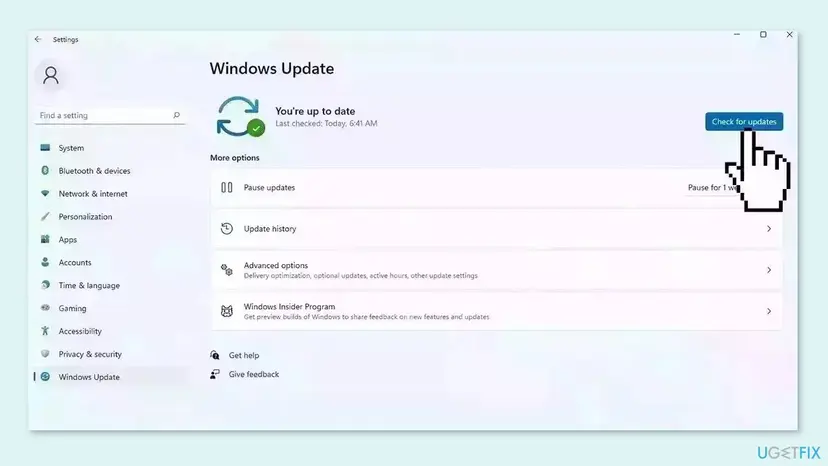
- If a new update is available, click the Download & Install all button.
- Restart your computer after the process is finished and check to see if the problem is fixed
Solution 2. Disable Core Isolation Memory Integrity
Windows Security:
- Open Windows Security on your computer.
- Switch to the Device security tab.
- Click on the Code isolation details option.
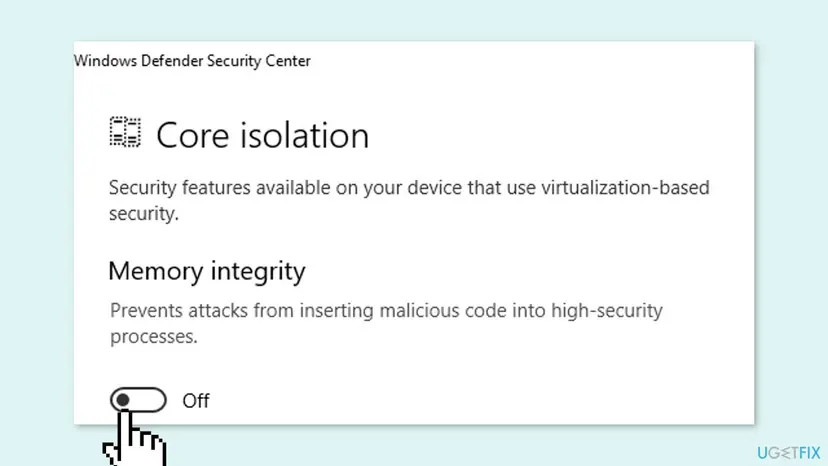
- Find the Memory integrity option.
- Toggle the respective button to turn it off.
Registry Editor:
- Open the Registry Editor on your computer.
- Navigate to this path: HKEY_LOCAL_MACHINE\SYSTEM\CurrentControlSet\Control\DeviceGuard\Scenarios\HypervisorEnforcedCodeIntegrity
- Double-click on the Enabled REG_DWORD value.
- Set the Value data as 0.
- Close all windows and restart your computer.
Solution 3. Disable Smart App Control
- Open Windows Security on your computer.
- Go to the App & browser control tab.
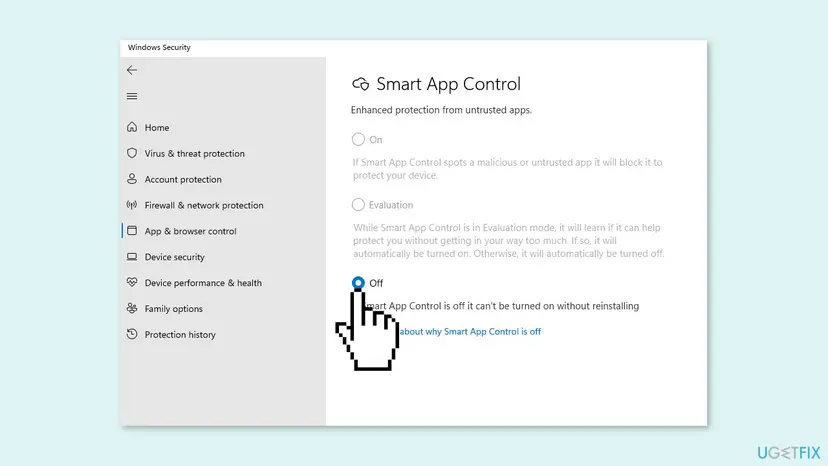
- Click on the Smart App Control settings option.
- Choose the Off option.
- Restart your computer.
Solution 4. Switch out of S Mode
To enable the Microsoft Vulnerable Driver Blocklist option or troubleshoot the issue, you must opt out of Windows S Mode. Otherwise, this option will not be available.
- Open Settings on your PC running Windows in S mode.
- Click on Update & Security, and then click on Activation.
- In the Switch to Windows Home or Switch to Windows Pro section, select Go to the Store.
- Be careful not to click the Go to the Store link in the Upgrade your edition of Windows section.
- In the Microsoft Store, navigate to the Switch out of S mode page.
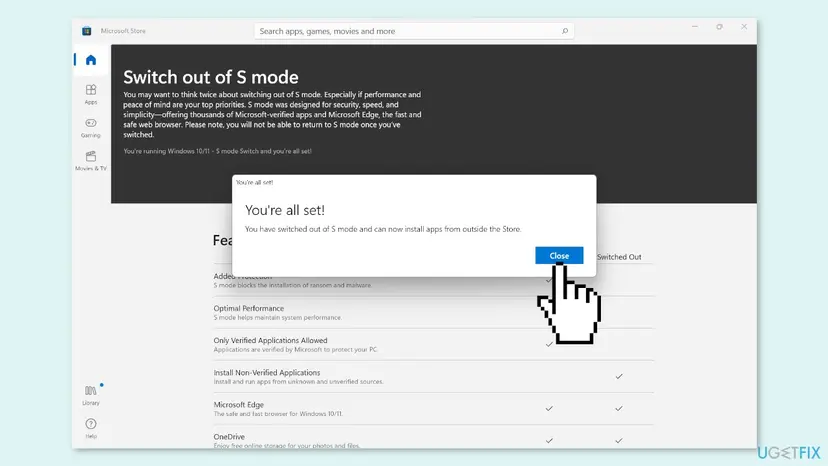
- Select the Get button.
- Wait for the confirmation message to appear on the page.
If you have trouble switching out of S-Mode, you can read our guide Can't switch out of S-Mode in Windows, which should help you fix it.
Solution 5. Check Windows Registry
- Open the Registry Editor on your computer.
- Navigate to this path: HKEY_LOCAL_MACHINE\SYSTEM\CurrentControlSet\Control\CI\Config
- Double-click on the VulnerableDriverBlocklistEnable REG_DWORD value.
- Set the Value data as 1.
- Click the OK button.
- Close all windows.
- Restart your computer.
Solution 6. Try Clean Boot
- Open the Search menu, type in system configuration, and press Enter
- Under the Services tab, tick the Hide all Microsoft services box
- Click on Disable all button
- Head over to the Startup tab and click on Open Task Manager
- Select a third-party program and click on Disable at the top
- Repeat this step to disable all third-party apps and programs.
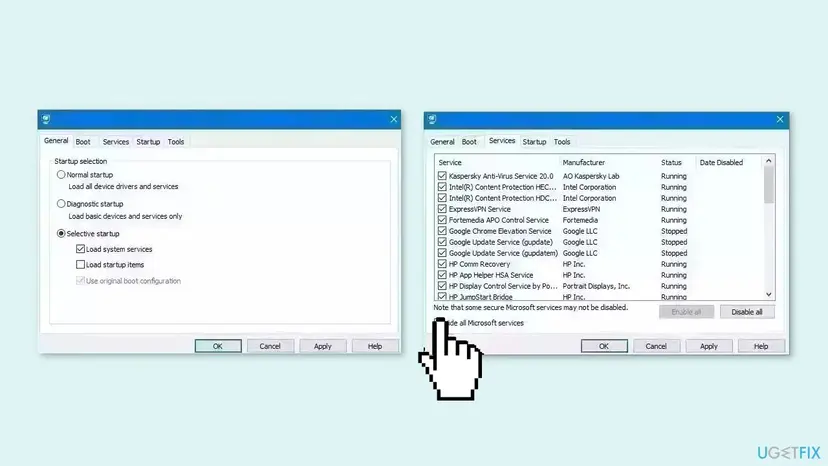
- Restart your PC to enter the clean boot state and see if the issue persists
- If the issue disappeared in the clean boot state, then you can be certain that a third-party app is causing it
- Go through all recently installed apps or programs and remove them one by one
Did this fix work?
One click, no account. It tells the next reader which guides are worth their time.
Questions and experiences: fix Microsoft Vulnerable Driver Blocklist grayed out in Windows
Still broken, or found a fix we did not cover? Ask here: members and our editors answer. Reading is open; writing needs a free account.
…