
How to fix "Microsoft Windows App Runtime DynamicDependency LifetimeManager" error in Windows?

Prefer to fix it yourself? The manual steps follow.
- 8methods
- 5 to 30 minutes
- Intermediate
Applies to Windows 11, Windows 10; desktop apps built with the Windows App SDK (WinUI 3) and the Windows App Runtime packages Framework, Main, Singleton and DDLM
8 methods in this guide
- What the error means
- The four runtime packages
- Why it appears
- The fixes
- 1. Reinstall the runtime
- 2. Update Store apps and Windows
- 3. Find and reinstall the app
- 4. Register the runtime again
- 5. Remove and reinstall runtime
- 6. Undo the latest update
- 7. Repair system files
- 8. Repair-install Windows
- Still broken: read the log
- Keep it from coming back
- FAQ
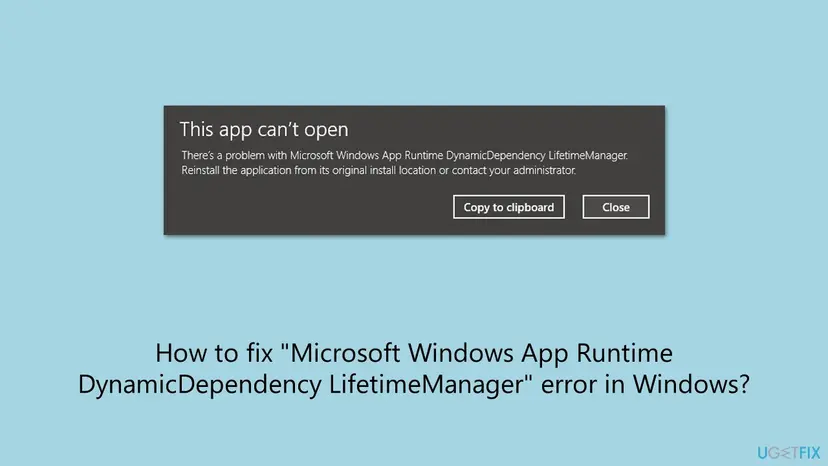
I am getting the following error when trying to open some apps in Windows 11: "There’s a problem with Microsoft Windows App Runtime DynamicDependency LifetimeManager. Reinstall the application from its original install location or contact your administrator." Could somebody help me with this?
"There’s a problem with Microsoft Windows App Runtime DynamicDependency LifetimeManager" means that a desktop app tried to start a part of the Windows App Runtime, the DDLM package, and Windows found it missing or damaged. The fault is in the shared runtime, not in your files. Install the Windows App Runtime again from Microsoft first, then update the app that triggers the pop-up.
The pop-up names the Dynamic Dependency Lifetime Manager (DDLM), one of four Windows App Runtime packages that desktop apps start at launch. Download the Windows App Runtime installer from Microsoft's Windows App SDK downloads page, run it and restart (Fix 1). If the pop-up returns, update every app in Microsoft Store (Fix 2), then find and reinstall the app that calls the runtime (Fix 3).
| Error | This app can’t open. "There’s a problem with Microsoft Windows App Runtime DynamicDependency LifetimeManager. Reinstall the application from its original install location or contact your administrator." |
|---|---|
| Where it appears | A dark dialog with Copy to clipboard and Close buttons, when you open some apps, at sign-in, or at random moments. Users report that it pulls them out of full-screen games. |
| Main cause | The DDLM package of the Windows App Runtime that an app asks for is missing, damaged or of the wrong version, often after a Windows or Store update. |
| Fastest fix | Run the Windows App Runtime installer from Microsoft's Windows App SDK downloads page, then restart (Fix 1). |
| Also written as | DynamicDependency LifetimeManager, Dynamic Dependency Lifetime Manager, DDLM, "dynamic dependecy", Windows App Runtime DDLM. |
| Affects | Windows 11 and Windows 10. The report in Microsoft's GitHub repository came from Windows 10 21H2, build 19044. |
| Microsoft's status | No public fix. In December 2024 a contributor in Microsoft's microsoft-ui-xaml repository called it a Windows OS issue, not a Windows App SDK one, and closed the report as not planned. |
| Where the cause is logged | Event Viewer > Applications and Services Logs > Microsoft > Windows > AppXDeployment-Server, or Get-AppxLog in PowerShell. |
| Time to fix | About 5 minutes for the installer. Up to 30 minutes if you need to find the app that triggers it or repair Windows. |
Facts checked on 15 October 2026. Steps written for Windows 11 (25H2 and 26H2) and Windows 10 22H2.
What the Microsoft Windows App Runtime DynamicDependency LifetimeManager error means
The dialog is titled "This app can’t open". Its first line reads "There’s a problem with Microsoft Windows App Runtime DynamicDependency LifetimeManager." The second line reads "Reinstall the application from its original install location or contact your administrator." The application in that sentence is not the program you were using. It is a package of the Windows App Runtime that the program needed.
- DynamicDependency
- Microsoft's name for the way a desktop app that is not installed as an app package gets access to a framework package at run time.
- LifetimeManager
- The Dynamic Dependency Lifetime Manager, short DDLM. Microsoft: it prevents servicing of the Windows App SDK framework package while an unpackaged app is using it.
- Who starts it
- The bootstrapper inside the app, early in the app's startup. So the pop-up appears when such an app opens, including apps that start with Windows.
- How many
- One DDLM for each version and architecture of the framework. An x64 PC can hold an x86 and an x64 DDLM side by side.
The dialog tells you to reinstall "the application". Windows means the package it names, the DDLM. Reinstalling your program only helps when its own installer brings the Windows App Runtime with it. The runtime installer from Microsoft replaces the DDLM directly, which is why it is Fix 1.
Translated Windows shows the same message in its language. Portuguese users see "Há um problema com o Microsoft Windows App Runtime DynamicDependency LifetimeManager", Spanish users "Hay un problema con Microsoft Windows App Runtime". The package name stays in English, and the fixes are the same.
What Windows App Runtime Main, Singleton, Framework and DDLM are
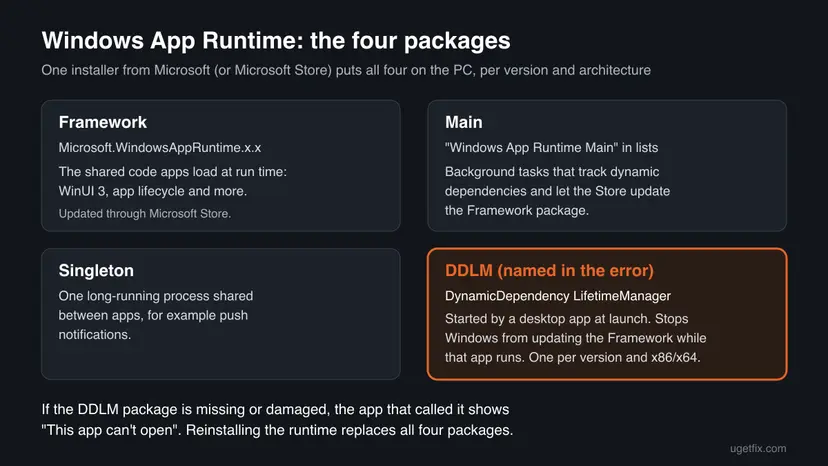
Microsoft defines the Windows App Runtime as the MSIX packages an app needs to use the Windows App SDK: Framework, Main, Singleton and DDLM. They appear in Installed apps and in Microsoft Store downloads under names such as "Windows App Runtime Main", which is why many people ask what they are.
| Package | What Microsoft says it does | Can you remove it? |
|---|---|---|
Framework (Microsoft.WindowsAppRuntime.x.x) | Holds the binaries that apps use at run time, for example WinUI 3. Delivered and updated through Microsoft Store. | No. Every app built on this version needs it. |
| Main (Windows App Runtime Main) | Background tasks that keep track of dynamic dependencies and let Microsoft Store update the Framework package. | Not advised. Without it the framework stops getting updates. |
| Singleton | One long-running process shared between apps, for example for push notifications. | Not advised. Apps that use its services lose them. |
| DDLM (DynamicDependency LifetimeManager) | Keeps Windows from updating the framework while a desktop app uses it. Started by the app at launch. | No. Its absence or damage is what causes this pop-up. |
You may see two "Windows App Runtime Main" entries, or a 1.x and a 2.x runtime. Microsoft keeps one set per version and per architecture, and removes old framework versions only when no app runs or uses them anymore.
Why the DynamicDependency LifetimeManager pop-up appears: the causes, ranked
Most often the DDLM package of the version that an app asks for is damaged or half updated, and the pop-up started after a Windows or Store update. Less often the app needs a runtime version that is not installed at all. Rarely the cause is wider damage to Windows itself.
| Cause | How often | How to tell | Fix |
|---|---|---|---|
| The runtime packages, DDLM included, are damaged or were updated only in part. | Most often | The pop-up started after an update and appears with more than one app or at random times. | Fix 1, then Fix 2 |
| The app needs a runtime version or architecture that is not on the PC. | Often | One app always fails at launch. It was installed from the publisher's site, not from the Store. | Fix 1 (that version), then Fix 3 |
| The app that calls the runtime is outdated or broken. | Often | The pop-up comes at sign-in or with one program, even after Fix 1. | Fix 3 |
| The runtime package is registered wrongly for your account. | Sometimes | The packages are listed, but the pop-up stays. | Fix 4, then Fix 5 |
| A recent Windows update changed something the runtime relies on. | Sometimes | The pop-up began the day an update was installed. | Fix 6 |
| Damaged Windows system files. | Rarely | Other built-in apps fail as well. | Fix 7, then Fix 8 |
The column "How often" is our reading of Microsoft's documentation and of the reports on Microsoft Q&A and GitHub. Microsoft publishes no numbers for this pop-up.
How to fix the Microsoft Windows App Runtime DynamicDependency LifetimeManager error
Fixes 1 to 3 act on the runtime and on the app that calls it, and they solve most cases. Fixes 4 and 5 repair the package registration. Fixes 6 to 8 are the general Windows repairs for when the pop-up began with an update or other apps fail too.
| What you see or have | Start with |
|---|---|
| The pop-up appears with several apps or at random times, often after an update. | Fix 1, then Fix 2 |
| One program never opens and shows the pop-up every time. | Fix 1, then Fix 3 |
| The pop-up appears right after you sign in to Windows. | Fix 3 |
| The runtime installer finished, but the pop-up is still there. | Fix 4, then Fix 5 |
| The pop-up began the day a Windows update was installed. | Fix 6 |
| Other built-in apps also fail to open. | Fix 7, then Fix 8 |
Fix 1. Install the Windows App Runtime again from Microsoft
5 minutesLow riskAnyone who sees the pop-up. This is the first thing to try.
The installer from Microsoft deploys all four runtime packages, the DDLM included, in one run. A missing or damaged DDLM is replaced, and that is the package the dialog asks you to reinstall.
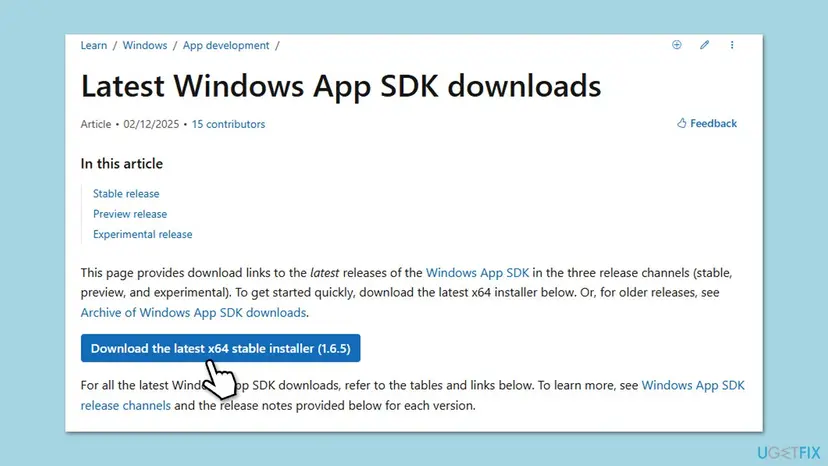
- Open Microsoft's page Latest Windows App SDK downloads.
- Under the stable release, download the Installer for your PC: x64 for most PCs, arm64 for ARM PCs.
- Close the app that showed the pop-up.
- Run the downloaded installer and wait until the window says it finished.
- If you also use 32-bit apps, run the x86 installer of the same version.
- Restart the PC and open the app again.
Microsoft follows semantic versioning: a newer minor version replaces an older one, but a new major version does not. An app built on a 1.x runtime still needs a 1.x runtime when 2.x is installed. If the pop-up stays, install the newest 1.x release as well from the Archive of Windows App SDK downloads linked on the same page.
This is also the first step that a Microsoft Community support specialist gave to a user with this pop-up on Microsoft Q&A. Take the installer only from microsoft.com, not from download sites.
It worked if: The installer ends without an error and the app opens without the pop-up after the restart.
If not: Go to Fix 2 and let Microsoft Store update the runtime and your apps.
Fix 2. Update Microsoft Store apps and Windows
10 minutesNo riskThe pop-up came after an update, or Windows App Runtime updates seem stuck.
Microsoft delivers and services the runtime framework through Microsoft Store, and the Main package exists to let the Store update it. A full round of Store updates brings the runtime and the apps that use it to versions that match.
- Select Start and open Microsoft Store.
- Select Library, then Get updates.
- Wait until every item in the list is updated, including entries named Windows App Runtime.
- Press Win + I, open Windows Update and select Check for updates.
- Install what Windows offers and restart the PC.
- Windows 10: in Microsoft Store select See more > Downloads and updates > Get updates.
- A runtime update fails or stays on pending: let the rest finish, restart, and run Get updates once more. If it still hangs, reset the Store with Reset the Microsoft Store and try again.
- An entry such as "Microsoft.WindowsAppRuntime.2" in the update history means the runtime was updated. It is not an error.
A sister guide explains the error codes you may get when such a package update fails: Package failed updates, dependency or conflict validation.
It worked if: The Store Library shows no waiting updates, and the pop-up does not come back after the restart.
If not: Find the program that calls the runtime with Fix 3.
Fix 3. Find the app that triggers the pop-up and reinstall it
15 minutesLow riskThe pop-up appears at sign-in, with one program, or keeps coming after Fixes 1 and 2.
The DDLM is started by a desktop app as it launches. The app that does so may ask for a runtime version that it should have installed itself. Its current installer brings the version it needs.
- Note when the pop-up appears: right after sign-in, when you open a program, or at random while you work.
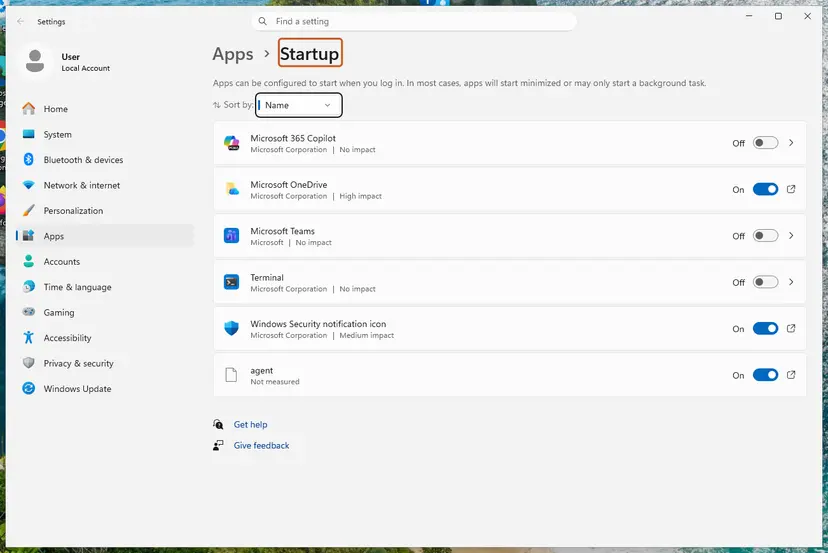
- If it appears at sign-in, open Settings > Apps > Startup and look at the apps that start with Windows.
- Turn the switches of recently installed or rarely used apps to Off, a few at a time, and restart.
- When the pop-up stops, turn the last group back on one by one until it returns. That app is the one.
- Uninstall that app in Settings > Apps > Installed apps.
- Download its current version from the publisher's own site or from Microsoft Store and install it.
- Turn the other startup apps back on.

Any desktop app built with the Windows App SDK can call the DDLM. The old version of this guide named WhatsApp and Spotify. We could not confirm which apps trigger the pop-up most often, so let the startup test decide.
It worked if: The program opens without the pop-up, and the pop-up no longer appears at sign-in.
If not: If no single app is to blame, repair the runtime registration with Fix 4.
Fix 4. Check and register the Windows App Runtime packages again
10 minutesLow riskThe runtime installer ran, but the pop-up stays.
Microsoft explains that a package is staged once per PC but registered per user. A runtime that is on the disk but registered wrongly for your account behaves as if it were missing.
- Select Start, type PowerShell and open Windows PowerShell the normal way, not as administrator.
- Run the first command below. It lists every runtime package with its version, architecture and status.
- Check that each line shows Ok under Status. Names contain WindowsAppRuntime or WinAppRuntime.
- Run the second command. It registers each listed package again for your account.
- Restart the PC and open the app.
1. List the runtime packages
Get-AppxPackage *AppRuntime* | Select-Object Name, Version, Architecture, Status2. Register them again for your account
Get-AppxPackage *AppRuntime* | ForEach-Object { Add-AppxPackage -DisableDevelopmentMode -Register "$($_.InstallLocation)\AppxManifest.xml" }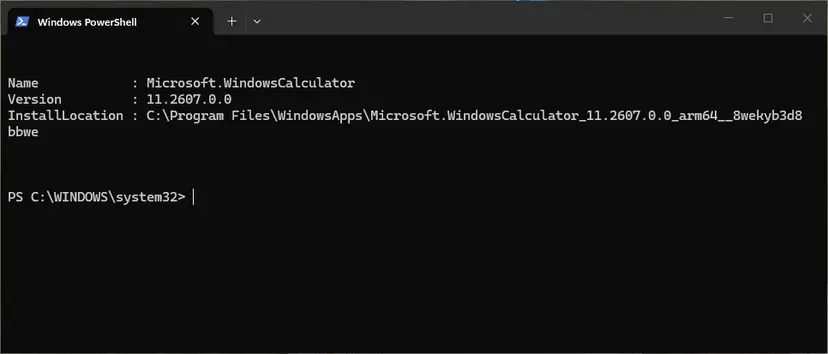
The same steps for any app, with the Windows 10 notes: How to re-register Microsoft Store apps with PowerShell
It worked if: Every runtime line shows Ok, the second command ends without red text, and the pop-up is gone.
If not: If a line shows another status or the command fails, remove and reinstall the runtime with Fix 5.
Fix 5. Remove the damaged runtime packages and install them fresh
15 minutesRead the warningFix 4 shows a status other than Ok, or registering fails with an error.
A package that Windows marks as damaged is not repaired by installing the same version over it. Removing the broken version first lets the Microsoft installer put a clean copy in its place.
While the runtime is removed, every app that uses it fails to open. Download the installer from Fix 1 before you start, so you can put the runtime back right away. Your documents are not touched.
- Download the runtime installer from Fix 1 and keep it ready.
- Right-click Start and open Terminal (Admin) or Windows PowerShell (Admin).
- Run the first command below and note the full name of the package whose status is not Ok.
- Run the second command with that full name.
- Run the runtime installer, then restart the PC.
1. Find the full package name and status
Get-AppxPackage -AllUsers *AppRuntime* | Select-Object Name, PackageFullName, Status2. Remove one package (paste the full name)
Remove-AppxPackage -Package 'PackageFullName-from-the-first-command' -AllUsersRemove only the package that is not Ok, not every runtime package. If the removal itself fails, read the AppXDeployment-Server log described under "If the error is still there".
It worked if: After the installer and the restart, the package shows Ok in the list and the pop-up does not appear.
If not: If the pop-up began with a Windows update, go to Fix 6.
Fix 6. Uninstall the latest Windows update and pause updates
15 minutesLow riskThe pop-up began the same day a Windows update was installed.
The reports on Microsoft Q&A and GitHub describe the pop-up starting right after a Windows update, and a Microsoft contributor called it a Windows OS issue. Removing that update shows whether it is the trigger.
- Open Windows Update. Select Start > Settings > Windows Update.
- Open the update history. Under More options, select Update history. Note the KB number and the date of the update you suspect.
- Open the list of removable updates. Scroll down to Related settings and select Uninstall updates.
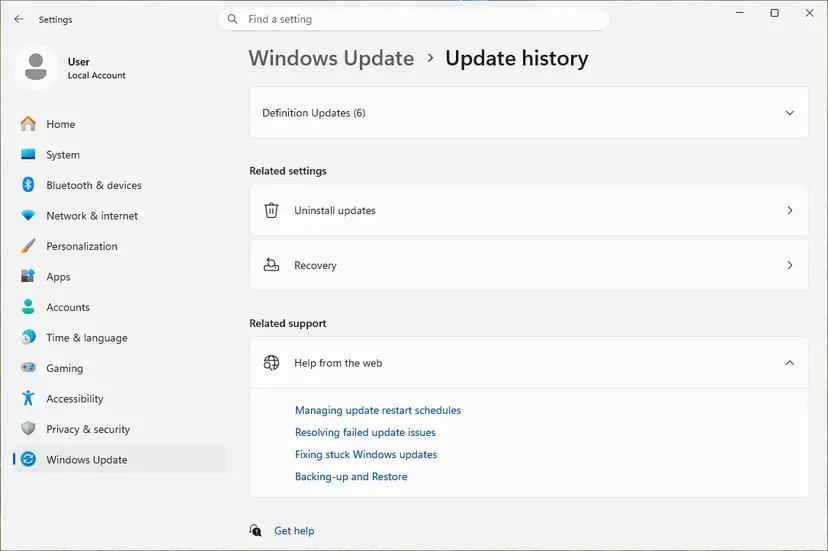
Uninstall updates is under Related settings. Screenshot: Windows 11 26H2. - Uninstall the update. Find the update in the list and select Uninstall next to it. If the update is not in the list, Windows does not allow it to be removed this way.
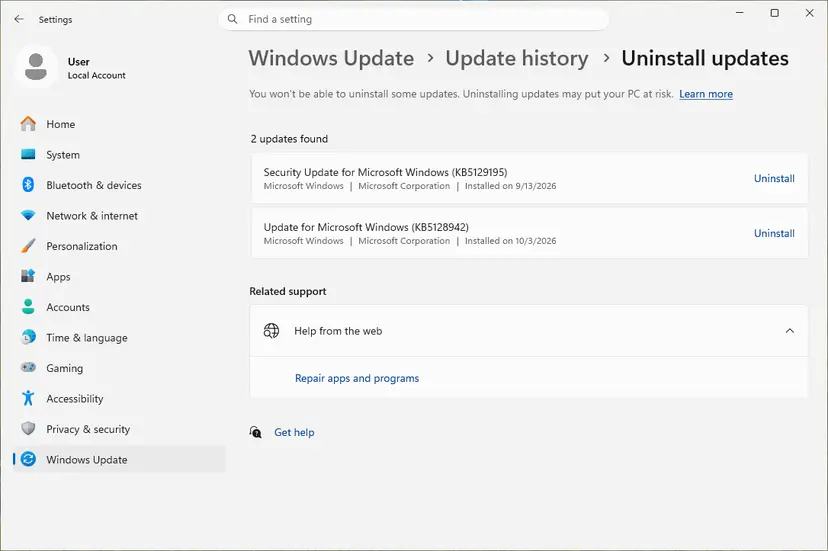
Each removable update has its own Uninstall link. Screenshot: Windows 11 26H2. - Pause updates. Go back to Settings > Windows Update and select Pick a date on the Pause updates control. If your PC shows a list there instead, select the pause length you prefer. Without a pause Windows downloads the same update again.
These steps were written for Windows 11 25H2 and 26H2. The full page with the other versions and what each result means: How to uninstall a Windows update
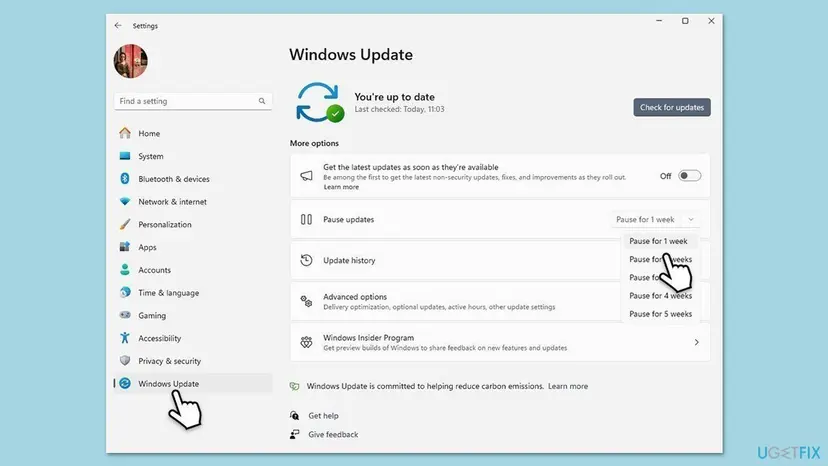
Security updates protect the PC. Resume updates after a few weeks, run Fix 1 and Fix 2 again, and check whether the newer update brings the pop-up back.
It worked if: After removing the update and restarting, the pop-up does not appear any more.
If not: Reinstall the update, then repair system files with Fix 7.
Fix 7. Repair Windows system files with SFC and DISM
20 minutesNo riskOther built-in apps fail too, or nothing above helped.
The deployment service that installs and registers the runtime packages is part of Windows. If its own files are damaged, no runtime install can finish properly until Windows repairs them.
- Open an elevated command window. Right-click Start and select Terminal (Admin), or type cmd in the search box, right-click Command Prompt and select Run as administrator. Select Yes when Windows asks for permission.

Search for cmd and choose Run as administrator. Screenshot: Windows 11 26H2. - Run DISM first. Type the command below and press Enter. DISM downloads clean copies of damaged components from Windows Update, so it can take several minutes. Wait until it says The operation completed successfully.
DISM.exe /Online /Cleanup-Image /RestoreHealth
DISM /RestoreHealth running. Screenshot: Windows 11 26H2. - Run System File Checker. In the same window, type the command below and press Enter. Do not close the window until the verification reaches 100%.
sfc /scannow
sfc /scannow at 100%. Screenshot: Windows 11 26H2. - Read the result and restart. Compare the last message with the table below this guide, then restart the PC so that repaired files are loaded.

The result line tells you what SFC did. Screenshot: Windows 11 26H2.
These steps were written for Windows 11 24H2 and 25H2. The full page with the other versions and what each result means: Run DISM and SFC to repair Windows system files
Run Fix 1 again after the repair, because a runtime install that failed earlier can now complete.
It worked if: SFC reports that it found no integrity violations or repaired them, and the runtime installer from Fix 1 completes.
If not: Go to Fix 8 and repair Windows while keeping your files and apps.
Fix 8. Repair Windows with an in-place upgrade that keeps your files
1 hour or moreRead the warningEvery other fix failed and the pop-up still appears with several apps.
An in-place upgrade replaces the Windows system with a fresh copy and keeps your files, settings and apps. It was the second step that the Microsoft Community support specialist gave for this pop-up.
The upgrade is built to keep files and apps, but it rewrites Windows. Copy important files to another drive or to the cloud before you start: Back up your files (Windows Backup, File History, Time Machine)
- Open Recovery in Settings. Open Settings > System > Recovery. Next to Fix problems using Windows Update, select Reinstall now. This keeps your apps, files and settings.

Fix problems using Windows Update reinstalls the current version and keeps apps, files and settings. Screenshot: Windows 11 26H2. - Start the reinstall. Choose whether the PC may restart on its own 15 minutes after the installation, then select OK.
- Wait and restart. Windows Update downloads and installs a repair copy of your current Windows version. Keep the PC plugged in and online, and restart it when asked.
- If that did not help: Reset PC. Back in Settings > System > Recovery, next to Reset this PC, select Reset PC. This keeps your personal files but removes installed apps and settings.
- Choose Keep my files. Select Keep my files. Do not select Remove everything.
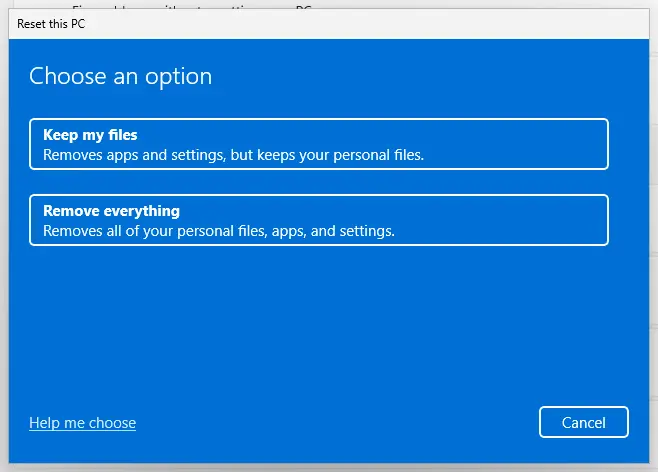
Keep my files removes apps and settings but keeps personal files. Screenshot: Windows 11 26H2. - Choose where Windows comes from. Select Cloud download to download a fresh copy of Windows, or Local reinstall to use the files already on the PC (faster, but may not include the latest updates).
- Reset. Review the summary and select Reset. The PC restarts several times.
These steps were written for Windows 11 22H2 and later. The full page with the other versions and what each result means: Reinstall Windows without losing files
It worked if: Windows starts with your files and apps in place, and after Fix 1 the pop-up is gone.
If not: Read the log described below and send the entry to Microsoft through Feedback Hub.
If the error is still there: read the log and report it
Windows writes the reason why a package could not be installed or registered into an event log, even when the pop-up shows only one sentence. That entry also names the version and architecture of the runtime that failed.
- Make the pop-up appear once more and note the time.
- Press Win + R, type
eventvwr.mscand press Enter. - Expand Applications and Services Logs > Microsoft > Windows > AppXDeployment-Server.
- Open Microsoft-Windows-AppXDeploymentServer/Operational and look for Error entries at that time.
- Read the entries that name WindowsAppRuntime or WinAppRuntime.
- Or run
Get-AppxLog | Out-GridViewin Windows PowerShell to see the last deployment in a table.
- What to send to Microsoft: the text of that entry, the output of the list command from Fix 4, your Windows version and build (Win + R,
winver), and the name of the app that triggers the pop-up. Microsoft's contributor asked for this issue to go to Feedback Hub. - Test another account: packages are registered per user. If the pop-up does not appear in a new account, only your registration is damaged and Fix 4 or Fix 5 in your account is the right step. Create a new user account to test a problem
- Work or school PC: an administrator may control which packages can be installed. Ask them, because the dialog's "contact your administrator" is meant for this case.
- Hardware: nothing in Microsoft's description of the DDLM points to failing hardware. This is a software problem.
How to keep the DynamicDependency LifetimeManager error from coming back
- Leave app updates in Microsoft Store switched on. The runtime framework is serviced through the Store.
- Install desktop apps from the publisher's own site or from Microsoft Store, and keep them updated.
- Keep the Windows App Runtime installer source to microsoft.com only.
- After a big Windows update, open the Store once and run Get updates.
- Do not uninstall Windows App Runtime Main, Singleton or DDLM packages to tidy up. Apps depend on them, and Windows removes unused versions itself.
- Do not run scripts that remove all built-in or Store packages at once.
- Do not download runtime files from sites that generate Store links. They are not Microsoft.
- Do not leave Windows updates paused for months after Fix 6.
Most cases follow the same pattern: the runtime packages and the apps that use them got out of step during an update. Regular Store updates and apps from one source keep them in step.
Frequently asked questions
What is Microsoft Windows App Runtime DynamicDependency LifetimeManager?
It is the Dynamic Dependency Lifetime Manager, or DDLM, one of the four packages of the Windows App Runtime. Microsoft describes its job as keeping Windows from updating the Windows App SDK framework package while a desktop app is using it. The app's bootstrapper starts the DDLM early in the app's startup. There is one DDLM for each version and architecture of the runtime, so an x64 PC may hold both an x86 and an x64 copy. When the DDLM that an app asks for is missing or damaged, Windows shows "This app can’t open" with its name.
What is Windows App Runtime Main and do I need it?
Yes, you need it if any app on the PC uses the Windows App SDK, and you cannot easily tell which apps do. Microsoft describes the Main package as background tasks that keep track of dynamic dependencies and let Microsoft Store update the runtime framework. It uses little space and runs only when needed. Seeing two entries named Windows App Runtime Main is normal: there is one set per runtime version, and a PC often has a 1.x and a 2.x runtime at the same time.
Can I uninstall Windows App Runtime Main, and is it safe?
It is not safe in the sense that apps break. Removing Main, Singleton or the DDLM makes apps built on that runtime version fail to open, often with this very pop-up. Microsoft says Windows removes old framework versions itself once no app runs or uses them, so there is nothing to tidy up by hand. Remove a runtime package only to replace a damaged one, as in Fix 5, and install the runtime again right after. If an app you no longer use installed it, uninstall the app instead.
What is Microsoft Windows App Runtime Singleton?
The Singleton package is the third runtime package. Microsoft describes it as a single long-running process that is shared between apps, which may run on different versions of the Windows App SDK. Its best-known service is push notifications for desktop apps and for Windows versions older than 20H1. If you see an error that names the Singleton package instead of the DDLM, the cause and the fixes are the same: install the Windows App Runtime again from Microsoft with Fix 1 and update Store apps with Fix 2.
Why does the pop-up appear at random times or during games?
Because the app that starts the DDLM is not always the one in front of you. A program that runs in the background or starts with Windows can call the runtime at any time, and the dialog then takes focus. A user on Microsoft Q&A reported that the pop-up pulled him out of full-screen games. Note the moment it appears. If it comes at sign-in, the startup test in Fix 3 finds the app. If it comes at random, Fix 1 and Fix 2 usually cover it because they repair the runtime itself.
Why is Windows App Runtime not updating?
The runtime framework is updated through Microsoft Store, with the Main package handling the update. If Store updates are paused, the Store is signed out, or one update is stuck as pending, the runtime stays on an old version. Open Microsoft Store, select Library and Get updates, and let every item finish before you restart. If a runtime entry still does not update, reset the Store cache and try again, or install the current version directly with the installer from Microsoft's Windows App SDK downloads page. That installer does not need the Store.
What does "Installation successful: Windows successfully installed the following update: 9NRZT3Q9R3DL-Microsoft.WindowsAppRuntime.2" mean?
It means that the Windows App Runtime of the 2.x line was installed or updated on your PC, and that the install went well. The text comes from the update history or the event log, not from an error. The first part is an identifier used by the Store and Windows Update, and Microsoft.WindowsAppRuntime.2 is the package family. We could not confirm in Microsoft's documentation which product the identifier stands for. You do not need to do anything about this entry. It is not the cause of the DDLM pop-up.
What is Windows App Runtime Test DynDep DataStore?
We could not confirm it in Microsoft's documentation. The name WindowsAppRuntime.Test.DynDep.DataStore points to a test package for the dynamic dependency feature, used when the Windows App SDK itself is built and tested. Microsoft lists only four runtime packages for normal PCs: Framework, Main, Singleton and DDLM. If you find such a test package on a home PC, it most likely came with developer tools. Check which app installed it before you change anything, and leave the four normal runtime packages alone.
Is this error a virus or a sign of hacking?
No, not by itself. The Windows App Runtime is Microsoft's own software, installed by the Store or by apps that need it, and the pop-up is the standard Windows dialog for a package that cannot start. What can be risky is the cure people find online: runtime files from sites that are not Microsoft. Download the installer only from Microsoft's Windows App SDK downloads page. If you want certainty about the PC as a whole, run a full scan with Microsoft Defender: How to scan for malware with Microsoft Defender.
The message is in Portuguese, Spanish or another language. Is it the same error?
Yes. Windows translates the dialog but keeps the package name, so Portuguese users read "Há um problema com o Microsoft Windows App Runtime DynamicDependency LifetimeManager. Reinstale o aplicativo a partir do local de instalação original ou entre em contato com o administrador." Spanish users read "Hay un problema con Microsoft Windows App Runtime DynamicDependency LifetimeManager". The cause and the fixes are the same in every language. This page uses English menu names, and the buttons sit in the same places in other languages.
Sources
- Microsoft Learn: Windows App SDK deployment architecture and overview (Framework, Main, Singleton and DDLM packages) (learn.microsoft.com)
- Microsoft Q&A: Pop-Up error after windows update (answer by a Microsoft Community support specialist) (learn.microsoft.com)
- GitHub, microsoft/microsoft-ui-xaml issue 10247: There’s a problem with Microsoft Windows App Runtime DynamicDependency LifetimeManager (github.com)
Did this fix work?
One click, no account. It tells the next reader which guides are worth their time.
Questions and experiences: fix "Microsoft Windows App Runtime DynamicDependency LifetimeManager" error in Windows
Still broken, or found a fix we did not cover? Ask here: members and our editors answer. Reading is open; writing needs a free account.
…