How to fix
MicrosoftEdgeCP.exe error
on Windows
Resolve the MicrosoftEdgeCP.exe error on Windows 10 and 11 quickly. Get expert-tested solutions to enhance your browsing experience today!

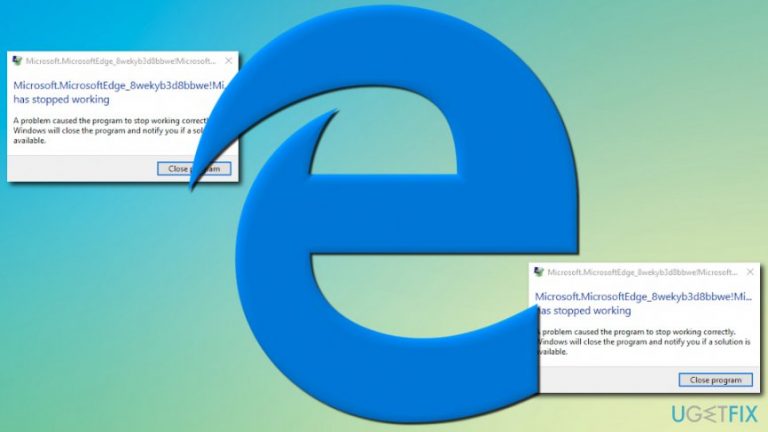
What causes How to fix MicrosoftEdgeCP.exe error?
- Faulty OS install
- Flawed web browser installation
- Corrupted registry entries
- Malware infection
- Trojan horses disguising as legitimate files
Repairs Windows system files, removes malware, and restores a clean OS state — without reinstalling.
Hello. I use Microsoft Edge as my default web browser, and I never had problems with it. However, recently, there has been an annoying error message (Application Error: MicrosoftEdgeCP.exe stopped working) popping up every single time I start Edge. I tried to reinstall the browser, but it does not seem to have any effect. Could you please help me to resolve this issue?
MicrosoftEdgeCP.exe is a part of Windows OS and is associated with Microsoft Edge web browser. However, most of MS Edge related errors occur on Windows 10 OS. These errors might be caused by different reasons, including faulty OS install, flawed web browser installation, corrupted registry entries[ref en-1] or even malware[ref en-2] infection.
Microsoft, knowing that Internet Explorer has a fairly bad reputation,[ref en-3] developed Microsoft Edge and included it into Windows 10 release, promising a fast and reliable browser. Indeed, it seemed like the computing giant managed to convince users that the browser is worth keeping.
However, users started to experience some problems with Microsoft Edge. It seemingly happened since the update W10 ver 1703 build 15063.608 which came from KB4038788. Multiple users reported receiving various errors relating to MicrosoftEdgeCP.exe file, including:
- "Cannot find MicrosoftEdgeCP.exe."
- "MicrosoftEdgeCP.exe is not a valid Win32 application."
- "MicrosoftEdgeCP.exe Application Error."
- "MicrosoftEdgeCP.exe failed.”
- etc.
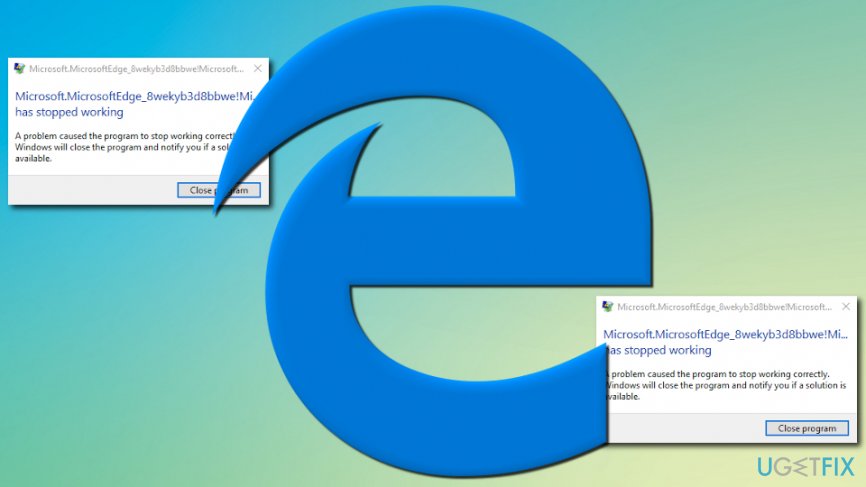
Typically, these errors arise as soon as MS Edge is started or on the boot up of the Windows 10. It has been reported that after closing down the error message, the browser works fine. However, dealing with annoying glitches popping out of nowhere is not acceptable, and should not be a part of any browser.
As MicrosoftEdgeCP.exe is legitimate Windows file, it rarely poses a risk of malware infection. However, trojan horses[ref en-4] allow files to disguise as useful files or replace original ones and start causing error messages. Therefore, before you proceed with the fix, you should make sure that the culprit is not malware. Download and install [rev id=“Reimage"] and perform a full system scan.
Our security team prepared the following resolutions you can try for a MicrosoftEdgeCP.exe fix, so keep on reading.
Fix 1. Update Windows to the latest version
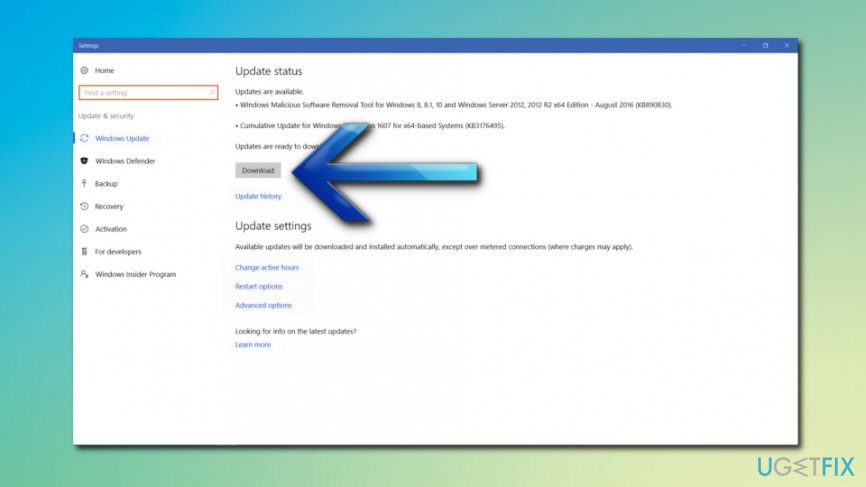
If the problem is connected to the KB4038788 update, you should install the newer version. Tip: you should always keep your update installation on automatic settings. This way, you will be able to avoid fake updates and will not forget to do it regularly.
- Click on Start button and select Settings
- Go to Update & Security -> Windows Update. This way you can check for updates manually
- Alternatively, pick Advanced options and select Automatic under Choose how updates are installed
Fix 2. Fix MicrosoftEdgeCP.exe using Command Prompt
Sometimes, various errors might be caused by corrupted Windows files. Therefore, we suggest using Microsoft’s System File Checker to fix any such errors automatically. Please follow these guidelines:
- Click on Start and type in cmd into the search box
- Right-click on Command Prompt and select Run as administrator
- As soon as Administrator Command Prompt window opens, type in sfc /scannow
- Reboot your PC after the scan is completed
Fix 3. Uninstall all the unnecessary applications
Potentially unwanted programs[ref en-5] might be lurking inside users’ PCs, and they might not even know it, as some of them hide under legitimate-looking names, such as “player.exe.” Thus, it is highly recommended to remove all unwanted programs. The easiest way to eliminate all the PUPs is by running a full system scan with [rev id=“Reimage”]. Alternatively, you can delete programs manually:
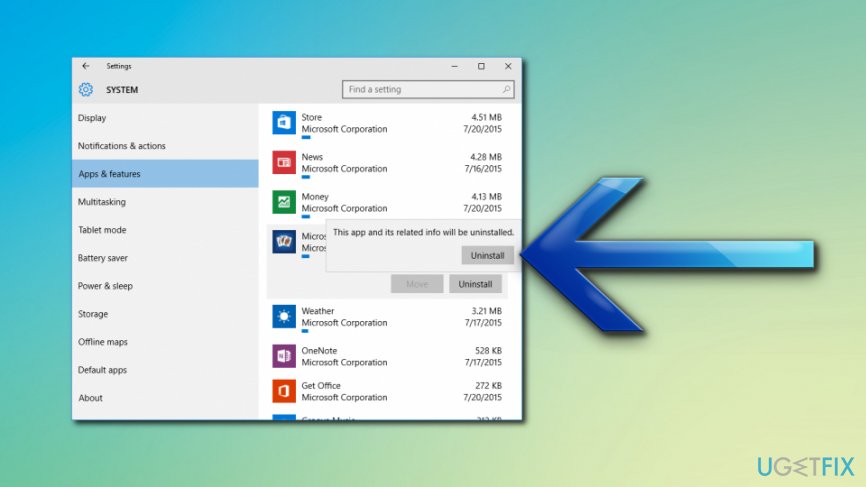
- Click on Start menu and select Settings
- Select System on the Settings menu
- Find Apps & Features on the left of the window
- A list of all installed programs will appear; click on the unwanted program and press Uninstall
Fix 4. Use PowerShell to reset MS Edge
- Click on Start and type PowerShell into the search box
- Right-click on PowerShell and select Run as administrator
- Type the following: Get-AppXPackage -AllUsers -Name Microsoft.MicrosoftEdge | Foreach {Add-AppxPackage -DisableDevelopmentMode -Register “$($_.InstallLocation)\\AppXManifest.xml” -Verbose}
- Reboot your PC
Fix 5. Create a new user account
Some users advised that creating a new user account on Windows 10 helped them to eliminate MicrosoftEdgeCP.exe related errors.
- Click on Start button and pick Settings
- Find Accounts and select Other user accounts
- Then, pick Add an account
- Choose a new username and proceed with the on-screen instructions to finalize the new account
Fix 6. Change your default browser
If none of the solutions helped you, we suggest you download and install a different web browser. There are plenty options available: Google Chrome, Mozilla Firefox, Opera and many others.

Bottom line
To resolve the MicrosoftEdgeCP.exe error, you can try updating your system, reinstalling Microsoft Edge, and performing a full system scan for malware. If these solutions do not work, consider seeking further technical assistance.
Frequently asked questions
The MicrosoftEdgeCP.exe error can be caused by corrupted system files, outdated Windows updates, or issues with the Edge browser itself.
You can repair Microsoft Edge by going to Settings > Apps > Apps & features, selecting Microsoft Edge, and choosing the 'Repair' option.
Yes, you can run the 'sfc /scannow' and 'DISM /Online /Cleanup-Image /RestoreHealth' commands in Command Prompt to repair system files that may be causing the error.




Report an issue
What's wrong with this guide? We review every report and update or remove content.
Report received — thank you. We'll review and fix it.
You need a free account to submit a report.
Be the first to comment