
How to fix MicrosoftSecurityApp.exe Bad Image Error 0xc0e90002 in Windows?

Prefer to fix it yourself? The manual steps follow.
- 8methods
- 5 to 30 minutes
- Intermediate
Applies to Windows 11 and Windows 10: the Microsoft Defender app (MicrosoftSecurityApp.exe) and any other program that shows a Bad Image window with error status 0xc0e90002
8 methods in this guide
- What the error means
- Read the window first
- What the program is
- Who blocks the file
- Causes, ranked
- The fixes
- 1. Rebuild native images
- 2. Repair the Defender app
- 3. Read the CodeIntegrity log
- 4. Fix the third-party program
- 5. Install waiting updates
- 6. Repair system files
- 7. Scan for malware
- 8. Restore or repair Windows
- Other programs, same code
- Still there: what to send
- Keep it from coming back
- FAQ
Whenever I log into Windows, I receive a pop-up which is titled MicrosoftSecurityApp.exe - Bad Image. The mentioned error code is 0xc0e90002. How do I fix this?
Error status 0xc0e90002 in a Bad Image window means a Windows code integrity policy refused to load the DLL that the window names. With MicrosoftSecurityApp.exe in the title, the program is the Microsoft Defender app and the refused file is most often a .NET native image. Read the path in the window first, then rebuild the native images or repair the app.
Read the file path in the window. If it ends in .ni.dll and sits under C:\Windows\assembly, open Command Prompt as administrator and run ngen.exe update for both .NET Framework folders (Fix 1). If the file belongs to the app itself, repair or reinstall the Microsoft Defender app (Fix 2). For any other file, read which policy refused it in the CodeIntegrity log (Fix 3). Nothing has to be switched off, and the antivirus built into Windows is a separate component.
| Error | Bad Image window with Error status 0xc0e90002. The Windows SDK name of the code is STATUS_SYSTEM_INTEGRITY_POLICY_VIOLATION. |
|---|---|
| Where it appears | In a small window titled MicrosoftSecurityApp.exe - Bad Image, often right after sign-in. The same window appears for other programs, with their name in the title. |
| Main cause | A code integrity policy (Smart App Control, S mode or a work policy) did not accept the DLL named in the window. For this app the file is most often a .NET native image whose trust mark became invalid. |
| Fastest fix | Run ngen.exe update from an administrator Command Prompt for the 64-bit and the 32-bit .NET Framework (Fix 1), then restart. |
| Also written as | error status 0xc0e90002, error code 0xc0e90002, 0xC0E90002, Bad Image 0xc0e90002. Mistyped as 0xc0e900002 and 0x0e90002. |
| Affects | Mostly Windows 11, where Smart App Control exists. Windows 10 only in S mode or under an App Control policy set by an organization. |
| Microsoft's status | Microsoft documents blocked .NET native images as a known issue of App Control and calls such blocks "functionally benign". We found no fix release tied to this window. |
| Not the cause | Usually not a damaged file and not the wrong program version, although the text of the window says so. The code is about policy. |
| Where the cause is logged | Event Viewer: Applications and Services Logs > Microsoft > Windows > CodeIntegrity > Operational, event 3077 with its 3089 signature events. |
| Time to fix | About 10 minutes for Fix 1 or Fix 2. Up to 30 minutes when you have to read the log and deal with a third-party program. |
Facts checked on 14 October 2026. Steps written for Windows 11 (25H2 and 26H2) and Windows 10 22H2.
What error status 0xc0e90002 means
0xC0E90002 is a Windows NT status code. In the Windows SDK metadata that Microsoft publishes, its name is STATUS_SYSTEM_INTEGRITY_POLICY_VIOLATION. In plain words: a program asked Windows to load a file, and a code integrity policy that is active on the PC did not allow that file.
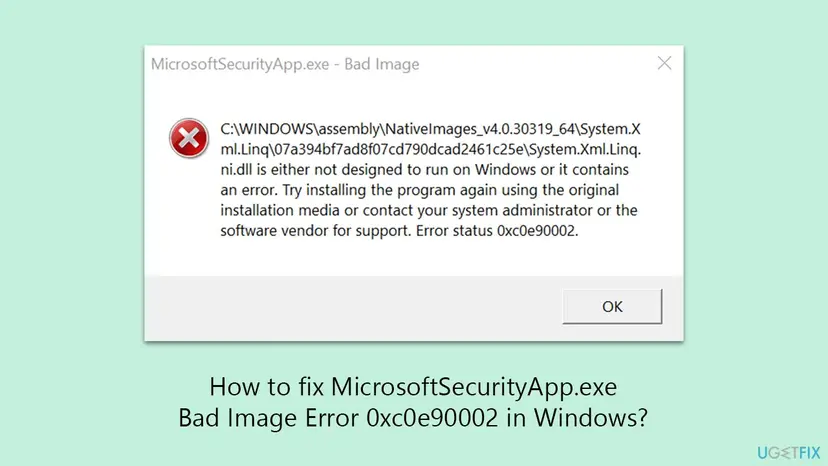
The sentence around the code misleads. "Is either not designed to run on Windows or it contains an error. Try installing the program again" is the text Microsoft documents for another status, STATUS_INVALID_IMAGE_FORMAT (0xC000007B). Windows reuses that Bad Image window and only swaps the number at the end. So the words describe a broken file, while the number describes a policy decision.
| Code | Name in the Windows SDK | What it tells you |
|---|---|---|
0xC0E90002 | STATUS_SYSTEM_INTEGRITY_POLICY_VIOLATION | A code integrity policy did not allow the file. This guide. |
0xC0E90007 | STATUS_SYSTEM_INTEGRITY_REPUTATION_MALICIOUS | The reputation check rated the file as malicious. Do not look for a way around it. Scan the PC (Fix 7). |
0xC0E90008 | STATUS_SYSTEM_INTEGRITY_REPUTATION_PUA | The reputation check rated the file as a potentially unwanted app. |
0xC0000428 | STATUS_INVALID_IMAGE_HASH | Microsoft's text: the hash of the file cannot be found in the system catalogs, and the file is likely corrupt or tampered with. A different problem: start with Fix 6. |
0xC000007B | STATUS_INVALID_IMAGE_FORMAT | The classic Bad Image. Its documented text is the sentence you see in the window, so the two are easy to mix up. |
Microsoft's public list of NTSTATUS values on Microsoft Learn was last updated in November 2024 and has no row for the 0xC0E9 range. The names above come from Microsoft's Windows SDK metadata on GitHub. They are names only, without an official one-line description.
- Spellings. Error status 0xc0e90002, error code 0xc0e90002, error 0xc0e90002 and 0xC0E90002 are the same code. 0xc0e900002 (one zero too many) and 0x0e90002 (the letter c is missing) are typing mistakes for it.
- Check it yourself. Microsoft's App Control troubleshooting page says you can look up a status code with
certutil.exe -error. In a Command Prompt, typecertutil.exe -error 0xc0e90002.
How to read which DLL the Bad Image window names
Every fix on this page depends on one line of the window: the path of the file. The title is the program that was loading. The path is the file that was refused. Write the path down or take a photo of the screen before you select OK, because the window does not come back on request.
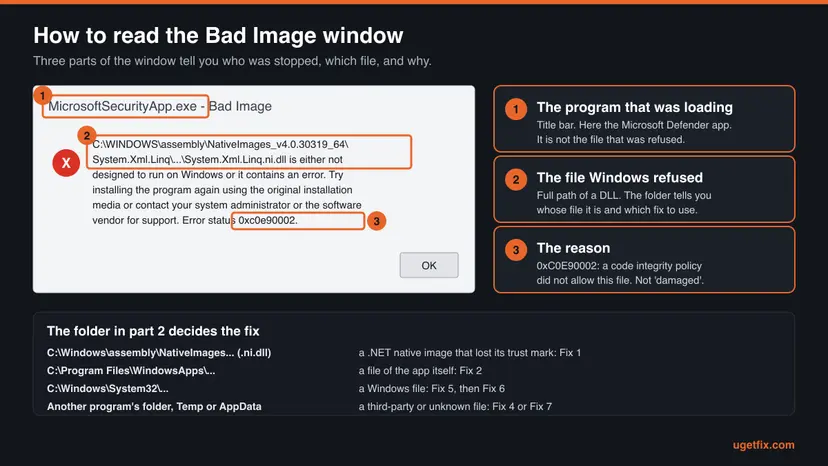
| The path in the window | Whose file it is | Start with |
|---|---|---|
Under C:\Windows\assembly\NativeImages_v4.0.30319_64\ or NativeImages_v4.0.30319_32\, file name ends in .ni.dll | A .NET native image. Windows made it on your PC from a Microsoft .NET assembly. | Fix 1 |
Under C:\Program Files\WindowsApps\ in a folder that begins with Microsoft.6365217CE6EB4 | A file of the Microsoft Defender app package. | Fix 2 |
Under C:\Windows\System32\ or C:\Windows\SysWOW64\ | A Windows system file. | Fix 5, then Fix 6 |
Under C:\Program Files\ or C:\Program Files (x86)\ in the folder of another product | A file of that product: an overlay, a second antivirus, a driver utility, a screen recorder. | Fix 3, then Fix 4 |
Under C:\Users\, in AppData, Temp or Downloads, or a name made of random letters | Unknown. Treat it as suspicious until a scan says otherwise. | Fix 7 |
If the refused file is Microsoft's own, the file is almost never the problem. Its trust record on your PC is, and Fix 1, Fix 2, Fix 5 and Fix 6 rebuild that record. If the file belongs to another company, the policy is doing its job on a file it does not trust. Then the cure is on the side of that program (Fix 4), never a weaker policy.
Does the window name a different file each time? That points at the policy or at the reputation check, not at one bad file. Go to Fix 3 and read the log before you reinstall anything.
What MicrosoftSecurityApp.exe is, and what it is not
MicrosoftSecurityApp.exe is the program file of the Microsoft Defender app, the Store app that Microsoft ships with Microsoft 365 Family and Personal subscriptions. Microsoft's support page says the app is installed together with the Microsoft 365 apps, or added by an update if you had them before. That is why many people have it without having asked for it.
- App name
- Microsoft Defender (Microsoft Store app)
- Package name
Microsoft.6365217CE6EB4, as volunteer moderators on Microsoft Q&A report it- Folder in user reports
C:\Program Files\WindowsApps\Microsoft.6365217CE6EB4_(version)_x64__8wekyb3d8bbwe\MicrosoftSecurityApp\- Active when
- Only after you sign in to it. Microsoft: "Even if it's installed, Microsoft Defender isn't activated until you sign into the app."
- Not the same as
- The Windows Security app and Microsoft Defender Antivirus, which are built into Windows
Microsoft's own page draws the line: it is about the Microsoft Defender app from Microsoft 365, and it sends readers who look for the antivirus built into Windows to a different page, about Windows Security. A Bad Image window in MicrosoftSecurityApp.exe therefore says nothing about whether real-time protection is running. Check that in Windows Security > Virus & threat protection.
We found no Microsoft documentation page that names the file MicrosoftSecurityApp.exe. The link between the file and the app comes from answers by volunteer moderators on Microsoft Q&A and from the folder paths that users post. You can check it on your own PC: open Windows PowerShell and run Get-AppxPackage *6365217CE6EB4*. If the app is installed, the answer lists its name and its install location.
- It is not a virus by its name. A moderator on Microsoft Q&A answered the same worry with "It's not a virus" and pointed to the Store app. A file with this name outside
C:\Program Files\WindowsApps\would be a different matter: scan it (Fix 7).
Which policy refuses the file: Smart App Control, S mode or a work policy
Status 0xc0e90002 always comes from a code integrity policy, and Windows has three common sources of one. Which of them is active on your PC decides what you can do about a refused file.
| Policy | Where it runs | Name in the log | What you can change |
|---|---|---|---|
| Smart App Control | Windows 11 only. Microsoft: "Smart App Control is not available in Windows 10." | VerifiedAndReputableDesktop | Nothing per file. Microsoft: "There is currently no way to bypass Smart App Control protection for individual apps." |
| S mode | Windows 10 and Windows 11 Home in S mode | Windows10S_Lockdown_Policy_Supplementable | Only Microsoft Store apps run. Leaving S mode is one-way. |
| App Control for Business | PCs managed by a company or a school | A name chosen by the administrator | Only the administrator can allow a file. |
Smart App Control lets a file load when Microsoft's cloud service predicts it is safe, or when it has a valid signature. Microsoft's developer page adds one detail that matters here: it "evaluates binaries as it loads them". So a program can start fine and still get this window later, at the moment it loads one more DLL.
- Three states. On blocks untrusted files. Evaluation watches and blocks nothing. Off does nothing. You see the state in Windows Security > App & browser control > Smart App Control settings.
- It can switch itself on. After the evaluation period Windows turns it on if it decides you are a good candidate, and sends a notification. An error that began "out of nowhere" on a PC a few weeks old often began that day.
- Turning it back on. Microsoft's FAQ, updated in August 2026, says recent Windows updates allow you to turn Smart App Control on again without a clean installation. Another Microsoft page still says this needs a reset or a reinstall. We could not confirm which builds have the new behaviour.
Guides and forum answers for this code usually end with "turn off Smart App Control" or "switch out of S mode". For a Microsoft file that advice is wrong twice: the policy is not the fault, and you give up real protection to hide a window. Microsoft's own better option for a blocked third-party file is to ask its developer for a properly signed version.
What causes error 0xc0e90002, from most to least common
For MicrosoftSecurityApp.exe the most common cause is a .NET native image that lost its trust mark. Both cases we could check, the old screenshot of this page and a question on Microsoft Q&A, name System.Xml.Linq.ni.dll in the NativeImages folder. For other programs the usual cause is an unsigned DLL under Smart App Control.
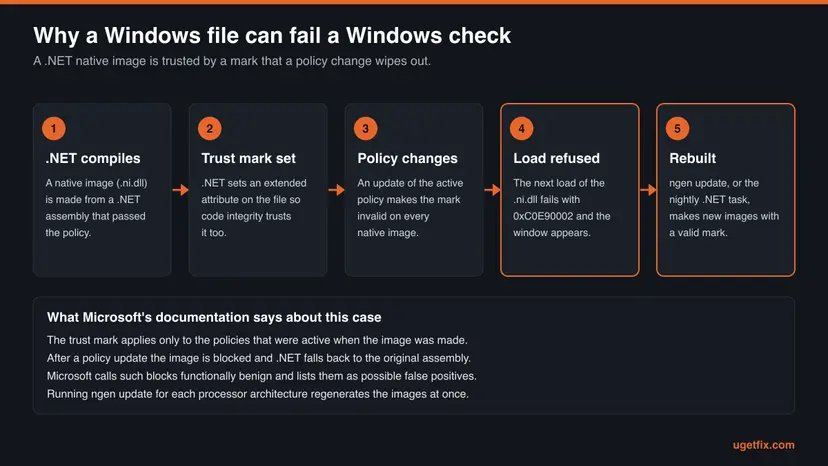
Microsoft explains the mechanism in its App Control documentation. When .NET compiles an assembly into a native image on a PC with a user mode policy, it sets an NTFS extended attribute on the image so that the policy trusts it. That mark is valid only for the policies active at that moment. When a policy is updated, the mark is invalid and the next load of the image is blocked.
| Cause | How often | How to tell | Fix |
|---|---|---|---|
| A .NET native image lost its trust mark after a policy or .NET update. | Most often for this app | The path ends in .ni.dll under C:\Windows\assembly\NativeImages_. | Fix 1 |
| The files or the registration of the Microsoft Defender app are damaged. | Often | The path points into C:\Program Files\WindowsApps\, or the app does not open at all. | Fix 2 |
| Smart App Control went from Evaluation to On, or another policy became active. | Often | The windows began on one day, for several programs. | Fix 3 |
| A third-party program puts an unsigned or untrusted DLL into other programs. | Sometimes | The path leads into the folder of an overlay, an antivirus or a utility. | Fix 4 |
| Windows or the reputation data is out of date. | Sometimes | Updates are waiting in Windows Update. | Fix 5 |
| A Windows system file is damaged. | Rarely | The path is under C:\Windows\System32\ and the log shows an invalid hash. | Fix 6 |
| Malware tries to load its DLL into a trusted program. | Rarely | The path is in a user folder, with a name you do not know. | Fix 7 |
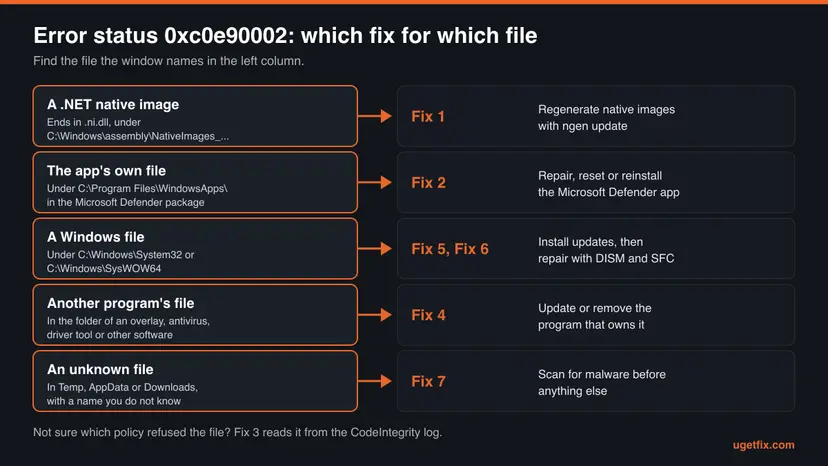
How to fix MicrosoftSecurityApp.exe Bad Image error 0xc0e90002
Fix 1 and Fix 2 are for the Microsoft Defender app and end most cases. Fix 3 shows which policy refused the file, which you need before Fix 4. Fixes 5 to 8 repair Windows itself and come last, because they rarely are the cause.
| What the window names, or what you have | Start with |
|---|---|
A file that ends in .ni.dll under C:\Windows\assembly\NativeImages_ | Fix 1 |
A file under C:\Program Files\WindowsApps\, or the Microsoft Defender app does not open | Fix 2 |
| A different file in each window, or several programs with the same code | Fix 3 |
| A file in the folder of another program (overlay, second antivirus, utility) | Fix 3, then Fix 4 |
A file under C:\Windows\System32\ or C:\Windows\SysWOW64\ | Fix 5, then Fix 6 |
| A file in a user folder, Temp or Downloads, with a name you do not know | Fix 7 |
| A work or school PC | Fix 3 to collect the facts, then your administrator |
| The same code in OneDrive, a game or another program | Fix 3, then Fix 4 |
Fix 1. Rebuild the .NET native images with ngen update
10 minutesNo riskThe window names a file that ends in .ni.dll under the NativeImages folder of C:\Windows\assembly.
Microsoft's App Control page names this exact step: run ngen update to make .NET regenerate all native images at once. The new images get a trust mark that is valid for the policies active now, so the load is no longer refused.
- Type cmd in the search box on the taskbar, right-click Command Prompt and select Run as administrator. Use Command Prompt, not PowerShell, because the commands below use
%windir%. - Run the update for the 64-bit .NET Framework. Microsoft's Ngen page says native images must be generated by an administrator.
%windir%\Microsoft.NET\Framework64\v4.0.30319\ngen.exe update - When the prompt returns, run the same action for the 32-bit .NET Framework. Microsoft says to run it on all machine architectures.
%windir%\Microsoft.NET\Framework\v4.0.30319\ngen.exe update - Let both commands finish. The window fills with lines about assemblies. Microsoft's page calls updating all images "a lengthy process", so several minutes are normal.
- Run any work that is still queued, once for each folder.
%windir%\Microsoft.NET\Framework64\v4.0.30319\ngen.exe executeQueuedItems %windir%\Microsoft.NET\Framework\v4.0.30319\ngen.exe executeQueuedItems - Restart the PC and sign in.
Microsoft writes that after such a block .NET schedules a job for the next maintenance window that regenerates all native images. The Ngen page describes two tasks for it, .NET Framework NGEN v4.0.30319 and .NET Framework NGEN v4.0.30319 64, which Task Scheduler starts at night when the computer is idle. Leave the PC on, plugged in and unused for one night, and the window may be gone without any command.
- Lines that say an assembly failed to compile. We could not confirm from Microsoft's page which of these messages matter. Judge by the result: is the Bad Image window gone after the restart?
- A PC with an Arm processor. Microsoft says to cover all architectures. We could not confirm the folder name of the Arm64 .NET Framework from a Microsoft page, so on such a PC use the overnight route from the tip above.
Microsoft also describes what happens while an image is blocked: .NET falls back to the original assembly and compiles it at run time, which costs a little speed and nothing else. That is why the app usually still works after you select OK.
It worked if: After the restart you sign in and no Bad Image window appears, and the Microsoft Defender app opens from Start.
If not: If the window returns with the same .ni.dll file, repair the app with Fix 2. If it now names another file, read the log with Fix 3.
Fix 2. Repair, reset or reinstall the Microsoft Defender app
10 minutesLow riskThe window names a file under C:\Program Files\WindowsApps, the app does not open, or Fix 1 did not stop the window.
A Store app is trusted through the catalog of its package. If the package files or its registration are damaged, the policy can no longer match the files to that catalog. A repair or a fresh install puts back a complete package from the Microsoft Store.
In the list of installed apps look for Microsoft Defender. Do not pick Windows Security: that is the built-in app, and it has nothing to do with MicrosoftSecurityApp.exe.
- Open Installed apps. Select Start > Settings > Apps > Installed apps.
- Open the app's advanced options. Find the app in the list, select the three dots next to it and select Advanced options. Some apps do not have this option: for those, see the section about desktop programs below.
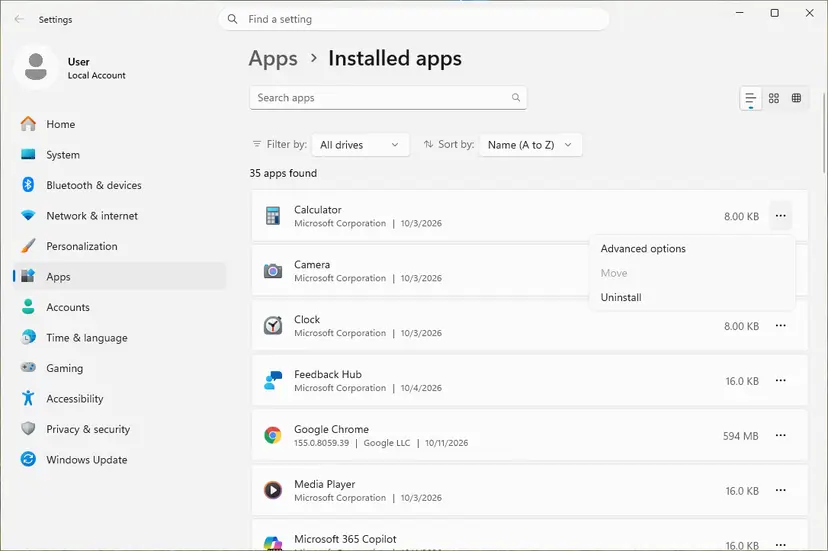
The three dots next to an app open Advanced options. Screenshot: Windows 11 26H2. - Repair first. On the page that opens, select Repair if it is there. The app's data stays. Open the app and check whether it works.

Repair keeps the app data. Reset deletes it. Screenshot: Windows 11 26H2. - Reset if Repair did not help. Select Reset. This deletes the app's data on this PC, including sign-in details and settings. Open the app and set it up again.
These steps were written for Windows 11 25H2 and 26H2. The full page with the other versions and what each result means: How to repair or reset an app in Windows
Repair keeps the app's data. Reset deletes the app's data on this PC, so you sign in to Microsoft Defender again with your personal Microsoft account. Neither touches the antivirus built into Windows.
- If the window is still there, remove the app. Microsoft's instruction: find Microsoft Defender on the Start menu, right-click it and select Uninstall.
- Restart the PC.
- Open the Microsoft Store, search for Microsoft Defender and select Install. Microsoft's support page links to the same Store page.
- Open the app and sign in with the personal Microsoft account you use for Microsoft 365.
- Restart once more and watch whether the Bad Image window appears after sign-in.
- The app does not come back by itself. Microsoft: "If you uninstall the app it will not be automatically reinstalled." Install it again in the same session if you use it.
- You never signed in to it. Then Microsoft says the app was not activated. The protection built into Windows is run from the separate Windows Security app, and uninstalling Microsoft Defender does not change it.
It worked if: The Microsoft Defender app opens, shows your devices after sign-in, and no Bad Image window appears at the next sign-in to Windows.
If not: If a fresh copy of the app is refused again, the policy rejects more than this one package. Find out which policy with Fix 3.
Fix 3. Find the block in the CodeIntegrity log and see which policy made it
10 minutesNo riskThe window names a different file each time, a third-party file, or several programs show the same code.
The window shows one path and a number. The CodeIntegrity log holds the rest: which policy refused the file, who signed the file and why the signature did not pass. That decides between Fix 4, an update and a call to your administrator.
- Right-click Start and select Event Viewer.
- In the left pane open Applications and Services Logs > Microsoft > Windows > CodeIntegrity > Operational.
- Look at the time when the window appeared and find an event with ID 3077. Microsoft calls it the main block event for enforced policies.
- Open the event and read File Name (the refused file), Process Name (the program that tried to load it) and PolicyName.
- Open the events with ID 3089 from the same second. There is one for each signature of the file. Read PublisherName and VerificationError.
- On Windows 11, list the active policies. Open Terminal (Admin) from the right-click menu of Start and run the command below.
citool.exe -lp - In the output find the policy whose Is Currently Enforced is
trueand read its Friendly Name.
| What the log or CiTool shows | What it means | What to do |
|---|---|---|
PolicyName VerifiedAndReputableDesktop | Smart App Control is on and refused the file. | A .ni.dll file: Fix 1. A third-party file: Fix 4. |
Friendly Name VerifiedAndReputableDesktopEvaluation | Smart App Control is in evaluation mode. Microsoft says it blocks nothing in this mode. | Look for another enforced policy in the list. |
PolicyName Windows10S_Lockdown_Policy_Supplementable | The PC runs Windows in S mode. | Use the Microsoft Store version of the program. Leaving S mode cannot be undone. |
| A policy name you do not know, on a work or school PC | App Control for Business, set by your organization. | Send the event to your administrator. Only they can allow the file. |
| Event 3033 in place of 3077 | Microsoft: often a revoked signature, or code built with Code Integrity Guard tried to load a file that does not meet its requirements. | Update the program that owns the file (Fix 4) and Windows (Fix 5). |
| VerificationError in event 3089 | Microsoft's explanation |
|---|---|
| 3 | File isn't signed. |
| 4 | Revoked signature. |
| 21 | Failed to pass App Control for Business policy. |
| 23 | Invalid image hash. Microsoft adds that this can indicate file corruption or a problem with the file's signature. |
| 26 | Explicitly denied by App Control policy. |
Microsoft notes that the default Smart App Control policy for evaluation mode does not write audit events, to keep the log small on home PCs. In enforcement mode events are logged by default. If the log is empty at the time of the window, check the state in Windows Security > App & browser control > Smart App Control settings.
It worked if: You can name the policy that refused the file, the program that tried to load it and the publisher of the file, or you know the file has no signature.
If not: If no block event exists for the time of the window, repair Windows files with Fix 6 and send feedback to Microsoft as described under "If the error is still there".
Fix 4. Update or remove the program that owns the refused DLL
15 to 30 minutesLow riskThe refused file sits in the folder of another product, or the log shows a publisher other than Microsoft.
Overlays, screen recorders, second antivirus products and some utilities load their own DLL into other programs. Under Smart App Control such a DLL must be signed or known as safe. A current, signed build passes the check, and removing the product stops the load attempt.
- Take the product name from the folder in the path, or from PublisherName in event 3089 (Fix 3).
- Download the newest version from the publisher's own website and install it over the old one. Newer builds are more often signed.
- Restart the PC and check whether the window returns.
- If it does and you do not need the product, uninstall it: Settings > Apps > Installed apps, then More (the three dots) and Uninstall.
- If you need the product, send its support the file path, the status 0xc0e90002 and the 3077 and 3089 events. Microsoft's advice to developers is short: sign the app with a valid certificate.
Removing a program with every route Windows offers is shown here: Uninstall a program or app in Windows
Start Windows with only Microsoft services and no startup apps. If the window stays away, turn the items back on in halves until it returns. The last group you turned on holds the program. Step by step: How to perform a clean boot in Windows

- No exception list exists. Microsoft: you cannot let one specific app through Smart App Control. An exclusion in your antivirus does not help either, because the block does not come from the antivirus.
- Do not replace the DLL by hand. A copy from a download site has no better signature than the one you have, and may be something else entirely.
It worked if: The window no longer appears after a restart, and the program you updated or removed is no longer named in new 3077 events.
If not: If the file is Microsoft's or Windows' own, or the log shows an invalid hash, continue with Fix 5 and Fix 6.
Fix 5. Install the waiting Windows and Defender updates
15 to 30 minutesNo riskWindows Update shows pending updates, or the error began after an update that needs a restart to finish.
Microsoft's page about Smart App Control asks for the latest Windows and Defender updates "for the best experience". The policy, the reputation data and .NET Framework all arrive through Windows Update, and a half-finished update can leave them out of step with each other.
- Open Settings > Windows Update. On Windows 10 it is Settings > Update & Security > Windows Update.
- Select Check for updates and install everything offered, including updates for .NET Framework and Microsoft Defender.
- Restart the PC when Windows asks, even if you plan to keep working. A pending restart leaves the update unfinished.
- Open Windows Update once more and check again until nothing is waiting.
- If the window named a
.ni.dllfile, run Fix 1 again after the last restart, because a .NET update makes native images invalid.
Windows 10 left support on 14 October 2025, so a Windows 10 PC without Extended Security Updates no longer receives fixes for Windows itself. If an update fails to install, download it by hand: Install an update from the Microsoft Update Catalog
It worked if: Windows Update reports that the PC is up to date, and the Bad Image window does not appear after the next sign-in.
If not: If Windows is current and a Windows file is still refused, repair the component store with Fix 6.
Fix 6. Repair Windows system files with DISM and SFC
20 to 30 minutesNo riskThe window names a file under C:\Windows\System32 or SysWOW64, or event 3089 shows VerificationError 23.
A Windows file is trusted because its hash matches a signed catalog. If the file is damaged the hash no longer matches, and a policy that requires signed code refuses it. DISM and SFC put back the original files from Microsoft.
- Open an elevated command window. Right-click Start and select Terminal (Admin), or type cmd in the search box, right-click Command Prompt and select Run as administrator. Select Yes when Windows asks for permission.

Search for cmd and choose Run as administrator. Screenshot: Windows 11 26H2. - Run DISM first. Type the command below and press Enter. DISM downloads clean copies of damaged components from Windows Update, so it can take several minutes. Wait until it says The operation completed successfully.
DISM.exe /Online /Cleanup-Image /RestoreHealth
DISM /RestoreHealth running. Screenshot: Windows 11 26H2. - Run System File Checker. In the same window, type the command below and press Enter. Do not close the window until the verification reaches 100%.
sfc /scannow
sfc /scannow at 100%. Screenshot: Windows 11 26H2. - Read the result and restart. Compare the last message with the table below this guide, then restart the PC so that repaired files are loaded.

The result line tells you what SFC did. Screenshot: Windows 11 26H2.
These steps were written for Windows 11 24H2 and 25H2. The full page with the other versions and what each result means: Run DISM and SFC to repair Windows system files
DISM and SFC repair files that belong to Windows. They do not repair the DLL of another program, they do not rebuild .NET native images, and they do not change a policy decision. A software vendor's support page about this code says the same about its own DLL files.
If the window is about .NET files and Fix 1 did not hold, Microsoft offers the .NET Framework Repair Tool for a damaged .NET Framework installation. It is a download from Microsoft, linked from the page "Repair the .NET Framework" in the sources.
It worked if: SFC ends with a message that it found no integrity violations or that it repaired the files, and the window stays away after a restart.
If not: If SFC cannot repair files, or the path of the refused file is in a user folder, scan the PC with Fix 7.
Fix 7. Scan for malware when the file sits where no program belongs
15 minutes to several hoursNo riskThe refused file is in a user folder, Temp or Downloads, has a random name, or the status in a window is 0xc0e90007.
Loading an unsigned DLL into a trusted program is a common malware technique, and it is exactly what a code integrity policy exists to stop. When the refused file has no known owner, the window may be the sign that the block worked.
Do not delete the file by hand first. Let the scan find it, so that what started it is found too.
- Open Windows Security. Select Start, type Windows Security and open the app.
- Open Virus & threat protection. Select Virus & threat protection. Under Current threats you see when the last scan ran, how long it took and how many files it checked.
- Run a quick scan. Select Quick scan. If Windows Security thinks a deeper scan is needed, it tells you when the quick scan is done.
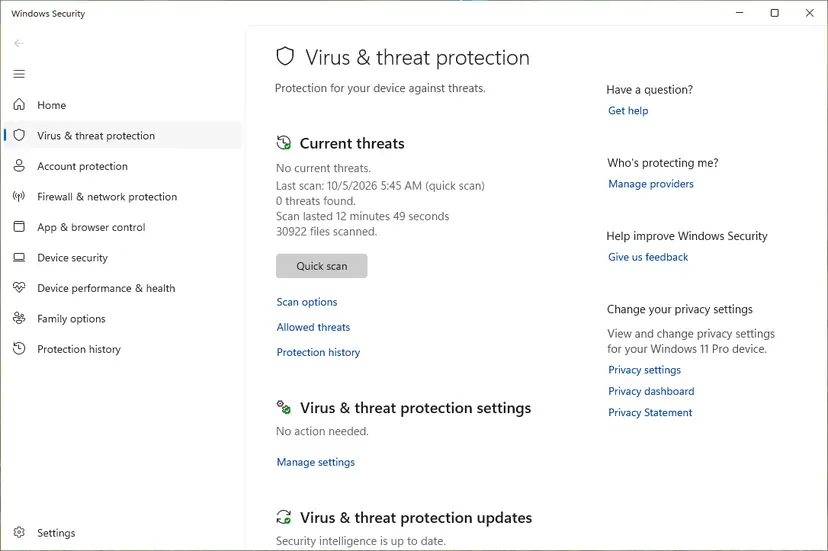
Quick scan and Scan options sit under Current threats. Screenshot: Windows 11 26H2. - Open Scan options. If the quick scan finds nothing and you still suspect an infection, select Scan options under Current threats.
- Run a full scan. Select Full scan and start it. It checks every file and program on the device, so it takes much longer than a quick scan. Leave the PC on until it ends.
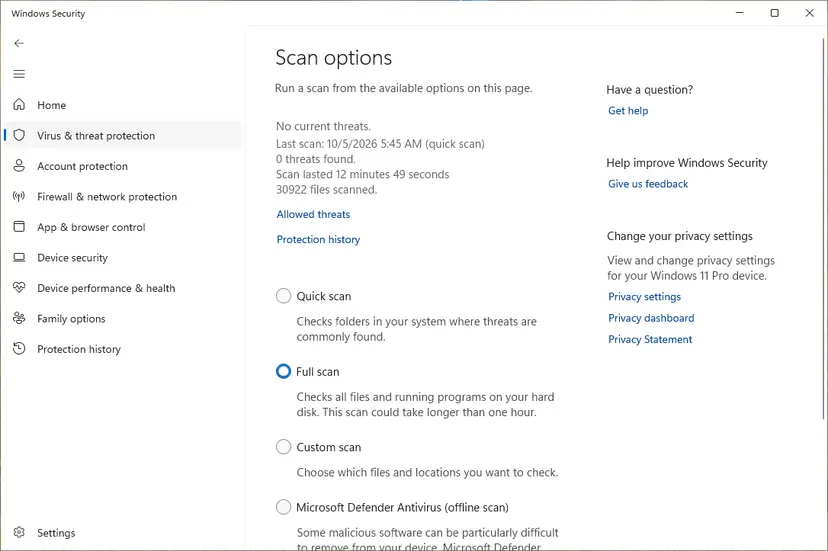
Scan options: Quick scan, Full scan, Custom scan and the offline scan. Screenshot: Windows 11 26H2.
These steps were written for Windows 11 25H2 and 26H2, Windows 10 22H2. The full page with the other versions and what each result means: How to scan for malware with Microsoft Defender
- Also look at Protection history. In Windows Security, Protection history lists what was blocked or quarantined around the time of the window.
- Nothing found and the file is still there. Check its publisher in event 3089 (Fix 3). An unsigned file that no installed program owns should not stay in a startup location.
It worked if: The scan ends with no current threats, or it removes a threat and the Bad Image window stops appearing after a restart.
If not: If the scan is clean and Windows files are still refused, use Fix 8.
Fix 8. Go back to a restore point, or reinstall Windows over itself
30 to 90 minutesRead the warningFixes 1 to 7 did not help and the error began on a known day, or Windows files stay refused after DISM and SFC.
System Restore returns system files, drivers and the registry to the state before the day the error began. The repair install from Windows Update replaces every Windows component with a fresh, signed copy and keeps your apps, files and settings.
System Restore removes programs, drivers and updates installed after the chosen restore point. Your documents stay. Before you confirm, use Scan for affected programs and note what will be removed. Keep a backup of your files in any case: Back up your files (Windows Backup, File History, Time Machine)
- Open System Restore. Press Windows+R, type the command below and press Enter. You can also open Control Panel > Recovery > Open System Restore. If a first page opens, select Next.
rstrui.exe - Choose a restore point. Select a restore point from a time before the problem started. The Description often names the event, such as a driver or app install. If the one you need is missing, select Show more restore points (shown only when there are more).
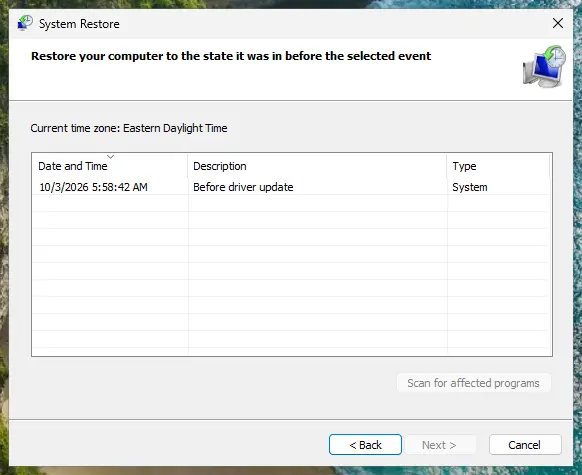
Pick a restore point from before the problem started. Screenshot: Windows 11 26H2. - See what will change. Select Scan for affected programs. The upper list shows programs and drivers that will be removed; the lower list shows those that might come back and may need to be reinstalled. Select Close.
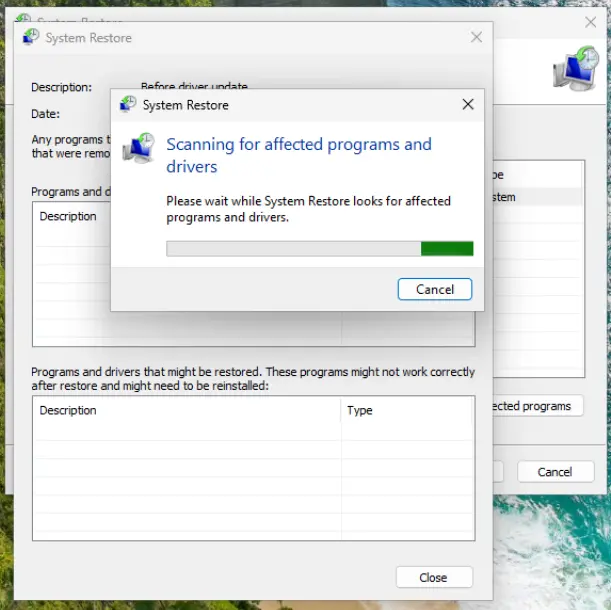
The scan lists programs and drivers the restore removes or brings back. Screenshot: Windows 11 26H2. - Start the restore. Select Next, check the summary and select Finish. Windows restarts and applies the restore point. Do not turn the PC off.
- Check the result. After sign-in Windows reports whether the restore succeeded. Check whether the problem is gone.
These steps were written for Windows 11 and Windows 10 (the steps are the same). The full page with the other versions and what each result means: Undo recent changes with System Restore
- If no restore point exists or the restore did not help, open Settings > System > Recovery on Windows 11.
- Next to Fix problems using Windows Update, select Reinstall now.
- Keep the PC plugged in and online while Windows downloads and installs a repair copy of your current version.
- After the last restart, sign in and check whether the Bad Image window still appears.

The other options on that page, and the route for Windows 10, are here: Reinstall Windows without losing files. Do not choose Reset this PC for this error before you have tried the repair install, because a reset removes your installed programs.
It worked if: Windows starts without the Bad Image window, and the CodeIntegrity log shows no new 3077 events for Windows or Microsoft files.
If not: If a freshly repaired Windows still refuses Microsoft's own files, collect the data listed in the next section and report it to Microsoft.
The same error status 0xc0e90002 in OneDrive, games and other programs
Most people who search for this code do not have MicrosoftSecurityApp.exe in the title. The window looks the same for a game launcher, OneDrive, an Xbox component, a video tool or an engineering program. The reading is the same too: title, path, status.
| What you see | What is different | What to do |
|---|---|---|
| A game or launcher fails to start, the window names a DLL in the game folder | The DLL is unsigned, modified by a mod or a trainer, or new and without reputation. | Verify the game files in the launcher, remove mods, update the game. Then Fix 4. |
| A newly installed program fails on its first start | Its installer or one of its DLL files has no valid signature. | Get the current installer from the publisher. Ask the publisher for a signed build (Fix 4). |
| OneDrive or another Microsoft program shows the window | Read the path. A third-party DLL loaded into the Microsoft program is the usual find. | Fix 3 to name the owner of the DLL, then Fix 4. A Microsoft file: Fix 5 and Fix 6. |
| A different DLL in each window | Microsoft notes that reputation "can change over time". One vendor reports changing file names for its own product. | Fix 3. Reinstalling in a loop does not help. |
| A message such as "closed during initialization" or "failed to load a required component" with c0e90002 | The program shows the status in its own window. The cause is the same policy block. | Fix 3, then Fix 4. |
The program in the title is the place where the load failed, not the culprit. Decide by the owner of the file in the path. For a file that is not Microsoft's, the lasting fix is a signed, current version from its publisher.
If error 0xc0e90002 is still there: what to collect and whom to tell
When the window survives all fixes, stop changing things and collect evidence. Microsoft's troubleshooting page for App Control lists what its engineers and your administrator need, and Windows 11 has a tool that gathers most of it in one step.
- Take a screenshot of the Bad Image window with the full path visible.
- Open Terminal (Admin), which starts PowerShell with administrator rights, and run the collector. Microsoft says it copies the data to
%userprofile%\AppData\Local\Temp\DiagOutputDir\CiDiag.cidiag.exe /stop - If
cidiag.exeis missing on your Windows version, save the CodeIntegrity > Operational log from Event Viewer by hand. - Save the list of policies next to it. The command is written for PowerShell, like Microsoft's own example.
citool.exe -lp -json > $env:USERPROFILE\Desktop\CiToolOutput.json - Press Win + R, type
winverand note the version and the OS build.
- Tell Microsoft. For Smart App Control Microsoft asks for feedback in the Feedback Hub (press Win + F), category Security and Privacy, then Smart App Control. Attach the screenshot.
- Tell the publisher of a third-party file: the path, the status, the 3077 and 3089 events and your Windows build.
- Tell your administrator on a work or school PC. A policy from your organization cannot be changed from your account, and should not be.
- What not to send in public. The CiDiag folder holds event logs and system information of your PC. Send it to the person who investigates, not to a public forum.
Suspect the drive or the memory when event 3089 shows VerificationError 23 for many different files, SFC keeps finding damage after a repair, and other programs crash at random. Check the drive (Check a disk for errors (chkdsk)) and the memory (How to test your RAM with Windows Memory Diagnostic). One refused file with a clear path is not a hardware sign.
Also be honest about the cost. If the app works after you select OK and the window names a native image, Microsoft itself rates the block as functionally benign. Waiting for the next maintenance run is then a valid choice.
How to keep the Bad Image window from coming back
- Finish Windows updates with the restart they ask for, so that .NET can rebuild its native images.
- Leave the PC on and idle now and then. The .NET maintenance tasks run at night when the computer is idle.
- Install programs from their publisher or the Microsoft Store, and keep overlays and utilities up to date.
- Write down the path before you select OK. It is the only clue the window gives.
- Keep Smart App Control and your antivirus on while you look for the cause.
- Do not download the named DLL from a DLL site. The file on your PC is usually fine.
- Do not switch out of S mode because of this window. Microsoft states that the switch is one-way.
- Do not add antivirus exclusions for the file. The block does not come from the antivirus.
- Do not delete files in C:\Windows\assembly by hand. Fix 1 rebuilds them safely.
- Do not reinstall the same program again and again when the log shows a policy block.
The warning about S mode replaces the first fix of the older version of this guide. Leaving S mode removes one policy for good and cannot be reversed, and it does nothing for a native image that Smart App Control refuses.
Frequently asked questions
What is error status 0xc0e90002?
It is the Windows status code STATUS_SYSTEM_INTEGRITY_POLICY_VIOLATION. A program tried to load a file, usually a DLL, and a code integrity policy on the PC did not allow it. On home PCs that policy is most often Smart App Control in Windows 11. On other PCs it is S mode or an App Control policy from an organization. Windows shows the code in a window titled Bad Image, with the name of the program in the title and the path of the refused file in the text. The file is usually not damaged, although the text of the window suggests it.
Is MicrosoftSecurityApp.exe a virus?
No, not by its name. MicrosoftSecurityApp.exe is the program file of the Microsoft Defender app, a Microsoft Store app that comes with Microsoft 365 Family and Personal. Moderators on Microsoft Q&A answer the same question with "It's not a virus" and point to that Store app. The real file lives in a package folder under C:\Program Files\WindowsApps. A file with the same name in a user folder, in Temp or in Downloads would be suspicious, and you should scan it with Windows Security before you do anything else. The Bad Image window itself is not a sign of an infection.
Does the Bad Image window mean the DLL is damaged?
Usually not. The sentence "is either not designed to run on Windows or it contains an error" is the text Microsoft documents for another status, 0xC000007B. Windows shows the same window for 0xc0e90002 and only changes the number. With 0xc0e90002 the file was refused by a policy, most often because it has no valid signature or its trust record is out of date. Real damage shows up differently: event 3089 in the CodeIntegrity log reports VerificationError 23, an invalid image hash, and Microsoft says that value can indicate file corruption.
Should I turn off Smart App Control to get rid of error 0xc0e90002?
We do not recommend it, and for a Microsoft file it is the wrong tool. A refused .NET native image is fixed by rebuilding the images, and a refused app file by repairing the app. For a third-party file Microsoft itself names the better route: ask the developer to sign the app with a valid certificate. Smart App Control has no exception list for single apps, so switching it off removes the protection for every program. Microsoft's FAQ says recent updates allow turning it on again, but another Microsoft page still says a reset is needed, so do not count on it.
Why does error 0xc0e90002 appear on Windows 11 after an update?
Because updates change the things a native image depends on. Microsoft's Ngen documentation says an update of .NET Framework makes all native images invalid, and Microsoft's App Control documentation says a policy update invalidates the trust mark on every native image. Until .NET has rebuilt the images, a load can be refused with 0xc0e90002. Normally the rebuild runs by itself at night when the PC is idle. If the PC is rarely idle, run ngen update by hand as in Fix 1. A second reason on new PCs: Smart App Control leaves evaluation mode and starts to enforce.
Can I get error 0xc0e90002 on Windows 10?
Yes, but less often. Smart App Control does not exist in Windows 10, as Microsoft's support page states. On Windows 10 the code comes from S mode, which has its own code integrity policy and runs only Microsoft Store apps, or from an App Control for Business policy that an organization deployed. The Microsoft Defender app also exists on Windows 10. The fixes are the same: read the path, rebuild native images, repair the app, read the CodeIntegrity log. Keep in mind that Windows 10 left support on 14 October 2025.
Why does OneDrive or a game show error status 0xc0e90002?
For the same reason as any other program: a file it tried to load was refused by a code integrity policy. The program in the title is only where the load failed. Read the path in the window. If it leads into the folder of another product, such as an overlay, a second antivirus or a mod, that product injected an untrusted DLL, and updating or removing it is the fix. If it leads into the game folder, the game's own DLL is unsigned or was modified. Verify the game files and remove mods. This page is not about OneDrive sync errors with other codes.
What is the difference between error status 0xc0e90002 and 0xc0e90007?
Both come from the same family of system integrity codes, and both appear in the same Bad Image window. The code 0xc0e90002 is the general policy violation: the file was not allowed, most often because it is unsigned or its trust record is invalid. The code 0xc0e90007 carries the SDK name STATUS_SYSTEM_INTEGRITY_REPUTATION_MALICIOUS, which means the reputation check rated the file as malicious. Take that one seriously. Do not look for a way to run the file. Scan the PC with Windows Security, and get the program again from its publisher if you still need it.
Sources
- Microsoft windows-rs (Windows SDK metadata): ntstatus constants, STATUS_SYSTEM_INTEGRITY_POLICY_VIOLATION = 0xC0E90002 (github.com)
- Microsoft Learn: [MS-ERREF] NTSTATUS Values (text of the Bad Image message, 0xC000007B and 0xC0000428) (learn.microsoft.com)
- Microsoft Learn: App Control for Business and .NET (native images, the trust attribute, ngen update) (learn.microsoft.com)
Did this fix work?
One click, no account. It tells the next reader which guides are worth their time.
Questions and experiences: fix MicrosoftSecurityApp.exe Bad Image Error 0xc0e90002 in Windows
Still broken, or found a fix we did not cover? Ask here: members and our editors answer. Reading is open; writing needs a free account.
…