How to fix
Middle mouse button not working
on Windows
Resolve the middle mouse button issues in Windows 10 and 11 effortlessly with our expert-tested solutions. Get back to smooth navigation in minutes!

What causes How to fix middle mouse button not working in Windows?
- Buildup of dust and particles inside the mouse's mechanism
- Faulty mouse drivers
- Outdated mouse drivers
- Broken middle mouse button
- Improper recognition of the mouse by the computer
Repairs Windows system files, removes malware, and restores a clean OS state — without reinstalling.
Hello. The middle mouse button or scroll wheel has stopped working. I use the mouse with a Windows PC. Is there a way to fix it?
On most computer mice, the middle mouse button is an important input element, and a smooth user experience depends on it functioning well. Typically, this button performs specific tasks like opening links in new tabs, shutting browser tabs, or enabling smooth scrolling in programs. However, when the middle mouse button stops working, it can negatively affect how well a user can carry out these duties and can cause frustration.
The middle mouse button may stop responding for a variety of common reasons. The buildup of dust and particles inside the mouse's mechanism is one of the most common culprits. This debris may eventually jam the mouse wheel, impairing the ability to scroll or register clicks. In addition, faulty or outdated mouse drivers[ref en-1] may be the blame for the middle mouse button's dysfunction.
A broken middle mouse button can have an effect in a variety of circumstances. For instance, because users may no longer open links in new tabs with a single click, web browsing becomes less easy. The inability to use the middle mouse button for fluid scrolling in productivity software, such as spreadsheet programs, might make effective data processing more difficult. Furthermore, the middle mouse button is frequently used to navigate 3D environments in design or gaming apps, therefore its malfunction might interfere with imaginative work and gaming experiences.
There are a few typical remedies to the problem of a broken middle mouse button. First, users can try blowing compressed air into the mouse's wheel scroll in an effort to remove any dust or debris that may be causing the issue. Second, ensuring that the mouse is appropriately recognized by the computer by upgrading or reinstalling the mouse drivers may assist in fixing the issue.
In this guide, you will find 3 steps that should help you fix the middle mouse button not working in Windows. You can also run a maintenance tool like [d1] that can fix most system errors, BSODs,[ref en-2] corrupted files, and registry[ref en-3] issues. Otherwise, follow the step-by-step instructions below.

Method 1. Reinstall Mouse Driver
- Press the Windows key + R keys to open the Run window.
- Type devmgmt.msc and click OK to access the Device Manager.
- In the Device Manager, locate and click on Mice and Other Pointing devices entry.
- Right-click on your mouse device within the list.
- From the drop-down menu that appears, choose Uninstall device.
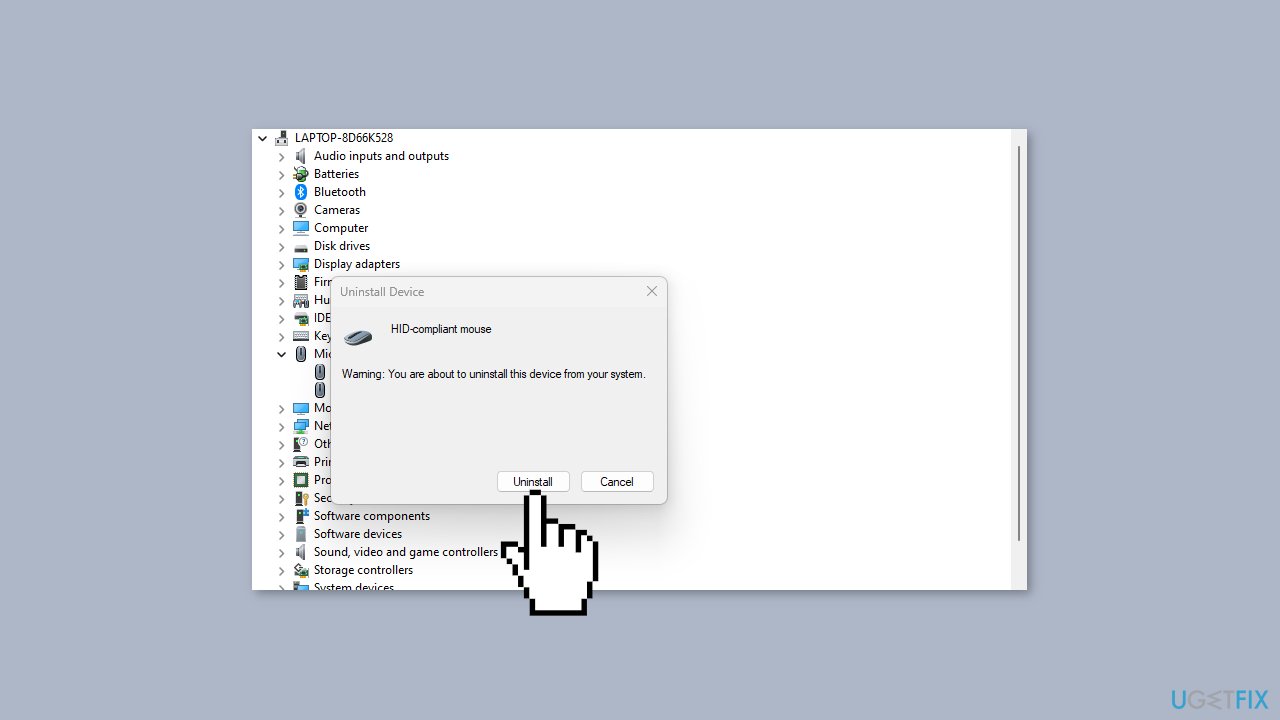
- Confirm the action by clicking Uninstall in the confirmation dialog box.
- Wait for the uninstallation process to complete.
- Restart your PC.
- The system will automatically install the missing driver.
You can also use a dedicated utility like [rev id="DriverFix"] that can find the best drivers for your machine and install them automatically.
Method 2. Run the Hardware and Devices Troubleshooter
- Left-click the Start button.
- Type Command Prompt.
- Click the Run as administrator option.
- Click Yes on the User Account Control (UAC) prompt.
- Type the following and press Enter to open the Windows Hardware and Device Troubleshooter:
msdt.exe -id DeviceDiagnostic
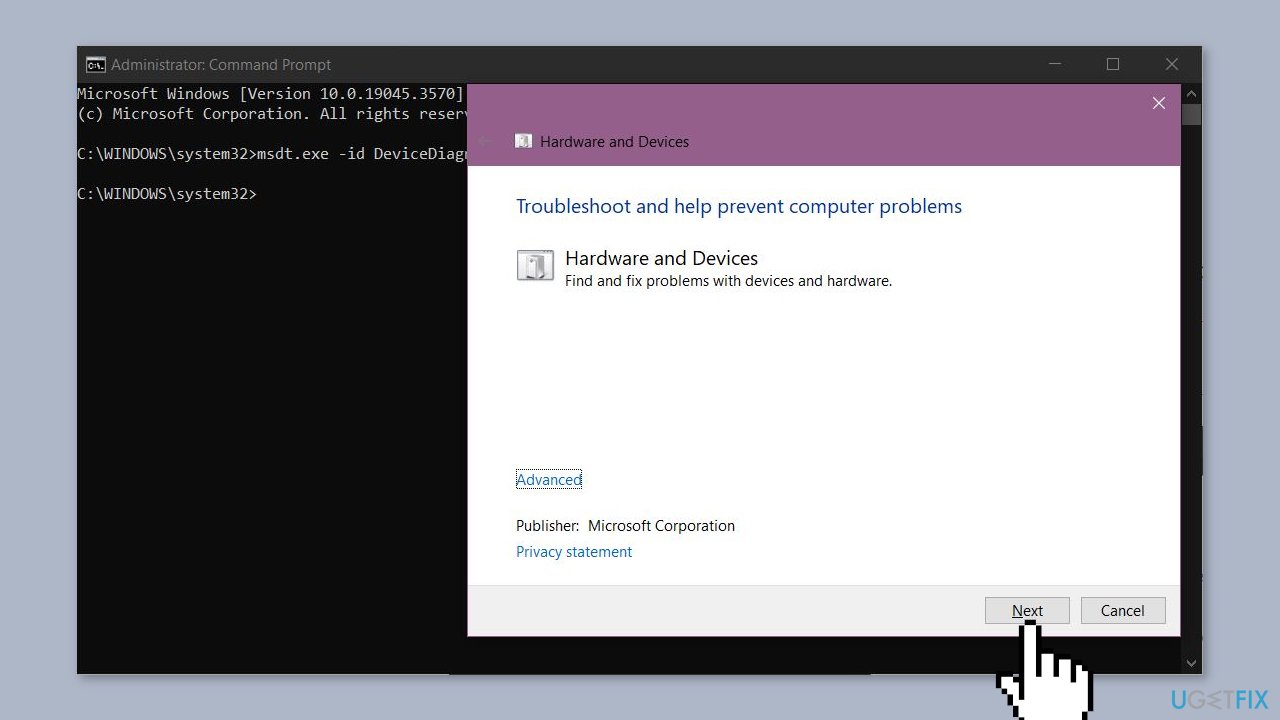
- Click Next to proceed with the scan and troubleshooting process.
- After the troubleshooting, attempt the task and verify if it functions correctly.
Method 3. Modify Registry Settings
- Press the Windows key + R to access the Run dialog box.
- Type regedit in the search bar.
- Press Enter to launch the Registry Editor.
- In the Registry Editor, navigate to the key:
HKEY_CURRENT_USER\Control Panel\Desktop
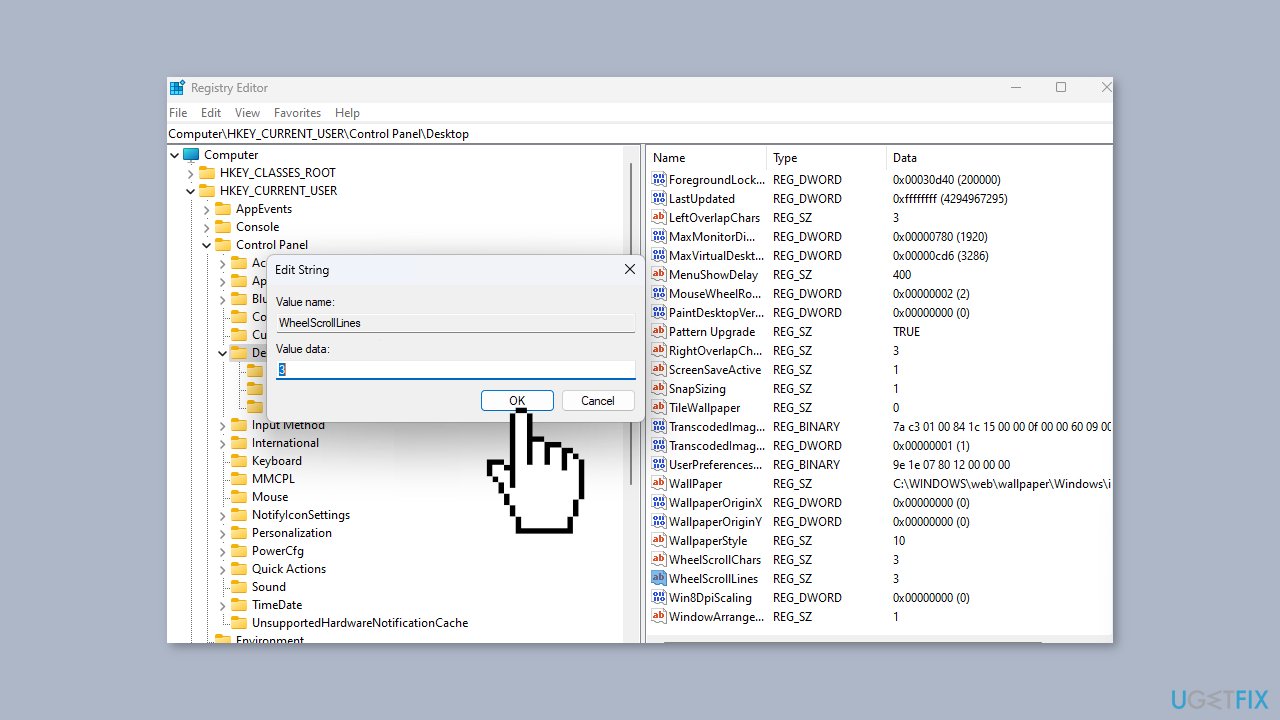
- In the right pane, double-click on the WheelScrollLines entry to open its Properties.
- Modify the Value Data to 3 and save the changes.
- Restart your computer.
- Reconnect the mouse device and test if the middle button functions correctly.
Bottom line
To fix the middle mouse button not working in Windows, you can try blowing compressed air into the mouse's wheel scroll to remove debris and ensure the mouse drivers are updated or reinstalled. If these steps do not resolve the issue, consider using a maintenance tool to fix system errors.
Frequently asked questions
First, try restarting your computer to see if that resolves the issue. If not, check your mouse settings in the Control Panel and ensure the middle button is configured correctly.
You can update your mouse drivers through Device Manager, as outdated drivers may cause functionality issues. Alternatively, test the mouse on another computer to determine if it’s a hardware problem.
Yes, certain software applications may override mouse settings, so check for any third-party mouse management software that might be affecting the middle button's functionality.




Report an issue
What's wrong with this guide? We review every report and update or remove content.
Report received — thank you. We'll review and fix it.
You need a free account to submit a report.
Be the first to comment