How to fix
Minecraft error 0x89235172
on Windows
Fix the Minecraft error 0x89235172 on Windows 10 and 11 easily with our expert tips. Quick solutions provided, updated 2025 for maximum efficiency.

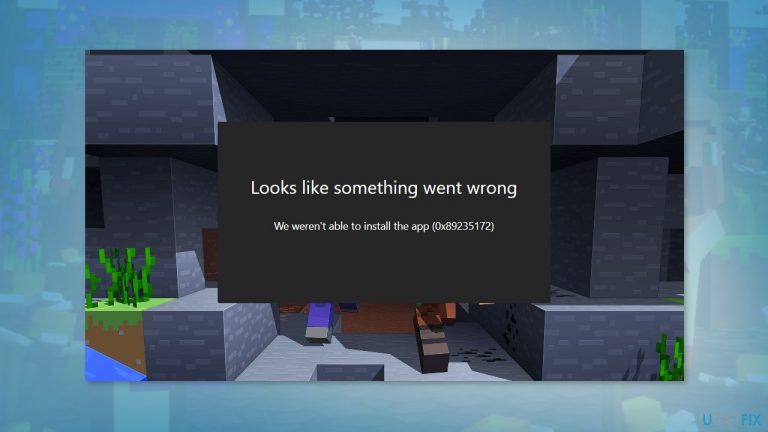
What causes How to fix Minecraft error 0x89235172 in Windows?
- Problems with game files
- Network connection issues
- Corrupted game files
- Outdated game version
- Issues with Gaming Services app
Repairs Windows system files, removes malware, and restores a clean OS state — without reinstalling.
Hello. I tried installing Minecraft on my Windows PC but I received the 0x89235172 error. What should I do?
Mojang Studios created and published Minecraft, a popular sandbox video game. In the game, players can explore a blocky 3D world, gathering resources and using them to construct structures and other items. Minecraft has a lot of interesting features, such as the ability to play with friends online, the ability to mod the game with custom content, and a creative mode that allows players to build whatever they want without any restrictions.
Minecraft error 0x89235172 in Windows indicates that there are problems with the game files or the network connection. It may prevent players from joining multiplayer sessions, accessing certain game features, or installing the game altogether. This error can be aggravating for players who enjoy playing with others or who rely on specific game features.
This problem can be resolved by updating the game, resetting the Gaming Services app, removing any corrupted game files, and resetting the network connection. Players can try one or more of these solutions to resolve the error and resume normal Minecraft gameplay.
In this guide, you will find 5 steps that should help you fix Minecraft error 0x89235172 in Windows. If the error is caused by underlying OS issues, we recommend using a maintenance tool like [d1]. It can fix most system errors, BSODs,[ref en-1] corrupted files, registry[ref en-2] issues, or clear cookies and cache.[ref en-3] Otherwise, follow the step-by-step instructions below.
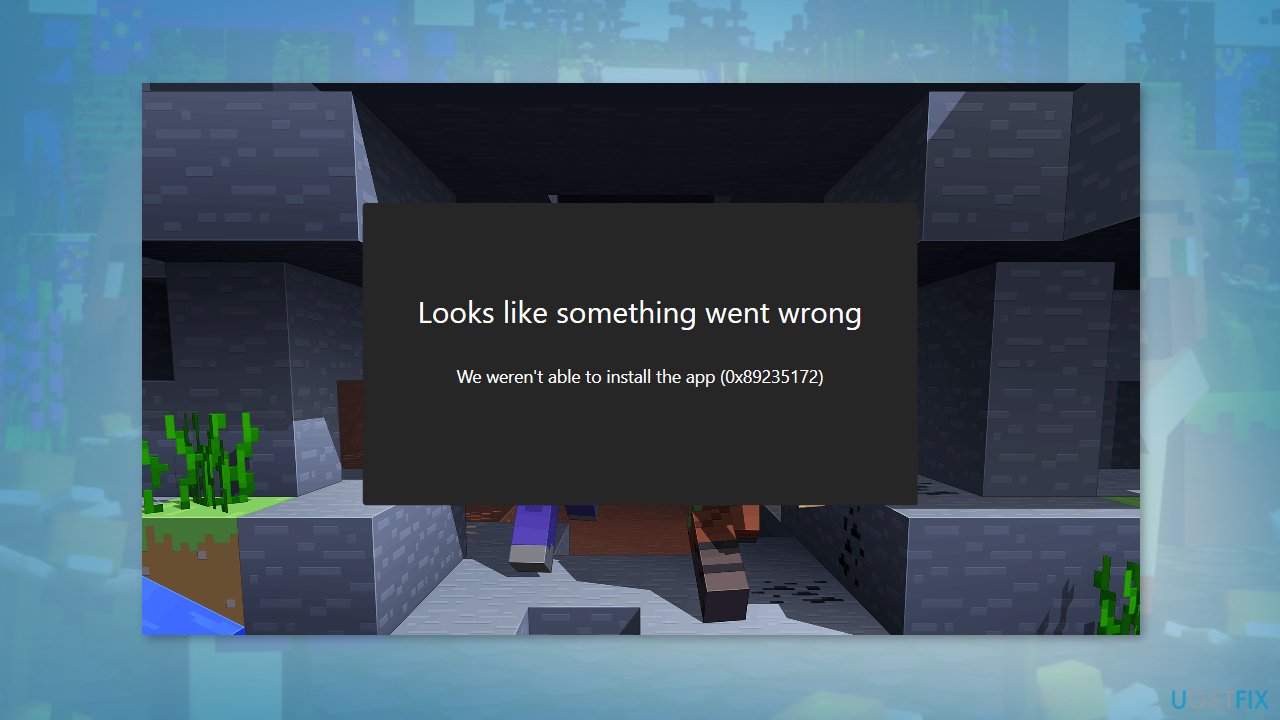
Solution 1. Run Windows Store Apps Troubleshooter
- Press the Windows key + I to open Windows Settings
- Select the System section and scroll down until you see Troubleshoot and click on it
- Click on Other troubleshooters to see more troubleshooters available on your computer
- Scroll down at the bottom until you see Windows Store Apps
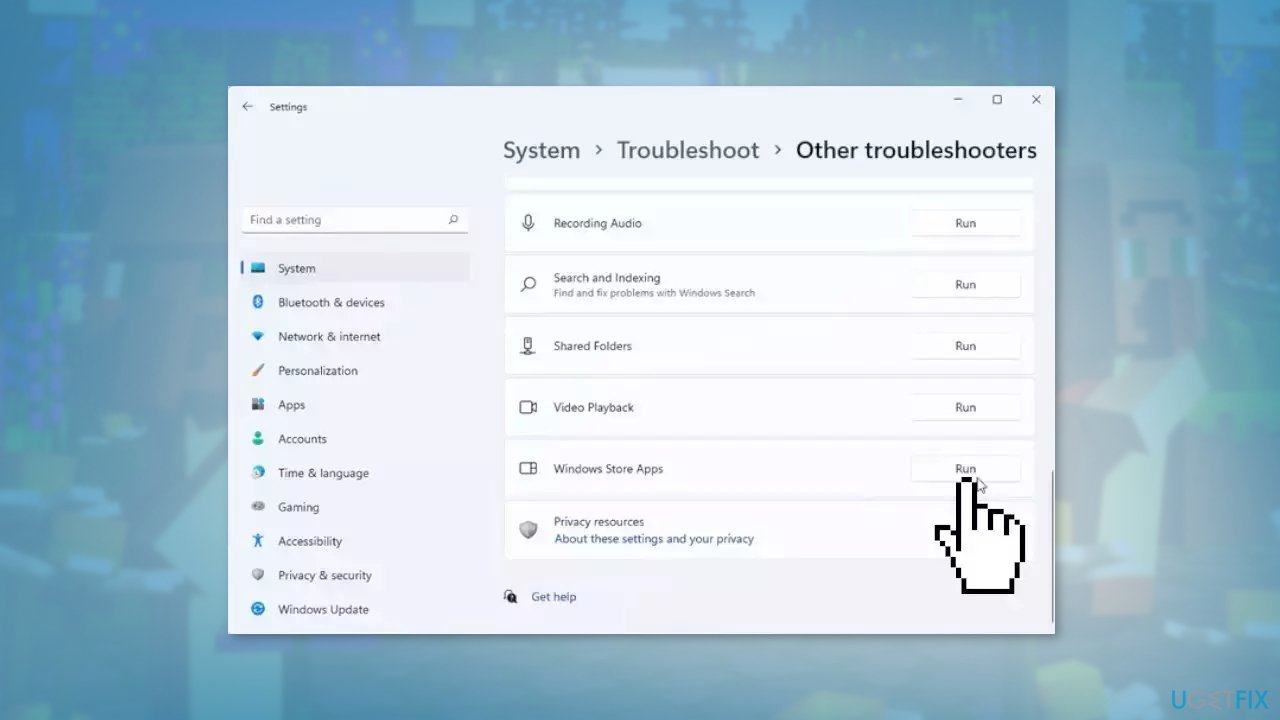
- Click on Run to start the troubleshooting process
- Wait until the process is complete
Solution 2. Reset Network Protocols
- Click on the Start button in the bottom left corner of your screen
- Type Command Prompt in the search bar
- Right-click on Command Prompt and select Run as administrator
- If prompted by User Account Control, click Yes to allow the program to make changes to your computer
- Type the following commands one by one and press Enter:
ipconfig / flushdns
ipconfig / flushdns
ipconfig / release
ipconfig / renew
netsh winsock reset
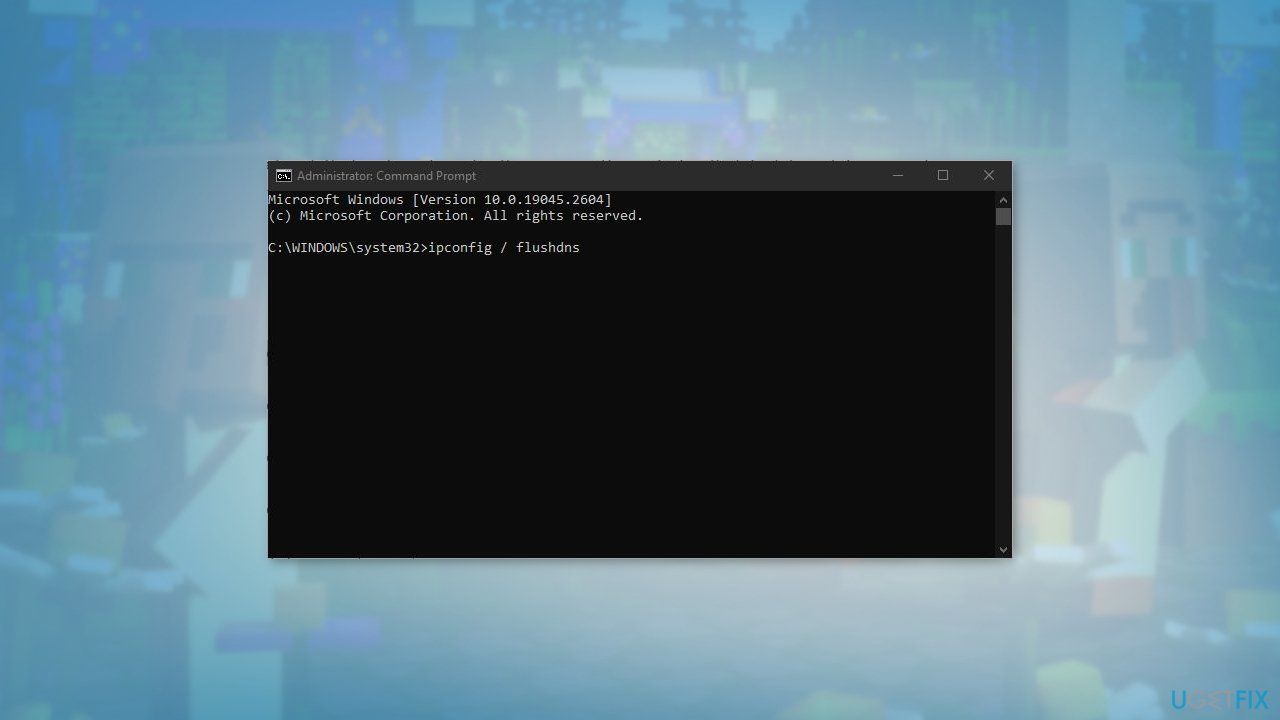
- Close the Command Prompt window and check if the error is fixed
Solution 3. Update Xbox App
- Click on the Start button in the bottom left corner of your screen
- Type Microsoft Store in the search bar and open it
- Click on Library at the top of the Microsoft Store window
- Scroll down until you see the Updates section
- Click on Get updates to check for any available updates
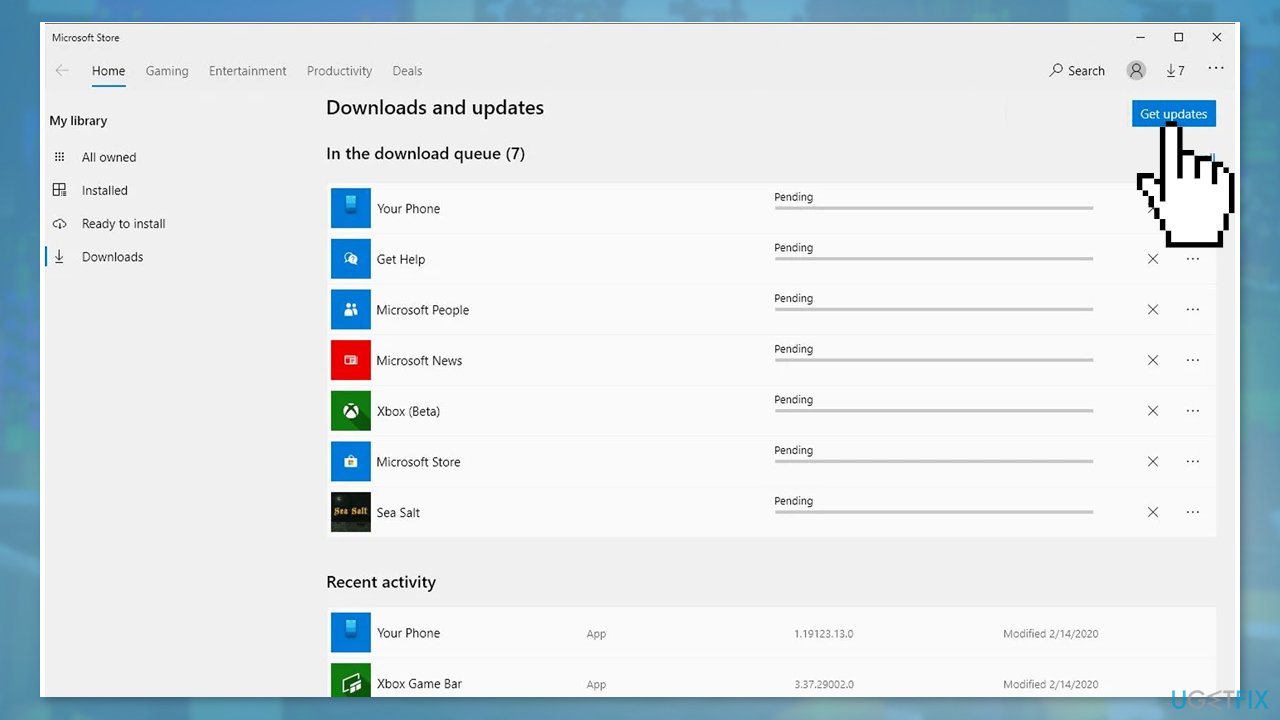
- Look for the Xbox app in the list of available updates
- If an update for the Xbox app is available, click on Update next to the app
- Wait for the update to finish downloading and installing
- Once the update is complete, close the Microsoft Store
Solution 4. Repair or Reset the Gaming Services
- Press the Windows key + I to open the Settings app
- Click on Apps from the list of options
- Click on Apps & features or Installed apps from the left-hand menu
- Scroll down or use the search bar to find Gaming Services
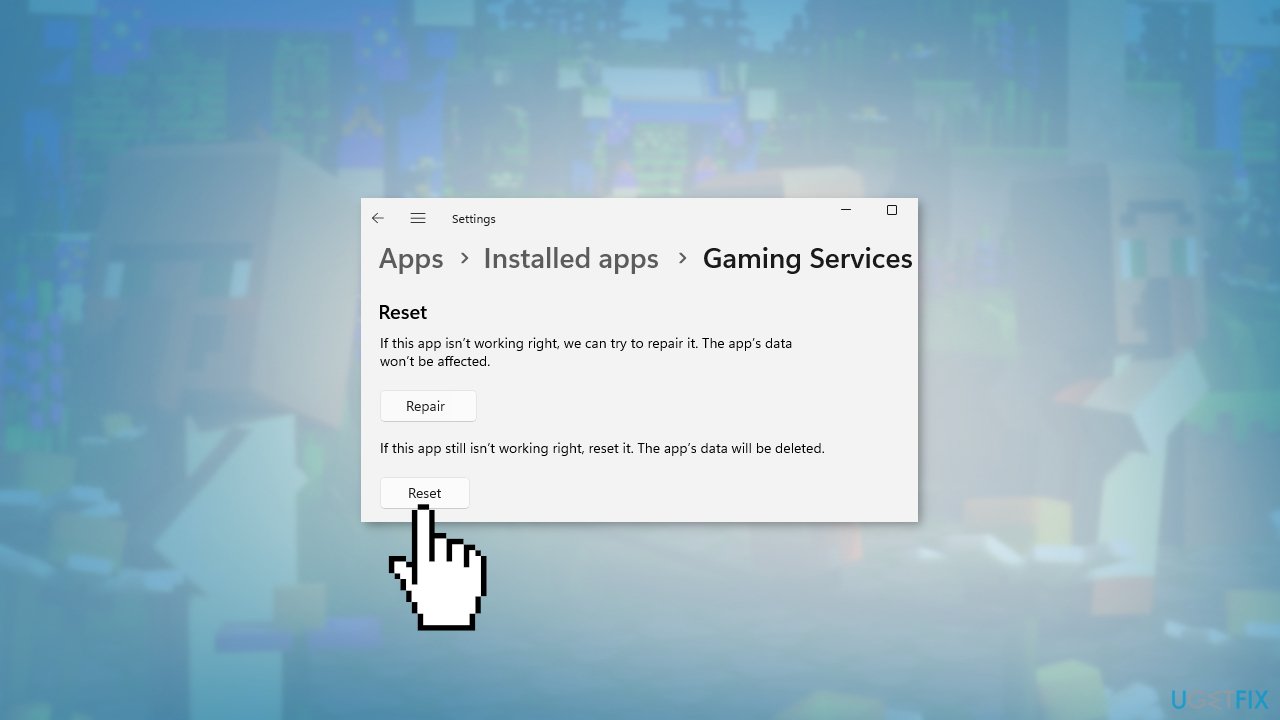
- Click on the three dots located next to the Gaming Services option
- Select Repair from the dropdown menu
- Wait for the repair process to complete and check if the issue is fixed
- If not, try the Reset option
Solution 5. Remove Mods
- Press the Windows key + R to open the Run dialog box
- Type %AppData% into the text box
- Click OK or press Enter to open the AppData folder
- Look for a folder called Mods in the list of folders displayed
- Right-click on the Mods folder and select Delete to remove it
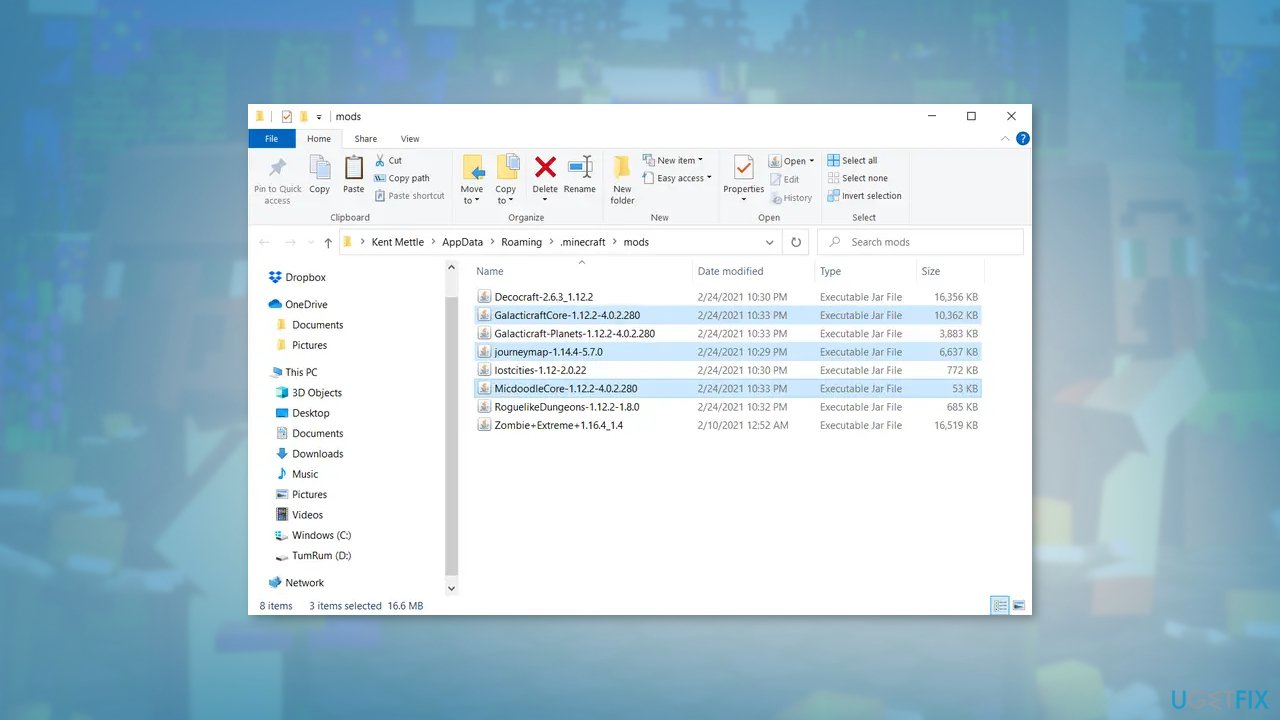
- Confirm that you want to delete the folder by clicking Yes on the pop-up window
- Click on the Start button in the bottom left corner of your screen
- Go to Settings
- Click on Apps from the list of options
- Find Minecraft in the list of apps and click on it
- Click on Uninstall and follow the prompts to uninstall Minecraft
- Open a web browser and go to the official Minecraft website
- Download and install Minecraft
- Open Minecraft to see if the issue persists
Bottom line
To fix Minecraft error 0x89235172 in Windows, you can try updating the game, resetting the Gaming Services app, removing any corrupted game files, and resetting your network connection. If these solutions do not resolve the issue, consider using a maintenance tool to address underlying OS problems.
Frequently asked questions
This error typically indicates an issue with the game installation or network connectivity problems that prevent Minecraft from launching properly on Windows.
To fix this error, try resetting the Microsoft Store app, ensuring that your Windows is updated, and checking your internet connection.
Yes, you can attempt to repair the game through the Windows settings or the Xbox app, which may resolve the error without needing a full reinstallation.




Report an issue
What's wrong with this guide? We review every report and update or remove content.
Report received — thank you. We'll review and fix it.
You need a free account to submit a report.
Be the first to comment