How to fix
Minecraft error “Unable to connect to world”
on Windows
Resolve the "Unable to connect to world" error in Minecraft on Windows 10 and 11. Get expert-tested solutions to play smoothly again, fixed in minutes!

What causes How to fix Minecraft error “Unable to connect to world” in Windows?
- Network issues
- Outdated game versions
- Firewall settings
- Compatibility issues
Repairs Windows system files, removes malware, and restores a clean OS state — without reinstalling.
Hello. I tried playing Minecraft but I receive the "Unable to connect to world" error. This is getting pretty annoying. How do I solve this?
Mojang Studios created the popular video game Minecraft. It is a sandbox game in which players can explore and build in a blocky, 3D world. Because of its creative freedom, endless possibilities for exploration, and the ability to play with others online, the game has acquired a massive following over the years.
However, players sometimes encounter an error in Minecraft where they are unable to connect to a world. This issue can have a variety of effects on players, such as preventing them from playing with friends, joining servers, or accessing their own saved worlds. A number of reasons can contribute to the error, including network issues, outdated game versions, firewall settings, and compatibility issues.
There are several solutions to the "Unable to connect to world" error in Minecraft, but they differ depending on the cause of the problem. Resetting the Internet connection, updating the game, disabling the firewall, changing network settings, or using a VPN are all possible solutions.
In this guide, you will find 9 steps that should help you fix the Minecraft error "Unable to connect to world" in Windows. Keep in mind, that the manual troubleshooting process can be time-consuming. Instead, you can try using a maintenance tool like [d1] that can automatically fix most system errors, BSODs,[ref en-1] corrupted files, registry[ref en-2] issues, or clear cookies and cache.[ref en-3] Otherwise, follow the step-by-step instructions below.
Solution 1. Install Windows Updates
- Press the Windows key + R to open the Run box
- Type ms-settings:windowsupdate in the text box and press Enter
- Click the Check for updates button
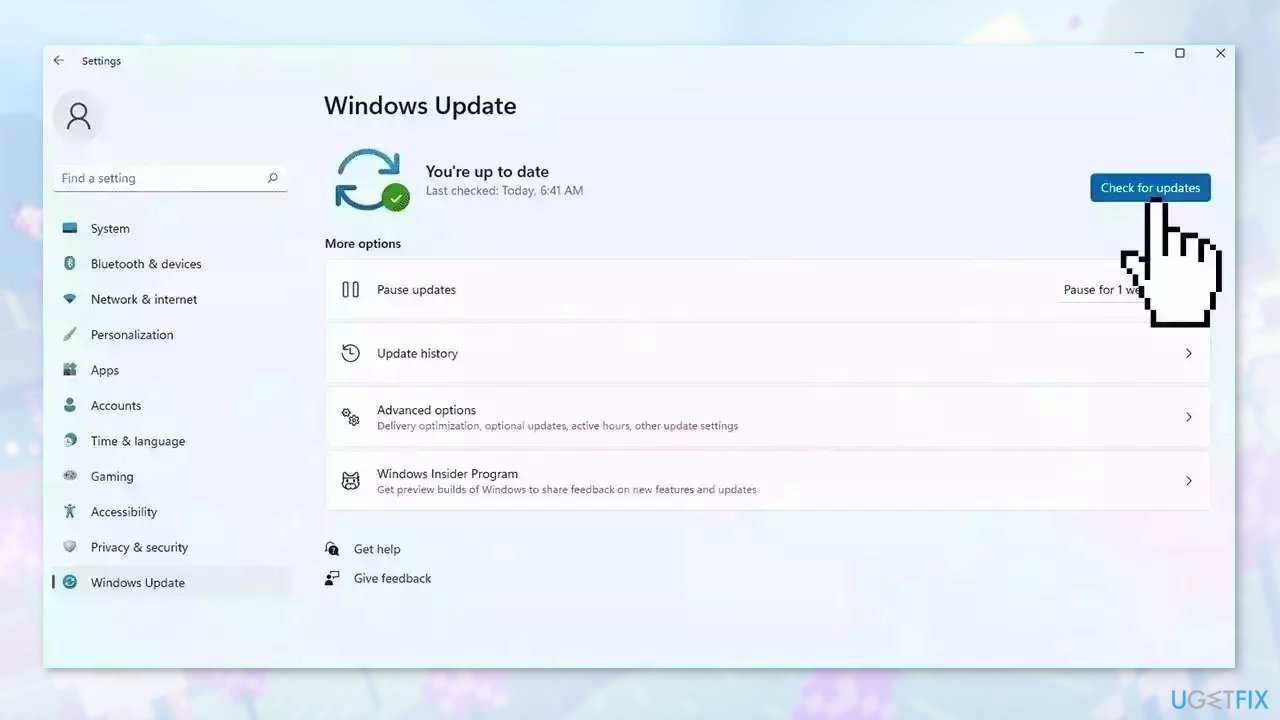
- If a new update is available, click the Download & Install all button.
- Restart your computer after the process is finished and check to see if the problem is fixed
Solution 2. Update Minecraft
- Press the Windows key + S to open the search bar
- Type store in the dialogue box
- Click on the entry of Microsoft Store from the results
- Once the store is opened, click on the three dots present at the top-right side of the window near your profile image
- Click Downloads and Updates
- Click on Get updates so all the updates begin to download automatically on your computer
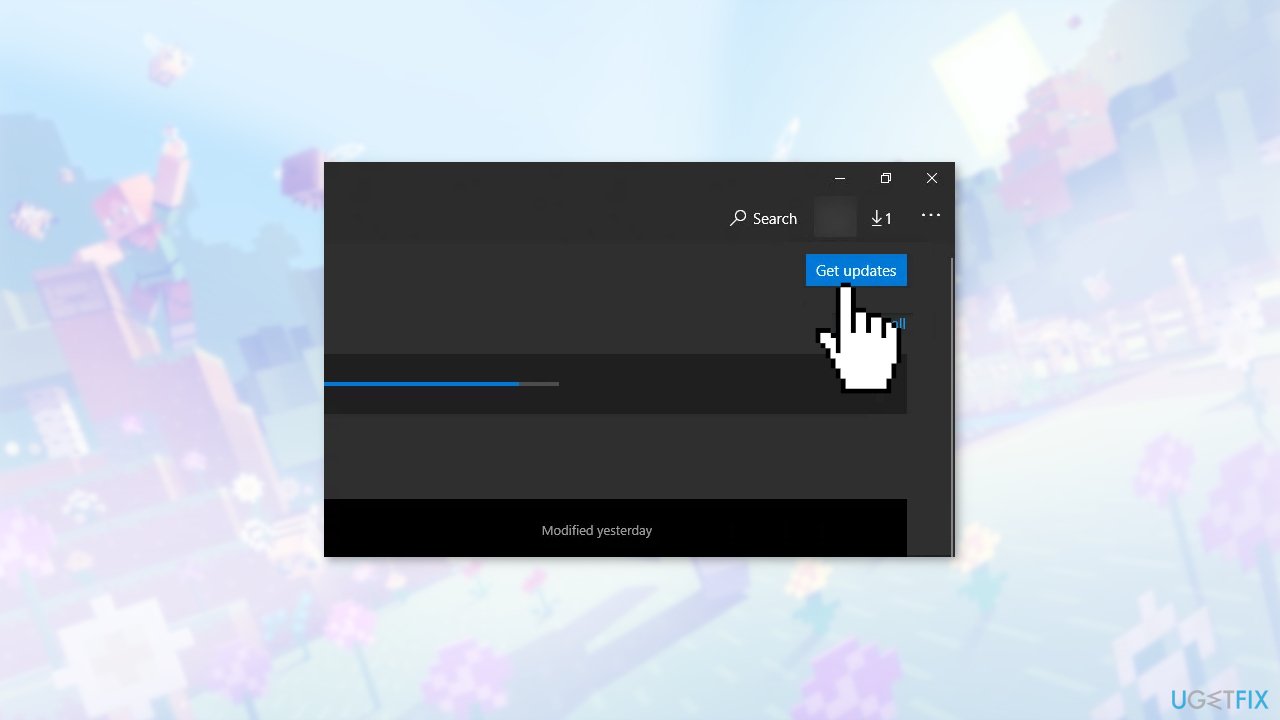
- If there is an update for Minecraft, it will be downloaded
- Once Minecraft is updated, restart your computer
- Launch the game and check if the issue is solved.
Solution 3. Re-add your Friend
- To remove a friend from your Friend list, you need to know the username
- Check the username of the friend you want to remove
- Type the following command and press Enter: /f remove <username>
- The friend will be removed from your Friend list
- If you want to invite the friend again, you can do so using the Xbox application on Windows or through the game itself
Solution 4. Enable Multiplayer
- Open your web browser and navigate to the official Xbox website
- Sign in using your credentials.
- Click on the tab of Xbox One/Windows 10 Online Safety
- Make sure that the option You can join multiplayer games is enabled
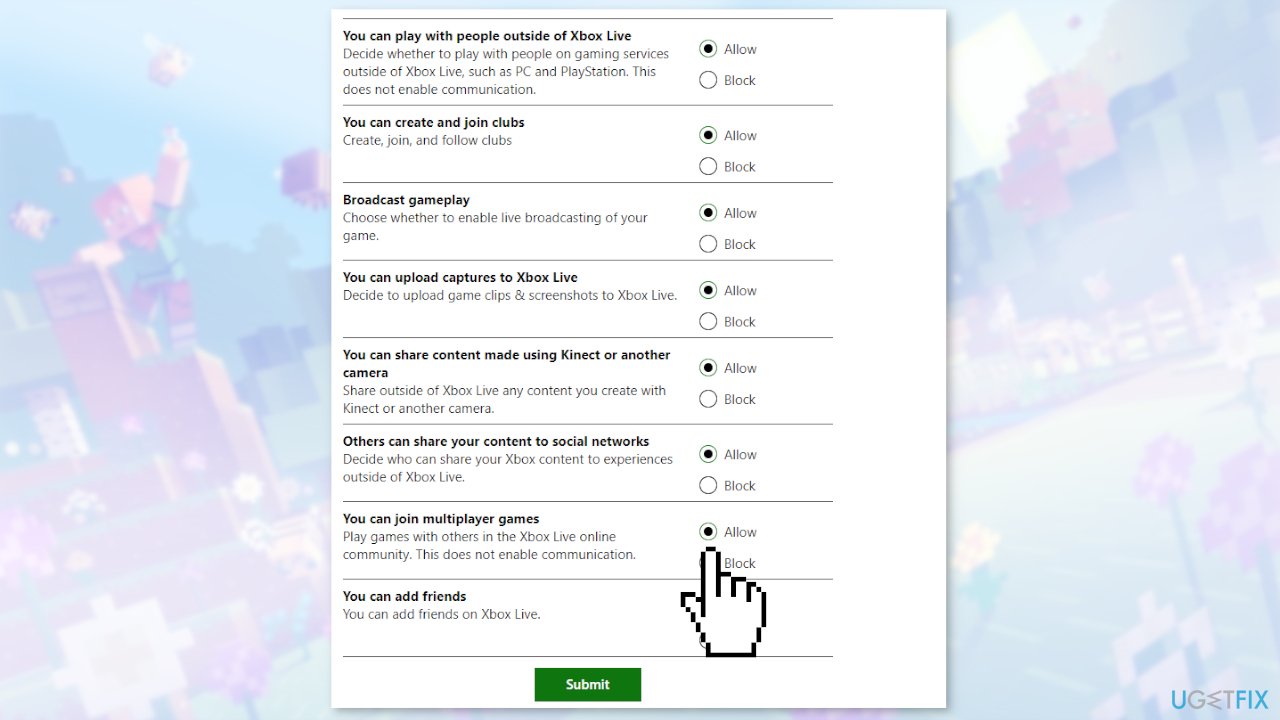
- Save changes and exit
- Restart your computer
- Log into Minecraft
- Check if the issue is resolved
Solution 5. Disable Windows Firewall
- Open the Start menu by clicking the Windows logo on your keyboard
- Type firewall in the search dialogue that appears
- From the list of results, select the option that says Windows Firewall
- Look for the option that says Turn Windows Firewall on or off on the left side of the screen
- You will see two checkboxes, one for Private networks and the other for Public networks
- To disable the firewall for both networks, click the option Turn off Windows Firewall
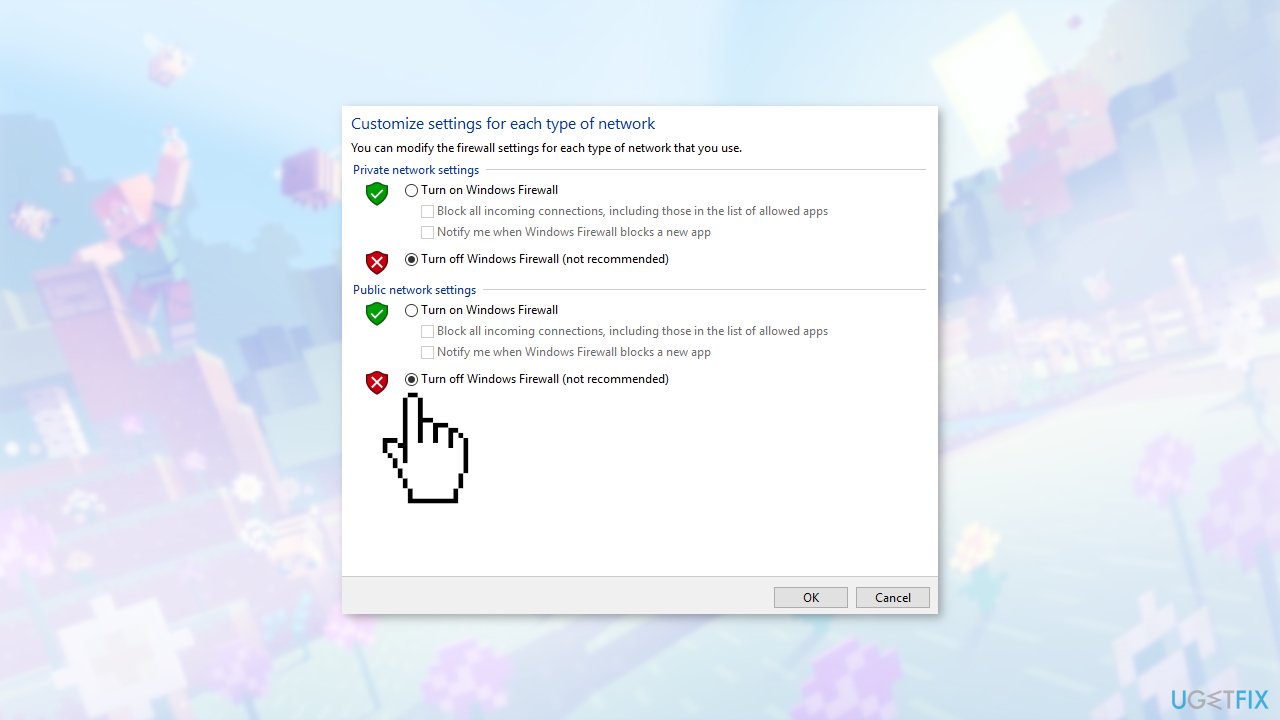
- After making the changes, click Ok to save your settings and exit
- Your Firewall is now disabled
Solution 6. Reset Internet Explorer Settings
- Press the Windows key + R to open the Run dialog box
- Type inetcpl.cpl and press Enter
- This will open the Internet Properties window
- Click on the Advanced tab at the top of the window
- Under the heading of Reset Internet Explorer settings, click on the Reset button
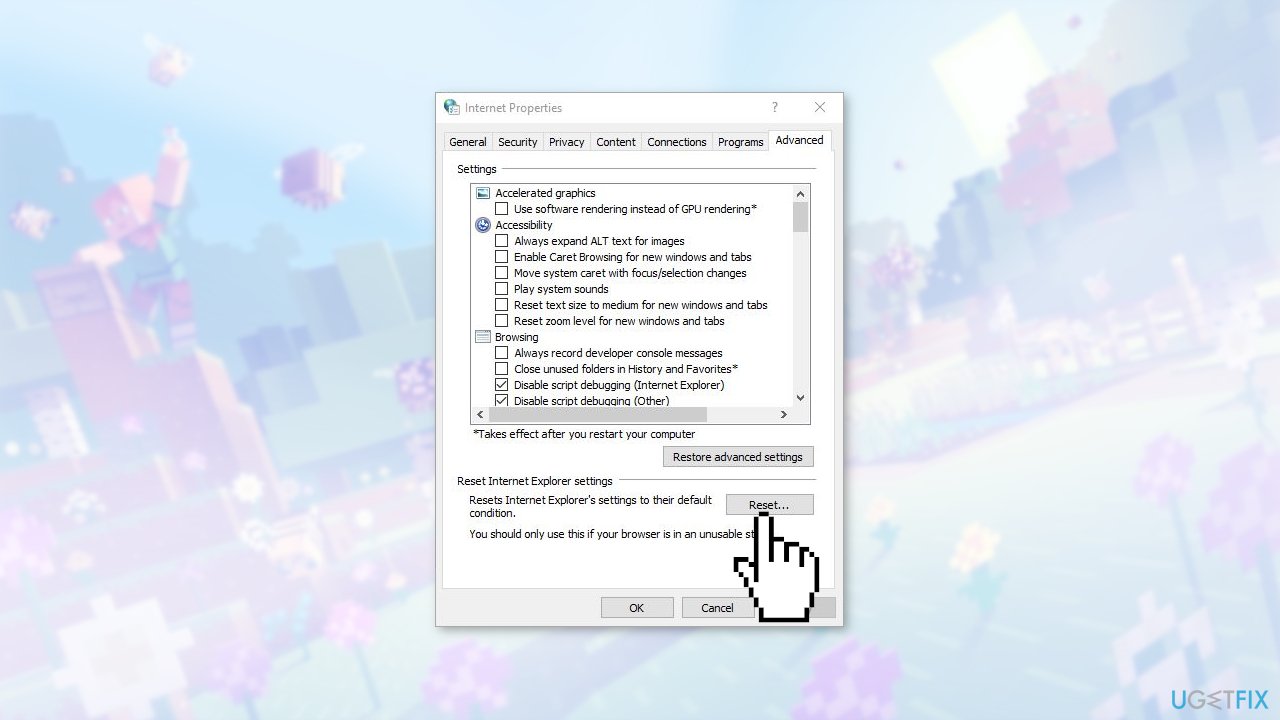
- After making the changes, restart your computer
- Launch Minecraft again and see if the error is fixed
Solution 7. Enable VPN
Before jumping to alternatives, try using a VPN on your computer. It's possible that the game is banned or its traffic is restricted by your Internet Service Provider (ISP), which may cause hindrance in the network traffic. When you use a VPN, you can spoof your ISP and access the game by faking your location to be in another country. This will help bypass all the barriers and fix the issue of the game being blocked by your ISP.
However, you might need to download a VPN application from the internet unless you have your own VPN access, which is often given to employees by organizations or companies. Once you have set up your VPN, the Minecraft application might prompt you to authenticate your account again because of the location change. Authenticate your account, then check if the issue goes away and you can connect to your friend’s world.
Solution 8. Install Minecraft Java Edition
- Before starting the installation process, press the Windows key + R to open the Run dialog box
- Type %appdata% and press Enter
- This will open the AppData folder
- Go back one step and delete the Minecraft data from the following folders: Local and Roaming
- Press the Windows key + R to open the Run dialog box again
- Type appwiz.cpl and press Enter
- This will open the Programs and Features window
- Locate the Minecraft entry, right-click on it, and select Uninstall
- After uninstalling, restart your computer
- Go to the official Minecraft website and download the executable to an accessible location
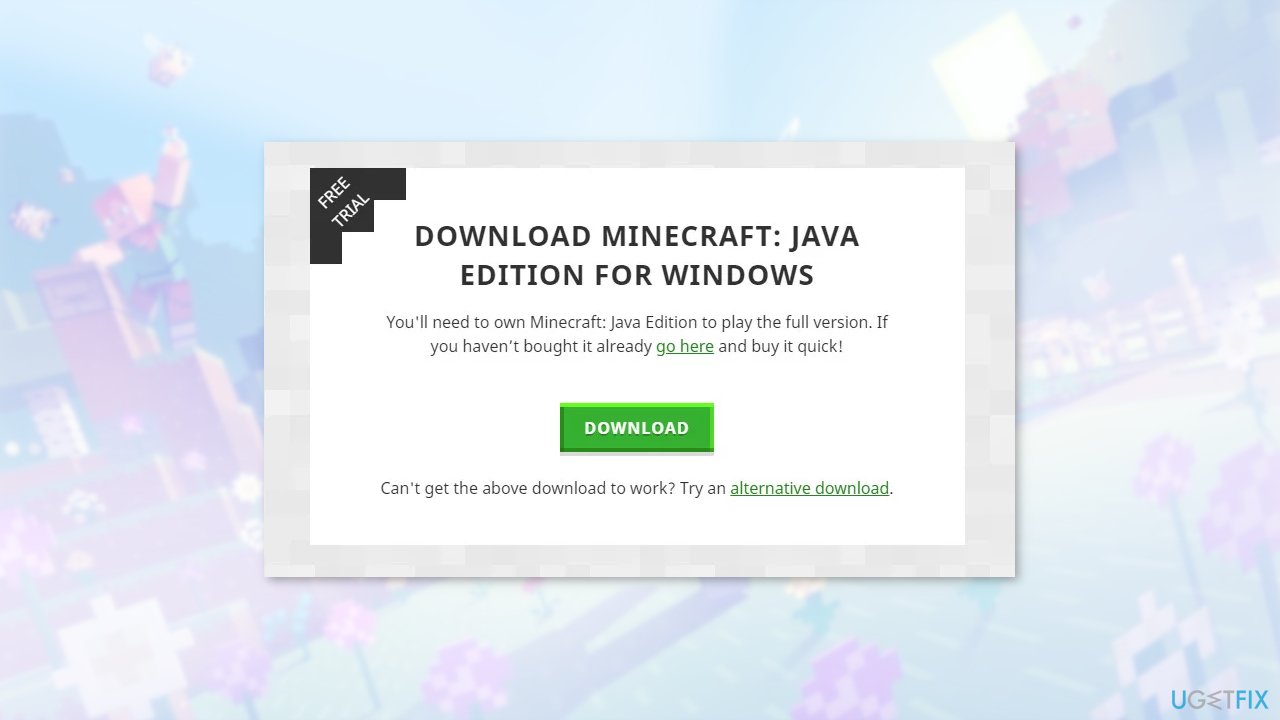
- After the installation, restart your computer
- Check if the issue is resolved
Solution 9. Create a new User Account
- Open an administrator account
- Type Settings in the Start menu dialogue box and click on Accounts
- Click the Family and other users option on the left side of the window
- Select Add someone else to this PC from the options
- Windows will guide you through its wizard on how to create a new account
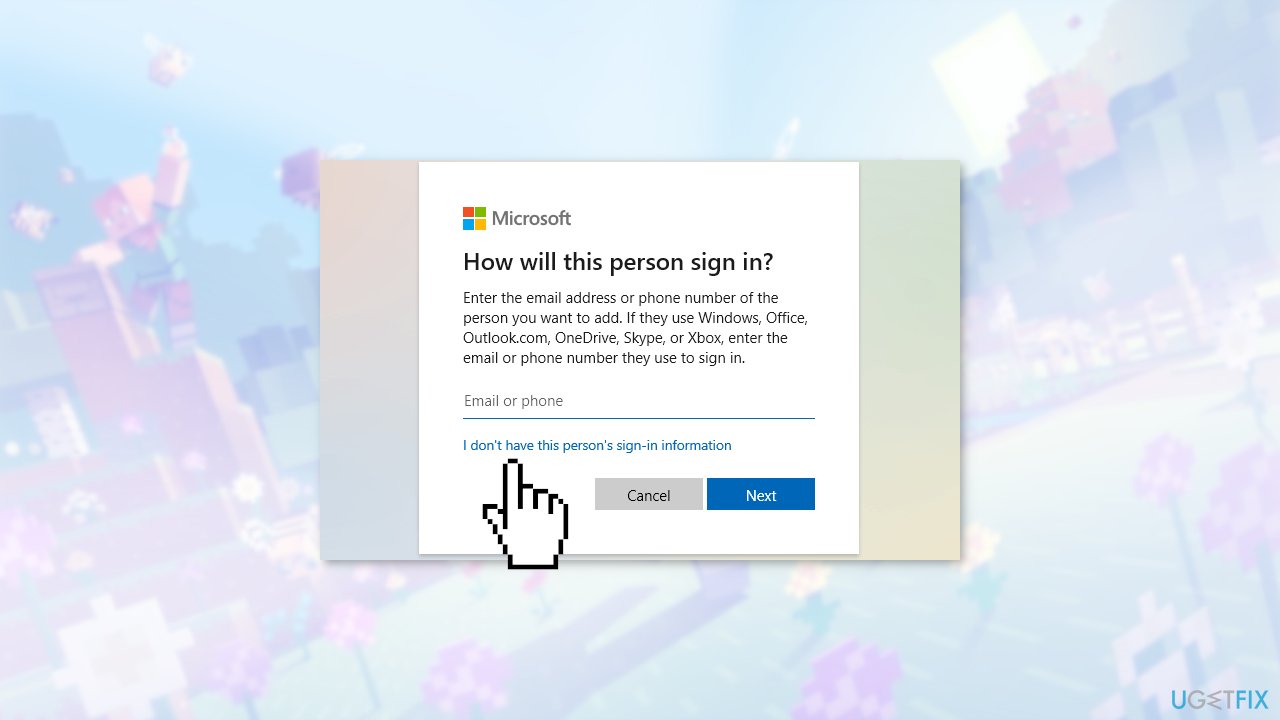
- Click I don't have this person's sign-in information in the new window
- Select the option Add a user without Microsoft
- Enter all the details and choose an easy-to-remember password
- Check if the new local account is working properly and has all the functionalities you require
- Log in to the new account and launch an instance of Minecraft
- Check if the game works properly in the new account
Bottom line
To fix the "Unable to connect to world" error in Minecraft, you can try installing Windows updates, updating Minecraft, disabling the firewall, changing network settings, or using a VPN. If these solutions do not resolve the issue, consider using a maintenance tool to automatically fix system errors.
Frequently asked questions
First, ensure that your internet connection is stable and that both you and the host are on the same version of Minecraft. Additionally, check your firewall settings to make sure Minecraft is allowed to communicate through the network.
Try restarting your router and your PC to refresh the network connection, then launch Minecraft again. If the problem persists, consider resetting your network settings in Windows 11.
Yes, ensure that your Windows Defender Firewall or any third-party antivirus software is not blocking Minecraft. You can add Minecraft as an exception in the firewall settings to prevent connectivity issues.




Report an issue
What's wrong with this guide? We review every report and update or remove content.
Report received — thank you. We'll review and fix it.
You need a free account to submit a report.
Be the first to comment