How to fix
Minecraft installer freezing or stuck on loading
on Windows
Resolve Minecraft installer freezing issues on Windows 10 and 11 quickly and effectively. Get expert-tested solutions and fix it in minutes!

What causes How to fix Minecraft installer freezing or stuck on loading in Windows?
- Unstable internet connection
- Website source is down
- Outdated graphics drivers
- Insufficient permissions to run the installer
- Corrupted installation files
Repairs Windows system files, removes malware, and restores a clean OS state — without reinstalling.
Hello. I tried to install Minecraft multiple times, but the installer keeps freezing and gets stuck on the loading screen. What should I do?
Minecraft is a popular sandbox video game that debuted in 2011. It allows players to construct, explore, and interact with a three-dimensional world made of blocks. With millions of players worldwide, Minecraft has a large and active community. Unfortunately, some users may experience freezing or loading issues with the Minecraft installer in Windows. This problem is aggravating because it prevents users from installing or updating the game.
The issue can affect players in a variety of ways. Users, for example, may be unable to access new features, mods, or updates if the game is not properly installed. This may limit their overall gaming enjoyment and experience. This problem can be resolved by clearing the cache, updating graphics drivers,[ref en-1] running the installer as administrator, or reinstalling the game.
The precise solution, however, may depend on the specific cause of the problem, and users may need to try several different solutions before finding one that works. Because there are numerous possible causes and solutions to this problem, players must be patient and persistent in their search for a solution.
In this guide, you will find 5 steps that should help you fix Minecraft installer freezing or stuck on loading in Windows. You can also try a system maintenance tool like [d1] that can fix most system errors, BSODs,[ref en-2] corrupted files, registry[ref en-3] issues, or clear cookies and cache. Otherwise, follow the step-by-step instructions below.
Solution 1. Check Network Connection
To troubleshoot the issue of the Minecraft installer getting stuck on downloading, it's important to have a stable internet connection. Here are the steps you can follow:
- Check if the Minecraft website or the source website you're downloading from is down.
- If the website is up and running, check for internet connectivity issues on your Windows PC and fix any potential network and internet problems before resuming the Minecraft installer download.
- You can also run the Internet Connections Troubleshooter to diagnose and fix any connectivity issues.
Solution 2. Disable Third-Party Security Software
If you're using third-party security software on your Windows device, you might encounter interference from AV or a firewall. To resolve this issue, you can follow the steps below:
- Check the Settings menu of your security software for the option to disable it, or refer to the instruction manual for guidance on how to temporarily disable it.
- Once you have disabled the security software, try downloading the Minecraft installer again.
- If the download is successful, you can turn your security software back on.
Solution 3. Run the Installer as an Administrator
- Go to the location where you have downloaded the Minecraft installer file.
- Right-click on the installer file and select Run as administrator from the context menu.
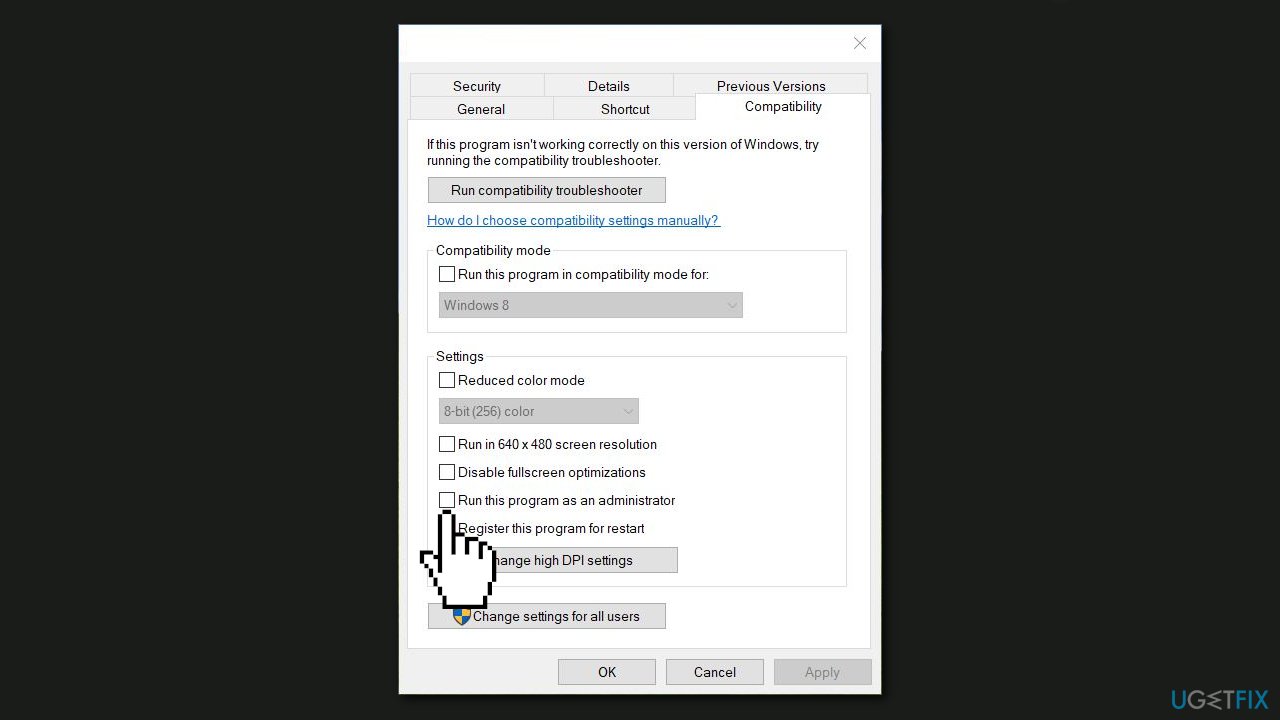
- If prompted by User Account Control, click Yes to allow the installer to make changes to your device.
- The installer should now launch with administrative privileges. Follow the on-screen instructions to complete the installation process.
Note: If you are not logged in as an administrator on your Windows device, you may not be able to run the installer with administrative privileges. In that case, you may need to log in as an administrator or contact your system administrator for assistance.
Solution 4. Update Graphics Driver
- Press the Windows key + X on your keyboard to open the Quick Link menu.
- Select Device Manager from the list of options.
- In the Device Manager window, expand the Display adapters category.
- Right-click on your graphics card and select Update driver from the context menu.
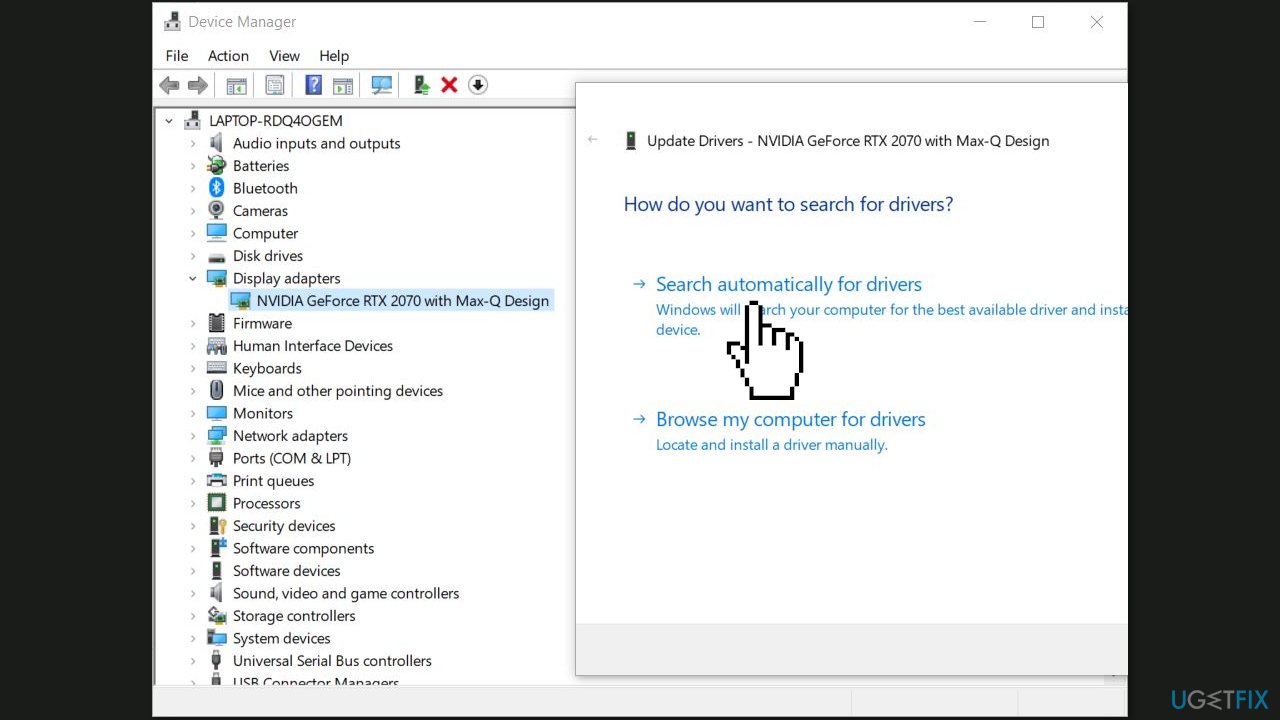
- In the Update Drivers window, select Search automatically for updated driver software option.
- Windows will now search for the latest driver software and install it automatically.
- Once the installation is complete, restart your computer to apply the changes.
Note: If Windows is unable to find an updated driver software for your graphics card, you can use a dedicated utility like [rev id="DriverFix"] that can find the best drivers for your machine and install them automatically.
Solution 5. Update Java
- Press the Windows key + R and put %appdata% and press OK.
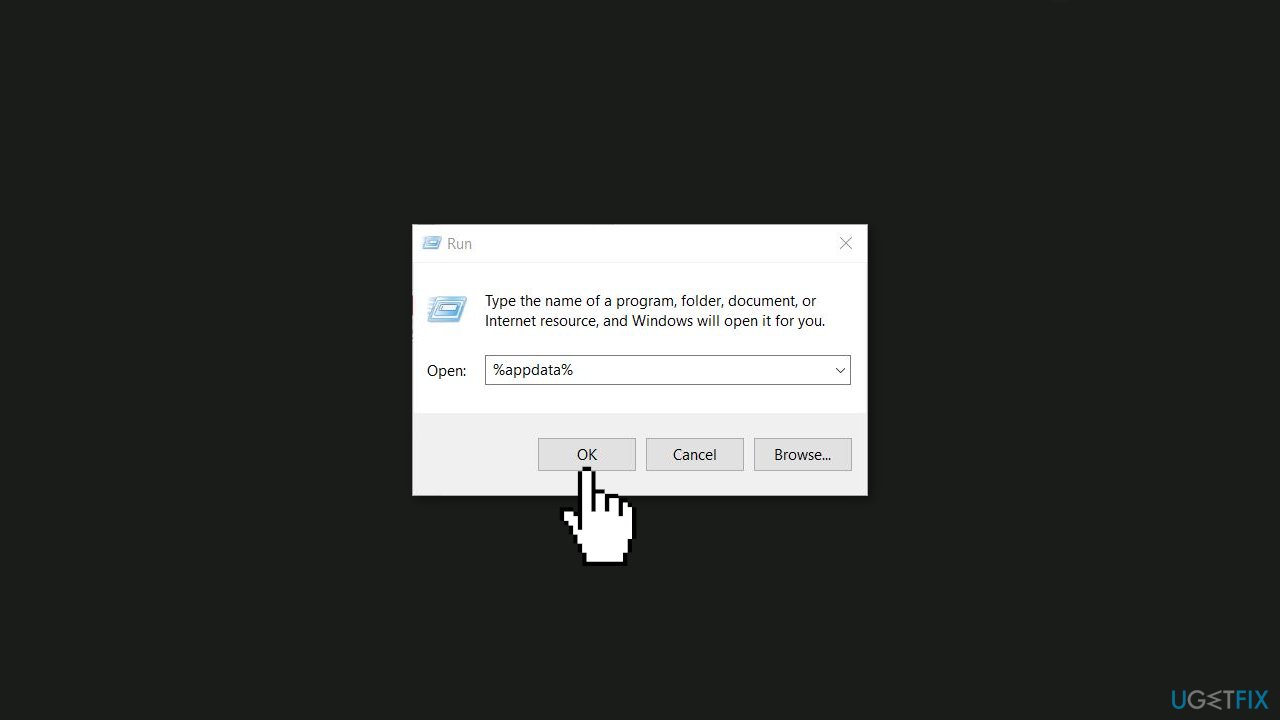
- Search for the .minecraft folder and go to the folder.
- Copy the recordings and paste them somewhere on your computer, then delete the .minecraft folder.
- Download the latest x86 and x64 version of Java using the links provided. If prompted to uninstall the previous version, uninstall it.
- After updating Java, uninstall Minecraft and restart your computer.
- Download Minecraft in legacy version from the provided link.
- After installing, sign in with your Microsoft account and test.
Bottom line
To resolve the Minecraft installer freezing issue, you can try checking your network connection, updating graphics drivers, running the installer as an administrator, or reinstalling the game. If these solutions do not work, consider using a system maintenance tool to fix potential system errors.
Frequently asked questions
Try restarting the installer and ensure that your Windows 10 is updated to the latest version. If the issue persists, consider running the installer as an administrator.
Make sure your Windows 11 has the latest updates, and temporarily disable any antivirus software that might be interfering with the installation process.
Yes, you can adjust your system's compatibility settings by right-clicking the installer, selecting Properties, and then choosing a compatibility mode for Windows 8.




Report an issue
What's wrong with this guide? We review every report and update or remove content.
Report received — thank you. We'll review and fix it.
You need a free account to submit a report.
Be the first to comment