How to fix
Minecraft Launcher error 0x1
on Windows
Resolve Minecraft Launcher error 0x1 on Windows 10 or 11 quickly with our effective troubleshooting tips. Expert-tested solutions await!

What causes How to fix Minecraft Launcher error 0x1 on Windows?
- Program incompatibilities
- Corrupted game files
- Outdated drivers
- Issues with system configuration
Repairs Windows system files, removes malware, and restores a clean OS state — without reinstalling.
Hello. When I try to open the Minecraft Launcher it crashes and displays an error code (0x1). Is there a way to fix this?
Minecraft is a widely popular sandbox game developed by Mojang Studios, allowing players to explore a blocky, procedurally generated 3D world with infinite terrain, discover and extract raw materials, craft tools, and items, and build structures or earthworks. Its creative capabilities and open-ended gameplay have led to a vast global user base. There are several game modes: survival, where players must gather resources and keep their health high, and creative, where players can build intricate constructions with an infinite supply of resources.
But sometimes, gamers run into technological problems that ruin their time playing Minecraft. The Windows version of the Minecraft Launcher error 0x1 is one such problem. This error occurs when the Minecraft Launcher fails to load, displaying an error code (0x1). For players who can't wait to start the game and explore its fascinating environment, this can be annoying.
The error code 0x1 in the Minecraft Launcher has a significant effect on users. The launcher's inability to load makes it difficult to enter the game, which keeps gamers from having fun in Minecraft. This might be especially troublesome for people who want to participate in community events, play multiplayer games, or just work on their own creative projects in the game.
Although seeing the Minecraft Launcher error 0x1 can be depressing, there may be workarounds. When this happens, users can try a few different troubleshooting techniques to fix the problem and get back to playing Minecraft without any problems. These fixes can be resolving possible program incompatibilities, confirming the accuracy of game files, or updating pertinent drivers. However, depending on unique system configurations and situations, the precise resolution might change.
In this guide, you will find 4 steps that should help you fix Minecraft Launcher error 0x1 on Windows. You can also run a maintenance tool like [d1] that can fix most system errors, BSODs,[ref en-1] corrupted files, registry[ref en-2] issues, or clear cookies and cache[ref en-3] automatically. Otherwise, follow the step-by-step instructions below.
Solution 1. End Minecraft from the Task Manager
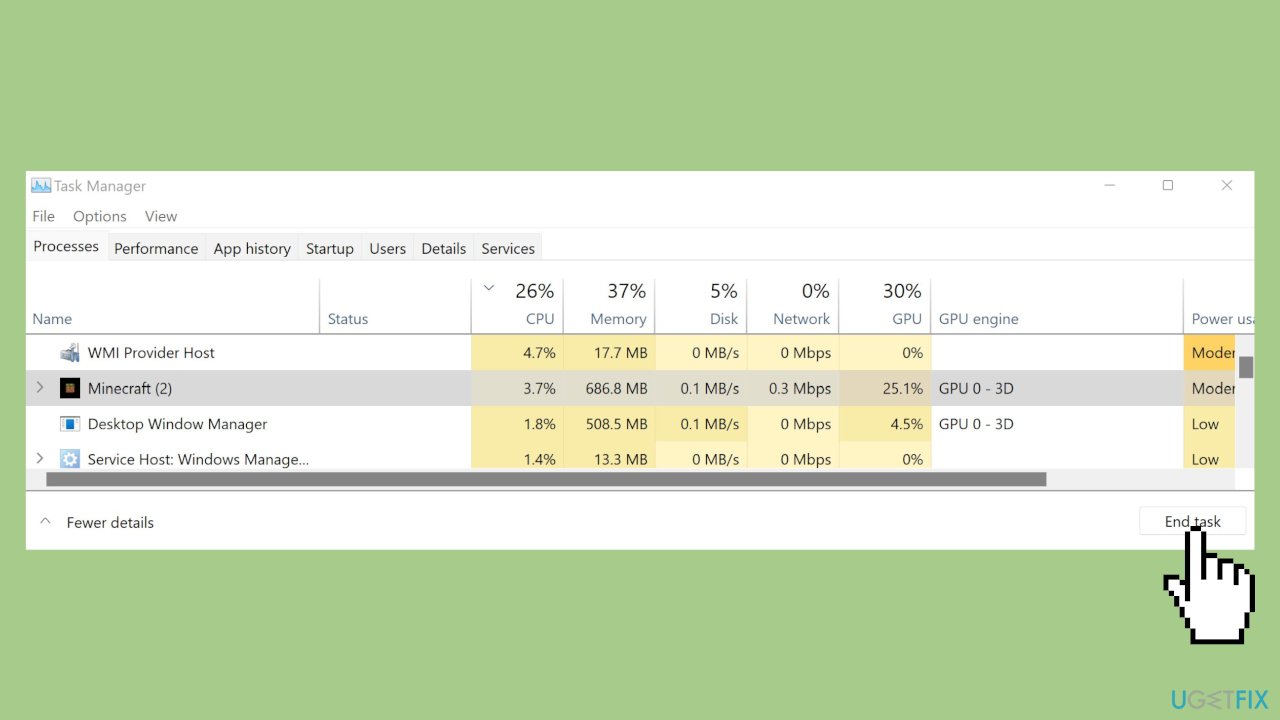
- Type Task Manager in your Windows Search bar and press Enter.
- In Task Manager, find Minecraft Launcher.
- Right-click on Minecraft Launcher.
- Select End Task to close it.
- Close the Task Manager window.
- Try to open Minecraft Launcher again.
Solution 2. Run Minecraft as an Administrator
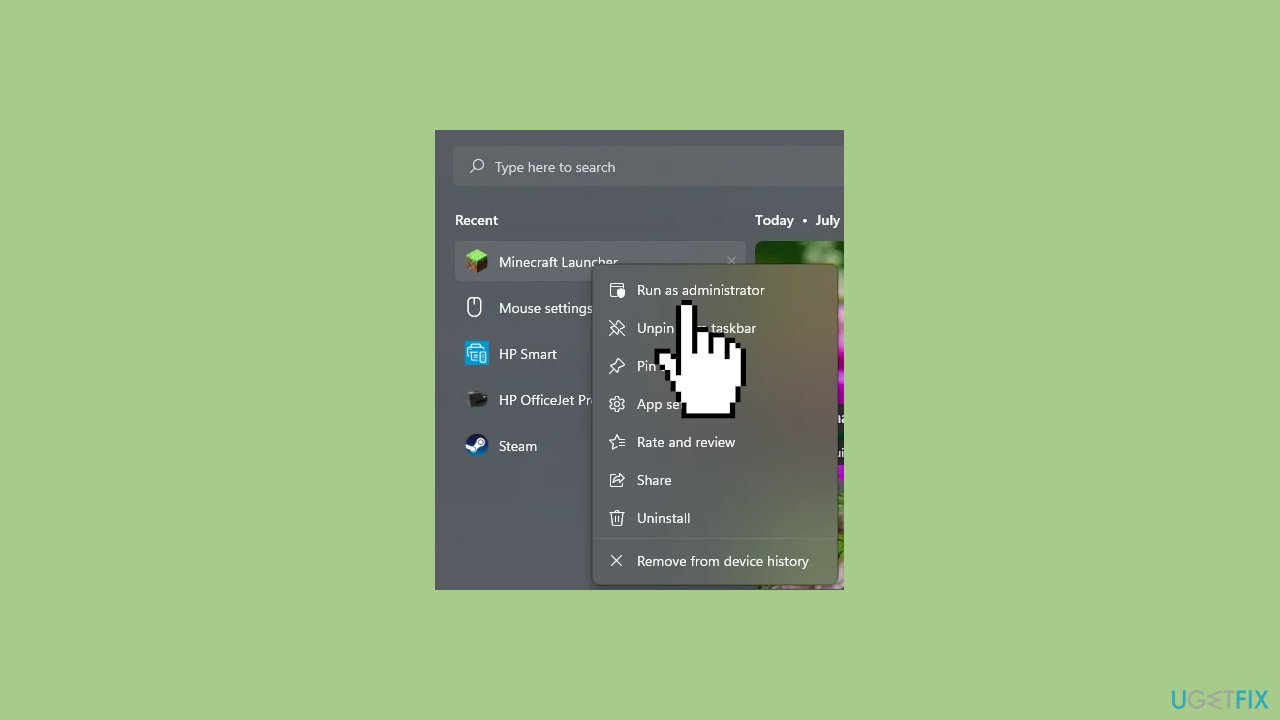
- Utilize the Windows Search bar.
- Right-click on Minecraft Launcher.
- Select Run as Administrator from the options.
- Confirm the action in the pop-up message.
Solution 3. Repair Minecraft Launcher
- Press the Windows key + I.
- In the left pane, click on Installed Apps.
- Locate Minecraft Launcher in the list.
- Click the three-dots menu next to the app name.
- Select Advanced Options.
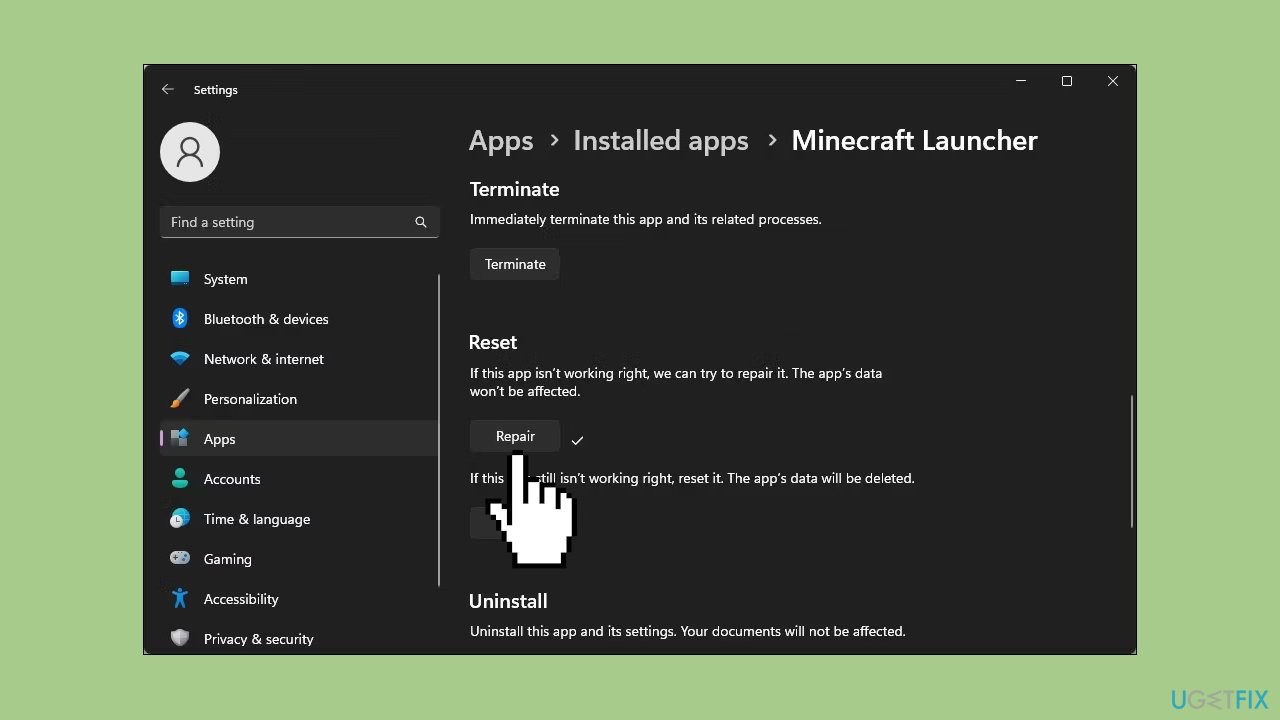
- Scroll down to the Reset section.
- Click Repair.
- Windows will perform a quick repair and display a checkmark upon completion.
- Check for any improvements after relaunching.
Solution 4. Reinstall Minecraft
- Press the Windows key + R.
- Paste %appdata%\ in the Run field.
- Click OK.
- Open the .minecraft folder.
- Right-click on the saves folder.
- Select Copy (Ctrl + C).
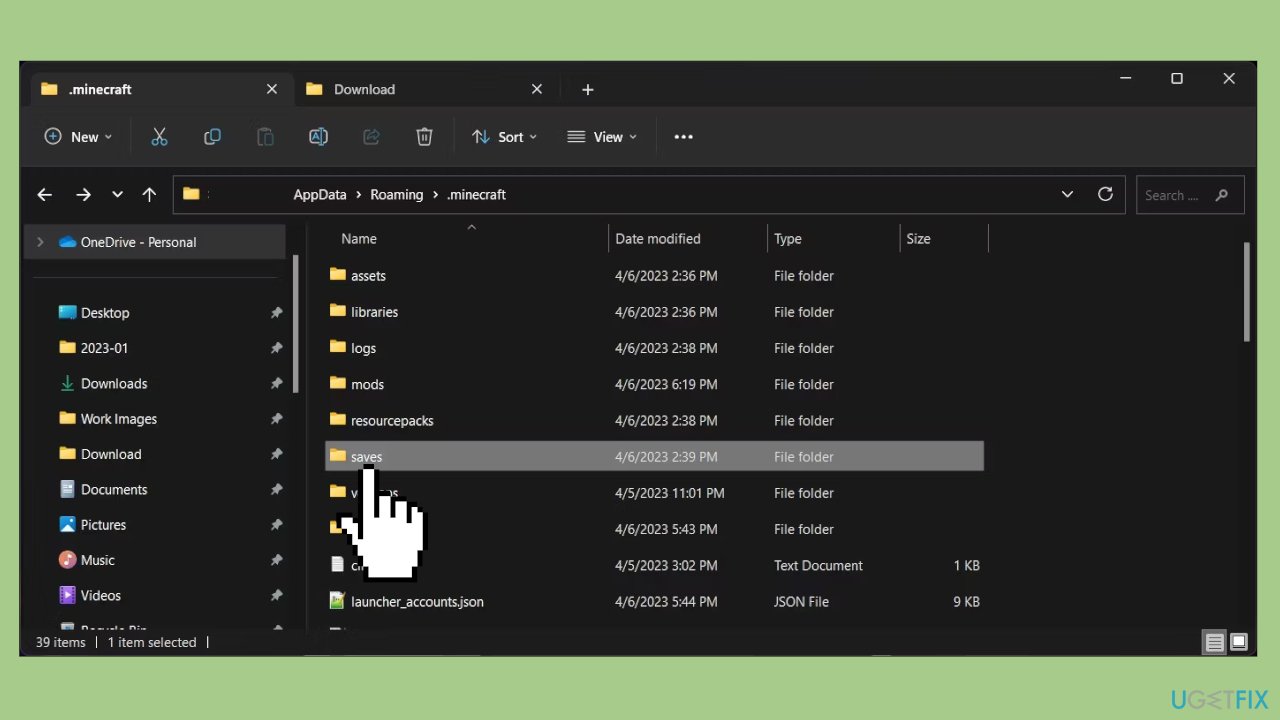
- Paste the saves folder in a location outside the .minecraft folder.
- Navigate back to the Roaming folder.
- Delete the .minecraft folder.
- Open the Minecraft Launcher.
- Start the installation process.
- Place the saves folder in C:\Users\[Username]\AppData\Roaming\.minecraft.
- Relaunch Minecraft.
Bottom line
To fix the Minecraft Launcher error 0x1 on Windows, users can try resolving program incompatibilities, verifying the accuracy of game files, or updating relevant drivers. If these steps do not resolve the issue, consider using a maintenance tool to address system errors or clear cookies and cache.
Frequently asked questions
The error 0x1 is commonly caused by corrupted game files, outdated Java, or conflicts with antivirus software. Ensuring all components are up-to-date and whitelisting Minecraft in your antivirus can help resolve the issue.
You can repair corrupted game files by launching the Minecraft Launcher, navigating to the Settings, and using the 'Repair' option. Alternatively, reinstalling the game can also effectively resolve the error.
Yes, updating Java is crucial as an outdated version can contribute to the error 0x1. Make sure to download the latest version of Java compatible with Windows 10 or Windows 11.




Report an issue
What's wrong with this guide? We review every report and update or remove content.
Report received — thank you. We'll review and fix it.
You need a free account to submit a report.
Be the first to comment