How to fix
Missing Advanced Display Settings
on Windows
Resolve missing Advanced Display Settings in Windows 10 and 11 effortlessly. Get back full control with expert-tested solutions today!

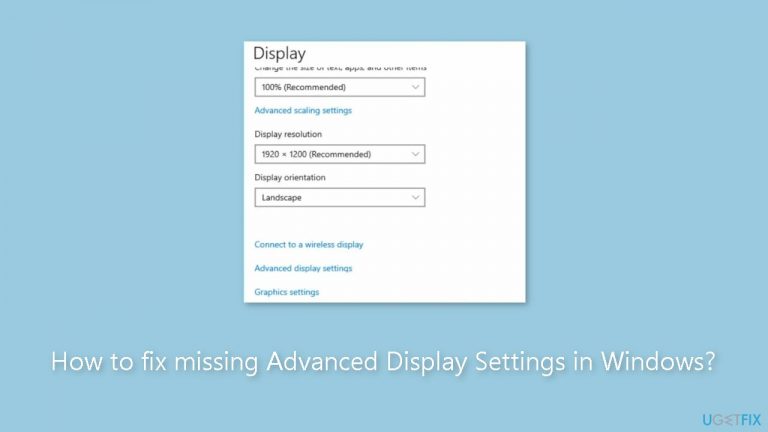
What causes How to fix missing Advanced Display Settings in Windows?
- Windows Fall Creators update
- Changes to the operating system
- Presence of both dedicated and integrated graphics cards
- Potential conflicts between graphics components
- Issues with integrated graphics driver
Repairs Windows system files, removes malware, and restores a clean OS state — without reinstalling.
Hello. The advanced display settings are missing from my Windows PC. Is there a way to get them back?
The Windows Fall Creators update may be to blame for the missing Advanced Display Settings in Windows. This update made several changes to the operating system, which may have rendered the advanced display settings inaccessible or missing. It may be frustrating and inconvenient for users who rely on these advanced settings to customize their display configurations.
The presence of both a dedicated graphics card and an integrated graphics card on the PC could be a contributing factor to the problem. These two graphics components can occasionally clash, rendering the advanced display settings unavailable. In such cases, it is recommended that the integrated graphics driver[ref en-1] be disabled or uninstalled to avoid potential conflicts and allow the dedicated graphics card to function properly.
Users can also use the hardware troubleshooter feature in Windows to troubleshoot and resolve this issue. The hardware troubleshooter scans the PC for hardware-related issues and fixes them. Running the hardware troubleshooter may help detect any underlying issues with the display settings or graphics drivers, which can then be resolved.
In this guide, you will find 4 steps that should help you fix missing Advanced Display Settings in Windows. Keep in mind, that the manual troubleshooting process can be lengthy. You can also use a maintenance tool, like [d1] that can fix most system errors, BSODs,[ref en-2] corrupted files, and registry[ref en-3] issues. Otherwise, follow the step-by-step instructions below.
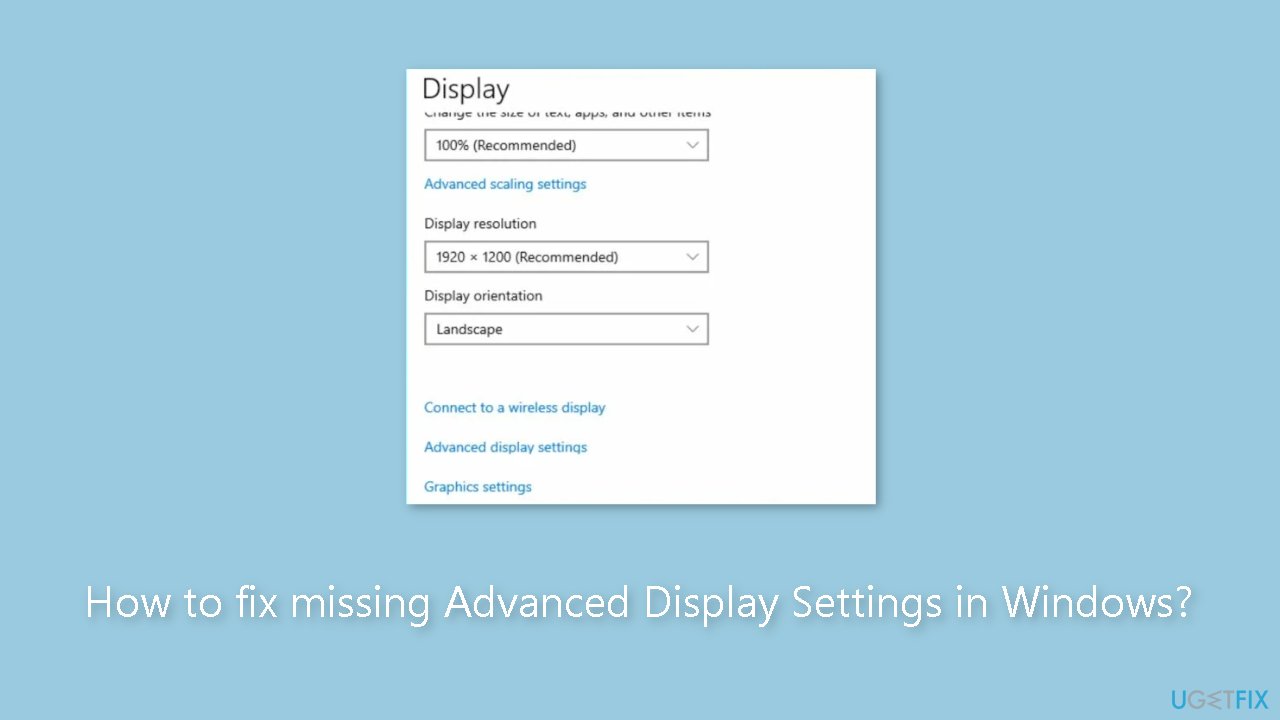
Method 1. Go to Display Adapter Properties
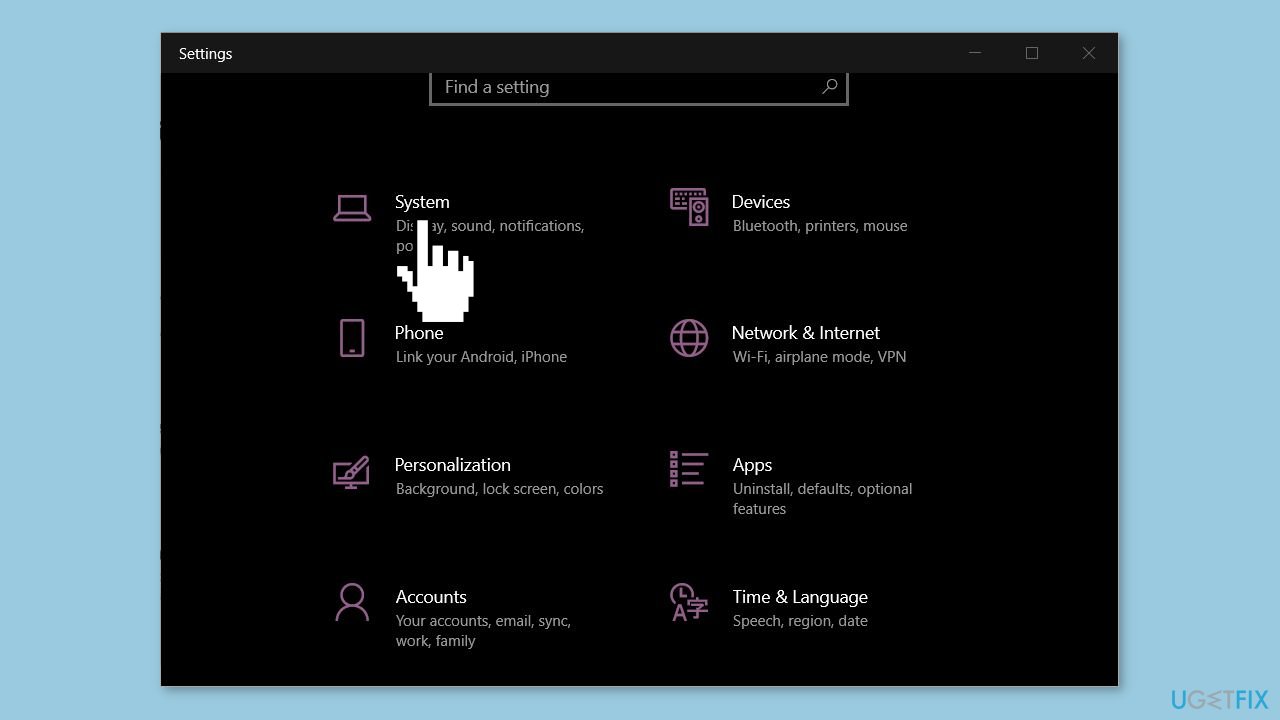
- Press the Windows key + I to open the Settings app.
- In the Settings window, click on System.
- Select Display from the left pane.
- Click on Advanced scaling settings or Scale and Layout to change the size of text and apps.
- To change your screen's resolution, click on the drop-down menu under Screen Resolution.
- Select the desired resolution from the available options.
Method 2. Disable the Inbuilt Graphics Card
- Press the Windows key + R to open the Run dialogue box.
- Type devmgmt.msc in the dialogue box and hit Enter to open the Device Manager.
- In the Device Manager window, navigate to the Display Adapters tab.
- Right-click on the onboard graphics card.
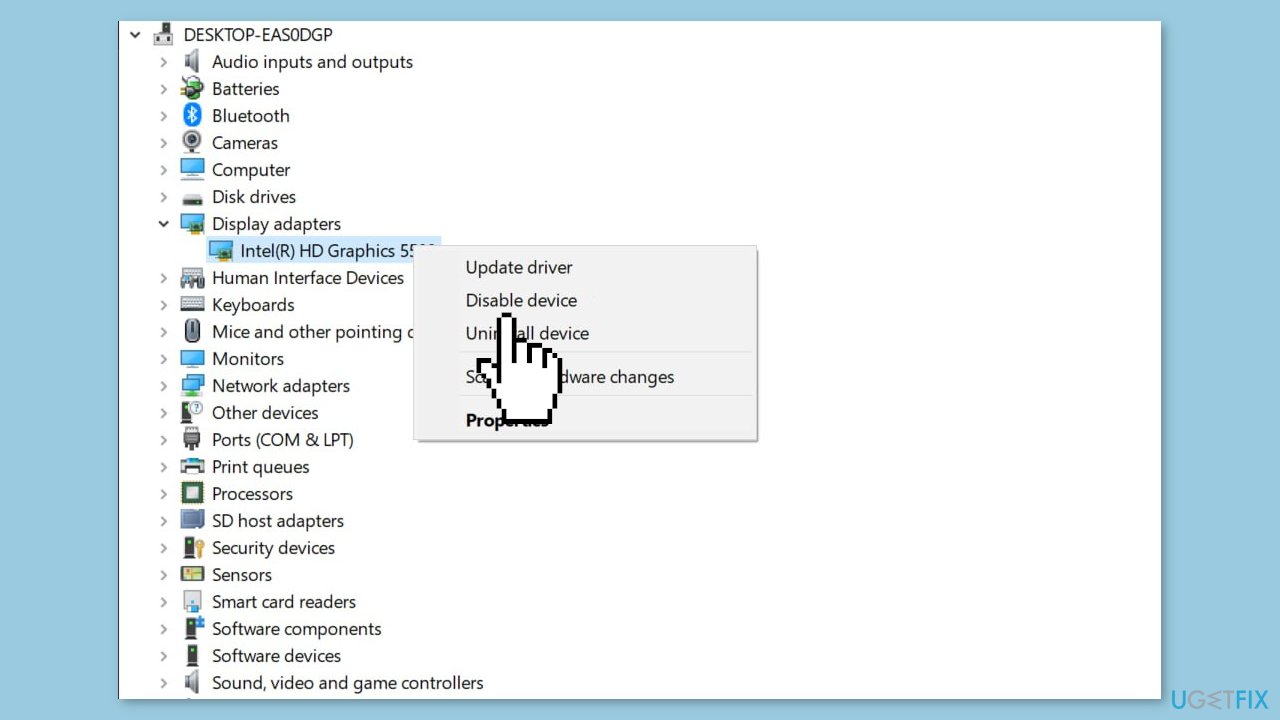
- Select Disable device from the context menu.
- Restart your PC.
- Check if the error persists after restarting your PC.
Method 3. Update Graphics Driver
- Press the Windows key to open the Windows search bar.
- Type Device Manager in the search bar and hit Enter.
- In the Device Manager window, locate Display Adapters.
- Right-click on your graphics card in the drop-down menu.
- Select Update driver from the context menu.
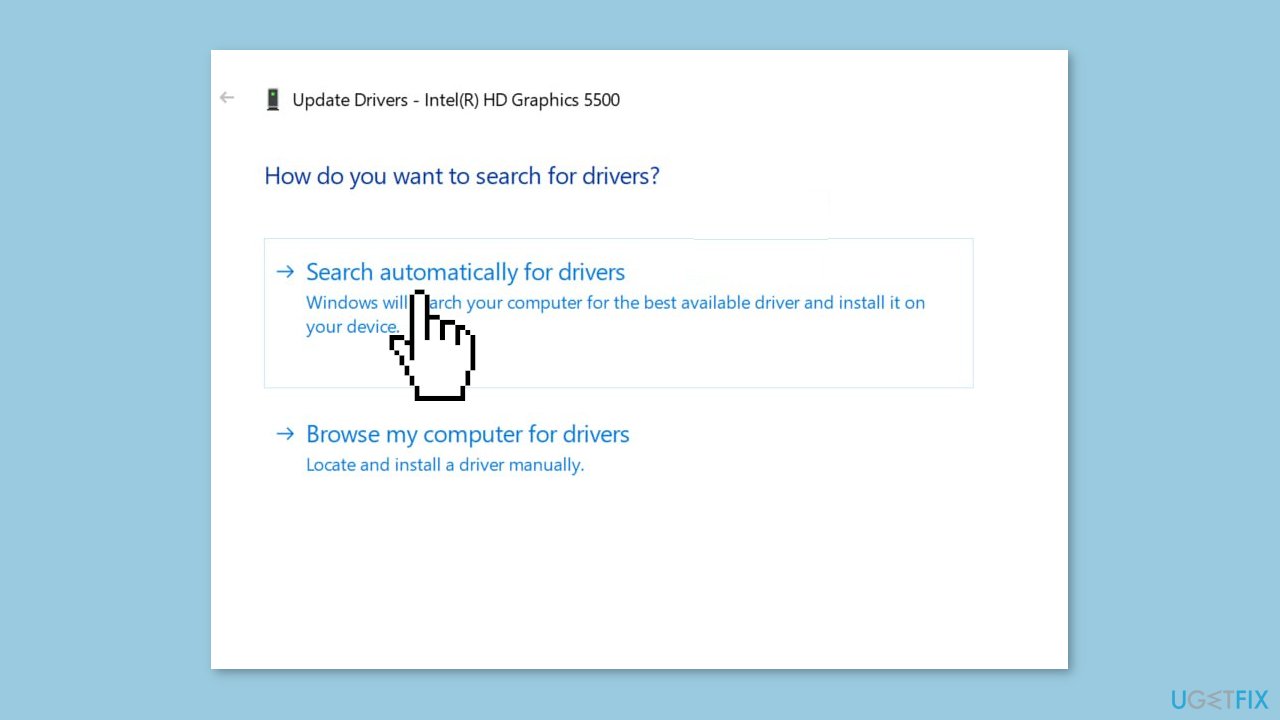
- In the next window, click on Search automatically for updated driver software.
- Wait for Windows to scan your PC's drivers for available updates.
- If there are available updates, they will be installed automatically.
You can also use a dedicated utility like [rev id="DriverFix"] that can find the best drivers for your machine and install them automatically.
Method 4. Run the Hardware and Device Troubleshooter
- Press the Windows key to open the Windows search bar.
- Type Control Panel in the search bar and hit Enter.
- In the Control Panel window, locate and click on the Troubleshooting tab.
- Click on Hardware and Sound.
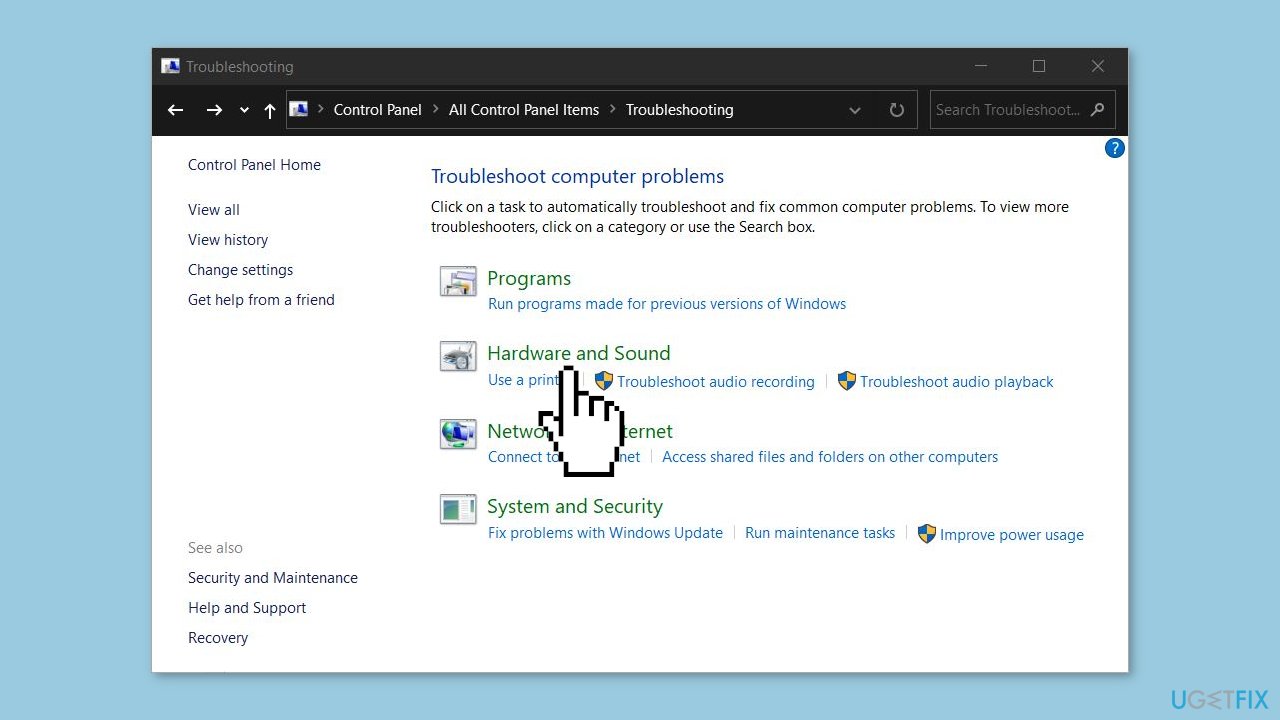
- In the popup window, select Next to start the hardware troubleshooting process.
- Windows will begin searching for hardware problems and automatically fix them if any are found.
- If a fix is applied, you might need to restart your PC to fully apply the changes.
Bottom line
To fix the missing Advanced Display Settings, you can disable the inbuilt graphics card and run the hardware troubleshooter. Additionally, you can access Display Adapter Properties to adjust settings. If these solutions do not work, consider using a maintenance tool to address system errors.
Frequently asked questions
Missing Advanced Display Settings in Windows 10 can be due to outdated graphics drivers or system settings. Ensure your graphics drivers are updated and check your display settings under 'Settings' > 'System' > 'Display'.
To restore Advanced Display Settings in Windows 11, try resetting your display settings or updating your graphics drivers via Device Manager. Additionally, check for Windows updates that might resolve this issue.
If Advanced Display Settings remain missing after updating drivers in Windows, consider running the Display Troubleshooter or performing a system file check to repair any corrupted files.




Report an issue
What's wrong with this guide? We review every report and update or remove content.
Report received — thank you. We'll review and fix it.
You need a free account to submit a report.
Be the first to comment