How to fix
“Missing Codec” error 0xC00D5212
on Windows
Resolve the "Missing Codec" error 0xC00D5212 on Windows 10 and 11 effortlessly. Expert-tested solutions to restore your media playback with screenshots.


What causes How to fix “Missing Codec” error 0xC00D5212 in Windows?
- Unsupported video file format
- Corrupted video files
- Outdated video drivers
- Corrupted graphics drivers
Repairs Windows system files, removes malware, and restores a clean OS state — without reinstalling.
I tried to play videos on my PC and received an error 0xC00D5212, and the message said "Missing codec." Is there any way I can get my videos to work?
Codecs, an abbreviation for "compressor-decompressor", are fundamental to digital media playback on computers. They are software components designed to encode and decode digital data streams or signals, primarily for video and audio content.
In earlier days of digital media, codecs were paramount as they allowed for the efficient compression and decompression of various media file formats, enabling them to be played back on computers with limited processing power and storage capacity. They work by compressing a media file for storage or transmission and then decompressing it during playback. This functionality was crucial when internet bandwidth and storage space were at a premium.
Despite advancements in technology, codec issues remain relevant. A notable example is the "Missing Codec" error 0xC00D5212, encountered by Windows users when attempting to play certain video files. This error message indicates that the system lacks the necessary codec to decode and play the video file.
One of the common causes for the 0xC00D5212 error is attempting to play a video file format that is unsupported by the media player. Different media players and Windows versions support various codecs and an absence of the required codec results in the error.
Other causes for this error include corrupted video files, where the data within the file is damaged or incomplete, preventing proper playback.
Additionally, driver issues, particularly with video or graphics drivers, can lead to codec-related problems. Drivers are essential for hardware components to function correctly and interface with software, including media players. Outdated or corrupted drivers might impede the media player's ability to utilize the necessary codecs.

Solutions to fix the 0xC00D5212 error typically revolve around ensuring that the correct codecs are installed, checking for corrupted files, and updating drivers.
Lastly, for users seeking an all-encompassing solution, employing a PC repair tool like [d1] can be advantageous. Such tools are designed to automatically identify and resolve underlying Windows issues, potentially addressing codec-related problems without the need for manual intervention.
Fix 1. Install K-Lite Codec Pack
K-Lite Codec Pack is a collection of audio and video codecs for Microsoft Windows. Installing it can solve the missing codec issue as it provides a wide range of codecs that are not natively supported by Windows. These codecs allow the media player to decode and play various types of media files.
- Visit the official K-Lite Codec Pack website.
- Download the appropriate version for your Windows operating system - you can choose from Basic, Standard, Full, or Mega packages, depending on your needs.
- Run the installer and follow the on-screen instructions.
- During installation, select a full or standard version to ensure a wide range of codecs.
- Complete the installation and restart your computer.
- Try playing the video file again.

Fix 2. Use VLC or another reliable media player
VLC Media Player is a versatile media player that supports a broad range of audio and video file formats. Using VLC or a similar reliable media player can bypass the missing codec issue as these players come with their own set of built-in codecs.
- Download VLC Media Player from the official website.
- Install the media player by following the setup instructions.
- Open the problematic video file with VLC Media Player.
- If the file plays, the issue is likely with the native media player’s codec support.

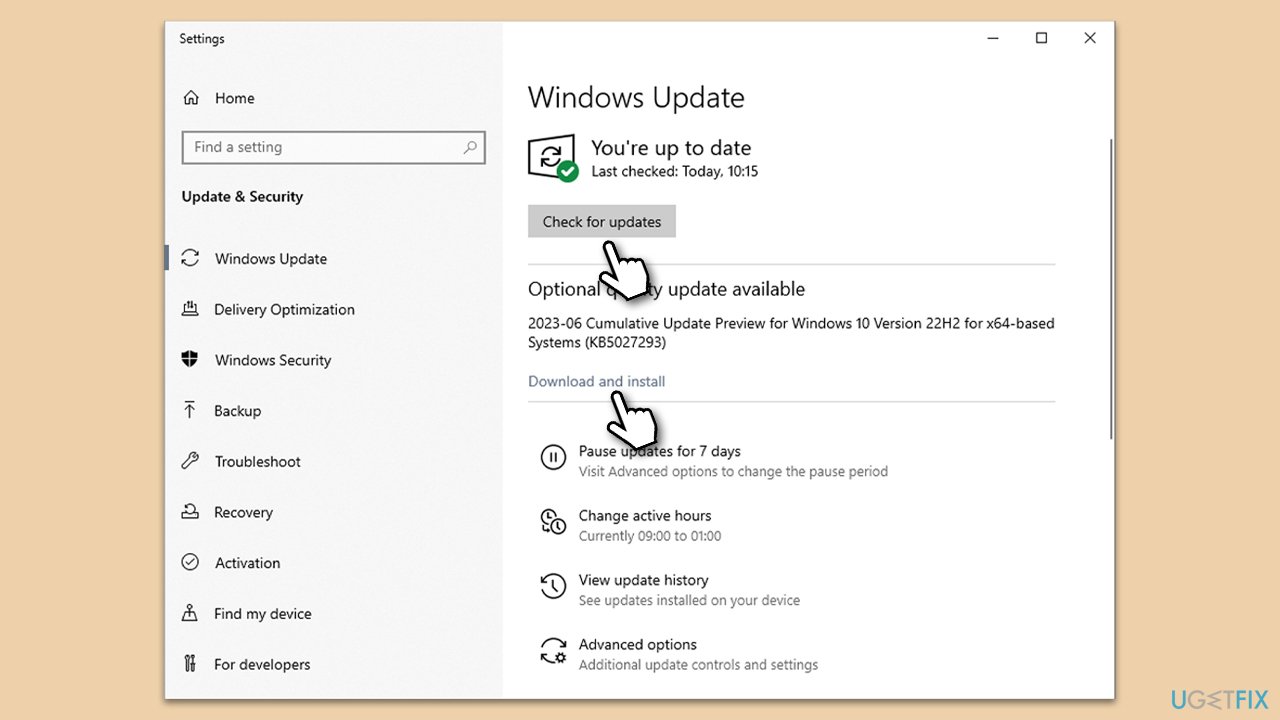
Fix 3. Install all Windows updates
Keeping Windows up-to-date ensures that you have the latest codecs provided by Microsoft. Updates often include new features, bug fixes, and new codecs that can resolve playback issues.
- Type Updates in Windows search and press Enter.
- Here, click Check for updates and wait.
- If optional updates are available, install them too.
- Once everything is installed, reboot Windows.
Fix 4. Update your GPU drivers
Graphics card drivers are crucial for video playback. Updating your GPU drivers can resolve compatibility issues and enhance performance, potentially fixing the codec error. For an automatic solution, we recommend employing [rev id="DriverFix"].
- Right-click on Start and pick Device Manager.
- Locate Display adapters and expand it.
- Right-click on your GPU and choose Update driver.
- Select Search automatically for drivers.
- Follow the on-screen instructions and then restart your device.

Fix 5. Reinstall your GPU drivers
Reinstalling GPU drivers can help if the current drivers are corrupt or outdated. This ensures that your graphics card functions optimally and can handle video playback effectively.
- Right-click on Start and pick Device Manager.
- Expand Display adapters.
- Right-click on your GPU and select Uninstall device.
- Mark the Delete the driver software for this device tickbox.
- Click Uninstall and follow the instructions to finish the process.
- Restart your device and install the latest drivers.

Fix 6. Convert the video file to a different format
Sometimes, converting the video file to a different format that is more widely supported can resolve playback issues.
- Use a reliable video conversion tool.
- Download and install the converter.
- Open the converter and import the video file.
- Select a widely supported format like MP4.
- Start the conversion process.
- Once converted, try playing the new file.
Fix 7. Run Video Playback Troubleshooter
Windows includes built-in troubleshooters that can automatically fix some common problems - try running one related to video playback.
- Type Troubleshoot in the Windows search bar and open it.
- Choose Additional troubleshooters/Other troubleshooters.
- Select Video Playback.
- Click on it and select Run the troubleshooter/Run.
- Follow the on-screen instructions to run the troubleshooter.
- Apply any recommended fixes.

Fix 8. Restore your system to a previous point
If the codec error started occurring recently, restoring your system to a previous point when everything worked fine can solve the problem.
- Type in Create a Restore point in Windows search and hit Enter.
- In the System Protection tab, pick System restore.
- Click Next.
- Click Show more restore points (if available).
- Pick the time before the problem occurred and click Next.
- Your computer will reboot.

Bottom line
To fix the 0xC00D5212 error, ensure that the correct codecs are installed, check for corrupted files, and update your video and graphics drivers. If these solutions do not resolve the issue, consider using a PC repair tool to automatically identify and fix underlying Windows problems.
Frequently asked questions
The 'Missing Codec' error 0xC00D5212 usually occurs when the media file you are trying to play requires a codec that is not installed on your system. This can happen with certain video formats or when using outdated media players.
You can install missing codecs by downloading a codec pack, such as K-Lite Codec Pack, which supports a wide range of media formats in Windows 10 and Windows 11. After installation, restart your media player and try playing the file again.
Yes, you can use the built-in Windows Troubleshooter for apps to detect and fix issues related to media playback that may lead to the 'Missing Codec' error. Access it through Settings > Update & Security > Troubleshoot.




Report an issue
What's wrong with this guide? We review every report and update or remove content.
Report received — thank you. We'll review and fix it.
You need a free account to submit a report.
Be the first to comment