
How to fix missing currency in Calculator app on Windows?

Prefer to fix it yourself? The manual steps follow.
- 7methods
- 2 to 15 minutes
- Easy
Applies to The Windows Calculator app from Microsoft Store on Windows 11 and Windows 10
7 methods in this guide
Hello. I can't find the USD currency option in the Calculator app on my Windows laptop. What should I do?
Windows Calculator builds its currency list from exchange rates it downloads from Microsoft, and it shows a currency only when that data holds a rate for it. A missing USD or an empty list almost always means the rates did not download. Connect to the internet, open Currency and select Update rates first.
Calculator's currency list comes from rates it downloads, so a currency it has no rate for is simply left out. Connect to the internet, open Currency and select Update rates (Fix 1). On a metered or roaming connection Calculator does not download on its own (Fix 2). If the list is full but USD seems gone, look for it under its country name in your Windows language (Fix 3). Reset the app if nothing changes (Fix 5).
| Error | A currency such as USD is missing from the Currency converter in Windows Calculator, or the list is empty. Sometimes with "Couldn't get new rates. Try again later." or an Offline note. |
|---|---|
| Where it appears | Calculator, Open navigation (the three lines) > Currency, in the two currency lists you pick from. |
| Main cause | The rates did not download. Calculator lists a currency only when its saved data holds a rate above zero for it. |
| Fastest fix | Connect to the internet and select Update rates under the converter (Fix 1, 1 minute). |
| Also written as | Windows calculator currency missing, currency converter not working, calculator USD missing, could not update rates. |
| Affects | The Calculator app on Windows 11 and Windows 10. Windows 10 left support on 14 October 2025, but the app still updates from Microsoft Store. |
| Microsoft's status | Not a listed known issue. Microsoft says the rates update automatically when you are connected to the internet. A 2024 report of rates that would not update is open on the app's GitHub page. |
| Rate refresh | Calculator keeps the last rates it got and tries to download new ones when they are more than a day old, on a normal network. |
| Time to fix | 1 to 3 minutes for Fixes 1 to 3. About 10 minutes for a reset or a reinstall. |
Facts checked on 15 October 2026. Steps written for Windows 11 (25H2 and 26H2) and Windows 10 22H2.
Why a currency goes missing in Windows Calculator
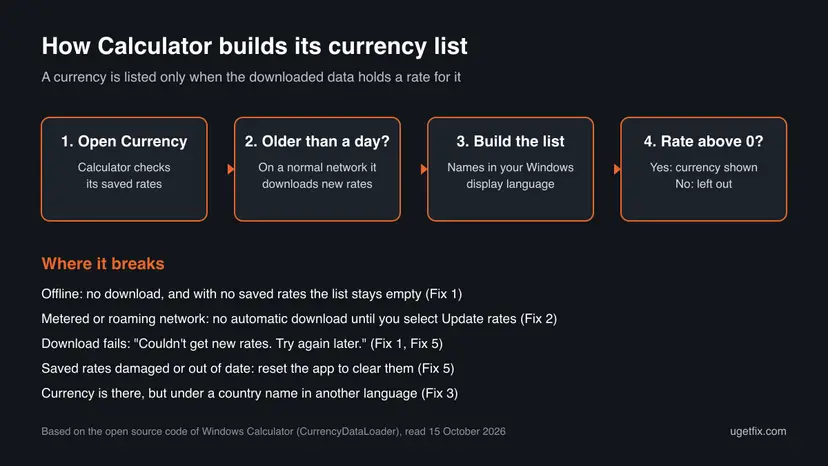
Calculator does not ship with a fixed list of currencies. Microsoft's own page says the rates update automatically when you are connected to the internet. The app is open source, and its code shows how the list is made: Calculator downloads two files from Microsoft, one with the currency names and one with the rates, and saves both on the PC.
When it builds the list, it takes each currency from the names file and keeps it only if the rates file has a rate above zero for it. A currency without a rate is not shown at all. So "USD is missing" does not mean Calculator dropped the dollar. It means the data on your PC is empty, old, damaged, or in another language than you expect.
| What you see | What it means |
|---|---|
| The Currency lists are empty, no numbers convert | No rates were ever saved on this PC, and the download failed (Fix 1, Fix 2). |
| "Offline. Please check your Network Settings" | Windows reports no internet connection to the app (Fix 1). |
| "Couldn't get new rates. Try again later." after Update rates | The download from Microsoft failed: network, clock or a blocked connection (Fix 1, Fix 6). |
| A full list, but USD or another currency is not where you look | It is listed under its country name, in your Windows display language (Fix 3). |
| The list is full but old, with an old Updated date | The PC is on a metered or roaming connection, so no automatic download (Fix 2). |
Causes of a missing currency in Calculator, most likely first
- Most often: the rates never downloaded. The PC was offline the first time you opened Currency, or a proxy, VPN or firewall blocked the request. With no saved rates there is nothing to list (Fix 1).
- Often: a metered connection. When Windows treats the network as metered, roaming or over its data limit, Calculator waits for you to select Update rates instead of downloading on its own (Fix 2).
- Often: the currency is there under another name. Names come in your first Windows display language and each entry carries a country name, so the dollar may sit under a word you did not look for (Fix 3).
- Sometimes: an old app version with a broken connection to the rate service (Fix 4).
- Sometimes: damaged saved data. If the saved files cannot be read, Calculator has no list to show; a reset clears them (Fix 5).
- Rarely: a wrong clock, which makes secure downloads fail, or a damaged app install (Fix 6, Fix 7).
Calculator saves the language the rates were downloaded in. When your first Windows display language changes, it ignores the saved copy and needs to download the list again, so a currency can vanish right after a language change until the PC is online.
How to get the missing currency back in Windows Calculator
Start with Fix 1 in almost every case. Use Fix 2 if you are on a phone hotspot, mobile data or a capped Wi-Fi. Use Fix 3 if the list is full and only one currency seems missing.
| What you see or what your PC has | Start with |
|---|---|
| Empty currency lists, or an Offline note | Fix 1 |
| Hotspot, mobile data, roaming or a metered Wi-Fi | Fix 2 |
| A long list, but USD or one currency is not there | Fix 3 |
| Calculator has not updated for months | Fix 4 |
| Update rates fails every time on a good connection | Fix 5 |
| Websites show certificate errors too | Fix 6 |
| Calculator crashes or will not open at all | Fix 7 |
Fix 1. Connect to the internet and select Update rates
1 minuteNo riskThe currency lists are empty, you see an Offline note, or a currency is missing after a new install.
Calculator lists only the currencies it has rates for, and it gets those rates from the internet. A successful download fills the list at once, including USD.
- Make sure the PC is online: open a website in your browser.
- Open Calculator, select Open navigation (the three lines at the top left) and select Currency.
- Look below the two amounts. If you see Offline. Please check your Network Settings, fix the connection first.
- Select Update rates. Calculator shows Updating currency rates while it works.
- Wait for Currency rates updated and an Updated line with today's date and time.
- Open the currency list again and look for the missing currency.
A company proxy or firewall can block the request, and you then see "Couldn't get new rates. Try again later." every time. Try once on a home network, or ask your administrator to allow Calculator's connection.
If the connection itself is the problem, the checks in How to check your internet connection in Windows show where it breaks.
It worked if: The Updated line shows today's date, and both currency lists are full again.
If not: If you are on mobile data or a hotspot and nothing downloads on its own, use Fix 2. If the list is full but one currency seems gone, use Fix 3.
Fix 2. Turn off Metered connection for your network, or update the rates by hand
2 minutesNo riskYou use a phone hotspot, mobile data, roaming, or a Wi-Fi that Windows marks as metered.
Calculator's code treats a metered, roaming or over-limit connection as one where it may not download on its own. It keeps the old rates, or none, until you ask.
- Windows 11: open Settings > Network & internet, select Wi-Fi or Ethernet, then the properties of the connected network.
- Look at Metered connection. If it is On and you have no data cap, turn it Off.
- Windows 10: open Settings > Network & Internet > Wi-Fi, select the connected network and turn off Set as metered connection.
- If you want to keep the network metered, stay as you are and just select Update rates in Calculator. A download you start yourself is allowed.
- Close Calculator, open it again and open Currency.
It worked if: The Updated line shows today's date and the missing currencies are back.
If not: If the rates update but you still cannot find the currency, use Fix 3.
Fix 3. Look for the currency under its country name and check the Windows language
2 minutesNo riskThe list is long and up to date, but USD or one other currency seems to be missing.
Each entry in the list carries a country name and a currency name in your first Windows display language. The dollar may be under United States or under the country's name in another language.
- Open Currency and select the first currency list.
- Scroll to the country name, for example United States for USD, or the name in your display language.
- Check the code shown next to the amount: USD, EUR, GBP and so on.
- If the names are in a language you did not expect, open Settings > Time & language > Language & region and look at the first language under Windows display language or Preferred languages.
- After a language change, connect to the internet and select Update rates, because Calculator downloads the list again for the new language.
Calculator also remembers the last two currencies you picked. On a new install it starts with a pair that suits your language, for example dollar and euro, or the local currency and the dollar.
It worked if: You find the currency in the list, with its code shown next to the amount.
If not: If the currency is truly not in the list after a successful update, update the app with Fix 4.
Fix 4. Update Calculator from Microsoft Store
3 minutesNo riskCalculator has not been updated for a long time, or Update rates fails on a good connection.
The rate download is part of the app's own code, and Microsoft rewrote that part in newer versions. An old copy can fail where a current one works.
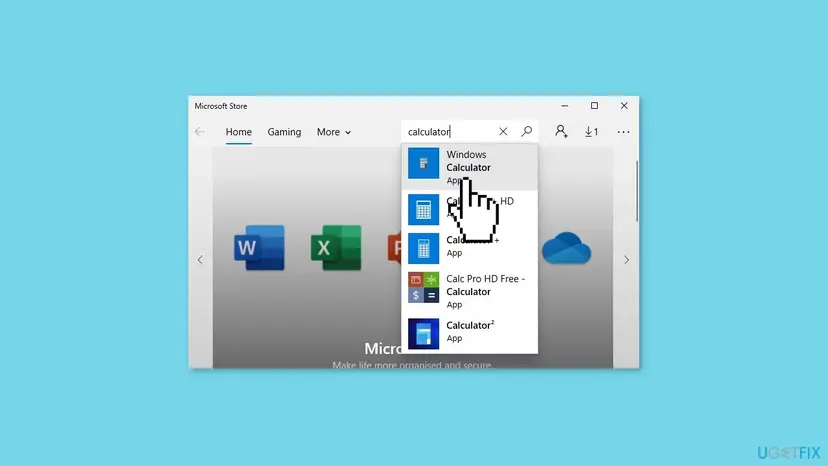
- Open Microsoft Store.
- Select Library at the bottom left, then Get updates.
- If Windows Calculator is in the list, let it update. Or search for Windows Calculator and select Update if the button shows.
- Open Calculator, go to Currency and select Update rates.
It worked if: The Store shows Calculator as up to date, and Update rates fills the list.
If not: If the rates still fail or the list stays empty, reset the app with Fix 5.
Fix 5. Reset Calculator to clear its saved rates
5 minutesLow riskUpdate rates fails every time on a good connection, or the list stays empty after an update.
Calculator saves the downloaded names and rates in its own app data. A reset deletes that data, so the next start downloads a clean copy instead of reading a damaged one.
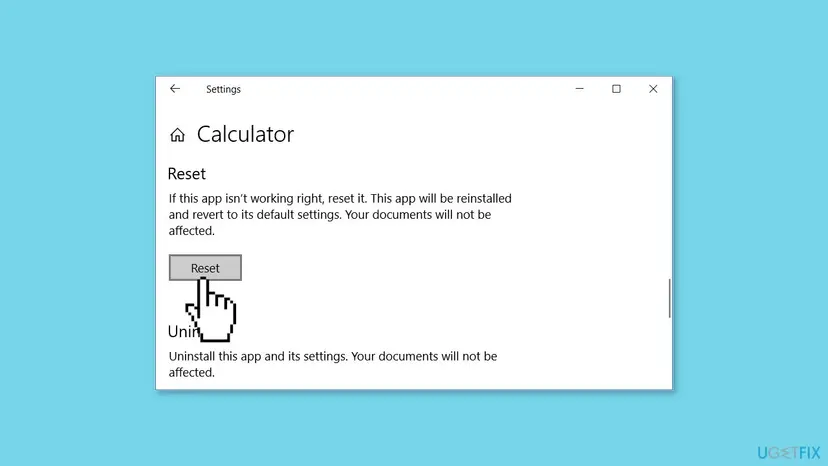
Select Terminate first, then Repair, and try Currency again. If that does not help, select Reset. A reset also clears Calculator's history and memory values, so copy any result you need first.
- Open Installed apps. Select Start > Settings > Apps > Installed apps.
- Open the app's advanced options. Find the app in the list, select the three dots next to it and select Advanced options. Some apps do not have this option: for those, see the section about desktop programs below.
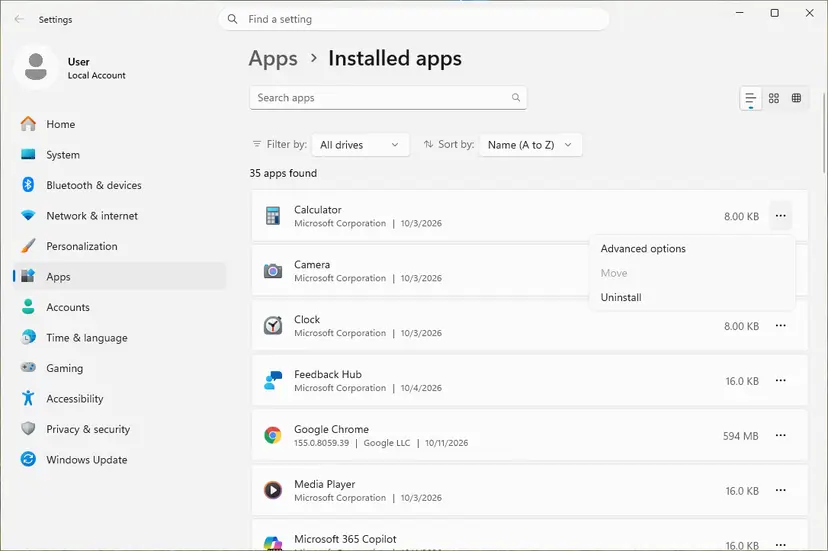
The three dots next to an app open Advanced options. Screenshot: Windows 11 26H2. - Repair first. On the page that opens, select Repair if it is there. The app's data stays. Open the app and check whether it works.

Repair keeps the app data. Reset deletes it. Screenshot: Windows 11 26H2. - Reset if Repair did not help. Select Reset. This deletes the app's data on this PC, including sign-in details and settings. Open the app and set it up again.
These steps were written for Windows 11 25H2 and 26H2. The full page with the other versions and what each result means: How to repair or reset an app in Windows
It worked if: Calculator opens with default settings, and after Update rates the full currency list is back.
If not: If websites also show certificate or time errors, check the clock with Fix 6. Otherwise reinstall with Fix 7.
Fix 6. Set the correct date and time
5 minutesNo riskUpdate rates fails and the PC clock is wrong, or websites show certificate errors.
Calculator downloads the rates over a secure connection. A clock that is far off makes secure downloads fail, and it also makes the Updated date look wrong.
- Compare the taskbar clock with your phone.
- If it is wrong, turn on Set time automatically and check the time zone, as below.
- Open Calculator again and select Update rates.
- Open Date & time. Select Start > Settings > Time & language > Date & time.
- Turn on automatic time. Make sure Set time automatically is On.
- Check the time zone. A clock that is wrong by exactly one or more hours has the wrong time zone. Turn Set time zone automatically On, or turn it Off and pick your zone in the list next to Time zone.
- Sync the clock now. Under Additional settings, select Sync now. Windows asks the time server for the current time and corrects the clock.
- Open Command Prompt as administrator. If Sync now fails or the clock is still wrong, resync the Windows Time service by hand. Select Search, type command prompt, select Run as administrator, then select Yes.
- Start the service and resync. Type the two commands below and press Enter after each. The first starts the Windows Time service. If Windows answers that the service is already started, go on. The second tells the PC to resynchronize its clock as soon as possible.
net start w32time w32tm /resync - Set the time by hand as the last step. If the PC has no internet connection, turn Set time automatically Off and select Change next to Set the date and time. Enter the date and time and select Change.
These steps were written for Windows 11 25H2 and 26H2. The full page with the other versions and what each result means: How to fix the date and time in Windows
It worked if: The clock matches your phone, and Update rates ends with Currency rates updated.
If not: If Calculator itself misbehaves, reinstall it with Fix 7.
Fix 7. Uninstall Calculator and install it again from Microsoft Store
10 minutesLow riskNothing above helped, Calculator crashes, or it is missing from the PC altogether.
A reinstall replaces the app files and its data in one go. It is also the fix when the Calculator app itself is missing from Start.
- Windows 11: open Settings > Apps > Installed apps, select the three dots next to Calculator and select Uninstall.
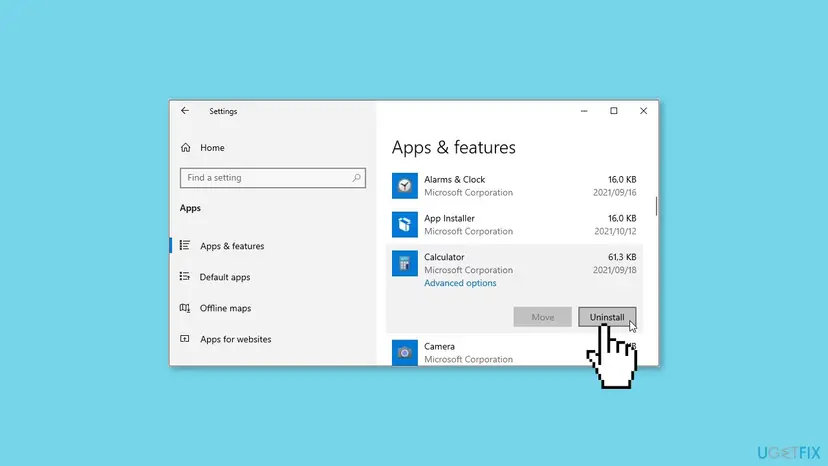
- Windows 10: open Settings > Apps > Apps & features, select Calculator and select Uninstall.
- Open Microsoft Store and search for Windows Calculator.
- Select Get or Install on the app from Microsoft Corporation.
- Open Calculator, go to Currency and select Update rates.
If Calculator is installed but will not open or appear in Start, re-registering it may be enough, without a download: How to re-register Microsoft Store apps with PowerShell.
It worked if: Calculator starts fresh, and after one Update rates the currency lists are complete.
If not: Read "Still missing" below for what to check and what to report.
The currency is still missing in Calculator: what to check
- Does Update rates end with "Couldn't get new rates. Try again later." on every network? Then the problem is between the app and Microsoft's rate service, not on your PC. Try again later the same day.
- Is it a work or school PC? A proxy or firewall may block the rate download. Your administrator can see whether Calculator's request is stopped.
- Does the Updated line show an old date? The app is using saved rates. Converting works, but the numbers are old, so do not use them for payments.
- Is the currency new or recently renamed? Calculator shows only what Microsoft's rate data contains. We could not confirm a published list of the currencies it covers.
To report it, open Feedback Hub and choose the Calculator app, or add to the open report on the Calculator GitHub page. Give the Calculator version from Settings inside the app, your Windows display language, the exact message you see and which fixes you tried.
How to keep all currencies in Calculator
- Open Currency now and then on a normal internet connection, so the saved rates stay fresh.
- Select Update rates before you rely on a rate, and check the Updated date.
- Keep Calculator updated through Microsoft Store Library.
- Select Update rates once after you change the Windows display language.
- Do not use Calculator's rate for a payment or a bank transfer; your bank's rate and fees are different.
- Do not install unknown currency converter apps to replace Calculator's list.
- Do not reset Windows for a missing currency. The app's own reset is enough.
Frequently asked questions
Why is USD missing from my Windows Calculator?
Almost always because the rates did not download. Calculator keeps a currency in the list only when its saved data has a rate above zero for it, and the US dollar is listed under its country name in your display language. Connect to the internet, open Currency and select Update rates (Fix 1). On a metered or roaming connection Calculator does not download on its own (Fix 2). If the list is long and up to date, scroll to United States, or its name in your language, before you assume the dollar is gone (Fix 3).
What does "Couldn't get new rates. Try again later." mean?
It means Calculator tried to download new exchange rates and the download failed. The app then keeps using the rates it saved before, if it has any. Common reasons are no internet, a proxy or firewall on a work network, or a clock that is far off. Check the connection, set the time automatically, and select Update rates again (Fix 1, Fix 6). If it fails on every network, the problem may be on the service side; try again later the same day.
Does the Calculator currency converter work offline?
Partly. Calculator saves the last names and rates it downloaded and uses them when the PC is offline, with an Offline note and the date of the last update. Conversions then work, but with old rates. If the app has never been online since it was installed, reset or language change, there is no saved data, so the currency lists stay empty until you connect and select Update rates.
How often does Windows Calculator update currency rates?
Microsoft says the rates update automatically when you are connected to the internet. The app's code shows the detail: when you open Currency, Calculator checks its saved rates and tries to download new ones if they are more than a day old, on a normal connection. On a metered or roaming connection it waits for you to select Update rates. The Updated line under the converter shows the date and time of the rates you are using.
Windows Calculator is missing from my PC. How do I get it back?
Open Microsoft Store, search for Windows Calculator and select Get or Install on the app from Microsoft Corporation. That restores it on Windows 11 and Windows 10. If Calculator is installed but missing from Start or will not open, re-register it with the steps in our procedure, or repair it in Settings, Apps, Installed apps, Advanced options (Fix 5, Fix 7). On a work PC an administrator may have removed it on purpose, so ask before you reinstall.
Why are the currency names in another language?
Calculator downloads the currency and country names in your first Windows display language, not in the language of the app's menus. If that language is not the one you read, the names look foreign and a currency seems to be missing. Check the order under Settings, Time and language, Language and region. After you change it, connect to the internet and select Update rates, because Calculator downloads the list again for the new language.
Is the Windows Calculator exchange rate accurate enough for payments?
Use it as a guide, not for payments. The rate is the one Microsoft's service gave when the app last updated, which you can see in the Updated line. Banks, cards and payment services use their own rates and add fees, so the amount you pay will differ. For a transfer or an invoice, check the rate your bank or payment service shows at the moment you pay.
Will resetting Calculator delete anything important?
A reset deletes only Calculator's own data on this PC: its settings, history, memory values and the saved currency rates. It does not touch your documents or other apps. Copy any result from history that you still need before you reset. After the reset, open Currency on a working internet connection and select Update rates, so the app downloads a clean list (Fix 5).
Is this page about other languages too, like "no aparece" or Turkish searches?
Yes. This page is about Windows Calculator on Windows 11 and Windows 10, whatever language Windows uses. Spanish readers who search that a currency does not appear (no aparece), or Turkish readers searching about the calculator on their computer, have the same cause: missing rate data or names in the display language. The steps are the same; only the menu names on your screen are translated.
Sources
- Microsoft Support: Use the Calculator in Windows (Convert currency, rates update when connected) (support.microsoft.com)
- Windows Calculator source code on GitHub: CurrencyDataLoader, NetworkManager and the en-US messages (microsoft/calculator) (github.com)
- GitHub issue #2105: Cannot update Currency rates (user report, 2024, open) (github.com)
Did this fix work?
One click, no account. It tells the next reader which guides are worth their time.
Questions and experiences: fix missing currency in Calculator app on Windows
Still broken, or found a fix we did not cover? Ask here: members and our editors answer. Reading is open; writing needs a free account.
…