
How to fix missing default Power Plans and CsEnabled option?

Prefer to fix it yourself? The manual steps follow.
- 8methods
- 5 minutes to find the cause, 15 minutes to restore the plans
- Intermediate
Applies to Windows 11, Windows 10
8 methods in this guide
- Why only Balanced is left
- Causes and the fix for each
- The fixes
- 1. Check Modern Standby
- 2. Restore default plans
- 3. Add one plan by GUID
- 4. Use Power mode instead
- 5. Make a plan from Balanced
- 6. PlatformAoAcOverride = 0
- 7. Chipset driver and firmware
- 8. Repair or roll back
- If plans are still missing
- Keep the plans
- FAQ
Hey. I don't know what to do. Power plans disappeared on my PC after the Windows 10 update. The power plans do not exist now, and the CsEnabled key no longer exists. I also cannot find the normal options there. Can I get them back? How can I fix this issue with missing options? Help!
When Power Options shows only Balanced, the PC usually uses Modern Standby, and Microsoft allows only Balanced or plans made from it there. The CsEnabled registry value that old guides change is often missing on current Windows. Run powercfg /a first to see which case you have.
Run powercfg /a (Fix 1). If it lists Standby (S0 Low Power Idle), your PC uses Modern Standby, and only Balanced is allowed by design. Use Power mode instead (Fix 4) or turn Modern Standby off with PlatformAoAcOverride (Fix 6), since CsEnabled is often missing. If it lists Standby (S3), the plans were deleted, and powercfg -restoredefaultschemes brings them back (Fix 2).
| Error | No error message. Power Options shows only Balanced; High performance, Power saver and Ultimate Performance are gone, and CsEnabled is not in the registry. |
|---|---|
| Where it appears | Control Panel > Power Options (powercfg.cpl) and the registry key HKEY_LOCAL_MACHINE\SYSTEM\CurrentControlSet\Control\Power. |
| Main cause | The PC supports Modern Standby (S0 Low Power Idle). Microsoft: such devices only allow the Balanced plan or plans derived from it. |
| Fastest fix | Check with powercfg /a (Fix 1). Modern Standby: use Power mode (Fix 4). Classic S3 sleep: powercfg -restoredefaultschemes (Fix 2). |
| Also written as | CsEnabled missing, CsEnabled = 0, cs enabled, only Balanced power plan, High performance missing, restore default power plans. |
| The registry values | CsEnabled (DWORD, older method, often missing) and PlatformAoAcOverride (DWORD 0 turns Modern Standby off, used in current guidance). Both under HKLM\SYSTEM\CurrentControlSet\Control\Power. |
| Plan GUIDs | Balanced 381b4222-f694-41f0-9685-ff5bb260df2e, High Performance 8c5e7fda-e8bf-4a96-9a85-a6e23a8c635c, Power Saver a1841308-3541-4fab-bc81-f71556f20b4a, Ultimate e9a42b02-d5df-448d-aa00-03f14749eb61. |
| Affects | Windows 11 and Windows 10 laptops, tablets and some desktops with Modern Standby. Windows 10 support ended on 14 October 2025. |
| Vendor status | By design. Microsoft documents that Modern Standby devices allow only Balanced. Not a bug to wait out. |
| Time to fix | 2 minutes to check, 5 minutes for the commands, 15 minutes with the registry change and a restart. |
Facts checked on 16 October 2026. Steps written for Windows 11 (25H2 and 26H2) and Windows 10 22H2.
What the missing power plans and the missing CsEnabled value mean
Windows has three default power plans: Power saver, Balanced and High performance, each with a fixed GUID. Microsoft's own documentation adds one note that explains most cases: devices that support Modern Standby only allow the Balanced plan, or plans derived from Balanced. On such a PC the other plans are not deleted by mistake. Windows hides them on purpose.
Modern Standby, also shown as Standby (S0 Low Power Idle), keeps the PC lightly awake in sleep, like a phone. It replaces the classic S3 sleep. Many laptops ship with it, and a firmware or Windows update can switch it on for a PC that had S3 before. That is why readers often notice the plans vanish right after an update.
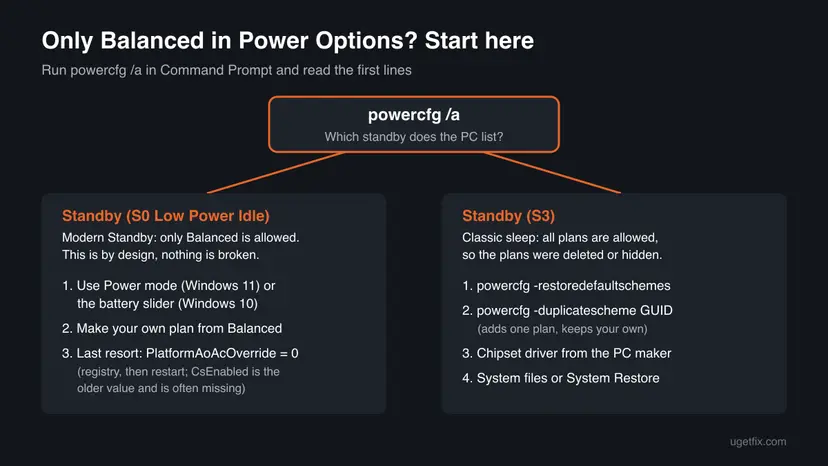
Older guides, including the earlier version of this page, set the DWORD CsEnabled to 0 to turn Modern Standby off. On current Windows this value is often not there at all. Current guidance from a long-time Microsoft MVP uses PlatformAoAcOverride set to 0 instead. We could not confirm from Microsoft in which version CsEnabled stopped working.
- CsEnabled stands for connected standby enabled, the older name of Modern Standby. A missing CsEnabled value is normal on recent builds and is not damage.
- IgnoreCsComplianceCheck is another value that shows up in forum posts. We could not confirm from Microsoft what it does, so this guide does not use it.
- Power mode in Windows 11 Settings (Best performance, Balanced, Best power efficiency) works on top of the Balanced plan. On Modern Standby PCs it is the supported way to get more speed.
Why the default power plans disappear, from most to least common
Most often the PC uses Modern Standby, so only Balanced is allowed. Less often the plans were deleted on a PC with classic S3 sleep, by a tuning tool, a maker's own power app or a restored system image. Rarely, a missing chipset driver or damaged system files hide them.
| Cause | How you recognise it | Fix |
|---|---|---|
| Modern Standby is on | powercfg /a lists Standby (S0 Low Power Idle); S1, S2 and S3 are listed as not available. | Fix 4 or Fix 5; Fix 6 to turn it off |
| Plans deleted on a PC with S3 sleep | powercfg /a lists Standby (S3), but powercfg /list shows only one or two plans. | Fix 2, then Fix 3 |
| One plan missing, your own plans present | You want High performance or Ultimate back without losing custom plans. | Fix 3 |
| Chipset or maker power driver missing | A new PC or a clean install; the maker's own plan or mode is missing too. | Fix 7 |
| Damaged system files or a bad change | Power Options gives errors, or plans vanished after a cleanup or a crash. | Fix 8 |
The old version of this page suggested the Power troubleshooter. It checks settings such as sleep timers, but it does not add deleted plans and cannot override Modern Standby, so it is not one of the fixes here.
How to get the missing power plans back, or get the same result
Fix 1 takes two minutes and decides which fixes apply. Fixes 2 and 3 are for PCs with classic S3 sleep. Fixes 4 to 6 are for Modern Standby PCs. Fixes 7 and 8 are for the rare cases left.
| What you see or have | Start with |
|---|---|
| You do not know why the plans are gone. | Fix 1 |
powercfg /a lists Standby (S3) and only Balanced is shown. | Fix 2 |
| You want only High performance or Ultimate back and keep your own plans. | Fix 3 |
powercfg /a lists Standby (S0 Low Power Idle) and you want more speed. | Fix 4, then Fix 5 |
| You need the real High performance plan on a Modern Standby PC. | Fix 6 |
| New PC or clean install, maker's power modes are missing too. | Fix 7 |
| Power Options shows errors or nothing helped. | Fix 8 |
Fix 1. Check whether your PC uses Modern Standby with powercfg /a
2 minutesNo riskEveryone who sees only Balanced, before changing anything.
The sleep type decides everything. With Modern Standby, Windows hides the other plans by design and no restore command brings them back. With S3 sleep, the plans were removed and can be restored.
- Press Win + S, type
cmd, right-click Command Prompt and choose Run as administrator. - Type this command and press Enter:
powercfg /a - Read the first block, The following sleep states are available on this system.
- If it lists Standby (S0 Low Power Idle) Network Connected, you have Modern Standby. Go to Fix 4.
- If it lists Standby (S3), you have classic sleep. Go to Fix 2.
- To see which plans Windows knows right now, run:
powercfg /list

It worked if: You know whether the PC lists Standby (S0 Low Power Idle) or Standby (S3), and powercfg /list shows which plans exist.
If not: If the command says access is denied, close the window and open Command Prompt again with Run as administrator, then repeat step 2.
Fix 2. Restore all default power plans with powercfg -restoredefaultschemes
2 minutesLow riskPCs where Fix 1 lists Standby (S3) and Power Options shows only Balanced.
On a PC with S3 sleep all three default plans are allowed, so if they are gone, something removed them. This command puts the default plans and their default settings back in one step.
- Open Command Prompt as administrator, as in Fix 1.
- Run the restore command:
powercfg -restoredefaultschemes - Close the window when the prompt returns without an error.
- Press Win + R, type
powercfg.cpland press Enter. - Select Show additional plans if the list is folded, and pick High performance or Power saver.
The command returns the power plans to the Windows defaults, so plans you created yourself and changes you made to the default plans can be lost. Write down the settings you care about first, or use Fix 3, which adds one plan and leaves the rest alone.
It worked if: Power Options lists Balanced, High performance and Power saver again, and powercfg /list shows three GUIDs.
If not: If only Balanced comes back, run Fix 1 again: the PC probably uses Modern Standby, so go to Fix 4.
Fix 3. Add one missing plan back with powercfg -duplicatescheme
3 minutesNo riskPCs with S3 sleep where you want one plan back, such as High performance or Ultimate Performance.
Each default plan has a fixed GUID, and duplicatescheme makes a fresh copy of it without touching other plans. It also adds Ultimate Performance, which Windows does not show on most PCs by default.
- Open Command Prompt as administrator.
- Run the line of the plan you want, from the table below.
- Windows prints the new plan's GUID and name when it worked.
- Close and reopen Power Options (
powercfg.cpl) and select the plan.
| Plan | Command |
|---|---|
| High performance | powercfg -duplicatescheme 8c5e7fda-e8bf-4a96-9a85-a6e23a8c635c |
| Power saver | powercfg -duplicatescheme a1841308-3541-4fab-bc81-f71556f20b4a |
| Balanced | powercfg -duplicatescheme 381b4222-f694-41f0-9685-ff5bb260df2e |
| Ultimate Performance | powercfg -duplicatescheme e9a42b02-d5df-448d-aa00-03f14749eb61 |
The old version of this page listed the Ultimate Performance GUID as a High performance plan. That was wrong: e9a42b02 is Ultimate Performance, and 8c5e7fda is High performance.
It worked if: The command prints a line such as "Power Scheme GUID: 8c5e7fda (High performance)" and the plan appears in Power Options.
If not: If the plan does not show in Power Options on a Modern Standby PC, Windows does not allow it there. Use Fix 4, Fix 5 or Fix 6.
Fix 4. Use Power mode instead of a power plan on a Modern Standby PC
1 minuteNo riskPCs where Fix 1 lists Standby (S0 Low Power Idle) and you only want more speed or longer battery life.
On Modern Standby PCs, Power mode is the supported switch between speed and battery on top of the Balanced plan. It keeps sleep working as the maker built it, which the registry change in Fix 6 does not.
- Windows 11: open Settings > System > Power & battery (on a desktop the page is Power).
- Under Power mode, choose Best performance for speed or Best power efficiency for battery.
- On a laptop, set it separately for Plugged in and On battery if the page shows both.
- Windows 10: select the battery icon on the taskbar and move the slider toward Best performance.
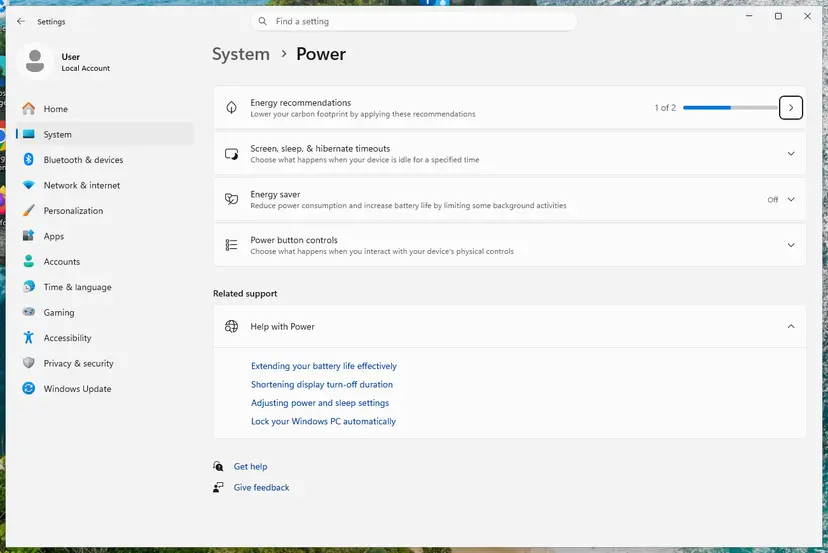
Step by step, with the Windows 10 path: Change the power mode
It worked if: Power mode shows Best performance, and the PC keeps working sleep with only Balanced in Power Options.
If not: If Power mode is missing on your PC, make your own plan from Balanced in Fix 5.
Fix 5. Create your own high performance plan based on Balanced
5 minutesNo riskModern Standby PCs where Power mode is missing or you need fixed processor and sleep settings.
Microsoft allows plans derived from Balanced on Modern Standby devices. A copy of Balanced with the processor at 100 percent gives most of what High performance did, without turning Modern Standby off.
- Press Win + R, type
powercfg.cpland select OK. - Select Create a power plan in the left pane.
- Keep Balanced as the base, type a name such as My performance and select Next.
- Set the screen and sleep times you want and select Create.
- Select Change plan settings > Change advanced power settings.
- Open Processor power management and set Minimum processor state to 100% for Plugged in.
- Select OK. The new plan is now the active one.
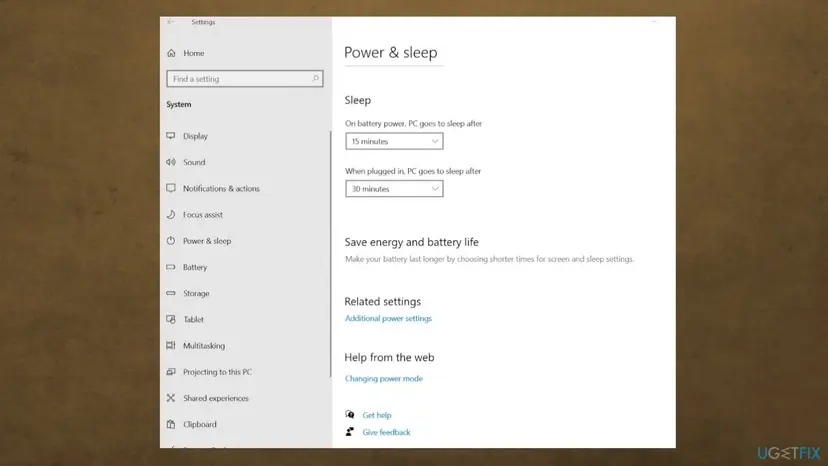
It worked if: Power Options lists your plan next to Balanced and it stays selected after a restart.
If not: If some advanced settings are missing in the plan, the maker's firmware controls them. Use Fix 6 or Fix 7.
Fix 6. Turn off Modern Standby with PlatformAoAcOverride (the CsEnabled replacement)
10 minutes with a restartRead the warningModern Standby PCs where you need the real High performance plan, Power saver or classic S3 sleep.
The plans are hidden because Modern Standby is on. Setting PlatformAoAcOverride to 0 tells Windows to stop using Modern Standby, and after a restart the other plans are allowed again. CsEnabled was the older switch for the same thing.
This changes how the PC sleeps. If the firmware has no S3 support, the PC may lose sleep entirely and only hibernate. Export the Power key first with Back up the registry before editing it, and keep the undo command below.
- Back up the key
HKEY_LOCAL_MACHINE\SYSTEM\CurrentControlSet\Control\Powerwith File > Export in Registry Editor. - Open Command Prompt as administrator.
- Run this command (type it if a copy gives a syntax error):
reg add HKLM\System\CurrentControlSet\Control\Power /v PlatformAoAcOverride /t REG_DWORD /d 0 /f - Restart Windows. A sign out is not enough.
- Run
powercfg /aagain. Standby (S0 Low Power Idle) should be gone. - Run
powercfg -restoredefaultschemesor the duplicatescheme lines from Fix 3, then openpowercfg.cpl.

Undo: turn Modern Standby back on, then restart
reg delete "HKLM\System\CurrentControlSet\Control\Power" /v PlatformAoAcOverride /fOn older Windows 10 builds the old method was to set CsEnabled in the same key from 1 to 0 and restart. If the value is missing, do not create it; PlatformAoAcOverride is the value used in current guidance.
It worked if: After the restart powercfg /a lists Standby (S3) or no S0, and Power Options shows High performance and Power saver.
If not: If powercfg /a still lists S0, check that the command ran without an error and that you restarted. If sleep stopped working, run the undo command and use Fix 4.
Fix 7. Install the chipset driver and firmware from your PC maker
15 minutesLow riskNew PCs, clean installs, or PCs where the maker's own power modes are missing too.
A Microsoft Q&A moderator suggests the chipset driver when High performance is missing, and notes the plan may come back under another name. The maker's driver also adds the maker's own power plans or modes.
- Find the exact model on the PC's label or in Settings > System > About.
- Open the support page of the PC or motherboard maker and choose your model and Windows version.
- Download and install the chipset driver, then the maker's power or system management software if it is listed.
- Install a BIOS or UEFI update only if the maker lists one for your model, on mains power.
- Restart and open
powercfg.cplagain.
Driver updates from Device Manager and Windows Update: Update, roll back or reinstall a driver
It worked if: Power Options or the maker's app shows a performance plan again, sometimes with the maker's name.
If not: If nothing changes and Fix 1 lists S0, the PC uses Modern Standby by design; use Fix 4, 5 or 6.
Fix 8. Repair system files or go back with System Restore
30 minutesLow riskPCs with S3 sleep where Fix 2 gives an error, or plans vanished after a cleanup tool or a crash.
If powercfg -restoredefaultschemes fails, the default plan data or the power service may be damaged. A system file repair or a restore point from before the change puts it back.
- Run DISM and then SFC from an administrator Command Prompt.
- Restart and run
powercfg -restoredefaultschemesagain. - If it still fails, open System Restore and pick a point from before the plans disappeared.
- After the restore, run
powercfg /listto check the plans.
System file repair: Run DISM and SFC to repair Windows system files Going back to a restore point: Undo recent changes with System Restore
It worked if: powercfg -restoredefaultschemes runs without an error and powercfg /list shows the default plans.
If not: If it still fails, collect the details listed under the next heading and contact your PC maker.
If the power plans are still missing: what to check and what to send
Most readers who still see only Balanced have Modern Standby and expect the old plans to return with a command. They will not while S0 is on. Check these points before you contact the PC maker or Microsoft Support.
- The full output of
powercfg /a, both the available and the not available sleep states. - The output of
powercfg /list, with the GUID of the active plan. - Whether PlatformAoAcOverride or CsEnabled exist under
HKLM\SYSTEM\CurrentControlSet\Control\Powerand their values. - Your model, Windows version and build, from Settings > System > About.
- What changed just before the plans vanished: a Windows update, a BIOS update, a tuning tool or a new image.
| Sign | What it means |
|---|---|
| S3 is listed as "not supported by the system firmware". | The firmware offers no classic sleep. Turning off Modern Standby leaves you with hibernate only. |
| The firmware setup has no sleep or standby option. | The maker does not let you choose. Power mode is the supported way. |
| Plans return, but disappear after each firmware update. | The update re-enables Modern Standby. Repeat Fix 6 or stay with Fix 4. |
How to keep your power plans after updates
You cannot stop Windows from hiding plans while Modern Standby is on, but you can make a lost plan a one-minute fix instead of a search.
- Export a custom plan to a file: run
powercfg /list, thenpowercfg -export C:\plan.pow <GUID>. Bring it back withpowercfg -import C:\plan.pow. - Keep the duplicatescheme lines from Fix 3 in a text file on the PC.
- Avoid tuning tools that delete or rewrite power plans.
- After a BIOS update, run
powercfg /aagain to see whether the sleep type changed. - On Modern Standby PCs, prefer Power mode over registry changes.
Frequently asked questions
What is CsEnabled in the registry?
CsEnabled is a DWORD under HKEY_LOCAL_MACHINE\SYSTEM\CurrentControlSet\Control\Power. The name comes from connected standby, the older name of Modern Standby. A value of 1 meant connected standby was on, and older guides set it to 0 to turn it off and get the hidden power plans back. On current Windows 10 and Windows 11 builds the value is often missing. Current guidance uses PlatformAoAcOverride set to 0 instead, as in Fix 6. We could not confirm from Microsoft when CsEnabled stopped working.
Why is CsEnabled missing in my registry?
A missing CsEnabled value is normal on recent Windows builds and does not mean the registry is damaged. Windows simply does not create it on many PCs anymore. Do not create it by hand and expect the plans to return. Check with powercfg /a whether Modern Standby is on, then use Power mode (Fix 4) or the PlatformAoAcOverride value (Fix 6), which is the switch current guidance uses.
Does CsEnabled exist in Windows 11?
On most Windows 11 PCs you will not find CsEnabled in the Power key, and setting it has no visible effect in the cases readers report. Windows 11 decides between Modern Standby and S3 sleep from the firmware, and PlatformAoAcOverride set to 0 is the override used in current guidance. On a Windows 11 laptop, the supported way to get more speed is Power mode in Settings > System > Power & battery.
Should I set CsEnabled = 0?
Only if the value already exists on your PC, and only after a registry backup. Setting CsEnabled to 0 was the older way to turn off Modern Standby, and on current builds PlatformAoAcOverride set to 0 does that job. Either change can leave a PC without working sleep if the firmware has no S3 support, so keep the undo command from Fix 6 at hand and restart after each change.
What does IgnoreCsComplianceCheck do?
IgnoreCsComplianceCheck is a registry value that appears in forum posts about missing power plans. We could not confirm from Microsoft what it does or whether current Windows reads it, so this guide does not use it. To bring back the plans on a Modern Standby PC, use PlatformAoAcOverride set to 0 as in Fix 6. To keep Modern Standby, use Power mode or a plan made from Balanced instead.
How do I restore the default power plans in Windows 11?
Open Command Prompt as administrator and run powercfg -restoredefaultschemes. This returns the power plans to the Windows defaults, so custom plans may be lost. If only Balanced comes back, your PC uses Modern Standby, which you can check with powercfg /a. Then use Power mode in Settings, make your own plan from Balanced, or turn Modern Standby off with PlatformAoAcOverride and restart.
I did everything and the option still does not appear. What now?
If High performance still does not show after the commands, Modern Standby is almost always still on. Run powercfg /a: if it lists Standby (S0 Low Power Idle), no restore command can add the plan. Check that PlatformAoAcOverride was added without an error and that you restarted fully. If S3 is reported as not supported by the firmware, your PC cannot leave Modern Standby, and Power mode is the supported choice.
Will turning off Modern Standby harm my laptop?
It does not damage the hardware, but it changes how the laptop sleeps. If the firmware supports S3, sleep uses less power but wakes slower and no longer fetches mail in sleep. If the firmware has no S3, the laptop may only be able to hibernate. Remove PlatformAoAcOverride with the undo command in Fix 6 and restart to get the original behaviour back.
Is Ultimate Performance the same as High performance?
No. They are separate plans with separate GUIDs. High performance is 8c5e7fda-e8bf-4a96-9a85-a6e23a8c635c, one of the three Windows default plans in Microsoft's documentation. Ultimate Performance is e9a42b02-d5df-448d-aa00-03f14749eb61 and is hidden on most PCs until you add it with powercfg -duplicatescheme. Both are blocked on Modern Standby PCs. The old version of this page mixed the two up.
Do Dell or Lenovo laptops lose power plans more often?
Many Dell, Lenovo and other recent laptops ship with Modern Standby, so they show only Balanced from the start or after a firmware update. The maker is not the cause; the sleep type is. Run powercfg /a to check it. The maker's own power app or a chipset driver from its support page can add its own performance modes, as in Fix 7.
Sources
- Microsoft Learn: Power Policy Settings (default plans, GUIDs and the Modern Standby note) (learn.microsoft.com)
- Microsoft Q&A: Missing high performance power option in Windows 11 Pro (learn.microsoft.com)
- Winhelponline: Power Options shows only Balanced plan (winhelponline.com)
Did this fix work?
One click, no account. It tells the next reader which guides are worth their time.
Questions and experiences: fix missing default Power Plans and CsEnabled option
Still broken, or found a fix we did not cover? Ask here: members and our editors answer. Reading is open; writing needs a free account.
…