How to fix
Missing folder
on Windows
Resolve missing folder issues in Windows 10 and 11 quickly and easily. Follow expert-tested methods to restore your files with zero traces left.


What causes How to fix missing folder in Windows?
- Misconfigured file attributes
- Folder set to hidden
- Folder marked as a system folder
- Recent Windows updates
- Corrupted system files
Repairs Windows system files, removes malware, and restores a clean OS state — without reinstalling.
Hello. I suddenly noticed that one folder is missing from my Windows PC. How do I get it back?
When a folder mysteriously disappears in Windows, it can be a perplexing and frustrating experience for users. This issue is often attributed to misconfigured file attributes or the aftermath of a recent system update. While it may not be a common occurrence, it can have significant implications for users, especially if the missing folder contains vital documents, photos, or other important data.
One primary cause of disappearing folders is misconfigured file attributes. If a folder is inadvertently set to be hidden or marked as a system folder, it can become invisible to the user in File Explorer. This can lead to confusion as users try to locate their essential files, only to find them seemingly vanished. Such an occurrence can disrupt daily workflows and potentially lead to data loss if the folder remains hidden for an extended period.
Another common culprit is Windows updates. While updates are essential for maintaining system security and stability, they can sometimes result in unintended consequences. A folder that was perfectly accessible before an update may suddenly disappear, leaving users bewildered. This can be particularly frustrating as users may not immediately associate the disappearance with a recent system update.
The impact on users can range from mild inconvenience to substantial data loss, depending on the contents of the missing folder. It can disrupt productivity, cause stress, and necessitate time-consuming efforts to recover or recreate lost files. Users may also worry about the security of their data, especially if the missing folder contains sensitive information.
In this guide, you will find 6 steps that should help you fix a missing folder in Windows. You can also run a maintenance tool like [d1] that can fix most system errors, BSODs,[ref en-1] corrupted files, and registry[ref en-2] issues. Otherwise, follow the step-by-step instructions below.
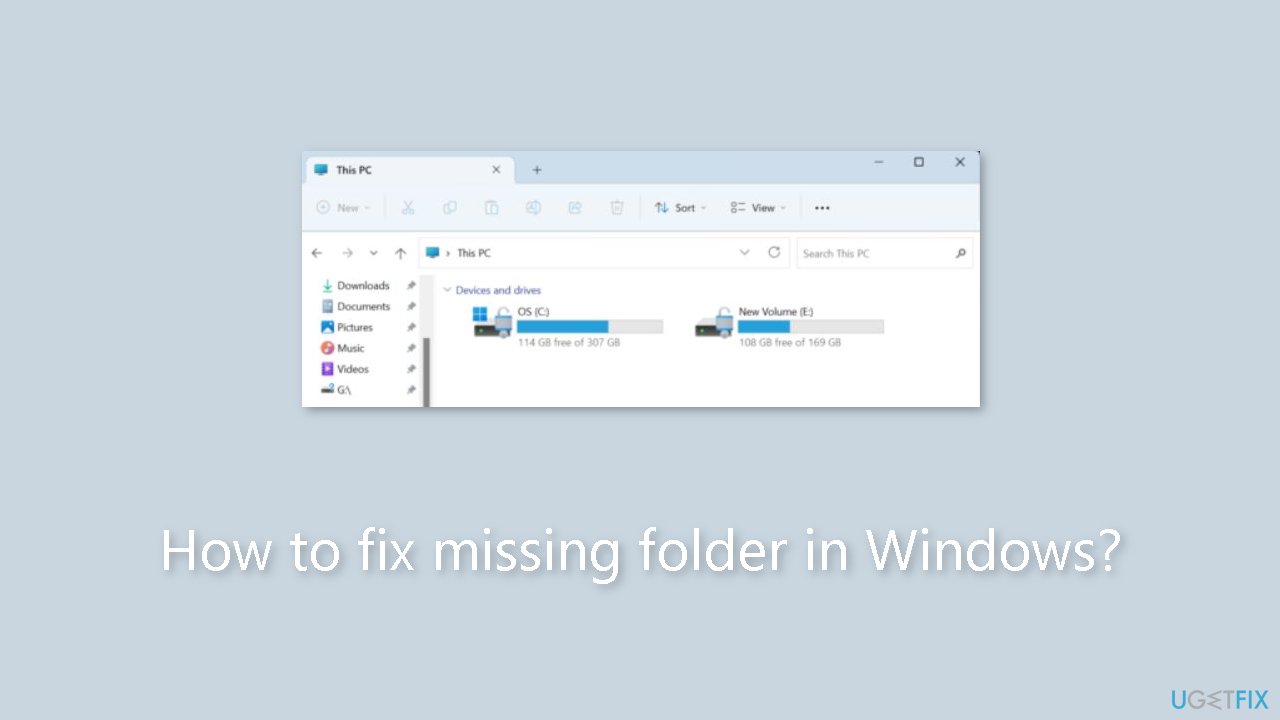
Method 1. Fix Corrupted System Files
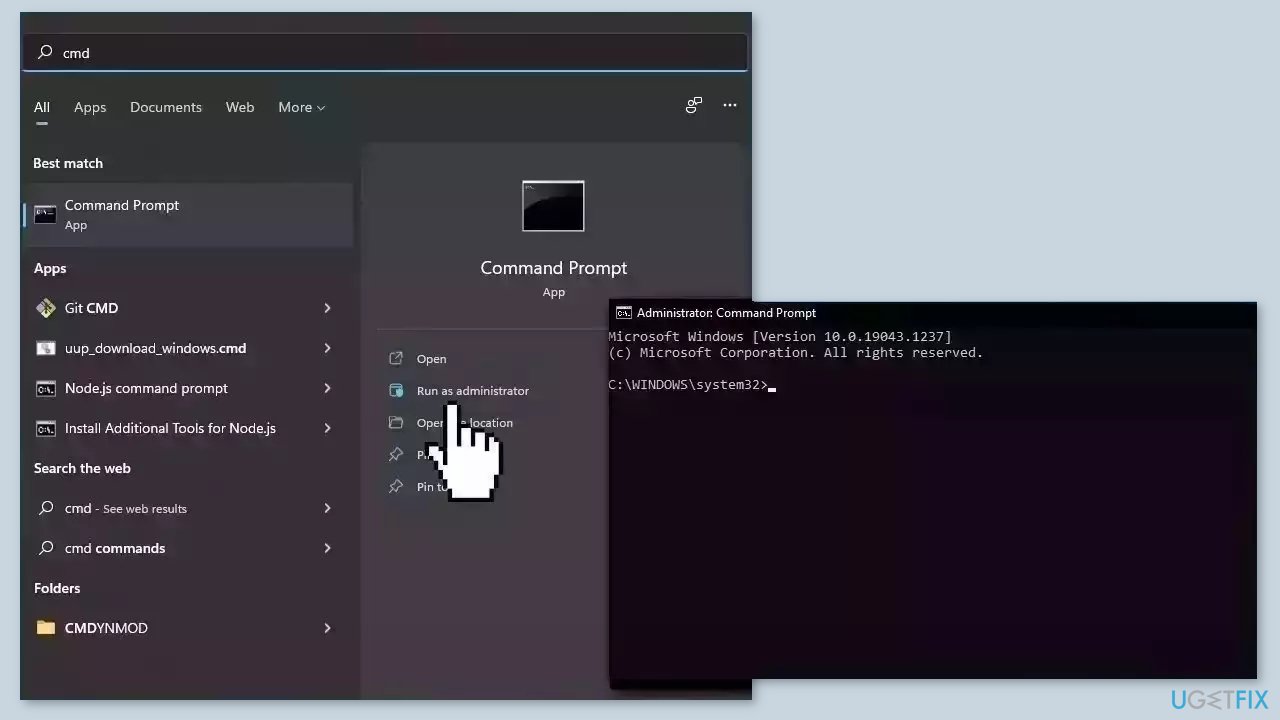
Use Command Prompt commands to repair system file corruption:
- Open Command Prompt as administrator
- Use the following command and press Enter:
sfc /scannow
- Reboot your system
- If SFC returned an error, then use the following command lines, pressing Enter after each:
DISM /Online /Cleanup-Image /CheckHealth
DISM /Online /Cleanup-Image /ScanHealth
DISM /Online /Cleanup-Image /RestoreHealth
Method 2. Add Folders to the Quick Access Menu
- Press the Windows key + E to open File Explorer.
- Right-click on the empty portion in the navigation pane towards the left.
- Select the entries to be listed here, such as This PC, Network, or Libraries, among others.
- To enable folders like Videos, OneDrive, and Music in the Quick Access menu, paste the following path in the address bar:
C:\Users
- Hit Enter, and then select your user profile.
- Now, right-click on the relevant entry.
- Select Pin to Quick access.

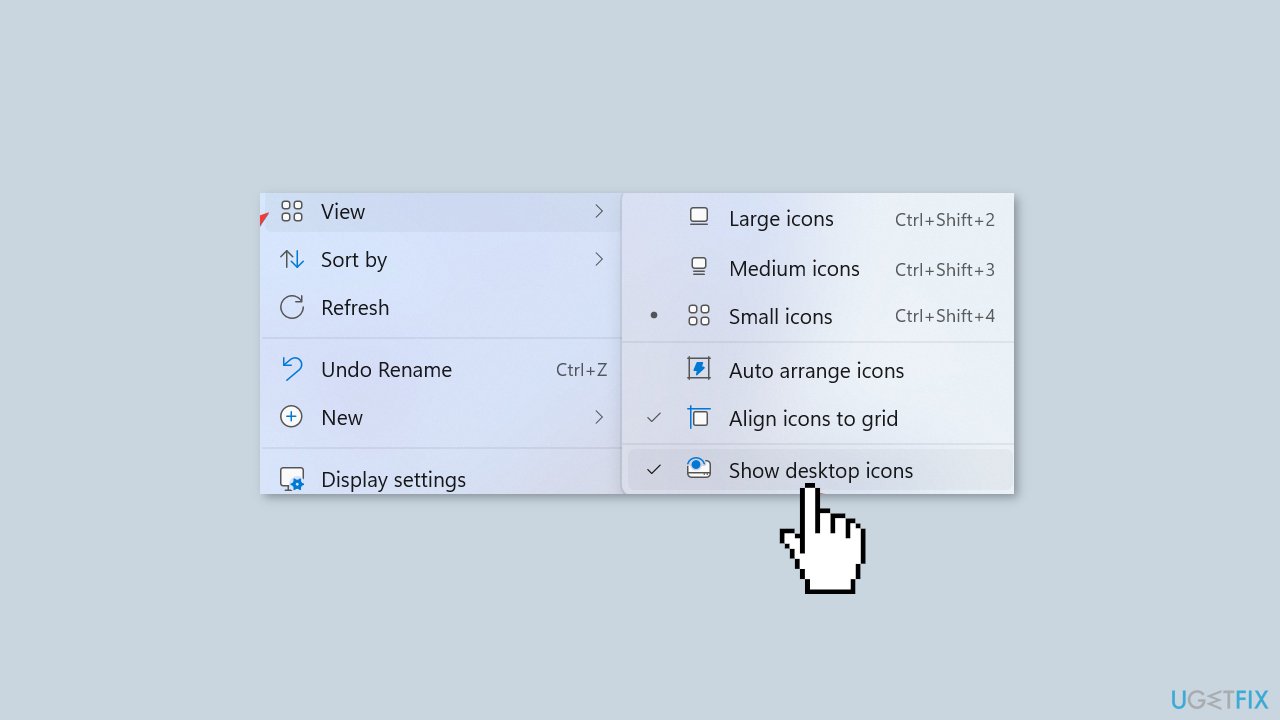
Method 3. Show Desktop Icons
- Right-click on the desktop.
- Hover the cursor over View.
- Select Show desktop icons.
Method 4. Check the File Attributes
- Press the Windows key + E to open File Explorer.
- Click the View menu.
- Hover the cursor over Show.
- Check the Hidden items entry.
- If the hidden folder now appears and is greyed out, right-click on it.
- Select Properties.

- Untick the checkbox for Hidden file type.
- Click Apply and OK to save the changes.
Method 5. Rebuild the Index
- Press the Windows key + S to open Search.
- Type Indexing Options in the search bar.
- Click the relevant result.
- Click the Advanced button.
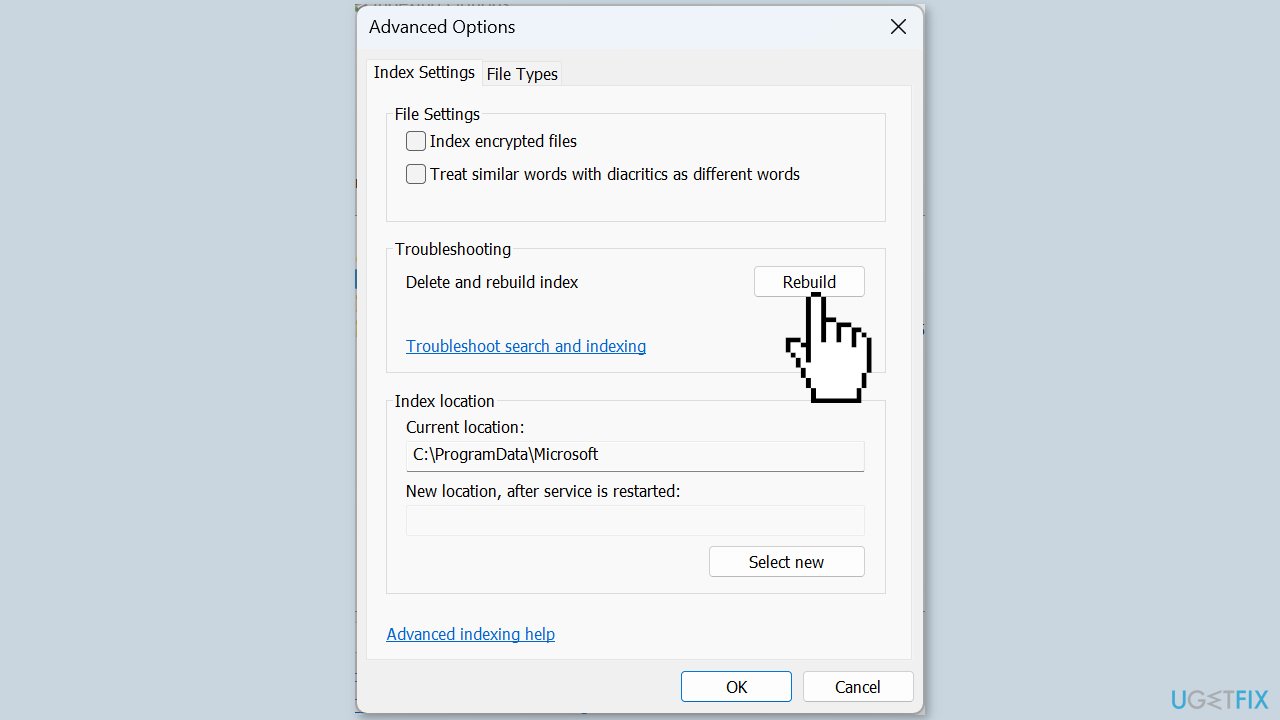
- Click on Rebuild under Troubleshooting.
- Finally, click OK in the confirmation prompt and wait for the process to complete.
Method 6. Uninstall the latest Windows Update
- Press the Windows key + I to open Settings.
- Navigate to Windows Update.
- Click on Update history on the right.
- Scroll down to the bottom and click Uninstall updates.

- Locate the recently installed updates.
- Click the Uninstall option next to it.
- Click Uninstall in the prompt.
- Remember, you may have to uninstall a few updates before identifying the problematic one.
Bottom line
To fix a missing folder in Windows, you can repair corrupted system files using Command Prompt commands, check for hidden folders, and ensure that the folder is not marked as a system folder. If these methods do not resolve the issue, consider using a maintenance tool to fix system errors.
Frequently asked questions
Try performing a system restore to revert to a previous state where the folder was present. You can also check the Recycle Bin or use File History to recover lost files.
Use the search bar in the taskbar and type the folder name to see if it appears in the results. If it does not show up, ensure that the search settings are configured to include hidden files and folders.
Yes, you can use the Command Prompt to restore missing folders by running the 'attrib' command to change the attributes of hidden files. Additionally, check for any accidental moves or deletions in the File Explorer.




Report an issue
What's wrong with this guide? We review every report and update or remove content.
Report received — thank you. We'll review and fix it.
You need a free account to submit a report.
Be the first to comment