How to fix
Missing Microsoft Store search bar
on Windows
Resolve the missing Microsoft Store search bar in Windows 10 or 11 effortlessly. Quick, effective solutions await you, expert-tested for reliability.

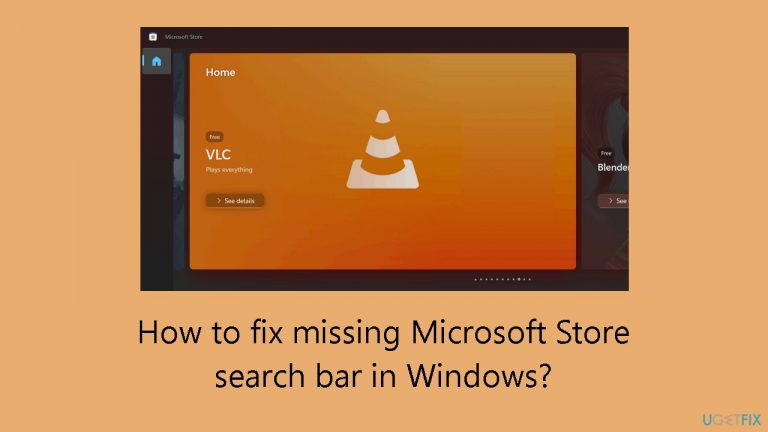
What causes How to fix missing Microsoft Store search bar in Windows?
- Damaged application installation
- Corrupted system files
- Issues with third-party antivirus software
- Problematic Windows upgrades
- Tainted installation of the Microsoft Store application
Repairs Windows system files, removes malware, and restores a clean OS state — without reinstalling.
Hello. I opened the Microsoft Store on my Windows PC and I don't see the search bar. What do I do?
Many Windows 11 customers have claimed that after updating to version 23H2 or installing a recent update, they are unable to access the Microsoft Store's search bar. One essential feature in the Windows Store is the search bar, which makes it easy to find and download different apps, games, movies, and other content. However, this issue may interfere with customer needs for efficiency and ease while using the Microsoft Store to browse and explore content.
There are a number of reasons why the Microsoft Store search bar might not be present, such as a damaged application installation, damage to system data, or issues with third-party antivirus software. This problem can be annoying for users because it makes it more difficult for them to search and download verified apps from the store.
A tainted installation of the Microsoft Store application is one possible reason. Compromise of the installation could result in elements like the search bar not displaying properly. The search bar disappearing could also be caused by corrupted system files or issues with third-party antivirus software. Users have noted that this specific issue is sometimes brought on by problematic Windows upgrades, which further exacerbates the entire user experience.
Beyond just being inconvenient, this issue has an impact on users who mostly depend on the Microsoft Store to get and update apps. In addition to interfering with the natural flow of discovery, a hidden search bar makes it more difficult for users to effectively locate particular applications or material. If this problem is not fixed, users who rely on the Microsoft Store for their program needs may become frustrated and look elsewhere.
Users may need to look into a few different options in order to fix Windows' missing Microsoft Store search bar. Possible troubleshooting procedures could be fixing the Microsoft Store app installation, searching for and fixing corrupted system files, or temporarily turning off third-party antivirus software.
In this guide, you will find 7 steps that should help you fix missing Microsoft Store search bar in Windows. You can also run a maintenance tool like [d1] that can fix most system errors, BSODs,[ref en-1] corrupted files, and registry[ref en-2] issues. Otherwise, follow the step-by-step instructions below.

Solution 1. Fix Corrupted System Files
Use Command Prompt commands to repair system file corruption:
- Open Command Prompt as administrator
- Use the following command and press Enter:
sfc /scannow

- Reboot your system
- If SFC returned an error, then use the following command lines, pressing Enter after each:
DISM /Online /Cleanup-Image /CheckHealth
DISM /Online /Cleanup-Image /ScanHealth
DISM /Online /Cleanup-Image /RestoreHealth
Solution 2. Repair or Reset the Store
- Right-click on Start and select Settings.
- In the Settings window, click on Apps.
- Click on Installed apps in the right pane.
- Scroll down to find Microsoft Store and click on the three dots.
- Select Advanced options from the menu list.
- Click on the Repair button under the Reset section. A confirmation popup will appear.
- Click Repair again to confirm the action and wait for the process to finish.
- If Repair did not work, go back and try the Reset option.

Solution 3. Reinstall the Store with Windows PowerShell
- Open the Windows PowerShell app with administrator privileges using the Windows Search function.
- To uninstall the Microsoft Store, use the below command:
Get-AppxPackage *windowsstore* | Remove-AppxPackage

- After that, reinstall the Microsoft Store using the following command:
Get-AppXPackage *WindowsStore* -AllUsers | Foreach {Add-AppxPackage -DisableDevelopmentMode -Register "$($_.InstallLocation)\AppXManifest.xml"}
- Reboot your PC.
Solution 4. Update the Microsoft Edge Browser
- Launch the Microsoft Edge browser.
- Click on 3 horizontal dots from the right side of the toolbar and click on it.
- Hover over Help and feedback and select About Microsoft Edge.

- The update will be automatically downloaded; click on Relaunch.
- Close the Microsoft Store app and reopen it.
- The search bar should appear now.
Solution 5. Disable Third-party Antivirus
The absence of the Windows Store search box may be attributed to the interference of third-party antivirus or firewall programs, or conflicts with system files. To investigate this issue, temporarily disabling these tools could prove beneficial.
- Go to the right side of Taskbar and click on the Up arrow.
- Once on the system tray, right-click on the antivirus icon and select disable.
- If any time period is provided, select accordingly.
- See if the issue is solved. If not, then restart the computer and check.
Solution 6. Uninstall Recent Windows Update
- Click on Start and select Settings.
- Select the menu Windows Update.
- From the right, click on Update history.
- Scroll down to the bottom part and select Uninstall updates.

- Locate the recently installed update and click on Uninstall. Confirm the popup.
- Finally, the update will be removed after a couple of restarts.
Solution 7. Use System Restore
System Restore is a feature in Microsoft Windows that allows users to revert their computer's state to a previous point in time. This can be helpful if you have made changes to your system that are causing problems.
- Press the Windows key + R on your keyboard to open the Run box.
- Type SystemPropertiesProtection and press Enter.
- Go to the System Protection tab.

- You will see the System Restore… button. Click it to run System Restore.
- Follow the prompts until you can select a restore point.
- Select the one you want (ideally before the issue started occurring) and go ahead with the process.
Bottom line
To fix the missing Microsoft Store search bar, you can try repairing the Microsoft Store app installation, searching for and fixing corrupted system files, or temporarily disabling third-party antivirus software. If these steps do not resolve the issue, consider looking for additional troubleshooting options or seeking further assistance.




Report an issue
What's wrong with this guide? We review every report and update or remove content.
Report received — thank you. We'll review and fix it.
You need a free account to submit a report.
Be the first to comment