How to fix
Missing Outlook toolbar
on Windows
Restore your missing Outlook toolbar in Windows 10 or 11 quickly with our expert-tested tips. Get back to seamless emailing in minutes!

What causes How to fix missing Outlook toolbar in Windows?
- Incorrect program settings
- Corrupted installation
- Conflict with other software
- Missing updates
- Customized Toolbar settings
Repairs Windows system files, removes malware, and restores a clean OS state — without reinstalling.
Hello. The toolbar in Microsoft Outlook is missing. How do I get it back?
Microsoft Outlook is a powerful email client that is used by millions of people worldwide to manage their emails, appointments, tasks, and contacts. It includes features that improve email management efficiency, such as automatic email filtering, meeting scheduling, and integration with other Office applications.
The Toolbar, which appears at the top of the Outlook window and provides quick access to frequently used tools, is one of the most important features of Microsoft Outlook. Users can use the Toolbar to compose new emails, reply to or forward existing emails, format text, insert attachments, and manage their email account.
However, the Toolbar may disappear from Outlook for Windows at times, which can be frustrating for users. This problem can be caused by a number of things, including incorrect program settings, a corrupted installation, or a conflict with other software on the computer.
There are several options for resolving the issue of a missing Outlook Toolbar. Customizing the Toolbar settings to ensure that all necessary tools are visible is one solution. Right-click on the Toolbar area and select the "Customize Quick Access Toolbar" option. Another option is to restart Outlook or revert back to the program's default settings.
This is accomplished by going to the "File" tab in Outlook, selecting "Options," and then selecting "Advanced." Users can then click the "Reset" button to return the program settings to their default values. To resolve the missing Toolbar issue, Outlook may need to be updated or reinstalled in some cases. Users can check the "File" tab for available updates and then select "Office Account" to access the update options.
If the issue persists, a complete reinstallation of Outlook may be necessary to resolve the issue. In this guide, you will find 3 steps that should help you fix the missing Outlook toolbar in Windows. You can also try a maintenance tool like [d1] that can fix most system errors, BSODs,[ref en-1] corrupted files, and registry[ref en-2] issues. Otherwise, follow the step-by-step instructions below.
Fix 1. Outlook Client
- Open the Outlook email composer.
- Click on the three dots menu located at the top right side of the window.
- The Toolbar will drop down.
- From there, you can select different options to interact with your text and attach files.
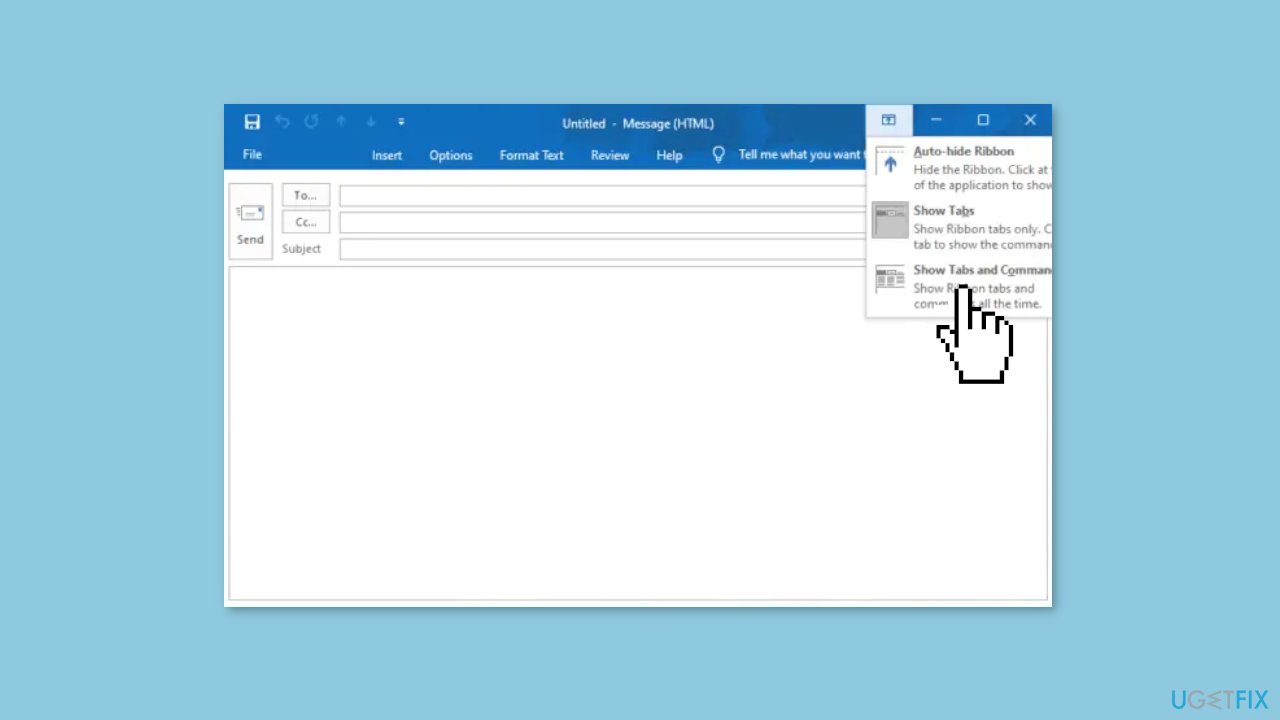
- Alternatively, you can click on the arrow-like icon facing upward to unhide the Toolbar.
- Select Show Tabs and Commands to display the Toolbar.
Fix 2. Outlook Web App
- Log in to your Outlook account.
- Select the Home tab.
- Click on New mail to compose a new email.
- A new set of mini-tabs will appear, including Message, Insert, Format text, and Options.
- Select Format text.
- Click the downward arrow on the far right side to get the Layout options.
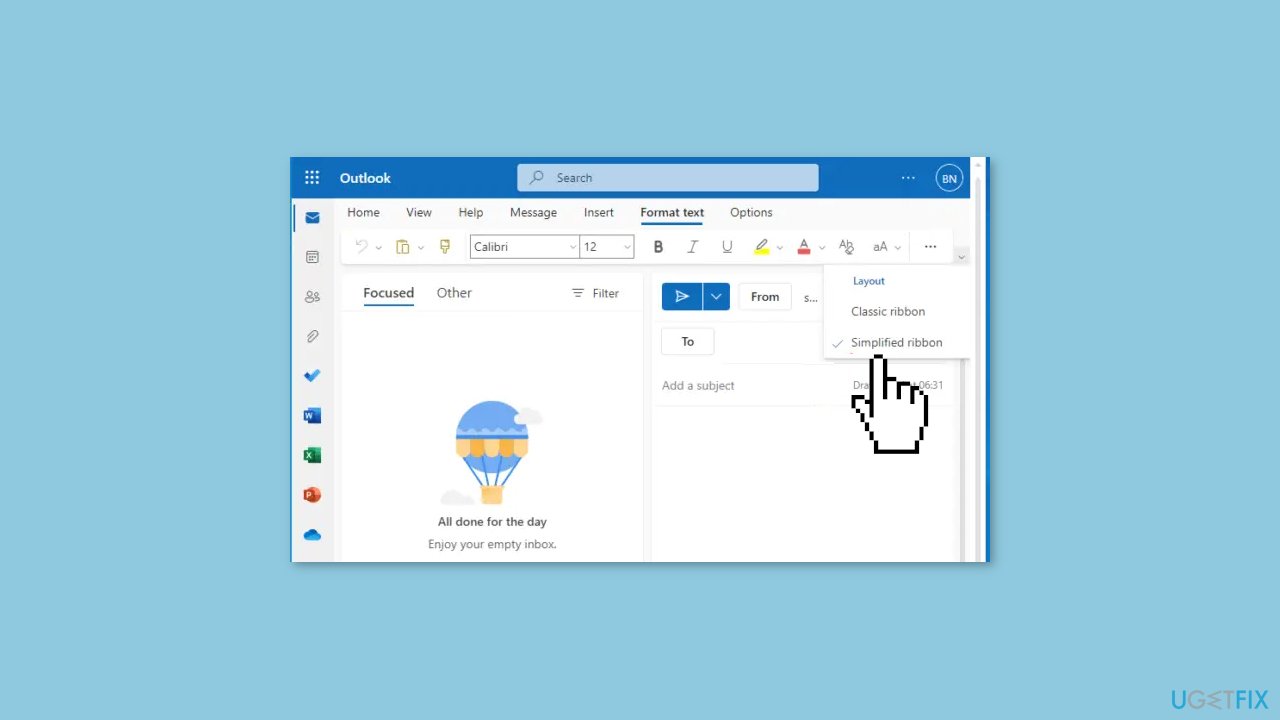
- Choose Simplified ribbon if it's not already selected (by default, it's set as Classic ribbon).
- Go back to the Message tab.
- Click the three dots on the right side for more Toolbar items.
- If the Toolbar appears to be grayed out, switch to HTML mode.
- Access HTML mode under Options.
- Select Switch to HTML.
- Go back to Format text to continue with formatting options.
Fix 3. Restore the Default Ribbon
- Go to the Customize the Ribbon option.
- Select Reset.
- Click Reset all customizations.
- Decide whether to restore all tabs or select specific ones to reset back to their original settings.
To restore the Quick Access Toolbar in the Ribbon to only show the original commands, follow these steps:
- Right-click on the Quick Access Toolbar.
- Select Customize the Quick Access Toolbar.
- Choose Reset only Quick Access Toolbar.
- Click OK.
Bottom line
To fix the missing Outlook toolbar in Windows, you can customize the Toolbar settings, restart Outlook, or reset the program to its default settings. Additionally, ensure Outlook is updated or consider reinstalling it if the issue persists. If none of these solutions work, using a maintenance tool may help resolve underlying system errors.
Frequently asked questions
Try resetting the ribbon by right-clicking on the toolbar area and selecting 'Customize the Ribbon.' If that doesn't work, check for updates in Windows 10 to ensure you have the latest version of Outlook.
In Windows 11, you can restore the toolbar by going to the 'View' tab, selecting 'Toolbars,' and checking the missing toolbar option. If the issue persists, consider repairing your Office installation through the Settings app.
Yes, you can use Alt key combinations to access the ribbon commands directly; for example, Alt + H for the Home tab. This can help you navigate until the toolbar is restored.




Report an issue
What's wrong with this guide? We review every report and update or remove content.
Report received — thank you. We'll review and fix it.
You need a free account to submit a report.
Be the first to comment