
How to fix missing Windows Security icon in taskbar?

Prefer to fix it yourself? The manual steps follow.
- 6methods
- 2 to 20 minutes
- Easy
Applies to Windows 11 and Windows 10: the Windows Security (Windows Defender) shield icon is missing from the taskbar corner, system tray or notification area, with no error message
6 methods in this guide
Hello. The Windows Security icon is not showing up on my Windows taskbar. How do I get it back?
The shield of Windows Security in the taskbar corner is a small Microsoft program, SecurityHealthSystray.exe. When it is missing, your protection usually still runs: only the icon is hidden, turned off at startup or blocked by a policy. Check Settings > Personalization > Taskbar > Other system tray icons first.
First look behind the small ^ arrow in the taskbar corner. If the shield is not there, open Settings > Personalization > Taskbar > Other system tray icons on Windows 11 and turn on Windows Security notification icon (Fix 1). If it is not in that list, press Win + R, type SecurityHealthSystray and press Enter (Fix 2), then turn its startup item back on (Fix 3). A missing icon does not mean your antivirus is off.
| Error | No message. The shield icon of Windows Security (older name: Windows Defender) is missing from the taskbar corner, also called the system tray or notification area. |
|---|---|
| Where it appears | Bottom right of the taskbar, next to the clock, network and volume icons, or in the hidden icon menu behind the ^ arrow. |
| Main cause | The icon is switched off in the taskbar settings, or its startup item Windows Security notification icon is turned off, so SecurityHealthSystray.exe never starts. |
| Fastest fix | Settings > Personalization > Taskbar > Other system tray icons and turn on Windows Security notification icon (Fix 1). |
| Also written as | Windows Security icon not showing in taskbar, Windows Defender tray icon missing, Windows Security not showing in system tray, Windows Security notification icon not showing, SecurityHealthSystray not running. |
| The program behind it | SecurityHealthSystray.exe in C:\Windows\System32, listed in Settings and Task Manager as Windows Security notification icon. |
| Policy that hides it | Hide Windows Security Systray, registry value HideSystray = 1. Microsoft: Enabled hides the icon, Disabled or Not configured shows it. |
| Affects | Windows 11 and Windows 10. The policy exists on Windows 10 version 1809 and later, Pro, Enterprise and Education. Windows 10 left support on 14 October 2025. |
| Does protection stop? | No. The icon is a status light and shortcut. Open Windows Security from Start to check the status. |
| Time to fix | 1 to 2 minutes for Fix 1 and Fix 2. About 10 minutes for the policy and registry checks (Fix 4 and Fix 5). |
Facts checked on 15 October 2026. Steps written for Windows 11 (25H2 and 26H2) and Windows 10 22H2.
What the missing Windows Security icon means
The shield in the taskbar corner is not the antivirus itself. It is a separate small program, SecurityHealthSystray.exe in C:\Windows\System32, which Windows lists as Windows Security notification icon. It shows a green tick, a yellow warning or a red cross for your protection status, and opens the Windows Security app when you select it.
So when the icon is gone, Microsoft Defender Antivirus normally keeps scanning. What you lose is the quick look at the status and the one click into the app. You can still open Windows Security from Start at any time, which is also the quickest way to confirm that protection is on.
- Program
SecurityHealthSystray.exeinC:\Windows\System32- Name in Settings and Task Manager
- Windows Security notification icon
- Windows 11 setting
- Settings > Personalization > Taskbar > Other system tray icons
- Windows 10 setting
- Settings > Personalization > Taskbar > Notification area > Select which icons appear on the taskbar
- Policy
- Computer Configuration > Administrative Templates > Windows Components > Windows Security > Systray > Hide Windows Security Systray
- Policy registry value
HKLM\SOFTWARE\Policies\Microsoft\Windows Defender Security Center\Systray, valueHideSystray
- People search it as Windows Security icon not showing in taskbar, Windows Defender tray icon missing, Windows Security not showing in system tray, or Windows 11 security icon missing. It is the same problem.
- Windows 11 and Windows 10 differ only in the menu names. Windows 11 says Other system tray icons and hidden icon menu, Windows 10 says Notification area and Select which icons appear on the taskbar.
- A Bad Image window instead of a missing icon is a different problem with its own fix: SecurityHealthSystray.exe Bad Image error.
Why the Windows Security icon is missing from the taskbar
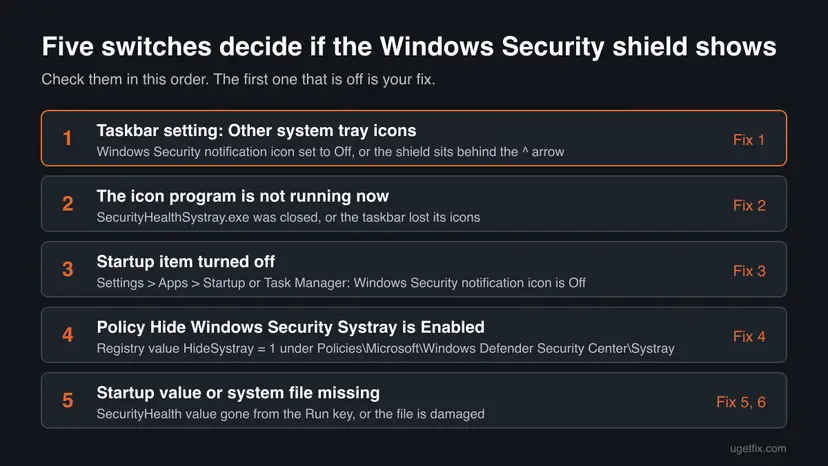
There are five places that decide whether the shield shows. The first two are by far the common ones: the icon is running but hidden, or it never started. The policy and the registry value are usually changed by a tuning tool, a privacy script or an administrator.
| How often | Cause | Fix |
|---|---|---|
| Most often | The icon is hidden behind the ^ arrow or set to Off in the taskbar settings | Fix 1 |
| Often | SecurityHealthSystray.exe is not running right now, or the taskbar lost its icons | Fix 2 |
| Often | The startup item Windows Security notification icon was turned off, by you or a startup cleaner | Fix 3 |
| Less often | The policy Hide Windows Security Systray is Enabled (value HideSystray = 1), common on work PCs and after tweak tools | Fix 4 |
| Rarely | The startup value SecurityHealth was deleted from the Run key of the registry | Fix 5 |
| Rarely | System files are damaged, or the icon program shows a Bad Image error | Fix 6 |
How to get the Windows Security icon back in the taskbar
Fix 1 to Fix 3 bring the shield back on most PCs and take a minute or two each. Fix 4 and Fix 5 are for PCs where a policy or a tool removed it. Fix 6 is the general repair and comes last.
| What you see or what your PC has | Start with |
|---|---|
| Other icons are hidden behind the ^ arrow, or you just updated Windows | Fix 1 |
| Windows Security notification icon is not in the taskbar settings list at all | Fix 2 |
| The icon comes back after Fix 2, but is gone again after a restart | Fix 3 |
| Work or school PC, the setting looks grey, or a tweak tool was used | Fix 4 |
| Fix 3 shows no startup item for Windows Security | Fix 5 |
| A Bad Image window, or Windows Security opens blank | Fix 6 |
Fix 1. Turn on the Windows Security icon in the taskbar settings
1 minuteNo riskEveryone, first. Most of all when other tray icons are also hidden behind the arrow.
Windows lets you choose, icon by icon, which programs show in the taskbar corner and which go into the hidden icon menu. The shield is often running but switched to that hidden menu, so nothing is broken.
- Select the small ^ arrow next to the clock. If the shield is in that menu, drag it onto the taskbar next to the other icons. Done.
- If it is not there, right-click an empty part of the taskbar and select Taskbar settings.
- On Windows 11, expand Other system tray icons.
- Find Windows Security notification icon and switch it to On.
- On Windows 10, select Select which icons appear on the taskbar under Notification area and switch Windows Security notification icon to On.
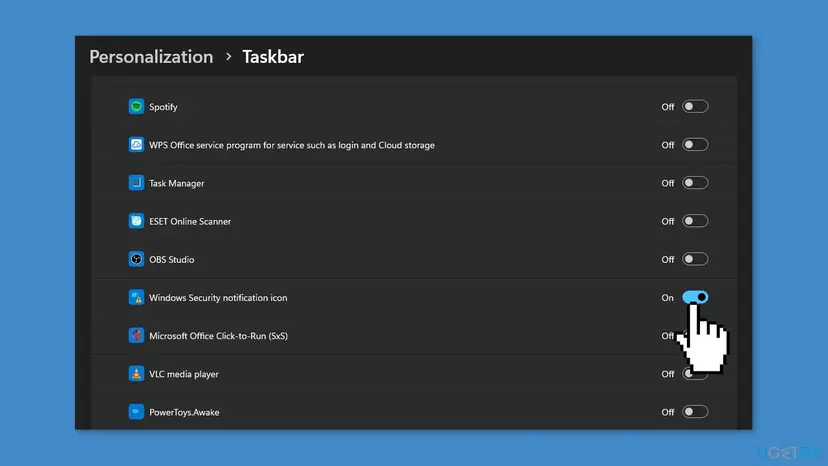
Microsoft Support says that under Other system tray icons you choose whether the hidden icon menu is used and which icons can appear in the system tray. To show a hidden icon, drag it from the overflow area to the system tray.
It worked if: The shield appears next to the clock right away, with a green tick when everything is fine.
If not: If Windows Security notification icon is not in the list, the program is not running. Go to Fix 2.
Fix 2. Start SecurityHealthSystray.exe and refresh the taskbar
2 minutesNo riskThe Windows Security entry is missing from the taskbar settings list, or the switch is On but no icon shows.
The taskbar can only show an icon of a program that runs. Starting SecurityHealthSystray.exe by hand tells you in seconds whether the program works and only failed to start, which points straight to Fix 3.
- Press Win + R to open the Run box.
- Type the name of the icon program and press Enter.
SecurityHealthSystray - Wait a few seconds and look at the taskbar corner and behind the ^ arrow.
- If still nothing shows, restart the taskbar: press Ctrl + Shift + Esc, select Windows Explorer in Processes and choose Restart.
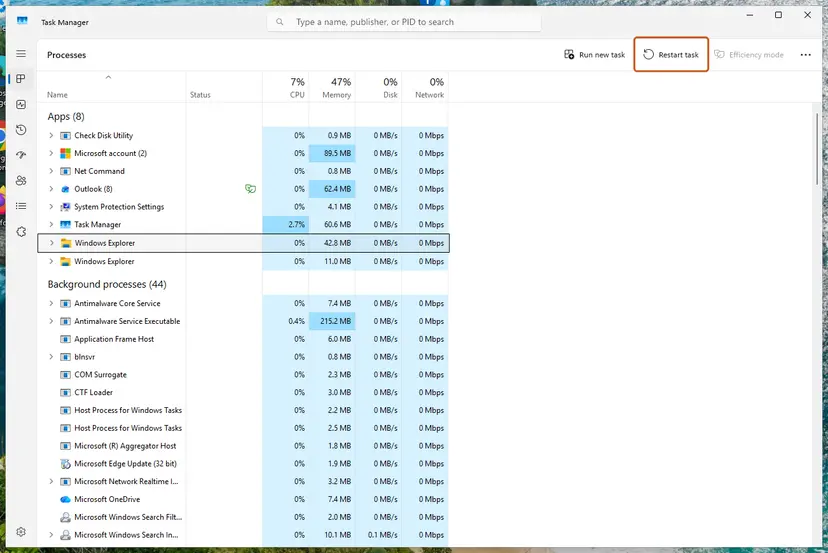
All steps for the Explorer restart, with Windows 10: Restart File Explorer.
It worked if: The shield appears within a few seconds. If it does, the program is fine and only its start at sign-in is off.
If not: If the shield appears now but not after the next restart, use Fix 3. If Windows says it cannot find the program, or a Bad Image window opens, use Fix 6.
Fix 3. Turn the Windows Security notification icon back on at startup
2 minutesNo riskFix 2 brought the icon back, but it disappears after every restart.
The icon starts at sign-in as a normal startup item. Startup cleaners and people tidying a slow PC often switch it off because it looks like an extra program. Turning it on again is the permanent fix.
- Press Win + I and open Apps > Startup.
- Find Windows Security notification icon (publisher Microsoft Corporation).
- Switch it to On.
- Or press Ctrl + Shift + Esc, open Startup apps (on Windows 10 the Startup tab), select Windows Security notification icon and choose Enable.
- Restart the PC from Start > Power > Restart and sign in.
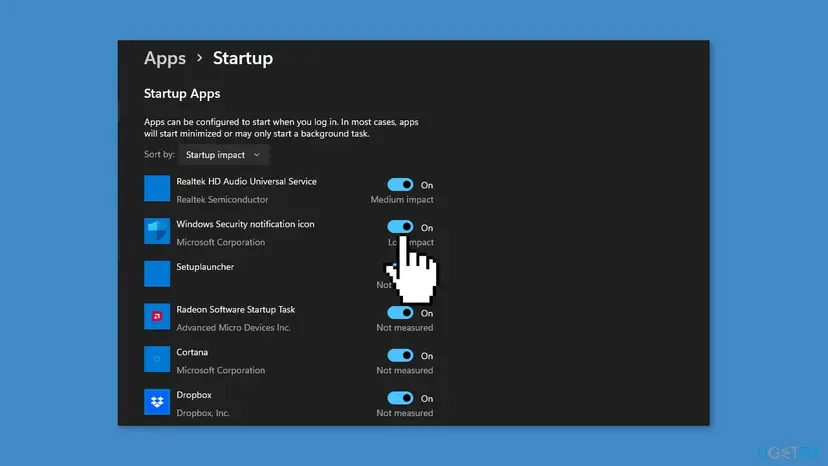
Both startup screens, step by step: Stop apps from opening at startup. The steps there turn items off; here you do the reverse.
It worked if: After the restart the shield is in the taskbar corner without starting anything by hand.
If not: If there is no Windows Security notification icon item at all, the startup value is gone: use Fix 5. If the item is On but the icon still stays away, check the policy in Fix 4.
Fix 4. Set the Hide Windows Security Systray policy back to Not configured
5 minutesRead the warningWork or school PCs, PCs where a privacy or tweak tool was used, or when Fixes 1 to 3 change nothing.
Microsoft ships a policy whose only job is to hide this icon. While it is Enabled, no taskbar setting can bring the shield back. Microsoft documents that Disabled shows the icon and that Not configured is the same as Disabled.
The Home edition has no Group Policy Editor, so the check below deletes a registry value. A wrong deletion can change other settings. Export the Systray key first: Back up the registry before editing it. On a work or school PC, ask your IT team first: the policy may be set on purpose and come back.
- Type cmd in the search box, right-click Command Prompt and select Run as administrator.
- Check whether the policy is set.
0x1means the icon is hidden by policy. The message that the key or value cannot be found means no policy hides it.reg query "HKLM\SOFTWARE\Policies\Microsoft\Windows Defender Security Center\Systray" /v HideSystray - On Windows Pro, Enterprise or Education, press Win + R, type
gpedit.mscand press Enter. - Go to Computer Configuration > Administrative Templates > Windows Components > Windows Security > Systray.
- Double-click Hide Windows Security Systray, select Not configured and choose OK.
- On Windows Home, delete the value in the same administrator window instead.
reg delete "HKLM\SOFTWARE\Policies\Microsoft\Windows Defender Security Center\Systray" /v HideSystray /f - Restart the PC, or sign out and sign in again. Microsoft says the setting takes effect only then.
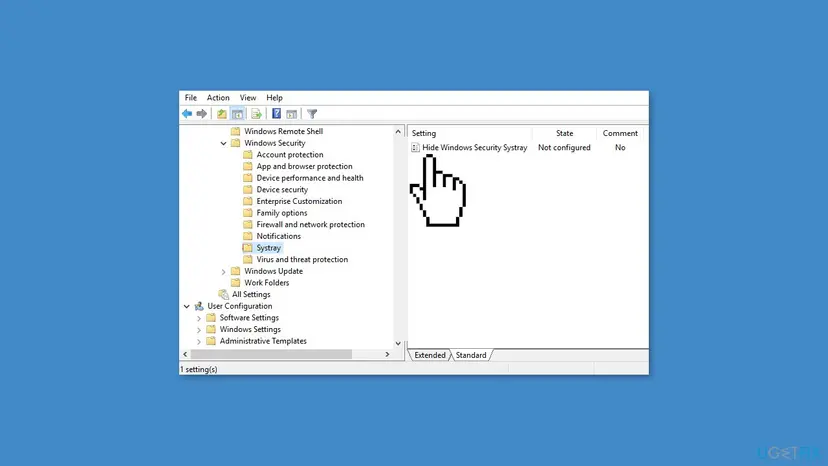
How to open the editor and change a policy, with pictures: Open the Local Group Policy Editor.
It worked if: After the restart reg query finds no HideSystray value or shows 0x0, and the shield is back.
If not: If the value returns after a restart, the PC is managed by an organization or a tool sets it again. Ask IT, or remove the tool. Otherwise go to Fix 5.
Fix 5. Restore the SecurityHealth startup value in the registry
5 minutesRead the warningFix 3 shows no Windows Security startup item at all, often after a registry cleaner or a debloat script.
On current builds the icon is started by a value named SecurityHealth in the machine's Run key, and the Startup page shows that value. When a cleaner deletes it, nothing starts the icon. We could not confirm this value in a Microsoft document, so check first and add it only when it is missing.
This adds a startup value for all users. Export HKEY_LOCAL_MACHINE\SOFTWARE\Microsoft\Windows\CurrentVersion\Run before you change it, so you can undo it with a double-click: Back up the registry before editing it.
- Type cmd in the search box, right-click Command Prompt and select Run as administrator.
- Check whether the value exists. If it shows a path to
SecurityHealthSystray.exe, it is fine: skip to Fix 6.reg query "HKLM\SOFTWARE\Microsoft\Windows\CurrentVersion\Run" /v SecurityHealth - If the value is not found, add it. Command Prompt fills in your Windows folder for
%windir%.reg add "HKLM\SOFTWARE\Microsoft\Windows\CurrentVersion\Run" /v SecurityHealth /d "%windir%\system32\SecurityHealthSystray.exe" /t REG_SZ /f - Wait for The operation completed successfully and restart the PC.
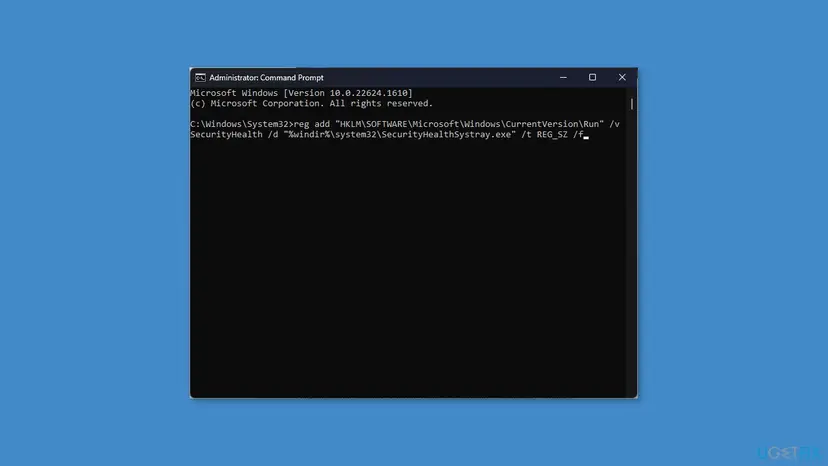
It worked if: After the restart Windows Security notification icon is back in Apps > Startup and the shield shows in the taskbar.
If not: Undo by deleting the value or by double-clicking your backup file, then use Fix 6.
Fix 6. Repair Windows system files with DISM and SFC
20 to 40 minutesLow riskFix 2 says the program cannot be found, a Bad Image window opens, or Windows Security itself opens blank.
SecurityHealthSystray.exe is a Windows file. If it or a file it loads is missing or damaged, no setting can show the icon. DISM and SFC replace damaged Windows files from Microsoft's copies.
- Open an elevated command window. Right-click Start and select Terminal (Admin), or type cmd in the search box, right-click Command Prompt and select Run as administrator. Select Yes when Windows asks for permission.

Search for cmd and choose Run as administrator. Screenshot: Windows 11 26H2. - Run DISM first. Type the command below and press Enter. DISM downloads clean copies of damaged components from Windows Update, so it can take several minutes. Wait until it says The operation completed successfully.
DISM.exe /Online /Cleanup-Image /RestoreHealth
DISM /RestoreHealth running. Screenshot: Windows 11 26H2. - Run System File Checker. In the same window, type the command below and press Enter. Do not close the window until the verification reaches 100%.
sfc /scannow
sfc /scannow at 100%. Screenshot: Windows 11 26H2. - Read the result and restart. Compare the last message with the table below this guide, then restart the PC so that repaired files are loaded.

The result line tells you what SFC did. Screenshot: Windows 11 26H2.
These steps were written for Windows 11 24H2 and 25H2. The full page with the other versions and what each result means: Run DISM and SFC to repair Windows system files
That file belongs to the Windows Security platform update, which SFC may not repair. Follow the SecurityHealthSystray.exe Bad Image guide instead.
It worked if: SFC reports that it repaired files or found no integrity violations, and after a restart Fix 2 starts the icon.
If not: Collect the facts in the next section and decide on a repair install of Windows.
If the Windows Security icon is still missing
First make sure protection itself is fine. Open Start, type Windows Security and open it. If Virus & threat protection shows a green tick, your PC is protected and only the icon is the problem.
- Check that the icon program exists and save the result for support.
dir C:\Windows\System32\SecurityHealthSystray.exe > %USERPROFILE%\Desktop\security-icon.txt reg query "HKLM\SOFTWARE\Microsoft\Windows\CurrentVersion\Run" /v SecurityHealth >> %USERPROFILE%\Desktop\security-icon.txt reg query "HKLM\SOFTWARE\Policies\Microsoft\Windows Defender Security Center\Systray" >> %USERPROFILE%\Desktop\security-icon.txt - Press Win + R, type
winverand note the version and OS build. - Open Event Viewer > Windows Logs > Application and look for Application Error entries that name
SecurityHealthSystray.exeat the time you signed in. - Check Settings > Accounts > Access work or school. If an organization is connected, its policies can hide the icon and only IT can change that.
- The file is missing from System32: run Fix 6, then a repair install that keeps apps and files: Reinstall Windows without losing files.
- The icon crashes at sign-in (Event Viewer entries): see the Bad Image guide linked in Fix 6.
- Not a hardware problem. A missing tray icon has no hardware cause, so there is no need to test the disk or memory for it.
Keep the Windows Security icon from disappearing again
- Leave Windows Security notification icon On in Apps > Startup.
- Drag the shield out of the hidden icon menu so it stays in view.
- Read what a startup cleaner or debloat script will remove before you run it.
- Registry cleaners that delete Run values they do not recognize.
- Enabling Hide Windows Security Systray to tidy the taskbar on a PC you share.
- Turning off Microsoft startup items you do not know just to speed up sign-in.
Frequently asked questions
Why is the Windows Security icon not showing in the taskbar on Windows 11?
Most often the icon is set to Off or sits in the hidden icon menu. Select the ^ arrow next to the clock first. If the shield is not there, open Settings > Personalization > Taskbar, expand Other system tray icons and turn on Windows Security notification icon. If that entry is missing, the program SecurityHealthSystray.exe is not running: press Win + R, type SecurityHealthSystray and press Enter. When that works but the icon is gone after a restart, its startup item is off, which you fix in Settings > Apps > Startup.
How do I show the Windows Security icon on the taskbar in Windows 10?
Right-click the taskbar and select Taskbar settings. Under Notification area, select Select which icons appear on the taskbar and switch Windows Security notification icon to On. You can also drag the shield from the hidden area behind the ^ arrow onto the taskbar. If the entry is missing, start the program with Win + R and SecurityHealthSystray, then check the startup item. Windows 10 left support on 14 October 2025, so the steps still work but Microsoft no longer fixes problems in it without extended updates.
Is my PC unprotected when the Windows Security icon is missing?
Not by itself. The icon is a separate small program that shows the status and opens the app. Microsoft Defender Antivirus runs without it. To be sure, open Start, type Windows Security and open the app. If Virus & threat protection shows a green tick, you are protected. If the app shows a warning there, deal with that first, because a missing icon also means you no longer see such warnings at a glance.
Why is the Windows Defender tray icon missing?
Windows Defender is the old name. On current Windows the tray icon belongs to Windows Security and is called Windows Security notification icon, so search for that name in the taskbar and startup settings. The causes are the same: the icon is hidden, its startup item is off, the Hide Windows Security Systray policy is Enabled, or a cleaner deleted its startup value. Fix 1 to Fix 5 cover them in that order.
What does the Hide Windows Security Systray policy do?
It hides the Windows Security icon from the notification area and nothing else. Microsoft documents it for Windows 10 version 1809 and later on Pro, Enterprise and Education. Enabled hides the icon. Disabled shows it, and Not configured is the same as Disabled. In the registry it is the value HideSystray under HKLM\SOFTWARE\Policies\Microsoft\Windows Defender Security Center\Systray. A change takes effect after you sign out and in, or restart. Note that some old guides tell you to set it to Enabled, which does the opposite.
Windows Security notification icon is not in the startup list. What now?
Then nothing starts the icon at sign-in. A registry cleaner or debloat script has probably removed its startup value. First press Win + R and run SecurityHealthSystray to see whether the program still works. If the shield appears, add the SecurityHealth value back to the Run key as Fix 5 shows, after a backup of that key. If the program cannot be found, the file itself is missing and Fix 6 is the right step.
Can I hide the Windows Security icon on purpose?
Yes. Switch Windows Security notification icon to Off under Other system tray icons, or drag it into the hidden icon menu. Protection keeps running. The only cost is that you no longer see a yellow or red warning next to the clock, so open Windows Security from Start now and then. Avoid the policy for this on a shared PC, because other users then cannot turn the icon back on in Settings.
The icon came back but disappears after a restart. Why?
The program works, but nothing starts it at sign-in. Open Settings > Apps > Startup, or Task Manager > Startup apps, and turn on Windows Security notification icon. If it is already On, check the Hide Windows Security Systray policy with the reg query command in Fix 4, because the policy applies at sign-in. A startup optimizer that runs on every boot can also turn the item off again; check its settings.
Does a Bad Image error have anything to do with the missing icon?
Yes, sometimes. If a window titled SecurityHealthSystray.exe Bad Image opens when you sign in, the icon program fails to load a file and therefore cannot show the shield. That is a damaged file, not a hidden icon, and settings will not help. Follow the SecurityHealthSystray.exe Bad Image guide, which starts with installing the newest Windows Security platform update.
Sources
Did this fix work?
One click, no account. It tells the next reader which guides are worth their time.
Questions and experiences: fix missing Windows Security icon in taskbar
Still broken, or found a fix we did not cover? Ask here: members and our editors answer. Reading is open; writing needs a free account.
…