How to fix
Modem error 633 after Windows 10 creators update
on Windows
Resolve modem error 633 swiftly on Windows 10 after the creators update. Expert-tested solutions ensure seamless connectivity with zero traces left.

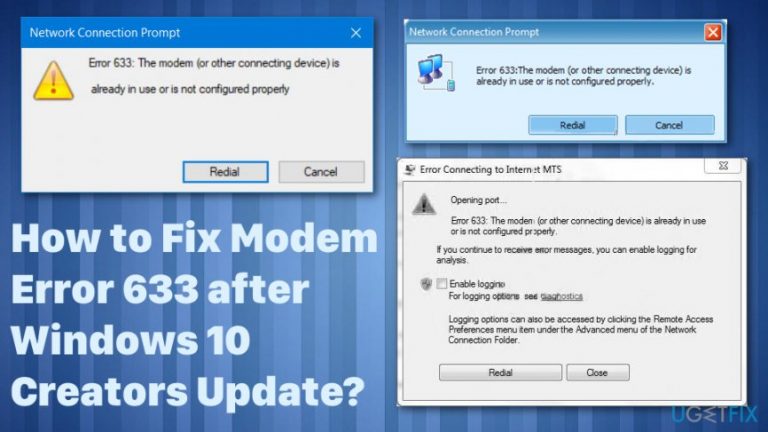
What causes How to fix modem error 633 after Windows 10 creators update?
- Modem is malfunctioning due to faulty configuration
- Multiple Internet connections set up on one device
- Communication port exploited by another application
- Potential malware issues
- Corrupted system files
Repairs Windows system files, removes malware, and restores a clean OS state — without reinstalling.
I’ve installed Windows 10 Creators Update yesterday. Apparently it broke my modem because it gives me the error message “Error 633: The modem is already in use or not configured properly.” It seems that the VPN connection cannot be established, but I actually don’t know how to fix that. Help, please!
“Error 633: The modem is already in use or not configured properly” is the Internet connection issue, which has occurred for hundreds of Windows 10 users after the installation of Creators Update.[ref en-1] Microsoft has already acknowledged this issue and is working hard to release the solution the near future. However, before the future update patching the modem Error 633 is released, Windows 10 users have to perform the fixes manually.
The “Error 633: The modem is already in use or not configured properly” is not bound to one specific device, so any model and PC model can be affected. The error message explicitly indicates the fact that the modem is malfunctioning due to the faulty configuration.
However, Error 633 may also occur due to the multiple Internet connections set up on one device or communication port exploited by another application. Luckily, Microsoft officially revealed the instructions that people should use before the patch for “Error 633: The modem is already in use or not configured properly” is released.[ref en-2]
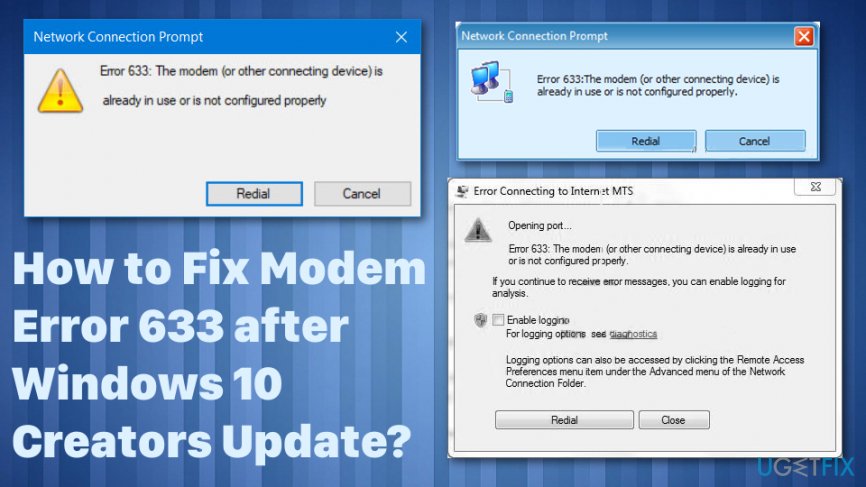
Methods to fix “Error 633: The modem is already in use or not configured properly”
When it comes to similar issues there might be a few reasons as well as solutions and fixing methods. But after all, there is a good first step - system scan with repair tools like [d1]. This way you can identify if there is additional malware[ref en-3] issue or files interrupting with programs or functions of your machine.
Run Registry Editor
- Press Windows key, type regedit, and press Enter.
- Navigate to HKEY_LOCAL_MACHINE\\SYSTEM\\CurrentControlSet\\Services\\RasMan directory.
- Find RequiredPrivileges key and double-click it.
- Add the SeLoadDriverPrivilege at the end of the list of keys and click OK.
- If a warning message shows up, click OK to proceed.
- Finally, reboot the system.
Reserve the TCP port
- Press Windows key + R, type regedit, and press Enter.
- Navigate to the HKEY_LOCAL_MACHINE\\SYSTEM\\CurrentControlSet\\Services\\Tcpip\\Parameters directory.
- Click Edit -> New -> Multi-String Value.
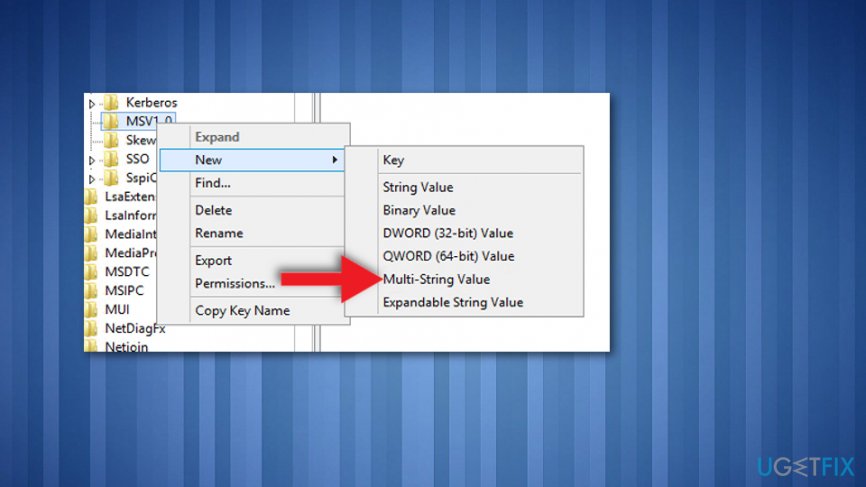
How to fix modem error 633 after windows 10 creators update multi string value - Name the new value as ReservedPorts.
- Double-click on the ReservedPorts value and type in the 1723-1723 value.
- Press OK to save the new value and exit Registry Editor.
Update/Reinstall Modem Drivers
The methods listed above have answered the purpose for most of the 633 error victims. However, it neither of them worked for you, the culprit may appear to be simpler than it seems. The error may be triggered by outdated or corrupted modem drivers, so you should try to update or reinstall them.
- Right-click on Windows key and select Device Manager.
- Find Network Adapters and right-click on your network adapter.
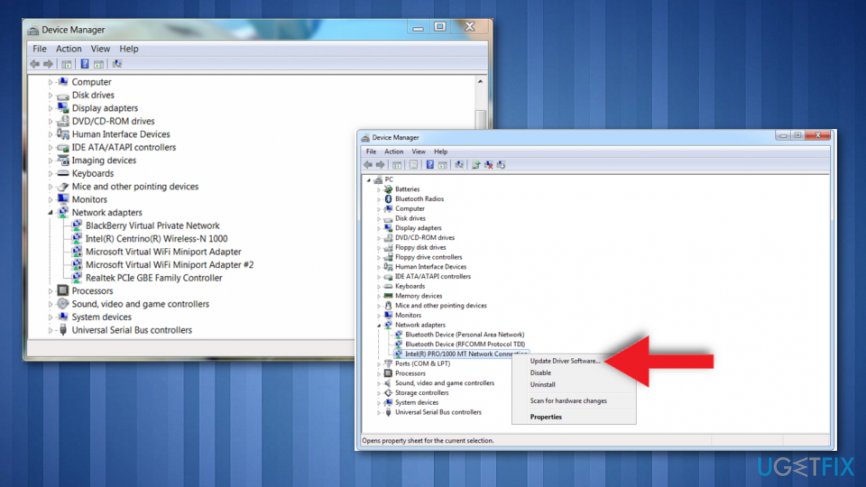
How to fix modem error 633 after windows 10 creators update network drivers - Click Update driver software option. Update both LAN and WLAN adapter.
- Reboot your PC and connect to the Internet.
If modem error 633 reoccurs, we would strongly recommend reinstalling network adapters:
- Right-click on Windows key and select Device Manager.
- Find Network Adapters and right-click on your network adapter.
- Select Uninstall and mark the Delete the driver software for this device box.
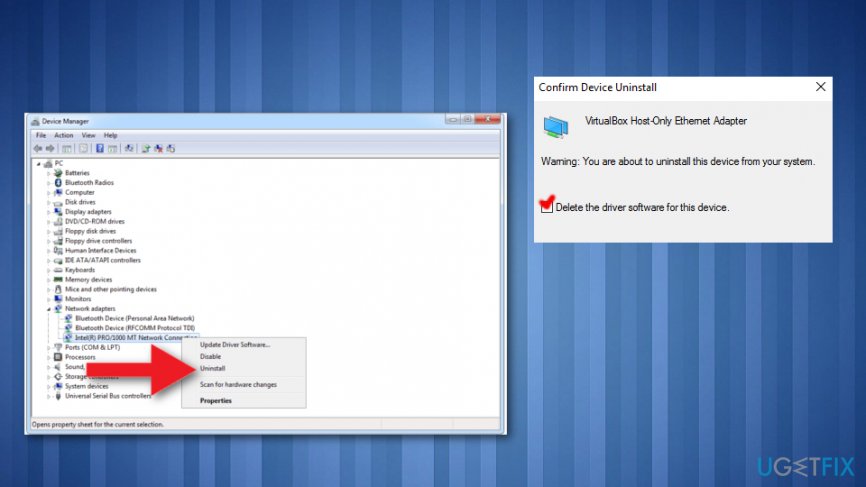
How to fix modem error 633 after windows 10 creators update network drivers uninstall - Click OK and wait for the removal to be executed.
- Then open Actions tab and select Scan for hardware changes.
- The system should automatically detect the missing network adapter and reinstall its latest version.
- Once done, reboot the system and check if the Error 633 has been fixed.
Bottom line
To fix Error 633, users can perform a system scan with repair tools, run Registry Editor to adjust the RequiredPrivileges key, and reserve the TCP port. If these methods do not resolve the issue, users should wait for the official Microsoft patch.
Frequently asked questions
Modem error 633 indicates that the modem is already in use or not properly configured, often occurring after a system update like the Windows 10 Creators Update.
To resolve modem error 633 on Windows 11, try restarting your computer and ensuring that no other applications are using the modem or network connection.
Yes, check the device manager to ensure your modem drivers are up to date and confirm that the modem is set as the default device in the network settings.




Report an issue
What's wrong with this guide? We review every report and update or remove content.
Report received — thank you. We'll review and fix it.
You need a free account to submit a report.
Be the first to comment