How to fix
Modern Warfare Dev Error 11063
on Windows
Solve the Modern Warfare Dev Error 11063 on Windows 10 or 11 easily. Get expert-tested solutions to fix it in minutes and enjoy uninterrupted gaming.

What causes How to fix Modern Warfare Dev Error 11063 in Windows?
- Corrupted game files
- Outdated graphics drivers
- Insufficient system resources
- Network-related problems
Repairs Windows system files, removes malware, and restores a clean OS state — without reinstalling.
Hello. I keep getting the Dev Error 11063 whenever I try to play Call of Duty Modern Warfare 2 on Windows. Is there anything I can do to fix this?
Dev Error 11063 is a common problem in Call of Duty Modern Warfare 2 on Windows-based computers. Call of Duty Modern Warfare 2 is a 2009 first-person shooter game that is part of the popular Call of Duty franchise. The game has been a fan favorite for over a decade due to its engaging gameplay, impressive graphics, and multiplayer modes. When Dev Error 11063 occurs, the game may unexpectedly disconnect or crash.
This problem can be caused by a number of factors, such as corrupted game files, outdated graphics drivers,[ref en-1] insufficient system resources, or network-related problems. Users who are unable to play the game properly or who experience frequent game crashes may find this frustrating. This issue can have a significant impact on users because it can disrupt their gaming experience and prevent them from enjoying the game as intended. This problem can also result in wasted time and effort spent troubleshooting the problem.
Verifying the integrity of game files, scanning and repairing the game in the Battle.net client, running the game as an administrator, changing DNS settings, allowing the game through the Windows firewall, and reinstalling the game are all possible solutions to Dev Error 11063. However, depending on the underlying cause of the problem, the specific solution that will work for each user may differ.
In this guide, you will find 8 steps that should help you fix Modern Warfare Dev Error 11063 in Windows. Keep in mind that the manual troubleshooting process can be lengthy. You can use a maintenance tool like [d1] instead. It can fix most system errors, BSODs,[ref en-2] corrupted files, registry[ref en-3] issues, or clear cookies and cache automatically. Otherwise, follow the step-by-step instructions below.
Solution 1. Check Network Connection
If your internet connection is unstable, you may encounter Dev error 11063. To diagnose this issue, you can conduct a speed test to determine if your internet connection is functioning correctly. If the speed is slower than the speed you subscribed for, try restarting your modem and router. In case this solution doesn't work, get in touch with your service provider.
Solution 2. Repair Game Files
Steam:
- Open Steam and navigate to your Library.
- Locate Call of Duty Modern Warfare 2.exe from the list of games in your library.
- Right-click on the game title to open the context menu.
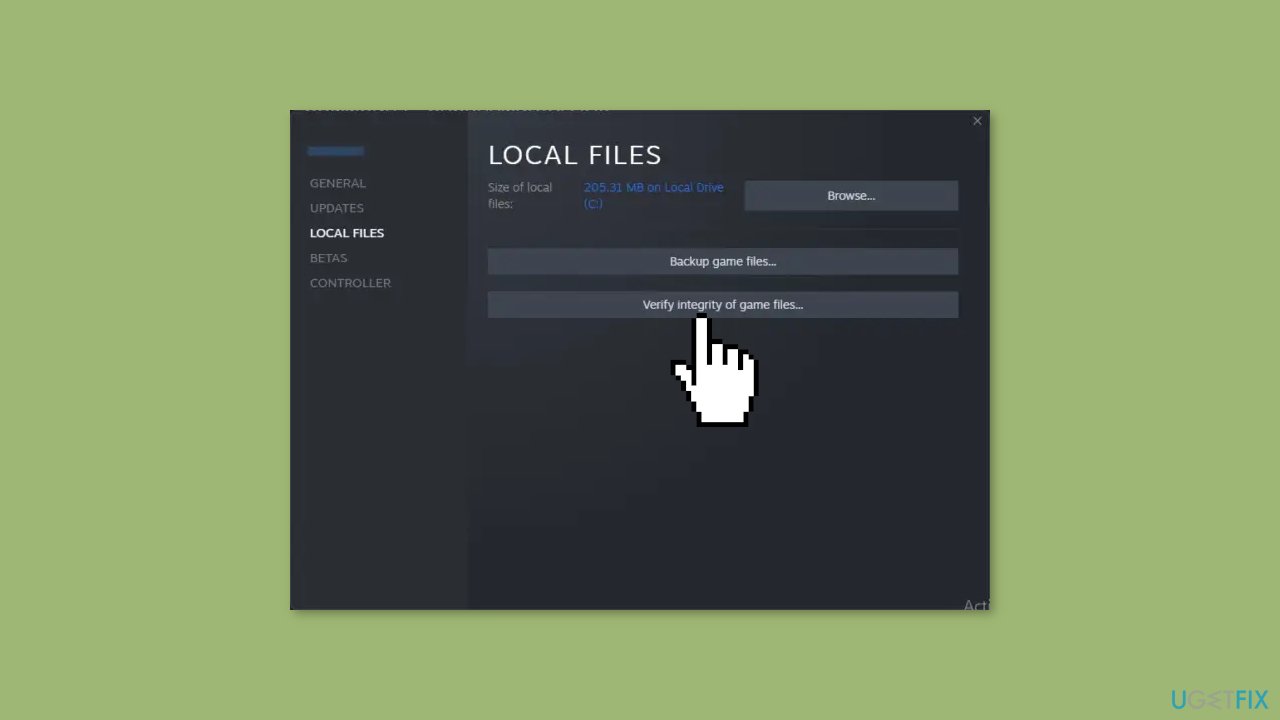
- From the context menu, select Properties > Local Files.
- Within the Local Files tab, click on the Verify Integrity of Game Files button.
- Wait for the verification process to complete. This may take some time depending on the size of the game files and your system's performance.
Battle.net:
- Launch the Battle.net client and navigate to Call of Duty Modern Warfare 2.
- Click on the Gear icon, which can be found just below the game's name.
- From the dropdown menu, select Scan and Repair.
- Click on the Begin Scan button and wait for the process to complete. This may take some time depending on the size of the game files and your system's performance.
- Once the scan and repair process is complete, close the Battle.net launcher.
- Finally, restart your PC to ensure that any changes made during the repair process are applied.
Solution 3. Run the Game as an Administrator
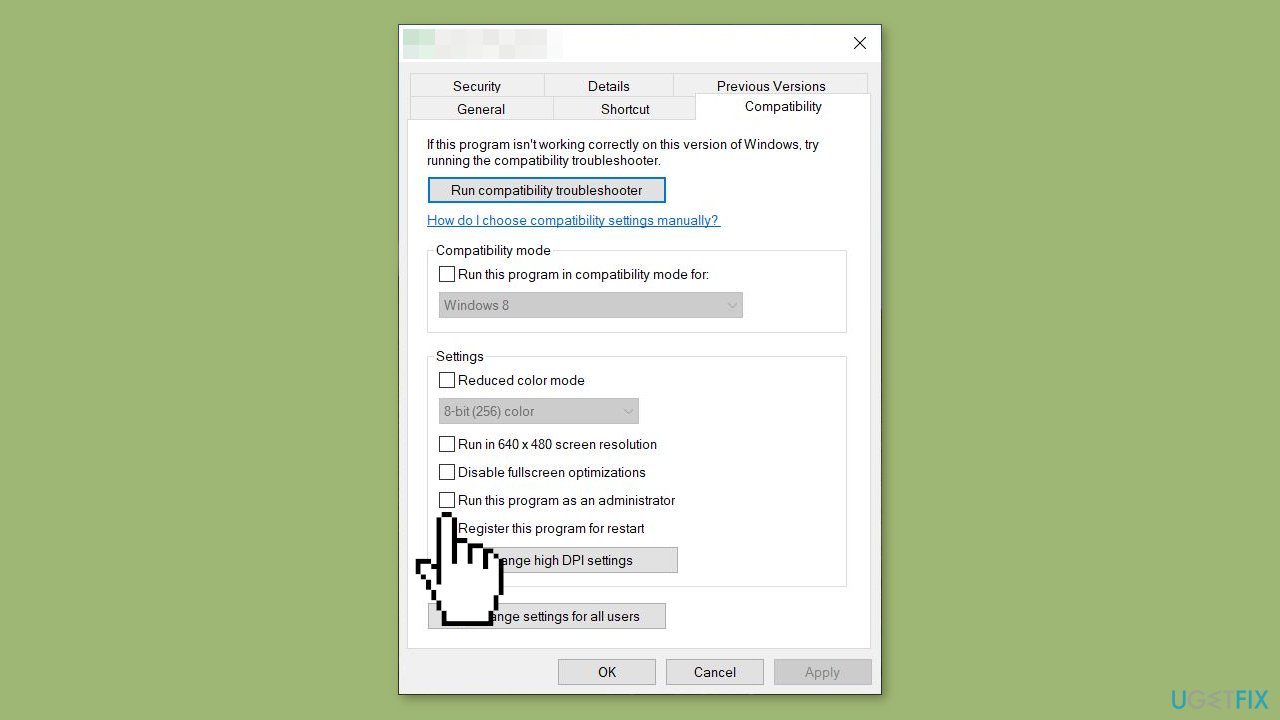
- Navigate to the Call of Duty Modern Warfare 2.0.exe file on your computer.
- Right-click on the file to open the context menu.
- From the context menu, select Run as Administrator.
- If prompted by User Account Control, click Yes to grant permission to the program to make changes to your system.
Solution 4. Update Graphics Driver
Outdated drivers could be the cause of this issue. In this case, you can fix it automatically by using [rev id="DriverFix"], which will scan your PC for missing and out-of-date device drivers. Or you can update them manually:
- Open Settings.
- Click on Update & Security.
- Click on Windows Update.
- Click the Check for updates button.
- Click the View optional updates option.
- Click the Driver updates tab.
- Select the driver you want to update.
- Click the Download and install button.

If the View optional updates link is not available after checking for updates, then Windows Update does not have any new drivers or any updates for other products at that particular time.
Solution 5. Clear Cache
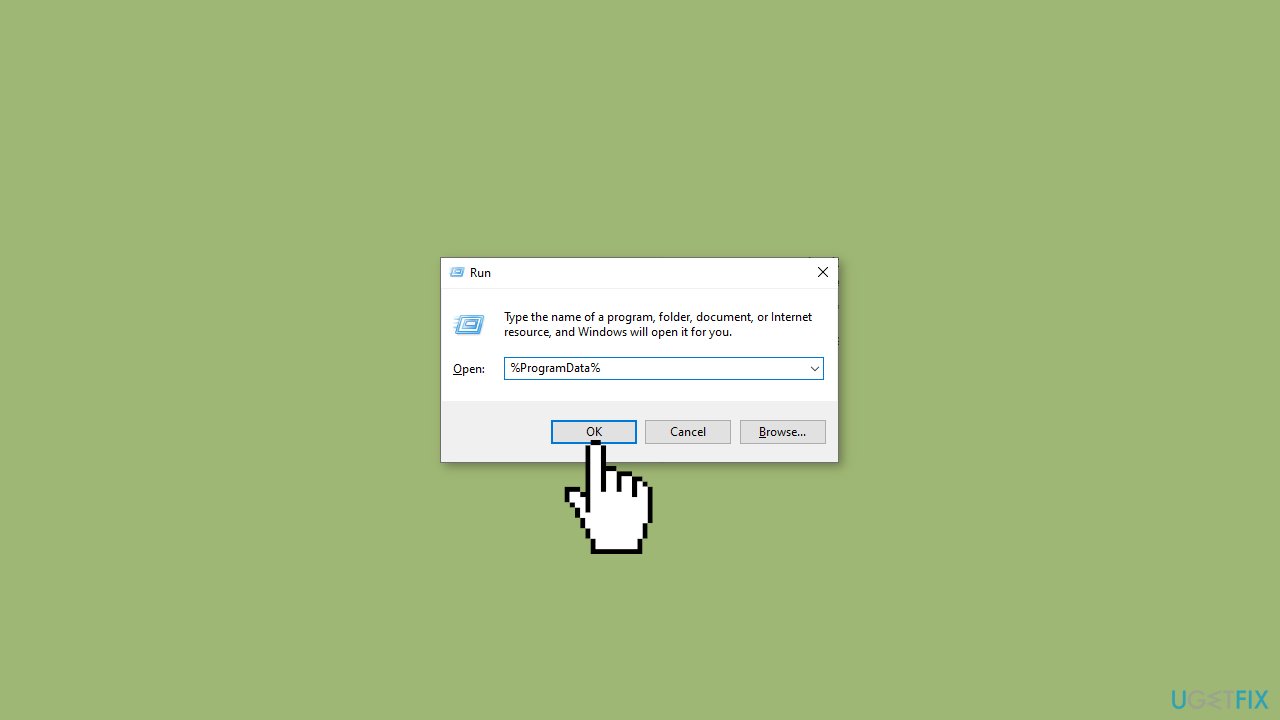
- Press the Windows key + R on your keyboard to open the Run dialog box.
- Type %ProgramData% into the text field and hit Enter. This will open the ProgramData folder on your device.
- Navigate to the Blizzard Entertainment folder, which should be located inside the ProgramData folder.
- Inside the Blizzard Entertainment folder, find the Call of Duty Modern Warfare 2 folder and open it.
- Once inside the Call of Duty Modern Warfare 2 folder, locate the Data subfolder.
- Press Ctrl + A to select all files within the Data subfolder.
- Press Shift + Del on your keyboard to permanently delete all selected files.
- Restart your device and check if the error is resolved.
Solution 6. Change DNS
- Open Control Panel on your computer.
- Navigate to Network and Sharing Center and click on Change Adapter Settings.
- Right-click on your Wi-Fi connection and select Properties from the context menu.
- In the Properties window, select Internet Protocol Version 4 (TCP/IPv4).
- Click on the Properties button.
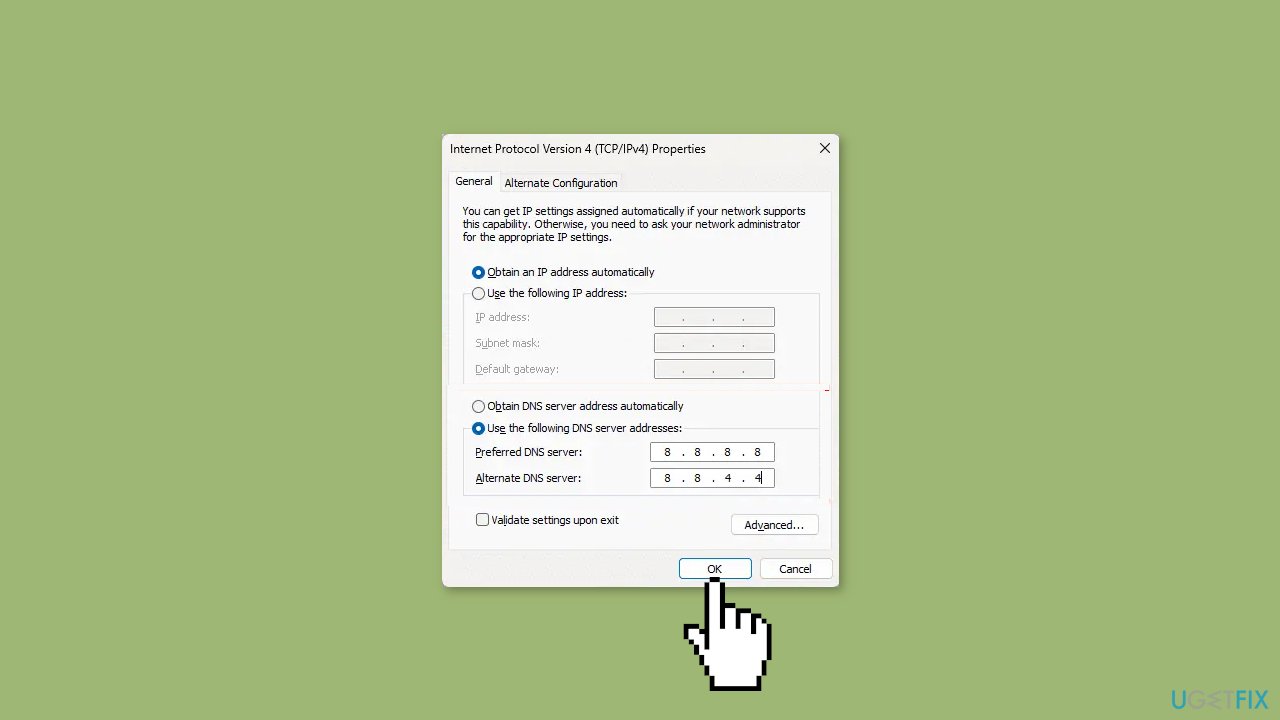
- In the new window, select Use the following DNS server addresses.
- Enter the following values for Primary DNS and Secondary DNS respectively:
Primary DNS Value: 8.8.8.8
Secondary DNS Value: 8.8.4.4
- Click OK to save your changes.
- Close the Properties window and exit Control Panel.
Solution 7. Allow the Game through Windows Firewall
- Press the Windows key + I to open the Settings app.
- Navigate to Privacy & Security > Windows Security > Firewall & network protection.
- In the Firewall tab, click on Allow an app through firewall.
- On the next page, click on Change settings and select Allow another app.
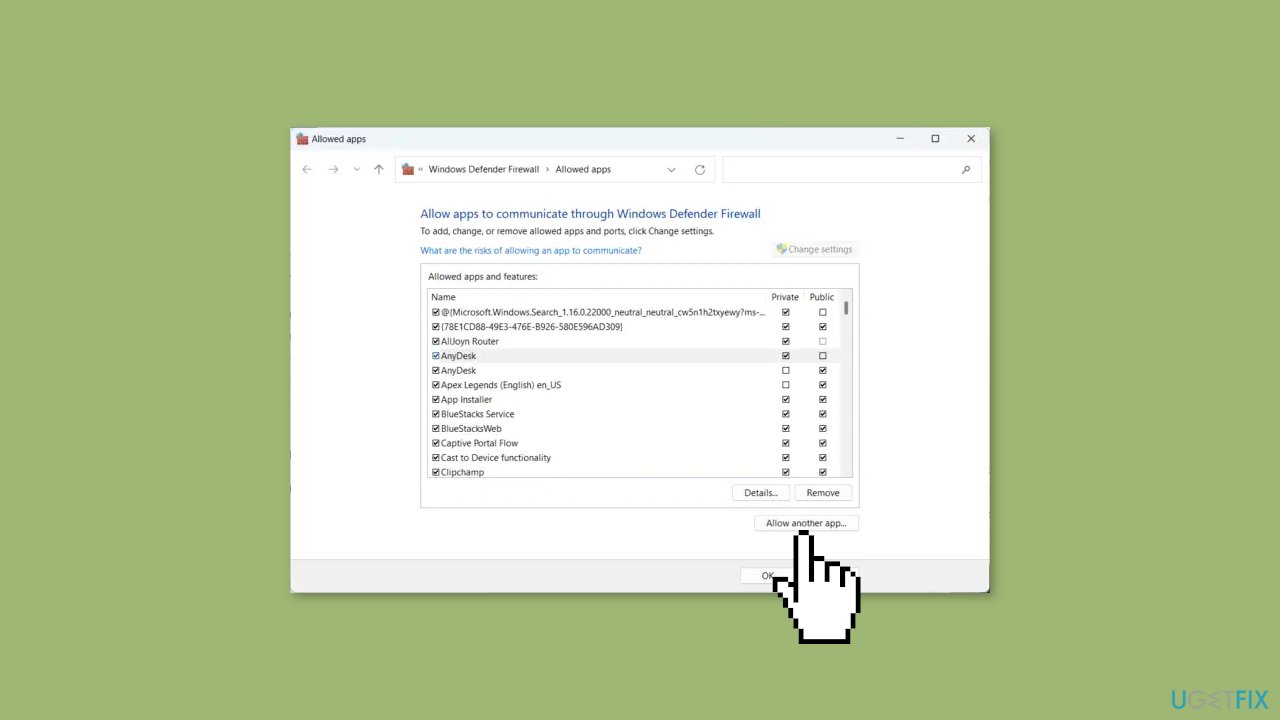
- Use the browse button to navigate to the location where COD Modern Warfare 2.0 is installed on your computer.
- Select the COD Modern Warfare 2.0 executable file and click on Add.
- On the Allowed apps window, locate COD Modern Warfare 2.0 and check both the Private and Public boxes.
- Click OK to save your changes and close the Allowed apps window.
Solution 8. Reinstall the Game
If the above solutions do not work, it is possible that the core files of the game are corrupted. In this case, you can try fixing the issue by completely removing all files of COD Modern Warfare 2 from your system and then reinstalling the game.
Bottom line
To fix Modern Warfare Dev Error 11063, you can verify the integrity of game files, scan and repair the game in the Battle.net client, run the game as an administrator, change DNS settings, allow the game through the Windows firewall, or reinstall the game. If these solutions do not resolve the issue, consider using a maintenance tool to address system errors.
Frequently asked questions
This error is typically caused by corrupted game files, outdated drivers, or issues with the game's installation on your Windows system.
You can verify the game files through the Battle.net launcher by selecting the game, clicking on the options menu, and choosing 'Scan and Repair' to fix any corrupted files on Windows 10 or Windows 11.
If updating your graphics drivers doesn't work, try reinstalling the game or resetting the game settings to default on your Windows 10 or Windows 11 system.




Report an issue
What's wrong with this guide? We review every report and update or remove content.
Report received — thank you. We'll review and fix it.
You need a free account to submit a report.
Be the first to comment