How to fix
Modern Warfare “Error cause: 10. Error code: 2004”
on Windows
Resolve the Modern Warfare error code 2004 on Windows 10 or Windows 11 effortlessly. Expert-tested solutions to get you back in the game fast!

What causes How to fix Modern Warfare “Error cause: 10. Error code: 2004” in Windows?
- Server issue at Activision
- Internet connectivity problems
- Firewall settings blocking connection
- Issues on the game's server side
- Stable internet connectivity not resolving the issue
Repairs Windows system files, removes malware, and restores a clean OS state — without reinstalling.
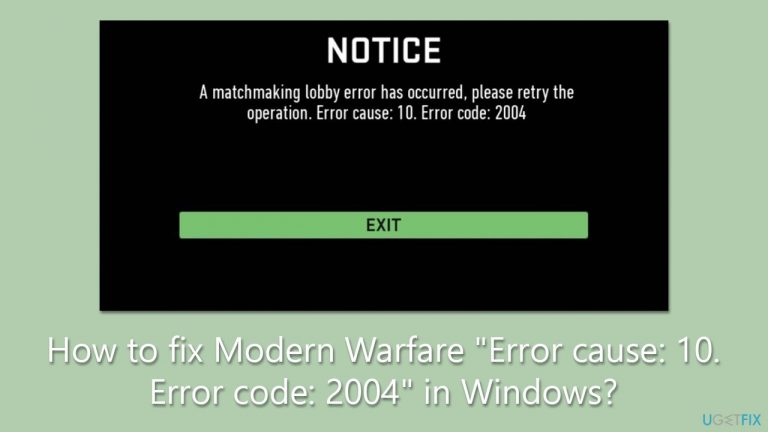
Hi. Today I tried to load into the Call of Duty Modern Warfare lobby, just as I usually do, and I received an error "A matchmaking lobby error has occurred. Error cause 10. Error code 2004." I've been waiting all day, and the result is always the same. Please advise if this can be fixed.
Call of Duty Modern Warfare is a massive franchise with a huge fan base, and its multiplayer mode is particularly popular. Millions of players worldwide compete against each other in fast-paced, high-stakes online matches.
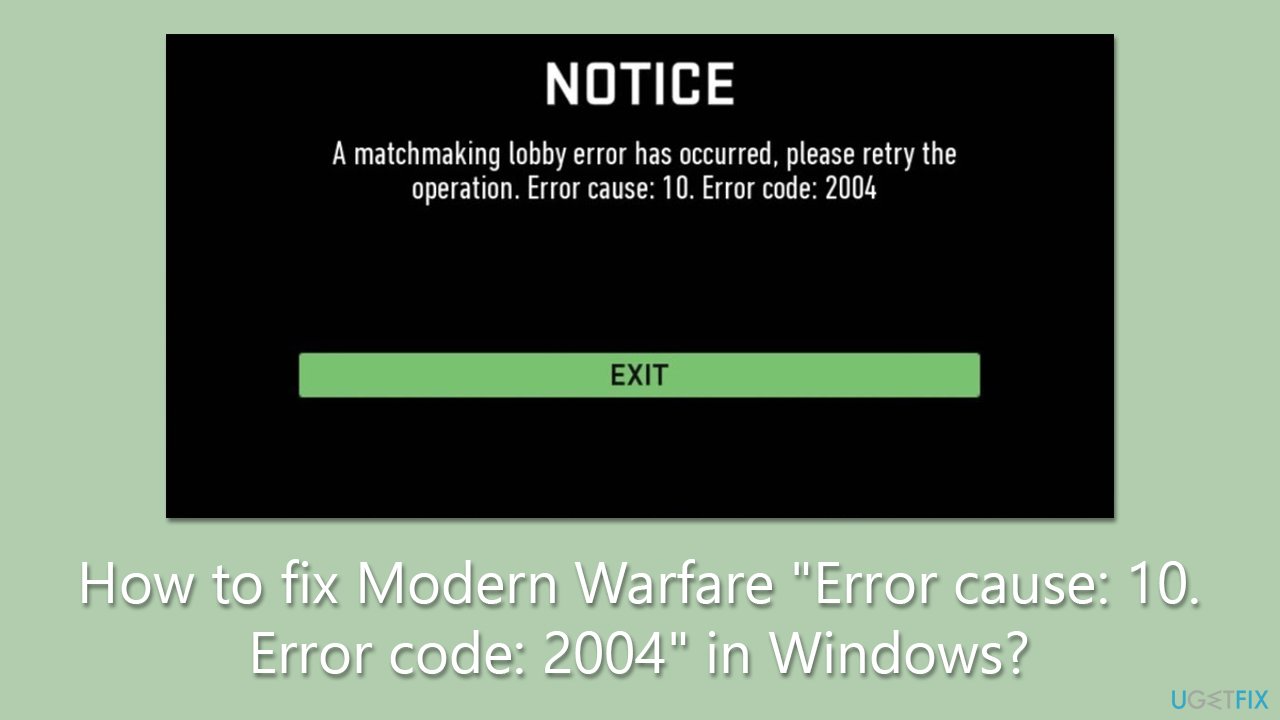
However, some players have reported encountering an error that prevents them from playing multiplayer matches. The error message they receive reads, "A matchmaking lobby error has occurred. Error cause 10. Error code 2004."
This error code can be a frustrating issue for players who want to enjoy the game with their friends. The matchmaking lobby error occurs during online play and prevents players from joining multiplayer matches. "Error cause: 10. Error code: 2004" is a result of a server issue at Activision or internet connectivity problems. Additionally, firewall settings might block the connection between the game client and servers, triggering the error.
Players might wonder why they receive this error code, especially if they have stable internet connectivity and have not made any significant changes to their firewall settings.
Unfortunately, sometimes, these errors can be due to issues on the game's server side. This means the players' computer or console is working correctly, but the game's server is not responding correctly, leading to a matchmaking lobby error.
In the case of the latter, there are several things you can do to fix the "Error cause: 10. Error code: 2004" in Windows. We provide a step-by-step guide below, although you should check your system with a PC repair tool [d1], which can diagnose issues and fix them automatically for you.
Solution 1. Check servers
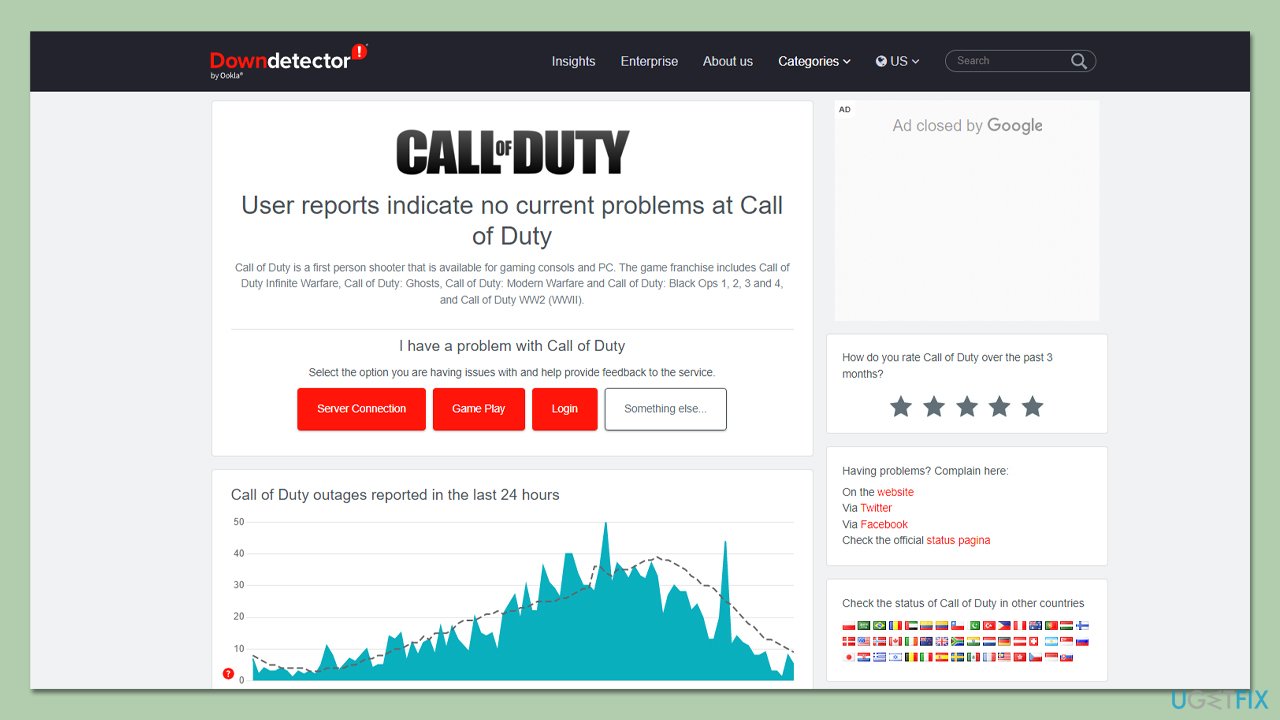
If you face login issues while playing Call of Duty, it is essential to begin the troubleshooting process by verifying the server's status. You can check the server status by visiting websites such as Down Detector or following the official Activision Twitter account that provides instant updates on server issues. In case the servers are offline, regrettably, there is nothing you can do from your end, and you need to wait for Activision to resolve the problem.
Solution 2. Run network troubleshooter
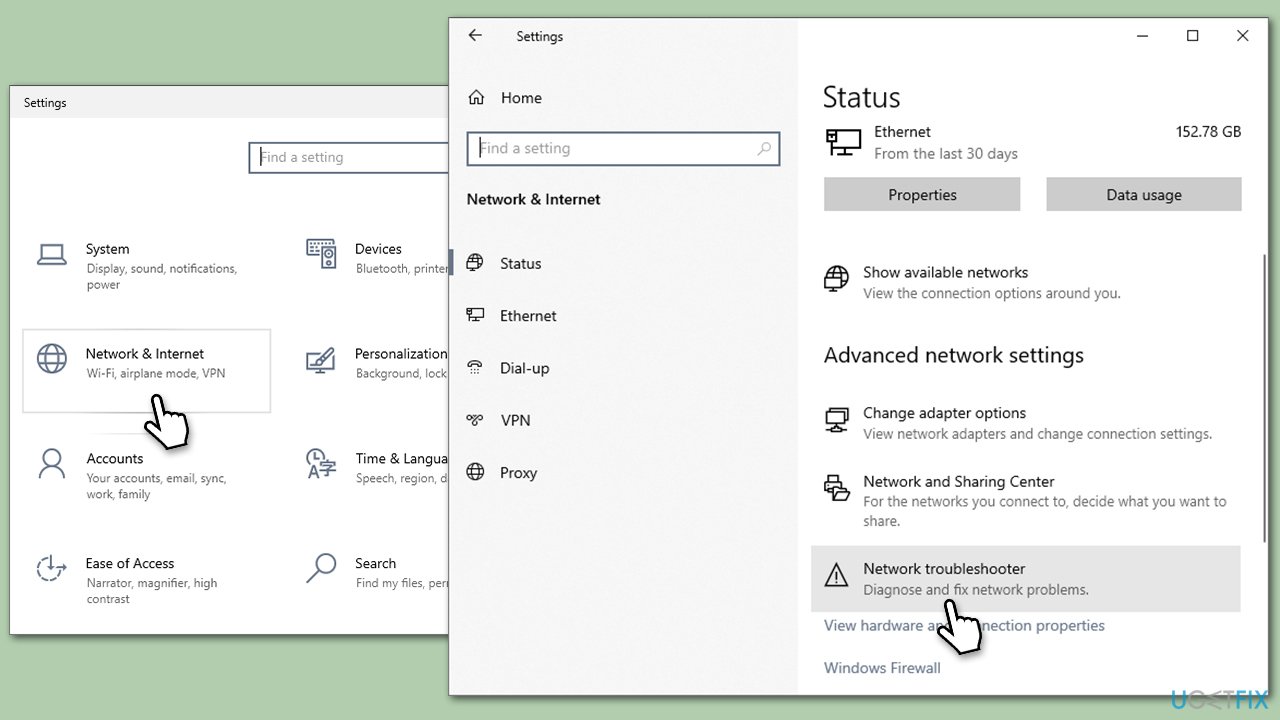
A network troubleshooter is a software tool or a set of built-in diagnostic tools in an operating system that helps users identify and resolve common network connectivity issues. Network troubleshooters typically run a series of automated tests to diagnose network problems such as slow connectivity, intermittent connection drops, DNS issues, and network adapter problems.
- Right-click on Start and pick Settings.
- Go to Network & Internet section.
- On the right side, find the Advanced network settings section.
- Click Network troubleshooter and wait.
- The fixes should be automatically applied.
Solution 3. Reset your internet
There are several components you can reset, such as Winsock and DNS.
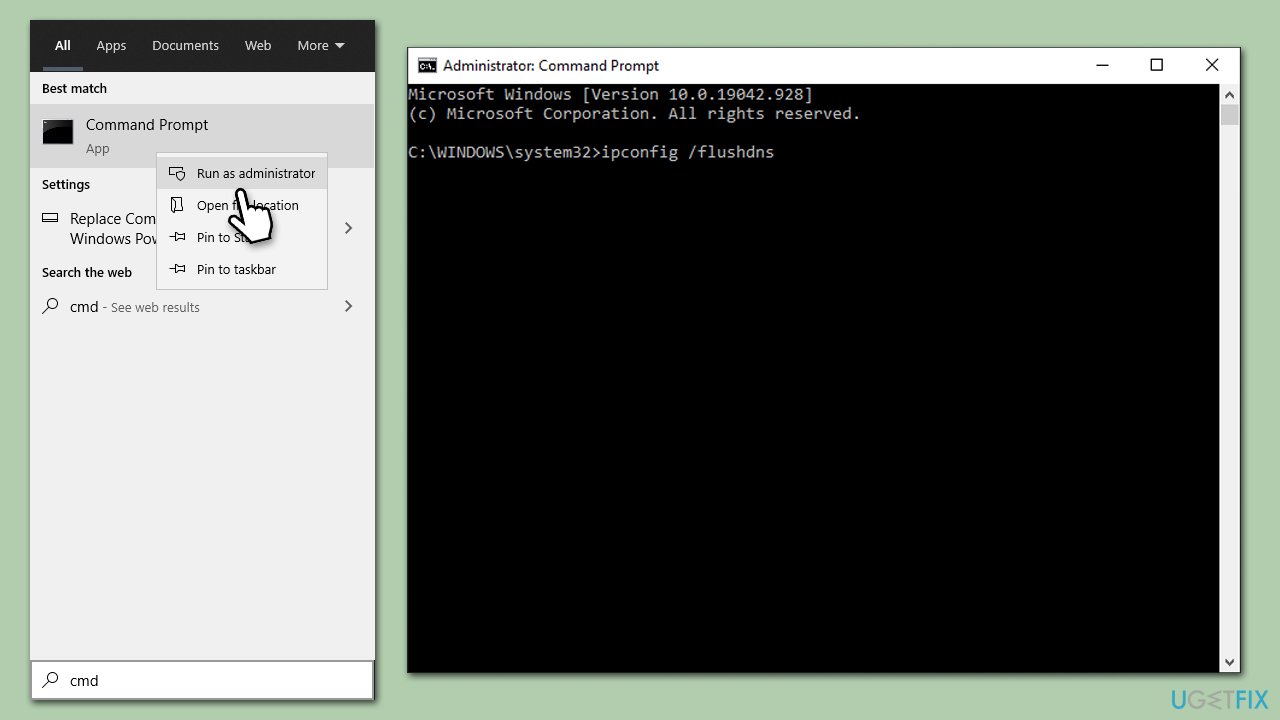
- Type cmd in Windows search.
- Right-click on the Command Prompt result and select Run as administrator.
- When User Account Contol shows up, click Yes.
- In the new window, copy and paste the following command links, pressing Enter each time:
ipconfig /flushdns
ipconfig /registerdns
ipconfig /release
ipconfig /renew
netsh winsock reset - Close Command Prompt and see if the issue is fixed.
Solution 4. Use an alternative DNS
The default DNS provided by an ISP can cause connectivity issues for users as it may not always be reliable and could result in slow website loading times or complete disconnection from the internet. Additionally, some ISPs may intentionally limit their DNS service's speed to control internet traffic. To avoid such issues, users can consider switching to a third-party DNS provider such as Google DNS.
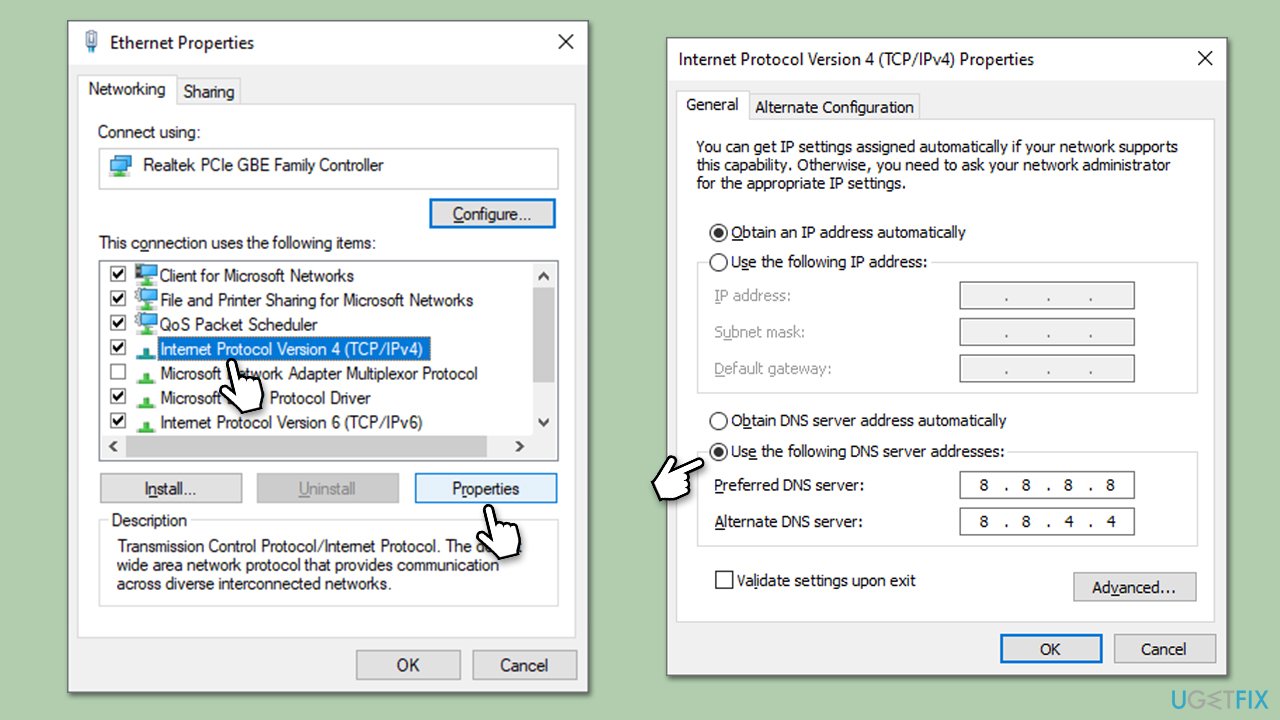
- Right-click on Start and pick Network Connections.
- Under Advanced network settings, pick Change adapter options.
- In the Network Connection window, right-click on your main connection (for example, Ethernet) and pick Properties.
- Select Internet Protocol Version 4 (TCP/IPv4) and click Properties below.
- Click Use the following DNS server address and type the following into the fields:
Preferred DNS server: 8.8.8.8
Alternate DNS server: 8.8.8.9 - Press OK.
Bottom line
To fix the 'Error cause: 10. Error code: 2004' in Windows, players should start by checking the server status and ensuring their internet connection is stable. Additionally, reviewing firewall settings may help resolve the issue. If none of these solutions work, consider using a PC repair tool to diagnose and fix potential underlying problems.
Frequently asked questions
The error code 2004 typically indicates a problem with the game's connection to the server, often due to network issues or server maintenance.
To troubleshoot 'Error cause: 10', ensure your Windows 10 or Windows 11 firewall settings allow Modern Warfare to access the internet and try resetting your network settings.
A quick fix for error code 2004 on Windows 11 is to restart your router and check for any updates for the game or the Windows operating system.




Report an issue
What's wrong with this guide? We review every report and update or remove content.
Report received — thank you. We'll review and fix it.
You need a free account to submit a report.
Be the first to comment