How to fix
Monitor going black for a second
on Windows
Resolve the frustrating issue of your monitor going black on Windows 10 or 11. Get quick, expert-tested solutions to keep your display stable!

What causes How to fix monitor going black for a second?
- Outdated or corrupt graphics drivers
- Resolution mismatch
- Faulty cables or connections
- Power fluctuations
- Monitor settings or internal issues
Repairs Windows system files, removes malware, and restores a clean OS state — without reinstalling.
So I have recently replaced my graphics card, and my monitor started to go black for a second and then running fine. It happened around 4-5 times in the past day, so I am a bit worried that there's something wrong. Any idea what this is and how to fix it?
Monitors serve as the primary visual interface between a user and their computer. They display the output from the computer's graphics card, providing real-time visual feedback that's essential for tasks ranging from basic word processing to high-end video editing and gaming. The connection between a computer and its monitor is facilitated via various cables, such as HDMI, VGA, or DisplayPort. Ensuring this connection is stable and efficient is paramount to a smooth computing experience.
However, for some users, an alarming issue can occasionally arise: the monitor goes black for a brief second. This sudden blackout, albeit short-lived, can disrupt ongoing tasks and cause significant concern.
There are several potential reasons for these brief blackouts:
- Drivers. Outdated or corrupt graphics drivers can lead to issues with the display. The graphics driver is the software that allows the computer's operating system to communicate effectively with the graphics card.
- Resolution Mismatch. Sometimes, the computer might be set to output a resolution that's not natively supported by the monitor. When the mismatched resolution is detected, the monitor might go black temporarily as it tries to adjust.
- Faulty Cables or Connections. The cables connecting the monitor to the computer can become damaged or loose. If the connection is intermittent, it can result in the monitor momentarily losing signal.
- Power Fluctuations. Monitors require a steady power supply. Any minor fluctuations or interruptions in the power source can lead to the monitor going black for a split second.
- Monitor Settings or Internal Issues. Occasionally, the problem might stem from the monitor itself – either through incorrect settings or internal malfunctions.
While the details for resolving these issues are provided below, it's worth noting that general PC maintenance can often prevent or fix many common problems. The [d1] PC repair tool is an excellent all-in-one solution that can address various concerns, from BSODs and registry errors to corrupted system files and beyond, streamlining the troubleshooting process.
Fix 1. Update graphics drivers
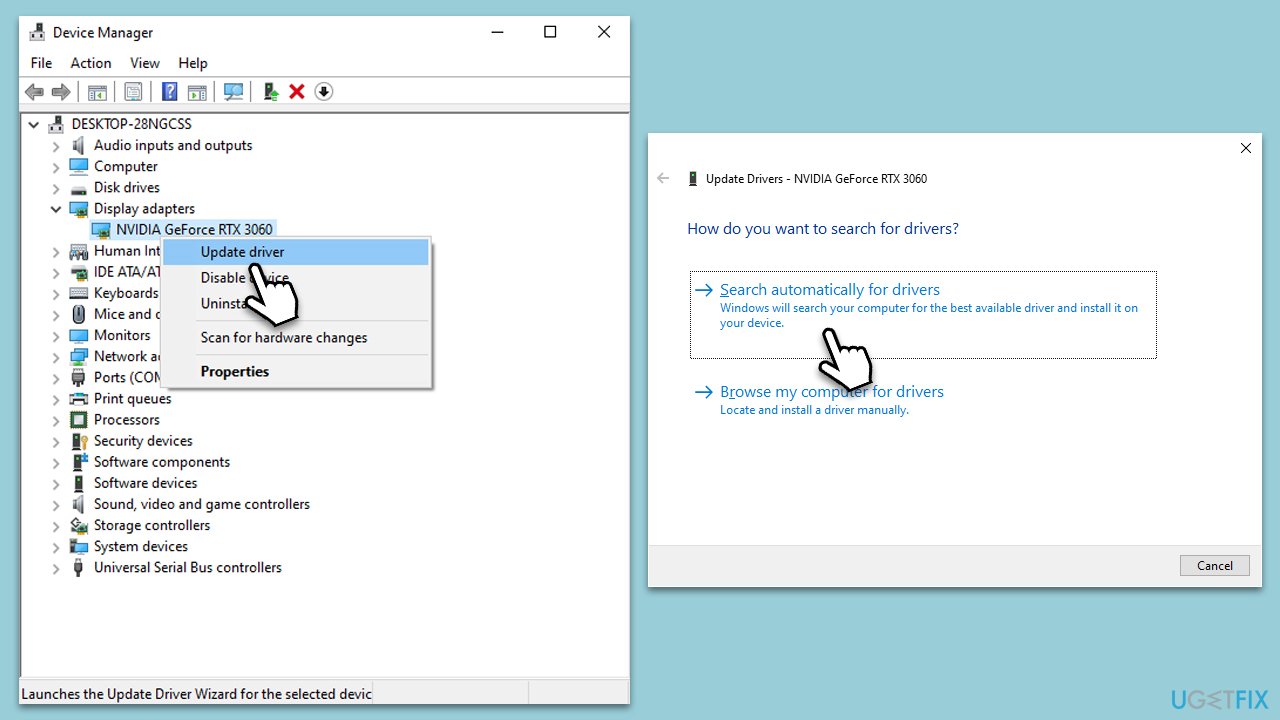
Graphics drivers are software components that enable the operating system to communicate with the graphics hardware. Over time, manufacturers release updates to these drivers to resolve potential issues or improve performance. You could try using Device Manager to update your drivers:
- Right-click on Start and pick Device Manager.
- Expand the Display Adapters section.
- Right-click on your graphics card and select Update Driver.
- Select Search automatically for drivers and wait.
- Once done, restart your device.
Please be aware that obtaining drivers through the Windows update feature may not always be the most effective method. It might not provide you with the most up-to-date drivers, and the process can be time-consuming. Instead, we suggest obtaining the latest drivers directly from the manufacturer's website for your device.
Alternatively, you can streamline this process by using automated tools like [rev id="DriverFix"], which offer a convenient and hands-free approach to driver updates.
Fix 2. Adjust resolution settings
Mismatched resolution can cause monitor blackouts. Setting the correct resolution can ensure compatibility between your monitor and computer.
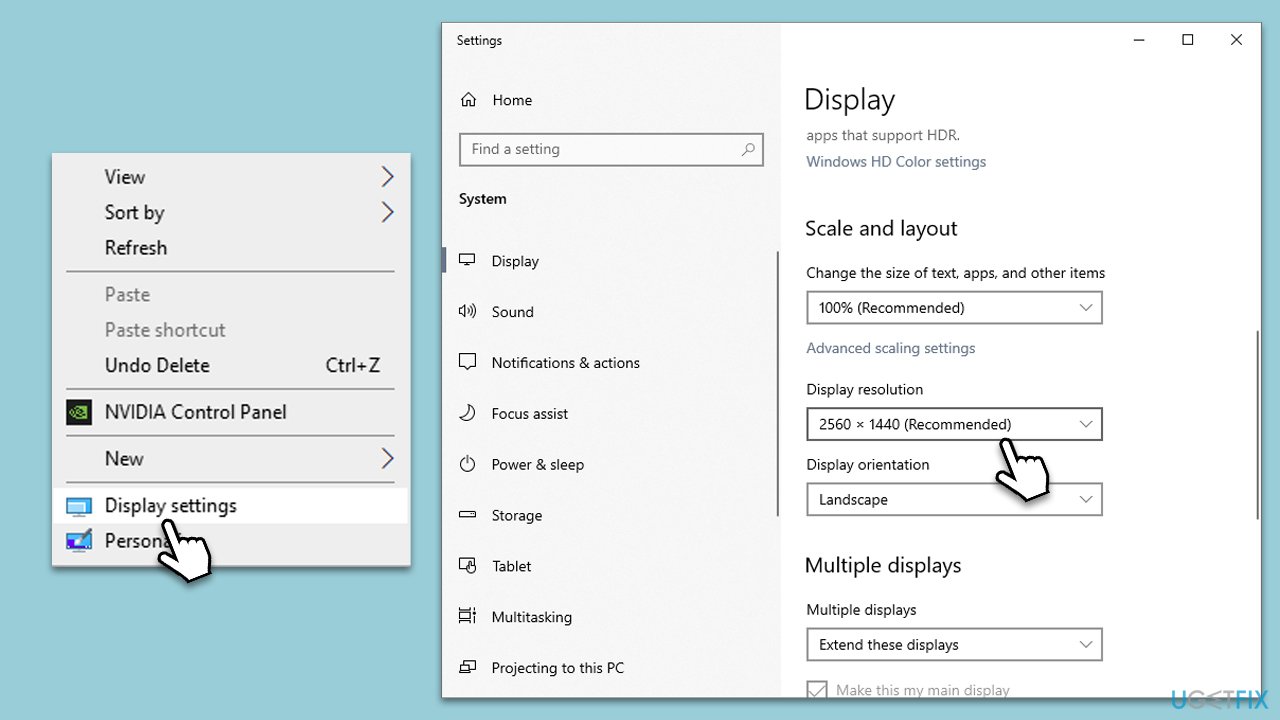
- Right-click on the desktop and select Display settings.
- Scroll down to Display resolution.
- Click on the drop-down menu and pick the Recommended option.
- Click Apply and then Keep changes.
- If issues persist, try other resolutions till one works optimally.
Fix 3. Check cable connections
Loose or damaged cables can interrupt the signal between the computer and the monitor.
- Turn off the computer and monitor.
- Unplug and replug the cable, ensuring a snug fit on both ends.
- If possible, use a different cable to test the connection.
- Turn on the computer and monitor.
Fix 4. Monitor power cycle
Power cycling can reset the monitor's internal circuits, potentially resolving any temporary glitches.
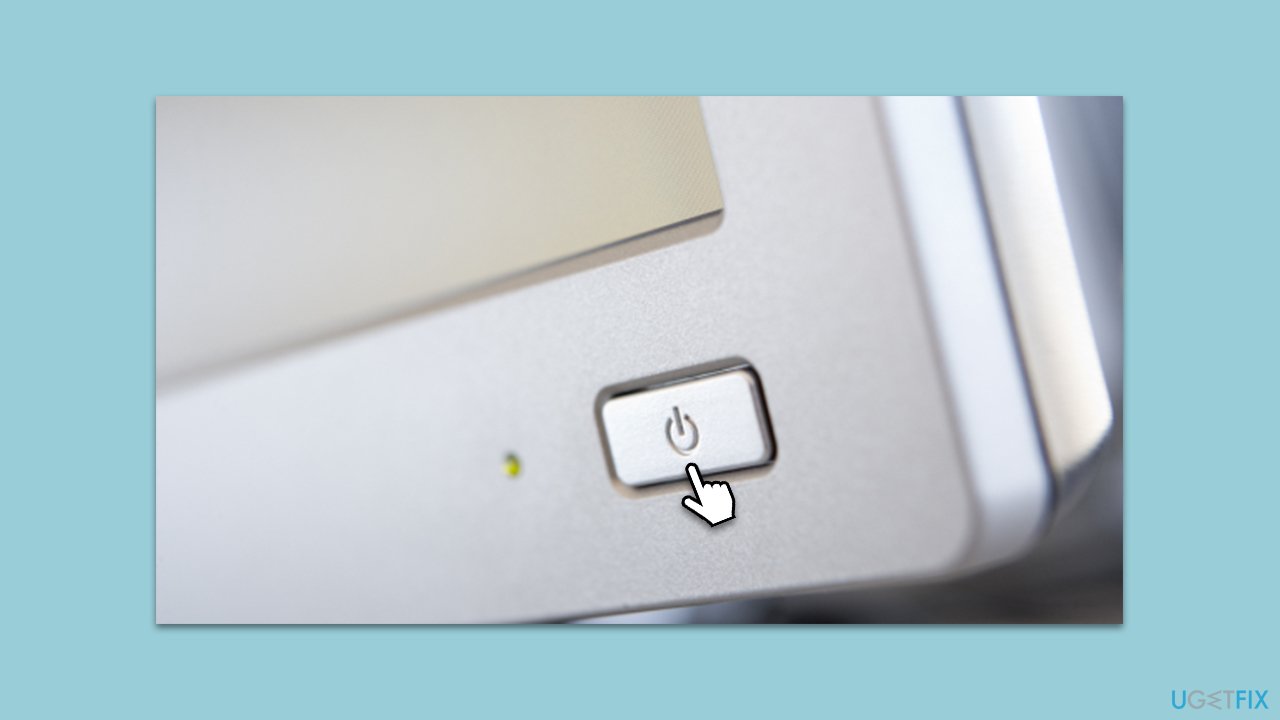
- Turn off the monitor using its power button.
- Unplug it from the power source.
- Wait for 2-3 minutes.
- Reconnect the monitor to the power source and turn it on.
Fix 5. Reset monitor settings
Restoring factory default settings can rectify any configuration-related issues.
- Access the monitor's on-screen menu (usually a button on the monitor).
- Navigate to Settings or System.
- Find and select Reset or Restore factory settings.
- Confirm your choice.
Fix 6. Test with another device
This will determine if the issue is with the monitor or the computer.
- Connect the monitor to a different computer or laptop.
- Turn on both devices.
- If the issue persists, the problem likely lies with the monitor.
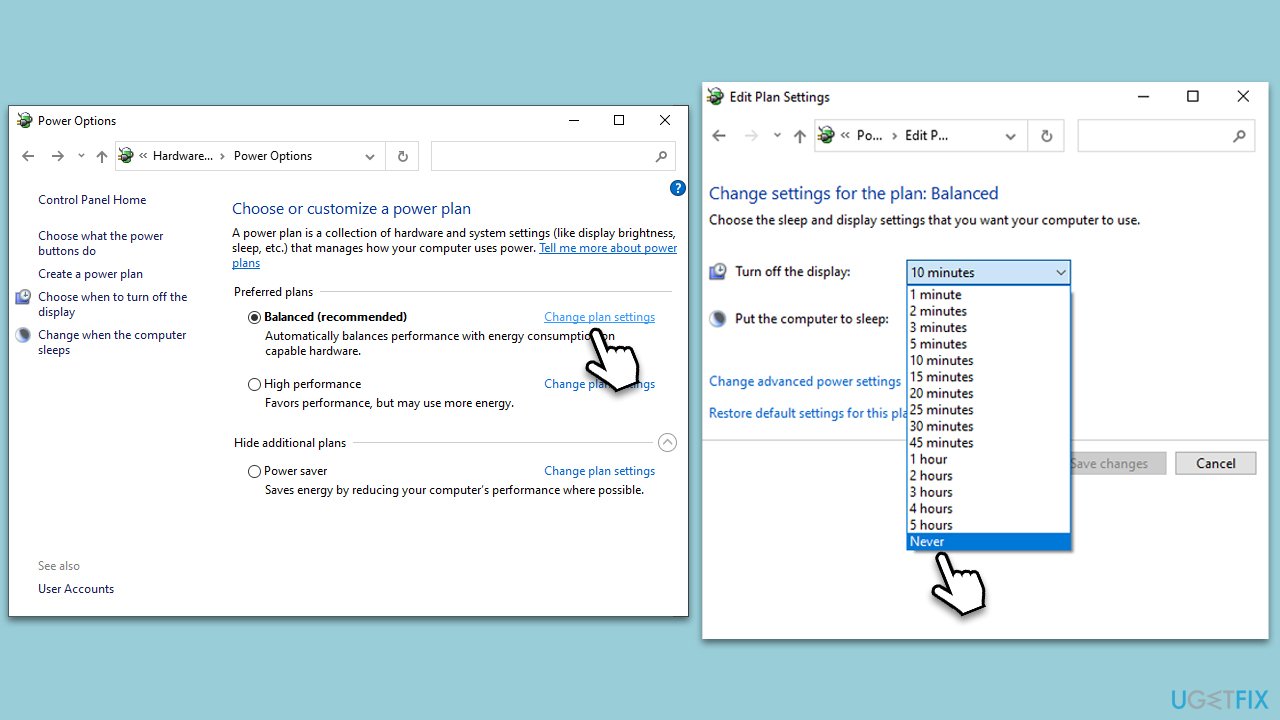
Fix 7. Adjust power settings
Prevent the computer from turning off the monitor as a power-saving measure.
- In Windows search, type Control Panel and hit Enter.
- Here, go to Hardware and Sound > Power options.
- Choose Change plan settings next to your active power plan.
- Under Turn off display after, select Never from the drop-down menu.
- Click Apply and OK.
Bottom line
To fix the monitor going black for a second, ensure your graphics drivers are updated, check for resolution compatibility, inspect cables for damage, and verify power supply stability. If the issue persists, consider adjusting monitor settings or checking for internal malfunctions. If none of these solutions work, further troubleshooting may be necessary.
Frequently asked questions
Check your display cables to ensure they are securely connected and not damaged. Additionally, update your graphics drivers through Device Manager to resolve any compatibility issues.
This can be caused by outdated graphics drivers or settings that are incompatible with your display. Try adjusting the refresh rate in the Display Settings or reinstalling your graphics drivers.
Start by checking the connection of the second monitor and ensure it is set as an extended display in the Display Settings. If the problem persists, try updating the graphics drivers or testing the monitor on a different computer.




Report an issue
What's wrong with this guide? We review every report and update or remove content.
Report received — thank you. We'll review and fix it.
You need a free account to submit a report.
Be the first to comment