How to fix
Mouse Cursor flickering
on Windows
Resolve mouse cursor flickering issues in Windows 10 or 11 effortlessly. Quick fixes and expert-tested solutions await you! Fixed in minutes.


What causes How to fix Mouse Cursor flickering in Windows?
- Outdated mouse drivers
- Outdated keyboard drivers
- Software conflicts
- Compatibility issues
- Incorrect mouse pointer scheme
- Mouse settings adjustments
Repairs Windows system files, removes malware, and restores a clean OS state — without reinstalling.
Hello. The mouse cursor sometimes starts flickering randomly on my Windows computer. Is there a way to fix this issue?
Mouse cursor flickering in Windows can be caused by a number of factors, one of which is outdated mouse and keyboard drivers.[ref en-1] When these drivers become outdated, they may cause conflicts with the operating system, resulting in erratic mouse cursor behavior. This can be frustrating and impair the user's ability to effectively navigate and interact with their computer.
The flickering mouse cursor can have a variety of effects on users. For starters, it can interfere with the visual experience, making it difficult to concentrate on tasks or elements on the screen. This can be especially troublesome for users who rely on precise cursor movements, such as graphic designers or gamers. Second, a flickering cursor can interfere with productivity by slowing or interrupting workflow. Having to deal with an unpredictable cursor all the time can lead to mistakes, delays, and increased frustration.
Fortunately, there are potential solutions to the mouse cursor flickering problem. One option is to update the mouse and keyboard drivers to the most recent versions. This can be accomplished through Device Manager or by visiting the manufacturer's website and downloading and installing the updated drivers. Check for any software conflicts or compatibility issues that could be causing the flickering. Disabling or uninstalling conflicting software can assist in resolving the issue.
Changing the mouse pointer scheme or adjusting the mouse settings in Windows settings may also help to alleviate the flickering cursor. This guide will walk you through 4 steps that should help you fix mouse cursor flickering in Windows. Keep in mind that manual troubleshooting can be time-consuming.
Instead, you can try a maintenance tool like [d1] that can fix most system errors, BSODs,[ref en-2] corrupted files, and registry[ref en-3] issues. Otherwise, follow the step-by-step instructions below.
Method 1. Restart File Explorer
- Right-click on the Start menu on the Desktop.
- Select Task Manager from the context menu.
- In the Task Manager window, locate Windows Explorer from the list of Processes.
- Select Windows Explorer in the list.
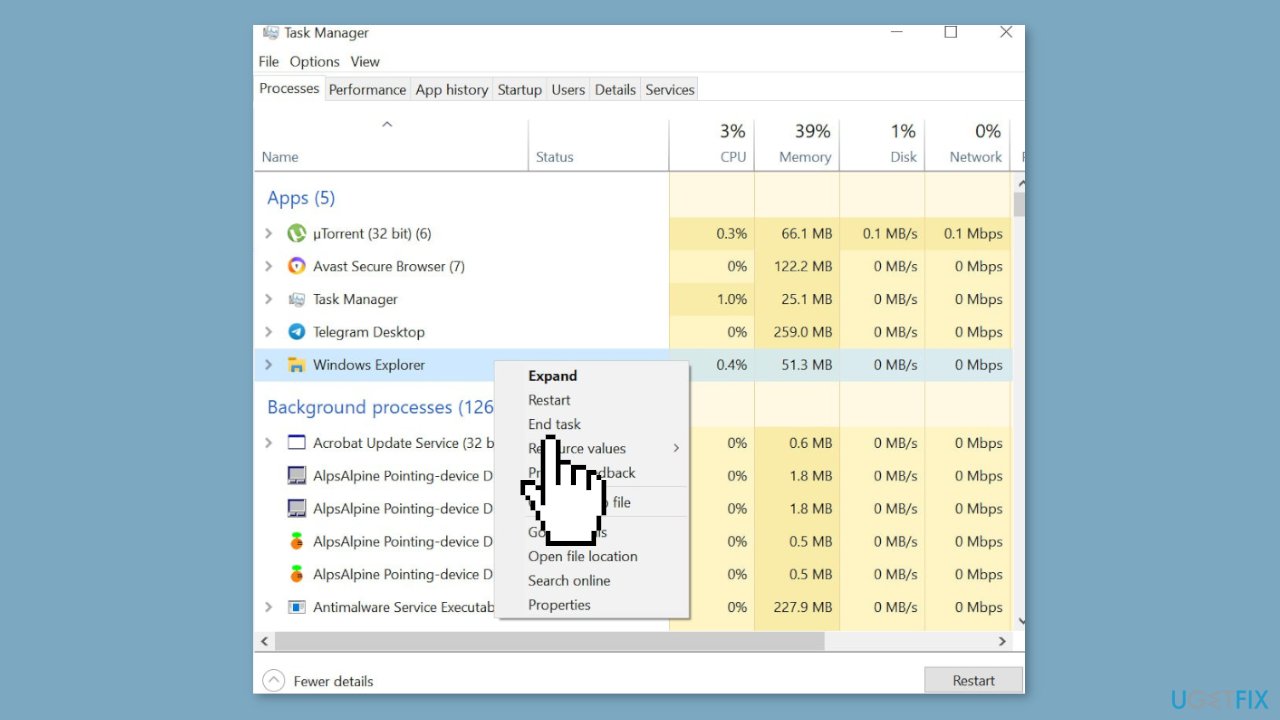
- Click on the End task button located at the bottom right corner of the Task Manager window.
- Confirm the action by clicking on the End process button in the pop-up window.
- Click on the File menu at the top left corner of the Task Manager window.
- Select Run new task from the drop-down menu.
- In the Create new task window, type explore.exe in the text field.
- Press the OK button to run the new task.
- Close the Task Manager window.
- Check if the error is fixed or resolved.
Method 2. Update Mouse and Keyboard Drivers
- Press the Windows key on your keyboard.
- Type Device Manager in the Windows search bar.
- Hit Enter to open the Device Manager.
- In the Device Manager window, locate Mice and other pointing devices.
- Right-click on the Mice and other pointing devices option in the drop-down menu.
- Select Update driver from the context menu.
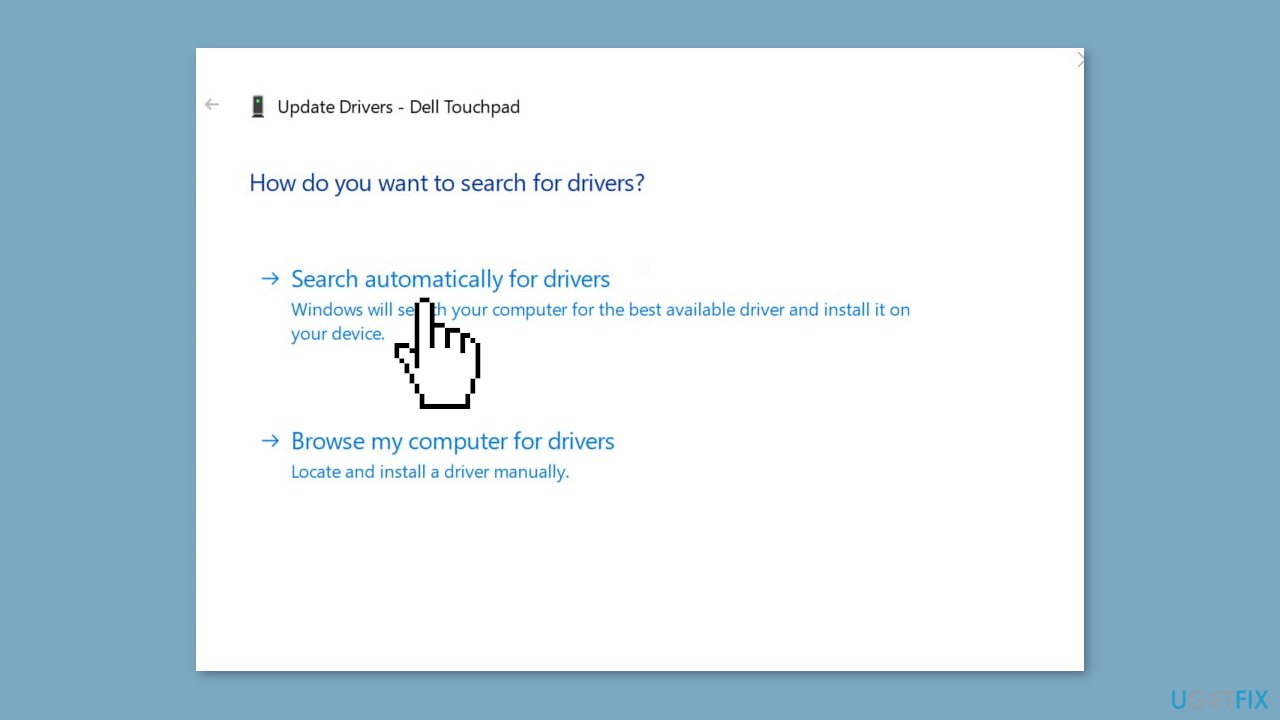
- In the next window, select Search automatically for updated driver software.
- Follow the on-screen instructions to complete the driver update process.
- Once the update is finished, restart your PC.
- After the restart, check if the error still persists.
Method 3. Disable Windows Defender
- Press the Windows key + I to open the Settings app.
- In the Settings app, click on Update & Security.
- Select the Windows Security tab.
- Click on Virus & Threat Protection.
- Click on Manage Settings.
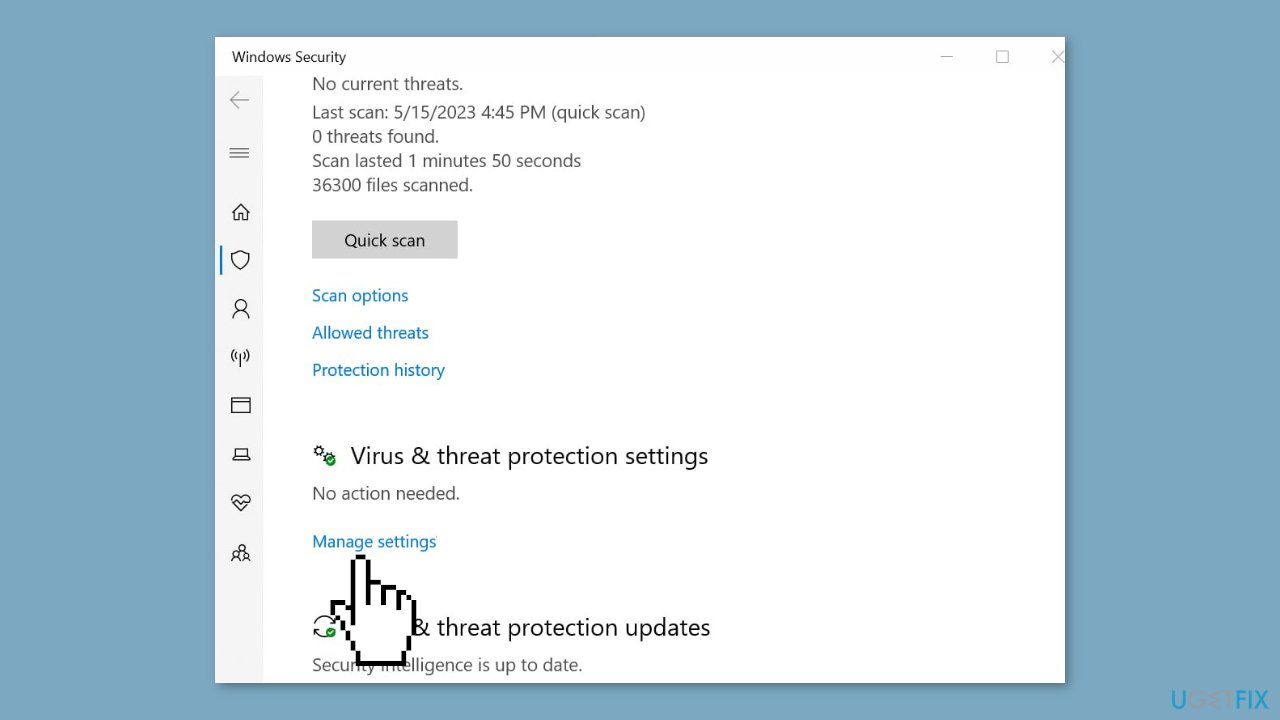
- Locate the toggle button next to Real-Time Protection and click on it to turn off the feature. You can also disable other options in this tab if desired.
- Close the Windows Security window.
- Restart your PC.
- After the restart, check if the error is resolved.
Method 4. Disable Biometrics
- Press the Windows key on your keyboard.
- Type Device Manager in the Windows search bar.
- Hit Enter to open the Device Manager.
- In the Device Manager window, locate Biometric devices.
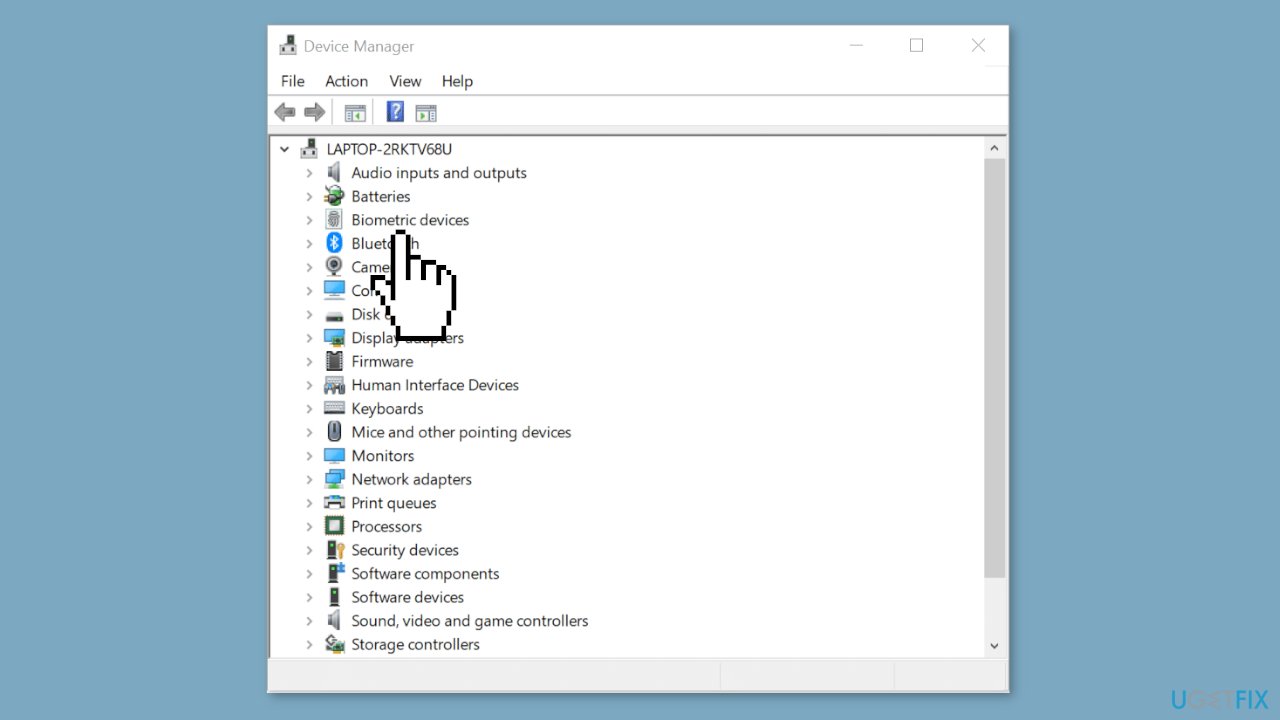
- Right-click on Validity Sensor (or the specific biometric device you want to disable).
- Select Disable device from the context menu.
- Click Yes to confirm your actions in the pop-up window.
- Close the Device Manager once you have disabled the device.
- Restart your PC.
- After the restart, check if the error is resolved.
Bottom line
To fix mouse cursor flickering in Windows, you can update your mouse and keyboard drivers, check for software conflicts, and adjust mouse settings. If these solutions do not resolve the issue, consider using a maintenance tool to fix system errors.
Frequently asked questions
Mouse cursor flickering can be caused by outdated graphics drivers, display settings issues, or hardware malfunctions. It's important to check each of these areas to identify the root cause.
You can update your graphics drivers by right-clicking on the Start menu, selecting Device Manager, expanding the Display adapters section, and choosing 'Update driver' for your graphics card. This process is applicable for both Windows 10 and Windows 11.
Yes, adjusting the refresh rate and screen resolution in the Display settings can help resolve cursor flickering. Ensure that the settings are compatible with your monitor specifications in both Windows 10 and Windows 11.




Report an issue
What's wrong with this guide? We review every report and update or remove content.
Report received — thank you. We'll review and fix it.
You need a free account to submit a report.
Be the first to comment