How to fix
Mouse cursor not locking in the game window after using the Xbox Game Bar
on Windows
Resolve the mouse cursor issue in Windows 10 or 11 while gaming with Xbox Game Bar. Fix it quickly and play uninterrupted—expert-tested!


What causes How to fix mouse cursor not locking in the game window after using the Xbox Game Bar?
- Mouse cursor issues during gaming sessions
- Cursor wandering into secondary monitors
- Recent Windows 11 updates
- Game Bar social widget exacerbating the issue
- Outdated graphics drivers
Repairs Windows system files, removes malware, and restores a clean OS state — without reinstalling.
I run a double monitor setup, and every time I use the Xbox Game Bar, my mouse stops staying in the game window. It keeps moving over to the other screen while I’m playing, which gets really annoying. Is there a way to fix this and keep the cursor locked in the game?
Mouse cursor issues during gaming sessions can significantly disrupt the experience, especially for users with multi-monitor setups. A specific concern arises when the cursor no longer stays locked within the game window after using the Xbox Game Bar. This problem often leads to the cursor wandering into secondary monitors or external applications, interrupting gameplay. Below, we explore possible reasons and solutions for this issue.
This problem has been acknowledged by numerous users in the Microsoft Community Forums (as well as Microsoft itself) particularly after recent Windows 11 updates. Some users noted that using the Game Bar social widget significantly exacerbates the issue. Microsoft has released updates in beta channels addressing Xbox Game Bar overlay problems. Updating to the latest version of Windows and monitoring future updates is crucial for a permanent fix.
If Beta channels are unavailable to you, you can always try other solutions to fix mouse cursor moving into the second screen when playing games on dual monitor setups. For example, you could disable Game Bar overlay, adjust in-game settings, uninstall the most recent update that caused the issue, or update graphics drivers that sometimes may contain a solution. Nonetheless, you will find all the detailed instructions on how to perform these steps below.
Before proceeding with manually tackling the issue, we recommend you try using a powerful PC repair application [d1], which is capable of repairing damaged DLLs, registries, and other system files, as well as removing junk and fixing any underlying Windows issues that could be contributing to the problem in the first place.

Fix 1. Install the latest Windows updates (Beta channel if applicable)
Windows updates often include fixes for bugs and compatibility issues. Joining the Beta channel can give you early access to updates addressing known problems like this one.
- Type Updates in Windows search and press Enter.
- When the new window opens, click Check for updates (or Install all if pending) and wait.
- If there are optional updates available, install them as well.
- After updating, restart your computer.
To join Insider program
- Right-click on Start, pick Settings and navigate to Windows Update/Update & security.
- Click Windows Insider Program.
- If you are not already enrolled, click Get started and sign in with your Microsoft account by pressing Register.
- Alternatively, you might be asked to share optional diagnostic data to join the program - do so.
- Restart your PC when prompted, and then initiate the Windows update process.

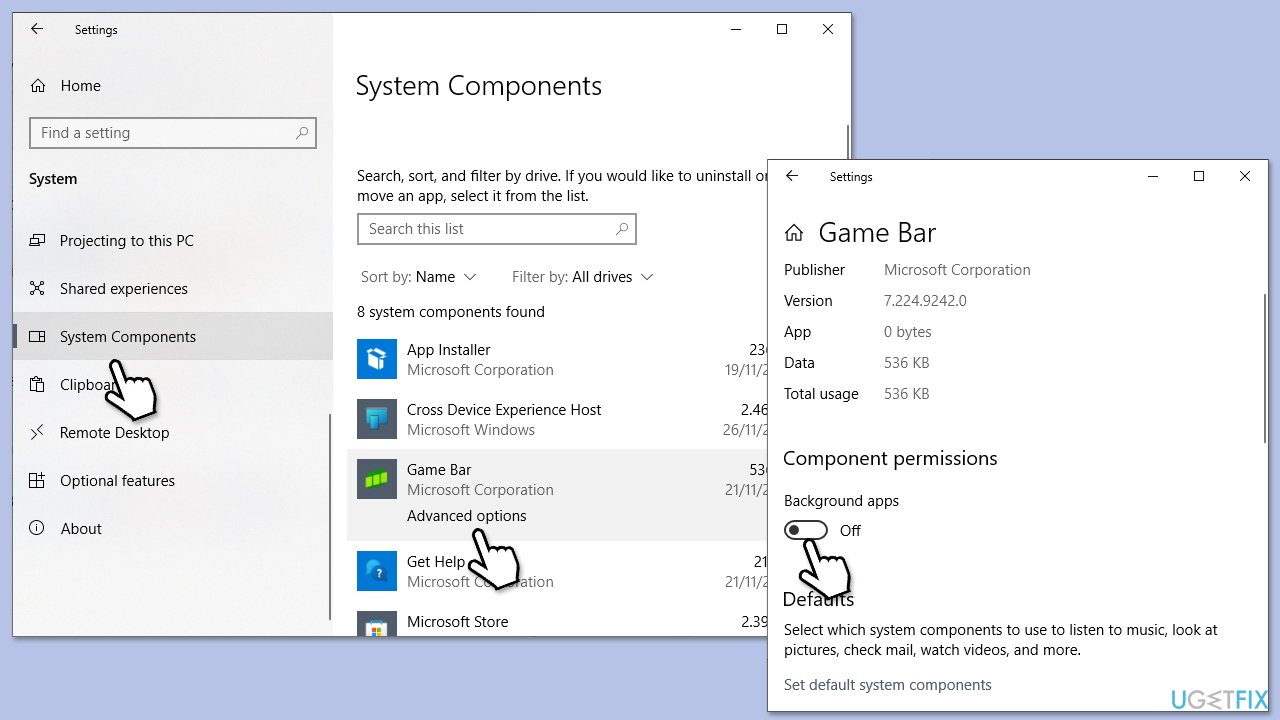
Fix 2. Disable Xbox overlay
Since Xbox Game Bar is known to be causing issues with double monitor setup, you can try disabling the overlay first.
- Right-click on Start and pick Settings.
- Go to System and Select System Components.
- Locate Game Bar and click Advanced options.
- Under Component permissions, toggle the Background apps switch to the Off position.
- Restart your computer.
Fix 3. Disable Xbox Game Bar
If disabling the overlay did not work for you, you can try disabling Game Bar altogether.
- Right-click on Start and pick Settings.
- Select the Gaming section.
- Under Game Bar, toggle the switch to the Off position.
- Reboot your PC to apply the changes.

Fix 4. Modify in-game settings
Some games offer built-in options to lock the cursor within the game window. Adjusting these settings can restore proper cursor behavior.
- Open the game and navigate to its settings menu.
- Look for options like Cursor Lock, Fullscreen Mode, or Display Settings.
- Enable cursor locking or change the display mode to fullscreen or borderless.
- Save the changes and restart the game.

Fix 5. Uninstall the most recent Windows update
If the issue was caused by the latest Windows update, you can uninstall it as follows:
- Type Control Panel in Windows search and press Enter.
- Select Programs > Uninstall a program.
- Click on View installed updates on the left side of the window.
- Sort all the updates by date.
- Right-click on the recent update and select Uninstall.
- Proceed with on-screen instructions.
- Then, type Updates in Windows search and press Enter.
- Click Pause the updates for 7 days (in Windows 11, you can pick a different time period).
- Install updates only once the issue is addressed by Microsoft.

Fix 6. Update graphics drivers
There are several ways you could update your display drivers. If you would prefer a hassle-free approach, you can rely on automatic tools such as [rev id="DriverFix"].
- Right-click on Start and pick Device Manager.
- Expand Display Adapters section.
- Right-click on your GPU and select Update driver.
- Select Search automatically for drivers.
- After the installation is complete, restart your system.

Bottom line
To fix the mouse cursor not locking in the game window, you can install the latest Windows updates, disable the Game Bar overlay, adjust in-game settings, uninstall the most recent update, or update your graphics drivers. If these solutions do not resolve the issue, consider using a powerful PC repair application to address underlying problems.
Frequently asked questions
This issue may occur due to a conflict between the Xbox Game Bar and certain game settings. You can try toggling the Game Bar settings or running the game in fullscreen mode.
Ensure that your game is set to fullscreen mode and check the Xbox Game Bar settings to disable any features that may conflict with mouse locking.
You can usually lock the mouse cursor by pressing Alt + Enter to toggle fullscreen mode, which should resolve the cursor locking issue.




Report an issue
What's wrong with this guide? We review every report and update or remove content.
Report received — thank you. We'll review and fix it.
You need a free account to submit a report.
Be the first to comment