How to fix
Mouse keeps disconnecting
on Windows
Resolve mouse disconnection issues on Windows 10 and 11 quickly and efficiently with expert-tested solutions. Fixed in minutes!

What causes How to fix Mouse keeps disconnecting in Windows?
- Faulty USB port
- Driver conflicts
- Power management settings
- Hardware issues
- Software conflicts
Repairs Windows system files, removes malware, and restores a clean OS state — without reinstalling.
Hello. The mouse keeps disconnecting when I use it with my Windows PC. Is there a way to fix it?
The recurring issue of a mouse disconnecting in Windows can be extremely inconvenient for users. The problem persists regardless of whether they are using a wired mouse, a USB mouse, a wireless mouse, or a Bluetooth mouse. Mouse lagging, freezing, and overall unreliable performance are all common symptoms.
This problem has a big impact on user experience and productivity. When the mouse lags or freezes, it becomes difficult to navigate and interact with the computer. This can cause problems with tasks that require precise cursor movements, such as graphic design, gaming, or even simple document editing. Users may encounter delays when selecting items, dragging and dropping files, or running software programs, resulting in reduced productivity and increased frustration.
It is critical for users to find a solution to this problem. While the specific cause may vary, there are several possible solutions to the mouse disconnecting problem. Users can troubleshoot by checking the USB connection, trying a different USB port, updating mouse drivers,[ref en-1] or adjusting power management settings. If the problem persists, it may be necessary to replace the mouse or seek professional assistance.
It is important to note that the resolution of this problem may be contingent on the underlying cause, which may be related to hardware, software, or driver conflicts. To pinpoint the exact source of the problem, it is necessary to investigate multiple solutions and troubleshoot accordingly.
In this guide, you will find 4 steps that should help you fix the mouse disconnecting issue. You can also try a maintenance tool like [d1] that can fix most system errors, BSODs,[ref en-2] corrupted files, and registry[ref en-3] issues. Otherwise, follow the step-by-step instructions below.
Solution 1. Check for Hardware Issues
- Check if the mouse is plugged into a faulty USB port.
- If the mouse randomly disconnects, it may indicate a problem with the port.
- Unplug the mouse from the current USB port.
- Insert the mouse into another USB port on the same computer.
- Test if the problem is resolved.
- If the issue is fixed, there might have been an issue with the previous USB port.
- Connect the mouse to a different computer.
- Observe if the problem occurs on a different computer.
- If the issue happens on a different computer, it indicates a problem with the mouse itself.
- Proceed to purchase a new mouse.
- If the issue does not occur on a different computer, the problem might be related to Windows.
Solution 2. Disable USB Selective Suspend
- Press the Windows key + R keys to open the Run dialog box.
- Type powercfg.cpl into the Run dialogue box.
- Press Enter to open the Power Options interface.
- Navigate to the current power plan and select Change plan settings.
- In the new window, click on the Change advanced power settings link.
- Locate the USB settings and expand it.
- Expand the USB selective suspend setting option.
- Set the USB selective suspend setting to Disabled.
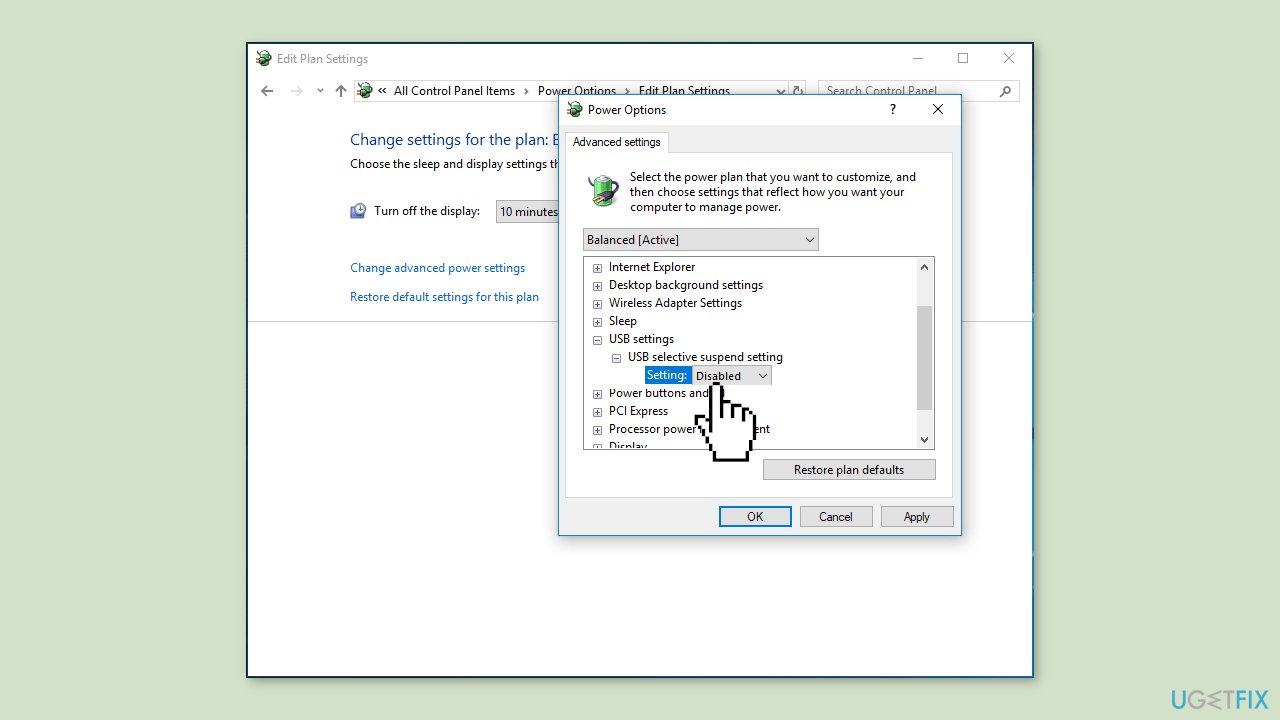
- Click on Apply and then OK to apply the changes.
- Allow the changes to take effect.
Solution 3. Change USB Power Management Settings
- Right-click on the Start button in Windows.
- Select Device Manager from the context menu.
- Expand the Universal Serial Bus controllers category.
- Double-click on a device to open its properties window.
- Go to the Power Management tab.
- Uncheck the box next to the option that says Allow the computer to turn off this device to save power.

- Click OK to apply the changes.
- Verify that your mouse no longer disconnects randomly.
Solution 4. Reinstall the Mouse Driver
- Open the Device Manager interface.
- Expand the Mice and other pointing devices category.
- Right-click on your HID-compliant mouse and select Uninstall device.

- Confirm the uninstallation by clicking Uninstall to remove the mouse driver.
- Disconnect your mouse from the computer.
- Restart your PC.
- After restarting, Windows will automatically install the driver for your mouse.
- Verify that your mouse no longer disconnects randomly.
You can also use a dedicated utility like [rev id="DriverFix"] that can find the best drivers for your machine and install them automatically.
Bottom line
To fix the mouse disconnecting issue, users can check the USB connection, try a different USB port, update mouse drivers, or adjust power management settings. If these solutions do not resolve the problem, it may be necessary to replace the mouse or seek professional assistance.
Frequently asked questions
Common reasons include low battery in wireless mice, faulty USB ports, or outdated drivers. Checking these factors can help resolve the issue.
You can update mouse drivers by going to Device Manager, locating your mouse under 'Mice and other pointing devices', right-clicking it, and selecting 'Update driver'. This ensures that you have the latest software for optimal performance.
First, try plugging the mouse into a different USB port or another computer to rule out hardware issues. If the problem persists, consider checking for Windows updates or performing a clean boot to eliminate software conflicts.




Report an issue
What's wrong with this guide? We review every report and update or remove content.
Report received — thank you. We'll review and fix it.
You need a free account to submit a report.
Be the first to comment