How to fix
Mouse lag
on Windows
Eliminate mouse lag on Windows 10 with effective troubleshooting tips and techniques. Get back to smooth navigation—expert-tested solutions included!

What causes How to fix mouse lag on Windows 10?
- Misconfigured Windows settings
- Hardware-related issues
- Malware infection
- Outdated mouse driver
- Incompatible software
Repairs Windows system files, removes malware, and restores a clean OS state — without reinstalling.
Hi, recently I have been playing online games a lot. During this time, I noticed that my mouse is lagging and it significantly deteriorates by gaming experience. I wonder, are there ways how to fix mouse lag on Windows 10? Thanks!
Mouse lag is a term commonly used to describe a slow response between the initiation of the task and the result. Additionally, there are keyboard lags as well. In this case, the term refers to the increased latency[ref en-1] when the key is pressed and when the character appears on the screen.
Usually, problems with keyboard and mouse lag are highly annoying not only to the gamers but also regular computer users. Such issues significantly deteriorate the overall work output as it takes time to complete specific tasks. Fortunately, there are ways how you can fix Mouse lag and improve your experience with the PC.
Keep in mind that Mouse lagging can appear on different systems, including laptops and stationary computers. The typical symptoms of this problem are the following:
- The cursor is stuttering;
- The cursor is freezing;
- The cursor is not moving at all.
Unfortunately, experts cannot identify a single cause of mouse lag. In most cases, these problems can appear due to misconfigured Windows settings, hardware-related issues, or malware[ref en-2] infection. Although, you can find multiple methods showing how to fix mouse lag on Windows 10[ref en-3] below.
Ways to fix mouse lag on Windows 10
As it was mentioned before, mouse lag might appear if malware is compromising your system. Therefore, it is advisable to scan your computer with a professional security tool to eliminate all potentially malicious programs before trying other techniques.
You can automatically fix mouse lag on Windows 10 with [d1] if a virus causes the issue. For that, you merely need to download the application and run a full system scan. Soon after, the security tool will identify all potentially dangerous applications and clean your PC.
Here is a video to help you:
[youtube G0rlyk3u-Nw]
Method 1. Re-install and update your mouse driver
Step 1. Uninstall your mouse
- Open Device Manager;
- Select Mice and other pointing devices;
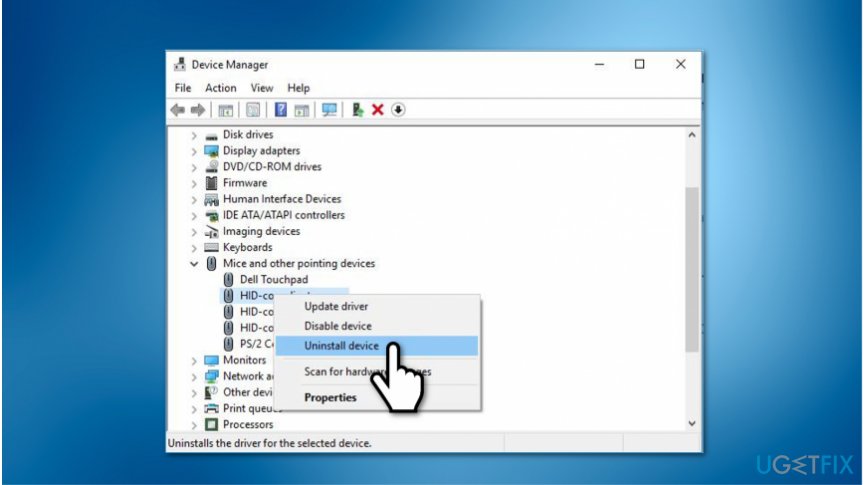
Uninstall mouse driver on windows - Right-click on your mouse and press Uninstall Device;
Step 2. Update mouse driver
- Click Mice and other pointing devices on the Device Manager;
- Find your mouse and right-click on it;
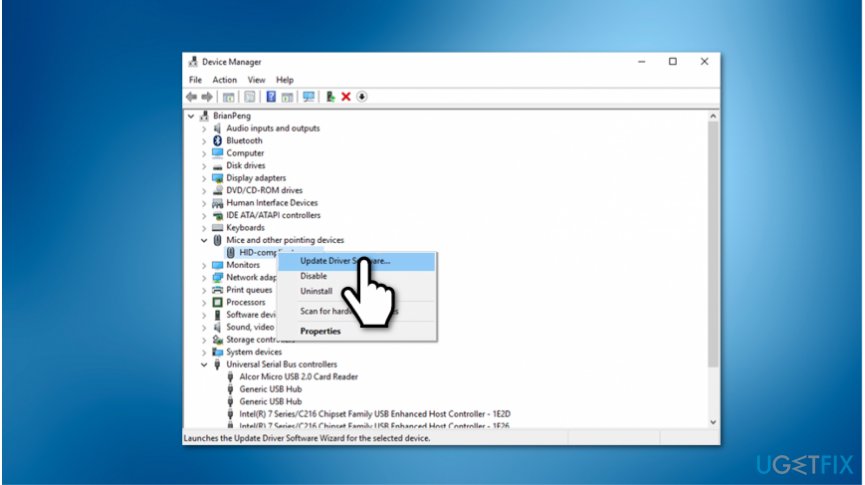
Update mouse driver on windows - Select Update Driver.
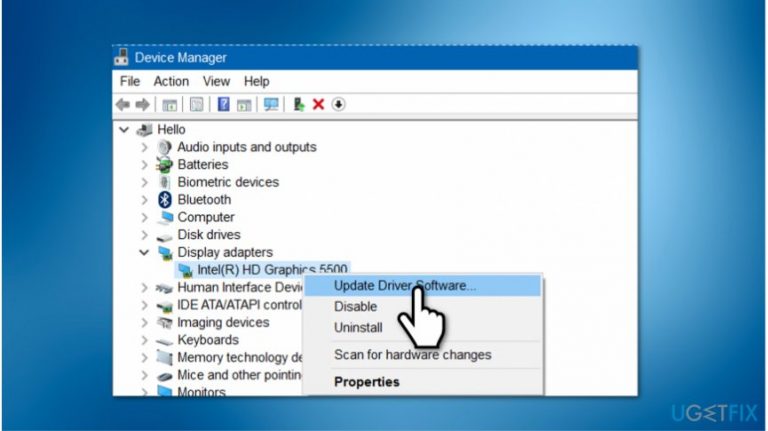
Method 2. Update graphics driver
- Go to Device Manager;
- Expand Display Adapters;
- Find your graphics driver and right-click on it;
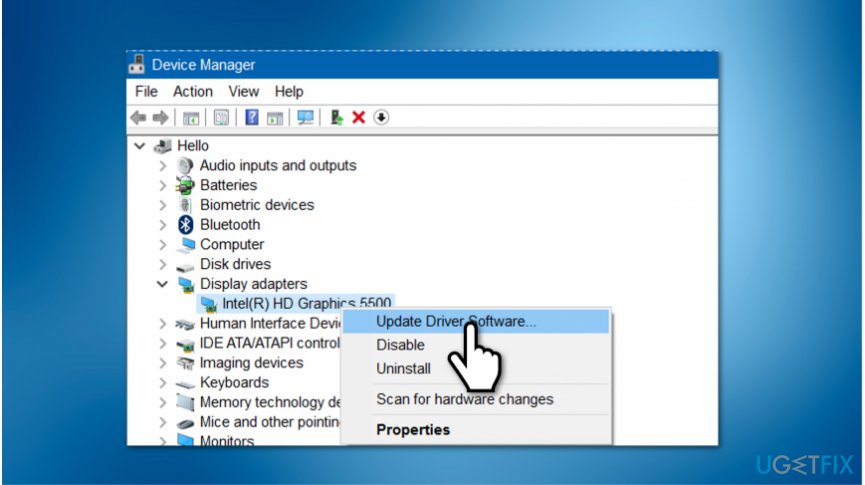
Update graphics driver on windows - Select Update Driver.
Method 3. Terminate Realtek audio process
- Open Task Manager;
- Go to the Processes tab;
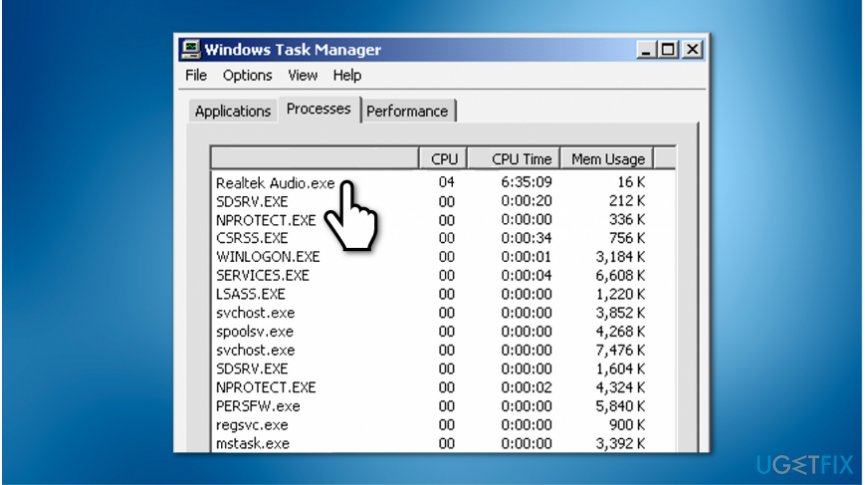
Terminate realtek audio exe on windows - Search for Realtek audio.exe;
- Right-click on it and select End Task.
Bottom line
To fix mouse lag on Windows 10, you can scan your computer for malware, re-install and update your mouse driver, and check for any misconfigured settings. If these methods do not resolve the issue, consider seeking further technical support.
Frequently asked questions
Common causes include outdated drivers, high CPU usage, and interference from other devices. Checking these factors can help identify the source of the lag.
You can update your mouse drivers by going to Device Manager, locating your mouse under 'Mice and other pointing devices', right-clicking it, and selecting 'Update driver'. Alternatively, you can visit the manufacturer's website for the latest drivers.
Yes, disabling pointer precision can help reduce mouse lag for some users by providing a more consistent response to mouse movements. You can do this in the Mouse Properties settings under the 'Pointer Options' tab.




Report an issue
What's wrong with this guide? We review every report and update or remove content.
Report received — thank you. We'll review and fix it.
You need a free account to submit a report.
Be the first to comment