How to fix
Mouse lagging in Battlefront
on Windows
Resolve mouse lagging issues in Battlefront on Windows 10 or 11 with effective tips. Play smoothly and enjoy gaming again! Expert-tested solutions await.

What causes How to fix mouse lagging in Battlefront on Windows?
- Issues with the mouse itself
- Configuration preferences
- Corrupted game files
- Outdated drivers
- Malware or OS updates
Repairs Windows system files, removes malware, and restores a clean OS state — without reinstalling.
Hello. I need a solution for this mouse lagging issue. It lags on BF2 while I use the PC. The mouse is Logitech and it seems that it works on my laptop alright when I plugged in there and did some work. However, when I play Battlefront on Windows PC, it lags. I guess it is in settings or the game files. Can I fix this?
Users commonly face these issues with the Battlefront 2 mouse lag. The problem can be coming from the issues with the mouse itself, configuration preferences, or the game itself, but the issue is certainly annoying since users complain about the issue online commonly.[ref en-1]
This problem with mouse lagging in Battlefront on Windows should be addressed by identifying hardware or software problems that could trigger the issue. This is the form of troubleshooting the issue. You might need to repair the game files, update some drivers on the machine or fix issues with the operating system and these issues stop.
The issue with mouse input lagging occurs in video games, and the problem keeps people from playing the game properly. There might be lag issues, but the mouse reacts to the right or left clicks. The problem with the mouse lagging in Battlefront on Windows occurs out of nowhere, and it has become a common issue since the game is one of the popular shooter games.[ref en-2]
The game offers a good experience for gamers, and many users have reported issues with the game. It is common to have problems with machines because malware[ref en-3] or OS updates can cause some failure of files that the game needs for running. The mouse lagging in Battlefront on Windows is commonly reported by Battlefront 2 users.
If you encounter an issue, it is important to right away check for common problems. Misconfigured settings, corrupted files, or system drivers can cause the issue. This means that you can run [d1] and properly check for outdated or damaged pieces on the machine, so the fix might be possible for the mouse lagging in Battlefront on Windows issue after that.
Before you go for the manual changes to settings and other alterations on the machine, you should close the programs that are running in the background so the usage of resources is lessened. Disconnecting and reconnecting the mouse should also be helpful. Then checking connections and the operations of the mouse on a different device can determine if the problem is arising from the faulty mouse.
Fix 1. Repair the game
- Launch Origin.
- Then select My Game Library from the options listed on the left.
- Right-click on Battlefront 2.
- Select Repair from the context menu.
- Wait for the repair process to complete.
Fix 2. Disable mouse acceleration
- Hit the Windows and S keys to launch the Search menu.
- Or go to Settings, then choose Devices and find Mouse on the left pane.
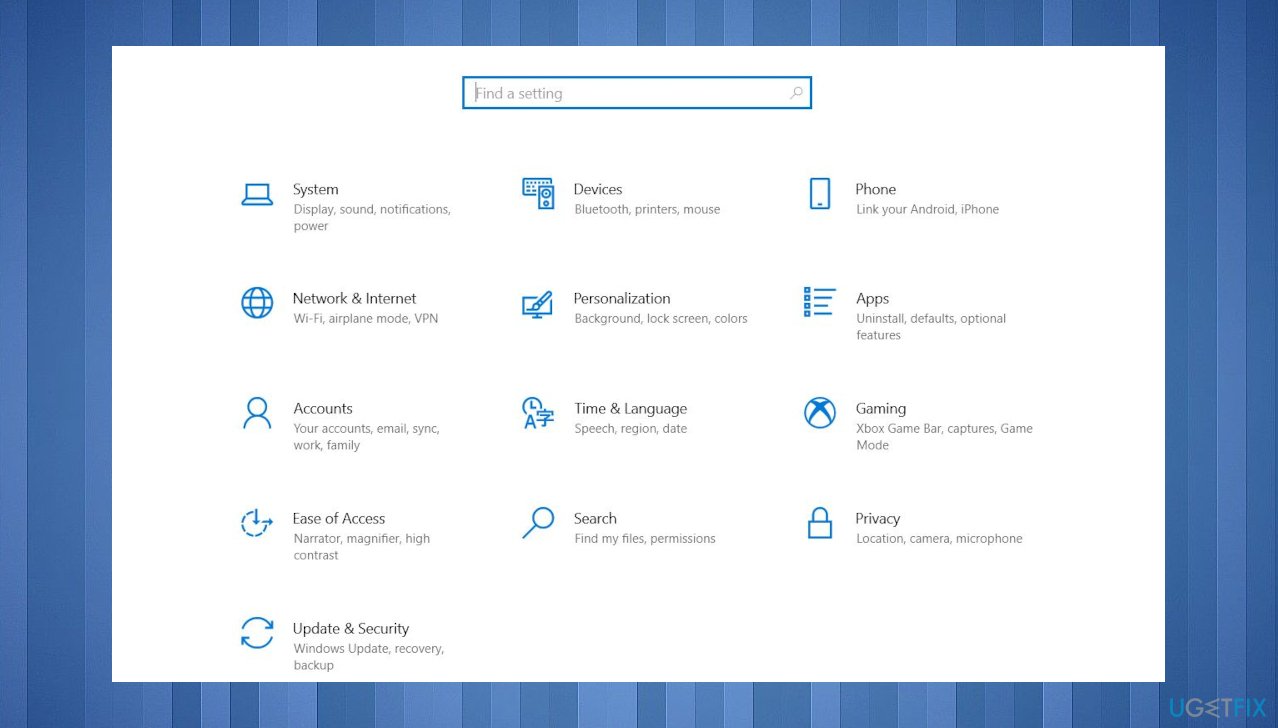
Mouse lagging battlefront settings - Enter the Mouse Settings in the field and click on the needed search result.
- Click on Additional mouse settings under the Related settings at the bottom.
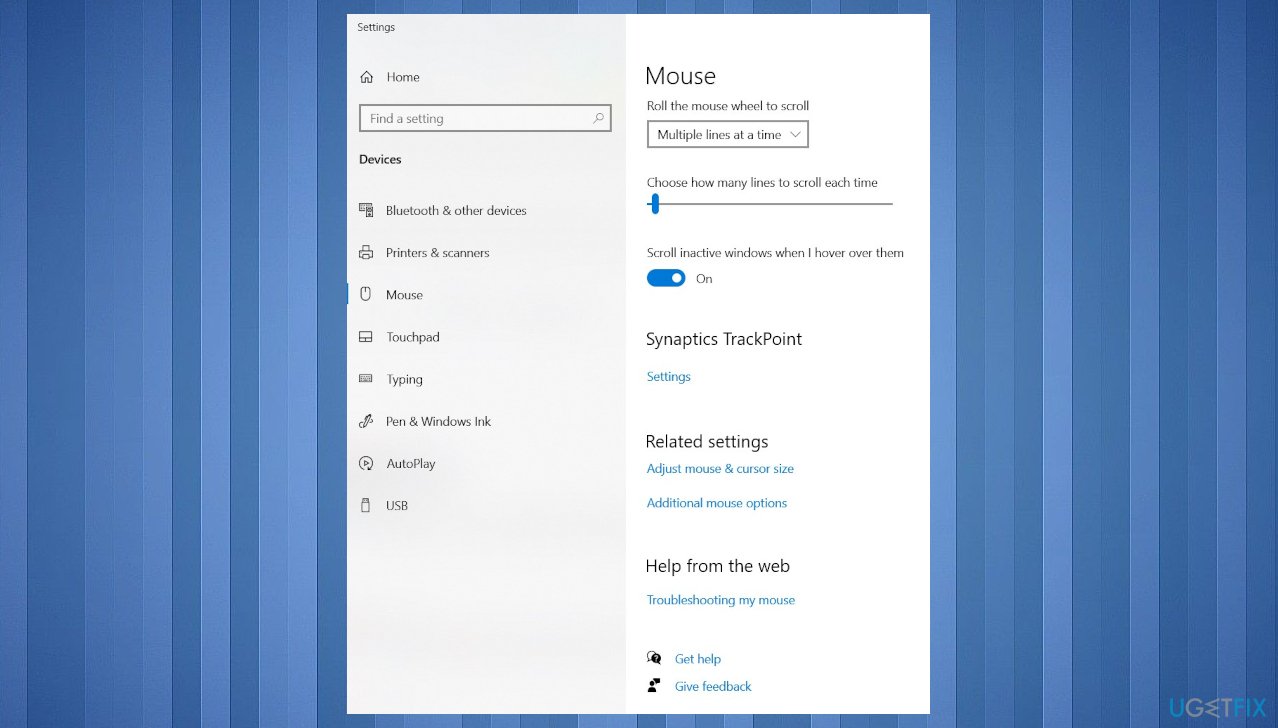
Mouse lagging battlefront mouse settings - Go to the Point Options tab once the Mouse Properties window opens.
- Untick the checkbox for Enhance pointer precision and click on OK at the bottom to save the changes.
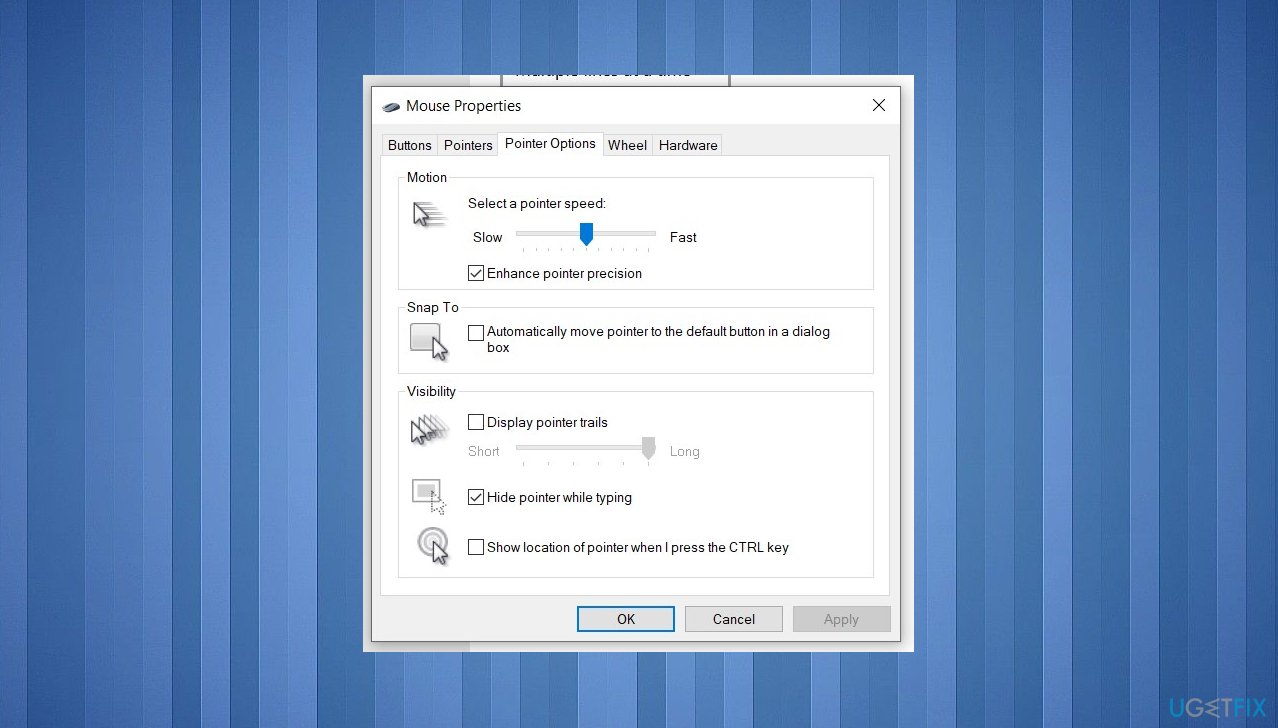
Mouse lagging battlefront mouse properties
Fix 3. Update drivers
- Search for Device manager to open the listing of all drivers and devices.
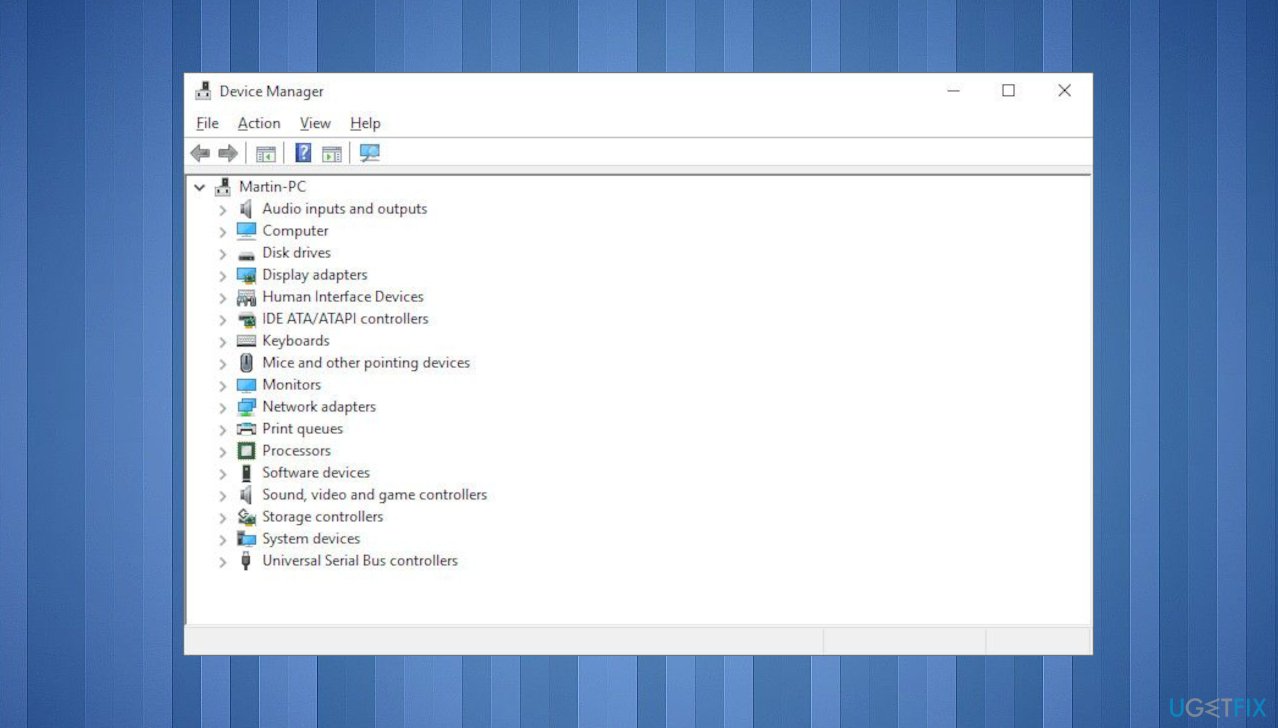
Mouse lagging battlefront device manager - Double-click on the Mice and other pointing devices entry to view all the mice connected to the computer.
- Right-click on the mouse you are having trouble with.
- Choose Update driver from the context menu.
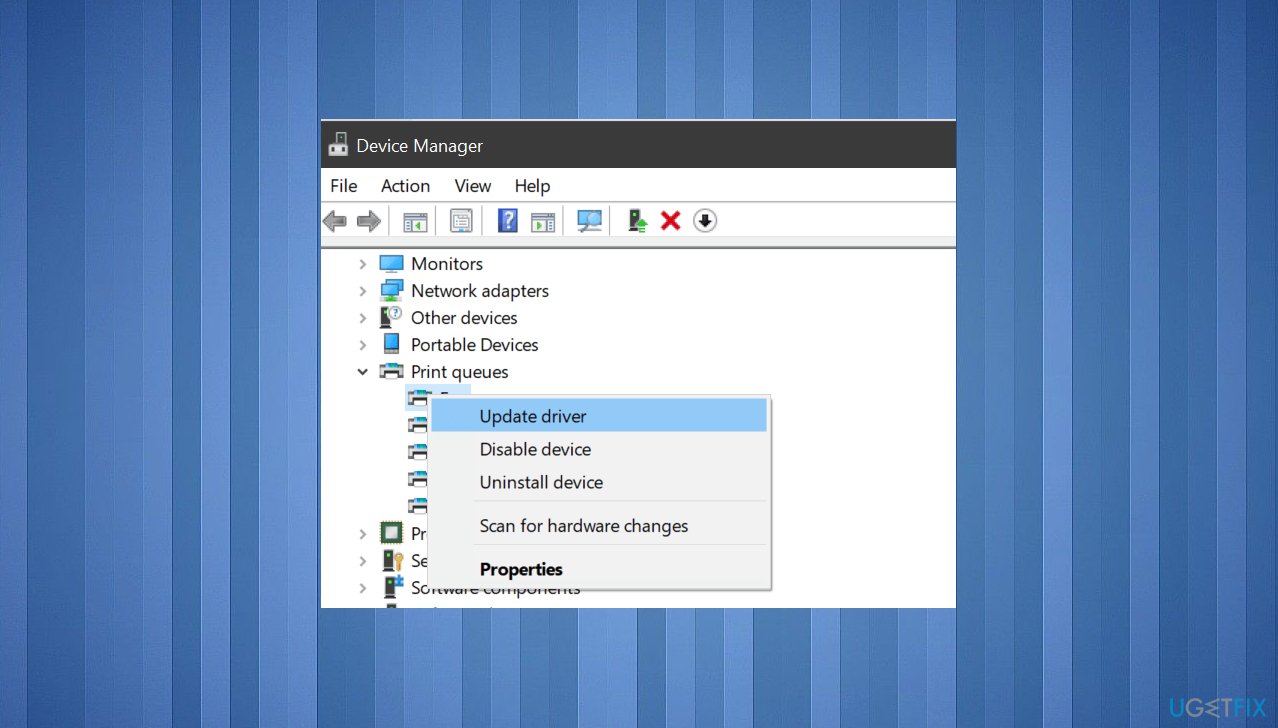
Mouse lagging battlefront update driver - Select the Search automatically for drivers option in the Update Drivers window.
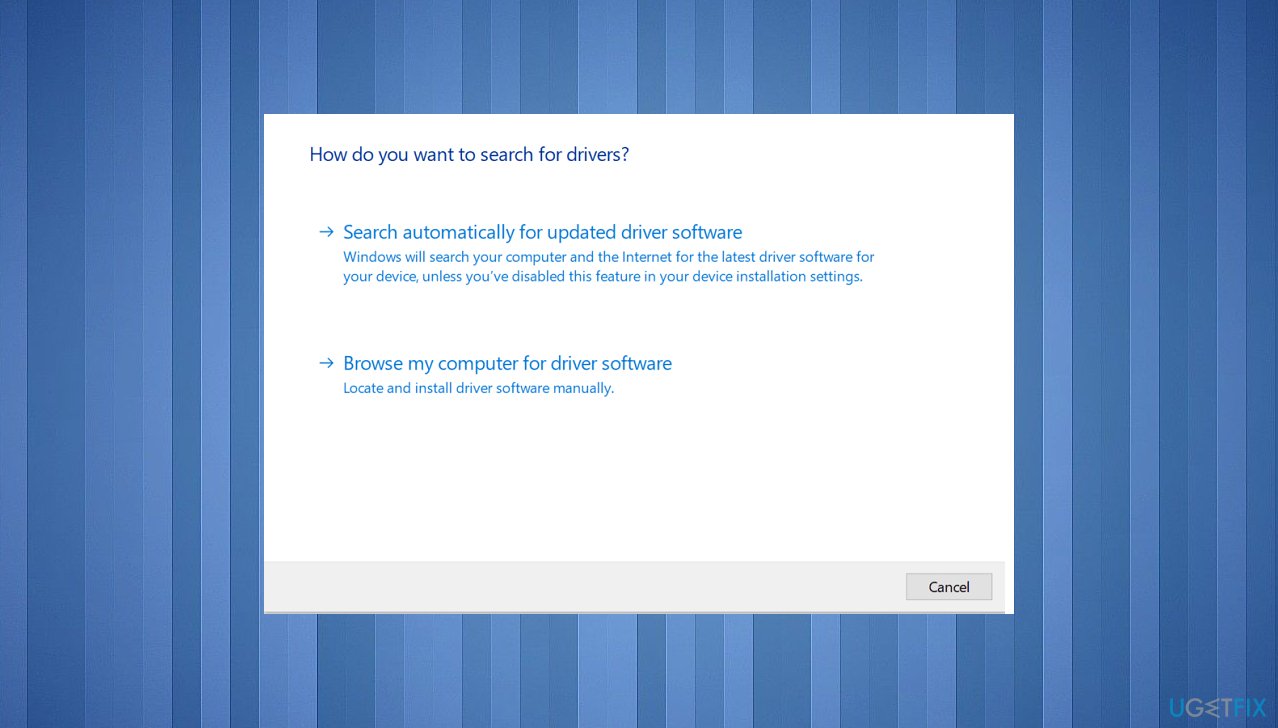
Mouse lagging battlefront search drivers - Wait for your computer to find the best available driver on the system and install it.
Fix 4. Turn off the In-game overlay
In Origin
- Launch Origin.
- Go to your game library.
- Right-click on your game and select Properties.
- Under the General tab, uncheck the Enable Origin In Game option.
- Click Save.
In Steam
- Open Steam.
- Go to your game library.
- Right-click on the game and select Properties.
- Select the GENERAL category from the left side.
- Uncheck the Enable the Steam Overlay while in-game option.
In EA app
- Open the EA app.
- Click on the three horizontal lines on the top left side and select Settings.
- Select the Application tab.
- Scroll down and turn off the In-game Overlay button.
Bottom line
To fix mouse lagging in Battlefront on Windows, you should repair the game files, update drivers, and check for any operating system issues. If the problem persists after these steps, consider checking for misconfigured settings or corrupted files.
Frequently asked questions
You can try lowering the in-game sensitivity settings and disabling V-Sync in the graphics options to improve mouse responsiveness.
Yes, you can adjust the power settings to 'High performance' and ensure that your Windows 11 is updated to the latest version for optimal gaming performance.
Absolutely, background applications can consume resources; closing unnecessary programs can help free up CPU and RAM for smoother gameplay.




Report an issue
What's wrong with this guide? We review every report and update or remove content.
Report received — thank you. We'll review and fix it.
You need a free account to submit a report.
Be the first to comment