How to fix
Mouse sensitivity keeps changing
on Windows
Resolve fluctuating mouse sensitivity in Windows 10 or 11 effortlessly. Unlock stable performance today with expert-tested solutions. Fixed in minutes!

What causes How to fix Mouse sensitivity keeps changing in Windows?
- Temporary connection or communication issues
- Faulty USB port
- Mouse malfunction
- Low battery in wireless mouse
Repairs Windows system files, removes malware, and restores a clean OS state — without reinstalling.
Hello. The sensitivity of my mouse keeps randomly changing on Windows. How do I fix this?
Random changes in mouse sensitivity in Windows can be extremely frustrating, especially when engaged in activities such as gaming, design work, or using multiple displays. This issue interferes with the smoothness and precision of cursor movement, resulting in a poor user experience and decreased productivity.
The erratic changes in mouse sensitivity can have a number of consequences for users. In gaming, it can have a negative impact on aiming accuracy and reaction times, putting you at a disadvantage in competitive gameplay. It can make precise movements difficult for designers and artists, resulting in less precise lines and curves. Furthermore, when using multiple displays, inconsistent mouse sensitivity can make it difficult to navigate between screens smoothly, adding to frustration and inefficiency.
There are a few potential solutions that users can try to address this issue. To begin, disconnecting and reconnecting the mouse can aid in the resolution of temporary connection or communication issues. Changing to a different USB port on the computer can also rule out issues caused by a faulty port. Testing the mouse on another PC or laptop can help determine whether the problem persists across different systems, indicating a problem with the mouse itself. Additionally, if applicable, replacing the mouse battery can help ensure optimal performance.
In this guide, you will find 5 steps that should help you fix randomly changing mouse sensitivity in Windows. You can also run a maintenance tool like [d1] that can fix most system errors, BSODs,[ref en-1] corrupted files, registry[ref en-2] issues, or clear cookies and cache.[ref en-3] Otherwise, follow the step-by-step instructions below.
Solution 1. Check Mouse Settings
- Click Start and go to Settings.
- Select Devices.
- On the left pane menu, choose Mouse.
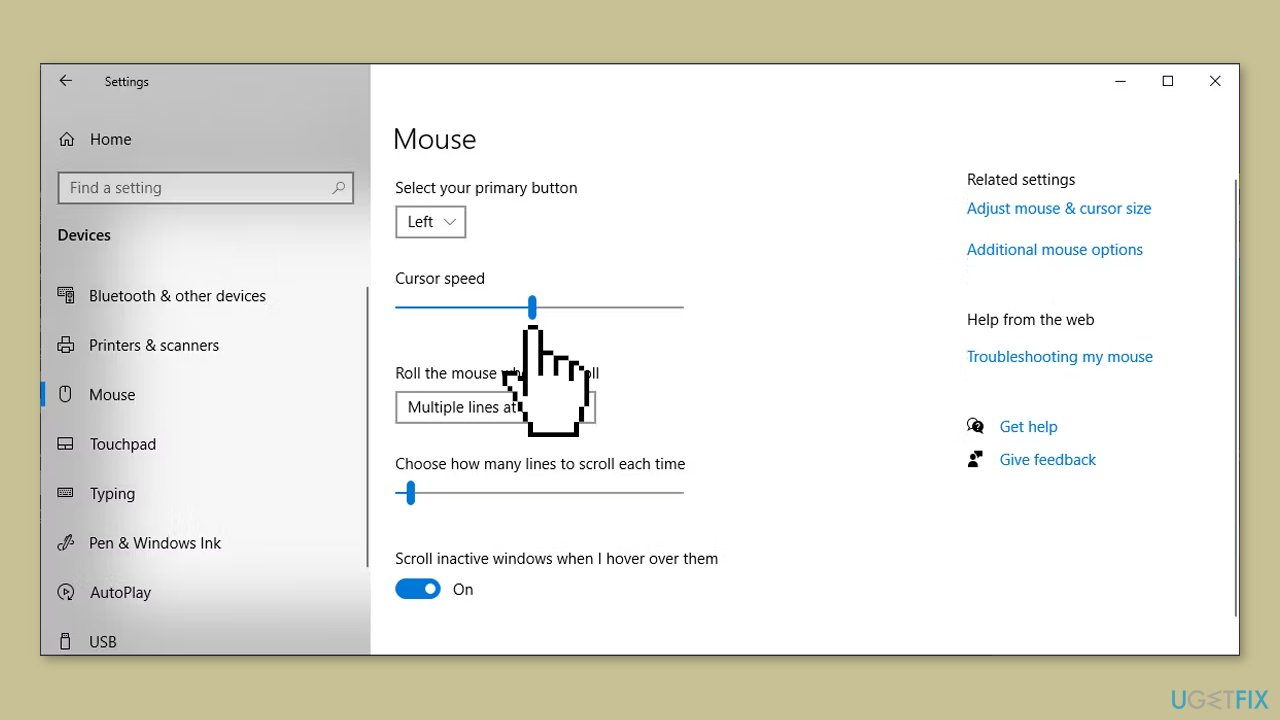
- Use the slider to adjust the cursor speed.
- Observe the real-time change in cursor speed.
Solution 2. Run Hardware and Devices Troubleshooter
- Open the Start menu and search for Command Prompt.
- Right-click on Command Prompt and select Run as administrator.
- In the Command Prompt window, type msdt.exe -id DeviceDiagnostic and press Enter. This will open the Hardware and Devices window.
- Click on Advanced.
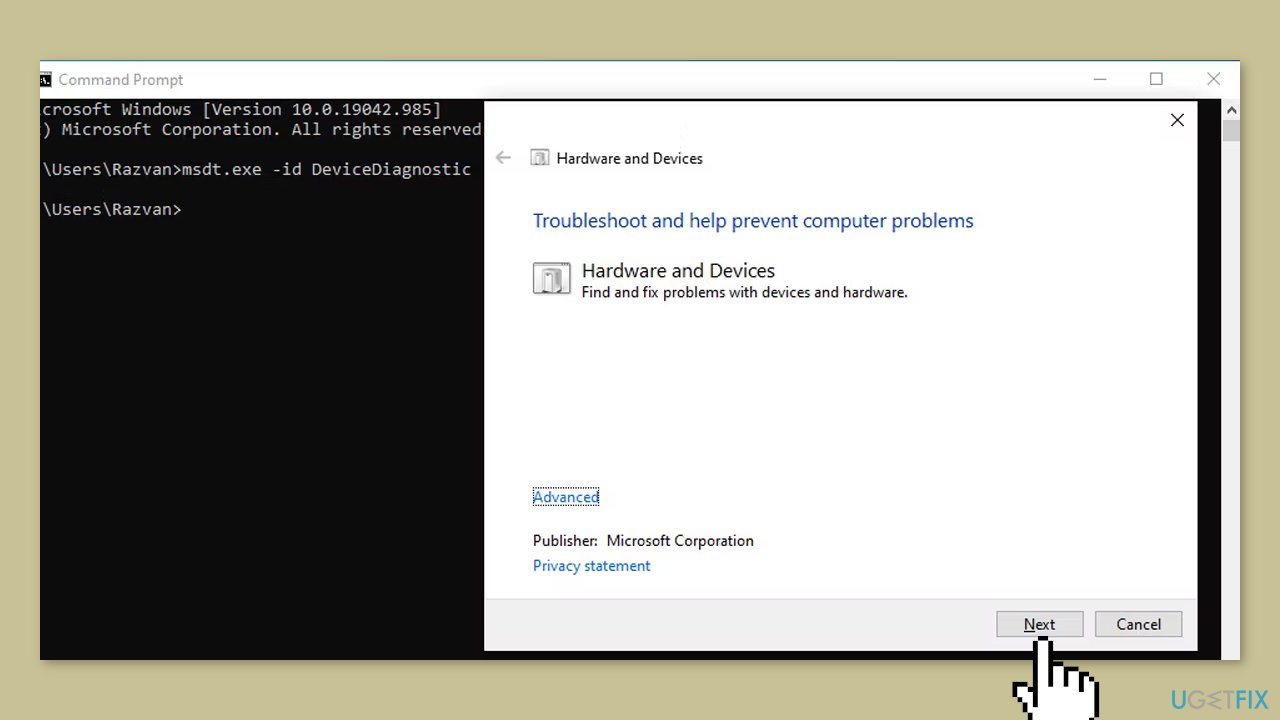
- Select the option to Apply repairs automatically.
- Click Next to begin the troubleshooting process.
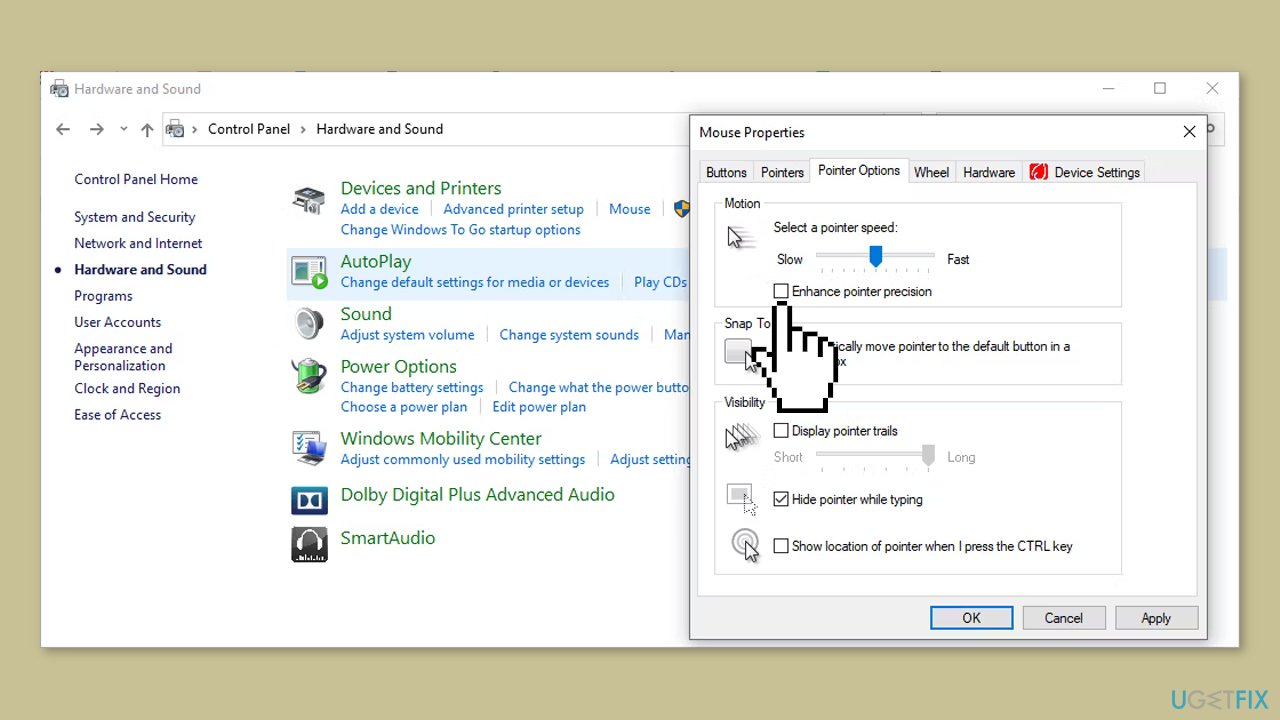
Solution 3. Disable Enhance Pointer Precision
- In the Start menu search bar, type Control Panel and select the Best match.
- Click on Hardware and sound.
- Select Devices & Printers.
- Choose Mouse.
- Open the Pointer Options tab.
- Uncheck the box for Enhance Pointer Precision.
Solution 4. Check Mouse App
Some mouse manufacturers offer their own dedicated apps that can be used in conjunction with their mice. These apps provide users with more control over their mouse settings, allowing them to modify button functions, customize LED lights, and create personalized profiles. The advantage of using these apps is that they provide an enhanced level of customization and functionality specific to the manufacturer's mouse.
However, it is important to note that sometimes these manufacturer-specific apps can interfere with the system settings and cause inconsistencies in mouse sensitivity. This can lead to unexpected behavior or suboptimal performance of the mouse.
If you have installed a third-party app for your mouse, it is advisable to open the app and review the settings. Check if all the configured options are functioning as expected and if the mouse pointer responds accurately. Testing the pointer precision can help ensure that the app is not causing any adverse effects on the mouse's performance.
If you encounter any issues or notice inconsistencies in mouse behavior while using the third-party app, it may be worth considering uninstalling or updating the app. By doing so, you can eliminate any potential conflicts with the system settings and restore consistent mouse sensitivity and performance.
Solution 5. Use System Configuration
- Open the Start menu and search for System Configuration.
- Select the System Configuration option from the Best match results.
- In the System Configuration window, go to the General tab.
- Check the boxes for Load system services and Load startup items.
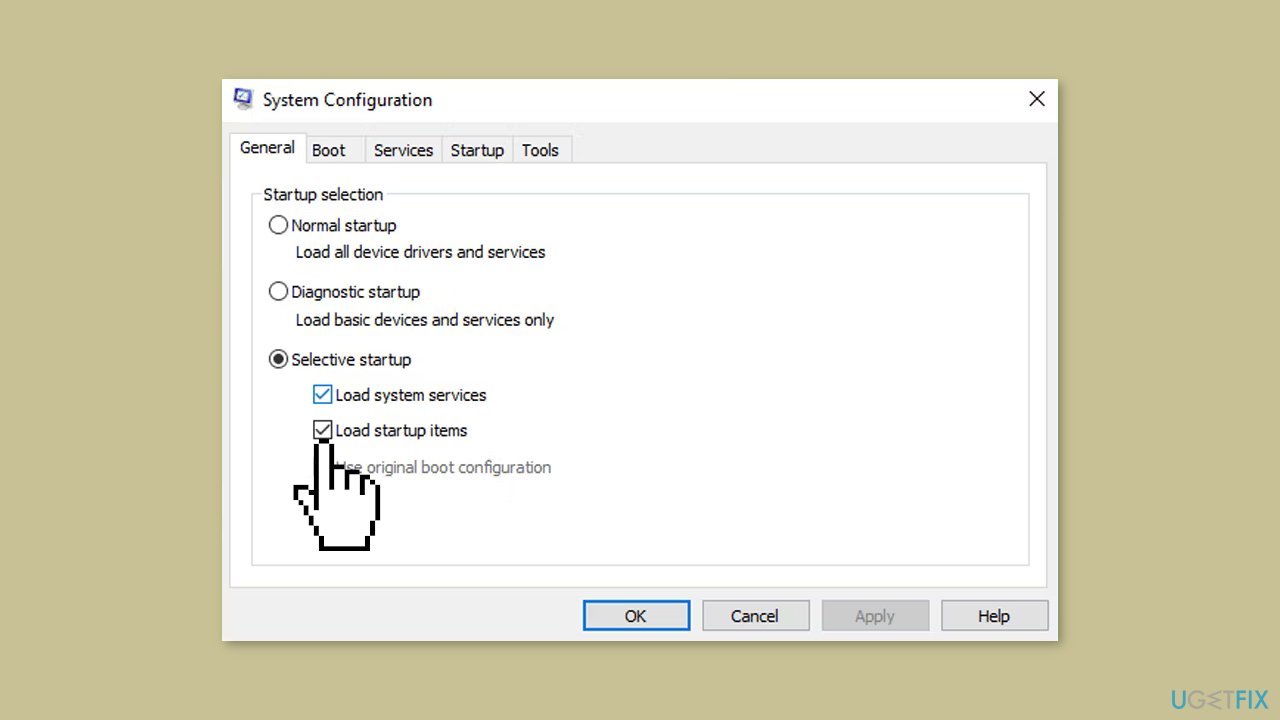
- Click on Apply.
- Click on OK to save the changes.
Bottom line
To address the issue of randomly changing mouse sensitivity in Windows, users can try disconnecting and reconnecting the mouse, changing USB ports, testing the mouse on another device, or replacing the mouse battery. If these solutions do not resolve the problem, consider running a maintenance tool to fix system errors.
Frequently asked questions
This issue may occur due to conflicting mouse settings or software, such as gaming applications adjusting sensitivity. Check your mouse settings in the Control Panel and ensure no third-party software is interfering.
To resolve this, navigate to Settings > Devices > Mouse and adjust the sensitivity settings manually, ensuring that enhancements like 'Enhance pointer precision' are disabled.
Yes, a malfunctioning mouse can lead to inconsistent sensitivity; try testing with another mouse to determine if the issue persists in Windows 10 or Windows 11.




Report an issue
What's wrong with this guide? We review every report and update or remove content.
Report received — thank you. We'll review and fix it.
You need a free account to submit a report.
Be the first to comment