How to fix
Msedge.exe error
on Windows
Resolve the Msedge.exe error on Windows 10 or 11 effortlessly. Get back to browsing quickly with our expert-tested solutions. Fixed in minutes!


What causes How to fix Msedge.exe error in Windows?
- Corrupted system files
- Issues with the msedge.exe executable
- Registry issues
- Cookies and cache problems
Repairs Windows system files, removes malware, and restores a clean OS state — without reinstalling.
Hello. I tried to open the Microsoft Edge browser but I got the Msedge.exe error. Any way to fix this?
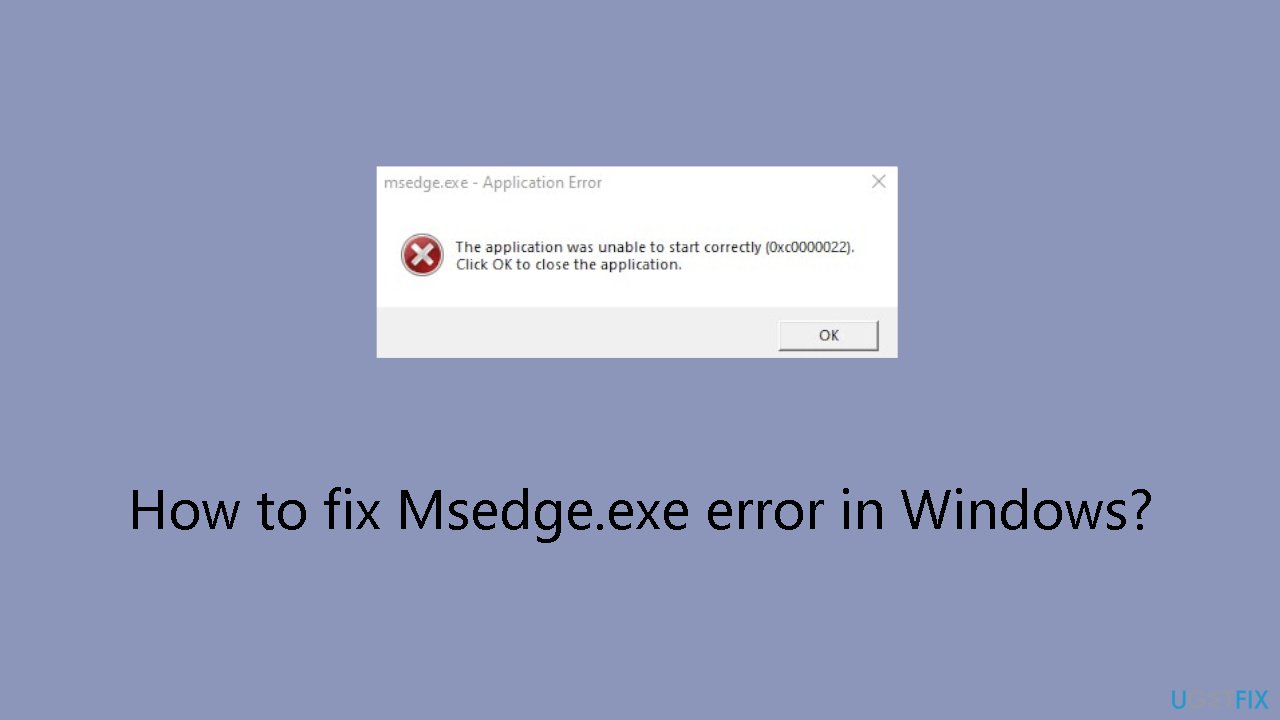
The msedge.exe error in Windows poses a significant challenge for users relying on Microsoft Edge as their primary web browser. Microsoft Edge relies on msedge.exe, an executable file that is necessary for the browser to launch and function properly. Some users are unable to use Microsoft Edge because they receive an error message on msedge.exe when they try to open the browser.
The ability of users to use Microsoft Edge for web surfing activities may be significantly impacted by this vulnerability. Because msedge.exe is an essential part of the browser, running into an issue with this file prevents Microsoft Edge from operating smoothly. The inability of users affected by the msedge.exe error to launch the Edge browser causes annoyance and frustration when accessing the web.
The error's implications extend beyond mere inconvenience, particularly for those who rely on Microsoft Edge for work, research, or other critical tasks. It can interfere with workflow and productivity, leading users to look for quick fixes to get their browsers working normally again. Because of the msedge.exe error, users may not be able to use Microsoft Edge and may instead experiment with other browsers for a short while, which may disrupt their regular online activities.
While encountering the msedge.exe error is undoubtedly problematic, there are potential solutions available to address the issue and restore Microsoft Edge to its proper functioning. In this guide, you will find 4 steps that should help you fix Msedge.exe error in Windows.
You can also run a maintenance tool like [d1] that can fix most system errors, BSODs,[ref en-1] corrupted files, registry[ref en-2] issues, or clear cookies and cache[ref en-3] automatically. Otherwise, follow the step-by-step instructions below.
Solution 1. Fix Corrupted System Files
Use Command Prompt commands to repair system file corruption:
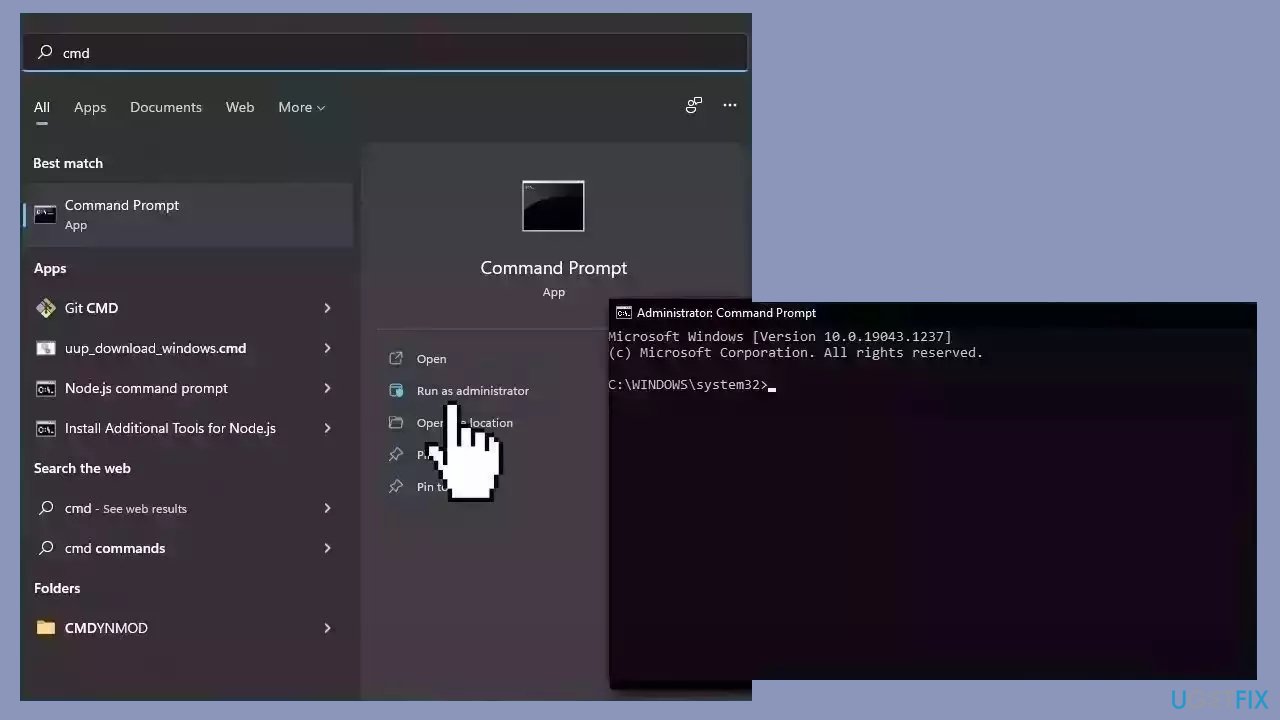
- Open Command Prompt as administrator
- Use the following command and press Enter:
sfc /scannow
- Reboot your system
- If SFC returned an error, then use the following command lines, pressing Enter after each:
DISM /Online /Cleanup-Image /CheckHealth
DISM /Online /Cleanup-Image /ScanHealth
DISM /Online /Cleanup-Image /RestoreHealth
Solution 2. Install Windows Updates
- Press the Windows key + R to open the Run box.
- Type ms-settings:windowsupdate in the text box and press Enter.
- Click the Check for updates button.
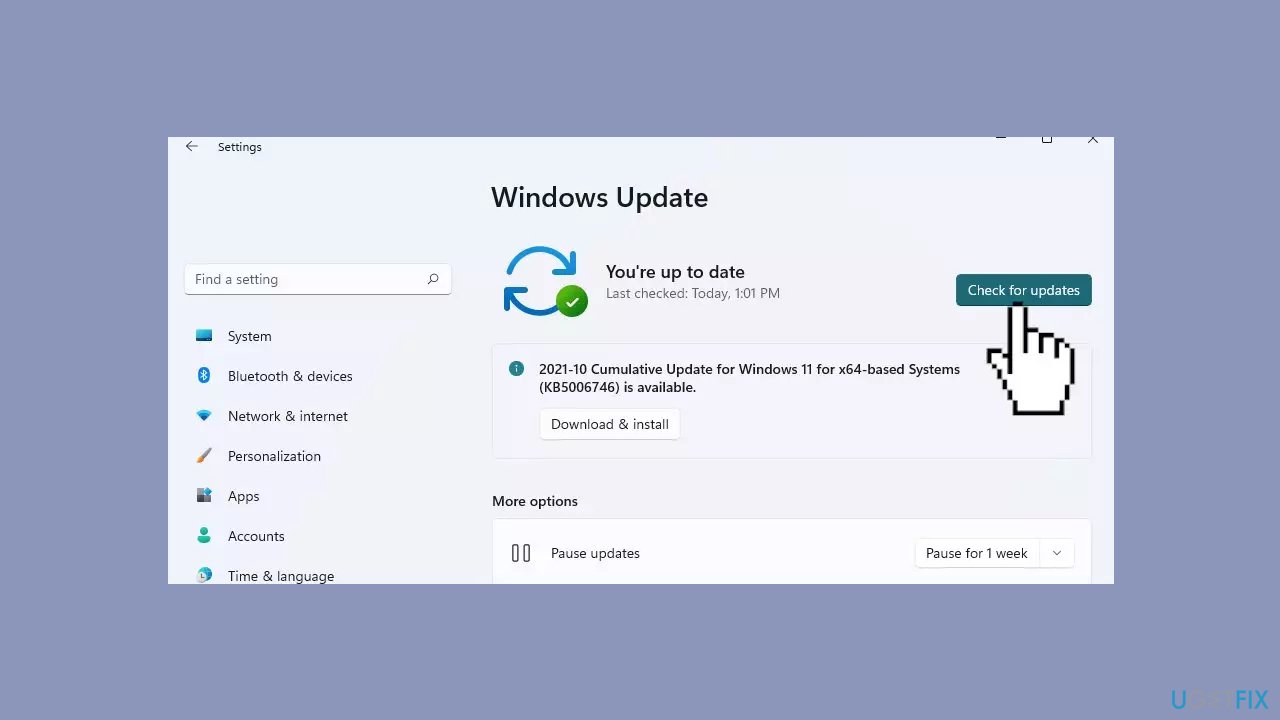
- If a new update is available, click the Download & Install all button.
- Restart your computer after the process is finished and check to see if the problem is fixed.
Solution 3. Create a new User Account
- Click the Start button and select Settings to open the window.
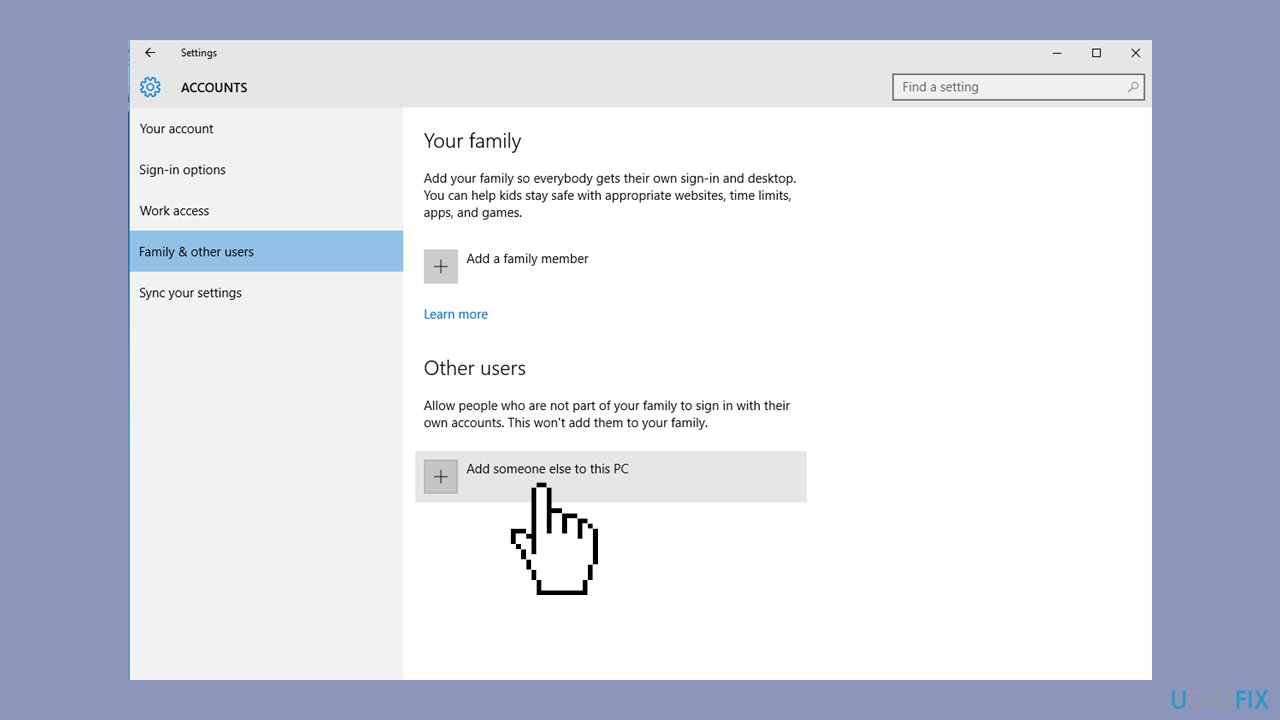
- Choose Accounts and navigate to the Family & other users tab.
- On the right pane, click Add someone else to this PC to create a new account.
- Log into the newly created account to check if the msedge.exe error occurs.
Solution 4. Repair Microsoft Edge
- Press the Windows key + I to open Windows Settings.
- Click on Apps and locate Microsoft Edge in the app list on the right pane.
- Select Modify and then click on Repair in the prompt window.
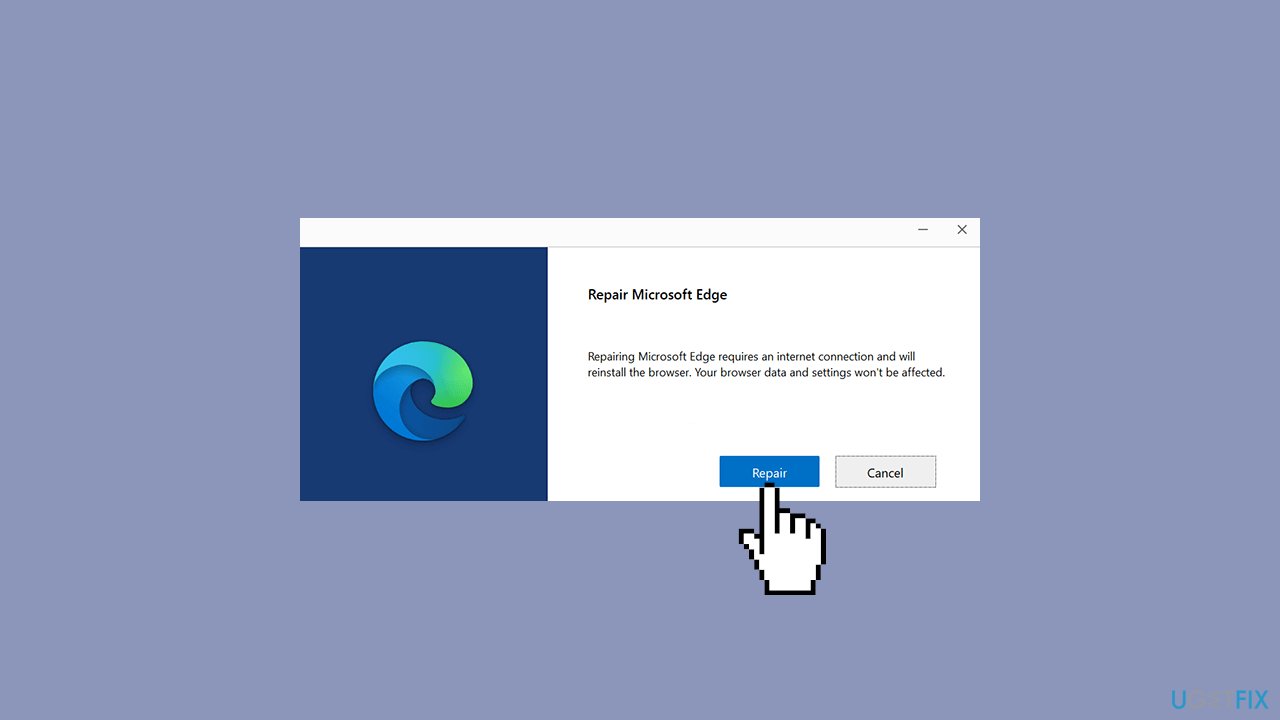
- Wait for the repair process to complete and verify if your Edge browser functions correctly.
Bottom line
To fix the Msedge.exe error in Windows, you can repair corrupted system files using Command Prompt, run a maintenance tool, and clear cookies and cache. If these solutions do not resolve the issue, consider experimenting with other browsers temporarily while seeking further assistance.
Frequently asked questions
The Msedge.exe error can be caused by corrupted system files, outdated Edge browser, or conflicts with third-party software. Running a system scan or updating the browser can often resolve the issue.
To repair Msedge.exe in Windows 11, go to Settings > Apps > Apps & features, find Microsoft Edge, click on it, and select Modify to initiate a repair process. This can fix any underlying issues with the browser.
Yes, ending the Msedge.exe process in Task Manager is safe, but it will close all open Edge windows and tabs. If the process is unresponsive, this can be a useful troubleshooting step.




Report an issue
What's wrong with this guide? We review every report and update or remove content.
Report received — thank you. We'll review and fix it.
You need a free account to submit a report.
Be the first to comment