How to fix
Msmdsrv.exe high CPU usage
on Windows
Resolve msmdsrv.exe high CPU usage issues on Windows 10 and 11 effortlessly. Expert-tested solutions guarantee fast fixes for smooth performance.

What causes How to fix msmdsrv.exe high CPU usage in Windows?
- Demanding nature of certain databases
- Intensive query operations
- System misconfigurations
- Outdated software components
- Conflicting applications
- Limited system resources
Repairs Windows system files, removes malware, and restores a clean OS state — without reinstalling.
Hi, I seem to be experiencing weird behavior from Windows. I noticed that it seems to randomly start lagging, and when I check the Task Manager, I see that msmdsrv.exe is using way too much CPU. What is this and how should I solve this?
Every Windows operating system operates efficiently thanks to countless background processes running silently behind the scenes. These processes manage everything from system updates to software functionalities. Among them, the msmdsrv.exe process has drawn attention for a specific reason.
For some Windows users, msmdsrv.exe has shown unusually high CPU usage, causing concerns about system performance and efficiency. So, what exactly is this process? Msmdsrv.exe is intrinsically linked to Microsoft Visual C++ and serves as a component of the Microsoft SQL Server Analysis Services (SSAS). Its main function is to assist in the processing and retrieval of data from multi-dimensional databases, vital for several applications developed using Microsoft Visual C++.
Now, the reasons for its high CPU usage can be multifaceted. It might arise due to the demanding nature of certain databases, intensive query operations, or even system misconfigurations. Like many background processes, msmdsrv.exe's efficiency can be hampered by outdated software components, conflicting applications, or limited system resources.

A few potential remedies can be explored to fix the high CPU usage by msmdsrv.exe. Conducting a Clean Boot can be beneficial to pinpoint software conflicts that might be the underlying cause. Furthermore, ensuring the most recent versions of Microsoft Visual C++ Redistributables are installed can address issues related to missing or outdated components.
Another effective approach can be adjusting the system's virtual memory, offering some relief, especially when resources are scarce. A more detailed guide on these solutions is provided below this article.
Lastly, for those seeking a more streamlined approach, a PC repair tool [d1] exists to diagnose and resolve various Windows-associated challenges automatically.
Fix 1. Try Clean Boot
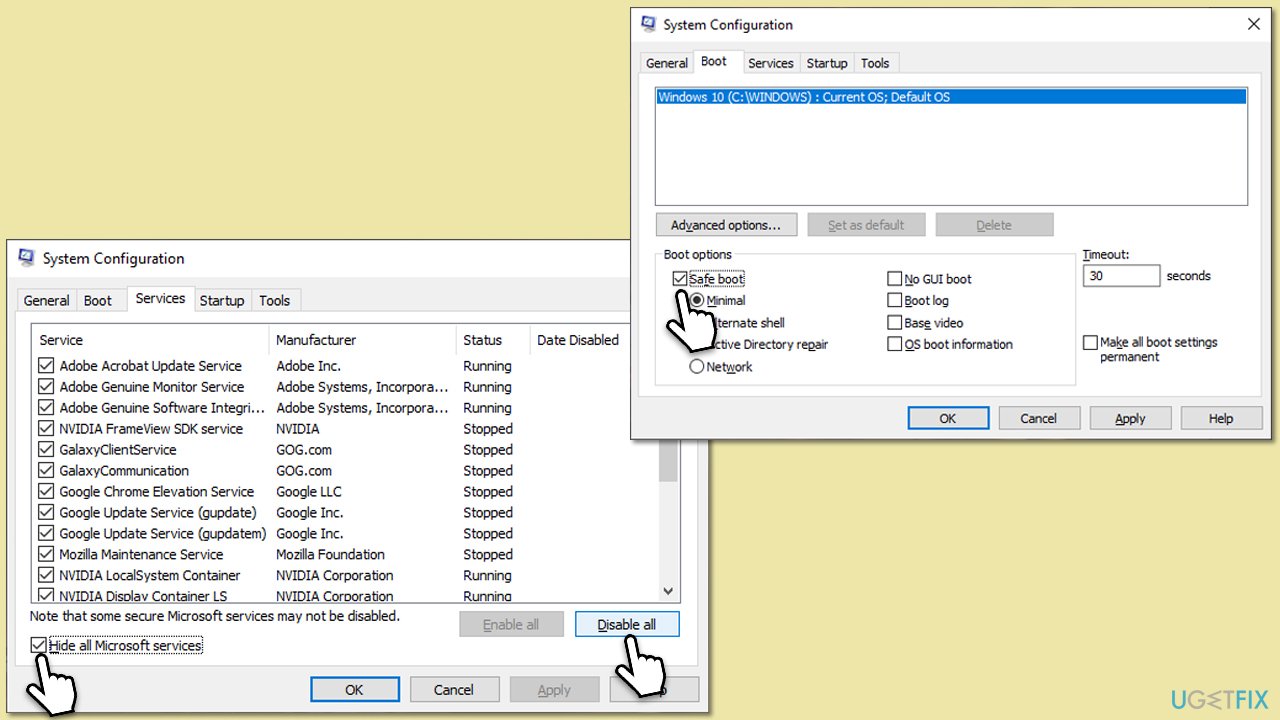
A clean boot starts Windows with a minimal set of drivers and startup programs. This helps ensure that conflicts with software (like applications that start automatically with Windows) aren't causing the issue with msmdsrv.exe. By methodically enabling and checking each startup application, you can identify which one, if any, is causing the problem. It was noted that many people managed to fix msmdsrv.exe high CPU usage after uninstalling Power BI
- Press Win + R on your keyboard to open the Run dialog box.
- Type msconfig and press Enter.
- In the System Configuration window, click on the Services tab.
- Check the box that says Hide all Microsoft services, then click Disable all.
- Next, click on the Startup tab.
- Click on Open Task Manager.
- Under the Startup tab in Task Manager, for each startup item, select the item and then click Disable.
- Close Task Manager.
- On the Startup tab of the System Configuration dialog box, click OK, and then restart your computer.
Fix 2. Update Microsoft Visual C++ Redistributables
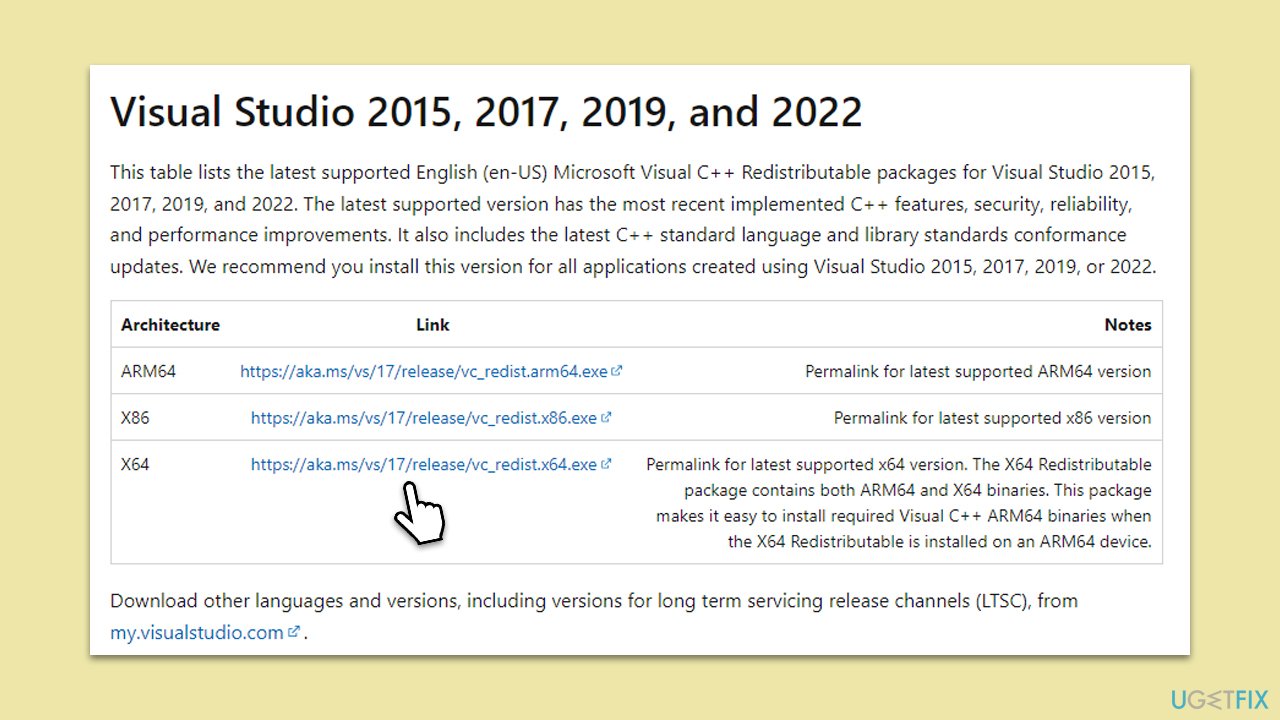
Outdated or corrupted Visual C++ Redistributables can cause issues with programs and services related to it. By ensuring you have the latest versions installed, you can possibly resolve the high CPU usage problem.
- Type Control Panel in Windows search and hit Enter.
- Go to Programs > Uninstall a program.
- Here, scroll down and check the list of the installed Visual C++ versions.
- Open your browser and navigate to the official Microsoft Visual C++ download page.
- Download and install all the missing versions (including the x84 and x64 versions) of Visual Studio.
- Once done, restart your system and see if the error persists.
Fix 3. Adjust virtual memory
Virtual memory works as an extension of your computer's physical memory. If the system runs out of physical memory, it can tap into virtual memory for temporary file storage. Increasing it might alleviate the stress on the CPU.
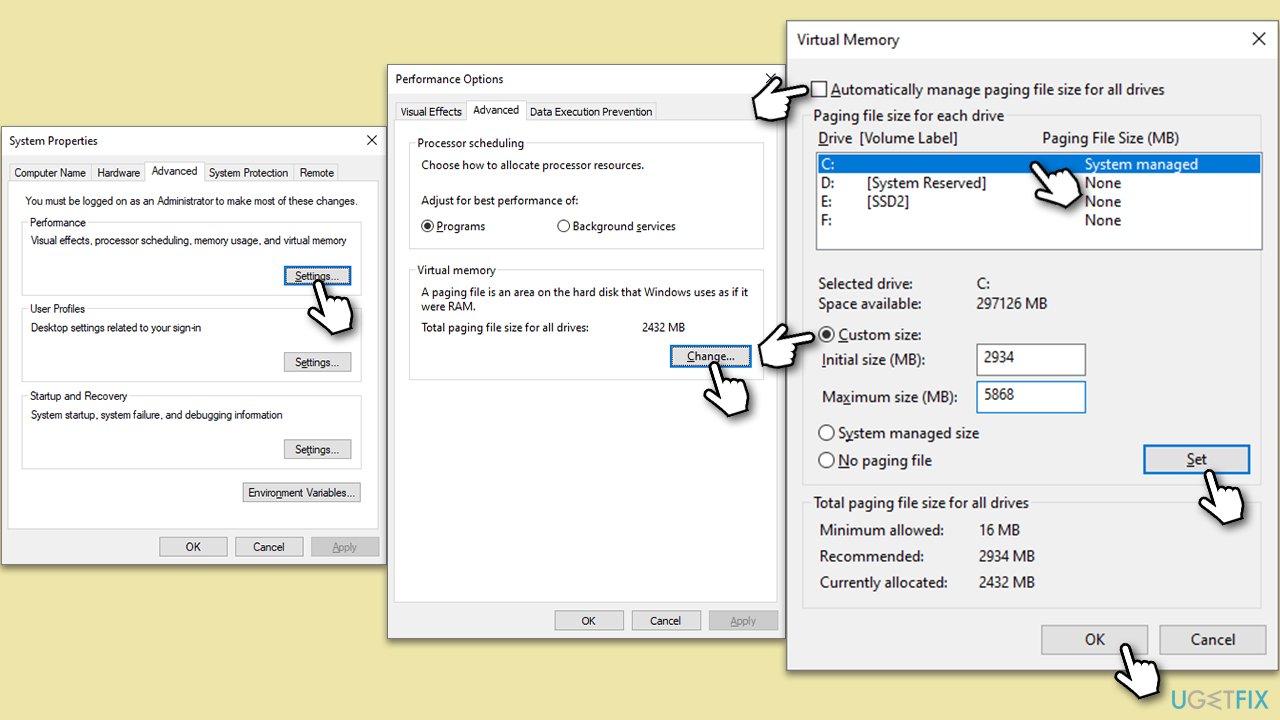
- In Windows search, type in Advanced system settings and press Enter.
- Under the Performance section, click Settings.
- Go to the Advanced tab.
- Under Virtual Memory, select Change.
- Untick the Automatically manage paging size for all drives option (make sure your main drive is selected - C: is the default).
- Select Custom size.
- At the bottom, check the Recommended memory size and type it into the Initial size (MB) field.
- In the Maximum size (MB) field, enter twice a bigger number than that in the Initial size section.
- Click Set and OK.
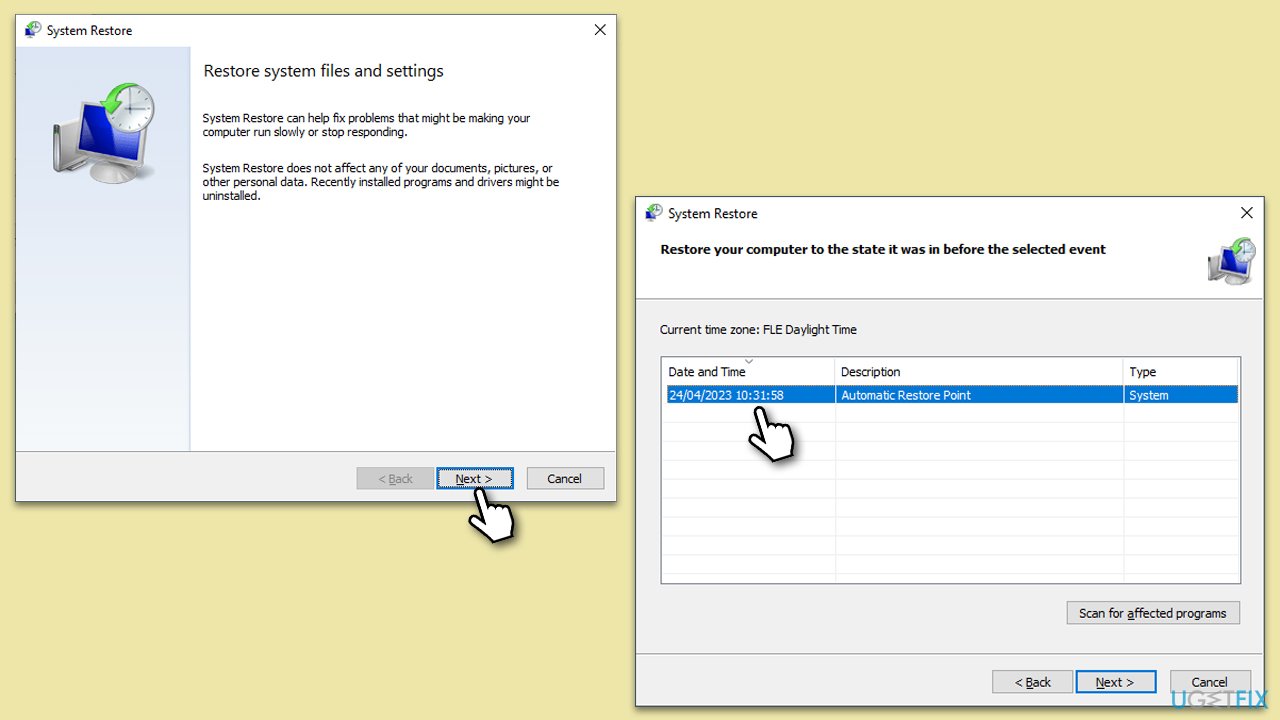
Fix 4. Use System Restore
Using system restore can revert your computer's state (including system files, installed applications, Windows Registry, and system settings) to that of a particular point in time, which can be used to recover from malfunctions.
- Type in Create a Restore point in Windows search and press Enter.
- In the System Protection tab, pick System restore.
- Click Next.
- Click Show more restore points (if available).
- Pick the time before the problem occurred and click Next.
- Your computer will reboot.
Bottom line
To fix high CPU usage by msmdsrv.exe, you can try conducting a Clean Boot, ensuring the latest Microsoft Visual C++ Redistributables are installed, and adjusting the system's virtual memory. If these solutions do not resolve the issue, consider using a PC repair tool to automatically diagnose and fix various Windows-related problems.
Frequently asked questions
High CPU usage by msmdsrv.exe is often caused by large or complex SQL Server Analysis Services processes that require significant processing power. It can also be triggered by inefficient queries or insufficient system resources.
To reduce CPU usage, consider optimizing your SQL queries, updating your system and drivers, or adjusting the configuration settings for SQL Server Analysis Services. Additionally, closing unnecessary applications can help free up resources.
Disabling msmdsrv.exe is not recommended as it may disrupt services that rely on SQL Server Analysis Services. Instead, focus on optimizing performance or adjusting settings to manage CPU usage.




Report an issue
What's wrong with this guide? We review every report and update or remove content.
Report received — thank you. We'll review and fix it.
You need a free account to submit a report.
Be the first to comment