How to fix
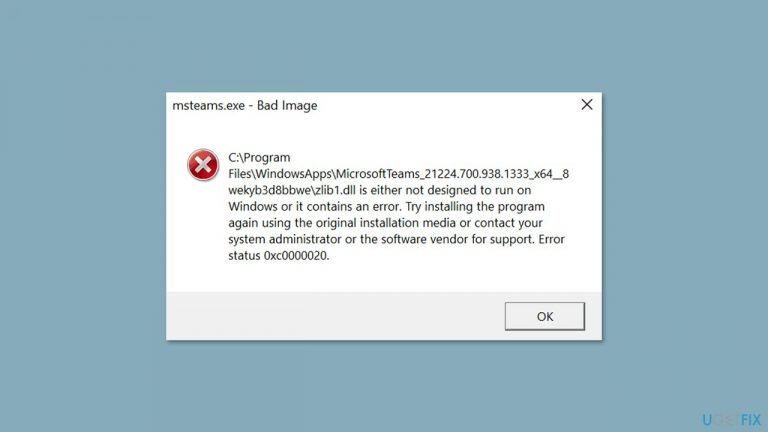
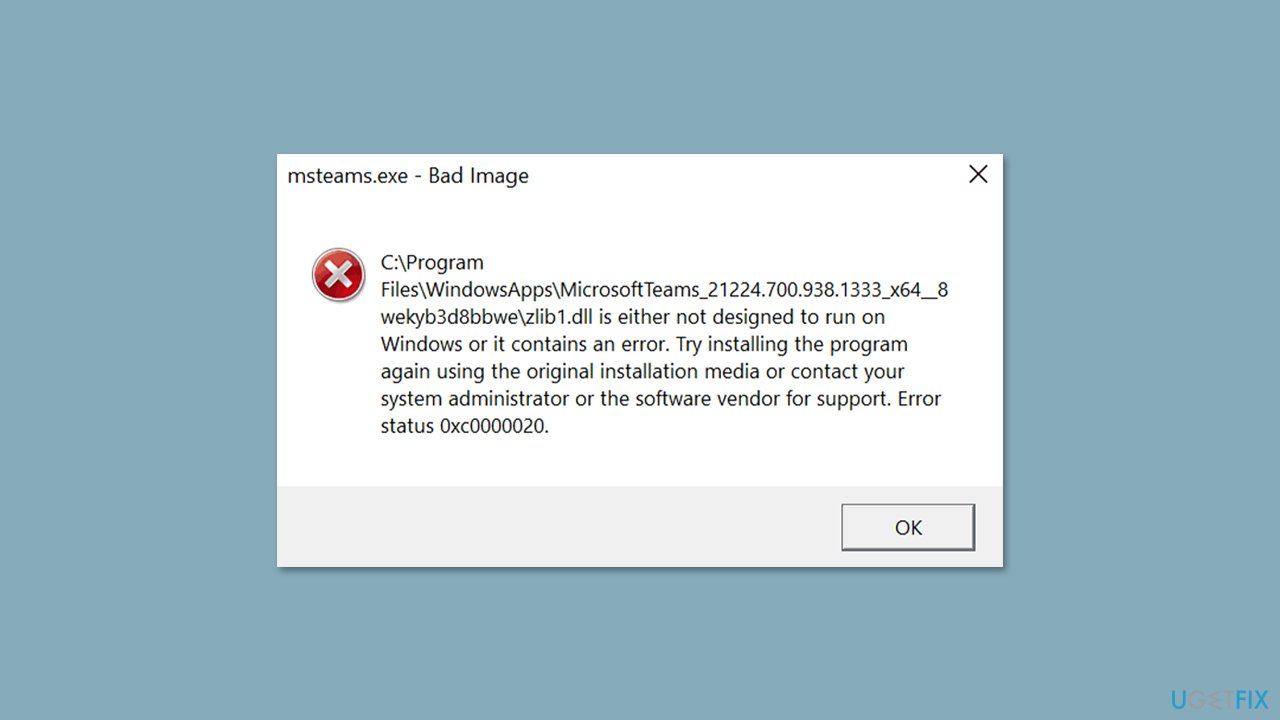
Msteams.exe – Bad Image error 0xc0000020
on Windows
Resolve the Msteams.exe - Bad Image error 0xc0000020 in Windows 10 or 11 effortlessly with our expert-tested solutions. Fixed in minutes!

What causes How to fix Msteams.exe – Bad Image error 0xc0000020 in Windows?
- Corrupted installation of Microsoft Teams
- Issues with Microsoft Edge WebView2 Runtime
- User profile corruption
- Conflicting software or settings
Repairs Windows system files, removes malware, and restores a clean OS state — without reinstalling.
Hi, I have recently installed Microsoft Teams to use it for work, but it seems like I can't get it to work. Instead of opening, it produces msteams.exe - Bad Image error with error code 0xc0000020. Please provide solutions for this.
Microsoft Teams is a purpose-built platform aimed at enhancing teamwork and communication among team members. It offers a comprehensive suite of features such as instant messaging, audio and video calling, file sharing, and real-time document collaboration, all integrated within a single application.
This all-in-one approach promotes streamlined workflows and boosts efficiency, making it an ideal choice for remote teams where physical presence is not always possible. While communication apps such as Skype have been available for a very long time now, Teams is a much better option, especially because it comes pre-installed in Windows 11, so users don't have to worry about where or how to get the app.
However, some users have reported seeing a "Msteams.exe - Bad Image Error 0xc0000020" message when trying to launch Teams using its taskbar icon. This error can prevent users from accessing and using Teams, which can be quite frustrating.
If you are one of the users experiencing this error, there are several potential solutions that you can try to fix the problem. One solution is to reset the Teams app, which involves uninstalling and reinstalling the app to reset it to its default settings. This can often resolve any issues that may be causing the error.
Another potential solution to fix the Msteams.exe - Bad Image Error 0xc0000020 error is to reset the Microsoft Edge WebView2 Runtime, which is a component that Microsoft Teams relies on to function properly. This can be done through the Windows settings menu.
Creating a new user account on your device can also help to resolve the issue, as this will create a fresh user profile that may be free from any underlying issues that are causing the error.
We detailed instructions for these and a few other solutions below, as there is no universal fix for everyone. Before proceeding, we recommend you try scanning your system with powerful PC repair software [d1], which can quickly and easily replace corrupted system files with working ones, ultimately fixing many underlying issues within minutes.
Fix 1. Run troubleshooter
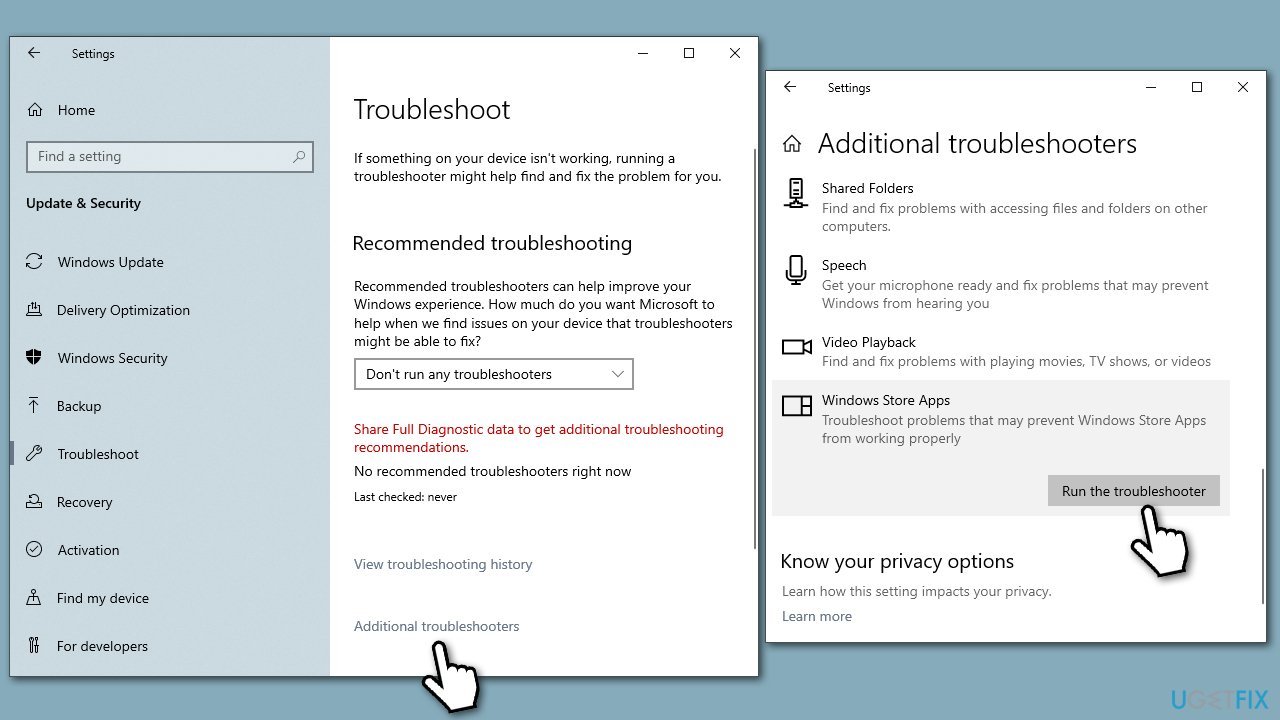
First off, we recommend checking the troubleshooter.
- Type troubleshoot in Windows search and press Enter.
- Access Additional troubleshooters/Other troubleshooters.
- Scroll down to find Windows Store Apps section and click it.
- Select Run the troubleshooter/Run.
- Wait till the scan is complete and apply the suggested fixes.
Fix 2. Disable Teams [workaround]
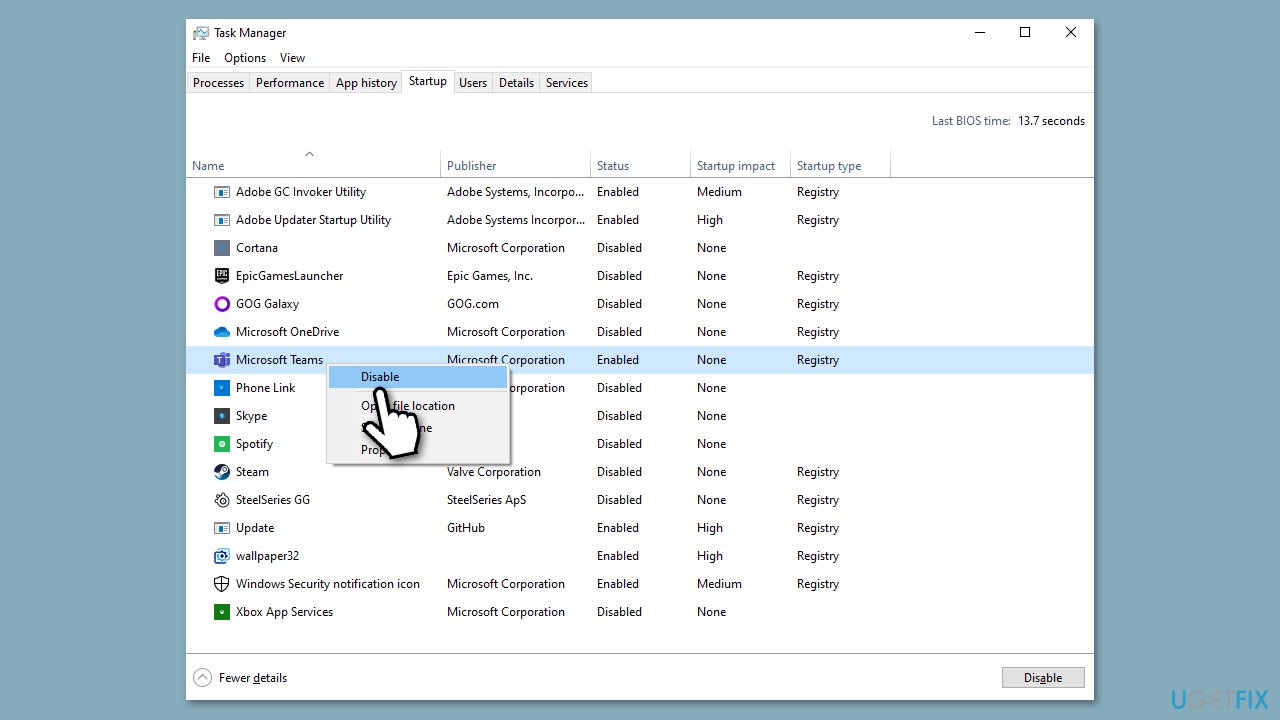
Some users said that they never needed or used Microsoft Teams, although they kept receiving the Msteams.exe - Bad Image Error at random times. If you are one of those people, you can disable the app from running at startup:
- Press Ctrl + Shift + Esc to open Task Manager.
- Click More details if required.
- Select the Startup tab at the top.
- Locate Microsoft Teams entry.
- Right-click it and select Disable.
- Close down the Task Manager.
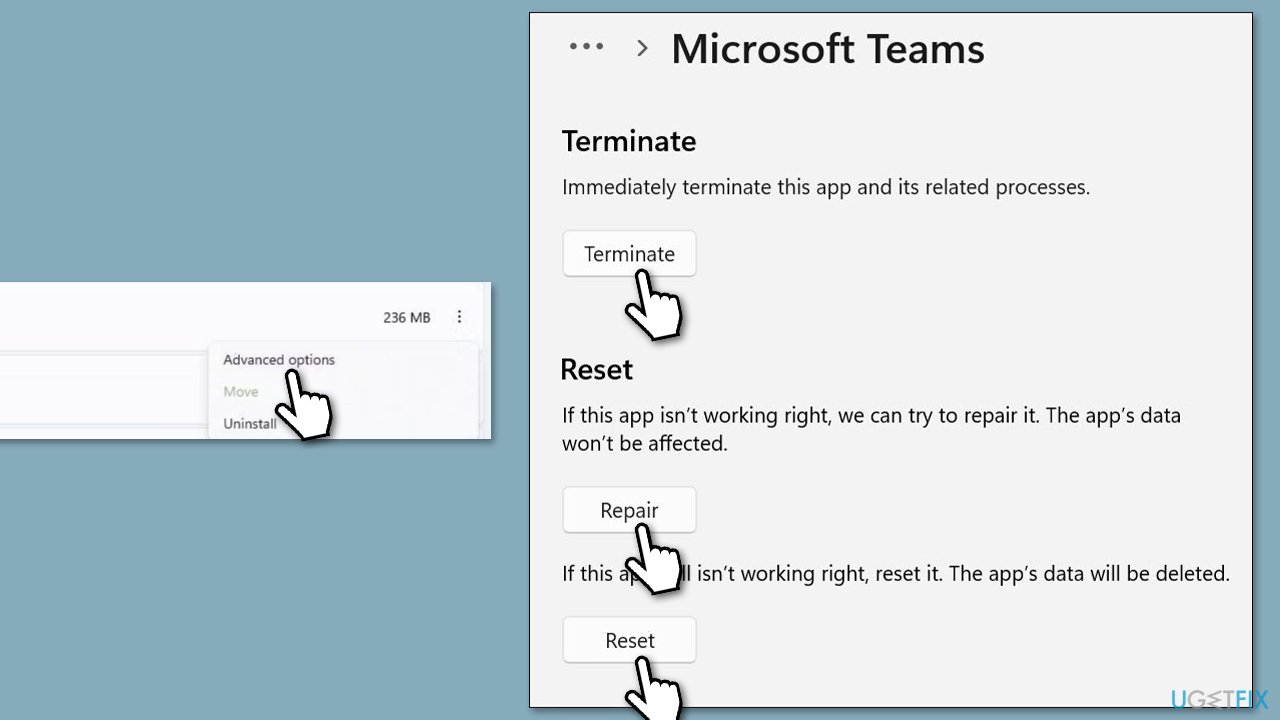
Fix 3. Repair and/or reset Teams
Resetting relevant apps could resolve the error for you:
- Right-click on Start and pick Apps and Features.
- Scroll down to locate Microsoft Teams.
- Click Advanced options, scroll down, and select Terminate.
- Click Repair.
- If that does not help, click Reset instead.
Fix 4. Reset Microsoft Edge WebView2 Runtime
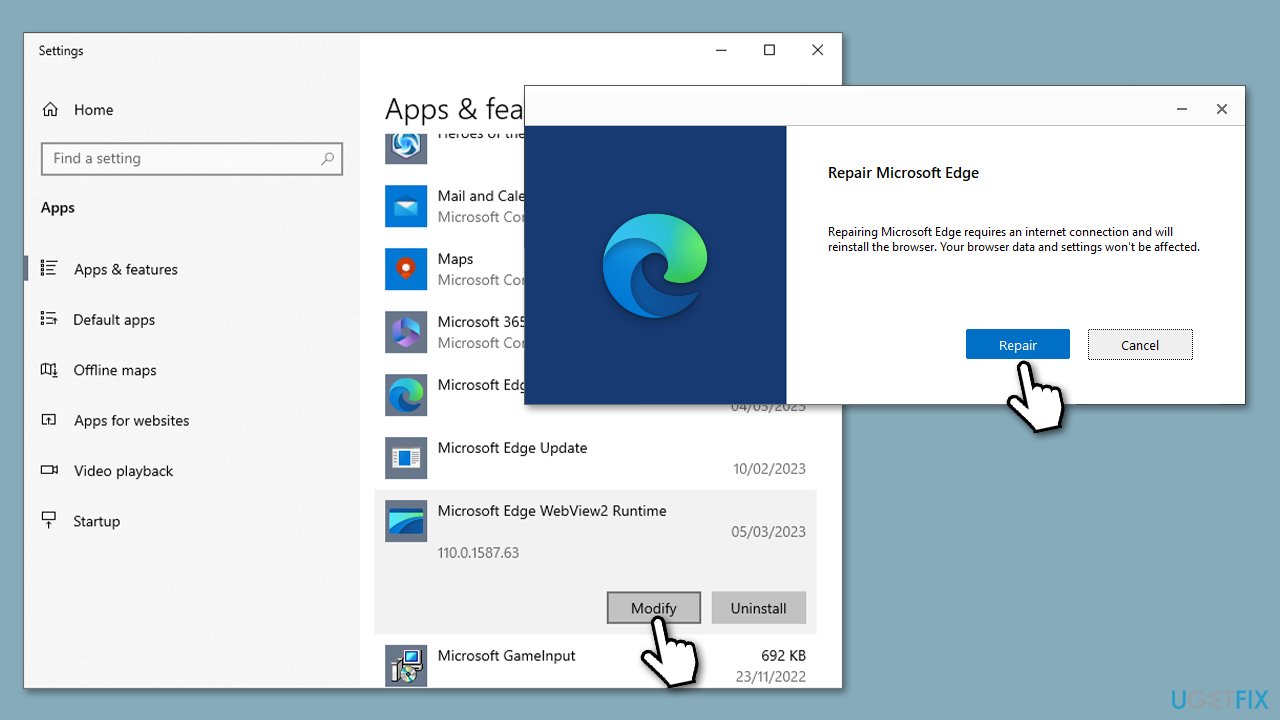
As mentioned, WebView2 Runtime is a related Teams component, so we recommend repairing it.
- Right-click on Start and pick Apps and Features.
- Scroll down to find Microsoft Edge WebView2 Runtime.
- Click Modify.
- When User Account Control shows up, click Yes.
- In the new window, click Repair.
- Follow on-screen instructions to finish the process.
Fix 5. Use another user account
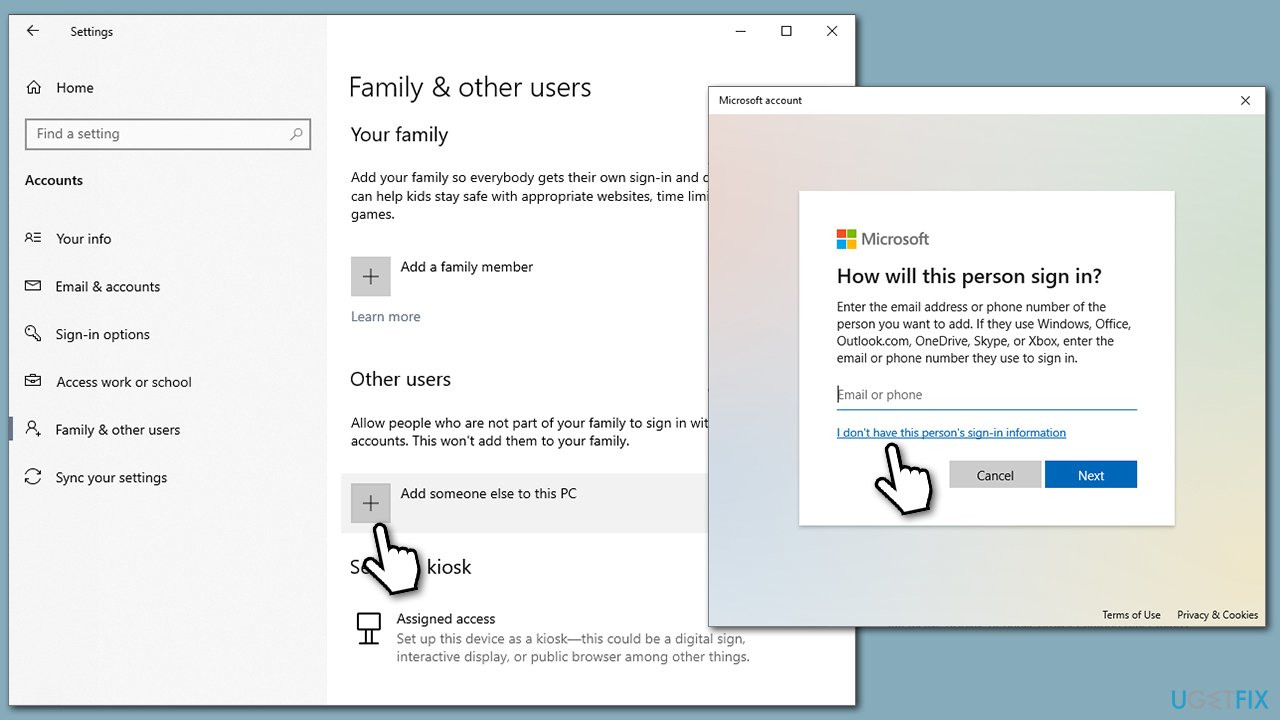
- Select Start/right-click Start and pick Settings
- Go to Family and & other users
- In the Other users section, click the Add someone else to this PC option
- Select I don't have this person's sign-in information, and then pick Add a user without a Microsoft account.
Fix 6. Reinstall Teams correctly
You should uninstall the app and reinstall it only after deleting leftover files from the WindowsApps folder.
- Type Control Panel in Windows search and press Enter.
- Go to Programs > Uninstall a program.
- Find Microsoft Teams, right-click, and select Uninstall.
- Follow on-screen instructions to remove the app.
- Once done, press Win + E to open File Explorer.
- Ensure you have Hidden Files enabled in the View section at the top.
- Go to C:\Program Files\WindowsApps location.
- Scroll down to find the Microsoft Teams folder and delete it (alternatively, you can rename it).
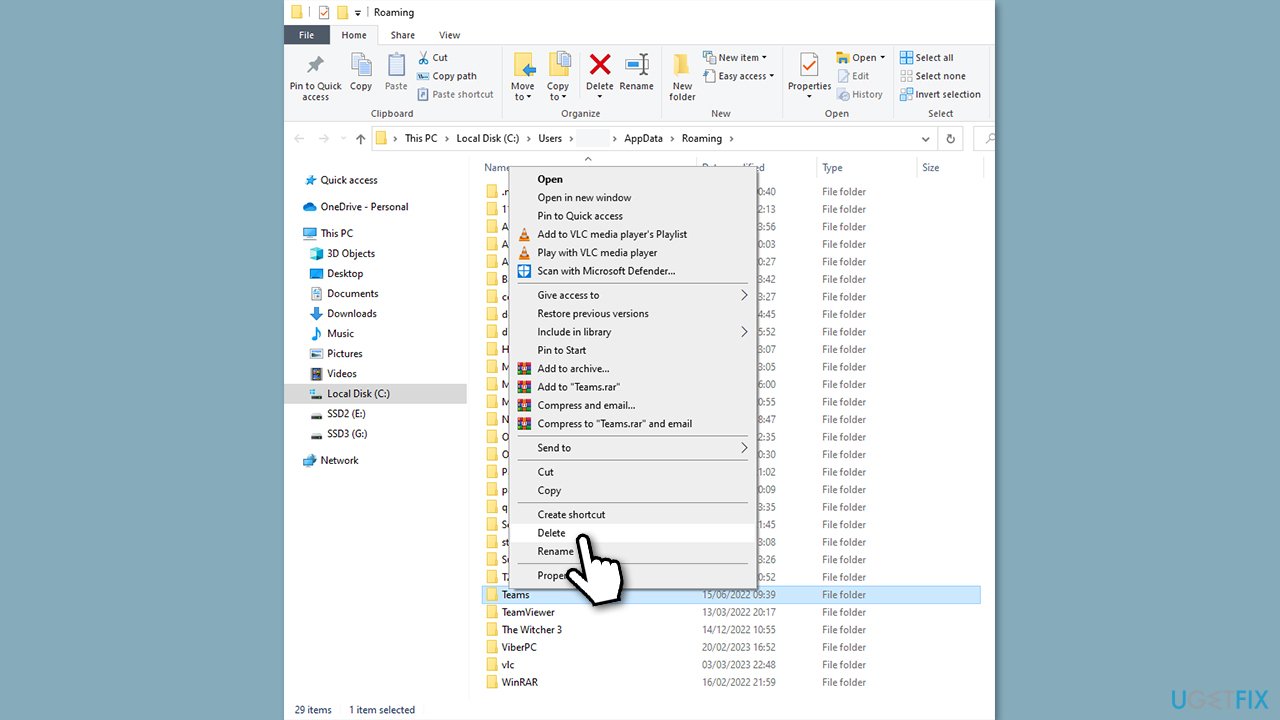
- Now type %AppData% in Windows search and press Enter.
- Delete the Teams folder here.
- Finally, restart your system and reinstall the app.
Bottom line
To fix the Msteams.exe - Bad Image error 0xc0000020, you can try resetting the Teams app by uninstalling and reinstalling it, resetting the Microsoft Edge WebView2 Runtime, or creating a new user account. If none of these solutions work, further troubleshooting may be necessary.
Frequently asked questions
The error 0xc0000020 typically signifies that there is a problem with the Msteams.exe file or its dependencies, often due to corruption or incompatibility with your Windows version.
You can try repairing or resetting the Microsoft Teams app through the Settings app, or reinstalling it entirely to fix the bad image error.
To prevent future occurrences, ensure that your Windows 10 is updated regularly and keep Microsoft Teams up to date, as updates often fix bugs and compatibility issues.




Report an issue
What's wrong with this guide? We review every report and update or remove content.
Report received — thank you. We'll review and fix it.
You need a free account to submit a report.
Be the first to comment