How to fix
MSVCR120.dll is missing error
on Windows
Fix the MSVCR120.dll missing error on Windows 10 and 11 quickly and easily. Get expert-tested solutions that work, with screenshots for clarity.

What causes How to fix MSVCR120.dll is missing error on Windows?
- MSVCR120.dll file is missing
- Corrupted system files
- Corrupted Windows images
- Malware attack
- Unintentional deletion of the file
Repairs Windows system files, removes malware, and restores a clean OS state — without reinstalling.
I cannot open a video editing program because of MSVCR120.dll is missing error. I am not sure how to download this file. Can you help me?
MSVCR120.dll is missing is one of many Windows errors that warn about issues with Dynamic Link Library file (DLL).[ref en-1] These files are responsible for specific operations that can be shared among different programs.
MSVCR120.dll file belongs to Visual C++ Redistributable Package.[ref en-2] Generally speaking, it’s a library that includes various components that are needed to run specific applications created using Microsoft Visual C++ language. However, if some components are corrupted or deleted, users can receive the following error:
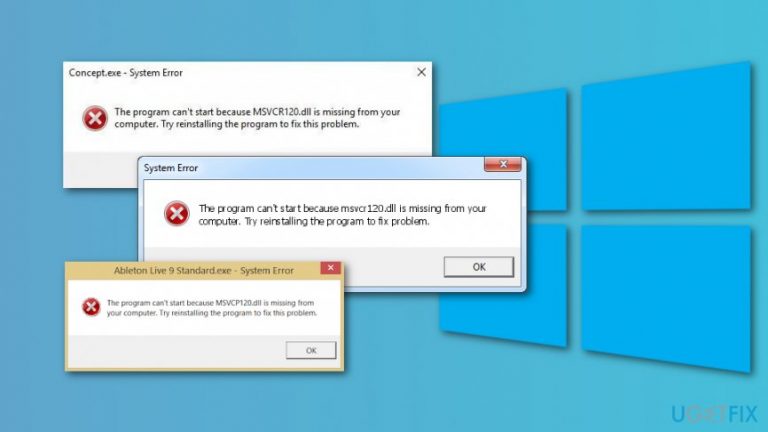
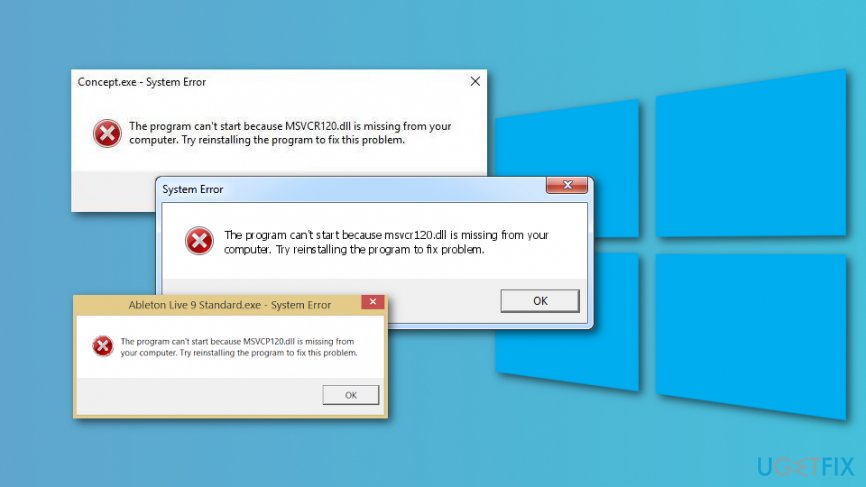
"The program can’t start because MSVCR120.dll is missing from your computer"
However, we want to stress out that installing a single MSVCR120.dll is not a way to get rid of the error and launch a needed program. This might lead to even more damage to the system or installation of malware. DLL files spread together with programs. In this case, it spreads with Visual C++ Redistributable Package. Hence, one of the methods to get rid of the error can be the reinstallation of the whole package.
In some cases, the "The program can’t start because MSVCR120.dll is missing from your computer" error is triggered by corrupted system files, Windows images or malware attack. Below you can find methods that should help to solve the issue.
Methods to fix MSVCR120.dll is missing error on Windows
The first thing you need to do once you receive an MSVCR120.dll is missing error is to check the Recycle Bin. You may have intentionally or unintentionally deleted this file. Hence, if you find it, right-click this entry and choose Restore option.
However, if it’s not there, you have to take extra measures. We have provided a list of possible methods that should help to fix "The program can’t start because MSVCR120.dll is missing from your computer" error.
In this video you will find information about elimination of this problem:
[youtube noD10fxXF84]
Method 1. Install the latest Microsoft Visual C ++ Redistributable Package
The error identifies the problem with MSVCR120.dll file which belongs to Visual C ++ Redistributable Package. The issues can be fixed by reinstalling this Microsoft page from the official website.
- Access Microsoft Visual C ++ Redistributable Package download website
- Based on your system type, start the download of the vc_redist.x64.exe or vc_redist.x84.exe file.
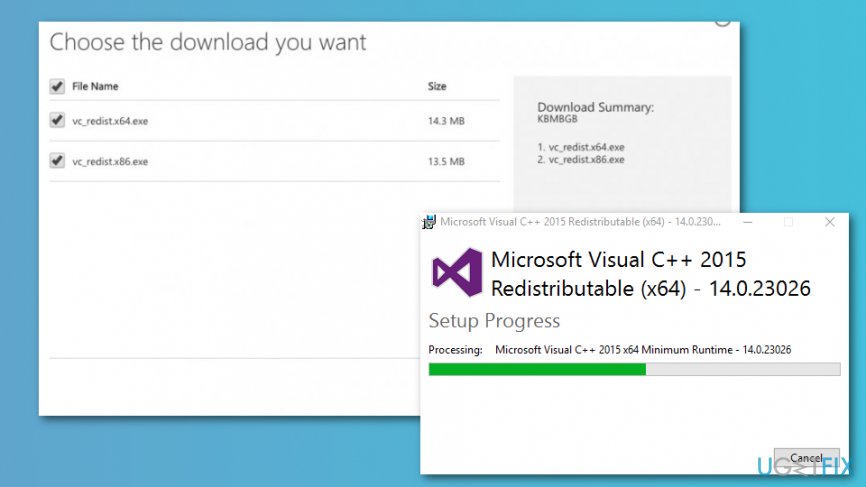
Install microsoft visual c redistributable package - When the download is over, close all the programs and double-click the file.
- Follow the instructions on the screen.
Method 2. Reinstall the troublesome program
Another method to fix MSVCR120.dll is missing error on Windows is to reinstall the program that was in used when you received an error.
- Type run in the Windows search box and open Run program.
- In the Run window, type appwiz.cpl and click Enter.
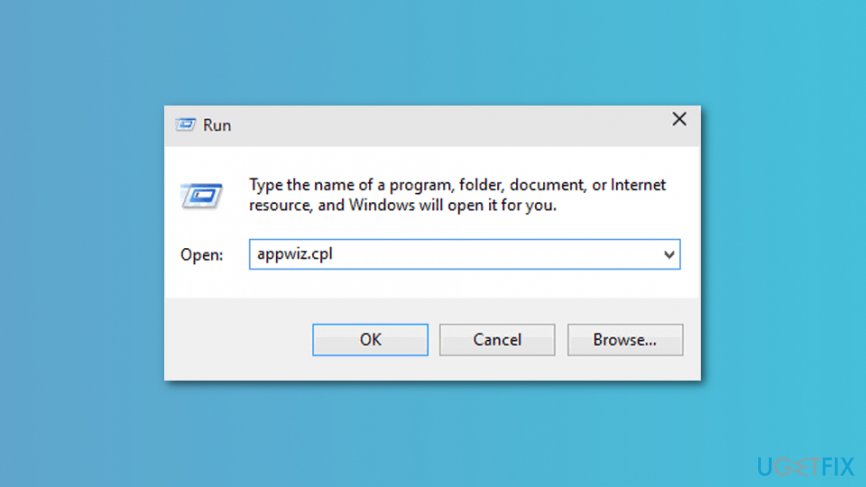
Reinstall troublesome program - In the appeared Programs and Features window, find the troublesome programs.
- Right-click it and choose Uninstall from the menu.
- Restart the computer if needed and download the same program again.
Method 3. Run SFC scan
Corrupted system files might be another reason for MSVCR120.dll is missing error. However, they can be fixed by running a Windows System File Checker (SFC)[ref en-3] scan:
- Enter command prompt in the Windows search box.
- Find Command Prompt in the results list, right-click it and choose Run as administrator.
- In the Command Prompt type sfc /scannow command and click Enter.
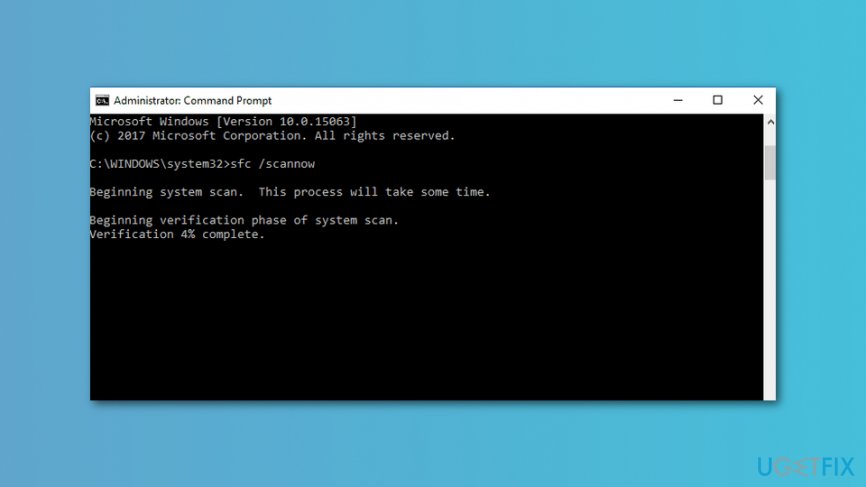
Run sfc scan - Wait until the command is executed to see if some problems were detected and fixed.
Method 4. Run DISM scan
If SFC scan was unable to fix "The program can’t start because MSVCR120.dll is missing from your computer" error, try running DISM scan[ref en-4] which helps to repair Windows images:
- Start Command Prompt as administrator as explained in the previous method.
- In the Command Prompt type DISM /Online /Cleanup-Image /RestoreHealth command and click Enter.
Run sfc scan - If any issues with Windows images is detected and fixed, you will see this information after the scan.
Method 5. Install available updates
One of the Windows or software updates might include fixed MSVCR120.dll file. Hence, you should check for the available updates and install them:
- In the Windows search box, type Check for updates.
- Click on the first appeared result called Check for updates.
- You will be redirected to Windows Update settings. Click Check for updates button.
- When Windows displays available updates, install them and check if the error is gone.
Method 6. Scan for malware
If none of the methods mentioned above helped to fix MSVCR120.dll error, you should check if your computer is not infected with a virus. Various cyber threats might cause system changes that result in error messages. Hence, scan your Windows machine with [rev id=“Reimage"] or your preferred security software to check your computer’s state.
Bottom line
To fix the MSVCR120.dll is missing error, you can check the Recycle Bin for the file, reinstall the Microsoft Visual C++ Redistributable Package, or address any corrupted system files. If none of these methods work, further investigation into system integrity may be necessary.
Frequently asked questions
The MSVCR120.dll file is a Microsoft Visual C++ Redistributable component that is essential for running applications developed with Visual C++. If it is missing, programs may fail to launch on Windows 10 or Windows 11.
You can restore the missing MSVCR120.dll file by downloading and installing the Microsoft Visual C++ Redistributable for Visual Studio 2013 from the official Microsoft website.
Yes, you can also try running the System File Checker tool by executing 'sfc /scannow' in the Command Prompt to fix corrupted system files that may be causing the MSVCR120.dll error on Windows 11.




Report an issue
What's wrong with this guide? We review every report and update or remove content.
Report received — thank you. We'll review and fix it.
You need a free account to submit a report.
Be the first to comment