How to fix
Msvcrt.dll missing or not found error
on Windows
Resolve the msvcrt.dll missing error in Windows 10 or 11 effortlessly. Get expert-tested solutions for a smooth experience and zero traces left.

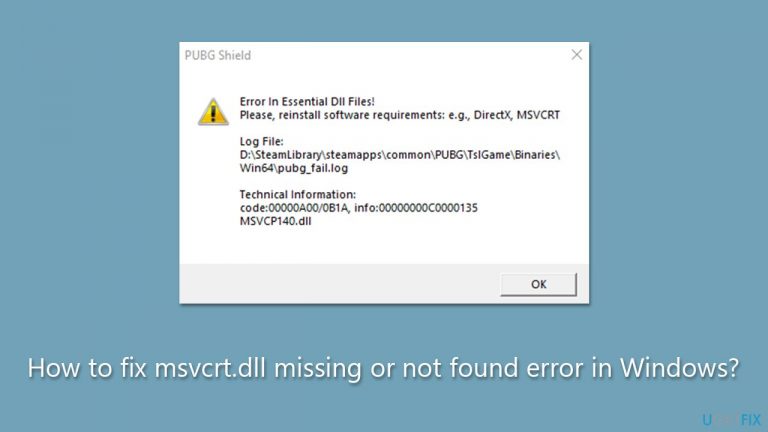
What causes How to fix msvcrt.dll missing or not found error in Windows?
- File version mismatch
- Malware infections
- Outdated or damaged drivers
- Registry errors
- Conflicts with other programs
Repairs Windows system files, removes malware, and restores a clean OS state — without reinstalling.
Hi, I have recently purchased a game on Steam, and I keep receiving the "msvcrt.dll missing" error whenever I attempt to launch it. Please advise on how to resolve this. Thanks. I'm running Windows 10 by the way.
Dynamic Link Library files are essential components of the Windows operating system that contain codes, data, and resources that can be used by multiple programs simultaneously. DLL files help save disk space and improve the performance of the computer. However, when a DLL file becomes corrupted or missing, users might receive errors, and msvcrt.dll missing or not found is one of them.
This error usually occurs when people try to launch games, although regular programs can also suffer from this issue. In other cases, users can get the error when they launch their PCs. Msvcrt.dll is a component of Microsoft Visual C++ Redistributable Package and is essential to run some programs.
The error message can appear differently, such as "The program can't start because msvcrt.dll is missing from your computer. Try reinstalling the program to fix this problem." or "msvcrt.dll Not Found."
In most cases, the issue is caused by a file version mismatch, where the program is looking for a specific version of msvcrt.dll that is not present on the computer. However, there can be other causes, such as malware infections, outdated or damaged drivers, registry errors, or conflicts with other programs.
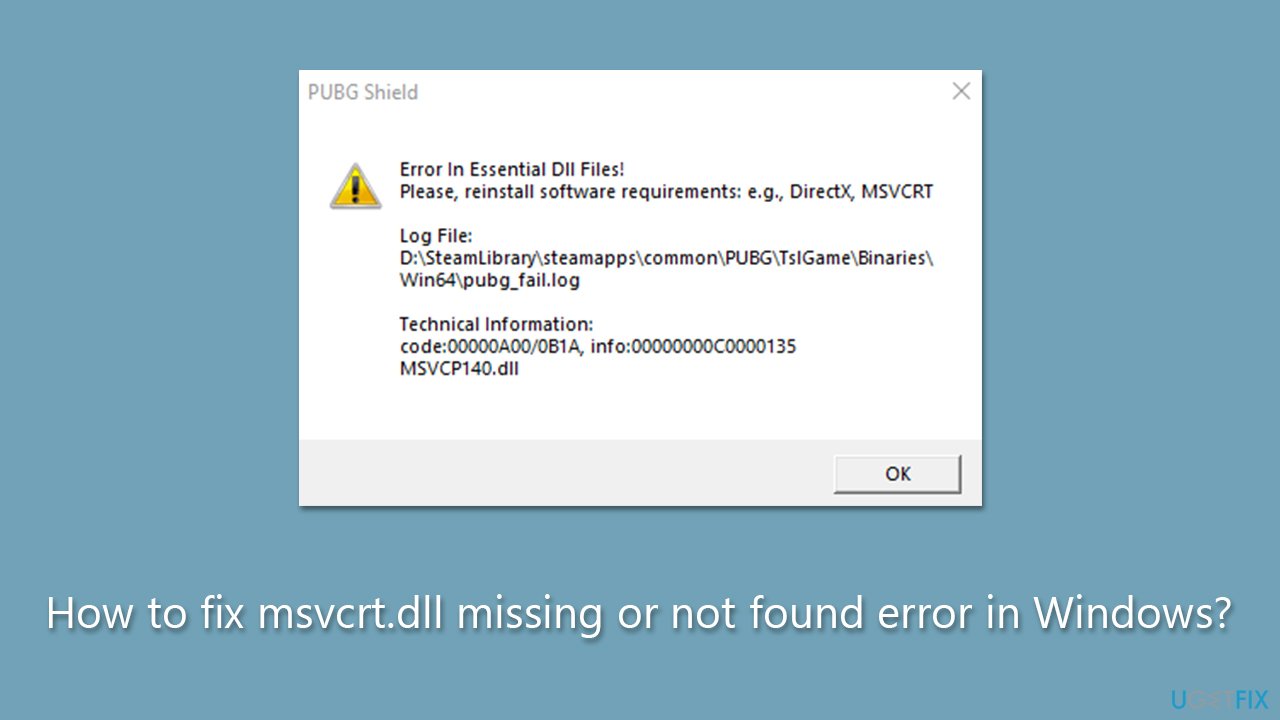
To fix the msvcrt.dll missing or not found error, the first step is to check the Recycle Bin and see if the file has been accidentally deleted. If it is not found there, the next step is to download and install all the versions of the Microsoft Visual C++ Redistributable Package.
If the issue persists, running a virus scan to check for malware infections or updating or reinstalling drivers can also help, as well as checking for corrupted system files. In some cases, reinstalling the affected program or performing a system restore to a previous point can also resolve the issue.
Below you will see the manual troubleshooting guide - follow it, and you should be able to resolve the error. If you would rather skip manually finding what is actually wrong, we recommend running an automatic PC repair tool [d1].
Fix 1. Install all Windows updates
Windows updates often carry bug fixes, which can resolve DLL errors. Please make sure your device is up to date:
- Type Updates in Windows search and hit Enter.
- On the right side, click Check for updates.
- Wait till all the data is downloaded and installed, and don't forget to install all the optional updates.
- After it's done, restart the system.
Fix 2. Run SFC and DISM
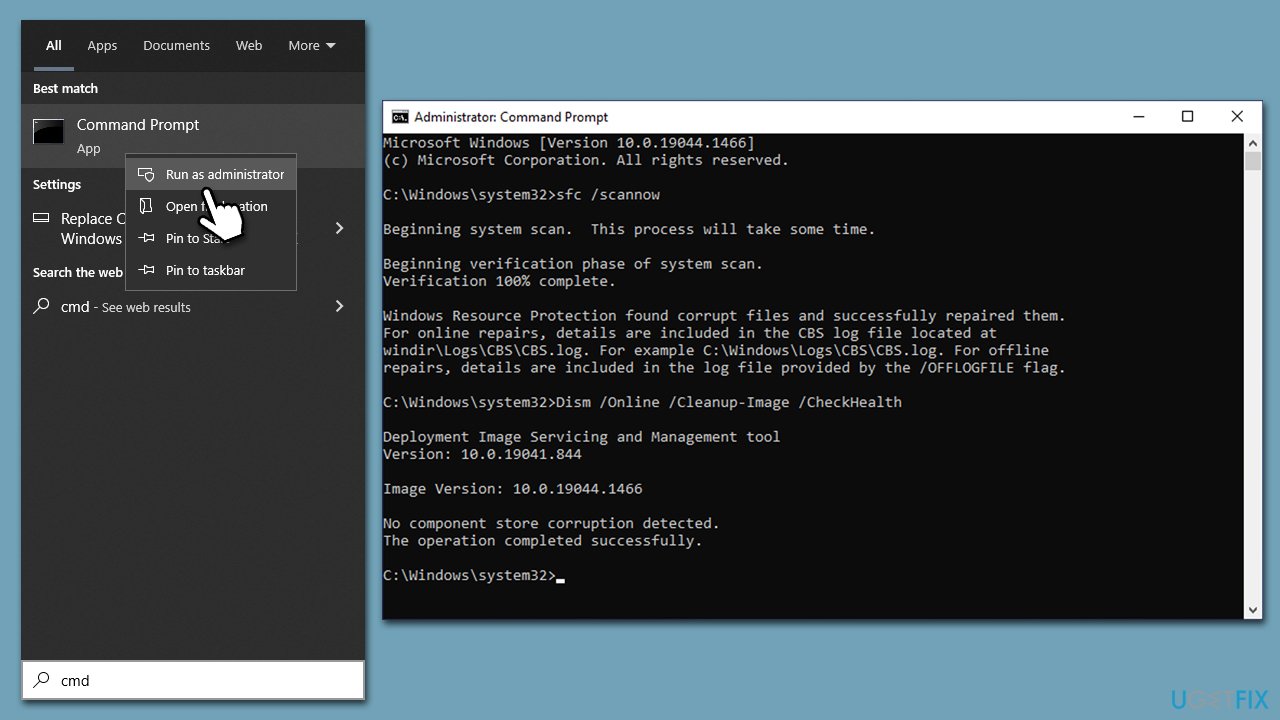
- Type cmd in Windows search.
- Right-click on the Command Prompt result and select Run as administrator.
- When the UAC window pops up, click Yes.
- Paste the following command into the new window:
sfc /scannow - Press Enter and wait till the scan is finished
- Once done, run this set of commands, pressing Enter each time:
DISM /Online /Cleanup-Image /CheckHealth
DISM /Online /Cleanup-Image /ScanHealth
DISM /Online /Cleanup-Image /RestoreHealth - Restart your device.
Fix 3. Install the missing Visual C++ components
There are many versions of Visual C++, and if some of these are missing from your computer, you might receive the msvcrt.dll missing or not found error.
- Open Control Panel and go to Programs > Uninstall a program.
- Here, scroll down and check the list of the installed Visual C++ versions.
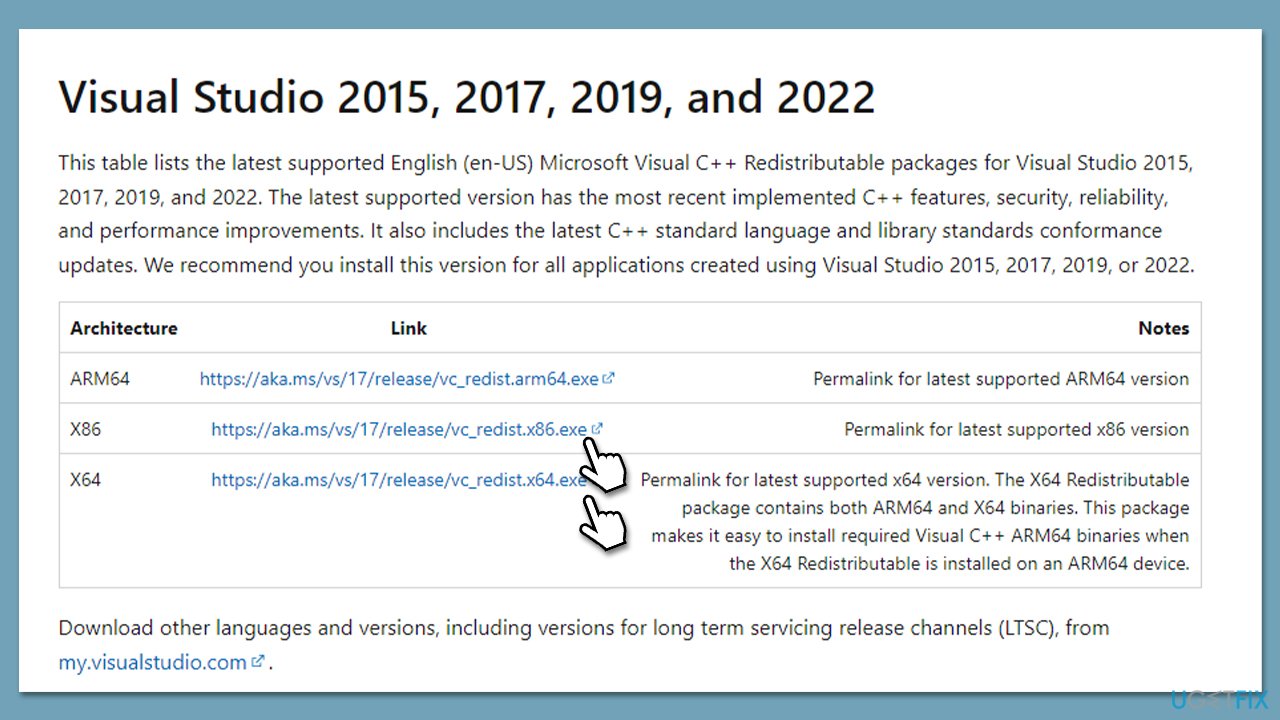
- Open your browser and navigate to the official Microsoft Visual C++ download page.
- Download and install all the missing versions (including the x84 and x64 versions) of Visual Studio.
- Once done, restart your PC.
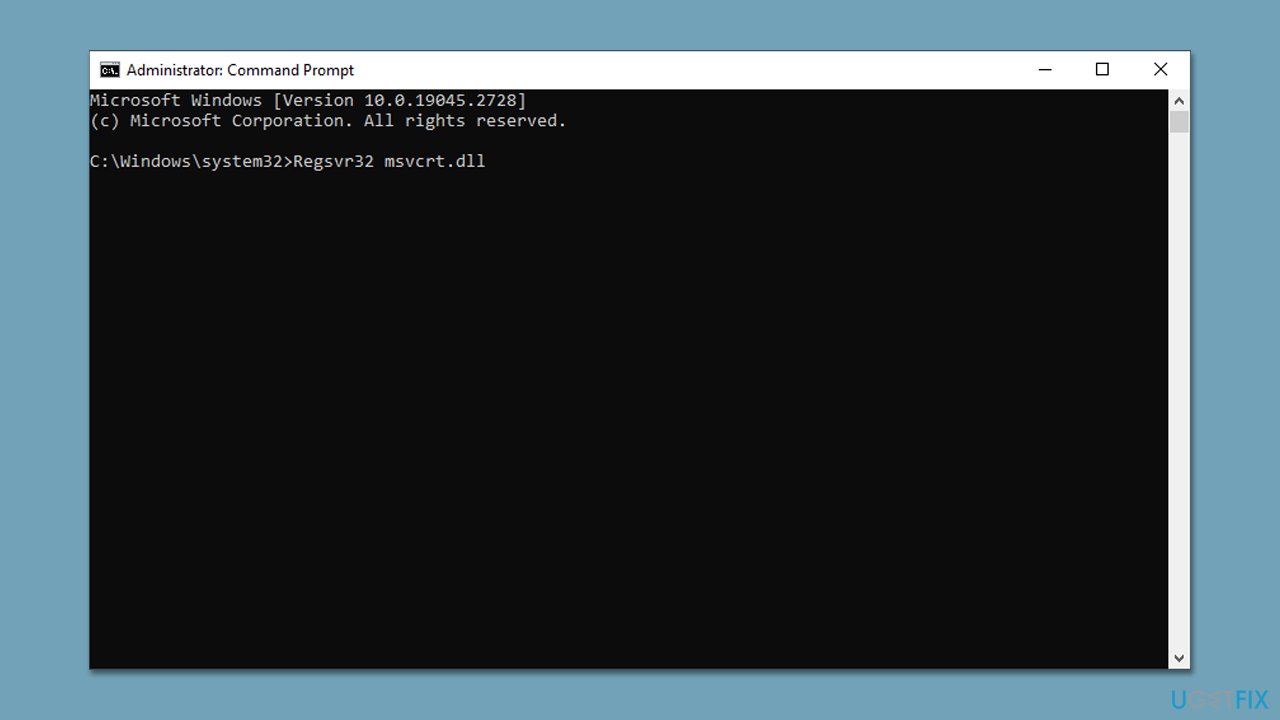
Fix 4. Reregister the file
- Open Command Prompt as administrator, as previously explained.
- Copy and paste the following command:
Regsvr32 msvcrt.dll - Press Enter and reboot your PC.
Fix 5. Run a security scan
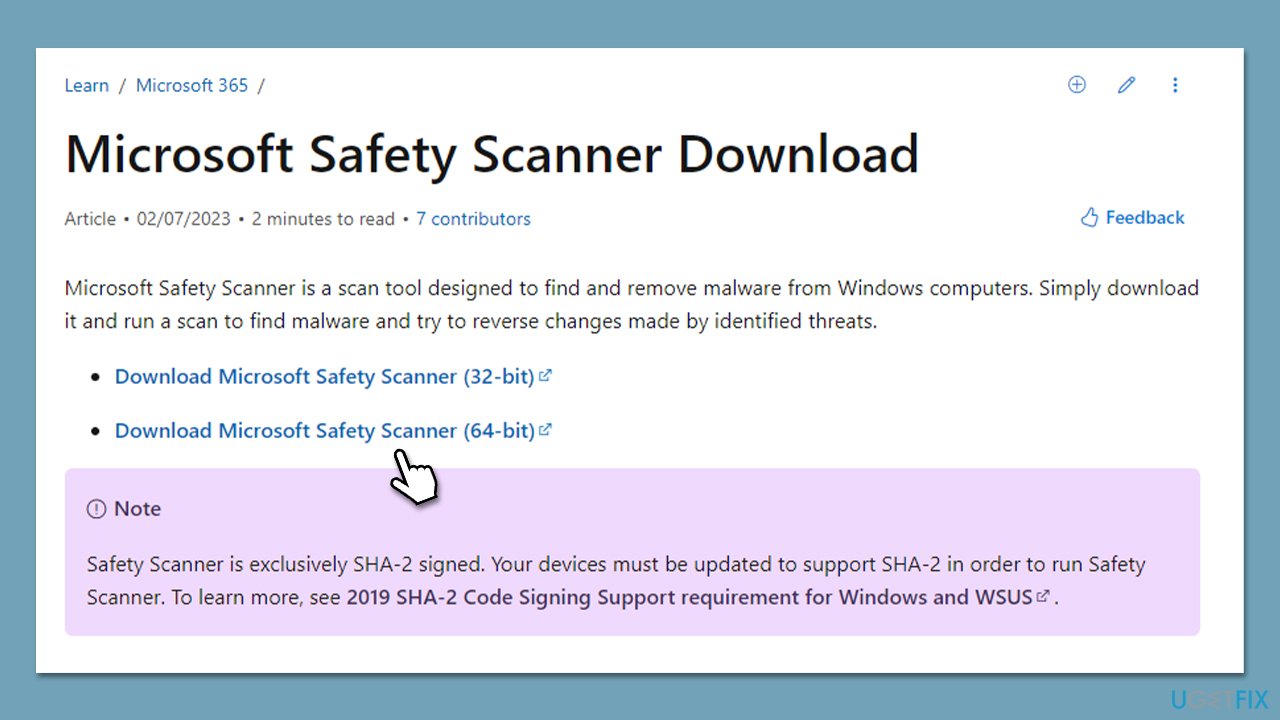
If you have a third-party security tool installed, you can use it to run the scan. However, if malware is present, it means that the tool did not catch it. We recommend running Microsoft Safety Scanner instead:
- Go to the Microsoft Safety Scanner download page on the official Microsoft website.
- Select the appropriate version of the tool based on your system's architecture (32-bit or 64-bit) and language, and download it.
- Double-click on it to run the tool.
- In the Microsoft Safety Scanner window, click the Full scan radio to perform a comprehensive scan of your computer.
- Click the Next button to begin the scan.
- Depending on the size of your hard drive and the number of files on your system, the scan may take some time to complete.
- Once the scan is complete, the tool will either quarantine or delete the infected files.
- After the cleanup process, you may need to restart your computer to ensure that all threats have been removed.
Fix 6. Try System Restore
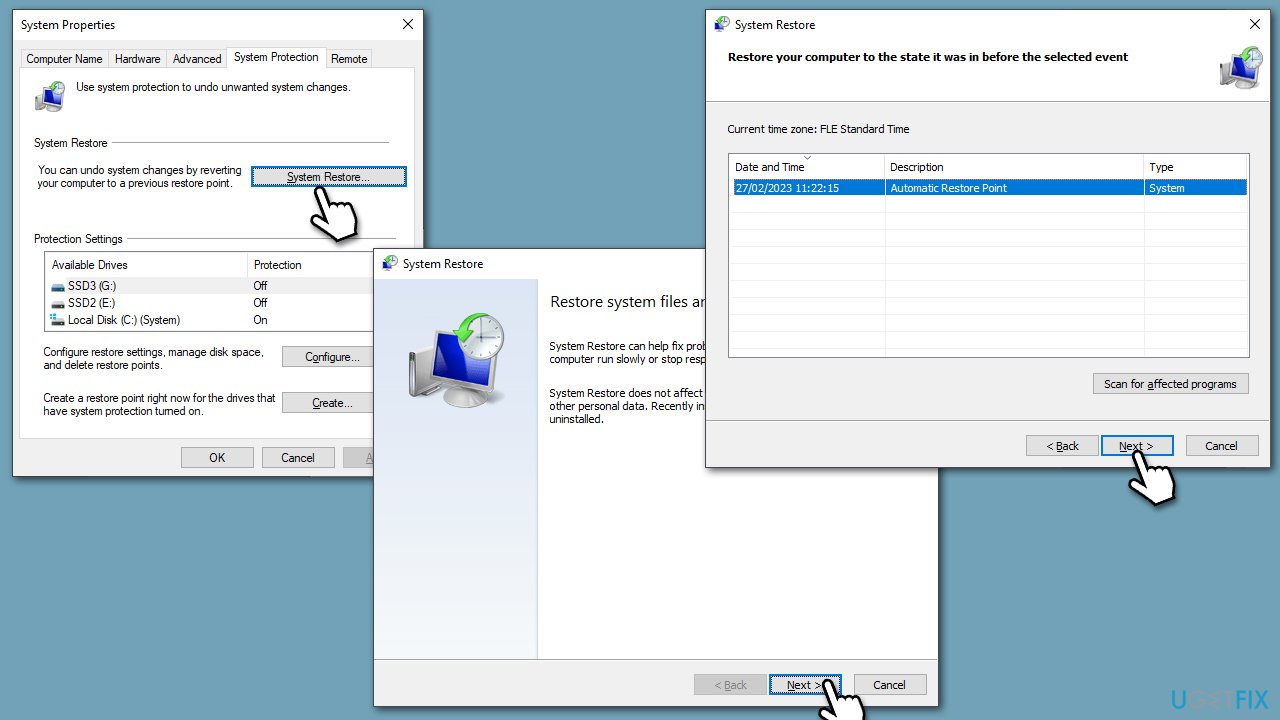
You can attempt to bring the system to a time when the problem did not exist with the help of System Restore:
- Type in Create a Restore point in Windows search and hit Enter.
- In the System Protection tab, pick System restore.
- Click Next.
- Click Show more restore points (if available).
- Pick the time before the problem occurred and click Next.
- Your computer will reboot.
Bottom line
To fix the msvcrt.dll missing or not found error, check the Recycle Bin for accidental deletion, download and install all versions of the Microsoft Visual C++ Redistributable Package, and run a virus scan. If the issue persists, consider updating or reinstalling drivers, checking for corrupted system files, or reinstalling the affected program. If none of these solutions work, performing a system restore to a previous point may help.
Frequently asked questions
You can try reinstalling the program that is giving the error, as it may restore the missing msvcrt.dll file. Alternatively, running the System File Checker tool can help repair any corrupted system files in Windows 10.
You should download the msvcrt.dll file from a trusted source and place it in the application's installation directory or the Windows System32 folder. Be cautious, as downloading DLL files from unverified sites can pose security risks.
Yes, updating Windows 10 can resolve the msvcrt.dll not found error by replacing any missing or corrupted system files. It's recommended to keep your system updated to avoid such errors.




Report an issue
What's wrong with this guide? We review every report and update or remove content.
Report received — thank you. We'll review and fix it.
You need a free account to submit a report.
Be the first to comment